 Domain SearchInstantly check and register your preferred domain name
 Web Hosting
 cPanel HostingHosting powered by cPanel (Most user friendly)
 WordPress HostingHost your WordPress website with fast, secure, and affordable WordPress hosting in Kenya.
 KE Domains
 Reseller HostingStart your own hosting business without tech hustles
 Windows HostingOptimized for Windows-based applications and sites.
 Free Domain
 Affiliate ProgramEarn commissions by referring customers to our platforms
 Free HostingTest our SSD Hosting for free, for life (1GB storage)
 Domain TransferMove your domain to us with zero downtime and full control
 All DomainsBrowse and register domain extensions from around the world
 .Com Domain
 WhoisLook up domain ownership, expiry dates, and registrar information
 VPS Hosting
 Managed VPSNon techy? Opt for fully managed VPS server
 Dedicated ServersEnjoy unmatched power and control with your own physical server.
 Website Builder
 Online Store BuilderLaunch a professional e-commerce store without writing code.
 Web Design ServiceGet a custom-designed website tailored to your brand and goals. From just KES 15,600
 BlogRead our guides on web hosting, online business, digital marketing, and more
 SupportOur support guides cover everything you need to know about our services
 ContactContact us via chat or email
Website errors can be difficult to diagnose from the browser alone.
A visitor sees a broken page, a blank screen, or a generic error message, but none of that tells you what actually went wrong behind the scenes.
This is where cPanel error logs come in.
They provide the actual clues you need, recording the specific errors your server and applications generate as they happen.
An error log, in simple terms, is a running record of problems your server has encountered, complete with timestamps and details that help you trace an issue back to its actual cause.
Learning to read these logs is one of the more useful skills for anyone managing a website, since it turns vague symptoms into something you can actually investigate and fix.
Without these logs, troubleshooting a website often becomes a guessing game.
You might try disabling plugins one by one, clearing caches, or reinstalling software, all without any real evidence pointing you in the right direction.
Error logs give you that evidence, cutting down the time spent guessing and getting you closer to an actual fix.
This guide walks through the most common cPanel error logs you are likely to encounter, what each one typically means, and how to start narrowing down a fix.
Common cPanel Error Logs Messages and What They Mean
a) 404 Not Found
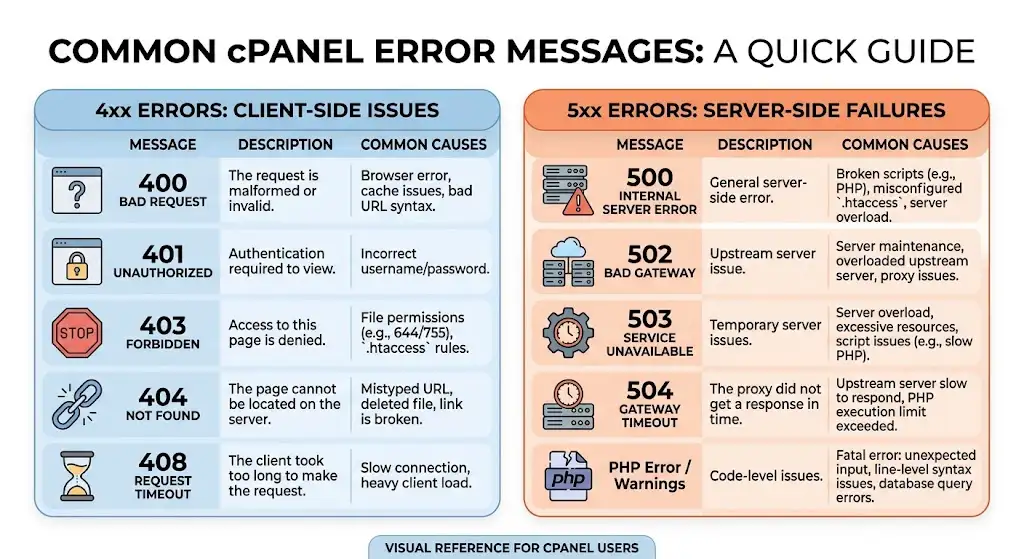
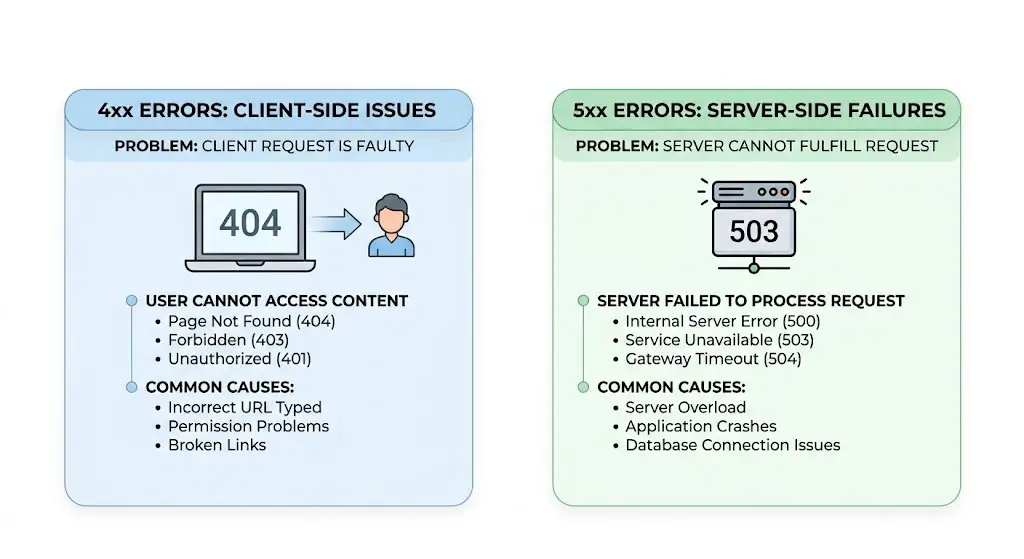
A 404 error means the server could not find the specific page or file a visitor or browser requested.
This is one of the most familiar errors on the web, and it usually points to something fairly simple.
Common causes include a page that was deleted or moved without a redirect in place, a mistyped URL, or a broken internal link pointing to content that no longer exists.
It is worth checking whether the page still exists at a different location, whether your permalink structure changed recently, and whether any recent file or plugin changes affected the page in question.
b) 403 Forbidden
A 403 error means the server understood the request but is refusing to allow access to the requested resource.
This is generally a permissions issue rather than a missing file.
Common causes include incorrect file or folder permissions, restrictive rules inside a .htaccess file, or access restrictions configured at the server or application level.
Checking your file and folder permissions, reviewing your .htaccess rules for anything unusually restrictive, and confirming there are no IP-based access rules blocking the request are all good starting points.
c) 500 Internal Server Error
A 500 error is a general, catch-all message indicating something went wrong on the server, without specifying exactly what.
It tends to be one of the more frustrating errors to diagnose simply because the message itself gives so little away.
Common causes include PHP errors in your code, problems within a .htaccess file, conflicts caused by a plugin, theme or application, and resource limitations on the server.
Checking your PHP error logs, temporarily renaming your .htaccess file to see if the error disappears, and disabling recently added plugins or themes one at a time are all practical ways to narrow this down.
d) 502 Bad Gateway
A 502 error occurs when a server acting as a gateway or proxy receives an invalid response from another server it is communicating with.
In a cPanel environment, this often points to a communication breakdown between your web server and the application processing requests behind it.
Common causes include general server or application communication problems, along with PHP-FPM or other upstream service issues where applicable.
If your hosting environment uses PHP-FPM, checking whether that service is running correctly is a sensible first step here.
e) 503 Service Unavailable
A 503 error means the server is currently unable to handle the request, usually on a temporary basis rather than a permanent one.
Common causes include server overload, an application or service that is temporarily unavailable, or resource limits being reached on your hosting account.
If this error appears during a traffic spike, resource limitations are a likely culprit, whereas if it appears randomly with normal traffic, an underlying service issue is more probable.
f) PHP Fatal Error
A PHP fatal error means the script encountered a problem serious enough that PHP could not continue executing it.
Unlike warnings or notices, a fatal error genuinely stops the script in its tracks.
Common causes include missing functions or files that the script expected to find, an incompatible PHP version running code written for a different version, and conflicts between plugins, themes or other application components.
Checking the exact file and line number referenced in the error, confirming your PHP version matches your application’s requirements, and testing with plugins or themes temporarily disabled are all useful diagnostic steps.
g) PHP Warning and Notice Messages
It helps to know the difference between warnings, notices and fatal errors before assuming your website is broken.
A fatal error stops script execution completely, while warnings and notices are far less severe.
A warning generally indicates something unexpected happened, but the script continued running anyway.
A notice is even milder, often just flagging a minor issue like an undefined variable, without affecting how the page actually displays.
Not every log entry means your website is seriously broken.
Many production sites accumulate warnings and notices in their logs without visitors noticing any actual problem, though it is still worth cleaning these up over time for better code health.
h) Permission Denied Errors
Permission denied errors occur when a process attempts to read, write or execute a file it does not have the correct access rights for.
Common causes include incorrect file or folder permissions, and ownership issues where files belong to the wrong user or group.
Reviewing the permissions on the affected file or directory, and confirming ownership matches what your hosting environment expects, will usually resolve this type of error.
i) Database Connection Errors
Database connection errors happen when your website’s code cannot successfully connect to its database.
Common causes include incorrect database credentials stored in your configuration file, problems on the database server itself, or general configuration issues affecting the connection.
Double-checking your database name, username, password and host settings against what actually exists in cPanel is the first place to look, followed by confirming the database service is running properly.
j) File or Class Not Found Errors
These errors occur when your application tries to load a file or class that it cannot locate.
Common causes include missing files that were never uploaded or were accidentally deleted, incorrect file paths referenced in your code, and broken deployments or incomplete updates that left some files out of sync with others.
Reviewing your most recent file changes, confirming every expected file actually made it to the server, and checking file paths for typos are practical next steps.
How to Read a cPanel Error Log
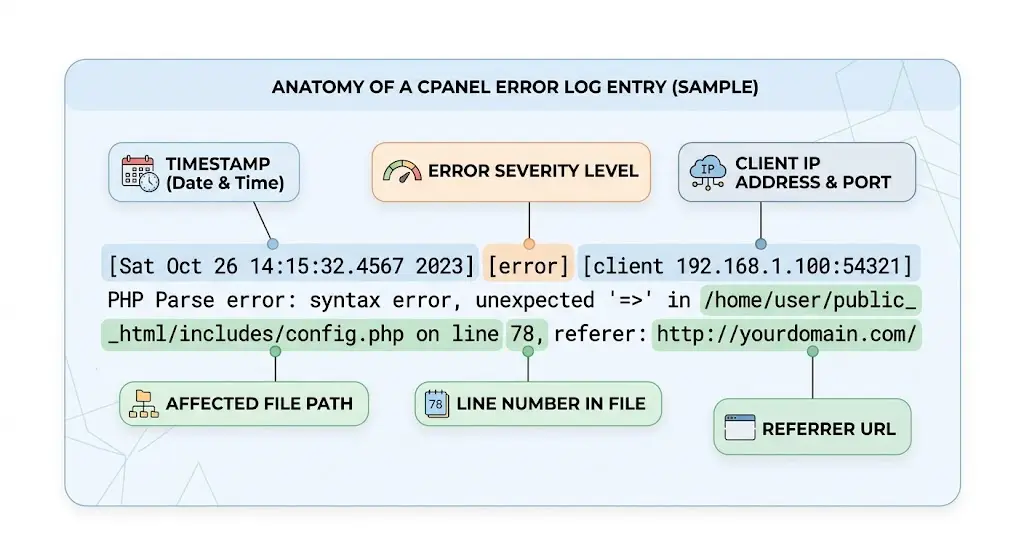
Rather than just knowing what different errors mean, it helps to know how to actually read a log entry itself.
A typical entry generally includes several key parts worth paying attention to.
- The date and time tells you exactly when the error occurred, which helps you connect it to a specific event, such as a recent update or a traffic spike.
- The error level indicates how serious the issue is, distinguishing between notices, warnings and fatal errors.
- The file and path show you exactly which file triggered the error, narrowing your search considerably.
- The line number points to the precise location within that file where the problem occurred.
- The error message itself describes what actually went wrong, often in fairly technical language, but usually specific enough to search for or interpret with a bit of context.
- Finally, it helps to look at what happened immediately before the error in the log, since the surrounding entries can reveal a sequence of events leading up to the actual failure, rather than treating the error as an isolated incident.
How to Access Error Logs in cPanel
Most cPanel accounts provide access to error logs through the Metrics section, often labeled Errors, where recent server-level errors are displayed directly in your dashboard.
Beyond this built-in view, file-based logs and application-specific logs may also be available, depending on your application and hosting setup.
WordPress, for example, can generate its own debug log separate from the general server error log.
It is worth knowing that the exact tools available to you can vary depending on your specific hosting configuration, so if you cannot locate a particular log, checking with your hosting provider is a reasonable next step.
When Should You Contact Your Hosting Provider?
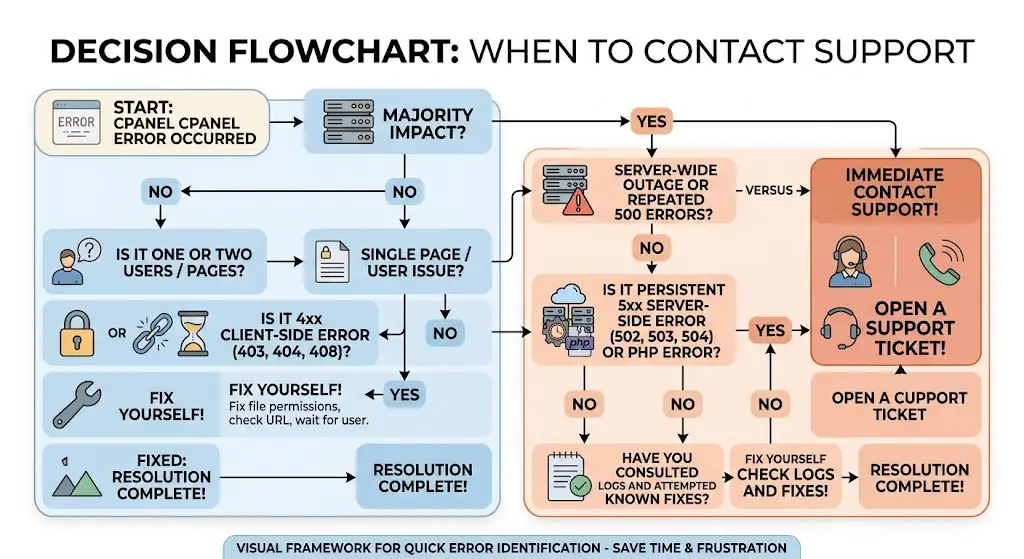
Some issues are well within your control to fix directly, while others are better left to your hosting provider.
Server-level errors, where the problem clearly originates outside your website’s own code, are worth flagging to your host.
Persistent 5xx errors that do not resolve after checking the common causes above often point to something happening at the server level rather than your application.
Resource problems, where your account appears to be hitting limits it should not reasonably be hitting, are worth raising too, since your provider can confirm whether something unusual is happening on their end.
Services you cannot restart or configure yourself, such as certain background processes, generally require provider involvement.
Finally, if multiple websites on the same account or server are affected simultaneously, this is a strong signal that the issue sits at the server level rather than within any single website.
Choosing cPanel Hosting With Reliable Support
Dealing with common cPanel error logs is a lot less stressful when your hosting provider actually gives you easy access to the tools you need and support you can rely on when something goes beyond what you can fix yourself.
Truehost’s cPanel hosting plans are built around this kind of practical support, giving you straightforward access to cPanel’s error monitoring and troubleshooting tools, along with hosting support when an issue needs a closer look.
Combined with hosting resources sized appropriately for your website, this gives you a solid foundation for catching and resolving problems before they affect your visitors.
Explore Truehost hosting plans to find a package with the tools and support your website actually needs.
FAQs
Where can I find error logs in cPanel?
Most cPanel accounts display recent errors under the Metrics section, often labeled Errors. Depending on your hosting setup, additional file-based or application-specific logs may also be available.
What does a 500 error mean in cPanel?
A 500 error is a general server-side error indicating something went wrong, without specifying the exact cause. Common triggers include PHP errors, .htaccess issues, plugin or theme conflicts, and resource limitations.
How do I fix PHP errors in cPanel?
Start by checking your PHP error logs for the specific file and line number referenced. From there, confirm your PHP version is compatible with your application, and test with plugins or themes disabled to isolate the source of the problem.
Why is my cPanel error log filling up?
Logs can fill up quickly if a recurring error is being triggered repeatedly, such as a broken function being called on every page load. Identifying and fixing the underlying cause usually stops the log from growing so fast.
Can error logs slow down my website?
In most cases, error logs themselves have a minimal direct impact on performance. However, the underlying issue causing repeated errors, such as inefficient code or a failing process, can absolutely affect your website’s speed.
Should I delete cPanel error logs?
You can clear logs periodically to keep them manageable, but it is worth reviewing them first, since deleting a log removes the history you might need to properly diagnose a recurring issue.
Can cPanel logs show why my website is down?
Often, yes. Error logs frequently capture the specific failure that caused a website to go down, making them one of the first places worth checking when troubleshooting an outage.