Domain SearchInstantly check and register your preferred domain name
 Web Hosting
 cPanel HostingHosting powered by cPanel (Most user friendly)
 WordPress HostingHost your WordPress website with fast, secure, and affordable WordPress hosting in Kenya.
 KE Domains
 Reseller HostingStart your own hosting business without tech hustles
 Windows HostingOptimized for Windows-based applications and sites.
 Free Domain
 Affiliate ProgramEarn commissions by referring customers to our platforms
 Free HostingTest our SSD Hosting for free, for life (1GB storage)
 Domain TransferMove your domain to us with zero downtime and full control
 All DomainsBrowse and register domain extensions from around the world
 .Com Domain
 WhoisLook up domain ownership, expiry dates, and registrar information
 VPS Hosting
 Managed VPSNon techy? Opt for fully managed VPS server
 Dedicated ServersEnjoy unmatched power and control with your own physical server.
 Website Builder
 Online Store BuilderLaunch a professional e-commerce store without writing code.
 Web Design ServiceGet a custom-designed website tailored to your brand and goals. From just KES 15,600
 BlogRead our guides on web hosting, online business, digital marketing, and more
 SupportOur support guides cover everything you need to know about our services
 ContactContact us via chat or email
You need to know the PHP version powering your site or server.
This detail affects everything from speed to security.
Without it, you risk running outdated code, missing out on performance gains, and breaking your favorite plugins or apps.
Let’s make sure you always know where to find this info and what it means for your website’s health.
Why Care About Running the Right PHP Version on Your Site?
Your PHP version is like the engine of your website.
It’s what interprets the code behind your blog, shop, or app and serves it to your visitors.
- Security: Each new PHP release fixes bugs and security holes. Running an old version is like leaving your door unlocked at night—hackers scan for old, unpatched sites.
- Performance: Newer PHP versions are significantly faster. PHP 8, for example, can run some sites nearly twice as fast as PHP 7. Your visitors will notice the difference.
- Compatibility: Themes, plugins, and frameworks (like WordPress or Laravel) are tested on the latest PHP versions. Old versions may stop working or behave unpredictably.
- Features: Each release introduces new functions and syntax. Developers can build better, safer, and more modern apps.
A simple check could save you from lost sales, Google ranking drops, or embarrassing security breaches.
Method 1: Using The Command Line (SSH)
If your host allows SSH (Secure Shell) access, you’re just one command away from your PHP version.
How it works
- Open your terminal (Windows: use PuTTY or PowerShell; Mac/Linux: Terminal app).
- Connect to your server:
ssh [email protected](Replace with your real SSH details.) - Type the command:
php -v - You’ll get output similar to:
PHP 8.2.12 (cli) (built: Oct 31 2024 15:29:11) (NTS) Copyright (c) The PHP Group Zend Engine v4.2.12, Copyright (c) Zend Technologies
What you’re seeing
- The first line is the version number.
- CLI means “command line interface.”
Sometimes, the web server (Apache, Nginx) uses a different PHP version than what’s shown here.
When to use this method
- VPS or cloud servers: If you manage your own server, this is the fastest, most reliable method.
- Local development: If you’re coding on your own computer, this works too.
- Advanced hosting: Some shared hosts allow SSH access. If yours does, you’re in luck.
What to watch out for
- Multiple PHP versions: Your hosting might have PHP 7.4 for web, PHP 8.2 for CLI. Always confirm using the PHP info file for 100% accuracy.
Method 2: Create a PHP Info File
This is the universal method that works everywhere, even if you have zero technical skills.
Step-by-step guide
- Open a text editor: Use Notepad, Sublime Text, VS Code, or anything similar.
- Paste the following:
<?php phpinfo(); ?> - Save as:
phpinfo.php - Upload to your website root: This is usually
/public_html/or/www/. Use FileZilla or your host’s file manager. - Visit in your browser: Go to
https://yourdomain.com/phpinfo.php
What you see
- The PHP version is at the top.
- A detailed page with every PHP configuration, loaded extensions, and environment variable.
Extra tips
- Remove this file immediately after checking.
It gives away way too much info for public use. - Bookmark the output (or take a screenshot) if you need to troubleshoot or share with your developer.
When to use this
- All types of hosting: Shared, VPS, dedicated, even local dev setups.
- When troubleshooting: If you have weird errors, this file can show what’s enabled or missing.
What else can you do with phpinfo?
- Find your
php.inilocation. - Check which PHP modules (like GD, Curl, mbstring) are enabled.
- Verify environment variables for debugging.
Method 3: Check Via Your Hosting Panel
Most hosts want to make life easy for you.
That’s why the most-used panels — cPanel, Plesk, and DirectAdmin — put your PHP version front and center.
In cPanel
- Log in to cPanel.
- Go to Software section.
- Click Select PHP Version or MultiPHP Manager.
- Your current PHP version is displayed here.
You can often switch between versions with one click.
In Plesk
- Open your Plesk dashboard.
- Go to Websites & Domains.
- Click PHP Settings for your domain.
- See and change the PHP version.
In DirectAdmin
- Go to
Extra Features > Select PHP Version.
For local hosts
Pros of this method
- No need for code or SSH.
- Easy to switch versions on supported hosts.
- Visual and user-friendly.
What to be careful about
- Only change versions if you know your site is compatible. Always back up first.
- Some hosts hide advanced options. If you don’t see the PHP version, check your host’s support docs.
Method 4: Find PHP Version In WordPress
WordPress (used by over 40% of websites) makes it super easy to check your PHP version—no code, no upload, just a few clicks.
Steps
- Log in to your WordPress dashboard.
- Go to Tools > Site Health.
- Click on Info tab.
- Scroll to Server section.
- Look for the line “PHP Version.”
Why this is helpful
- You spot issues early—WordPress warns you if your version is outdated or insecure.
- Plugin and theme developers often require a minimum PHP version.
Common issues and solutions
- Site Health warning: “Your site is running an insecure version of PHP.”
Fix this by asking your host to upgrade, or by changing the version in your panel. - Plugin conflict: Some plugins only work with PHP 7.4+ or 8+.
Check plugin requirements before updating PHP.
Bonus: Plugins to check PHP version
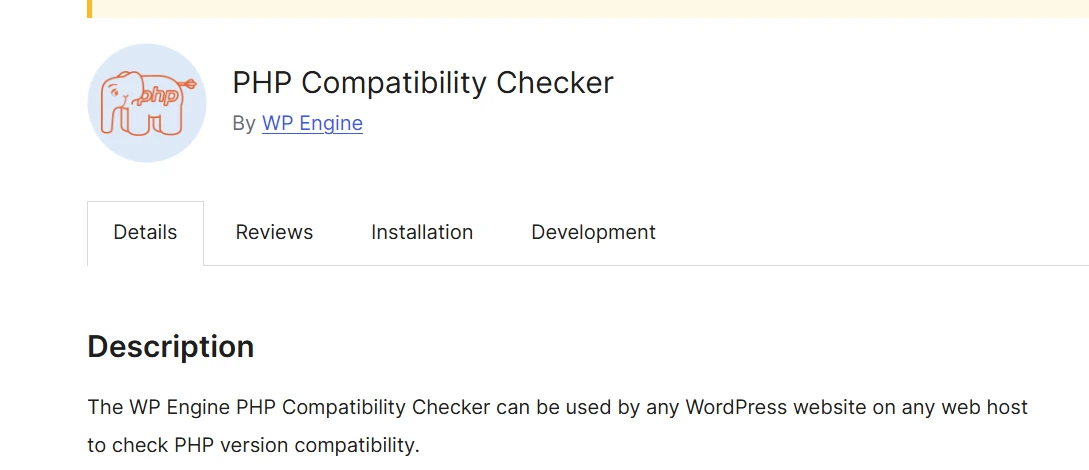
- Plugins like Display PHP Version or even the PHP Compatibility Checker show your version right in the dashboard.
- Useful for non-technical users and site managers.
About The PHP Info Output
The `phpinfo() output is detailed, but you only need a few lines.
Key sections
- PHP Version: Shown at the very top.
- System: Tells you the operating system and architecture.
- Loaded Configuration File: Shows the location of your
php.ini, which controls many PHP settings. - Loaded Extensions: Each enabled module (like
mysqli,gd,curl) is listed. - Directive values: These are settings like
memory_limit,upload_max_filesize, andmax_execution_time.
How to read it
- Ignore most of it unless you’re debugging. Focus on version, ini file, and required extensions.
- If your site or app needs a specific module, check for it under “Additional Modules.”
Why it matters
- Some plugins need certain PHP extensions.
- Host support may ask for these details if you report an issue.
Troubleshooting Tips
Things don’t always go as planned. Here’s what to do if you hit a roadblock:
Different PHP versions in CLI vs web
- Sometimes,
php -v(CLI) and your website show different versions. - Reason: The web server might be set up to use a different PHP binary.
- Solution: Always use the PHP info file for the most accurate version for your website.
Upgrading breaks your site
- If your site goes down after changing PHP versions, restore your previous version immediately.
- Check compatibility of all plugins and themes.
- Best practice: Always back up your files and database before switching.
Can’t find your version in the panel
- Some hosts don’t give easy access to PHP details.
- Ask support for your PHP version, or use the
phpinfo.phptrick.
Leftover info files
- Never leave
phpinfo.phpor similar files on your server.
They give away sensitive details about your site.
FAQs
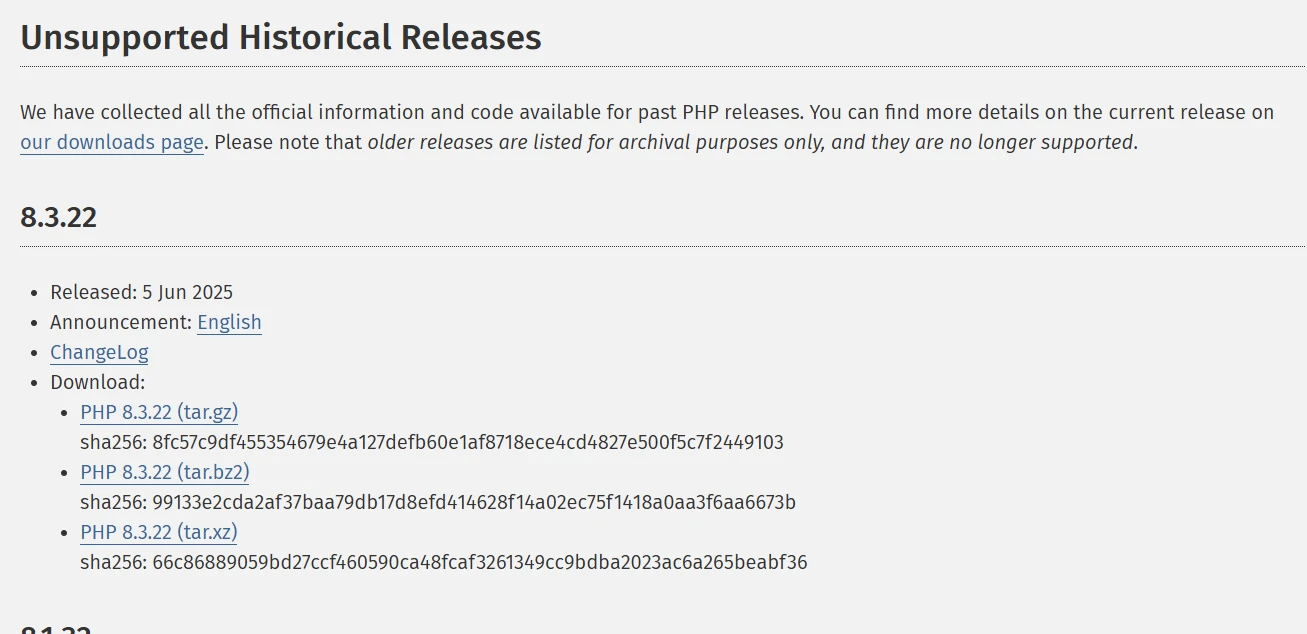
What is the latest PHP version?
Visit the official PHP Releases page for up-to-date info.
As of July 2025, the latest PHP version is PHP 8.3.22
How often should you update PHP?
Update PHP as soon as your website’s themes, plugins, or apps are compatible with the new version. Don’t wait for old versions to expire.
Delaying puts your site at risk.
- Security patches are released regularly. Updating ensures you don’t miss critical fixes.
- Most major content management systems (like WordPress, Joomla, and Drupal) announce when they support the newest PHP versions.
- Some web hosts automate PHP updates, but you should always double-check your site’s compatibility.
Will updating PHP break my site?
Updating PHP won’t break your site if everything is compatible.
Problems happen if your website uses code, plugins, or themes that don’t support the latest PHP version.
- Always test first: Set up a staging environment — a private copy of your site. Apply the PHP update there, check for errors, and only upgrade your live site after you’re confident everything works.
- Update all software: Make sure your themes, plugins, and core CMS files are up to date before switching PHP versions.
- Look for deprecation notices: PHP often removes old features. Review migration guides to identify any outdated code in your stack.
What happens if I use an old PHP version?
Running an old PHP version can seriously damage your site:
- Vulnerabilities: Unsupported versions no longer receive security patches. Hackers actively target old versions.
- Performance issues: Modern PHP releases are much faster. Older versions slow your site down, driving users (and Google) away.
- Plugin and theme issues: Many new plugins and themes won’t work, or could break, on outdated PHP.
Don’t take chances — use a version that is still supported and patched. Here’s a supported versions timeline for reference.
Can I run multiple PHP versions on one server?
Yes, you can run different PHP versions for each site or folder on the same server.
- cPanel MultiPHP Manager lets you pick a PHP version per domain or directory with a few clicks (see the docs).
- Developers running NGINX or Apache can use PHP-FPM pools for advanced control.
- This flexibility is ideal when hosting legacy apps alongside modern ones.
How do I know which PHP extensions I need?
PHP extensions add extra features — like image processing, database connectivity, or encryption.
- Check your CMS, app, or plugin documentation for the exact extensions required. For example, WordPress typically needs
mysqli,curl,gd, andmbstring. - In cPanel, you can view and enable extensions from the Select PHP Version or PHP Extensions panel.
- Missing extensions often cause errors like “Call to undefined function.”
Where is my php.ini file?
The php.ini file is the main configuration file for PHP.
This is where you change settings like upload size, memory limits, and error reporting.
- To find its location, create a new file (call it
phpinfo.php) with this content:
<?php phpinfo(); ?>- Visit that file in your browser.
- Look for Loaded Configuration File in the results. That’s the full path to your active
php.ini.
- Some hosts let you use custom
php.inifiles per directory. If you can’t edit it, look for a.user.inior use.htaccessfor local overrides.
Quick Comparison Of PHP Version Checking Methods
| Method | Skills Needed | Best For | Cautions |
|---|---|---|---|
| Command Line (SSH) | Terminal basics | VPS, Cloud servers, devs | May differ from web server ver. |
| PHP Info File | Minimal | All hosting types | Delete after checking |
| Hosting Control Panel | None | Shared hosting, cPanel, Plesk | Check compatibility before update |
| WordPress Dashboard | None | WordPress sites | Only checks WP, not whole server |
Final Thoughts
Knowing your PHP version is a tiny step with massive impact. It keeps your site fast, secure, and reliable.
- Don’t ignore update reminders from your host or CMS.
- Always check your site after any major change.
- Keep backup copies before updating.
- Learn to read basic PHP info output—it gives you control, not just for today, but for every future update.
For more technical reading, check the official PHP documentation.
Keep your site in shape, know your PHP version, and you’ll save yourself headaches down the road.