Domain SearchInstantly check and register your preferred domain name
 Web Hosting
 cPanel HostingHosting powered by cPanel (Most user friendly)
 WordPress HostingHost your WordPress website with fast, secure, and affordable WordPress hosting in Kenya.
 KE Domains
 Reseller HostingStart your own hosting business without tech hustles
 Windows HostingOptimized for Windows-based applications and sites.
 Free Domain
 Affiliate ProgramEarn commissions by referring customers to our platforms
 Free HostingTest our SSD Hosting for free, for life (1GB storage)
 Domain TransferMove your domain to us with zero downtime and full control
 All DomainsBrowse and register domain extensions from around the world
 .Com Domain
 WhoisLook up domain ownership, expiry dates, and registrar information
 VPS Hosting
 Managed VPSNon techy? Opt for fully managed VPS server
 Dedicated ServersEnjoy unmatched power and control with your own physical server.
 Website Builder
 Online Store BuilderLaunch a professional e-commerce store without writing code.
 Web Design ServiceGet a custom-designed website tailored to your brand and goals. From just KES 15,600
 BlogRead our guides on web hosting, online business, digital marketing, and more
 SupportOur support guides cover everything you need to know about our services
 ContactContact us via chat or email
If you’re building more than one website, maybe a blog, a business site, or a side project, you don’t need separate hosting for each one.
Most hosting providers let you run multiple websites on a single plan, whether it’s shared, VPS, or cloud hosting.
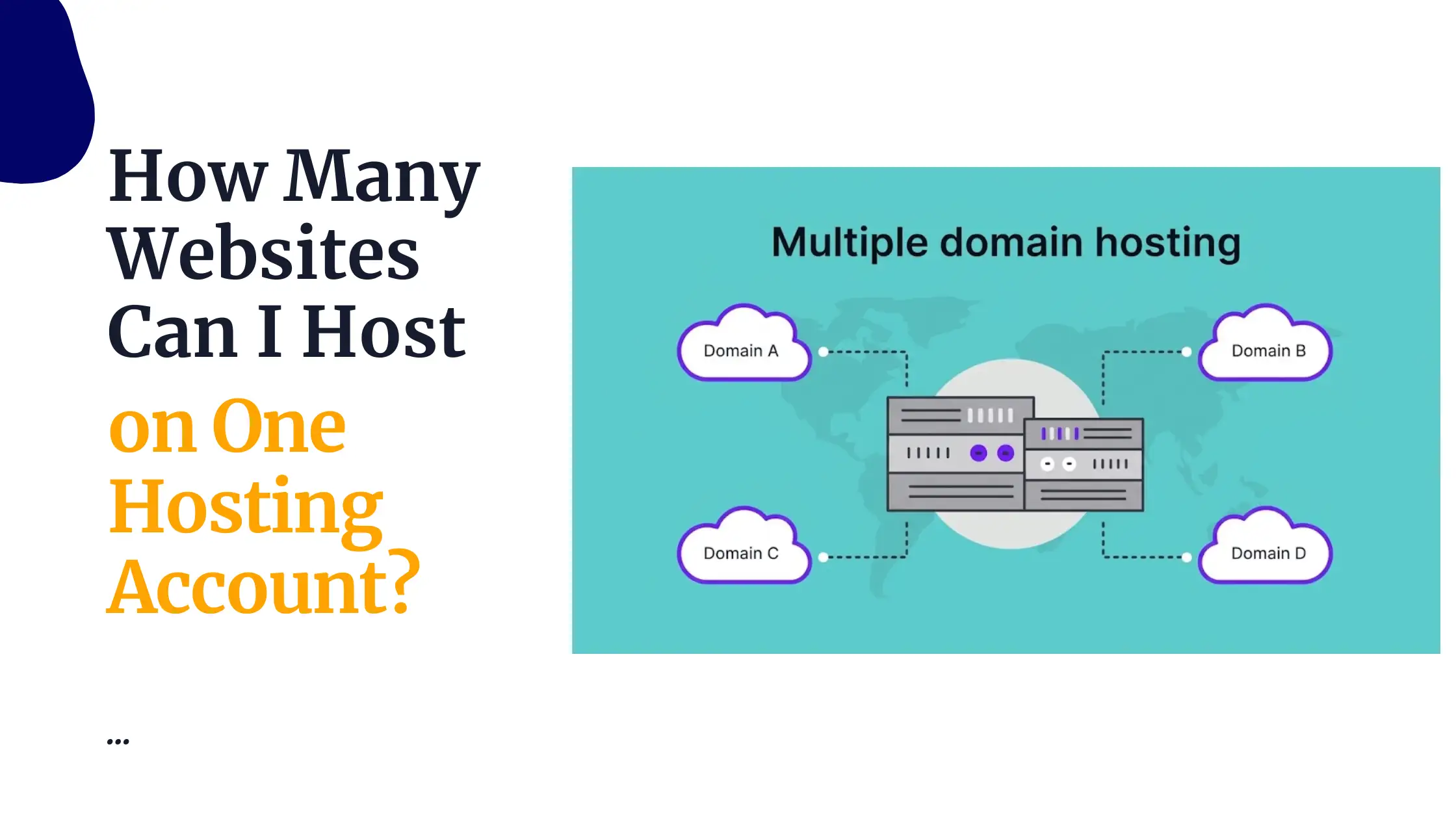
This is called multiple website hosting. It simply means managing several websites under one account. Each site has its own domain name and files, but they all share the same server resources.
Here’s how it works: your hosting account lets you add multiple domains, and each one is linked to its own folder (document root). When someone visits a domain, the server uses tools like Apache or Nginx to direct them to the correct website. So instead of one account for one site, you can run multiple independent websites from a single setup.
This approach saves you money by using one plan instead of several, keeps everything in one dashboard for easier management, and lets you add new websites as you grow. It’s a simple, efficient setup for anyone handling multiple projects.
Key Requirements to Host Multiple Websites
Not every entry-level plan supports this. Check these factors:
1) Hosting Plan and Resources
- Multi-domain support:
Many plans allow “unlimited” addon domains (or a specific number like 3–100+). Entry plans (e.g., some “Starter” tiers) may limit you to 1 site; mid-tier or higher usually unlock multiples.
- Enough resources:
CPU, RAM, storage (disk space/inodes), and bandwidth must accommodate combined traffic. “Unlimited” often comes with fair usage policies.
- Bandwidth:
High-traffic sites can consume shared allocation quickly.
2) Technical Setup and Configuration
- DNS management:
Update nameservers or A records at your domain registrar to point to the host.
- Separate folders (document roots):
Each site lives in its own directory (e.g., /public_html/site1/ and /public_html/site2/) to keep files isolated.
- Server configuration:
Apache/Nginx virtual hosts or equivalent handle routing. Control panels automate this.
3) Security and Maintenance
- SSL certificates:
Free Let’s Encrypt or paid options; most hosts auto-provision one per domain.
- Separate databases:
Use distinct MySQL/MariaDB databases for each site (especially important for CMS like WordPress) to improve security and organization.
- Regular backups:
Automate or manually back up all sites; one compromised site can risk others on shared plans.
- Isolation is limited on shared hosting; a security issue or traffic spike on one site can affect others.
4) Management Tools
- Control panel (cPanel, hPanel, SiteGround Site Tools, or custom panels) for adding domains, managing files (File Manager/FTP), databases, emails, and stats.
- Monitoring tools for resource usage.
How to Host Multiple Websites(Step-by-Step Guide)
Most modern hosts make it surprisingly straightforward to host multiple independent websites on a single shared hosting plan using cPanel.
Whether you want to run your personal blog on one domain and your business site on another, or manage several client projects, you can do it all from one account, saving you money and time.
Here’s exactly how to do it, step by step:
Step 1: Log in to your cPanel
Go to your hosting Client Area
Log in with your account details.
Click Services → My Services, then select your active hosting package.
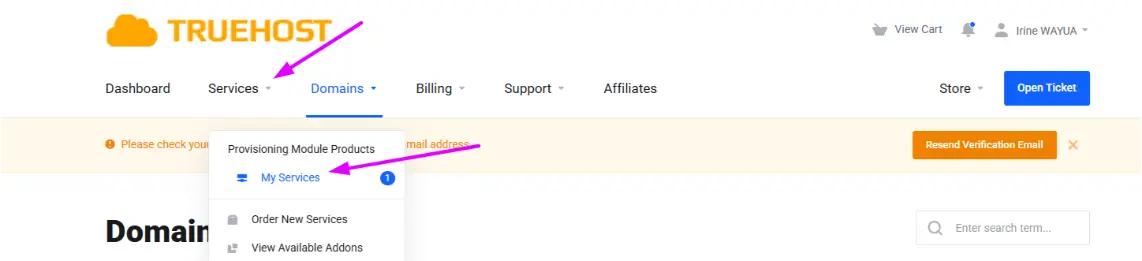
Click the cPanel button to log straight into the control panel (no extra password needed).
You’ll land on the familiar cPanel dashboard.
Step 2: Go to the Domains Section
Scroll down to the Domains section.
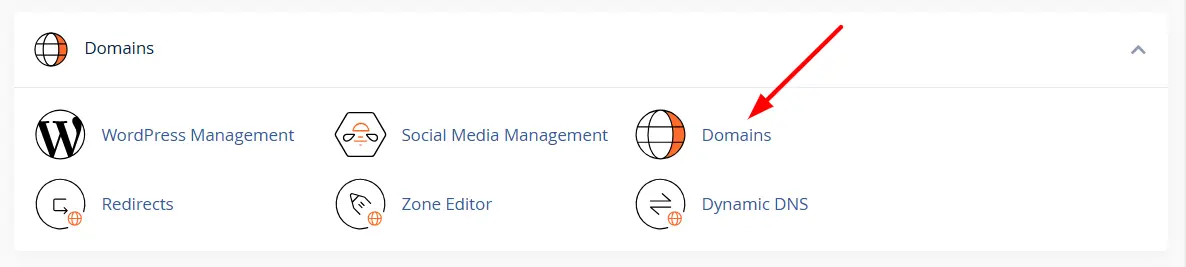
You have two common ways, depending on your cPanel theme:
Click Addon Domains (older interface), or
Click Domains → then look for Create a New Domain or Addon Domains (newer interface).
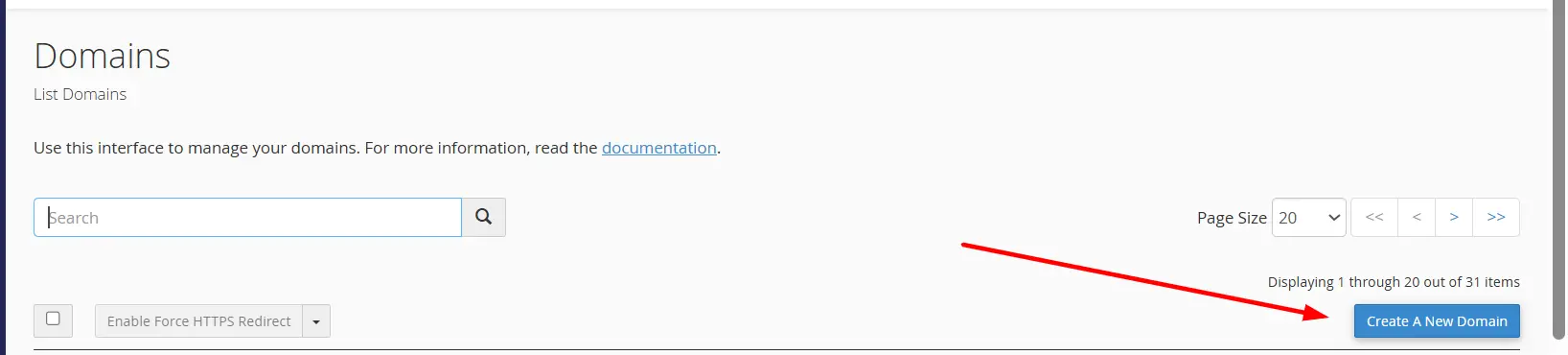
Step 3: Enter the New Domain Name
In the New Domain Name (or Domain) field, type your second (or third) domain exactly as registered, for example: mybusiness.co.ke.
Do not include “www” or “https://”.
As you type, cPanel will automatically fill in:
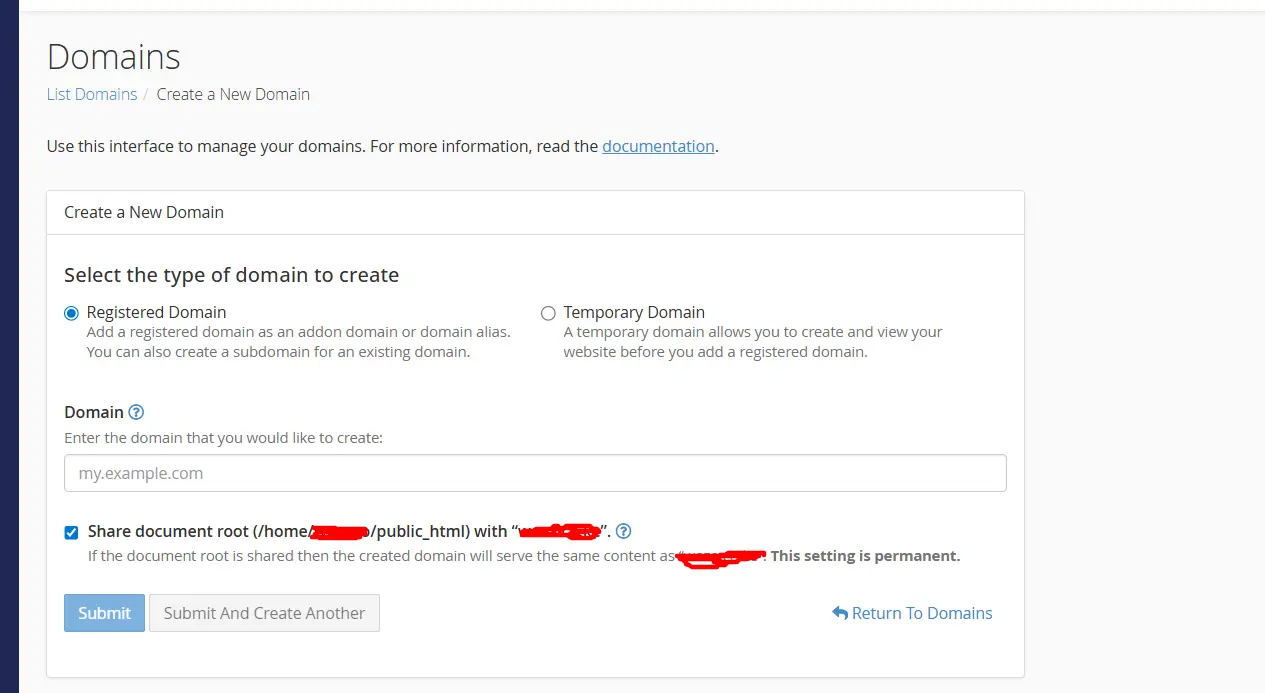
The Subdomain/FTP Username field (you can leave it as the default or customize it).
The Document Root (the folder where this website’s files will live).
Step 4: Assign a Separate Document Root (Very Important!)
- Uncheck the option that says “Share document root” (or similar wording like “Share document root with ‘maindomain.com’”).
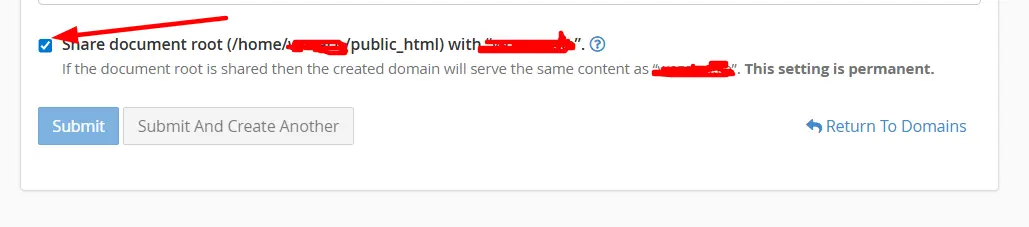
This is one of the most crucial steps. Unchecking it ensures each website gets its own isolated folder (e.g., /public_html/mybusiness.co.ke/). Keeping sites in separate folders improves security, organization, and makes maintenance much easier. If you accidentally share the root, both sites would mix files, which you want to avoid.
You can also optionally check “Create an FTP account associated with this domain” if you want a dedicated FTP login just for this new site.
Step 5: Add the Domain
- Click Add Domain, Create, or Submit.
- Wait 30–60 seconds without refreshing or closing the tab.
Once successful, you’ll see a confirmation message, and your new domain will appear in the list of domains.
Step 6: Point the Domain’s DNS to Servers
Before your new site can go live, you must tell the domain where to find its hosting.
If the domain was registered with Truehost:
- Usually, the nameservers are already set correctly (ns1.cloudoon.com, ns2.cloudoon.net, ns3.cloudoon.org, or the current ones provided in your welcome email).
If the domain is registered elsewhere (e.g., another registrar):
- Log in to your domain registrar’s dashboard.
- Change the nameservers to Truehost’s nameservers:
- ns1.cloudoon.com
- ns2.cloudoon.net
- ns3.cloudoon.org (if required)
- Alternatively, you can keep the current nameservers and only add an A record pointing to your Truehost server’s IP address (find the IP in your cPanel sidebar under “Shared IP Address” or in your hosting details).
DNS propagation can take anywhere from a few minutes to 48 hours (usually 4–12 hours in practice). Be patient.
Step 7: Upload Your Website Files
Once DNS starts resolving:
- Go back to cPanel → File Manager.
- Go to the new document root folder created for your addon domain (e.g., public_html/mybusiness.co.ke).
- Upload your website files here. You can:
- Use the built-in File Manager uploader,
- Connect via FTP (FileZilla or similar) with the FTP account you created, or
- Use one-click Softaculous or WordPress installer to set up a fresh site quickly.
Step 8: Set Up SSL, Database, Email, and Test
- SSL Certificate:
Go to Security → SSL/TLS or Let’s Encrypt. Truehost usually auto-issues free SSL for addon domains. Install it for your new domain.
- Database (if using WordPress, Joomla, etc.):
Create a new database and database user under MySQL Databases.
- Email (optional):
Under Email → create professional email addresses for the new domain.
- Finally, open a new browser tab and type your new domain (clear cache or use incognito mode). It should load your website.
Test everything: forms, images, loading speed, and mobile view.
Best Practices for Managing Multiple Websites
Running several websites on one shared hosting plan is convenient and budget-friendly, but it requires some discipline to keep everything running smoothly.
Here are the key practices that experienced users recommend:
1) Always Use Separate Folders for Each Site
When adding an addon domain in cPanel, make sure to uncheck the “Share document root” option. This creates a dedicated folder for each website (for example, public_html/mybusiness.co.ke).
Keeping sites in their own folders makes organization easier, simplifies troubleshooting when something goes wrong, and improves security. If one site gets compromised, it’s much harder for the issue to spread to the others.
2) Set Up Regular Backups and Test Restores
Never rely on “it will never happen to me.” Use JetBackup to create automatic backups of your files, databases, and emails. Truehost offers daily backups on most plans; take advantage of them.
Best habit: Schedule full backups weekly and test restoring at least one site every couple of months. This gives you peace of mind that you can recover quickly if anything goes wrong.
3) Monitor Your Resource Usage Closely
All sites on the same plan share CPU, RAM, storage, bandwidth, and inodes. One busy or media-heavy website can slow down the others.
Log into cPanel regularly and check:
- Disk Usage
- Bandwidth
- CPU and Concurrent Processes
If you notice consistent high usage, optimize your sites (compress images, use caching plugins) or upgrade your hosting plan before performance suffers.
4) Prioritize Security for Every Site
Security should never be an afterthought when hosting multiple websites:
- Enable free Let’s Encrypt SSL on every domain so visitors see the secure padlock.
- Keep all software updated, WordPress core, themes, and plugins.
- Use strong, unique passwords and enable two-factor authentication (2FA) for cPanel.
- Take advantage of Truehost’s built-in security tools, such as the web application firewall and Imunify360 malware scanning (available on higher plans).
- Install a good security plugin (like Wordfence or Sucuri) on each CMS-based site.
A single weak site can put all your websites at risk on shared hosting, so treat every one of them seriously.
5) Know When It’s Time to Upgrade
Shared hosting works great for small to medium traffic sites, but as your combined visitors grow, you may start experiencing slower loading times.
Watch for signs like frequent resource limit warnings or slower site speeds. When that happens, consider moving to a Cloud Hosting, VPS, or higher Truehost plan. These give you better resource isolation and performance, so one popular site doesn’t affect the rest.
6) Be Cautious with Client Websites
If you’re a freelancer or agency managing client sites, avoid giving clients full cPanel access on the same account. They could accidentally (or intentionally) view or affect other websites.
For client work, it’s safer to either give limited FTP/database access or host their sites on separate accounts/plans once the project grows.
So, Should You Host Multiple Websites on One Plan?
Yes, if your sites are low-to-moderate traffic, you own/manage them all yourself, and the plan has sufficient resources and multi-domain support. It’s economical and convenient for personal projects, portfolios, small businesses, or developers handling a handful of sites.
However, for high-traffic sites, client work requiring isolation, or strict compliance needs, separate plans, VPS, or dedicated hosting may be better to avoid performance issues or security risks. Shared resources mean one site’s spike or compromise can affect others.
Start with a reputable host’s mid-tier shared plan (or cloud/VPS for more power) and scale as needed.
Get Started with Truehost.
Host Multiple Websites FAQs
How many websites can I host on one plan?
It depends on your hosting provider and plan. Some allow 2–5 websites, while others offer unlimited sites (within resource limits).
Types of Hosting Plans That Support Multiple Websites
- Shared Hosting
- VPS Hosting
- Cloud Hosting
- Dedicated Servers
Is it slower to host multiple websites on one hosting account?
It can be if your resources are limited. More websites = more load. Upgrading your plan solves this.
Can I host different domain names on one hosting plan?
Yes. Each website can have its own unique domain name.
Do I need separate SSL certificates for each site?
Yes. Every domain should have its own SSL certificate for security and SEO.
Can beginners manage multiple websites on one hosting account?
Yes. With tools like cPanel, even beginners can manage multiple websites without technical complexity.