Domain SearchInstantly check and register your preferred domain name
 Web Hosting
 cPanel HostingHosting powered by cPanel (Most user friendly)
 WordPress HostingHost your WordPress website with fast, secure, and affordable WordPress hosting in Kenya.
 KE Domains
 Reseller HostingStart your own hosting business without tech hustles
 Windows HostingOptimized for Windows-based applications and sites.
 Free Domain
 Affiliate ProgramEarn commissions by referring customers to our platforms
 Free HostingTest our SSD Hosting for free, for life (1GB storage)
 Domain TransferMove your domain to us with zero downtime and full control
 All DomainsBrowse and register domain extensions from around the world
 .Com Domain
 WhoisLook up domain ownership, expiry dates, and registrar information
 VPS Hosting
 Managed VPSNon techy? Opt for fully managed VPS server
 Dedicated ServersEnjoy unmatched power and control with your own physical server.
 Website Builder
 Online Store BuilderLaunch a professional e-commerce store without writing code.
 Web Design ServiceGet a custom-designed website tailored to your brand and goals. From just KES 15,600
 BlogRead our guides on web hosting, online business, digital marketing, and more
 SupportOur support guides cover everything you need to know about our services
 ContactContact us via chat or email
Running your own AI agent used to be complicated. Expensive cloud setups.
Complex DevOps configs. Your data is handed off to platforms you don’t control.
OpenClaw changes that. It’s an open-source AI agent framework. You deploy it on your own server.
It lives there, always online, fully autonomous.
It connects via WhatsApp or Telegram. It books appointments. Clears your inbox.
Monitors GitHub repos. Runs multi-step workflows while you sleep.
As of April 2026, OpenClaw has crossed 347,000 GitHub stars. It’s the most-starred project in the platform’s history.
That kind of traction doesn’t happen by accident.
This guide shows you how to self host AI agents with openclaw vps on a Truehost VPS. From picking a plan to having a live agent answering your messages.
Let’s get started.
Step 1: Choose Your Plan
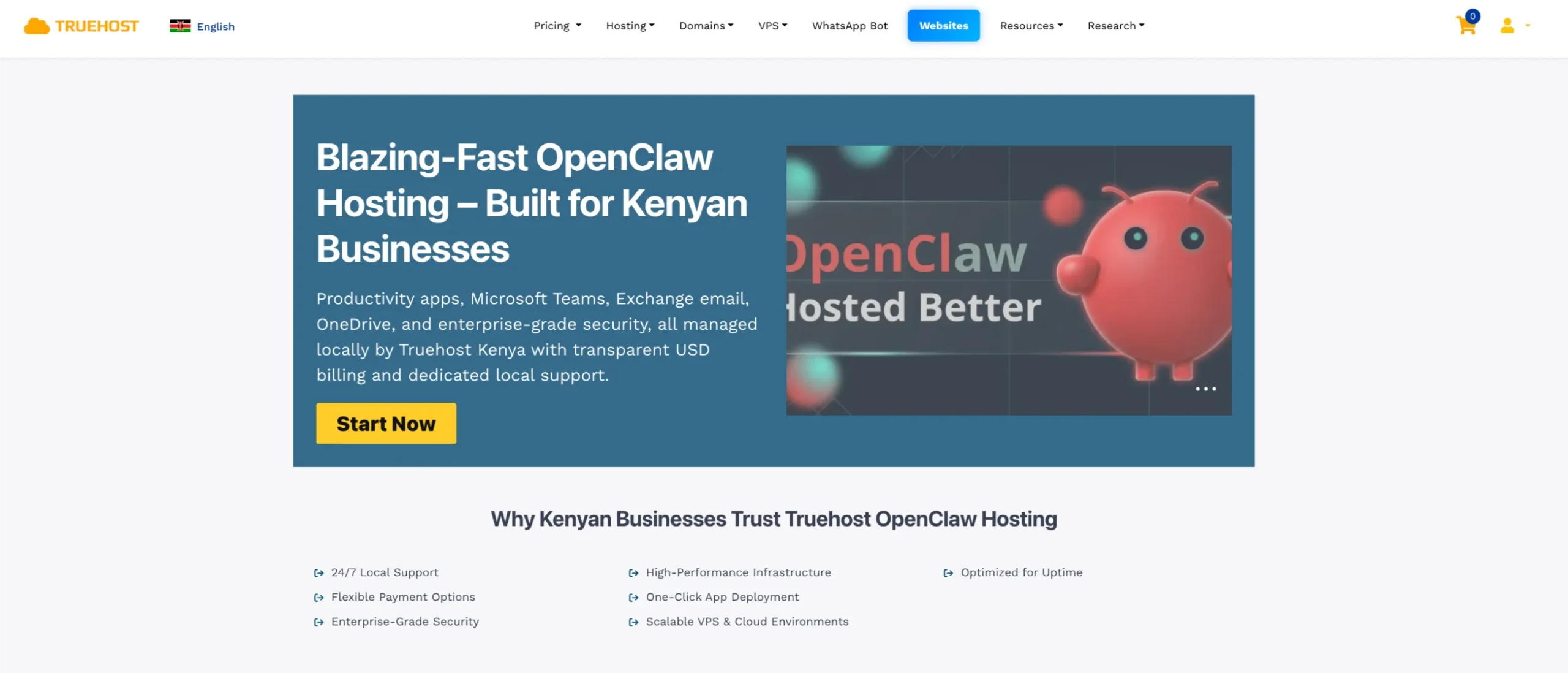
Go to the Truehost Openclaw page.
Truehost offers pre-configured OpenClaw VPS packages optimized for AI agents, automation, and web scraping.
All plans come with a ready-to-run Ubuntu environment (including Playwright, Python, and the OpenClaw engine), full root SSH access, dedicated resources, and one-click deployment.
OpenClaw Truehost Plans
| Plan | Price (Triennial Billing) | RAM | Storage | Bandwidth | Best For |
|---|---|---|---|---|---|
| OpenClaw KVM1 | KES 1,990 /mo | 2 GB | 50 GB NVMe | 4 TB | Personal use, testing, light automation |
| OpenClaw KVM2 | KES 2,659.89 /mo | 4 GB | 100 GB NVMe | 8 TB | Active agents, workflows & heavier tasks |
How to Decide
- Testing your first agent or running light automation? → Choose OpenClaw KVM1.
- Running active automations, email workflows, Telegram bots, or multi-step tasks? → Go with OpenClaw KVM2.
All Plans Include:
- Ability to upgrade resources anytime
- Full root SSH access
- Pre-configured OpenClaw environment
- High-performance AMD vCPU cores
- Automatic daily SSD snapshots
- Deployment in under 45 seconds
Prices shown are for triennial billing (longest term gives the best rate). Monthly and annual billing prices are higher. Always check the live page for the latest pricing and any ongoing promotions.
Check our guide on Openclaw OpenAI integration
Step 2: Select Add-Ons and Complete Checkout
During checkout, you can optionally register a domain for your OpenClaw instance:
.co.ke: KES 999 (Kenya’s primary TLD; best for local-facing projects).com: KES 999.ai: KES 22,520 (purpose-built branding for AI projects).africa: KES 1,800
Truehost auto-connects your domain to your OpenClaw install and provisions free SSL no extra configuration needed on your end.
You can also add automated backups and a dedicated IP at this stage if your use case requires them..
Step 3: Create Your Account and Pay
If you already have a Truehost account, log in. If not, you’ll create one during checkout — it takes under a minute.
Review your order summary: plan, domain (if you added one), and any add-ons. Supported payment methods include M-PESA, card, and other options listed at checkout.
Once payment confirms, provisioning begins automatically. No waiting, no ticket to open.
What Truehost does in the background the moment you pay:
- Provisions your Cloud VPS on AMD virtual hardware
- Installs the Node runtime and OpenClaw core
- Wires up the LLM gateway and plugin registry
- Provisions and connects SSL on your domain
Your login credentials arrive in your inbox. The whole process takes under 45 seconds.
Step 4: Save Your Gateway Token
Once provisioning is complete, you’ll receive your OpenClaw gateway token. Check your order confirmation or dashboard.
This token authenticates your OpenClaw instance. Treat it like a password.
How to store it securely:
- Use a password manager like Bitwarden or 1Password
- Or store it in an encrypted notes app
- Never save it in a plain text file. Never share it in chat.
This is also the stage to connect your WhatsApp number or preferred messaging platform if you didn’t set it up during checkout.
Lost your token? Log in to your Truehost dashboard. Go to your OpenClaw service. Retrieve or regenerate it from the settings panel.
Step 5: Deploy and Wait
Nothing to do on your end during this step. Truehost’s automated system handles everything:
- Provisions your VPS
- Installs the Node runtime and OpenClaw core
- Wires the LLM gateway, plugin registry, and SSL
- Connects your domain (e.g.,
agent.yoursite.co.ke)
Average deploy time: under 45 seconds.
No SSH commands required. No configuration files to edit. When it’s done, you land directly on your live OpenClaw dashboard.en it’s done.
Step 6: Open Your Dashboard
Access your OpenClaw dashboard via your auto-connected domain — for example, https://agent.yoursite.co.ke.
If you’re on an unmanaged plan and prefer direct server access, you can reach the dashboard via SSH tunnel using your root credentials.
Dashboard overview:
- Active agent status: what’s running and what isn’t
- Plugin registry: installed and available skills
- LLM connection panel: where you enter API keys and select your model
- Resource usage: live vCPU, RAM, and SSD metrics
Security note: Do not expose the OpenClaw Control UI to a public IP without authentication. Lock it behind a password or restrict access by IP if you’re running on an unmanaged plan.
Step 7: Set Up Your Admin Account and Verify Your Instance
The first account you create becomes the administrator account.
Set a strong, unique password. Don’t reuse one from another service.
Confirm your instance is running correctly:
- Check that the OpenClaw runtime shows as active
- Verify the dashboard loads without errors
- Send a quick test message to confirm the agent is listening
Main configuration areas to look into:
- Plugin/Skills settings show what capabilities the agent has right now
- Active messaging channels that platforms are connected to
- Performance tuning concurrency limits and resource allocation
- Notification preferences where alerts and errors go
Learn more about Openclaw use cases
Step 8: Connect an AI Model
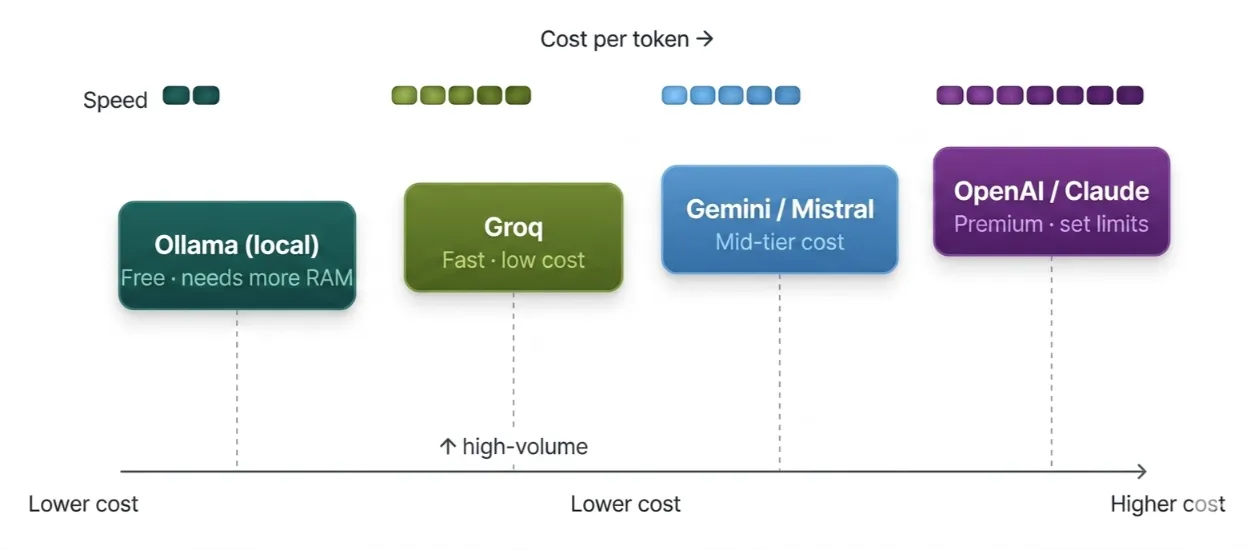
OpenClaw is provider-agnostic. You’re not locked in — you can switch models without redeploying your server.
Supported providers:
- OpenAI (GPT-4o, GPT-4 Turbo, etc.)
- Anthropic (Claude Sonnet, Haiku, Opus)
- Google (Gemini models)
- Mistral
- Groq
- Local models running on the same VPS via Ollama
To connect your model:
- Open the LLM Connection Panel in your dashboard
- Enter your API key for your chosen provider
- Select and activate your preferred model
- Send a test message to confirm the model responds correctly
On token costs: Each provider bills differently. OpenAI and Anthropic charge per input/output token. Groq offers fast inference at lower cost, which makes it a good fit for high-volume agents that don’t need frontier-level reasoning.
If you’re running a local model via Ollama, watch your RAM large models can exhaust a KVM1’s 2 GB quickly. Use phi3:mini or similar lightweight models if you’re on the smaller plan.
Step 9: Connect Your Channels and APIs
Channels are the messaging platforms your agent listens and responds on. Think of them as the front door to your agent.
Start With Telegram
Telegram is the easiest first channel. No port forwarding needed.
Get a Bot Token from @BotFather on Telegram. Paste it into your OpenClaw channel settings. Done.
Send your bot a message. Your agent should respond within seconds.
Connect WhatsApp
Didn’t link WhatsApp during checkout? Do it now from the channel settings panel. Follow the on-screen pairing steps.
Add Slack and Other Platforms
Slack, Discord, Signal, iMessage, and Microsoft Teams are all supported. Each has its own setup flow in the dashboard. Follow the platform-specific instructions for each one.
Set Up External API Connections
Need deeper automation? Use the API connections panel. Connect your agent to webhooks, external services, Notion, GitHub, or your own internal APIs.
Always test each channel after connecting it. Send a message. Confirm the agent receives it and responds correctly before moving on.
Step 10: Install Skills As You Need Them
Skills are modular add-ons. They expand what your agent can do. They’re the difference between a chatbot that answers questions and an agent that gets work done.
Common starting Skills:
- Web research (browser automation and scraping)
- Email triage (Gmail read/draft/send)
- Scheduling (cron-based recurring tasks)
- GitHub automation (monitor repos, summarize issues)
- Multi-channel support bots
Where to find Skills: ClawHub and community repositories. As of Q1 2026, ClawHub had over 13,000 available skills from Cron Scheduler to Gmail Pub/Sub to browser automation.
How to install a Skill from the dashboard:
- Go to the Plugin Registry
- Search by name or category
- Click Install and follow any permission prompts
Important: Always review a Skill’s code before enabling it on a production server. Community skill quality varies.
Check what file system permissions each Skill needs. Remove anything your agent doesn’t require.
Start with one or two Skills. Get comfortable. Then expand.
Troubleshooting Common OpenClaw Self-Hosting Issues
Things will occasionally break. Here’s how to fix the most common problems fast.
OpenClaw Won’t Start
Check the container logs first:
docker compose logs openclawAlso verify your .env file exists and has valid API keys:
cat .envA missing or misconfigured .env is the most common cause of startup failures.
Telegram Bot Not Responding
- Confirm the bot token is correctly set in
.env - Verify your Telegram user ID is listed in
ALLOWED_TELEGRAM_USERS - Check network connectivity from the container to Telegram’s API
AI Model Not Responding
- Verify your API keys are valid and have sufficient credits
- Confirm the selected model is available with your provider
- Restart the containers:
docker compose restartOllama Running Out of Memory
Large local models can exhaust VPS resources quickly.
- Switch to a smaller model like
phi3:mini - Upgrade to a plan with more RAM
- Limit concurrent inference:
OLLAMA_NUM_PARALLEL=1OpenClaw Is Slow
- Monitor CPU, RAM, and disk with
htop - Reduce the number of concurrently running agents
- Use lighter models if resources are tight
- Upgrade your plan. Truehost supports live upgrades with no downtime
Container Deployment Issues After Updates
docker compose down
docker compose pull
docker compose up -d
Then verify all services are running:
docker compose psRead also: How to Set Up OpenClaw on a VPS
Self Host AI Agents with Openclaw VPS FAQs
Can I use OpenClaw to build an app?
Yes. OpenClaw supports building AI-powered applications through its Skills system and API integrations. It can be used to create Slack bots, customer automation tools, workflow systems, and other custom AI-driven applications.
What are people using OpenClaw for?
Common use cases include inbox management, GitHub issue monitoring, Telegram briefings, web research automation, project coordination, and customer support bots that can escalate conversations to human agents when necessary.
What is the cost of OpenClaw hosting on Truehost?
Hosting plans start at KES 1990/month for OpenClaw KVM1 resources and KES 2,659.89 /month for OpenClaw KVM2. All plans include a 30-day satisfaction guarantee.
What is the best Linux distro for OpenClaw?
Ubuntu 24.04 LTS is the recommended distribution due to its stability, broad support, and compatibility with Node.js 22+. Managed Truehost plans come pre-configured with it.
How do I build an AI agent using OpenClaw?
Install OpenClaw on a VPS, connect an LLM provider, integrate your messaging channels, and add the Skills relevant to your use case. For more advanced automation, connect OpenClaw to your existing tools through its API integrations.
What to Expect Once You’re Live
Once your agent is running, you’ll notice a few things immediately:
It runs while you’re asleep. No laptop left on. No interruptions when your machine restarts. Your agent processes requests, sends responses, and completes workflows around the clock.
Start simple, then expand. A single-channel agent handling scheduling or email triage is useful from day one. Add skills and channels as your confidence with the platform grows.
Truehost support is fast. Both managed and unmanaged plans include 24/7 human support with an average first response time under 4 minutes via live chat, ticket, or phone. If something breaks, you won’t be debugging alone.
Upgrades are live. When your agent’s workload grows more channels, heavier models, more concurrent users you upgrade your plan directly from the dashboard.
Keep OpenClaw updated. It’s a fast-moving project. New skills, improved model support, and bug fixes ship regularly. Check for updates from your dashboard and apply them as they come.