 Domain SearchInstantly check and register your preferred domain name
 Web Hosting
 cPanel HostingHosting powered by cPanel (Most user friendly)
 WordPress HostingHost your WordPress website with fast, secure, and affordable WordPress hosting in Kenya.
 KE Domains
 Reseller HostingStart your own hosting business without tech hustles
 Windows HostingOptimized for Windows-based applications and sites.
 Free Domain
 Affiliate ProgramEarn commissions by referring customers to our platforms
 Free HostingTest our SSD Hosting for free, for life (1GB storage)
 Domain TransferMove your domain to us with zero downtime and full control
 All DomainsBrowse and register domain extensions from around the world
 .Com Domain
 WhoisLook up domain ownership, expiry dates, and registrar information
 VPS Hosting
 Managed VPSNon techy? Opt for fully managed VPS server
 Dedicated ServersEnjoy unmatched power and control with your own physical server.
 Website Builder
 Online Store BuilderLaunch a professional e-commerce store without writing code.
 Web Design ServiceGet a custom-designed website tailored to your brand and goals. From just KES 15,600
 BlogRead our guides on web hosting, online business, digital marketing, and more
 ContactContact us via chat or email

A website can slow to a crawl, or briefly stop responding, when too many visitors or requests arrive at the same moment.
The cause is often not a lack of storage or bandwidth. It is a limit on how many PHP requests the server can handle at once.
PHP workers are the processes that handle those PHP requests.
They count most on websites running WordPress, WooCommerce and other PHP applications, where pages are built on demand rather than served as ready-made files.
Some hosts call them PHP threads, and the idea is the same.
The number of available PHP workers sets how many PHP requests a hosting account can process simultaneously.
Each worker handles one request at a time. When every worker is busy, the next request has to wait.
This article explains what PHP workers do, how they affect performance, how to estimate the number your site needs and what to do when they become a bottleneck.
How Do PHP Workers Work?
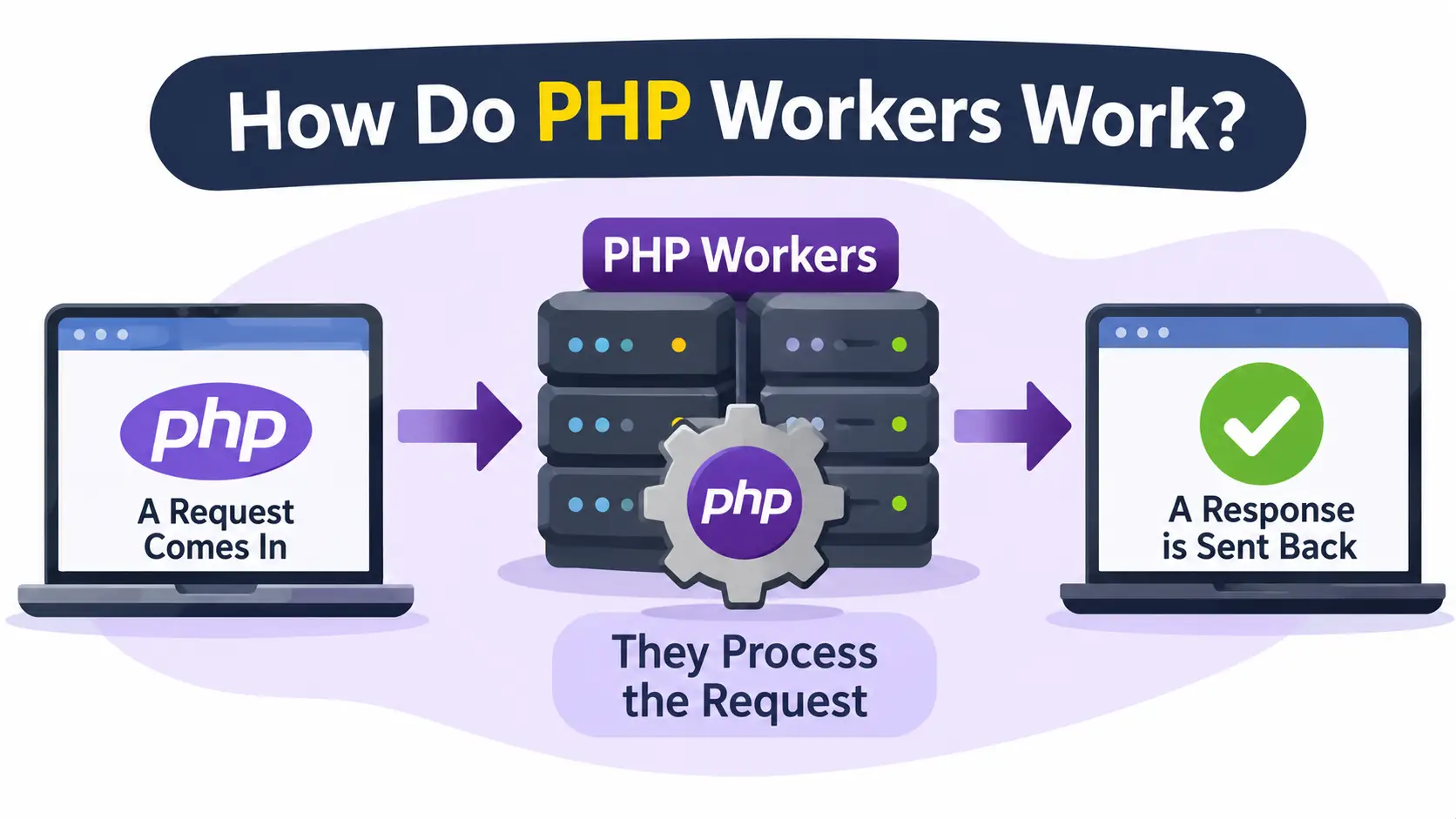
PHP workers sit between the web server and your WordPress code. Here is the path a typical request follows:
- A visitor opens a page on a PHP-based website.
- The web server receives the request.
- If the request requires PHP execution, the server passes it to a PHP worker.
- The worker executes the PHP code and may communicate with the database.
- The application generates a response.
- The server returns the response to the visitor.
- The worker becomes available to process another request.
Not every request takes this route.
A cached page or a static file such as an image can be delivered without touching PHP at all.
Requests involving dynamic content, logged-in users, shopping carts and forms commonly require PHP processing, so they occupy a worker for as long as the work takes.
That last point explains why the same server can feel fast for one site and sluggish for another.
A site where nearly every page comes from cache rarely needs many PHP workers.
A store where most visitors are adding items to carts needs a good number.
How Many PHP Workers Does a WordPress Website Need?
There is no single answer, but there are useful starting points. The required number depends on:
- The number of simultaneous dynamic requests.
- Website traffic patterns, such as sudden spikes after a newsletter or promotion.
- Whether visitors are logged in.
- The use of WooCommerce or membership functionality.
- Plugin and theme efficiency.
- Page caching and object caching.
- Server resources and hosting limits.
Indicative Numbers From Hosting Providers
Provider guidance gives a workable range.
Kinsta says simple sites need only four PHP workers, while for e-commerce anything under six is low because so much of the traffic bypasses the cache.
InstaWP puts a simple blog at one or two workers, WooCommerce stores at four to six, and says busy stores with many simultaneous checkouts may need six or more.
Kinsta’s own plans show how hosts package this, with entry plans at two workers, mid-tier plans at four to six, and enterprise plans starting from eight.
| Website type | PHP worker considerations | Typical starting range |
| Small blog | Usually has relatively few simultaneous dynamic requests | 2 to 4 |
| Business website | May need more capacity during contact form submissions and traffic spikes | 4 |
| Content-heavy website | Depends on traffic concurrency, search and dynamic features | 4 to 6 |
| WooCommerce store | Needs capacity for carts, checkout and logged-in customer requests | 4 to 6, more at high traffic |
| Membership website | May require more workers because many pages are personalized | 6 or more |
| High-traffic website | Should be sized using actual request concurrency and performance data | 6 or more, measured |
Treat the last column as a starting range, not a guarantee.
It combines the published guidance above, and the membership and high-traffic figures are cautious extensions of it, since logged-in users bypass caching and behave much like store customers.
Definitions also differ between hosts.
Some providers count other limits, such as entry processes, and quote much larger figures, so always compare like with like.
A Simple Way to Estimate Your Own Number
You can calculate a rough figure from your traffic.
Multiply the number of uncached requests your site receives per second at its busiest by the average time each one takes to run, in seconds.
The result is the number of PHP workers busy at the same moment.
For example, 10 uncached requests per second at 0.3 seconds each keeps about three workers busy.
Add headroom for spikes, which brings you to around four or five.
Kinsta uses a similar rule of thumb: a request that takes 0.25 seconds lets one worker handle about four requests per second.
More workers also need more memory.
As a rough guide, a WordPress worker without WooCommerce uses about 40 to 60 MB, a WooCommerce worker about 60 to 90 MB, and a worker on a site with heavy plugins such as page builders or membership tools about 80 to 120 MB.
Eight workers on a store could therefore need around 500 to 700 MB of RAM at peak.
Why Are PHP Workers Important for Website Performance?
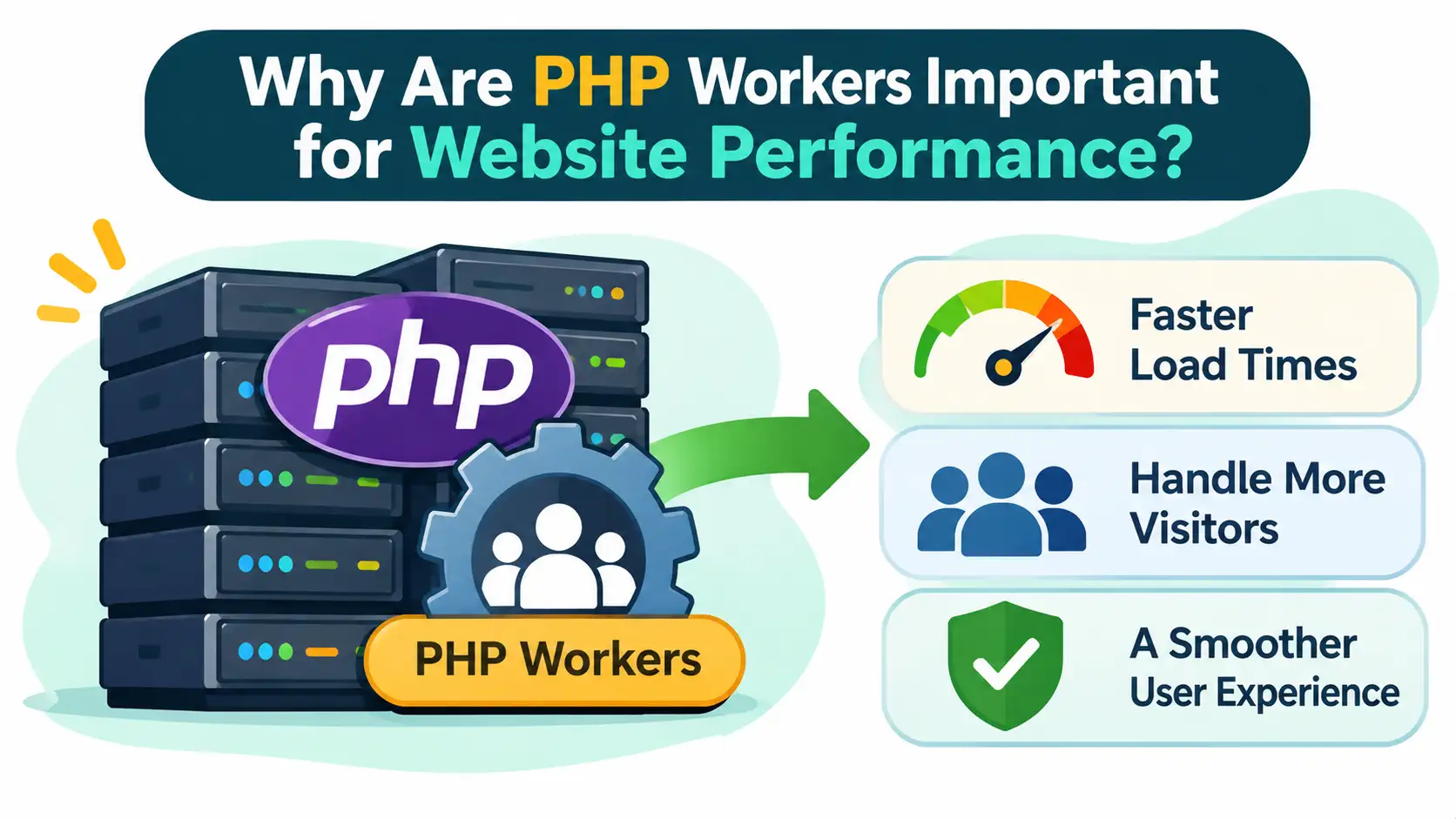
The number of PHP workers shapes how your site behaves under load.
Having enough keeps pages responsive, and having too few produces delays that visitors notice immediately.
a) They Determine How Many PHP Requests Can Run at Once
The available workers set the ceiling for concurrent PHP request processing.
With four workers, four uncached requests can run at the same time.
When all workers are occupied, new requests may wait until one finishes.
b) They Affect WordPress and WooCommerce Responsiveness
PHP workers handle the dynamic operations that make WordPress useful, including:
- WordPress dashboard requests.
- WooCommerce cart and checkout operations.
- User login and registration.
- Search and filtering.
- Form submissions.
- Dynamic plugin functionality.
A shortage of workers can make each of these slow, especially during traffic spikes.
The shopper who waits ten seconds at checkout is often waiting for a free worker rather than for the payment gateway.
c) They Can Contribute to Slow Loading Times
Waiting for an available worker adds to response time, even if the server’s CPU and storage are otherwise capable of handling the request.
The processor may sit half idle while requests queue behind a small worker limit.
PHP workers are only one part of performance.
Database queries, CPU limits, memory, plugins, caching and network latency can also cause delays, so check those before you blame the worker count.
d) They Help Websites Handle Traffic Spikes
More available workers can allow a website to process more simultaneous dynamic requests, provided the server has enough CPU and memory resources.
That extra capacity helps during sales, launches and viral posts.
Increasing worker limits does not automatically make every website faster.
If requests are slow because of heavy plugins or poor queries, more workers only let more slow requests run side by side.
e) They Protect the Admin Experience
Your own dashboard uses the same pool as your visitors.
During a rush, editors saving posts or managing orders compete with shoppers for workers, and admin screens are rarely cached.
Enough workers keep your team productive while the public site is busy.
f) They Reduce Timeouts and Server Errors
When requests wait too long for a worker, visitors may see gateway timeouts or 503 errors instead of a slow page.
A suitable worker count lowers the chance of these failures during busy periods.
g) They Limit the Damage From Bots and Crawlers
Search engine crawlers, scrapers and automated login attempts all request uncached pages, and each request can hold a worker.
A site with more headroom absorbs this background traffic without hurting real visitors.
h) They Influence Hosting Choice and Cost
Hosts price plans partly by their worker allowance, so the right number helps you avoid both overpaying and underbuying. Knowing your actual need lets you compare plans on a fair basis.
What Happens When Your Website Runs Out of PHP Workers?
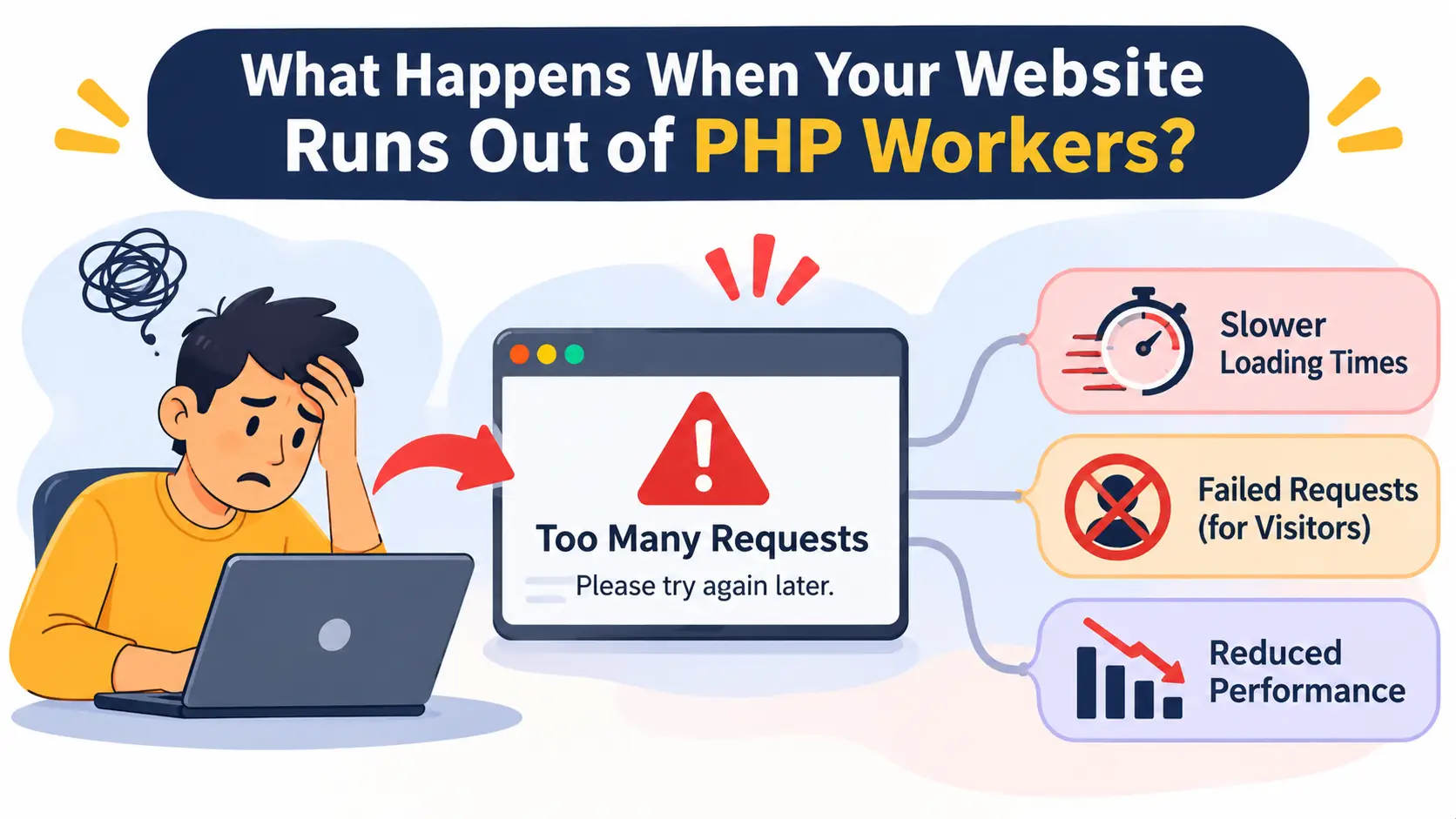
When every worker is busy, visitors and site owners may experience:
- Requests waiting in a queue.
- Slower page responses.
- Delayed WordPress dashboard operations.
- Slow checkout or form submissions.
- Intermittent timeouts during busy periods.
- Increased response times despite apparently normal page caching.
Running out of workers does not necessarily mean the website has crashed.
Requests may simply wait until an available worker can process them.
The site recovers as soon as traffic eases, which is why the problem often looks random and appears only at peak times.
How to Check PHP Worker Usage
The exact monitoring method depends on your hosting provider and server configuration. Try these approaches:
- Check the hosting dashboard for PHP process or resource usage information.
- Look for PHP-FPM status information where the hosting provider exposes it.
- Review resource usage and error logs.
- Check for warnings indicating that all available PHP workers are busy.
- Compare response times during busy and quiet periods.
Not every shared hosting account provides direct PHP worker monitoring.
Some providers expose resource usage through cPanel or their own customer dashboard instead.
If yours offers neither, ask support whether your account has a worker limit and how close you are to it.
How to Reduce PHP Worker Usage on WordPress
Try these fixes before you pay for an upgrade.
Kinsta’s guidance is to optimize execution time first, because adding workers only helps once average request time is under control.
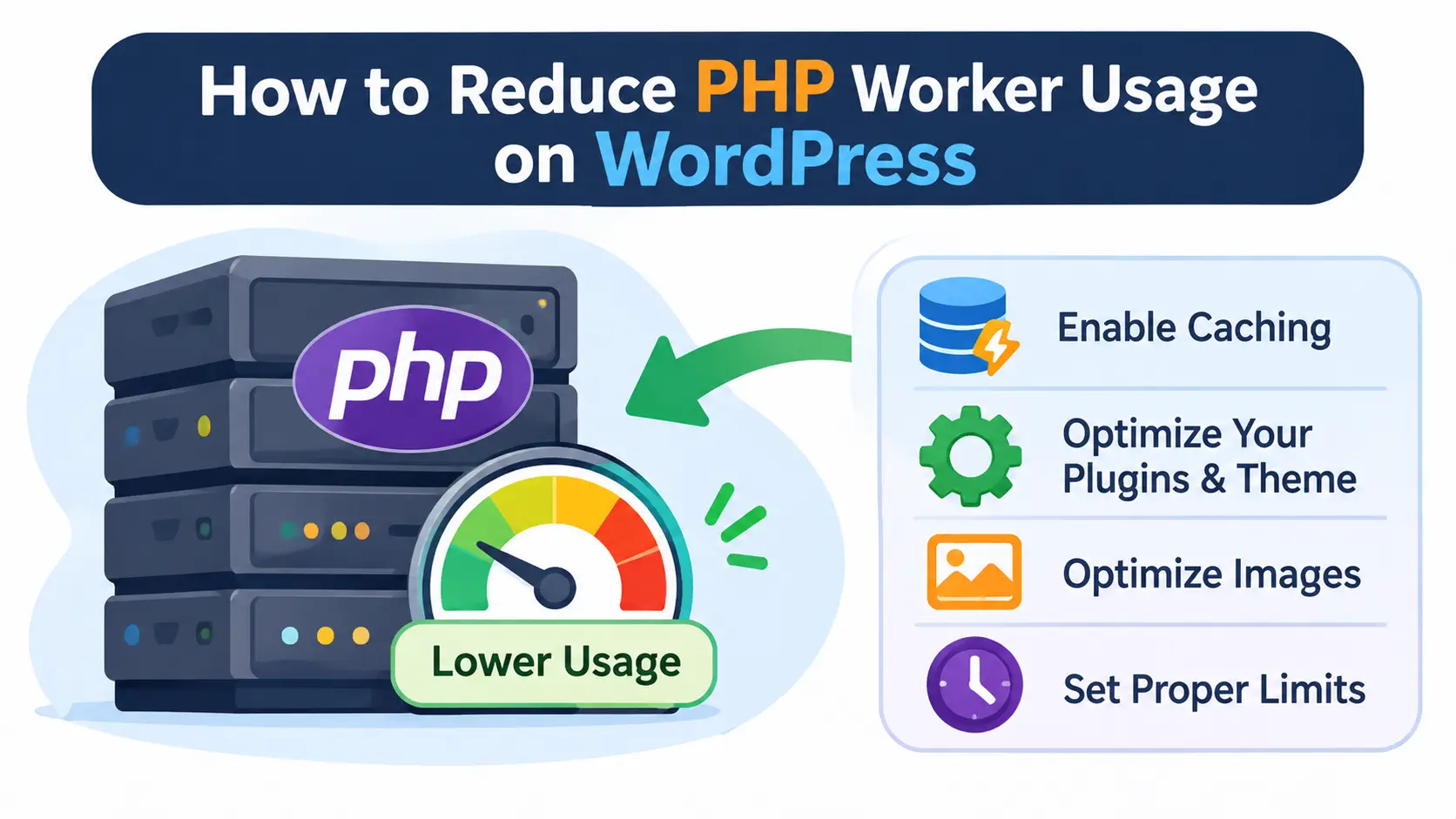
a) Enable Page Caching
Page caching serves stored HTML instead of generating every page through PHP, which removes most anonymous traffic from the worker pool.
- Use a caching plugin compatible with the hosting environment.
- Configure browser and page caching appropriately.
- Exclude dynamic pages such as checkout and cart pages where necessary.
- Test logged-in and logged-out experiences.
b) Remove Unnecessary Plugins
Some plugins generate frequent or expensive PHP requests.
- Audit installed plugins.
- Remove plugins that are unused.
- Replace resource-intensive plugins where appropriate.
- Avoid running multiple plugins that perform the same function.
c) Optimize Database Queries
Slow database operations keep PHP workers occupied for longer, because a worker waits for the database before it can finish.
An object cache such as Redis, where your host supports it, also cuts repeated queries.
- Remove unnecessary database records where safe.
- Use suitable database optimization tools.
- Investigate slow queries.
- Keep WordPress, themes and plugins updated.
d) Use a Content Delivery Network
A CDN serves static assets such as images, CSS and JavaScript from distributed locations, so fewer requests reach the origin server.
A CDN does not automatically eliminate PHP processing for dynamic requests, so combine it with caching rather than relying on it alone.
e) Optimize Dynamic Website Features
- Reduce unnecessary background tasks.
- Review frequent AJAX requests.
- Optimize search and filtering functionality.
- Check plugins that repeatedly query the database.
- Review WooCommerce extensions and scheduled tasks.
Choose WordPress Hosting That Can Handle Your Website’s Workload
PHP worker availability is one of several hosting resources that affect WordPress performance.
CPU, RAM, PHP configuration, storage, caching and resource limits all play a part, so compare hosting plans across all of them rather than on one figure.
Truehost WordPress hosting is an option for hosting WordPress websites.
Check the current plan details for resource limits before you decide, since the number of PHP workers on a plan is only useful when the provider publishes and confirms it.
Looking for hosting for your WordPress website?
Explore Truehost WordPress hosting and compare plans based on your website’s traffic, functionality and resource requirements.