Domain SearchInstantly check and register your preferred domain name
 Web Hosting
 cPanel HostingHosting powered by cPanel (Most user friendly)
 WordPress HostingHost your WordPress website with fast, secure, and affordable WordPress hosting in Kenya.
 KE Domains
 Reseller HostingStart your own hosting business without tech hustles
 Windows HostingOptimized for Windows-based applications and sites.
 Free Domain
 Affiliate ProgramEarn commissions by referring customers to our platforms
 Free HostingTest our SSD Hosting for free, for life (1GB storage)
 Domain TransferMove your domain to us with zero downtime and full control
 All DomainsBrowse and register domain extensions from around the world
 .Com Domain
 WhoisLook up domain ownership, expiry dates, and registrar information
 VPS Hosting
 Managed VPSNon techy? Opt for fully managed VPS server
 Dedicated ServersEnjoy unmatched power and control with your own physical server.
 Website Builder
 Online Store BuilderLaunch a professional e-commerce store without writing code.
 Web Design ServiceGet a custom-designed website tailored to your brand and goals. From just KES 15,600
 BlogRead our guides on web hosting, online business, digital marketing, and more
 SupportOur support guides cover everything you need to know about our services
 ContactContact us via chat or email
When you try to log into WordPress admin and instead of your familiar dashboard, you’re greeted with the error, “Error Establishing a Database Connection”, you start to think all sorts of things: What does this mean? Is my site broken? Is this gonna be costly to fix? And can this even be fixed, or do I have to rebuild my site all over again? All those months of work down the drain!
But before you go into a tailspin and start calling every techie you know, let me assure you, this is a common problem. There are solutions for it. It costs nothing to fix. And you most definitely don’t have to rebuild your site.
Your website is still intact; you just need to troubleshoot a little bit to reach it. Most of the fixes we’ll cover in this article are quick and simple to do.
But, should you have any problem, the Truehost team is always here to help you.
Let’s dive in.
What Does It Mean When You See “Error Establishing A Database Connection”?
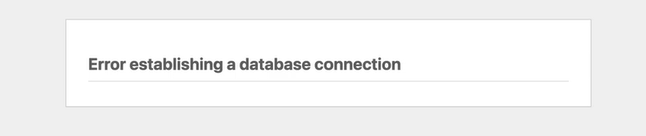
You will see this error when WordPress cannot communicate with the MYSQL database, meaning it cannot reach content, user details, and site settings.
The error, which usually appears on a blank page, prevents the admin dashboard from loading. The public-facing site (what visitors see) also doesn’t load any information. Instead, site visitors see a blank page or an error message.
What Causes Error Establishing a Database Connection In WordPress?
Before we explore how to fix this error, it’s important to understand what could be causing it. Here are the most common causes:
Incorrect Database Credentials.
Using the wrong database name, username, password, or host in your WordPress configuration file (wp-config.php) would deny WordPress access to data.
Using incorrect credentials is the most common cause of this error, so it’s the first place you should look. It’s also the easiest problem to fix because all you have to do is use the correct credentials.
Corrupted Database
Plugin conflicts can corrupt database tables. When two or more plugins interact with the same parts of the WordPress database in incompatible ways, this can corrupt database tables. This can be caused by poor coding practices, outdated software, or overlapping plugin functionality.
In some cases, a plugin may alter the database schema by adding, removing, or modifying table columns, making the database incompatible with other plugins or WordPress itself.
This can lead to missing data, broken indexes, or invalid table structures, making it difficult or impossible for WordPress to retrieve information correctly.
Maxing out your allowed server limit
Too many data connections could max out your server limit, especially on shared hosting. This is common when you’re using large hosting providers who have too many users on shared hosting.
Server Issues
Server issues might not be in your control, but if you’ve got a bad hosting service to begin with, you might encounter problems with downtime, overload, and during such times, WordPress won’t connect to the database.
Hopefully, if this is a very rare occurrence and your hosting provider is reliable 99.9% of the time, you can resolve this issue with a call to your hosting provider. But if this is a persistent issue, we recommend switching to a reliable host like Truehost.
Database host issues
Database host issues can also cause the “Error Establishing a Database Connection” in WordPress when the MySQL or MariaDB server specified in the DB_HOST setting of your wp-config.php file is either unreachable, overloaded, or misconfigured.
In shared hosting environments, many websites share the same database server, so a traffic surge or heavy query load from other users can temporarily max out the server’s connection limits, preventing your site from connecting.
On some hosts, the database server is located on a separate machine from your website, meaning DB_HOST might not be localhost but a remote address. If you don’t enter the correct IP address the host provides for the database, the connection will fail.
It’s also common for security firewalls or network restrictions to block requests from your web server to the database host. All these issues will need the hosting provider to resolve, as they control the server configuration and network routing.
And if you keep experiencing this issue, it’s advisable to switch hosting or upgrade to a dedicated hosting plan.
How to Fix “Error Establishing a Database Connection” in WordPress
1. Confirm you’re using the correct database credentials
You’ll find database credentials in the wp-config.php file, in your WordPress root directory. To do this, go to cPanel or hPanel (if you’re using localhost). Once in cPanel:
- Locate the wp-config.php. File>File manager>public_html>dev>sitename
- Scroll to the wp-config.php, right click on it, and click edit.
- Scroll until you find these lines:
define(‘DB_NAME’, ‘your_database_name’);
define(‘DB_USER’, ‘your_database_username’);
define(‘DB_PASSWORD’, ‘your_database_password’);
define(‘DB_HOST’, ‘localhost’); - Cross-check these credentials with the ones in your hosting account.
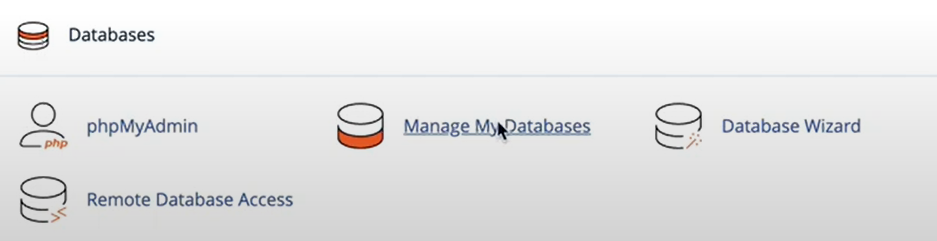
- In cPanel: Go to MySQL Databases.
- Cross-check the database name, username, password, and host with what’s in the wp-config file.
Note: Some hosts use a hostname other than localhost. As mentioned earlier, this can happen if your database is set on a different server from the website. If that’s the case, get the correct DB Host credentials from your host. A port number also appears next to the host name, so make sure the number in your wp-config file is the right one. - Update and save any incorrect details in wp-config.php.
- Go back to your site and refresh. If credentials were the problem, your WP dashboard should load.
You should also repair your permalinks to reset the page links. You don’t need to change anything here; just click save to refresh the changes. To do this:
- Go to settings on your dashboard
- Under General, click Permalinks
- Scroll to the bottom of the page and click save
This should reset any links that had a problem.
2) Repair the WordPress Database
If credentials are correct but the error persists, check if your database is corrupted and repair it. To repair, you should activate WordPress’s main database repair tool.
Follow these steps to enable the repair tool
- Open wp-config.php.
- Add: define(‘WP_ALLOW_REPAIR’, true);
You can add this repair line anywhere in the file, but it’s best to add it just before the comment line /* That’s all, stop editing! Happy publishing. */
- Click the save changes button at the top of the screen.
Next, run the repair:
- Go to: “https://yourwebsite.com/wp-admin/maint/repair.php” and choose Repair Database.
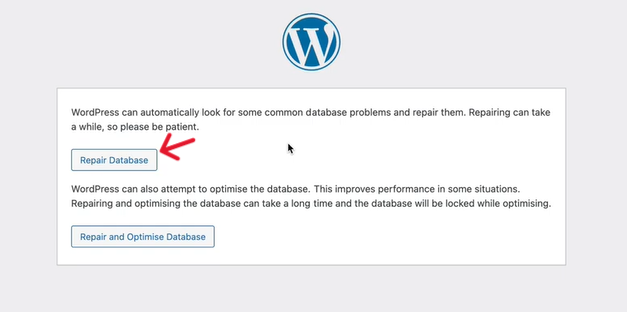
- This will load the file below, which gives the status of different items in your database. Repair any items that show up as not fine.
Note the words at the bottom asking you to remove the line you added in the wp-config file
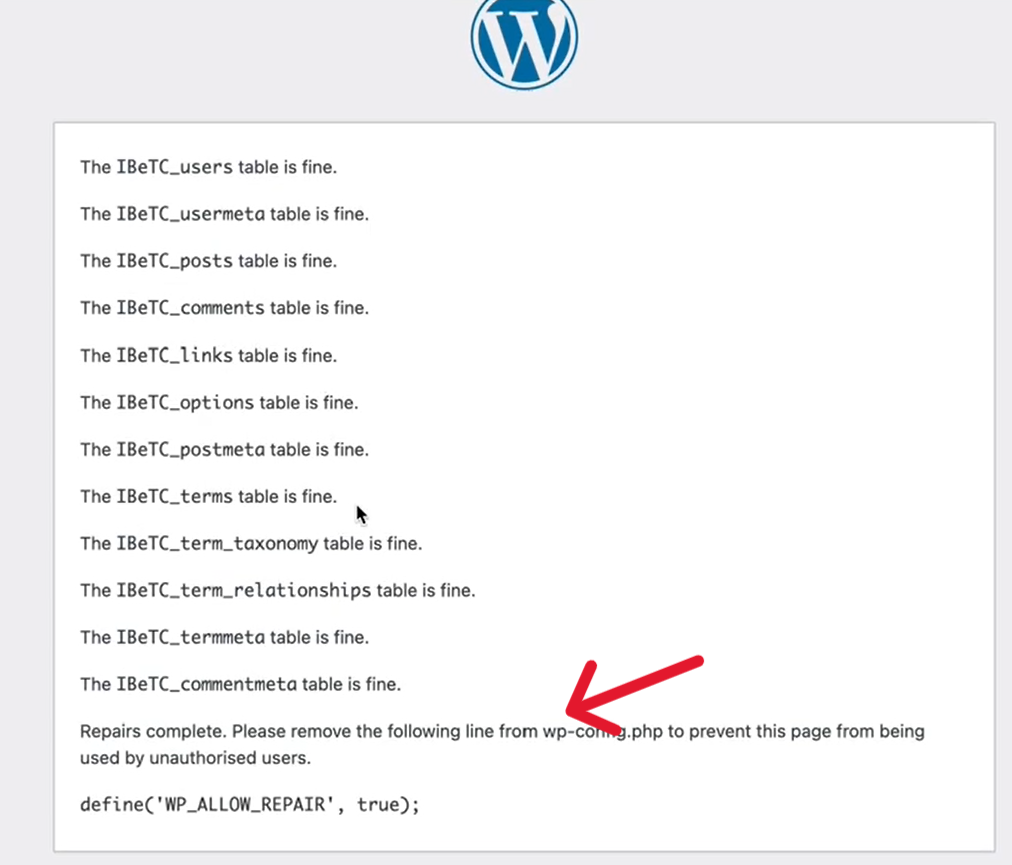
So, next, disable the repair tool
- Head back to the wp-config and delete the line ‘WP_ALLOW_REPAIR’, true; to disable the repair tool.
- Save changes.
3) Update the WordPress Site URL in the Database
An outdated site URL could also cause this error. If you recently migrated domains, installed SSL, or changed hosting, the site URL in the database may be outdated.
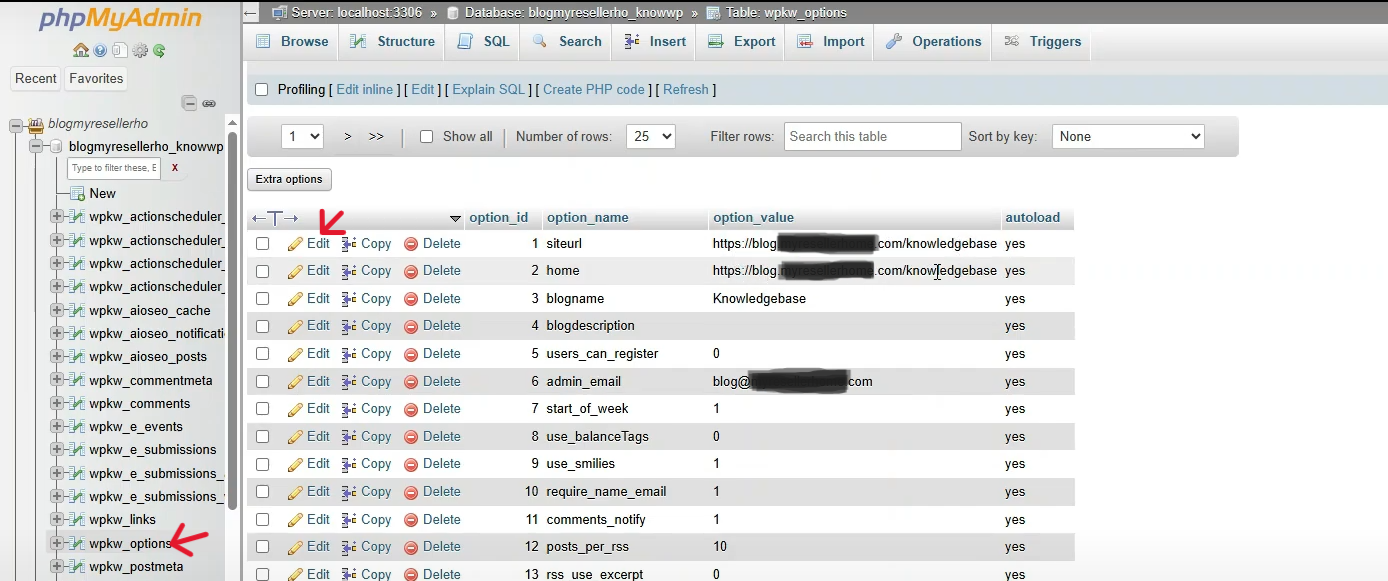
- Log in to your hosting control panel and open phpMyAdmin.
- Select the WordPress database that’s connected to your site (the database name should match DB_NAME in wp-config.php).
- Open the wp_options table and click edit on the first option on the panel that’s on the right.
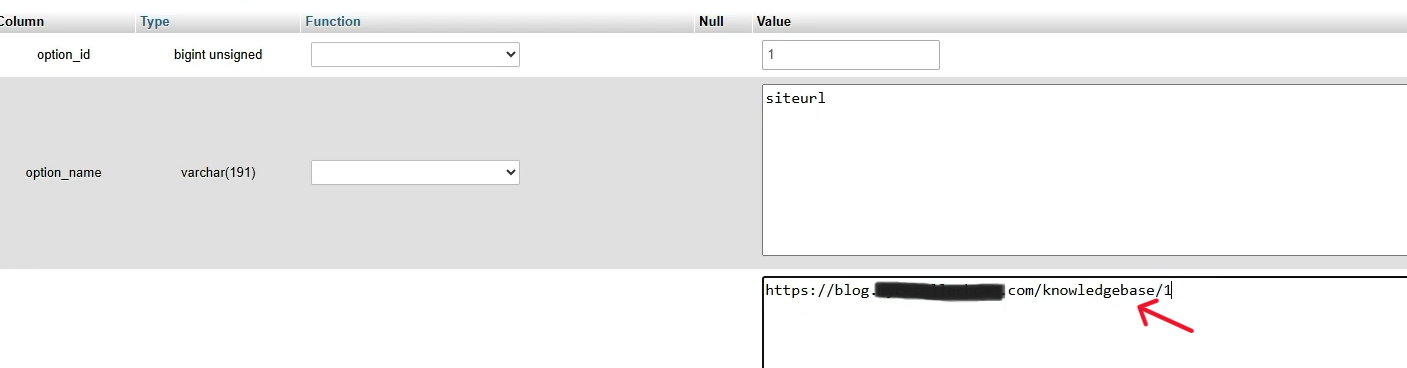
- Edit the siteurl and home rows so they match your correct domain (including http:// or https://) and click go at the bottom of the screen.
- Reload your WordPress site.
4) Server Status and Resource Check
Sometimes the issue is on your host’s end.
- Check your hosting provider’s status page for outages.
- If there is no outage, check server resource limits and usage.
Your host can see how much traffic you have and if it’s good or bad traffic. They can then help you block any bad traffic or increase server resource count if your hosting cannot handle the traffic to your website.
5) Restore a Backup
If the error started after a recent change, restore your site to a working version.
Ordinarily, to restore backups, you would use a plugin like UpdraftPlus, but since you cannot access your admin, contact your hosting provider to update to your latest backup. You should also ask your provider to check server health.
Test the restored site before making new changes.
6) Restart your SQL services
Restarting your SQL services will reset your database and hopefully resolve the problem. You might need your hosting provider’s help to restart your services.
Get A Professional To Perform Deeper Fixes
If the error persists even after you’ve done all the above, your site may require deeper debugging, such as inspecting server logs, checking database tables manually, or resolving configuration issues.
Unless you are really good at handling technical WordPress stuff, leave the deeper fixes to a WordPress developer or hosting support team.
7) Delete and Reinstall Corrupted WordPress Core Files
If up to this point you still haven’t fixed the Error Establishing a Database Connection, it’s likely being caused by broken or missing core files.
So you need to delete and replace WordPress core files in cPanel, using these steps:
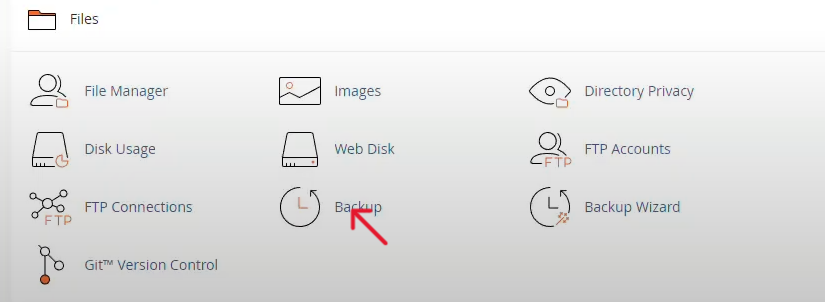
- Open cPanel and backup your site.
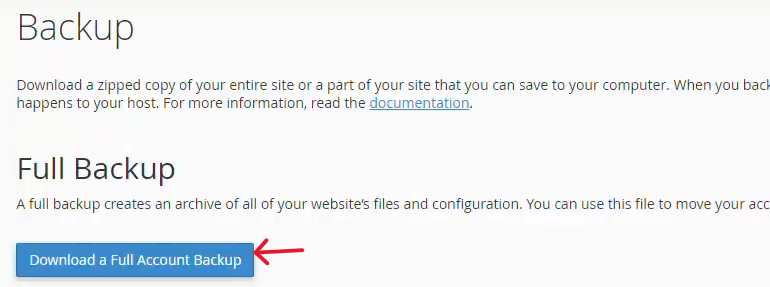
Download a full account backup.
- Next, go to the public_htm (it contains the files that the public sees). Double-click on it to open. You should see these folders: wp-admin, wp-content, and wp-includes. There are also files under this folder, including wp-config.php.
- Delete wp-admin and wp-includes, and any other files you might not need, but do not delete wp-content because this contains all your files. Also, do not delete wp-config.php because that’s what connects your site to the database.
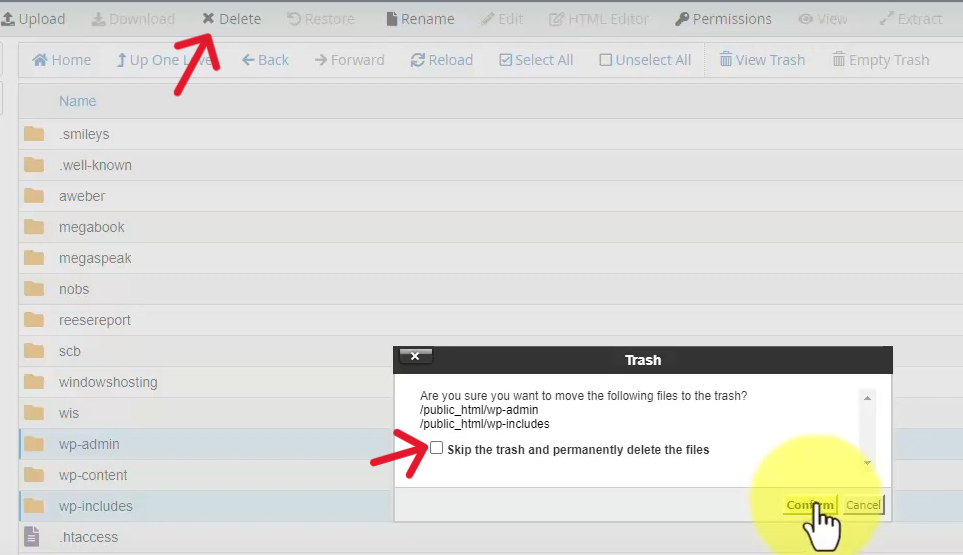
- Next, download the latest WordPress package from wordpress.org and then upload it to public_html.

- Right-click on the zipped WordPress folder to extract files. Make sure all files all located in /public_html. If you don’t see them, move them there.
- Refresh your WP admin page to log in.
8) Repair all tables
You may have already run the repair tool as part of the quick fixes, but to be on the safer side, it’s good practice to go into your database to prompt manual repairs yourself just in case the repair tool missed something.
So, go back to your cPanel and under databases, select phpMyAdmin. This will load all your databases on the left panel. Find the correct database and click on it. This will load all the tables on the right panel.
- Scroll to the bottom of the right panel and click check all to select all the tables.
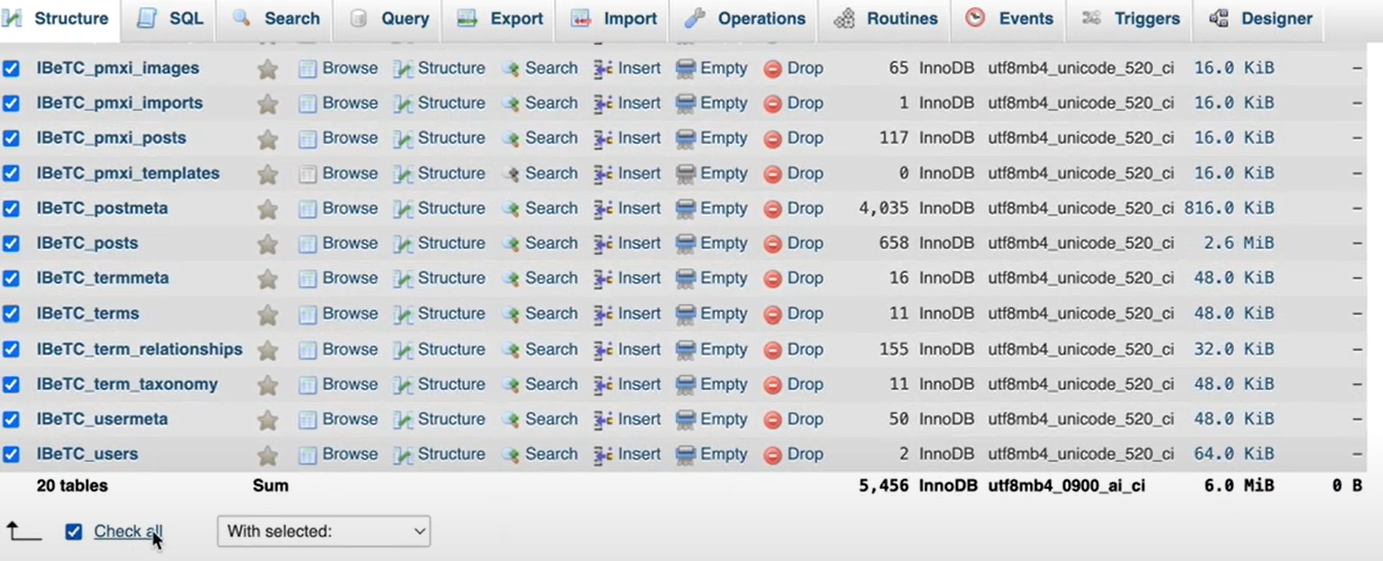
- Next, backup tables. Before you repair, head back to the top of the right panel and click export to back up the current tables. This way, you can always restore to the current tables should anything go wrong.
- Repair tables.
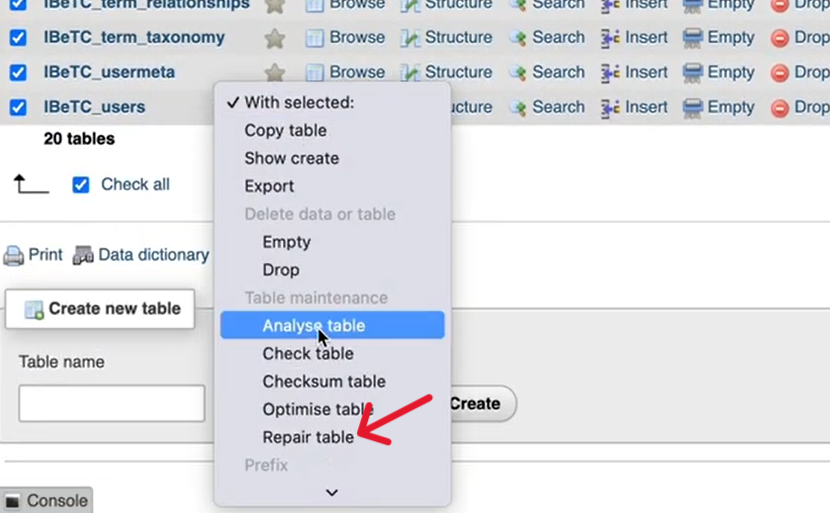
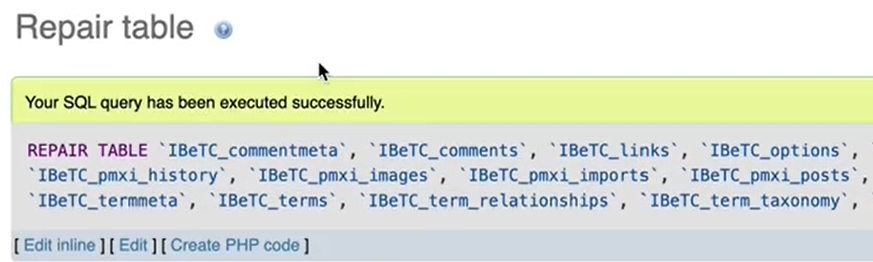
Once the repair’s done, you should see this notification just at the top of the right panel “your SQL query has been executed successfully”.
9) Review .htaccess
Plugins, especially security plugins, usually add entries in the .htaccess file, and this could create a conflict. By resetting the .htaccess file (or generating a new one), you remove any conflict that exists.
To reset your .htaccess file in WordPress settings, first find the public_html directory.
- In cPanel, go to Files > File Manager.
- Scroll to public_html
- Scroll through your files to find the .htaccess file. If you don’t see the .htaccess file, click on settings on the top right of the screen, and enable hidden files.
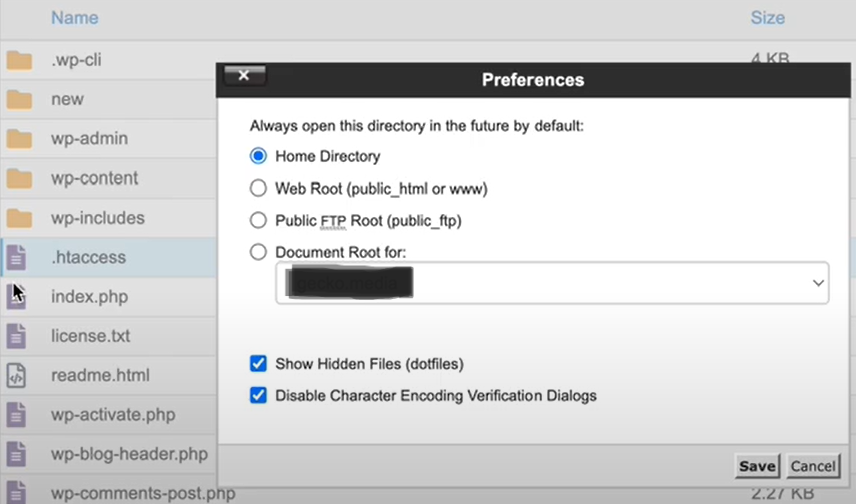
- Rename the .htaccess file. This will generate a new file.
- Reload your site to check if this fixes the error.
10) Increase PHP Memory
Your hosting allocates a site a certain memory limit, but your WordPress might only use a certain portion of it.
It’s possible you’re using too little of that memory, and that increasing it (say to 512) may give your WordPress data a performance boost.
But before you try this method, check how much memory your account can support.
It’s also not a good idea to adjust the memory too high because this could cause your site to be inefficient.
To adjust memory,
- In your wp.config file, scroll to the bottom and insert the line define(‘WP_MEMORY_LIMIT’, ’256M’) just before the line ” /* That’s all, stop editing! Happy publishing. */ ”.
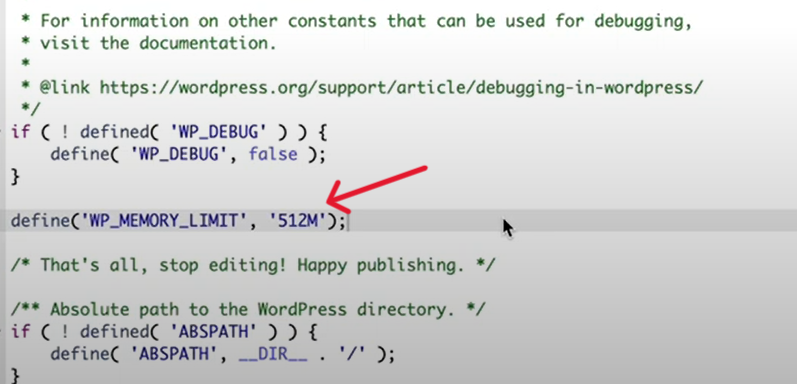
- Change ‘256M’ to the desired memory. Try 512 for starters.
- Click save changes and reload your site. Hopefully, having a higher memory limit will solve this problem.
How to Prevent Error Establishing a Database Connection from Happening Again
That’s it!
You now know how to fix “error establishing a database connection”.
After you fix it, you should do the following to prevent it from happening again:
- Regularly back up your content and plugins using a tool like Updraft
- Use reliable hosting. Upgrade to Truehost now.
- Limiting the number of plugins you install.
- Keeping WordPress core, themes, and plugins updated.