 Domain SearchInstantly check and register your preferred domain name
 Web Hosting
 cPanel HostingHosting powered by cPanel (Most user friendly)
 WordPress HostingHost your WordPress website with fast, secure, and affordable WordPress hosting in Kenya.
 KE Domains
 Reseller HostingStart your own hosting business without tech hustles
 Windows HostingOptimized for Windows-based applications and sites.
 Free Domain
 Affiliate ProgramEarn commissions by referring customers to our platforms
 Free HostingTest our SSD Hosting for free, for life (1GB storage)
 Domain TransferMove your domain to us with zero downtime and full control
 All DomainsBrowse and register domain extensions from around the world
 .Com Domain
 WhoisLook up domain ownership, expiry dates, and registrar information
 VPS Hosting
 Managed VPSNon techy? Opt for fully managed VPS server
 Dedicated ServersEnjoy unmatched power and control with your own physical server.
 Website Builder
 Online Store BuilderLaunch a professional e-commerce store without writing code.
 Web Design ServiceGet a custom-designed website tailored to your brand and goals. From just KES 15,600
 BlogRead our guides on web hosting, online business, digital marketing, and more
 SupportOur support guides cover everything you need to know about our services
 ContactContact us via chat or email

How much RAM does a WordPress site need? For most websites, a PHP memory limit of around 256 MB is a sensible target.
Heavier sites, such as busy stores or sites packed with plugins, may need 512 MB or more.
That answer changes with the site. A simple blog and a WooCommerce store don’t need the same amount of memory, even if they run the same version of WordPress.
A store has to search products, handle carts, process payments and update stock, and all of that takes more memory than serving a cached blog post.
The right amount depends on your plugins, your theme, your traffic, the features you run and the hosting environment.
This guide covers practical memory recommendations, warning signs, and hosting upgrades. It’s written with Kenyan website owners in mind, but the numbers apply anywhere.
If you’ve ever seen a white screen, a failed update or a message about memory, this guide will help you work out why.
Before you upgrade anything, find out what your site uses today.
How Much RAM Does a WordPress Site Need? A Quick Answer
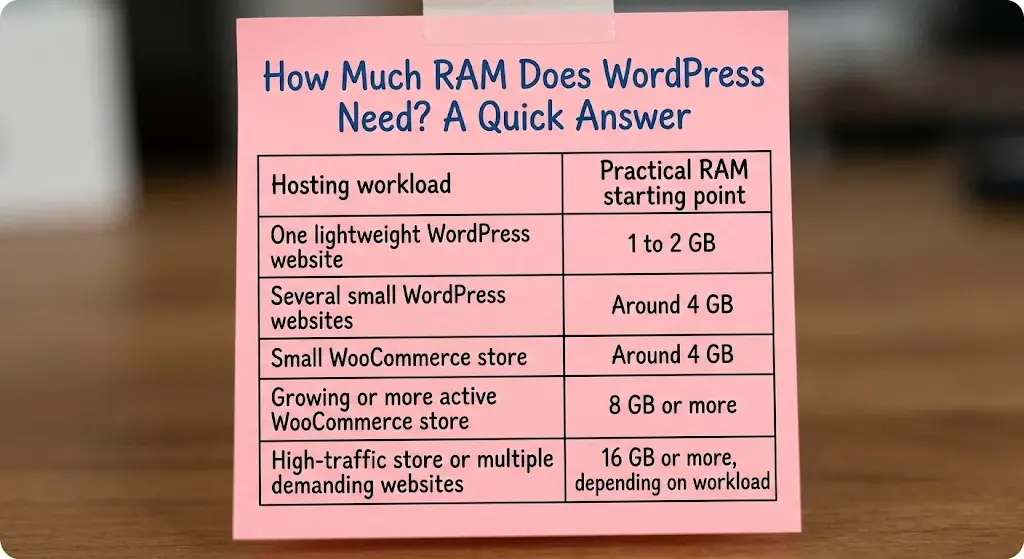
Start with this table. It shows practical starting points for hosting, which is where server RAM becomes your decision.
| Hosting workload | Practical RAM starting point |
| One lightweight WordPress website | 1 to 2 GB |
| Several small WordPress websites | Around 4 GB |
| Small WooCommerce store | Around 4 GB |
| Growing or more active WooCommerce store | 8 GB or more |
| High-traffic store or multiple demanding websites | 16 GB or more, depending on workload |
These are planning estimates, not official WordPress minimum requirements.
Real usage depends on concurrent visitors, PHP workers, database activity, caching, plugins, and server applications.
If you’re on shared hosting, the provider decides how much memory your account can use.
Don’t confuse the table with the PHP memory limit.
The WordPress hosting handbook recommends 128 MB as a minimum, 256 MB as a general default, and 512 MB or more for resource-intensive workloads.
WooCommerce recommends a WordPress memory limit of at least 256 MB.
They aren’t the RAM the whole server needs.
Here’s how the two numbers differ.
The PHP memory limit is a ceiling for one script, whereas server RAM is the pool drawn from by all requests, the database, the web server, and the OS at once.
That means you can have plenty of server RAM and still hit an error if the PHP limit is too low.
You can also have a generous PHP limit and still run out of RAM when many requests run together.
On shared hosting you usually control neither number directly, working instead within the limits your provider sets.
A blog with a 256 MB limit can run well for years, while the same limit on a growing store may soon throw errors.
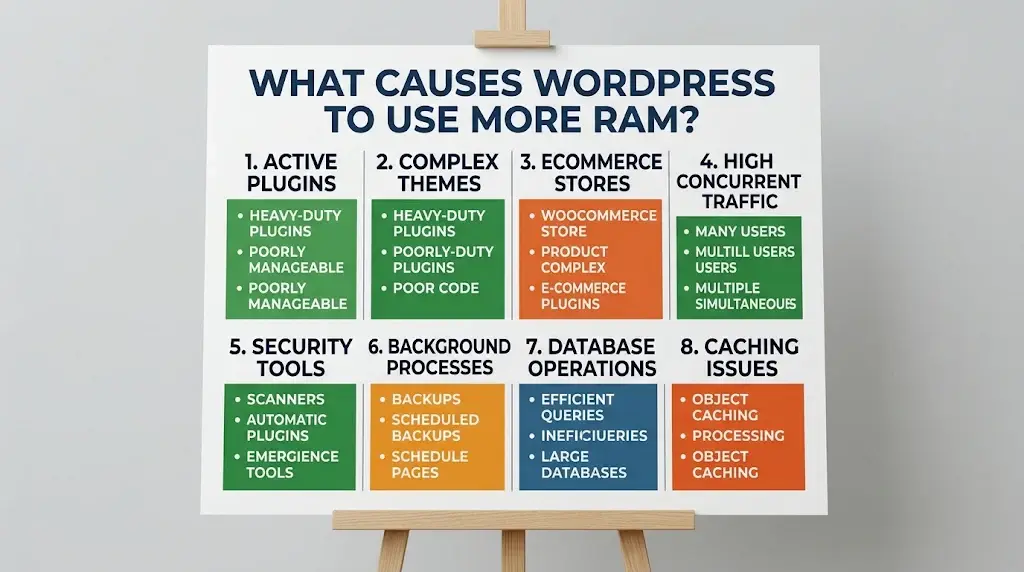
What Causes WordPress to Use More RAM?
Memory use rises when WordPress has more work to do at once. These are the usual causes.
a) Too Many Resource-Heavy Plugins
Every active plugin adds code that PHP must load and run.
Backup, security, page-builder, and analytics plugins tend to be the heaviest because they process large amounts of data or scripts.
Quality varies greatly, as a poorly optimised plugin can use far more resources than a lightweight alternative.
Deactivating a suspect plugin on a staging site will quickly reveal whether memory use or load times drop.
b) Page Builders and Complex Themes
Page builders process layouts on the server and load extra functionality for every page.
That convenience has a memory cost, especially on long pages with many design elements.
Themes with huge feature collections work the same way, loading unused widgets, sliders, and scripts.
A lightweight theme avoids that waste so your site spends memory directly on content.
c) High Traffic and Simultaneous Visitors
Each request that isn’t served from cache needs a PHP process.
When many people hit uncached pages at the same moment, many processes run in parallel, and memory use climbs.
Separate monthly visitors from simultaneous visitors, as a sudden surge of traffic can cause un-cached memory usage to spike.
Caching reduces this effect, though dynamic content like cart and checkout pages cannot be cached.
d) WooCommerce and Other Dynamic Features
Stores do a lot of live work.
Product searches, checkout operations, customer accounts, inventory updates and payment integrations all run on the server in real time.
These dynamic operations require significantly more resources than serving static informational pages.
Consequently, even a small store with modest traffic can strain a basic hosting plan.
e) Backups, Imports and Image Processing
Some jobs create short spikes.
Bulk imports, image resizing, backup runs and database tasks can all use a lot of memory for a few minutes.
This explains why a site can run smoothly normally yet crash during photo uploads or backups.
Schedule heavy background tasks for quiet hours and avoid running them simultaneously.
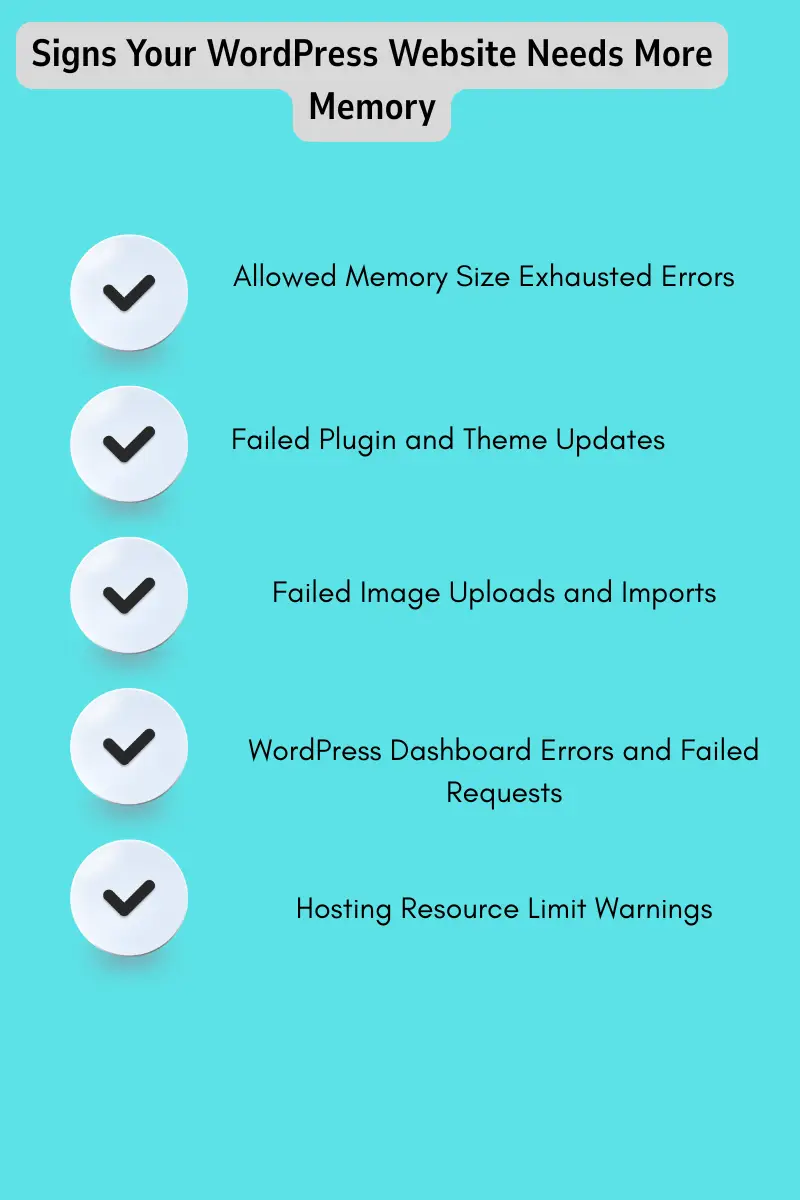
Signs Your WordPress Website Needs More Memory
Memory problems rarely announce themselves politely. Here’s how they usually show up.
a) Allowed Memory Size Exhausted Errors
This error occurs when a PHP script exceeds the allowed memory limit set by WordPress or your host.
The displayed error message typically includes the file name and specific byte count, pointing to the responsible plugin or theme.
b) Failed Plugin and Theme Updates
Updates require extra memory to unpack files and execute upgrade routines.
If memory runs out midway, the process stalls and may leave your site stuck in maintenance mode.
c) Failed Image Uploads and Imports
Image resizing and large file imports place heavy demands on server memory.
Watch for “HTTP error” messages or missing thumbnails during uploads, as these strongly indicate memory limits.
d) WordPress Dashboard Errors and Failed Requests
Failed admin tasks, HTTP 500 errors, and unresponsive white screens often stem from memory exhaustion.
Check your server logs or enable WordPress debugging to confirm the underlying issue.
e) Hosting Resource Limit Warnings
Shared hosts may restrict or throttle accounts that breach memory, CPU, or process limits.
Check your hosting control panel notices to see if resource thresholds have been crossed.
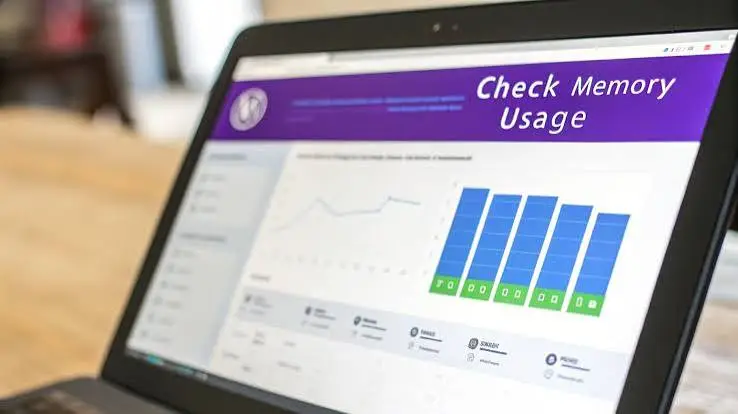
How to Check How Much Memory Your WordPress Website Is Using
Look at your current limits before you pay for anything bigger.
a) Check the PHP Memory Limit in WordPress
You can review your active memory settings in WordPress under Tools > Site Health > Info > Server, or via WooCommerce Status.
Compare these values against recommended limits to identify any bottlenecks.
b) Check Resource Usage in Your Hosting Control Panel
Some cPanel hosting accounts show resource-usage statistics. Look for these items:
- Available memory
- CPU usage
- Entry processes
- Resource-limit failures
Remember that account-level limits set by your host differ from the PHP limit in WordPress.
Monitor resource usage during peak traffic times to get an accurate measurement.
c) Ask Your Hosting Provider About Account Limits
Ask your provider for these details:
- The PHP memory_limit
- The maximum memory available to an individual process
- The account’s overall memory allowance
- CPU and entry-process limits
- Whether the PHP memory limit can be increased on your current package
Keep the answers in writing, so you can compare packages side by side.
How to Reduce WordPress RAM Usage Without Upgrading Hosting
Try these steps before you pay for a bigger package. Many of them are free.
a) Remove Unused and Overlapping Plugins
Delete plugins you no longer use. Don’t run two plugins that do the same job, such as two SEO tools or two caching plugins.
Where you can, swap a resource-heavy plugin for a lighter one.
b) Use a Lightweight WordPress Theme
Turn off theme features and widgets you don’t use. Pick a theme that doesn’t load excess functionality.
Avoid running more than one page-building system on the same site.
c) Enable Website Caching
Page caching saves a finished copy of a page and serves it to visitors who request the same content.
That cuts repeated PHP processing, so the server does less work for each visit.
For content-heavy sites, caching is often the biggest single saving.
Many hosts include server-level caching, and WordPress caching plugins add another layer.
Use one caching approach at a time, because stacking several can cause conflicts.
d) Optimise Images and Large Imports
Compress images before you upload them. Resize oversized photos, because a 6000-pixel image rarely needs to be that big on a web page.
Break very large imports into smaller batches. Also avoid running several demanding background tasks at the same time.
e) Keep WordPress, PHP and Plugins Updated
Updates can include performance improvements and compatibility fixes. A newer PHP version often runs faster too.
Test major updates before you apply them to a live store, so a failed update doesn’t take your checkout offline.
f) Raise the PHP Memory Limit if Your Host Allows It
Some hosts allow raising the limit in your control panel or via the wp-config.php file using `define( ‘WP_MEMORY_LIMIT’, ‘256M’ );`.
If your hosting provider caps this value, you will need to request an upgrade directly.
Get WordPress Hosting That Can Support Your Website’s Needs
If you’ve tried the fixes above and still hit limits, it’s time to look at hosting. Use this checklist when you compare packages:
- Check the PHP memory limit before you choose a package.
- Ask about account-level RAM and per-process restrictions.
- Compare CPU and entry-process limits, not just storage.
- Check that the package supports the plugins and functionality your website needs.
- Look for daily backups, SSL, migration support and an upgrade path.
- Confirm whether the provider can increase PHP memory when necessary.
Ensure your chosen hosting plan can accommodate future website growth without requiring complex migrations.
Always verify how your host handles resource limits before committing to a package.
Truehost offers WordPress hosting plans featuring one-click setup, free SSL, automatic backups, and seamless VPS upgrades.
Compare package resource limits against your site’s demands to select the best option.
So, how much RAM does a WordPress site need?
Enough to run your theme, plugins and daily operations without repeatedly hitting hosting limits.
Explore Truehost WordPress hosting packages, compare their resources and choose a plan that fits your website today.