Domain SearchInstantly check and register your preferred domain name
 Web Hosting
 cPanel HostingHosting powered by cPanel (Most user friendly)
 WordPress HostingHost your WordPress website with fast, secure, and affordable WordPress hosting in Kenya.
 KE Domains
 Reseller HostingStart your own hosting business without tech hustles
 Windows HostingOptimized for Windows-based applications and sites.
 Free Domain
 Affiliate ProgramEarn commissions by referring customers to our platforms
 Free HostingTest our SSD Hosting for free, for life (1GB storage)
 Domain TransferMove your domain to us with zero downtime and full control
 All DomainsBrowse and register domain extensions from around the world
 .Com Domain
 WhoisLook up domain ownership, expiry dates, and registrar information
 VPS Hosting
 Managed VPSNon techy? Opt for fully managed VPS server
 Dedicated ServersEnjoy unmatched power and control with your own physical server.
 Website Builder
 Online Store BuilderLaunch a professional e-commerce store without writing code.
 Web Design ServiceGet a custom-designed website tailored to your brand and goals. From just KES 15,600
 BlogRead our guides on web hosting, online business, digital marketing, and more
 SupportOur support guides cover everything you need to know about our services
 ContactContact us via chat or email
Most deployment headaches do not come from the deployment itself, they come from everything before it.
Figuring out the right build command, tracking down which environment variables are missing, deciding whether this app belongs on Vercel or a VPS, and then hoping you did not miss anything before pushing to production.
It is the kind of work that is never technically hard, just relentlessly tedious.
An Openclaw deployment assistant takes that off your plate.
Drop a GitHub repo link into the chat and it comes back with everything you need: the framework it detected, the correct build command, the environment variables your project expects, a recommended hosting target, and a step-by-step deployment checklist.
What makes it even more impressive and trustworthy is that, it does not act without asking.
Before running a single command or touching anything in production, the assistant lays out exactly what it found and what it plans to do. You approve each step.
This review-first workflow is the whole point. An autonomous deployer that surprises you is a risk you do not need.
To provide continuous assistance, the system should run on a server rather than a personal computer. If the assistant only works while your laptop is powered on, its usefulness becomes limited.
Hosting it on a VPS gives it the availability needed to monitor, analyze, and assist with deployments whenever you need it.
The first version should focus on a small number of deployment targets. A narrower scope makes testing easier, reduces unexpected failures, and creates a more reliable experience before expanding support to additional platforms.
| Target | What the Assistant Handles |
|---|---|
| Vercel | Detects Next.js, Vite, and React projects, configures build commands, and prepares deployment notes |
| Netlify | Identifies static and Vite applications and generates a netlify.toml configuration |
| GitHub Pages | Creates GitHub Actions workflows for automated static site deployments |
| VPS | Generates Dockerfiles, docker-compose.yml files, and Nginx configurations |
| cPanel | Prepares deployment-ready build packages, .htaccess files, and PHP version recommendations |
The core workflow remains the same regardless of the deployment target: prepare, explain, and request approval before execution. Every command is presented for review, and production deployments should always begin with a staging or preview environment before moving live.
What you need before you start
- Node.js 24+: Openclaw requires Node 22.19 at minimum, but 24 is the recommended version
- An LLM API key: from OpenAI, Anthropic, or Google Gemini. This is the brain the assistant uses to reason about your project
- A Telegram or Slack account: the messaging channel you will use to talk to the assistant
- A VPS: a machine that is always on and connected. Truehost Openclaw Hosting is the fastest way to get started in Kenya, with plans starting at Ksh 1,999/month
A local machine will not work reliably for a deployment assistant. When it sleeps, the assistant stops. When KPLC takes the power, it is gone. A VPS keeps it running around the clock.
Step 1: Install Openclaw and set up your hosting
The fast way – Truehost Openclaw Hosting
Truehost’s Openclaw Hosting plans come pre-configured with Openclaw already installed. You skip the manual setup entirely and go straight to onboarding.
| Plan | Price | vCPU | RAM | Storage | Bandwidth |
|---|---|---|---|---|---|
| KVM1 | Ksh 1,999/month | 1 core | 2 GB | 50 GB NVMe | 4 TB |
| KVM2 | Ksh 2,699/month | 2 cores | 4 GB | 100 GB NVMe | 8 TB |
For most individual developers and small teams in Kenya, KVM1 is more than enough.
Manual install on a blank VPS
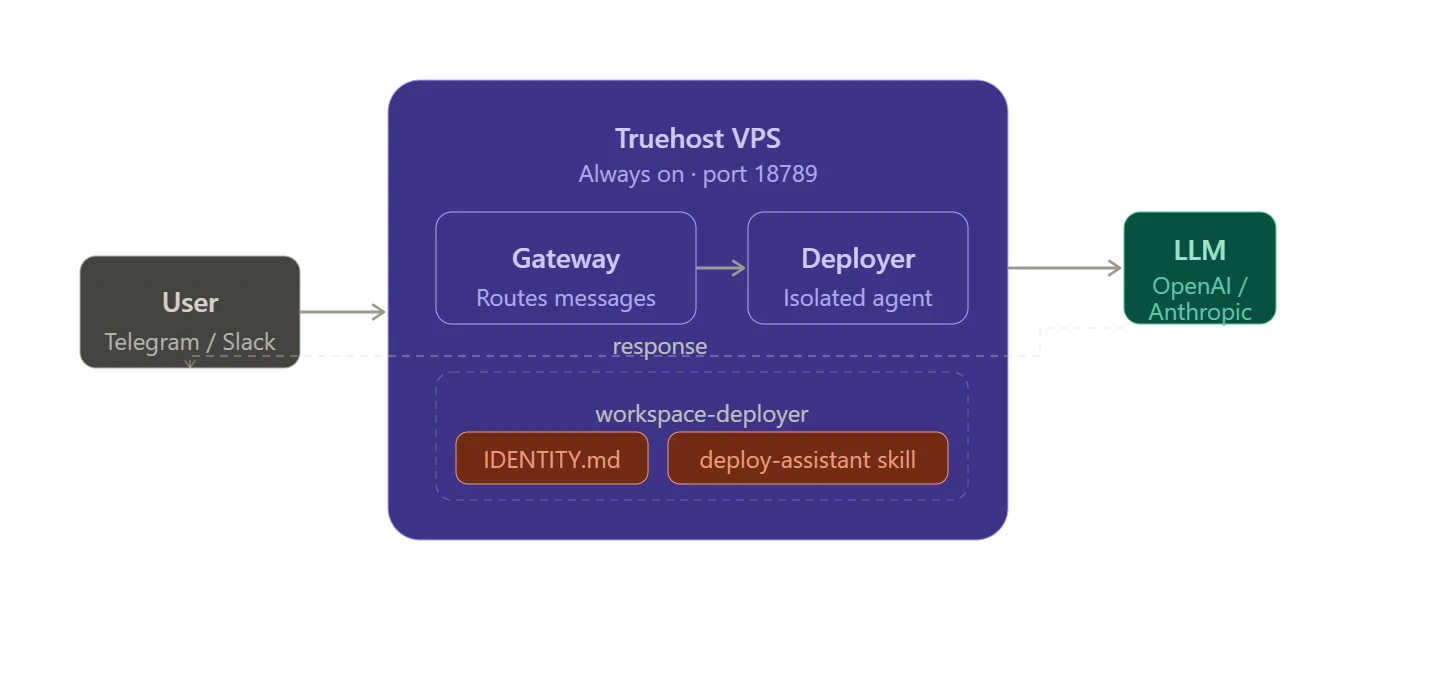
If you prefer to start from scratch, install Openclaw using the official quick start:
npm install -g openclaw@latest
openclaw onboard --install-daemon
openclaw dashboard
The onboarding wizard walks you through connecting your LLM provider and setting up the Gateway. Once done, verify it is running:
openclaw gateway statusYou should see it listening on port 18789.
Step 2: Create a dedicated deployment agent
This is the step most guides skip, and skipping it causes problems.
Do not use your main personal Openclaw assistant for deployments. A deployment agent needs its own isolated workspace, its own permissions, and its own channel binding.
If your main assistant has access to your emails, your calendar, and your notes, you do not want it also running deployment commands on your server.
Create a separate agent with its own workspace:
openclaw agents add deployer --workspace ~/.openclaw/workspace-deployerThen bind it to a specific channel, like a dedicated Telegram or Slack deployment room works well:
openclaw agents add deployer --workspace ~/.openclaw/workspace-deployer --bind telegram:deploymentsNow your deployment assistant lives in its own room, with its own scope. Everything it does stays contained.
Step 3: Give the agent an identity
Create an identity file in the deployer workspace:
~/.openclaw/workspace-deployer/IDENTITY.mdThis file tells the agent what it is, what it is allowed to do, and what it must never do. Think of it as the job description and code of conduct rolled into one.
# Deployment assistant

You are a cautious deployment assistant.

Your job is to help deploy apps safely.

You can:
- inspect project files
- identify framework and runtime
- suggest hosting options
- generate deployment files
- run build and test checks
- prepare deployment commands

You must not:
- delete production files without approval
- expose secrets or print full API keys
- run destructive commands without confirmation
- deploy to production before tests pass
- modify DNS records without explicit approval

Default mode: prepare, explain, then ask before executing.
The “prepare, explain, ask” line is the one that is most important. A deployment assistant that acts first and explains later is a liability.
Step 4: Create the deployment skill
Openclaw skills are Markdown instruction files that teach an agent when and how to handle specific tasks. They live in folders inside the agent workspace.
Create the skill directory:
mkdir -p ~/.openclaw/workspace-deployer/skills/deploy-assistant
Then create the skill file:
~/.openclaw/workspace-deployer/skills/deploy-assistant/SKILL.md
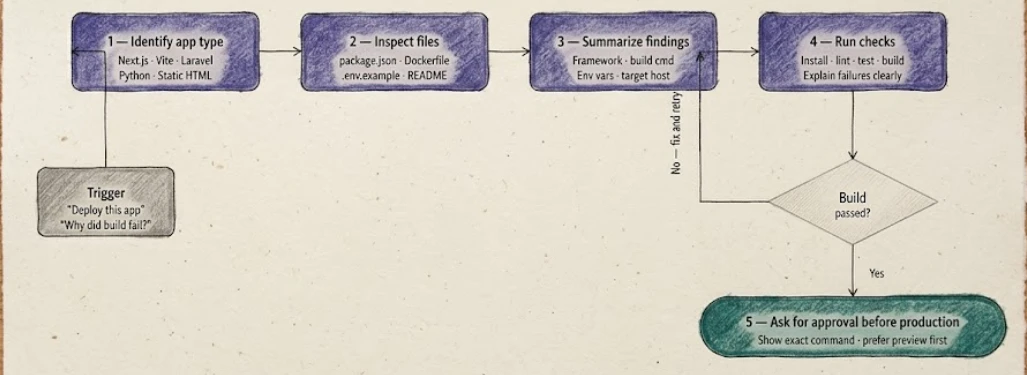
The skill defines a consistent workflow the assistant follows every single time:
---
name: deploy-assistant
description: Helps inspect, prepare, test, and deploy web apps safely.
---

# Deployment assistant skill

Use this skill when the user asks to deploy, publish, host, ship, preview,
build, or debug deployment for an app.

## Deployment workflow

Always follow this order:

1. Identify the app type (Next.js, React/Vite, Vue/Nuxt, Laravel, WordPress,
   Node/Express, Python/FastAPI/Django, static HTML/CSS/JS)

2. Inspect important files: package.json, vite.config.*, next.config.*,
   vercel.json, netlify.toml, Dockerfile, docker-compose.yml,
   .github/workflows/*, composer.json, requirements.txt, .env.example

3. Summarize: framework, build command, output directory, runtime,
   required environment variables, recommended deployment target

4. Before deployment: run install only when needed, run lint/test/build
   when available, explain failures clearly, never expose secrets

5. For production deployment: ask for approval before running deploy command,
   show exact command first, prefer preview/staging before production
The skill also contains platform-specific rules for each target (Vercel, Netlify, GitHub Pages, VPS, cPanel), so the assistant knows exactly what to check and generate for each one.
Step 5: Restrict the agent’s skills
A deployment agent should only have access to deployment skills. Full stop.
In your Openclaw config, explicitly limit which skills the deployer agent can use:
{
  "agents": {
    "list": [
      {
        "id": "deployer",
        "workspace": "~/.openclaw/workspace-deployer",
        "skills": ["deploy-assistant"]
      }
    ]
  }
}
This is crucial because Openclaw agents are powerful they connect messaging, tools, memory, and local execution. An agent with unrestricted skill access can do a lot of things you did not intend. A deployment assistant should know about deployments and nothing else.
Step 6: Add deployment playbooks
Skills tell the agent what to do. Playbooks tell it how to do it consistently for each platform.
Create a playbooks folder:
mkdir -p ~/.openclaw/workspace-deployer/playbooks
Then create a playbook for each deployment target:
~/.openclaw/workspace-deployer/playbooks/vercel.md
~/.openclaw/workspace-deployer/playbooks/netlify.md
~/.openclaw/workspace-deployer/playbooks/github-pages.md
~/.openclaw/workspace-deployer/playbooks/vps-docker.md
~/.openclaw/workspace-deployer/playbooks/cpanel.md
A Vercel playbook, for example, would look like this:
# Vercel deployment playbook

Use this for Next.js, Vite, React, Vue, and frontend apps.

Checklist:
1. Confirm framework
2. Confirm package manager
3. Confirm build command
4. Confirm output directory
5. Check env vars
6. Run build locally
7. If build passes, prepare Vercel deployment
8. Ask before production deployment

Common settings:
- Next.js: framework auto-detected
- Vite: build command `npm run build`, output `dist`
- React CRA: build command `npm run build`, output `build`
Playbooks are what turn the assistant from capable-but-unpredictable into reliable. Without them, the assistant figures things out fresh every time. With them, it follows the same checklist consistently across every project.
Step 7: Add project-level instructions
Every project you want the assistant to handle should have its own instruction file inside the repo. This handles the reality that different projects have different stacks, different rules, and different deployment preferences.
Create this file inside each project:
my-app/.agents/DEPLOYMENT.md
Example:
# Deployment instructions for this project

App type: Vite React
Preferred hosting: Vercel
Package manager: npm
Build command: npm run build
Output directory: dist

Rules:
- Do not deploy to production without approval
- Use preview deployment first
- Required env vars are listed in .env.example
- Never print secrets
When the assistant inspects the project, it finds this file and follows the project-specific rules rather than guessing. This is especially useful when you have several projects running on different stacks.
Step 8: Set up safety gates
This is the part most people skip, and it is the most important part.
Your deployment assistant runs commands on a real server. That means it needs clear rules about what it can run on its own and what requires your confirmation.
Classify commands into tiers before anything touches production:
| Command type | Example | Rule |
|---|---|---|
| Safe reads | ls, cat package.json, git status | Can run freely |
| Build and test | npm run build, npm test | Can run after notice |
| File edits | Creating config files | Ask or show diff first |
| Deployment | vercel --prod, git push, scp | Confirm before running |
| Destructive | rm -rf, DB reset, DNS changes | Block unless explicitly approved |
In practice, you set this up through your Openclaw dashboard and via your IDENTITY.md file. Two settings to configure immediately:
Approval gates: require your explicit confirmation before the assistant takes any deployment or destructive action. This is non-negotiable.
Spending limits: set a monthly cap on your API key at your LLM provider’s dashboard. An agent stuck in a loop or triggered unexpectedly can burn through API credits fast without a cap in place.
If you are on Truehost, network-level protection and server hardening are handled on the hosting side, so you are not starting from zero on security.
What a real conversation looks like
This is what the assistant actually does when you send it a project:
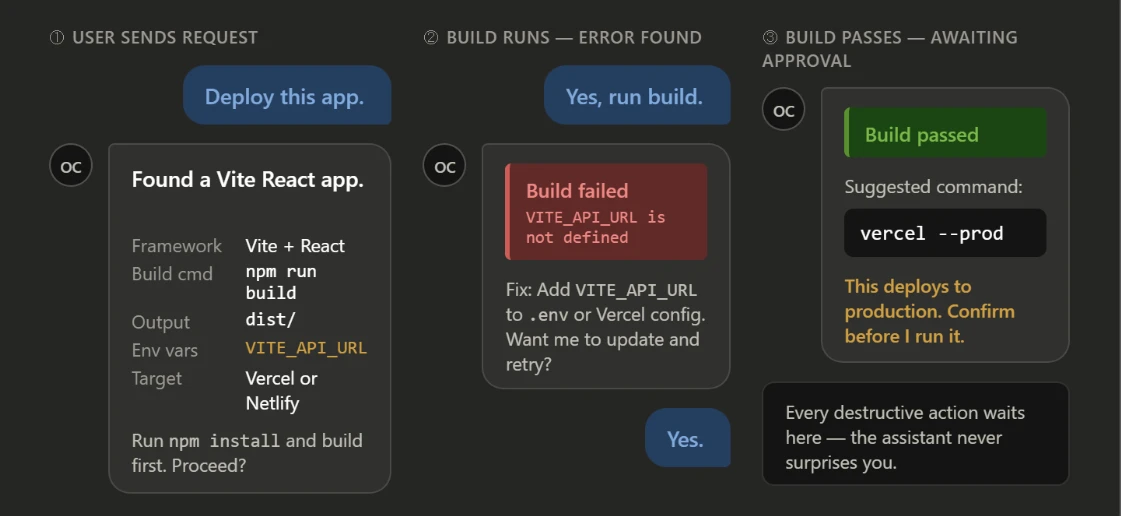
You: Deploy this app.
Assistant:
I found a Vite React app.

Build command: npm run build
Output directory: dist
Required env vars: VITE_API_URL
Recommended target: Vercel or Netlify

I can run npm install and npm run build first.

Proceed?
You: Yes, run build.
Assistant:
Running build...

Build failed. Error: VITE_API_URL is not defined.

Fix: Add VITE_API_URL to your .env file or Vercel environment variables.
Do you want me to update the Vercel env config and retry?
You: Yes.
Assistant:
Build passed.

Suggested command:
vercel --prod

This will deploy to production. Confirm before I run it.
Every step is visible. Every destructive action waits for your confirmation. The assistant never surprises you.
Deployment templates
Here are the ready-to-use config files the assistant generates for each platform.
Vite on Netlify (netlify.toml):
[build]
  command = "npm run build"
  publish = "dist"
Vite on GitHub Pages (.github/workflows/deploy.yml):
name: Deploy static site

on:
  push:
    branches: [main]

permissions:
  contents: read
  pages: write
  id-token: write

jobs:
  build:
    runs-on: ubuntu-latest
    steps:
      - uses: actions/checkout@v4
      - uses: actions/setup-node@v4
        with:
          node-version: 22
      - run: npm ci
      - run: npm run build
      - uses: actions/upload-pages-artifact@v3
        with:
          path: dist

  deploy:
    needs: build
    runs-on: ubuntu-latest
    environment:
      name: github-pages
    steps:
      - uses: actions/deploy-pages@v4
Node app on VPS (Dockerfile):
FROM node:22-alpine

WORKDIR /app

COPY package*.json ./
RUN npm ci --omit=dev

COPY . .

EXPOSE 3000

CMD ["npm", "start"]
Docker Compose:
services:
  app:
    build: .
    restart: unless-stopped
    ports:
      - "3000:3000"
    env_file:
      - .env
OpenClaw Deployment Assistant FAQs
What is an Openclaw deployment assistant?
It is a self-hosted AI agent that connects to a messaging app like Telegram or Slack, inspects your project repos, generates deployment configs, runs build checks, and walks you through the deployment process, asking for confirmation before any production action.
Is it safe to give it access to my repos?
Yes, with the right setup. The IDENTITY.md file, skill restrictions, safety gate tiers, and approval gates all work together to make sure the assistant never acts on a destructive command without your explicit go-ahead. Start with review-first deployment before giving it any autonomous production access.
Can I use it for multiple projects?
Yes. Each project gets its own .agents/DEPLOYMENT.md file with project-specific rules, build commands, and hosting preferences. The assistant reads this file on every interaction so it always knows the rules for that specific project.
What LLM provider should I use?
OpenAI (GPT-4o) and Anthropic (Claude) both handle code and deployment reasoning well. Gemini is a solid option if you are already in the Google ecosystem. The choice mostly comes down to which API credits you already have. Set a spending cap on whichever one you pick.
Can I run it on a local machine?
Technically yes, but it defeats the purpose. The assistant needs to be reachable any time, not just when your laptop is awake. A Truehost VPS keeps it running 24/7 without depending on your local hardware.
Why host your deployment assistant on Truehost?
A deployment assistant is not a tool you open occasionally. It needs to be reachable any time a build fires, a deploy fails at 2 AM, or a client pushes a hotfix on a Friday evening. That means it needs a server that never goes offline.
Truehost’s Openclaw Hosting plans are built for exactly this. Both plans use NVMe storage, significantly faster than the traditional SSDs most budget hosts still use, and come with generous bandwidth allocations and pre-configured Openclaw so you skip the manual setup entirely.
KVM1 at Ksh 1,999/month gives you 1 vCPU, 2 GB RAM, 50 GB NVMe storage, and 4 TB bandwidth. More than enough for a personal deployment assistant handling several projects.
KVM2 at Ksh 2,699/month doubles the compute and storage, 2 vCPU, 4 GB RAM, 100 GB NVMe, and 8 TB bandwidth. The better fit if you are running deployments for a small team or multiple clients.
Both plans include local support, M-Pesa-friendly billing, and the uptime you need for something that handles production deployments in the background.