Domain SearchInstantly check and register your preferred domain name
 Web Hosting
 cPanel HostingHosting powered by cPanel (Most user friendly)
 WordPress HostingHost your WordPress website with fast, secure, and affordable WordPress hosting in Kenya.
 KE Domains
 Reseller HostingStart your own hosting business without tech hustles
 Windows HostingOptimized for Windows-based applications and sites.
 Free Domain
 Affiliate ProgramEarn commissions by referring customers to our platforms
 Free HostingTest our SSD Hosting for free, for life (1GB storage)
 Domain TransferMove your domain to us with zero downtime and full control
 All DomainsBrowse and register domain extensions from around the world
 .Com Domain
 WhoisLook up domain ownership, expiry dates, and registrar information
 VPS Hosting
 Managed VPSNon techy? Opt for fully managed VPS server
 Dedicated ServersEnjoy unmatched power and control with your own physical server.
 Website Builder
 Online Store BuilderLaunch a professional e-commerce store without writing code.
 Web Design ServiceGet a custom-designed website tailored to your brand and goals. From just KES 15,600
 BlogRead our guides on web hosting, online business, digital marketing, and more
 SupportOur support guides cover everything you need to know about our services
 ContactContact us via chat or email
You fire off a message to your Openclaw assistant and get nothing back. No reply, no loading indicator, just dead air.
It’s one of those small frustrations that can kill your workflow fast, especially when you’re mid-task.
The symptoms vary. Sometimes the entire UI goes quiet. Other times the bot receives your message and returns a blank response.
You might see the gateway drop, the channel show as connected while nothing actually moves, or a chat thread that worked perfectly yesterday now just hangs.
Whatever flavor of silence you’re dealing with, there’s almost always a clear cause, and a direct fix.
This guide walks through every common reason for your Openclaw assistant not responding, with exact commands for each scenario. Most cases resolve with built-in tools.
For persistent issues, reliable VPS hosting removes the root cause entirely.
Quick Diagnostic Ladder (First 60 Seconds)
Before going deep into fixes, start with a quick diagnostic check instead of jumping into random fixes.
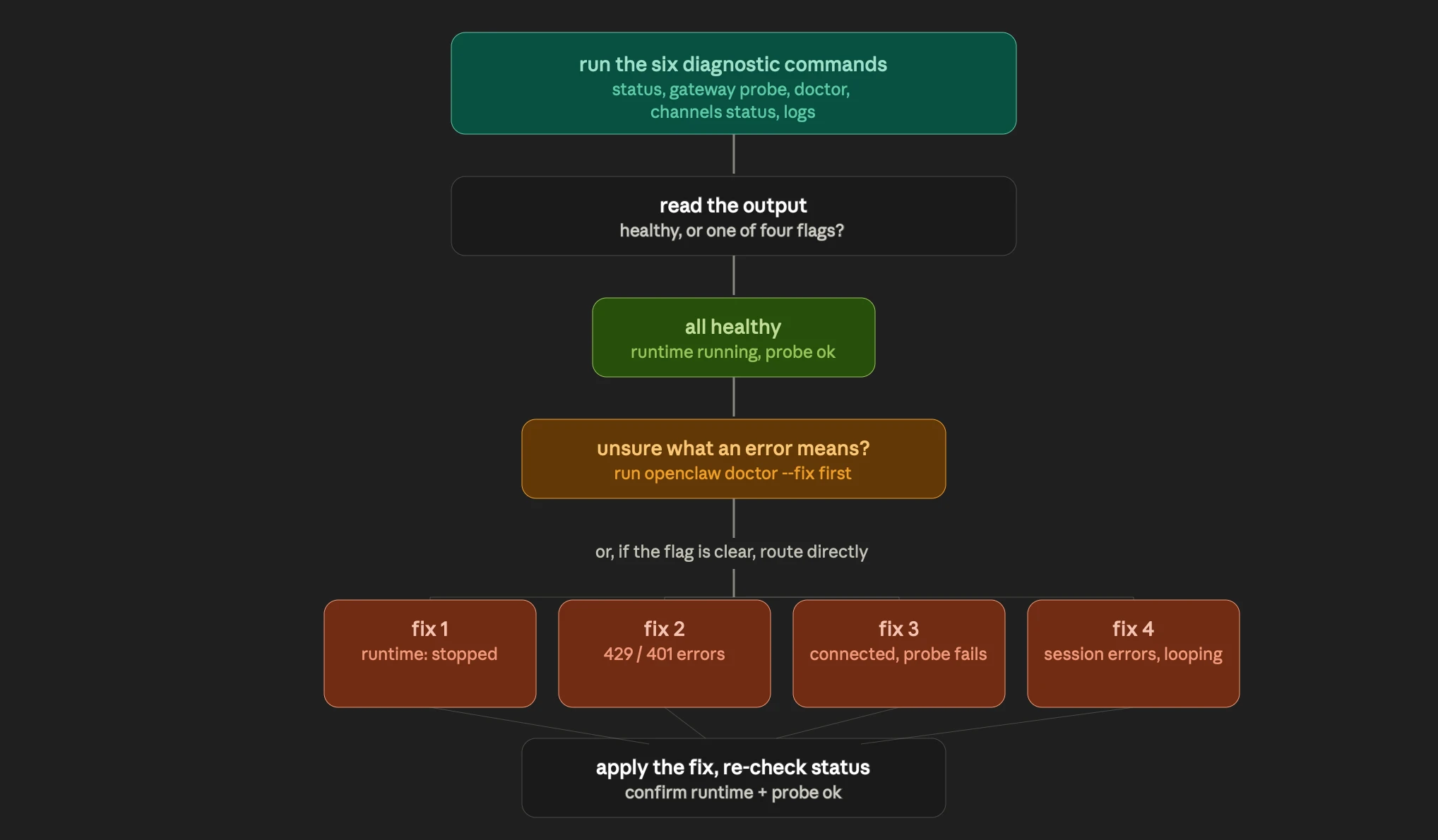
These six commands take under a minute and will often either solve the problem outright or point you exactly to which section below applies to you.
Run the following commands one after another:
openclaw status
openclaw status --all
openclaw gateway probe
openclaw gateway status
openclaw doctor
openclaw channels status --probe
openclaw logs --follow
A healthy installation should show results similar to these:
Runtime: runningConnectivity probe: ok- No red flags in the channel status list
If you notice any of the following, you’ll know where to start:
Runtime: stopped> go straight to Fix 1- HTTP
429or401 Unauthorizederrors > Continue to Fix 2. - Channel reports connected, but the probe fails > Skip ahead to Fix 3.
- Session-related errors or logs repeating the same messages continuously > Move on to Fix 4.
If the output isn’t clear or you’re unsure what an error means, run:
openclaw doctor --fixThis command performs Openclaw’s automatic repair process. It checks for common configuration issues, corrects them where possible, and saves you from making manual changes.
Once it finishes, run the status commands again to confirm everything is back to normal before continuing with the rest of this guide.
Fix 1: Gateway and Service Failures
Target symptom: Your assistant doesn’t respond at all, or your status check reports Runtime: stopped.
If Openclaw has gone completely silent, the gateway is usually the first place to check. The gateway is responsible for moving requests between your channels and the AI runtime. When it stops running, nothing gets processed, making the assistant appear completely offline.
Steps:
1. Start by restarting the gateway:
openclaw gateway restart2. Once the restart finishes, run another status check to see if the runtime is back online. If the gateway still refuses to start, the next step is to find out why.
Display the detailed startup logs:
openclaw gateway --verboseOr monitor the live logs as the service attempts to start:
openclaw logs --follow3. These logs usually point directly to the underlying problem. If the issue is caused by a configuration error, let Openclaw repair the most common problems automatically:
openclaw doctor --fix4. After the repair completes, restart the gateway again and check its status.
If the service still won’t come online, restart your server or VPS from your hosting provider’s control panel. A full reboot often clears processes or system resources that prevent the gateway from starting correctly.
As you review the logs, watch for these common error messages:
"Gateway start blocked: set gateway.mode=local"– The gateway isn’t configured for local execution. Update thegateway.modesetting before trying again.
"EADDRINUSE"– Another application is already using the required port. Stop the conflicting process or change the port configuration.
Beyond these two, gateway failures can also come from stale PID files left behind after a crash, systemd service issues on Linux servers, or a post-update state where the config and binary are out of sync.
Running the gateway with the --verbose flag usually reveals exactly which of these situations is causing the failure.
If you’re running Openclaw from a home computer or shared hosting, brief power interruptions or unstable internet connections can cause the gateway process to stop unexpectedly.
Hosting Openclaw on a reliable VPS keeps the service running continuously, even if your local computer loses power or disconnects from the internet.
Fix 2: Model Configuration and API Limit Errors
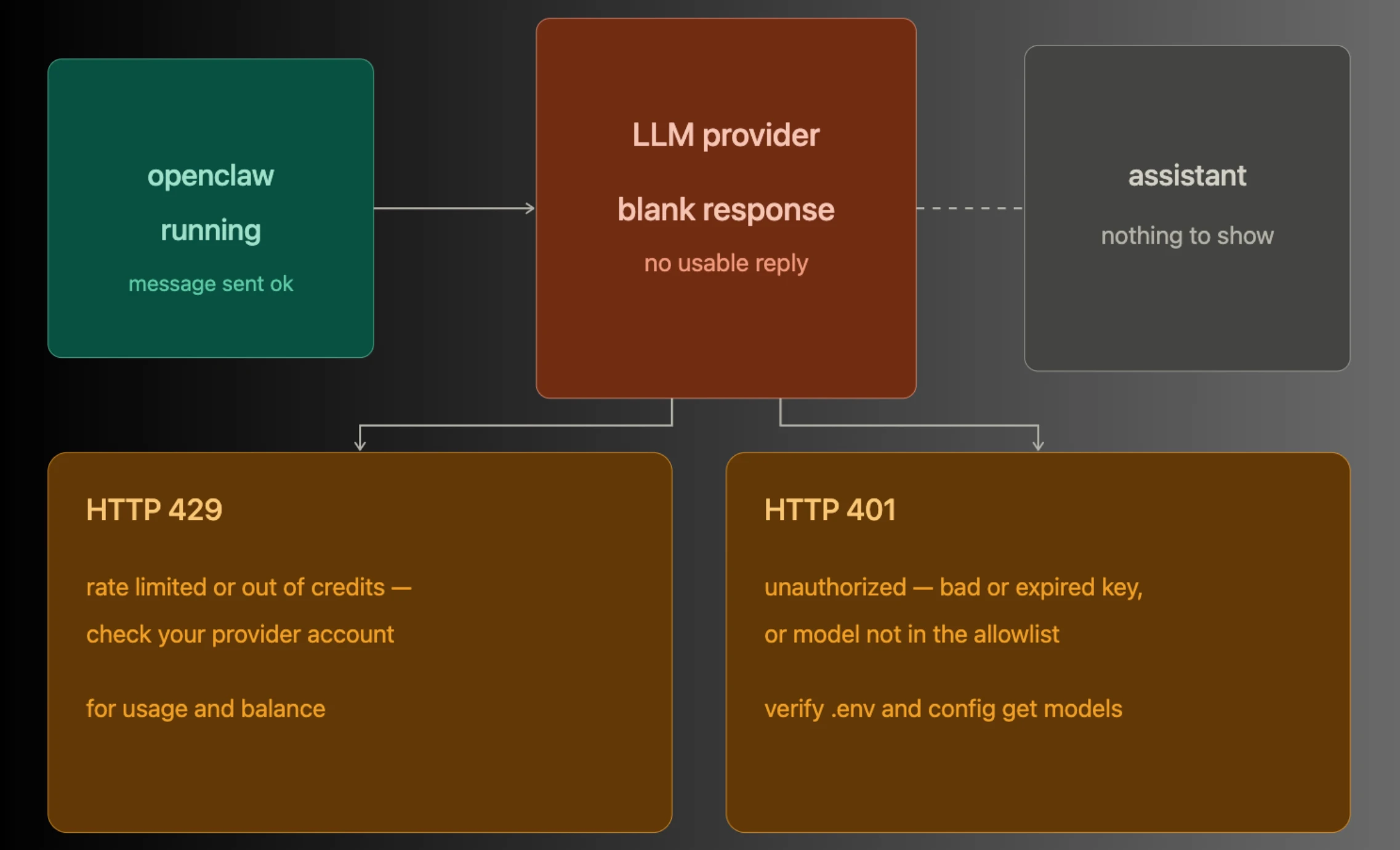
Target symptom: Your assistant receives your message but returns a blank response, or the logs show HTTP 429 or 401 Unauthorized errors.
Unlike a gateway failure, Openclaw is still running in this situation. Messages reach the assistant, but the language model never returns a usable response. The issue is usually with your LLM provider, API credentials, or model configuration.
Checks:
1. Start by checking your LLM provider account. Sign in to the provider you’re using, such as OpenAI or Anthropic, and confirm that your account is active, has available credits, and hasn’t reached its rate limit.
A 429 error typically means you’ve exceeded your request limit or exhausted your available balance.
2. Next, verify your API key. Open your .env file or openclaw.json configuration and make sure the key is correct, active, and hasn’t been revoked or expired. Even a single incorrect character can prevent requests from being authenticated.
3. Then confirm that your selected model is included in Openclaw’s allowlist by running:
openclaw config get agents.defaults.modelsIf you’ve recently changed models, verify that the new model appears in the list. Requests sent to an unsupported or unrecognized model can fail without producing a clear error message.
4. If you’re using Anthropic models, review any compatibility settings required by your environment. Long-context requests and certain local backend setups sometimes require compatibility flags like requiresStringContent: true or supportsTools.
If your configuration uses a non-standard Claude setup, try switching to a standard context-window model first, then run openclaw doctor --fix again.
This is the number-one silent culprit for pay-as-you-go API accounts. Once credits are depleted or rate limits are reached, the assistant stops generating replies while continuing to accept incoming messages, making the problem easy to overlook.
If you’re unsure which model is causing the issue, switch to a known, working model in your configuration and test the assistant again. Once responses return, you can gradually switch back to your preferred model and identify the exact configuration that’s causing the failure.
Fix 3: Channel Issues
Target symptom: Your WhatsApp, Telegram, or Discord channel shows as connected, but messages get no reply.
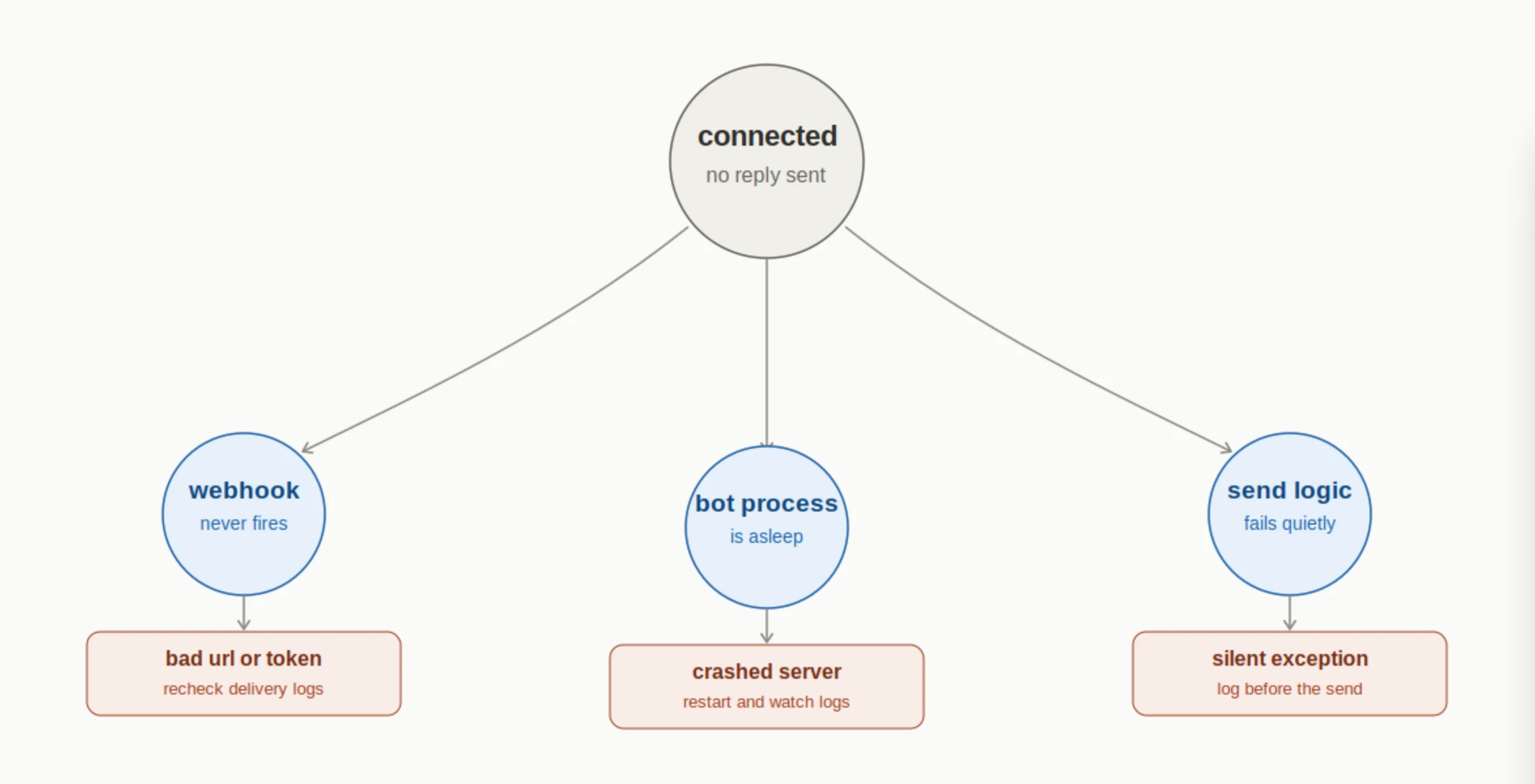
A connected channel doesn’t always mean a working channel.
The connection itself may be active while message delivery, authentication, or channel permissions are preventing requests from reaching the assistant. These problems often go unnoticed because there are no obvious error messages.
Checks:
1. Start by running a deeper channel health check:
openclaw channels status --probeUnlike a standard status check, this command tests the actual transport layer for each connected channel. It can reveal problems that a simple connection check won’t detect.
2. Next, review your channel-specific settings.
On Discord, the bot may be configured to respond only when it’s mentioned with @. If that’s enabled, messages without a mention will be ignored.
On WhatsApp and Telegram, you may see a “Pairing Request” status, which means the sender hasn’t been approved yet and the assistant is intentionally blocking responses.
3. To review pending pairing requests, run:
openclaw pairing list --channelApprove any pending senders, then send another test message to confirm the channel is working normally.
4. If your assistant connects to third-party services like Gmail or Google Calendar, expired OAuth tokens can also prevent certain features from working. Instead of modifying configuration files, you can reauthorize the integration directly from your messaging app by sending:
reauth [platform-name]For example: reauth Gmail or reauth Google.
After the authorization process completes, test the integration again to confirm it can send and receive requests successfully.
If the channel still appears connected but remains unresponsive after these checks, the issue is usually isolated to the transport layer or authentication. The probe results, pairing status, and OAuth refresh process will typically identify exactly where communication is breaking down.
Fix 4: Stale Sessions and Context Corruption
Target symptom: The assistant was working normally but begins hanging, responding slowly, or producing incomplete answers after a long conversation.
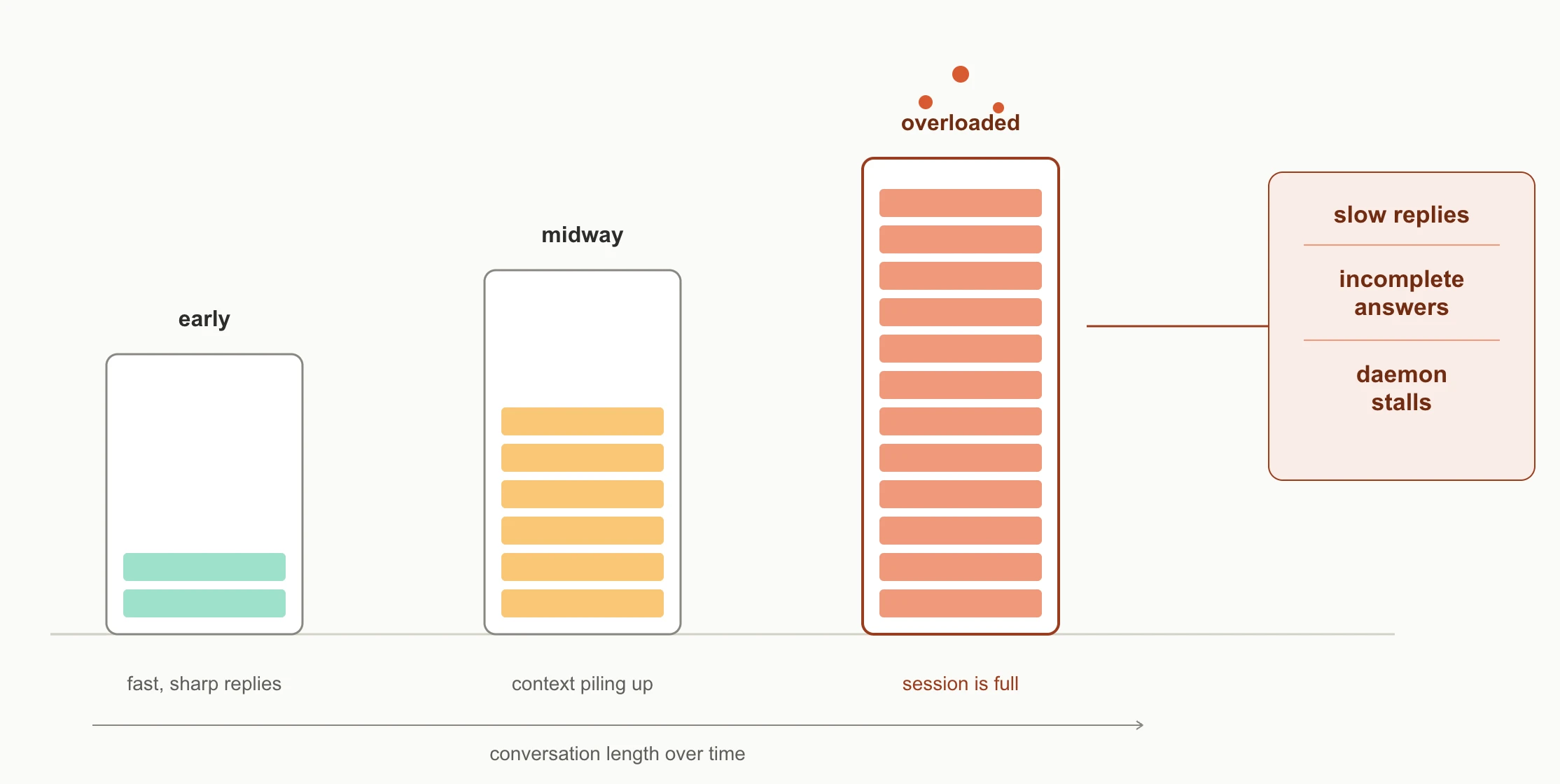
If your assistant performs well at first and then gradually becomes less reliable, the current session may have grown too large.
As conversations continue, more context is stored and processed. Eventually, the session can become overloaded, causing slower responses, incomplete replies, or, in some cases, the daemon to stall.
Steps:
1. Clear any stale sessions:
openclaw sessions clearOnce the command finishes, start a new conversation and check whether the assistant responds normally again.
2. Going forward, it’s a good idea to separate conversations by topic. Instead of using one long thread for everything, create individual threads for different tasks.
For example, keep code reviews in one conversation, general questions in another, and business workflows in a separate thread. This keeps each session focused and prevents unnecessary context from building up.
3. If a conversation has already become unresponsive, don’t continue sending messages to it. Start a completely new chat or thread and test the assistant there first. In many cases, a fresh session immediately restores normal performance.
4. Finally, review your channel settings.
Privacy modes, gateway permissions, bot intents, and message gating rules all influence how messages are received and processed.
If you’ve recently changed your bot’s permissions or updated channel settings, those changes may be preventing messages from reaching the assistant even though everything appears connected.
Advanced Troubleshooting and When to Go Deeper
If you’ve worked through all four fixes and you still get OpenClaw assistant not responding, it’s time to investigate the parts of Openclaw that require a closer look:
1) Plugins
Start by checking any plugins you’ve recently installed or updated. A faulty plugin can prevent the daemon from starting correctly or cause it to crash shortly after launch.
Watch the startup logs carefully by running: openclaw logs --follow.
If a plugin is responsible, the error will usually appear immediately after the service starts.
2) Memory and compaction
Next, review your memory configuration.
Some backends retain conversation state over time and may require periodic compaction to maintain performance. If memory isn’t being managed correctly, sessions can become sluggish or unstable.
Check your configuration file to confirm the appropriate memory management settings are enabled.
3) Cron and automation failures
If you use scheduled tasks or automated workflows, inspect those as well. A failed cron job or automation can leave a session locked or create a deadlock that prevents other tasks from completing.
Reviewing recent automation logs can help identify jobs that stopped unexpectedly.
4) Ownership issues in Docker
Docker users should also verify file ownership and permissions. After updates or container rebuilds, files may end up with incorrect ownership, preventing Openclaw from reading configuration files or writing required data.
Correcting file permissions with chown often resolves these otherwise silent failures.
Once you’ve reviewed these areas, run Openclaw’s comprehensive diagnostic scan:
openclaw doctor --deepThe --deep option performs a more extensive inspection than the standard health check, examining components that are normally skipped.
After the scan completes, validate your configuration and review the logs one final time. Together, these checks usually reveal the root cause of issues that aren’t resolved by the standard troubleshooting steps.
Keep Openclaw Running Smoothly with Truehost
The fixes above solve the problem in front of you. But if you’re hitting these OpenClaw assistant not responding issues repeatedly, the underlying cause is usually the environment, not Openclaw itself.
Running an AI agent on a local machine or cheap shared hosting means you’re exposed to power fluctuations, high-latency connections, resource limits, and infrastructure that wasn’t built for long-running daemon processes.
Each one of those is a recurring cause of exactly the symptoms in this guide.
Running Openclaw on a dedicated VPS provides a much more stable foundation. With Truehost Openclaw VPS Hosting, your AI agent runs in an environment built for long-running services.
We offer reliable infrastructure, dedicated resources, and full root access, giving you complete control over your deployment. If you ever need to restart your server, you can do it directly from the hosting dashboard without logging in over SSH.
If you are in Kenya, hosting from Truehost’s Nairobi data center also reduces latency, helping your assistant respond more quickly while maintaining a stable connection to local users and services.
Also, if you’re running Openclaw in production, handling business tasks, customer queries, or automated workflows, a proper VPS tier removes the gap between “it works sometimes” and “it works all the time.”