Domain SearchInstantly check and register your preferred domain name
 Web Hosting
 cPanel HostingHosting powered by cPanel (Most user friendly)
 WordPress HostingHost your WordPress website with fast, secure, and affordable WordPress hosting in Kenya.
 KE Domains
 Reseller HostingStart your own hosting business without tech hustles
 Windows HostingOptimized for Windows-based applications and sites.
 Free Domain
 Affiliate ProgramEarn commissions by referring customers to our platforms
 Free HostingTest our SSD Hosting for free, for life (1GB storage)
 Domain TransferMove your domain to us with zero downtime and full control
 All DomainsBrowse and register domain extensions from around the world
 .Com Domain
 WhoisLook up domain ownership, expiry dates, and registrar information
 VPS Hosting
 Managed VPSNon techy? Opt for fully managed VPS server
 Dedicated ServersEnjoy unmatched power and control with your own physical server.
 Website Builder
 Online Store BuilderLaunch a professional e-commerce store without writing code.
 Web Design ServiceGet a custom-designed website tailored to your brand and goals. From just KES 15,600
 BlogRead our guides on web hosting, online business, digital marketing, and more
 SupportOur support guides cover everything you need to know about our services
 ContactContact us via chat or email
As of April 2026, OpenClaw has 346,000 GitHub stars, roughly 38 million site visitors, 3.2 million active users, over 44,000 community skills, and 500,000+ running instances worldwide.
Plus a growing wave of enterprise adoption and a few notable security CVEs along the way.
So what is it?
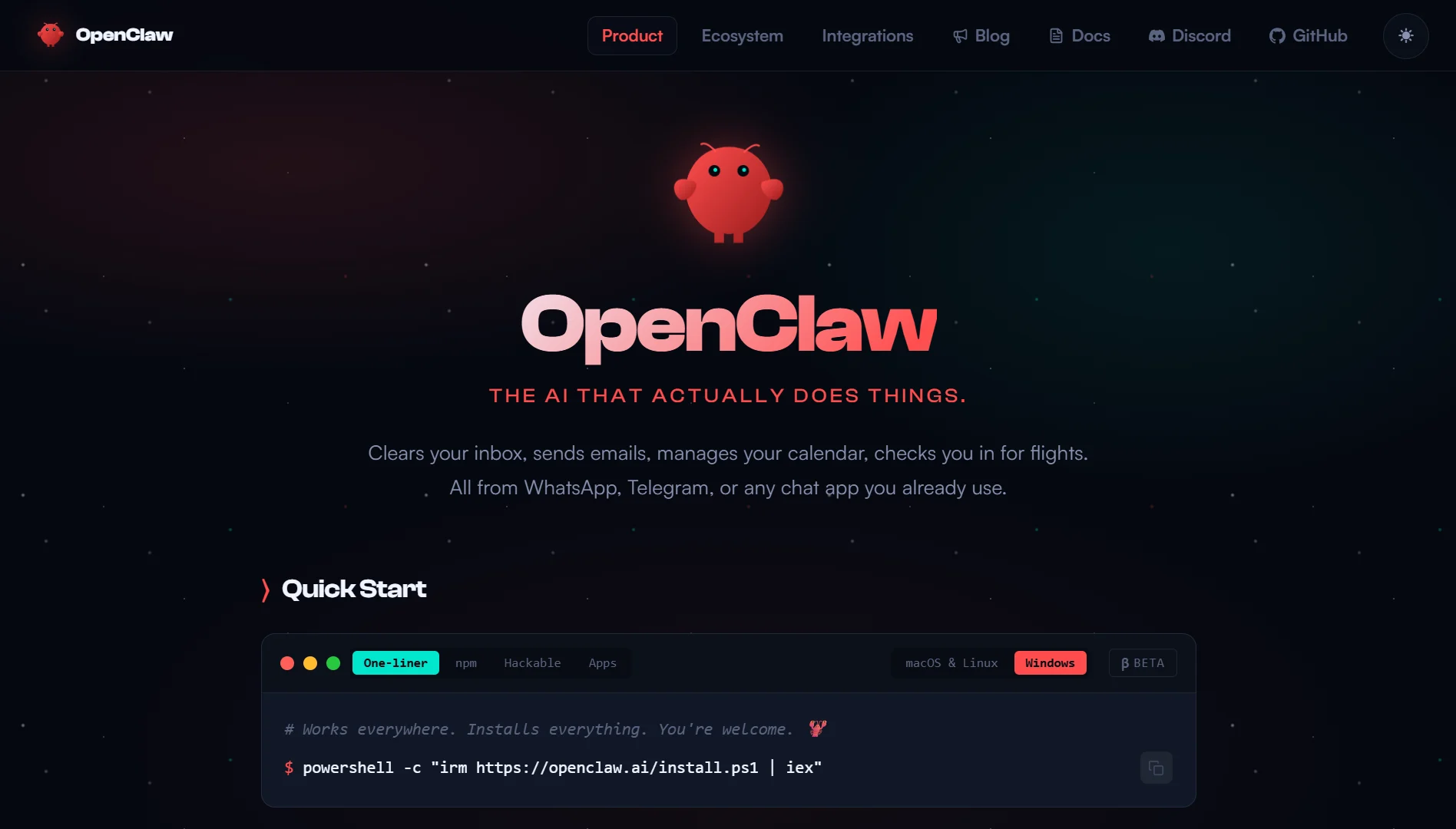
OpenClaw is a self-hosted gateway that connects an AI agent to the messaging apps you already use.
It lets it take real action instead of just answering questions, all run through a single process you control on your own hardware.
It’s used by developers, power users, and, increasingly, by businesses seeking a local-first alternative to hosted AI tools.
Some of the great features in OpenClaw include:
| Feature | What it does |
| Multi-Channel Messaging | Connects Discord, WhatsApp, Telegram, Slack, and more through one Gateway |
| Bundled Plugin Channels | Adds Matrix, Nextcloud Talk, Nostr, Twitch, Zalo, and more without extra installs |
| Multi-Agent Routing | Routes conversations to different agents with isolated sessions per workspace |
| Mobile Node Capabilities | iOS and Android nodes with pairing, voice, chat, and device commands |
| Desktop and Web Apps | Windows Hub, Web Control UI, and macOS app for managing your assistant |
| Media Input and Generation | Handles images, audio, video, and documents in and out, plus generation |
| Voice Transcription and Speech | Voice note transcription and text-to-speech with multiple providers |
| Integrated Web Search | Search via Brave, DuckDuckGo, Exa, Perplexity, and more |
| Browser Automation Tools | Browser automation, exec, and sandboxing for web tasks |
| Cron Job Scheduling | Schedule one-shot or recurring tasks with precise timing |
10 OpenClaw Features
1) Multi-Channel Messaging Support
This OpenClaw feature lets you run a single Gateway that connects to all your messaging apps at once.
There is no need to run separate instances of Discord, Google Chat, iMessage, IRC, Signal, Slack, Telegram, WebChat, and WhatsApp right out of the box.
And the clever part?
Group chat support works with mention-based activation. Your assistant only jumps in when you specifically call for it by mentioning its name.
So it won’t clutter up your group conversations with random responses.
For direct messages, you get safety features like allowlists and pairing. You decide who can actually message your assistant, keeping things secure and spam-free.
2) Bundled Plugin Channels
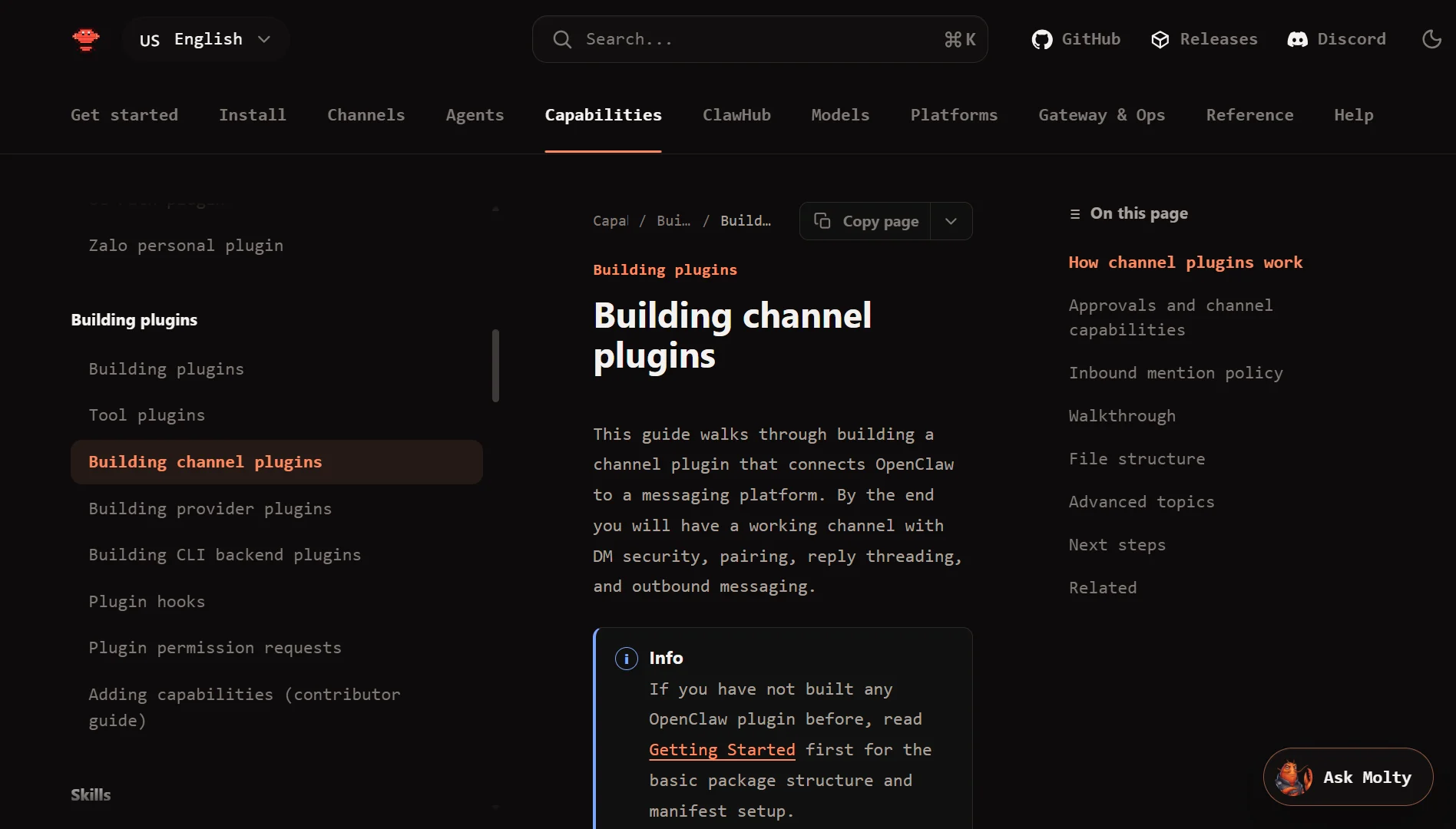
OpenClaw comes with a bunch of plugin channels already bundled in.
These include Feishu, LINE, Matrix, Mattermost, Microsoft Teams, Nextcloud Talk, Nostr, QQ Bot, Synology Chat, Tlon, Twitch, Zalo, and Zalo Personal.
They’re ready to go without any separate installation steps.
There are also optional plugins you can install separately, such as Voice Call, as well as third-party packages like WeChat.
Meaning if your team uses Microsoft Teams or you’re active on Twitch, you can bring your AI assistant there, too.
The plugin system keeps things flexible without bloating the core installation.
3) Multi-Agent Routing System
This one’s pretty useful if you use your assistant for different purposes. The routing system gives you isolated sessions per workspace or sender.
So, direct chats collapse into a shared main session, while group conversations stay completely isolated from each other.
If you’re chatting with your assistant in a work group, those conversations don’t mix with your personal chats.
Your assistant keeps context separate, which means more relevant responses and less confusion.
The system also handles streaming and chunking for long responses, so you’re not sitting there waiting forever for a lengthy reply to generate.
4) Mobile Node Capabilities
OpenClaw pairs with iOS and Android nodes through the Gateway.
Once paired, you get a full-featured mobile experience – chat, voice, Canvas, camera, screen recording, location sharing, and device commands.
You can actually talk to your assistant on your phone, use the camera to show them things, or record your screen and ask questions about what’s happening.
The Canvas feature lets you work with visual content right from your mobile device. It turns your phone into a proper interface for your AI assistant, not just a basic chat window.
5) Desktop and Web Apps
You’re not stuck with just one way to access OpenClaw. The WebChat and browser Control UI give you a dashboard you can pull up from any browser.
There’s a macOS menu-bar companion app that quietly sits in the background, giving you quick access. The Windows Hub rounds out the experience for PC users.
What’s nice is that you can manage everything from these interfaces: check on running jobs, view conversation history, and tweak settings.
You don’t have to dig through terminal commands for basic management tasks. The interfaces are simple and get out of your way.
6) Media Input and Generation
OpenClaw handles media in both directions. You can send it images, audio, video, and documents, and it can process them.
It also includes capabilities for shared image and video generation.
So if you’re working on a project and need quick visuals, you can ask your assistant to generate images or videos.
Or if someone sends you a document in a chat, your assistant can read and work with it. This turns your AI assistant into something that can see, hear, and create, not just process text.
7) Voice Transcription and Speech
Voice note transcription converts spoken messages into text automatically.
If someone sends you a voice message, your assistant can read it and respond appropriately. This makes voice-enabled workflows possible without you having to type everything out.
Text-to-speech is also available with multiple providers.
Your assistant can repeat your responses. This is particularly helpful when you’re driving, cooking, or in any situation where reading isn’t practical.
For accessibility use cases, it’s on another level. The flexibility to choose your TTS provider lets you pick the voice that best suits your needs.
8) Integrated Web Search
Your assistant doesn’t have to rely on stale training data. OpenClaw includes web search capabilities through multiple providers.
You can search using Brave, DuckDuckGo, Exa, Firecrawl, Gemini, Grok, Kimi, MiniMax Search, Ollama Web Search, Perplexity, SearXNG, or Tavily.
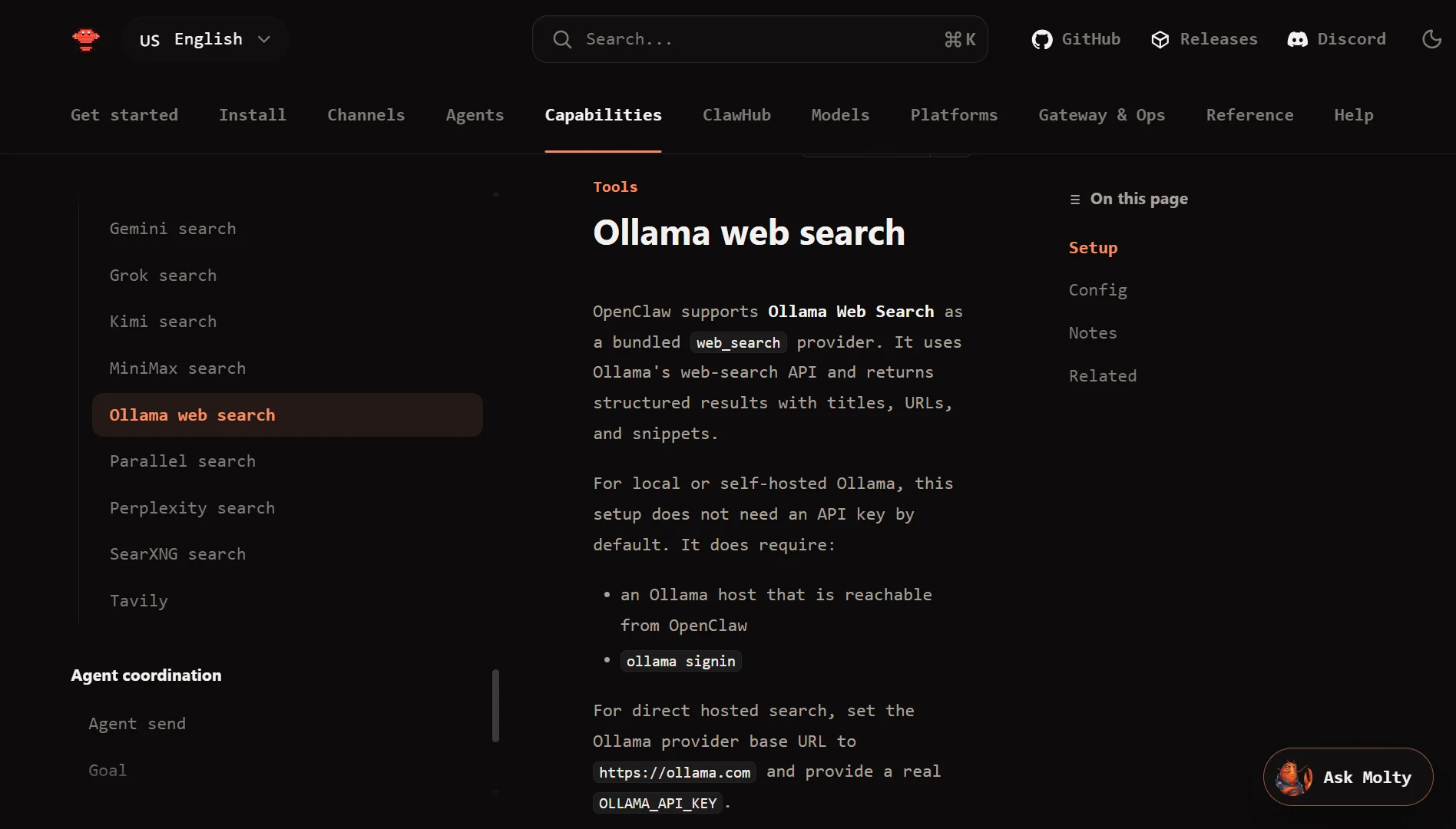
So, when you ask about current events, the weather, stock prices, or anything that requires up-to-date information, your assistant can go get it.
You’re not limited to what the model was trained on months or years ago. The search provider options give you flexibility based on your privacy preferences and reliability needs.
9) Browser Automation Tools
The browser automation tools make OpenClaw start to feel less like a chatbot and more like an actual digital employee.
It includes browser automation tooling, meaning the agent can open a real browser session, navigate pages, fill out forms, and extract information from text instructions.
Paired with sandboxed execution environments, this lets you hand off genuinely tedious tasks: filling out a recurring form, pulling data off a site that doesn’t have a public API, or running through a multi-step web workflow you’d normally have to do by hand.
It’s also one of the features that carries the greatest security responsibility, since a browsing agent visiting the wrong page is a realistic attack vector, so it’s worth being thoughtful about what access you grant it.
10) Cron Job Scheduling
Cron is the Gateway’s built-in scheduler. It persists jobs, wakes the agent at the right time, and can deliver output back to a chat channel or webhook endpoint.
You can schedule one-shot reminders with --at, recurring tasks with --every, or use cron expressions for precise timing.
The scheduling features include multiple session styles: main, isolated, current, and custom. Cron runs inside the Gateway process itself, not inside the model, which makes it more reliable.
Job definitions, runtime state, and run history all persist in a SQLite database, so nothing gets lost if you restart.
Isolated jobs run with a fresh session each time, keeping them clean and independent.
There’s timeout handling with watchdog mechanisms to prevent stuck jobs from becoming zombie processes.
For isolated jobs, you can specify a prompt with --message, override the model with--model, set thinking levels with --thinking, and restrict tools with --tools. This gives you fine-grained control over every scheduled task.
What Is OpenClaw FAQs
Is OpenClaw free?
Yes, it’s open source and MIT licensed. You only pay for your own API keys from providers like OpenAI or Anthropic, and for hosting if you want it running 24/7.
Do I need to be a developer to use OpenClaw?
Some terminal and config file basics help, but one-click deployment options make setup much easier. You’ll still need to understand API keys and basic server management.
Can I securely connect OpenClaw to my email?
Yes, but it takes extra configuration. The platform has tools for email integration with proper security measures.
Which server is best for OpenClaw?
For basic use like Telegram, 2 GB RAM works. For browser automation or heavier workloads, go with 4 GB or more. A VPS with dedicated resources keeps things responsive.
Where does my data go?
All agent data stays in a local SQLite database on your hardware. Nothing leaves unless you explicitly configure integrations that send it out.
Does OpenClaw work on mobile?
Yes. iOS and Android nodes give you chat, voice, Canvas, camera, and device commands. You can also access it through your phone’s browser via web interfaces.
Get Started With OpenClaw and Enjoy the Features
Once you’ve got a feel for what OpenClaw can do, the next decision is where to run it.
Since the Gateway needs to stay online continuously and benefits from a stable, well-resourced environment, it’s easier to run it on a dedicated VPS.
That’s where we come in.
We built our OpenClaw hosting specifically for this use case, with pre-configured Ubuntu environments that already have the Python stack, Playwright framework, and OpenClaw orchestration engine set up.
Our KVM1 plan starts at Ksh 1990 per month and includes 1 vCPU core, 2 GB RAM, 50 GB NVMe storage, and 4 TB bandwidth.
It’s the practical starting point for solo developers, freelancers, or small teams deploying a single AI agent or running light web automation.
Getting started takes three simple steps: pick the package that matches your needs, let our automatic setup install everything for you in under a minute, and then log in over SSH to start running your assistant.
If you’re ready to put OpenClaw to work without the setup headache, we’re happy to help you get there.