Domain SearchInstantly check and register your preferred domain name
 Web Hosting
 cPanel HostingHosting powered by cPanel (Most user friendly)
 WordPress HostingHost your WordPress website with fast, secure, and affordable WordPress hosting in Kenya.
 KE Domains
 Reseller HostingStart your own hosting business without tech hustles
 Windows HostingOptimized for Windows-based applications and sites.
 Free Domain
 Affiliate ProgramEarn commissions by referring customers to our platforms
 Free HostingTest our SSD Hosting for free, for life (1GB storage)
 Domain TransferMove your domain to us with zero downtime and full control
 All DomainsBrowse and register domain extensions from around the world
 .Com Domain
 WhoisLook up domain ownership, expiry dates, and registrar information
 VPS Hosting
 Managed VPSNon techy? Opt for fully managed VPS server
 Dedicated ServersEnjoy unmatched power and control with your own physical server.
 Website Builder
 Online Store BuilderLaunch a professional e-commerce store without writing code.
 Web Design ServiceGet a custom-designed website tailored to your brand and goals. From just KES 15,600
 BlogRead our guides on web hosting, online business, digital marketing, and more
 SupportOur support guides cover everything you need to know about our services
 ContactContact us via chat or email
If you are tired of worrying about losing your website, automated-web-hosting-backup can make protection simple and stress-free.
Instead of manually copying files every week and hoping nothing goes wrong, automation handles everything on a schedule you set.
With automated backups, you avoid the panic of sudden data loss. One click (or even no click at all) restores everything exactly as it was.
There are three main types of automated backups you should know:
a) Full Backups – this copies your entire website
b) Incremental Backups – these only save the changes made since your last backup.
c) Differential Backups – this saves all changes since the last full backup.
Knowing these options helps you choose what works best for your site.
Many people combine a weekly full backup with daily incremental ones for the perfect balance of speed and safety.
Why You Need Automated Backups in Web Hosting
Websites face constant risks from accidental deletions, and server crashes, to rising cyber threats.
Automation removes the human error factor and ensures consistency. Here’s why you need it.
1) Data Protection
Your website contains valuable content, customer information, and code.
One mistake or attack can erase it all. Automated backups create secure copies so you never lose everything permanently.
2) Time-Saving
Manually backing up files and databases takes hours every week.
Automation handles it silently while you focus on growing your business. You set it once and forget it.
3) Peace of Mind
You sleep better knowing your site has a safety net. No more worrying about ‘Did I back up yesterday?’ The system takes care of it.
4) Business Continuity
Downtime costs money. With a recent backup, you can restore your site in minutes instead of days.
Your customers barely notice anything has happened.
5) Protection Against Malware and Hacking
Ransomware and hacks are rising. A clean backup lets you roll back to a safe version without paying attackers. Many solutions even scan for threats.
6) Easy Restoration
One-click or simple restores beat rebuilding from scratch. You pick a date and bring your site back exactly as it was.
7) Version Control
You can go back to previous versions. Made a bad update? No problem, restore an earlier clean copy.
8) Compliance
Many industries require proper data backup for legal reasons. Automated systems help you meet those rules without extra effort.
Get information on the 9 types of data backups you need to know
How Do I Create an Automated Website Backup?
You have several practical ways to set this up. The easiest options use your existing tools or hosting features.
Let’s walk through the most popular methods.
a) Using a Backup Plugin (Easiest Way)
1. Log in to your WordPress dashboard
2. Go to Plugins> Add Plugin
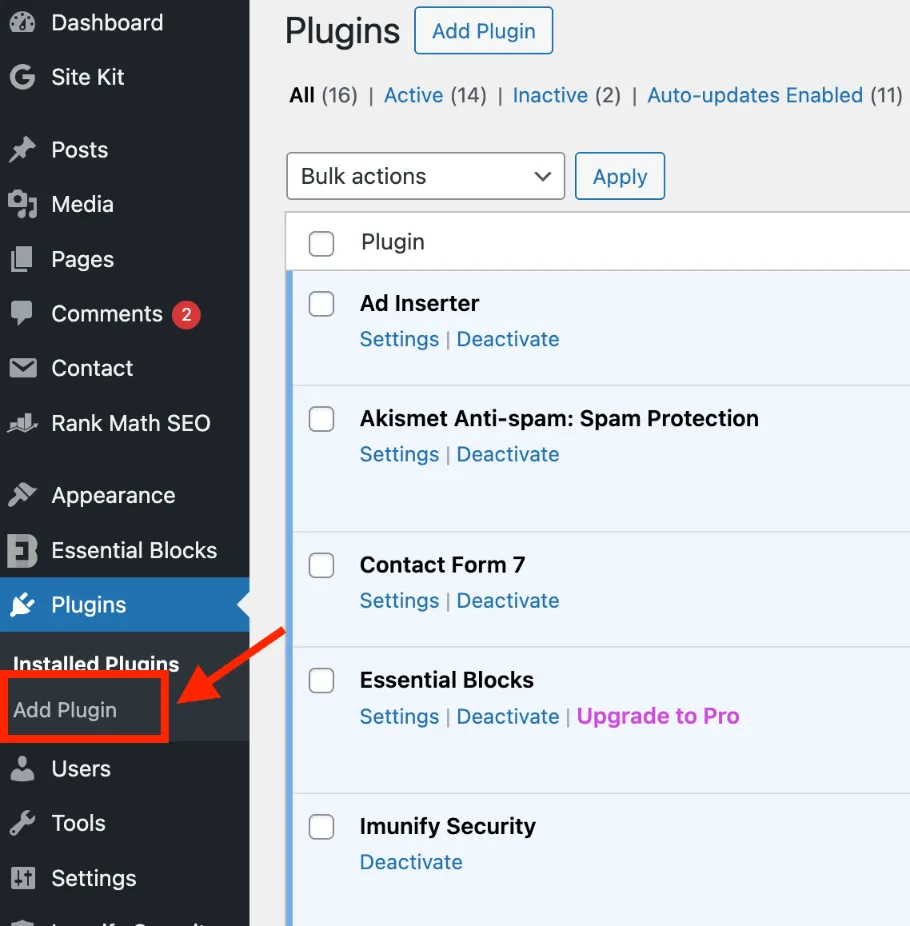
3. Search for a reliable backup plugin (try UpdraftPlus).
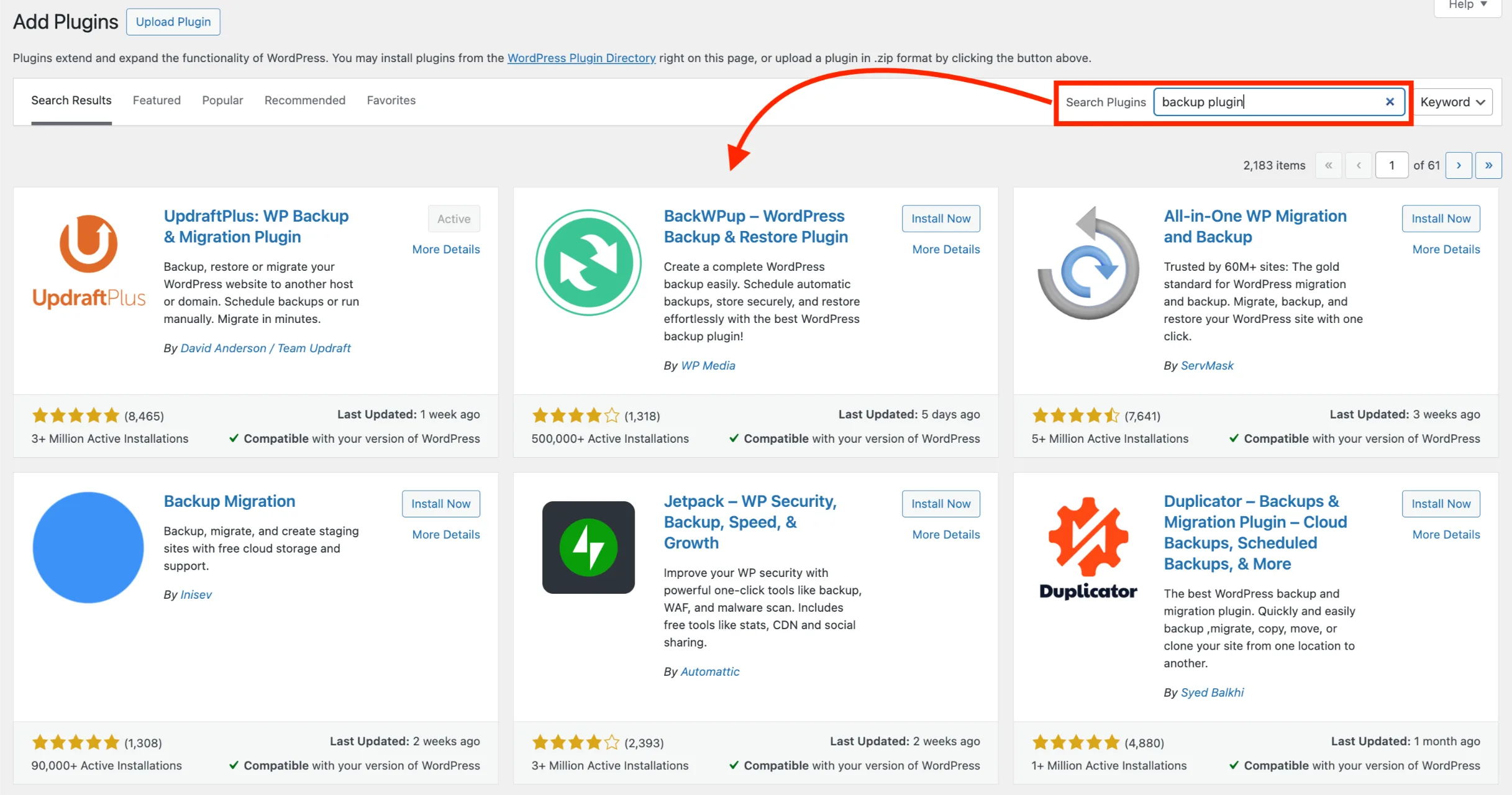
4. Install and activate it.
5. Open the plugin settings
6. Configure your backup (choose files, database, or both).
7. Set storage location (Google Drive, Dropbox, or your host’s (recommended for safety)).
8. Enable email notifications.
9. Run your first backup manually to test.
10. Set the schedule (daily or weekly) and turn on automation.
Learn how to back up WordPress websites before making major updates
b)Automate Backups via Hosting Control Panel
Most good hosts offer built-in tools. This method covers your entire account, including emails and databases.
1. Log in to your hosting account.
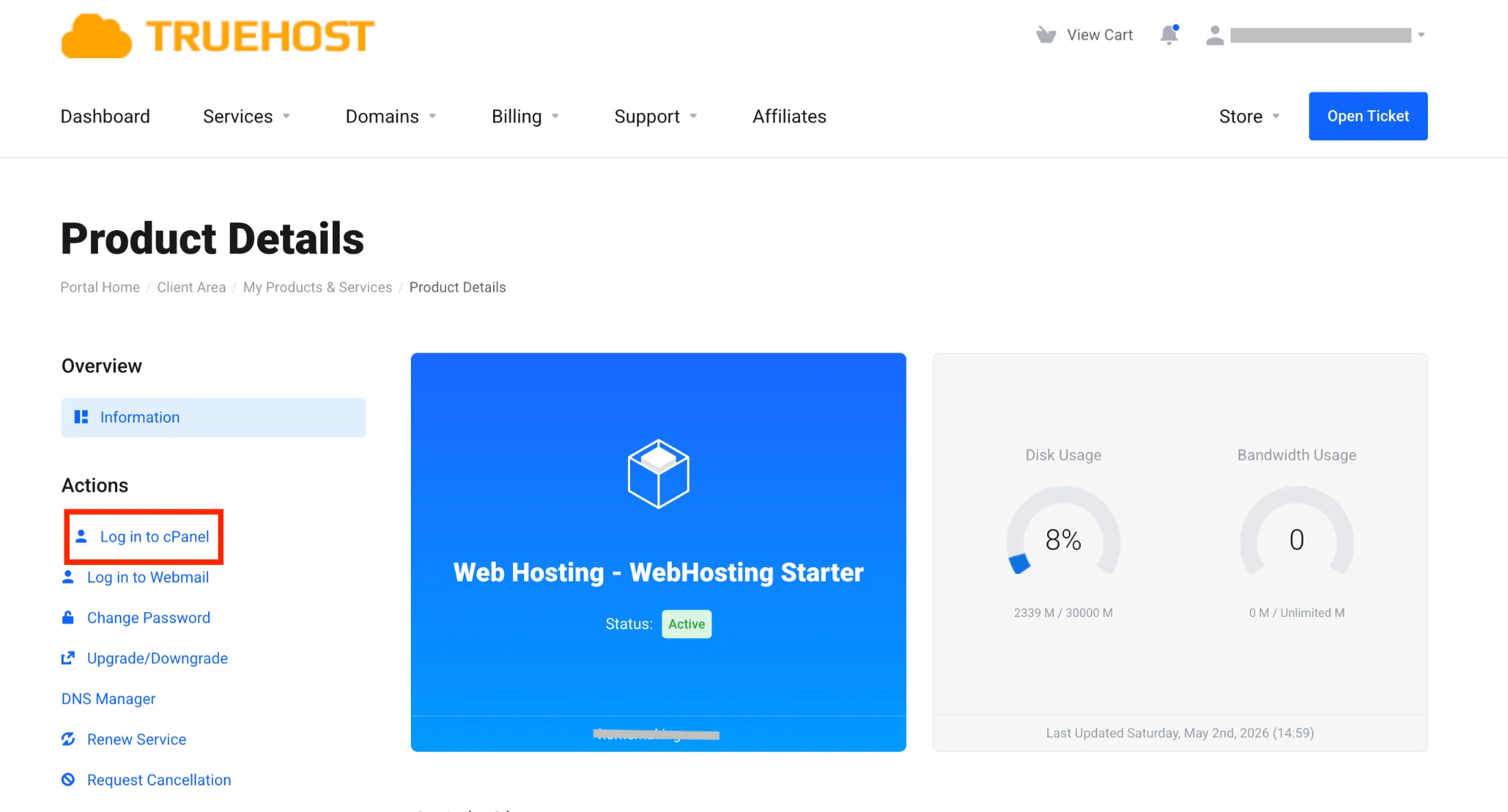
2. Open the cPanel.
3. Locate the Backup section.
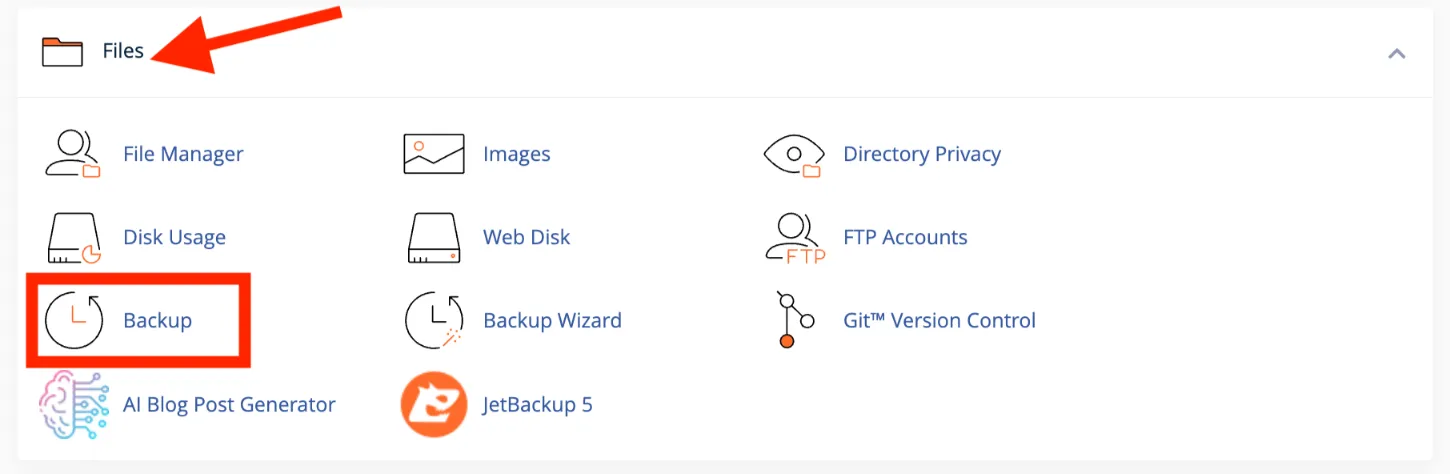
4. Choose backup type:
- Full Backup: everything.
- Partial Backup: specific files or databases.
5. Set up automated backups (daily/weekly).
6. Select storage location (offsite if possible).
7. Choose directories (optional you can exclude large logs).
8. Enable notifications.
9. Run a test backup.
10. Download a copy manually for extra safety.
This gives you strong protection without installing anything extra.
c) Third-Party Backup Services
1. Log in to your cPanel account (usually yourdomain.com/cpanel).
2. Scroll to the Files section and click JetBackup 5 (or JetBackup).
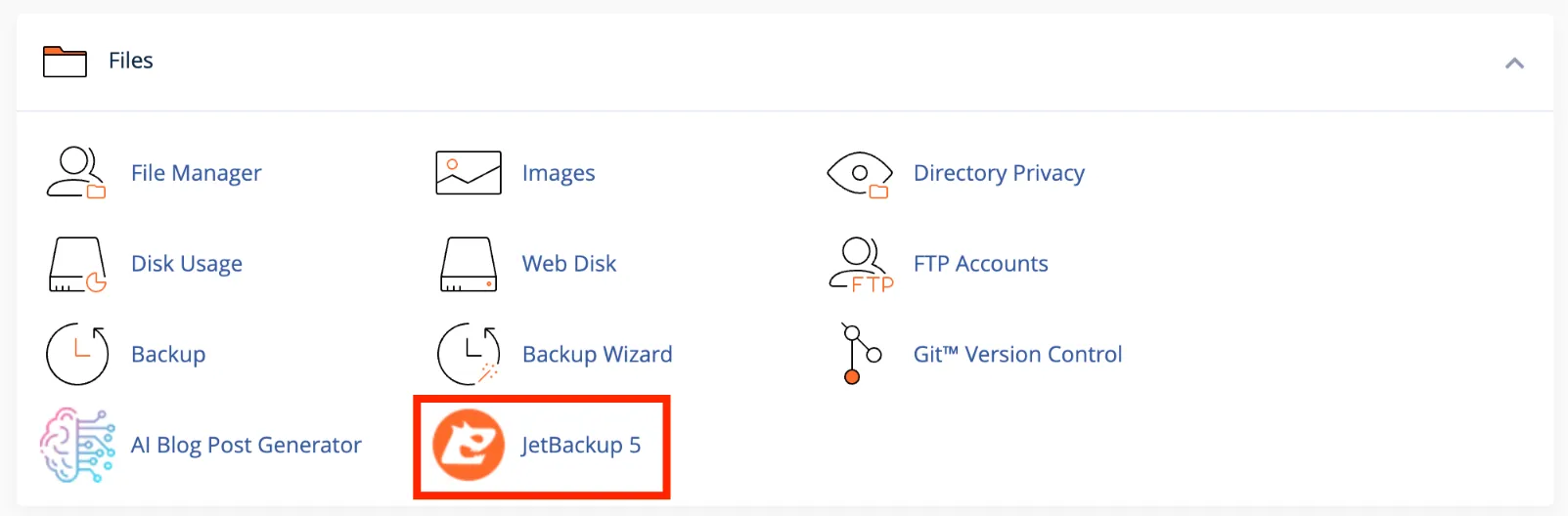
You’ll see options like:
- Full Account Backups
- Home Directory (files)
- Database Backups
- Email Backups
- DNS Zone Backups etc.
For full automation and advanced configuration, your host may need to set it up via WHM > JetBackup 5.
3. Go to Destinations
Click on Destinations in the left sidebar.
4. Create New Destination
Click + Create New Destination (or Create new destination).
5. Choose Destination Type
Select the type you want:
- Local (on the same server)
- SSH / SFTP (remote server)
- Amazon S3 (or other S3-compatible like Wasabi, DigitalOcean)
- Google Drive, Dropbox, etc.
6. Configure Settings
- Enter a Destination Name (e.g., ‘Daily Offsite Backup’).
- Fill in the required fields (path, hostname, username, password/API keys, bucket name, region, etc.).
- Enable compression, encryption, and Export JB Config (recommended for disaster recovery).
7. Save the Destination
- Click Save. Test the connection if the option is available.
Check our guide on how to create a full website backup and restore it
Web hosting backup FAQs
How Much Does It Cost to Back up a Website?
Costs vary. Basic hosting backups are often free or included. Premium plugins start around $50–100 per year. Dedicated services or cloud storage add KES 1,000–5,000+ monthly depending on size and frequency. Many hosts bundle reliable options affordably.
Are Online Website Backups Safe?
Yes, when done right. Choose solutions with encryption, secure storage, and offsite copies. Always verify restore capability regularly.
Why Is It Important to Automate Database Backups?
Your database holds posts, user data, orders, and settings. It changes constantly. Automation ensures you don’t lose recent changes during crashes or attacks.
How Many Backups Do You Need?
Follow the 3-2-1 rule: 3 copies, on 2 different types of media, with 1 offsite. Keep several versions (daily for a week, weekly for a month).
How Often Should You Backup Your Website?
- High-traffic e-commerce: Daily or hourly.
- Standard blogs/business sites: Daily.
- Static sites: Weekly. Combine weekly full backups with daily incrementals for best results.
Your Website Deserves Protection
Automated web hosting backup isn’t optional anymore. It’s essential insurance that saves time, money, and stress.
You can choose to use a simple plugin or full hosting tools. Starting today gives you confidence tomorrow.
At Truehost, we make this easy. Our hosting plans include strong backup options, and we help Kenyan businesses set everything up properly with local support and M-PESA payments.
Register or transfer your domain to us. Let us keep your online presence safe and growing.