Domain SearchInstantly check and register your preferred domain name
 Web Hosting
 cPanel HostingHosting powered by cPanel (Most user friendly)
 WordPress HostingHost your WordPress website with fast, secure, and affordable WordPress hosting in Kenya.
 KE Domains
 Reseller HostingStart your own hosting business without tech hustles
 Windows HostingOptimized for Windows-based applications and sites.
 Free Domain
 Affiliate ProgramEarn commissions by referring customers to our platforms
 Free HostingTest our SSD Hosting for free, for life (1GB storage)
 Domain TransferMove your domain to us with zero downtime and full control
 All DomainsBrowse and register domain extensions from around the world
 .Com Domain
 WhoisLook up domain ownership, expiry dates, and registrar information
 VPS Hosting
 Managed VPSNon techy? Opt for fully managed VPS server
 Dedicated ServersEnjoy unmatched power and control with your own physical server.
 Website Builder
 Online Store BuilderLaunch a professional e-commerce store without writing code.
 Web Design ServiceGet a custom-designed website tailored to your brand and goals. From just KES 15,600
 BlogRead our guides on web hosting, online business, digital marketing, and more
 SupportOur support guides cover everything you need to know about our services
 ContactContact us via chat or email
Have you ever updated your WordPress site, and then watched it crash before your eyes?
Maybe your homepage vanished, your checkout stopped working, or all you saw was the dreaded “white screen of death.”
And when that happens, you don’t just lose your site. You risk losing customers, leads, and trust, and it gets worse every minute your site is offline.
You’re probably wondering, “I thought updates are meant to fix things, not ruin my site!”
Yes, that’s true. But the thing is, major WordPress updates can conflict with your theme or core WordPress files. Even a single plugin update can create conflicts that wipe out key features or break your design.
This is one of the downsides of open-source CRM like WordPress because many people contribute to it, and although the WordPress team tries to standardize things to prevent software conflicts, sometimes things fall through the cracks.
The good news is, there is a fix (a pre-emptive one, so unfortunately, if your site is already broken, this might not work for you) that protects your website and ensures you never lose content and your site never goes offline.
I’m talking about backing up your WordPress site before any major update. This means saving a copy of your entire website and its content. If anything goes wrong after an update, you could restore that copy with just a few clicks
In this guide, you’ll learn exactly how to back up your WordPress site before making major updates. We’ll cover:
- The types of backups you really need (and the ones you don’t).
- The most reliable backup methods
- Where to safely store your backups so they’re ready when disaster strikes.
- How to restore your site quickly if an update goes wrong.
Let’s get started.
Why Updates Are So Risky
It’s natural to wonder, “If updates are so dangerous, why do them at all?”
Here’s why updates matter:
- They patch security holes that hackers exploit.
- They add new features and improvements.
- They fix bugs in older versions.
But updates also introduce risk because WordPress sites are like puzzle pieces. Different people develop each theme and plugin. So when one piece changes, it can cause conflicts with the others.
This is why backups are non-negotiable. They give you a way to experiment, improve, and keep your website secure without fear of losing your website.
Why You Need To Back Up Your Site
Before we go through how to back up your site, it’s first important to understand what exactly could cause your website to break or become inaccessible.
These are the common reasons:
1. A Theme Update Could Break Your WordPress Site’s Design
An update to a theme, especially a custom one, can completely disrupt your site’s layout. This is because when a theme updates, it replaces core files with the developer’s latest version. If you’ve made custom changes directly to the parent theme files (instead of creating and changing a child theme), any updates will override those changes.
This might scramble your website design or lose key elements and custom styling.
2. Plugin Conflict Takes Down Your Site
Plugins are important in WordPress because they perform tasks like improving speed, SEO, or security. But a new plugin could conflict with an existing plugin.
You could install and activate a plugin, then suddenly, your checkout page doesn’t work, and customers can’t complete purchases.
3. Core WordPress Update Corruption
From time to time, WordPress releases major updates that completely change how certain features work. If your site isn’t fully compatible, the update can corrupt files or databases.
4. Malware or Hack Attack
If your site is hacked, the hacker may delete critical files or inject malicious code. Cleaning this up manually can take hours or days, and may still leave traces behind.
A backup lets you quickly roll back to the version that worked perfectly in case any of these four scenarios. Without one, you’ll have to manually fix or rebuild every broken element — which can be time-consuming and frustrating.
Failing to back up your site could cost you in the following ways:
- Lost sales: Every minute down = lost revenue
- Damaged SEO: Broken links and downtime hurt rankings
- Security breaches: No clean copy to restore from after hacks
- Lost trust: Visitors leave if your site feels unreliable
- Extra costs: Developers may charge hundreds to fix issues
What to Back Up (So You Don’t Miss Anything)
One of the biggest mistakes beginners make when backing up their WordPress website is only saving part of the site.
They might copy their blog posts but forget their theme settings. Or they back up their files but skip the database. Then, when disaster strikes, their “backup” turns out to be incomplete and useless.
To avoid this, you need to back up everything, from the files to the database and content.
1. WordPress Files
WordPress files make up the structure of your site. They are what make your site look and function the way it does.
A WordPress file backup includes the following:
- WordPress Core Files: The essential WordPress software needed to run your site.
- wp-content folder: The most critical folder. Contains your themes, plugins, and media uploads.
- wp-admin folder: Backend files for your dashboard interface.
- wp-includes folder: The core WordPress code libraries and functions.
- Root files (like .htaccess, wp-config.php): Control how your site connects to your server and database.
All these files play a critical role on your site, and losing them is not an option. E.g., if you lose your wp-content folder, your site’s design and functionality vanish. Without root files, your site will not connect to its database.
2. WordPress Database: The Brain of Your Site
Every time you publish a post, update a page, or someone leaves a comment, that data is stored in your WordPress database.
Here’s what your database contains:
- Posts and Pages: All of your written content.
- User Data: Admin accounts, customer logins, and subscriber information.
- Settings: Site preferences, theme options, and plugin configurations.
- E-commerce Data: Orders, product listings, payment details (if you run a WooCommerce store).
- Comments: Visitor interactions on your blog.
Without your database, your site has no content or identity, even if all the files are undamaged.
3. Optional but Valuable Extras
In addition to files and the database (these two are non-negotiable and must be backed up), you should also include these few extra items in your backup:
- Email Accounts: If your hosting plan includes email, backup messages, and account settings.
- Staging Environment: If you use a staging site for testing, back it up separately.
- Custom Code Snippets: If you’ve added code to functions.php or custom plugins, ensure they’re included.
- Analytics or Tracking Scripts: Copy over tracking codes or tags you’ve implemented directly in your files.
Why Backing Up Everything is Critical
It’s tempting to cut corners and back up only your posts or only your theme. But the reality is, sites are fragile ecosystems. Missing even a small component can create massive headaches later.
Here’s an example of what could happen without a complete backup:
Say you run an online shop, and you back up only your database before running a major update. After the update, product images will disappear because they weren’t in the backup files. You will have all the product names and descriptions, but no visuals to sell them.
To avoid this, always back up the files and the database, plus any extras unique to your site.
Quick Checklist: Complete WordPress Backup
Here’s a quick summary of what to include:
- WordPress Core Files (wp-admin, wp-includes, root files)
- wp-content folder (themes, plugins, uploads)
- Database (all posts, settings, users, orders)
- Optional extras (emails, custom code, analytics scripts)
If even one of these pieces is missing, your backup is incomplete.
Before starting your backup process, make sure:
- You have admin access to your WordPress dashboard and/or hosting control panel.
- Your internet connection is stable (interrupted uploads/downloads can cause incomplete backups).
- You know where you want to store backups (Google Drive, Dropbox, local computer, etc.).
- You have enough storage space in your chosen backup location.
Method 1: Automatic Back Up with the Free UpdraftPlus Plugin
UpdraftPlus is one of the most popular and trusted backup plugins for WordPress. It allows you to create manual backups, schedule automated ones, and send them to remote storage like Google Drive.
Step 1: Install and Activate UpdraftPlus
In your WordPress dashboard, go to Plugins → Add New.
Search for UpdraftPlus.
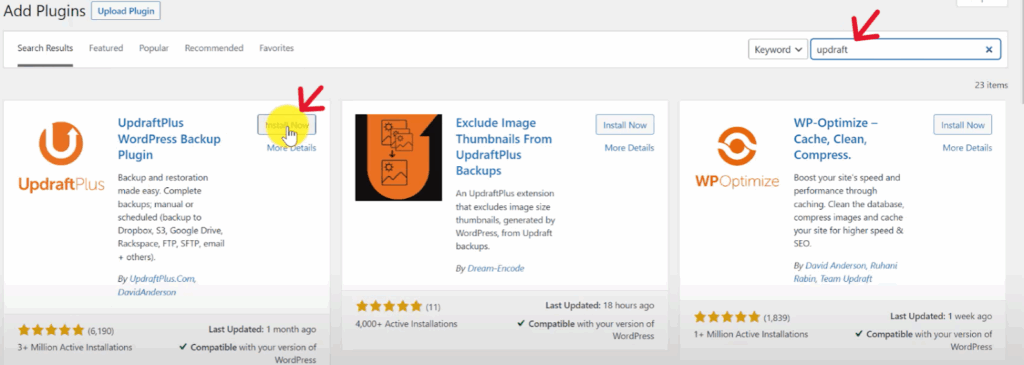
Click Install Now, then Activate.
Step 2: Schedule Automated Backups
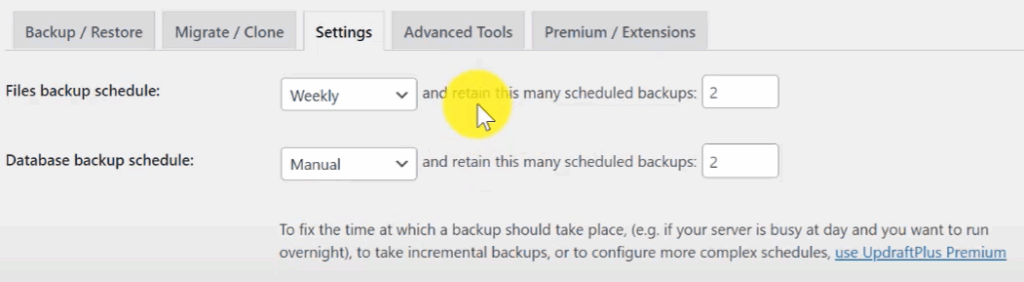
Go to the Settings tab in UpdraftPlus.
Set your Files backup schedule and Database backup schedule. E.g., weekly backups with a retention of 2 copies (older ones are automatically deleted).
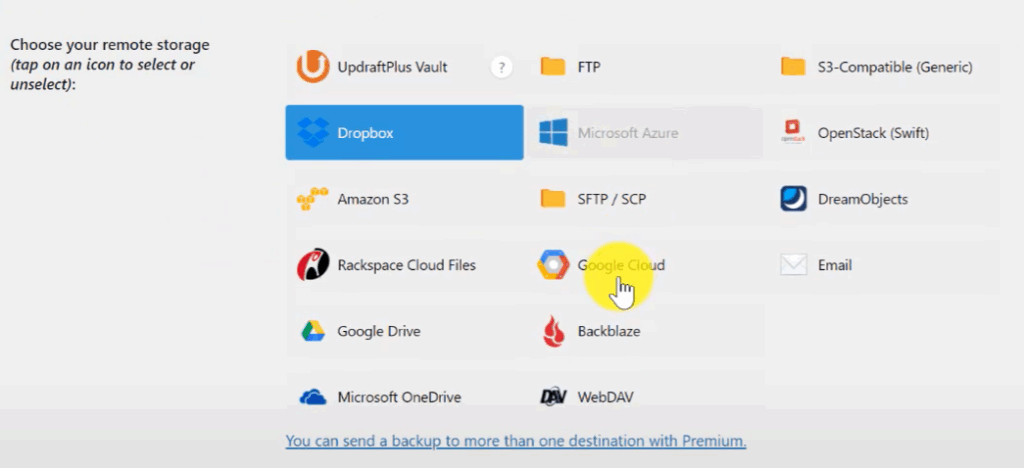
Under “Choose your remote storage,” select where to store backups (e.g., Google Drive, Dropbox, etc.,).
You’ll have to authenticate so Updraft Plus can manage content in your destination. You’ll see a notification like the one below after you click on authenticate.
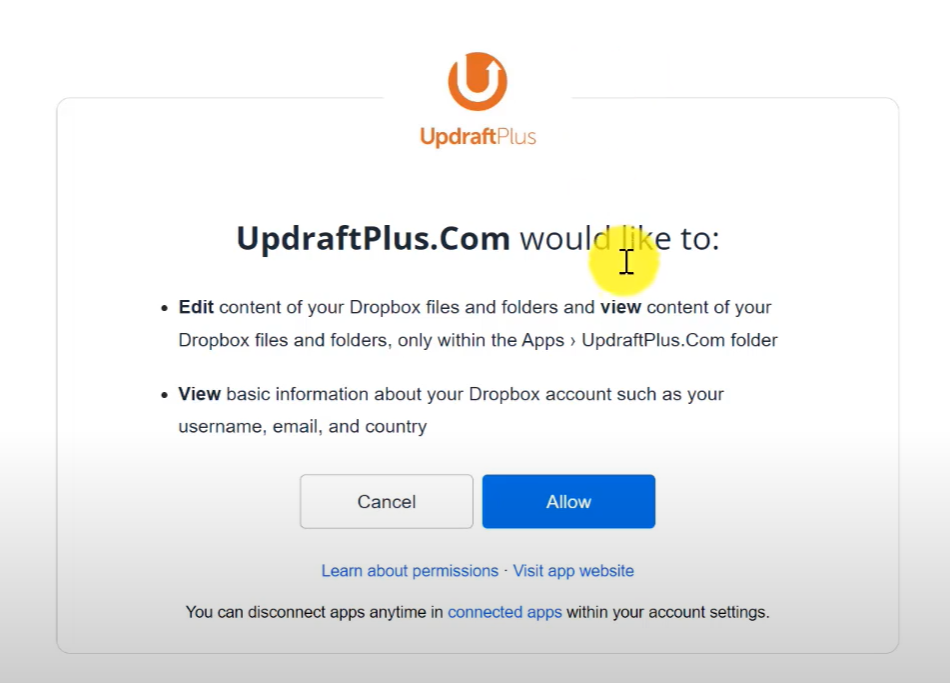
After allowing access, you will be redirected to the Updraft website to complete setup (by just clicking a button that reads “complete setup”). This takes just a few seconds, after which you’ll be taken back to Updraft backup/restore settings in your WordPress site.
Go through the page to ensure that all the settings you’d picked previously are still the same. Then scroll down and click Save Changes.
Click Sign in with Google and grant permissions.
Step 3: Create Your First Manual Backup
Still in Updraft settings, navigate to the backup/restore tab, then click Backup Now.

Make sure both boxes (“Include database in the backup” and “Include files in the backup”) are checked. Click Backup Now.
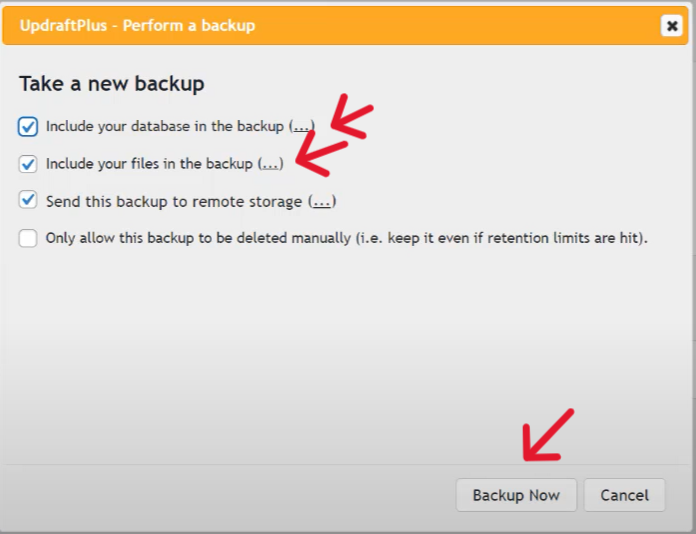
Once complete, you’ll see your backup listed under “Existing Backups.”

Step 4: Restore a Backup
If something goes wrong with your site:
Go to UpdraftPlus Backups in your dashboard.
Scroll to “Existing Backups” and click Restore.

Select all components (database, plugins, themes, uploads, others). Click Next, then click restore.
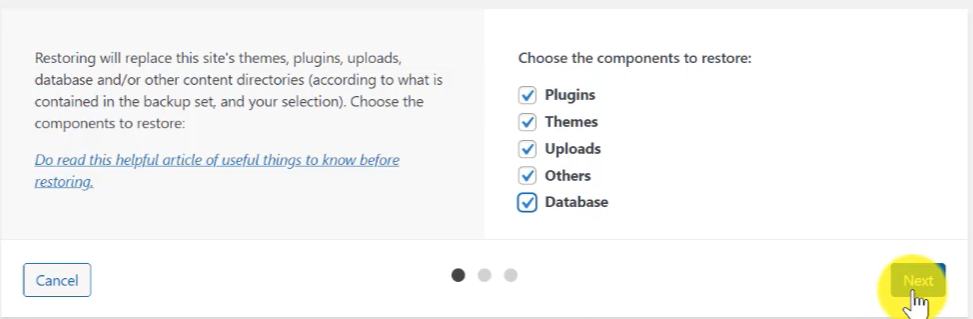
You should see the backup restoration progress.
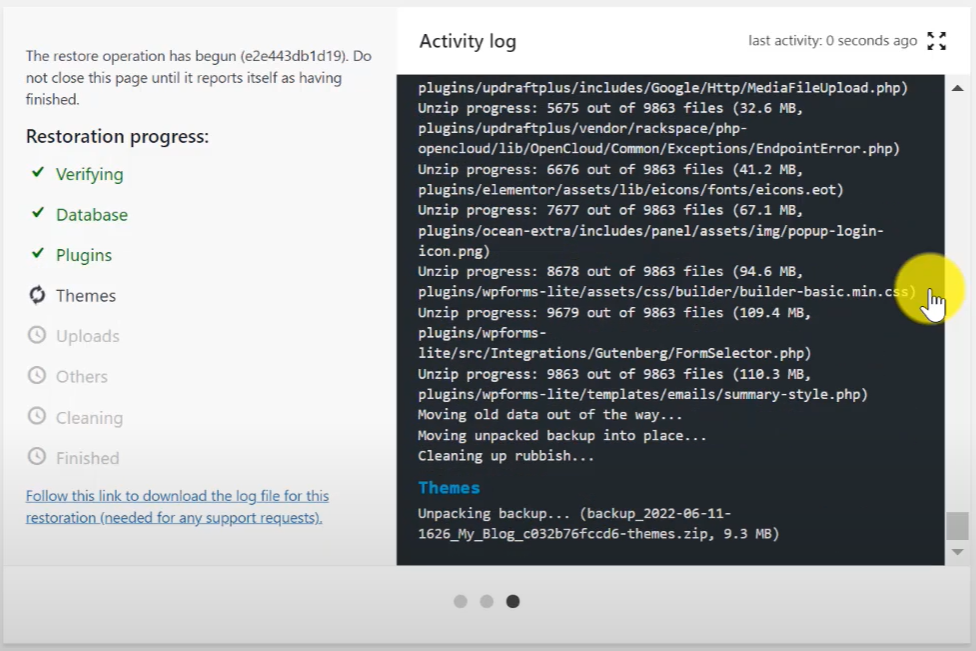
Once complete, you’ll get a backup successful notification and a request to return to Updraft configuration. This should take you back to Updraft settings.
Navigate to the WordPress admin dashboard and reload your website by clicking “view site” to check if the backup was restored successfully.
Step 5: Download a Local Copy (Highly Recommended)
Even if you store backups in the cloud, it’s smart to keep a copy on your computer.
Scroll to your backup in “Existing Backups.”
Click each component (Database, Plugins, Themes, Uploads, Others), then click download to your computer.
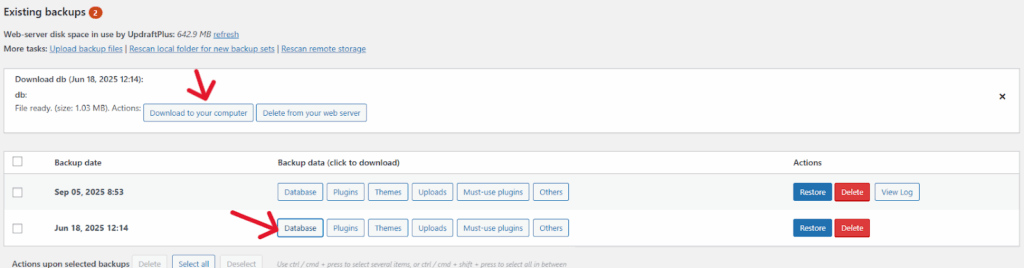
Store them in a safe folder (consider using an external hard drive for redundancy).
If you ever need to restore your site using the backup file on your computer, go to UpdraftPlus, scroll to existing backups, and click upload backup files.
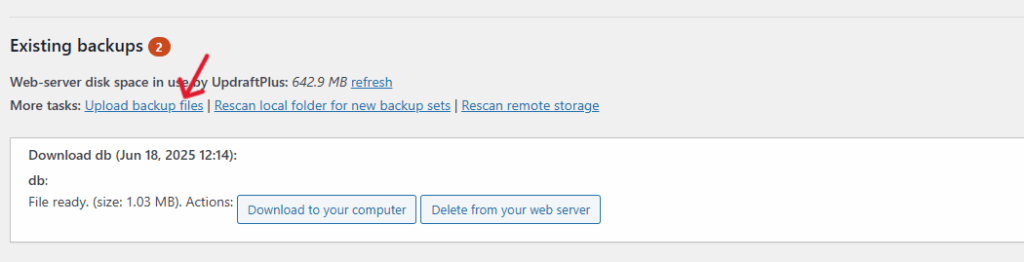
Select your backup files from the computer and upload them.
Restore them just like in Step 4.
WordPress backup tip: Always keep at least two backup locations. For example, one in Google Drive and one on your local computer.
Method 2: Manual WordPress Site Back Up with cPanel
If you don’t want to use a plugin in WordPress for automatic backups, you can also schedule manual backups on cPanel.
Backing up your site manually has the following advantages:
- Full control over your backup because you decide exactly which files and database tables to include.
- You don’t have to rely on plugins. So you can backup your site even when you can’t access your WordPress dashboard.
- Migration purposes: Ideal for moving a site between hosting providers or servers.
- Learning experience. It helps you understand your site’s structure and with troubleshooting.
Step 1: Log in to cPanel and open the File Manager
Log in to cPanel through your hosting provider.
Look for the File Manager option and click it.

In File Manager, navigate to your public_html directory and click on it.
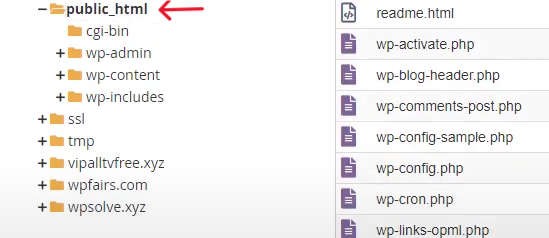
Step 2: Show Hidden Files
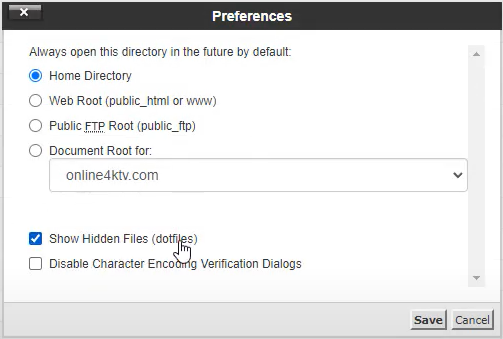
Before proceeding, make sure you can see hidden files (like .htaccess), as they contain important site configuration details.
While still in public_html, navigate to the settings button at the top right and click on it. This will open up a preferences box.
Check Show Hidden Files (dotfiles) and save. This will show all the files, including the .htaccess files.
Step 3: Copy the WordPress Core Folders
Select and compress all the WordPress core folders. Your WordPress site’s main files are in three key folders:
- Wp-admin. This contains the admin dashboard functionality.
- Wp-content. Stores your themes, plugins, and uploaded media.
- wp-includes. Contains WordPress core code libraries.
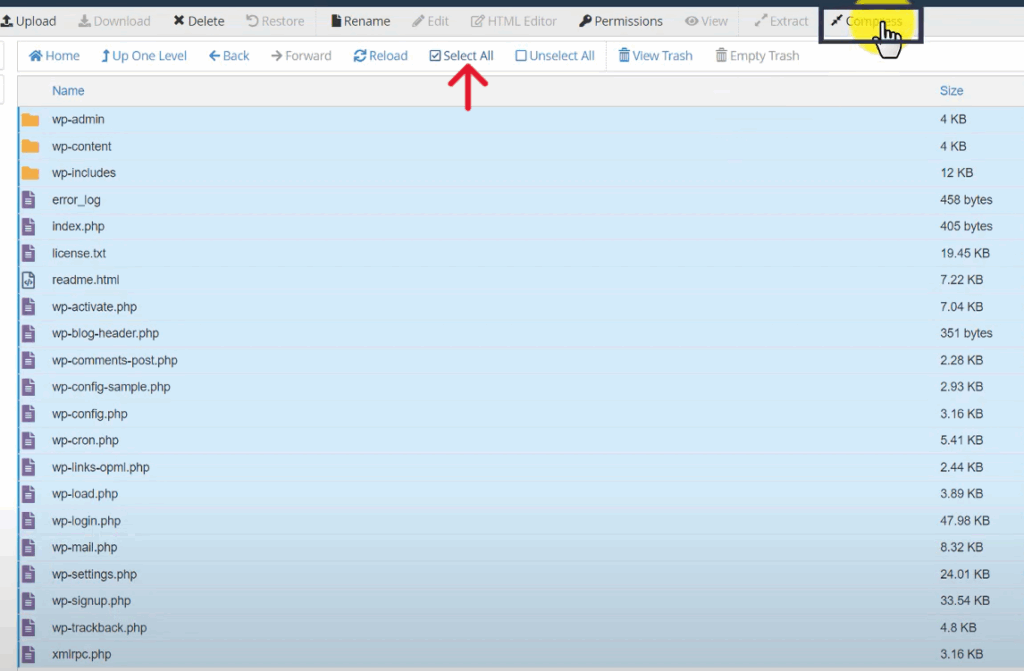
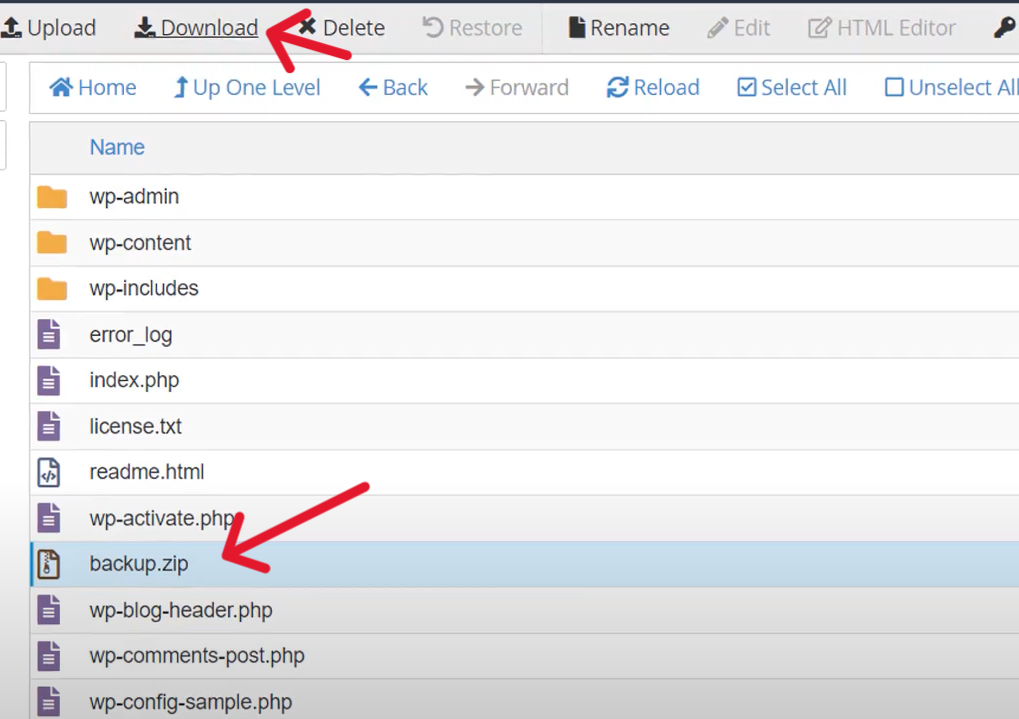
Compress the files into a .zip format, and once complete, click reload at the top of the page. You should see the zipped file wp-admin.zip. If you want to rename the file, you can click on rename at the top of the screen.
Now download the backup folder onto your computer.
Select the zipped backup file.
Click download at the top of the screen.
Now that you’re done with the files backup, next you need to back up your database. The database contains your posts, pages, and settings, so we also need to back that up.
Step 4: Locate Your Database Name in wp-config.php and back it up
In File Manager, open the wp-config.php file and click on edit.
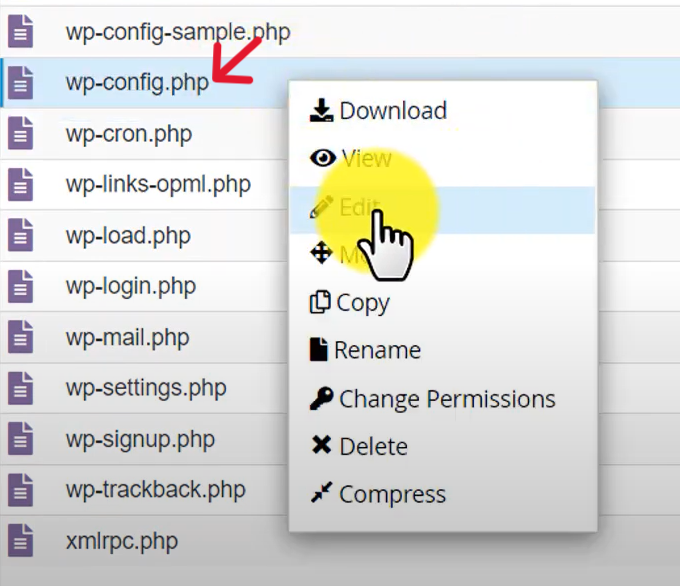
Click edit again.
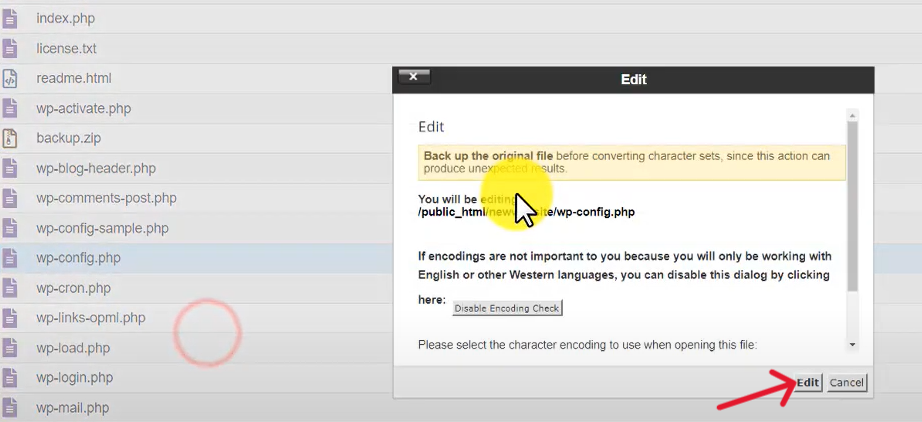
Look for this line:
define( ‘DB_NAME’, ‘username_prefix_database’ );
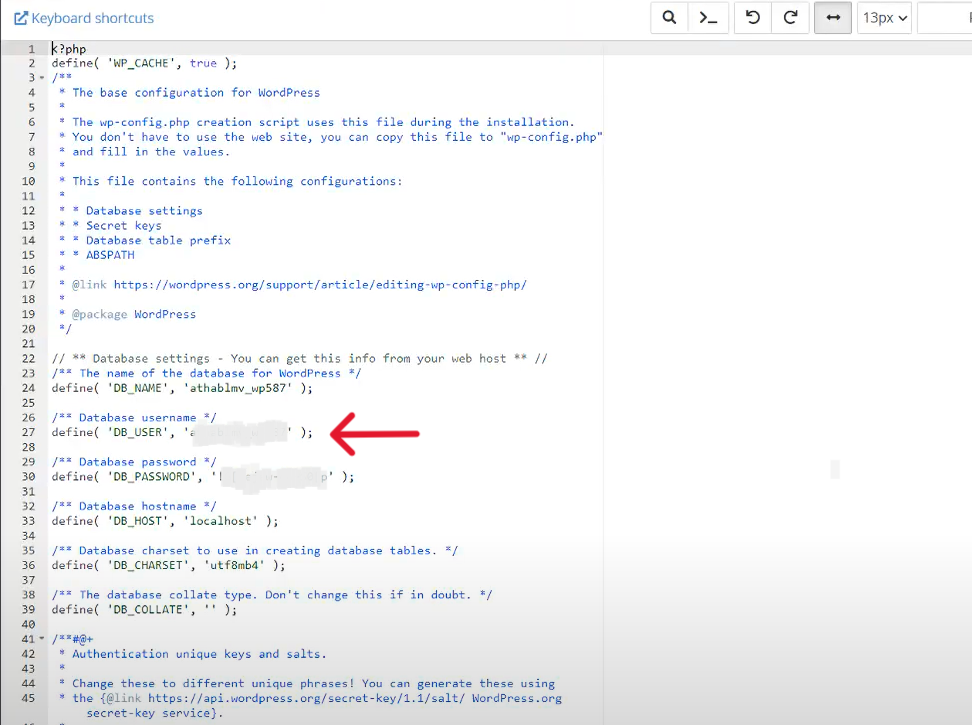
This tells you your database name. Make a note of it.
Step 7: Export the Database from phpMyAdmin
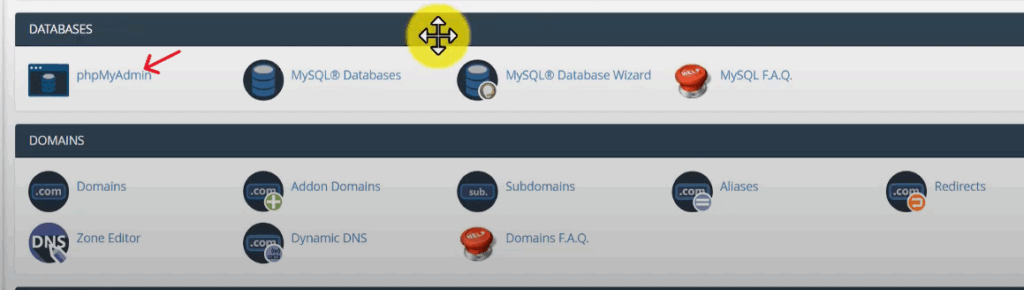
Back in cPanel, scroll to Databases, then phpMyAdmin.
In phpMyAdmin, click the database name you found in wp-config.php. This will load all the tables in the database on the right panel.
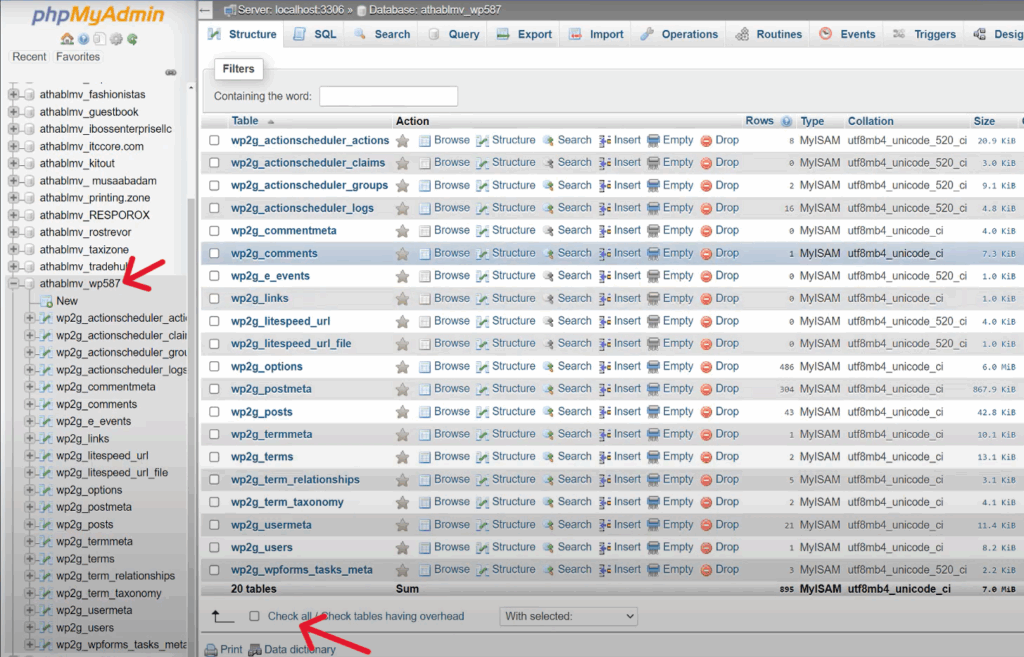
Scroll to the bottom of all the tables and select all.
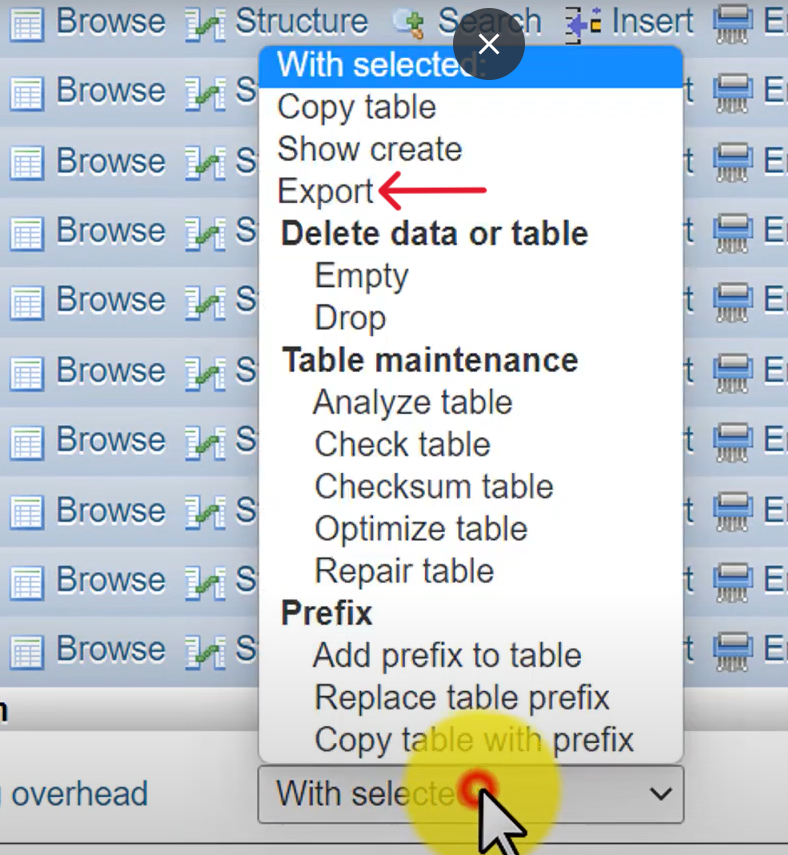
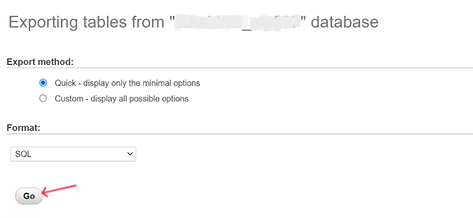
Then click on the dropdown arrow next to the words “with selected” and click on export, then click on go on the next page that loads.
Click “Go”. This will begin downloading tables from your WordPress database to your computer.
Step 8: Store Your Backups Safely
You now have two important files:
- WordPress site files
- Database content
Store them in at least two places. E.g., computer + cloud storage.
Clearly name them with the date and site name.
Keep multiple versions for safety.
Next Steps: Backup Your WordPress Website Today
If you haven’t set up backups yet, start today. You’ll be happy the next time something goes wrong.
Install a plugin like UpdraftPlus, connect it to cloud storage, and run your first backup.
You can also use cPanel if you want more control over your backup process.