 Domain SearchInstantly check and register your preferred domain name
 Web Hosting
 cPanel HostingHosting powered by cPanel (Most user friendly)
 WordPress HostingHost your WordPress website with fast, secure, and affordable WordPress hosting in Kenya.
 KE Domains
 Reseller HostingStart your own hosting business without tech hustles
 Windows HostingOptimized for Windows-based applications and sites.
 Free Domain
 Affiliate ProgramEarn commissions by referring customers to our platforms
 Free HostingTest our SSD Hosting for free, for life (1GB storage)
 Domain TransferMove your domain to us with zero downtime and full control
 All DomainsBrowse and register domain extensions from around the world
 .Com Domain
 WhoisLook up domain ownership, expiry dates, and registrar information
 VPS Hosting
 Managed VPSNon techy? Opt for fully managed VPS server
 Dedicated ServersEnjoy unmatched power and control with your own physical server.
 Website Builder
 Online Store BuilderLaunch a professional e-commerce store without writing code.
 Web Design ServiceGet a custom-designed website tailored to your brand and goals. From just KES 15,600
 BlogRead our guides on web hosting, online business, digital marketing, and more
 ContactContact us via chat or email

WordPress runs on PHP, the server-side programming language that processes each request and builds the page a visitor sees.
Every time someone opens your homepage, PHP is the thing working behind the scenes, pulling your content from the database and assembling it into a finished page.
That makes the PHP version your site runs on one of the quieter settings with a surprisingly big effect on security, speed and stability.
The version you use needs to be supported by three things at once: WordPress itself, your active theme and every plugin you’ve installed.
Miss any one of them and you can end up with warnings, broken features or the dreaded “critical error” message.
That’s also why grabbing the newest release on the menu isn’t always a smart move.
A PHP version can be perfectly good and still clash with an older theme or an abandoned plugin.
This guide helps you choose the right PHP version for your WordPress site without guessing.
We’ll look at which versions make sense right now, what to check before you decide, how to find out what your site uses today, how to change the version safely through your hosting account, and what to do if something goes wrong afterwards.
What Is the Best PHP Version for WordPress?
WordPress officially recommends PHP 8.3 or higher, but a recommendation is a starting point rather than the full answer.
The newest PHP version that WordPress supports is not automatically compatible with every theme and plugin on your site.
So the best version for you is the newest maintained release that your complete setup can handle.
For modern installations, PHP 8.4 and PHP 8.5 are the two current options worth considering.
WordPress 6.9 and 7.0 have full compatibility with PHP 8.5, while WordPress 6.8 and later support PHP 8.4.
There’s one detail that often confuses people.
WordPress can technically still run on much older releases, and since WordPress 7.0 the minimum supported version is PHP 7.4.
That minimum exists for backward compatibility, though, and PHP 7.4 reached end of life years ago.
Being able to run on a version is a very different thing from being a sensible choice for a live website.
| PHP version | WordPress compatibility | Recommendation |
|---|---|---|
| PHP 8.5 | Fully supported by WordPress 6.9 and later | Suitable for compatible, updated sites |
| PHP 8.4 | Fully supported by WordPress 6.8 and later | Suitable for modern WordPress sites |
| PHP 8.3 | Supported by modern WordPress versions | Consider when themes or plugins require it |
| PHP 8.2 and older | Varies by version; older releases may be unsupported or end-of-life | Plan an upgrade to a maintained version |
The support picture behind that table is worth knowing.
PHP 8.3 has moved to security-only support, and PHP 8.2 reaches end of life on 31 December 2026, which is only a few weeks away.
Older versions shouldn’t be treated as recommended choices just because WordPress still runs on them.
In practice, a site with up-to-date plugins and a current theme will usually do well on PHP 8.4 or 8.5.
A site that still depends on a few older extensions can sit on PHP 8.3 while you update them.
Anything running on PHP 8.2 or earlier should have an upgrade planned.
What to Consider When Choosing a PHP Version for Your WordPress Site
The right version depends on what your website actually contains.
These are the factors worth checking before you commit to a change.
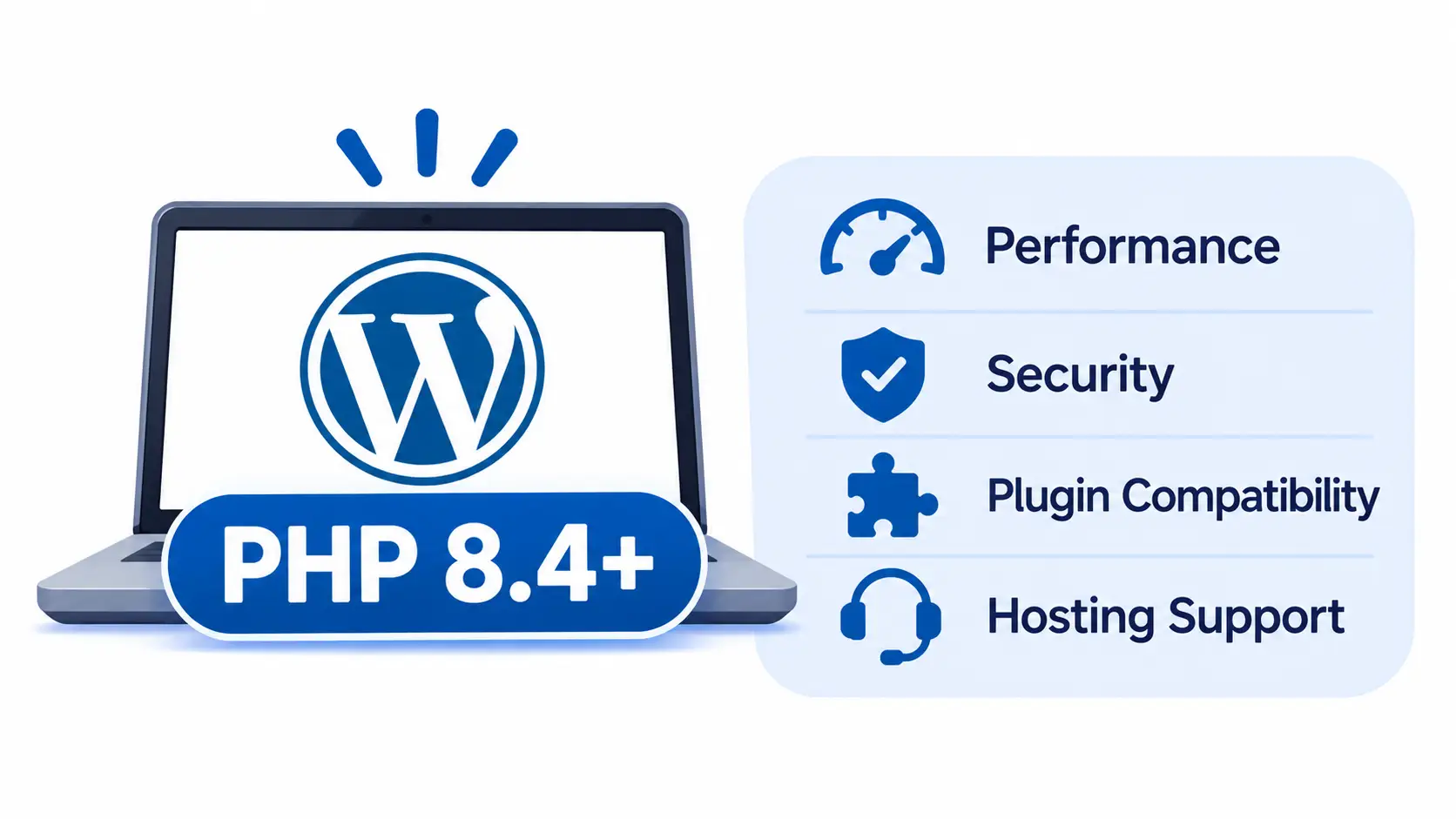
i) WordPress Version Compatibility
Start with the PHP requirements of the WordPress version you have installed, since each release documents which PHP versions it supports.
Keeping WordPress updated makes this much easier, because newer WordPress releases support newer PHP versions.
A site stuck on an old WordPress release may be locked out of the newer PHP options entirely.
It also helps to separate what WordPress can run on from what’s recommended for production.
The first list is long and includes outdated versions.
The second list is short, and that’s the one to follow.
ii) Theme Compatibility
Themes are made of PHP code, and that code can rely on functions or syntax that behave differently from one PHP version to the next.
A theme written years ago might work on PHP 7.4 and throw errors on PHP 8.4.
Check the theme developer’s documentation for the PHP versions they’ve tested.
Pay particular attention to older or abandoned themes, because a theme that hasn’t been updated in years is the most likely to break.
iii) Plugin Compatibility
Plugins are a common source of trouble, even when WordPress itself supports your chosen version.
Each plugin has its own code, its own developer and its own update schedule, so one outdated plugin can cause errors on a site that is otherwise ready.
Look at each plugin’s documentation and update history, and be extra careful with the ones doing essential jobs: payments, forms, security and backups.
A broken gallery plugin is an annoyance, but a broken payment plugin costs you sales.
iv) PHP Version Support and Security
PHP versions move through three stages.
In active support, a version gets bug fixes and security patches. In security-only support, it receives only critical security fixes.
At end of life, it receives nothing at all, which means any newly discovered weakness stays open.
| PHP version | Active support ends | Security support ends |
|---|---|---|
| PHP 8.5 | 31 December 2027 | 31 December 2029 |
| PHP 8.4 | 31 December 2026 | 31 December 2028 |
| PHP 8.3 | Ended 31 December 2025 | 31 December 2027 |
| PHP 8.2 | Ended 31 December 2024 | 31 December 2026 |
| PHP 8.1 and older | Ended | Ended (end of life) |
These dates reflect the PHP project’s published schedule at the time of writing, so check php.net’s supported versions page before you act.
The takeaway is simple: avoid versions that no longer receive security updates, and plan your upgrade before your current version reaches its end of life, not after.
v) Hosting Provider Support
Your host has to offer the PHP version your website needs.
The versions available can differ between hosting accounts and server configurations, so a version you read about may not appear on your plan yet.
The quickest check is your hosting control panel, where the available versions are listed in the version dropdown.
vi) Custom Code and Developer Work
If a developer built your site, it may contain custom functions, a custom theme or a small plugin written just for you.
This code is easy to forget about and often the first thing to fail on a newer PHP version.
Ask whoever built it whether it has been tested on the version you’re aiming for, and keep that answer on file.
vii) PHP Extensions and Server Settings
PHP features such as image handling or caching depend on extensions being enabled on the server.
A new version may have a slightly different set switched on, and settings like the memory limit can sometimes need adjusting after a change.
On Truehost, for example, cPanel’s MultiPHP INI Editor lets you review settings such as memory limit and maximum execution time once the new version is running.
viii) Your Site’s Purpose and Risk Level
A hobby blog and an online store carry very different consequences if something breaks.
The more your site earns or the more customer data it handles, the more careful you should be, testing on a copy first and choosing a quiet time for the switch.
A simple brochure site can usually move with less ceremony.
How to Check the PHP Version Your WordPress Site Is Using
Before deciding whether to upgrade, find out what you’re running now.
You can check from two places, and it’s worth looking at both.
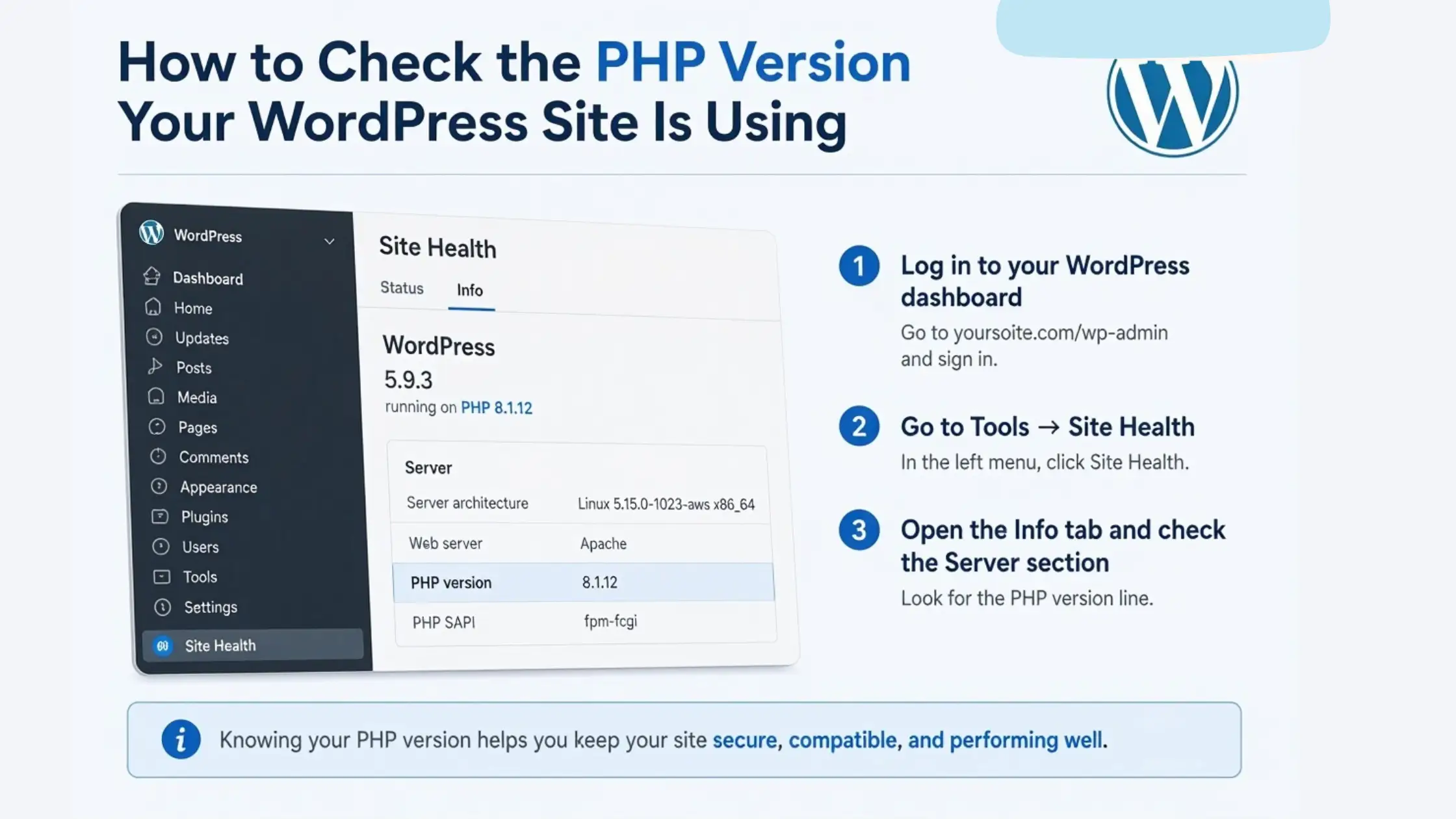
a) Check PHP Version From the WordPress Dashboard
- Log in to your WordPress dashboard.
- Open Tools → Site Health.
- Select the Info tab.
- Expand the Server section.
- Find the PHP version listed in the server information.
b) Check PHP Version Through Your Hosting Control Panel
- Log in to cPanel.
- Open MultiPHP Manager under Software.
- Find your domain in the list.
- Check the PHP version assigned to it.
The version shown in the hosting panel should match the version configured for the relevant domain.
If the two places disagree, check whether you’re looking at the right domain or subdomain, because each one can be assigned its own version.
You may also see an “inherited” label, which simply means the domain uses the server’s default version.
How to Change the PHP Version for Your WordPress Site in cPanel
Once you’ve confirmed what you’re running and decided on a target, the change itself takes under a minute.
These steps follow the Truehost cPanel workflow.
- Log in to your cPanel account.
- Find the Software section.
- Open MultiPHP Manager.
- Locate the domain running your WordPress website.
- Select the checkbox beside that domain.
- Open the PHP Version dropdown.
- Choose the PHP version you want to use.
- Click Apply to save the change.
- Visit your website and check that it works correctly.
Truehost’s documentation confirms that MultiPHP Manager lets you assign a PHP version to an individual domain.
Which is handy if you host several sites on one account and want to move them one at a time.
The inherit option simply uses the server’s default PHP version.
What to Do Before Updating Your WordPress PHP Version
A few minutes of preparation can save you hours of cleanup. Treat these steps as a checklist rather than optional extras.
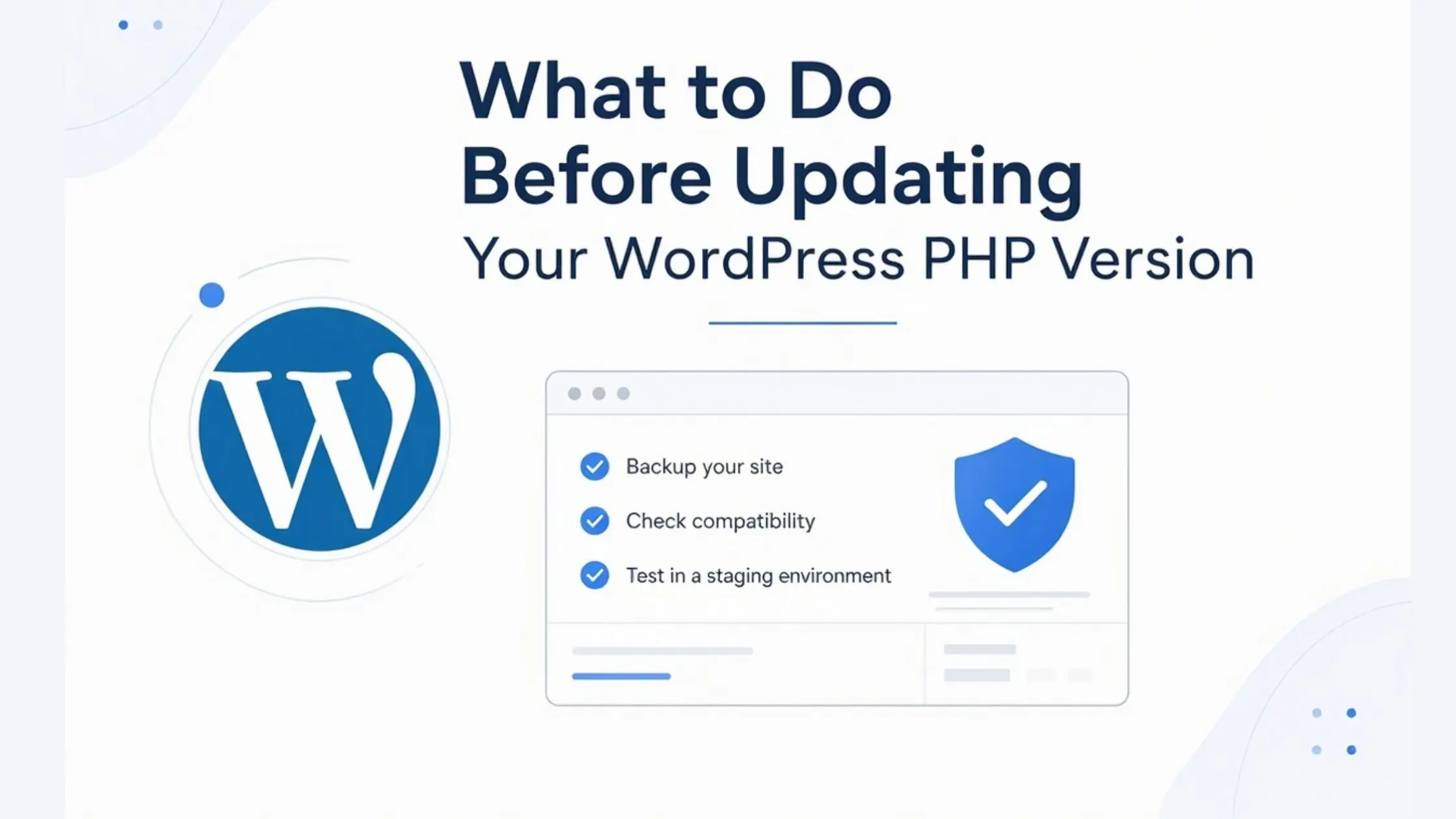
a) Back Up Your WordPress Website
Back up both your website files and your database, since a working restore needs both.
Then confirm the backup can actually be restored, because a backup you’ve never tested is only a hope.
Where possible, keep a copy outside the hosting account too, such as on your computer or in cloud storage.
b) Update WordPress, Themes and Plugins
Install the stable updates that are available for WordPress core, your theme and your plugins, since newer releases are far more likely to support newer PHP versions.
Remove plugins and themes you no longer use, especially abandoned ones.
For essential extensions like payments or forms, read the compatibility notes before updating them.
c) Test the New PHP Version Before Applying It to Your Live Site
A staging environment is a private copy of your site where you can try the new PHP version without affecting visitors.
It’s the safest way to find problems.
On the copy, test the things people actually use: forms, checkout pages, logins and any interactive features.
If you don’t have staging, pick a low-traffic window, such as late at night, and keep a working backup ready.
That way, if something fails, you can switch back quickly and restore calmly instead of scrambling.
How to Check Whether Your WordPress Site Works After Changing PHP Versions
Once the new version is applied, check the site straight away rather than assuming all is well.
A problem on a single plugin page can sit unnoticed for days if you only glance at the homepage.
| Website element | What to check |
|---|---|
| Homepage | Loads without errors |
| WordPress dashboard | Opens and allows navigation |
| Plugins | Essential plugins remain functional |
| Theme | Layout and features display correctly |
| Forms | Submissions work |
| Online payments | Checkout and payment processing work |
| Media | Images and uploads function correctly |
| Error logs | No new PHP fatal errors or warnings affecting functionality |
Test important pages on both mobile and desktop, not just the homepage.
Visit a few posts, open a product or service page, submit a form and try logging in.
It’s also worth checking again after an hour or two, since some problems only show up when scheduled tasks run.
What Happens If Your WordPress Site Breaks After a PHP Update?
Sometimes a change goes badly. Incompatible themes, plugins or custom code can all cause errors after a PHP version change.
The usual symptoms include a critical error message, blank white pages, features that stop working and plugins that fail to load.
Don’t panic if this happens.
The quickest fix is usually reversible, and the steps below take you from something’s wrong to working again in a sensible order.
a) Switch Back to the Previous PHP Version
- Return to cPanel MultiPHP Manager.
- Select the affected domain.
- Choose the previous PHP version.
- Click Apply.
- Check whether the website returns to normal.
If the site recovers, you’ve confirmed the PHP change caused the problem, and you can investigate calmly without visitors seeing errors in the meantime.
b) Identify the Incompatible Plugin or Theme
Check the error messages and PHP logs for the name of the file causing the failure, since it usually points straight at a plugin or theme.
If a plugin is the suspect, disable it and see whether the error clears. If your theme is responsible, switch to a compatible one temporarily.
When the problem comes from custom code, contact the developer who wrote it.
c) Update or Replace Incompatible Extensions
Check whether an updated version of the problem plugin or theme exists.
If it hasn’t been updated in years, replace it with a maintained alternative instead of holding your whole site back.
Once the replacement is in place, test the site again before attempting the PHP upgrade a second time.
Run Your WordPress Website on Suitable Hosting With Truehost
The best PHP version in the world won’t help if your hosting can’t offer it or can’t support the rest of what WordPress needs.
A suitable hosting environment should provide maintained PHP versions, with an easy way to switch between them, along with enough resources to keep pages loading quickly.
Look beyond PHP too.
Good WordPress hosting also includes PHP version management, SSL, enough storage, regular backups and reliable support for when an update misbehaves.
Those extras decide how smoothly a version change goes, because backups let you recover and responsive support helps you troubleshoot.
If you’re setting up a new WordPress website or growing an existing one, compare the available hosting packages and see which one fits.
Explore Truehost WordPress hosting and choose a package that supports your website’s requirements.
Before you decide, open MultiPHP Manager on your account to see which PHP versions are currently available.