Domain SearchInstantly check and register your preferred domain name
 Web Hosting
 cPanel HostingHosting powered by cPanel (Most user friendly)
 WordPress HostingHost your WordPress website with fast, secure, and affordable WordPress hosting in Kenya.
 KE Domains
 Reseller HostingStart your own hosting business without tech hustles
 Windows HostingOptimized for Windows-based applications and sites.
 Free Domain
 Affiliate ProgramEarn commissions by referring customers to our platforms
 Free HostingTest our SSD Hosting for free, for life (1GB storage)
 Domain TransferMove your domain to us with zero downtime and full control
 All DomainsBrowse and register domain extensions from around the world
 .Com Domain
 WhoisLook up domain ownership, expiry dates, and registrar information
 VPS Hosting
 Managed VPSNon techy? Opt for fully managed VPS server
 Dedicated ServersEnjoy unmatched power and control with your own physical server.
 Website Builder
 Online Store BuilderLaunch a professional e-commerce store without writing code.
 Web Design ServiceGet a custom-designed website tailored to your brand and goals. From just KES 15,600
 BlogRead our guides on web hosting, online business, digital marketing, and more
 SupportOur support guides cover everything you need to know about our services
 ContactContact us via chat or email
A subdomain is simply a prefix added to your main domain name. For example, if you own yourdomain.com, a subdomain would look like blog.yourdomain.com or shop.yourdomain.com.
People use subdomains to organize different types of content, create testing or staging versions of their websites, or separate different sections of their site from one another.
If you are a beginner website owner and developer new to cPanel, this article is for you.
I will show you how to access subdomain in cPanel. You will also learn where to find its files and how to manage its settings.
5 Steps to Access a Subdomain in cPanel
Step 1: Log into cPanel

First, you need to log in to your cPanel account. You have two common ways to do this:
Direct URL: Type yourdomain.com/cpanel or yourhosting.com/cpanel into your browser’s address bar. Replace yourdomain.com with your actual domain name.
Hosting Dashboard: Log in to your hosting account dashboard, such as Truehost. Look for a button or link labeled “Login to cPanel” or “Open cPanel.”
Once the login screen appears, enter your username and password, then click the login button.
Step 2: Locate the Subdomain Section
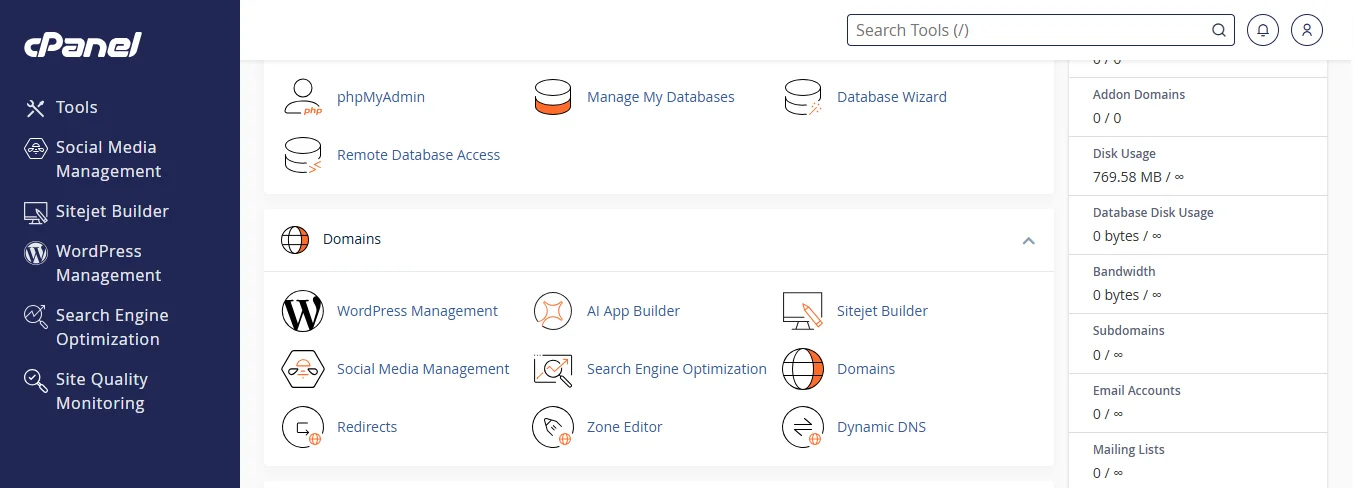
After logging in, you will see the cPanel dashboard, which displays many icons. Scroll down until you find the Domains section.
Inside the Domains section, click on the icon called Subdomains. This opens the page where you manage everything related to subdomains.
Step 3: View Existing Subdomains
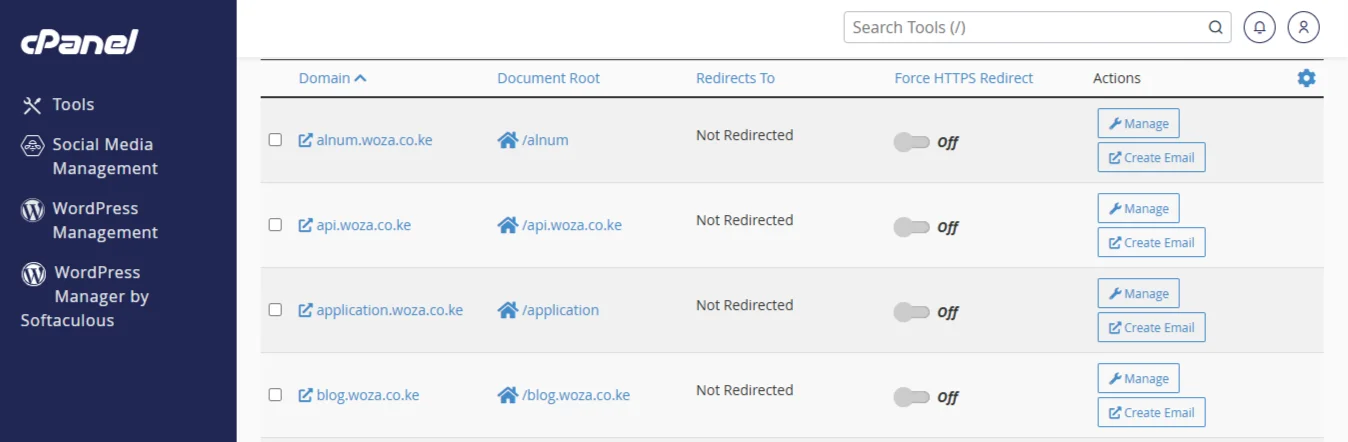
On the Subdomains page, scroll all the way down to the bottom. You will see a list titled Subdomains.
This list shows every subdomain you have already created. For each subdomain, you will see three important details:
- The subdomain name, e.g.,
blog.yourbusiness.co.ke - The document root folder, e.g., public_html/blog
- The redirect status
Step 4: Access the Subdomain Files
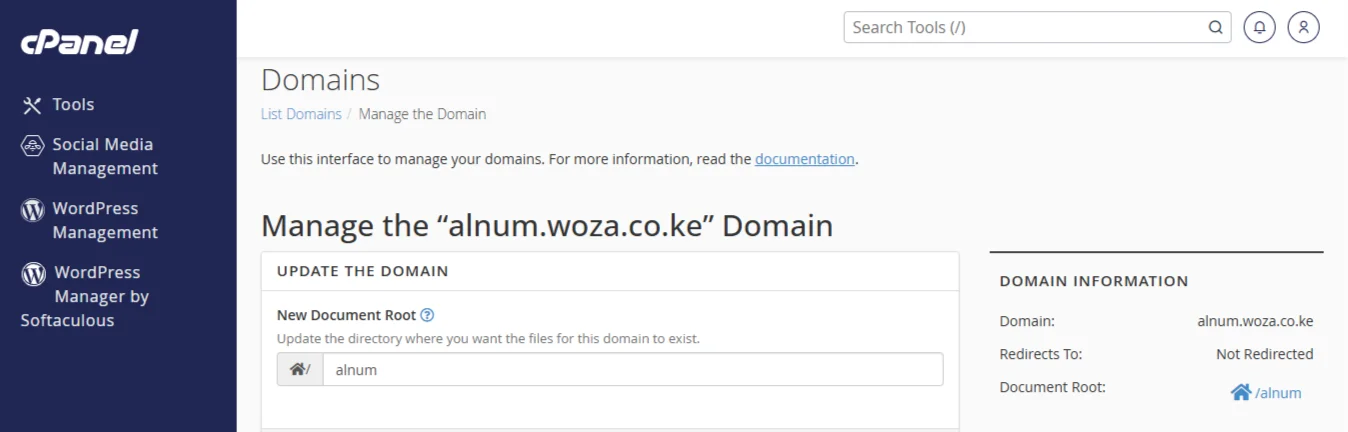
Once you’ve located your subdomain in the list, look at the Actions column on the right side. You will see a Manage button next to each subdomain.
Click the Manage button for the subdomain you want to work on. A new page will open where you can:
- View or change the document root folder (where the subdomain’s files are stored)
- Set up a redirect to send visitors to another web address
- Access the File Manager directly for that subdomain’s folder
From here, you have two quick ways to work with your subdomain files:
Option 1: Use File Manager – Click the File Manager link or icon from the Manage page. This opens the exact folder for your subdomain, such as public_html/blog. Inside, you can upload, edit, or delete files.
Option 2: Use the Direct URL – Open a new browser tab and type your full subdomain address, e.g., blog.yourbusiness.co.ke. Press enter to see your live website or web application.
Note for FTP users: If you prefer using an FTP client like FileZilla, connect with your cPanel username and password, then go to the document root folder shown on the Manage page.
Step 5: Manage Subdomain Settings
To change any settings for a subdomain, go back to the Subdomains list at the bottom of the page.
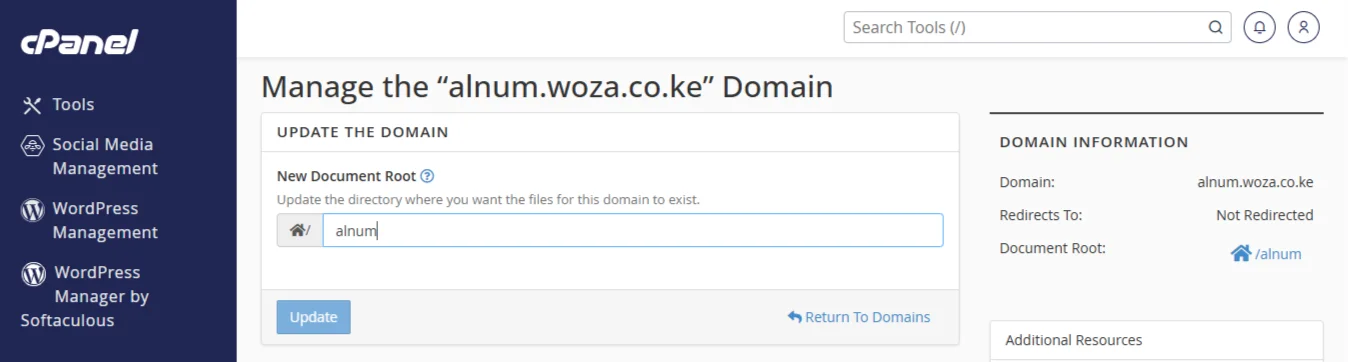
To edit /update: Find the subdomain you want to change and click the Edit button next to it. You can change the document root folder where the files are stored or set up a redirect to another web address.

To remove: Click the Remove button next to the subdomain. A warning message will appear. The subdomain will be deleted, but the files inside its folder will stay on your server.
You have to delete those files manually from the File Manager if you want them gone.
Common Issues and Troubleshooting
Subdomain not in the list
If you cannot see your subdomain in the list, it might only exist as a DNS record. This means your domain knows about it, but cPanel does not. The solution is to create the subdomain properly inside cPanel first.
404 error when accessing the subdomain
A 404 error means the file or page cannot be found. Check that the document root folder path is correct. Then make sure an index file, such as index.html, index.php, or index.htm, exists in that folder.
Subdomain loads the wrong site
This happens when the document root folder points to the wrong location. Go back to the Subdomains list, click Edit, and verify that the document root folder matches the exact folder where you stored the subdomain files.
Access Subdomain in cpanel FAQs
Can I create a subdomain without cPanel?
Yes, you can create a subdomain using only DNS records. But cPanel makes it much easier because it automatically creates the folder and handles file management for you.
How long does a subdomain take to activate?
Inside cPanel, the subdomain is available instantly. However, for it to be visible to everyone on the internet, DNS propagation can take anywhere from a few minutes to a few hours.
Can a subdomain have its own SSL certificate?
Yes. Some hosting providers offer a wildcard SSL certificate that secures your main domain and all subdomains at once. Others allow you to install a separate SSL certificate for an individual subdomain.
What is the difference between a subdomain and a subdirectory?
A subdomain, like store.yoursite.com acts as a completely separate section from your main domain. A subdirectory, such as yoursite.com/store, is simply a folder within your main website.
Wrapping it Up
I’ll simplify everything we’ve discussed for you: just log into your cPanel, head to the Subdomains section, and pick the subdomain you want from the list.
From there, grab its files through File Manager or FTP. And if you need to change or delete it, you can do that right from the same page. No stress.
And if you want hosting that makes this whole process smooth, Truehost has you covered. Kenyan website owners get easy cPanel access and hassle-free subdomain management.