 Domain SearchInstantly check and register your preferred domain name
 Web Hosting
 cPanel HostingHosting powered by cPanel (Most user friendly)
 KE Domains
 Reseller HostingStart your own hosting business without tech hustles
 Windows HostingOptimized for Windows-based applications and sites.
 Free Domain
 Affiliate ProgramEarn commissions by referring customers to our platforms
 Free HostingTest our SSD Hosting for free, for life (1GB storage)
 Domain TransferMove your domain to us with zero downtime and full control
 All DomainsBrowse and register domain extensions from around the world
 .Com Domain
 WhoisLook up domain ownership, expiry dates, and registrar information
 VPS Hosting
 Managed VPSNon techy? Opt for fully managed VPS server
 Dedicated ServersEnjoy unmatched power and control with your own physical server.
 Website Builder
 Online Store BuilderLaunch a professional e-commerce store without writing code.
 Web Design ServiceGet a custom-designed website tailored to your brand and goals. From just KES 15,600
 BlogRead our guides on web hosting, online business, digital marketing, and more
 SupportOur support guides cover everything you need to know about our services
 ContactContact us via chat or email
Running two or three websites on separate hosting plans gets expensive fast. Maybe you manage your business site and a client’s blog.
Maybe you run a portfolio site next to a small online shop. Either way, paying for three hosting accounts feels wasteful when one server could handle all of it.
The good news is simple. A single VPS can run every one of those sites at once, if you set it up correctly. This guide walks through the full process step by step.
You will point your domains to the server and build a clean folder structure. From there, you will configure your web server and isolate PHP so one site cannot slow down another.
You will also lock everything behind SSL. By the end, you will know how to fix the most common problems that come up along the way.
Before You Start: What Your VPS Needs
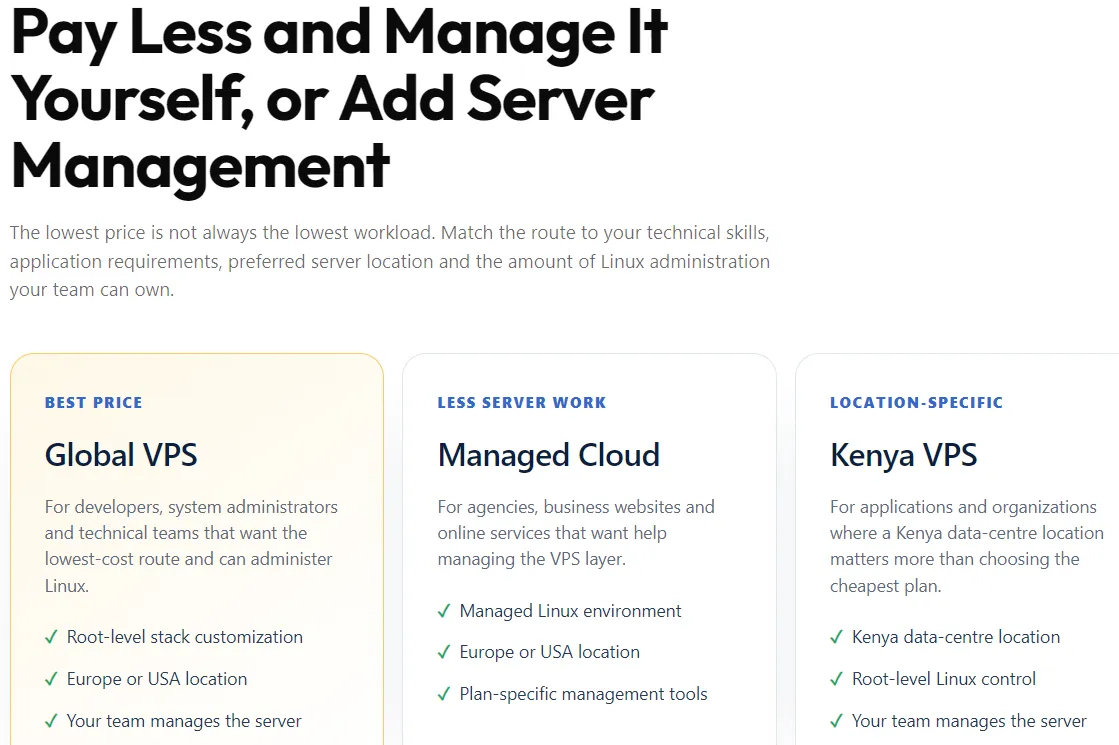
A VPS with 2 vCPUs and 2GB of RAM can typically handle 3 to 5 low-traffic sites.
Bump that up to 4GB of RAM, and you can run closer to 10. Managing 10 or more WordPress sites calls for at least 4 vCPUs and 8GB of RAM.
You also need root or SSH access to the server. Standard shared hosting plans will not allow this setup. You need full control over the server’s configuration files.
Before touching anything else, confirm that each domain’s DNS can be pointed to your VPS’s IP address.
Truehost’s own KVM VPS plans are a solid reference point for comparing specs and KES pricing in Kenya.
Step 1: Point Your Domains to the VPS
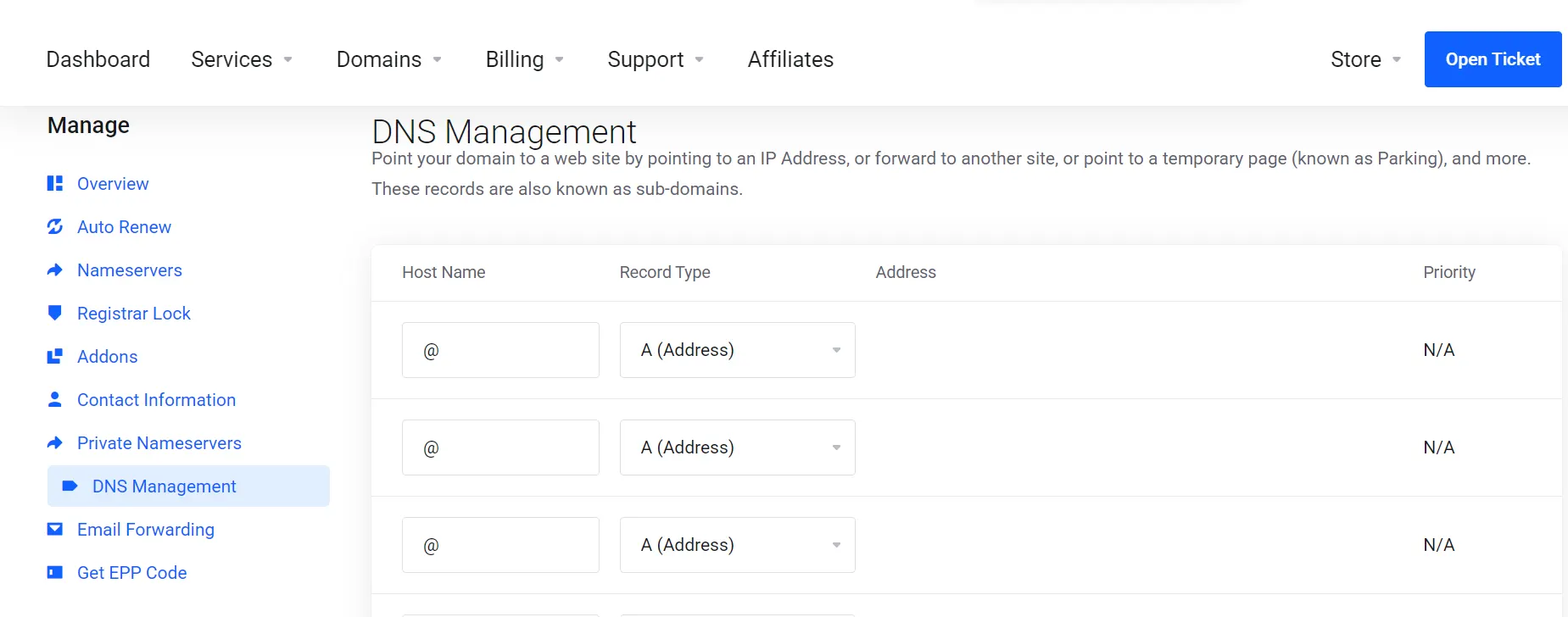
Every domain needs an A record pointing at your VPS’s public IP address. Without this, no amount of server configuration will make the site reachable.
Log into your domain registrar’s DNS settings and add an A record for the root domain, such as sitename.co.ke. Add a second A record for the www subdomain, pointing to the same IP.
DNS changes do not take effect instantly. Propagation can take anywhere from a few minutes to 24 hours, depending on your registrar.
Before assuming something is broken later, check propagation first with a quick command:
dig sitename.co.keIf the returned IP matches your VPS, the DNS is live, and you can move forward.
Step 2: Set Up Your Directory Structure
Before touching any server configuration, build a clean folder structure. This single habit saves hours of confusion once you are managing several sites at once.
Create a dedicated folder for each domain under /var/www/:
sudo mkdir -p /var/www/sitename1.co.ke/public_html

sudo mkdir -p /var/www/sitename2.co.ke/public_html
Stick to one naming pattern across every site. Consistency here makes backups, log rotation, and future troubleshooting far easier.
For an extra layer of protection, create a separate Linux system user for each site:
sudo adduser --disabled-password site1usersudo chown -R site1user:www-data /var/www/sitename1.co.ke/public_htmlThis way, if one site is ever compromised, its user account cannot touch the other sites’ files.
Step 3: Install and Configure Nginx Server Blocks
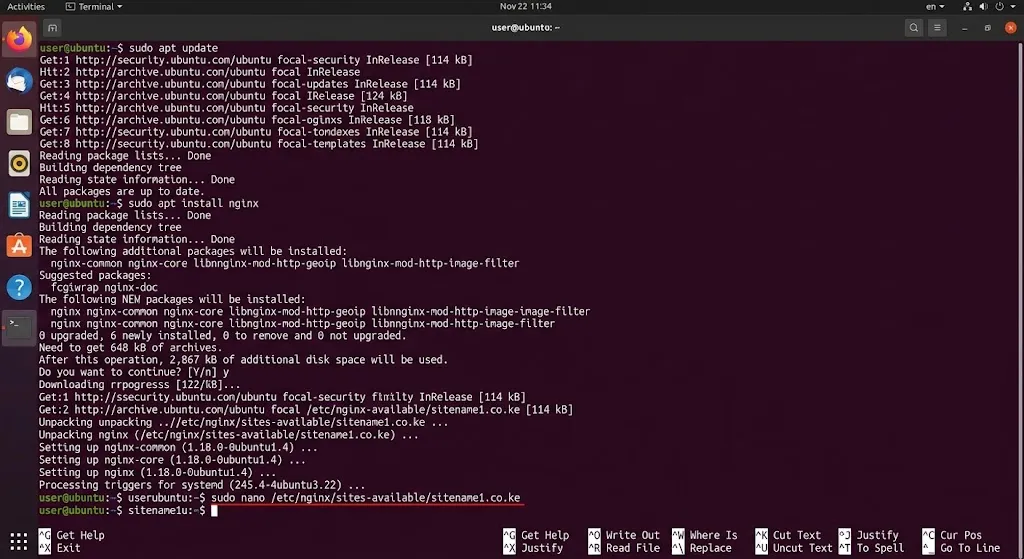
Nginx is a common choice for multi-site VPS setups. It handles static files efficiently and uses less memory per site than Apache.
Install it with:
sudo apt updatesudo apt install nginxCreate a server block file for your first domain:
sudo nano /etc/nginx/sites-available/sitename1.co.keAdd the following, adjusting the domain and root path to match your setup:
server {

    listen 80;

    server_name sitename1.co.ke www.sitename1.co.ke;

    root /var/www/sitename1.co.ke/public_html;

    index index.html index.php;

}
Enable the site by linking it into sites-enabled:
sudo ln -s /etc/nginx/sites-available/sitename1.co.ke /etc/nginx/sites-enabled/Repeat the same process for every additional domain, giving each one its own file and its own unique server_name. Test the configuration before reloading:
sudo nginx -t

sudo systemctl reload nginx
Step 3 (Alternative): Configure Apache Virtual Hosts
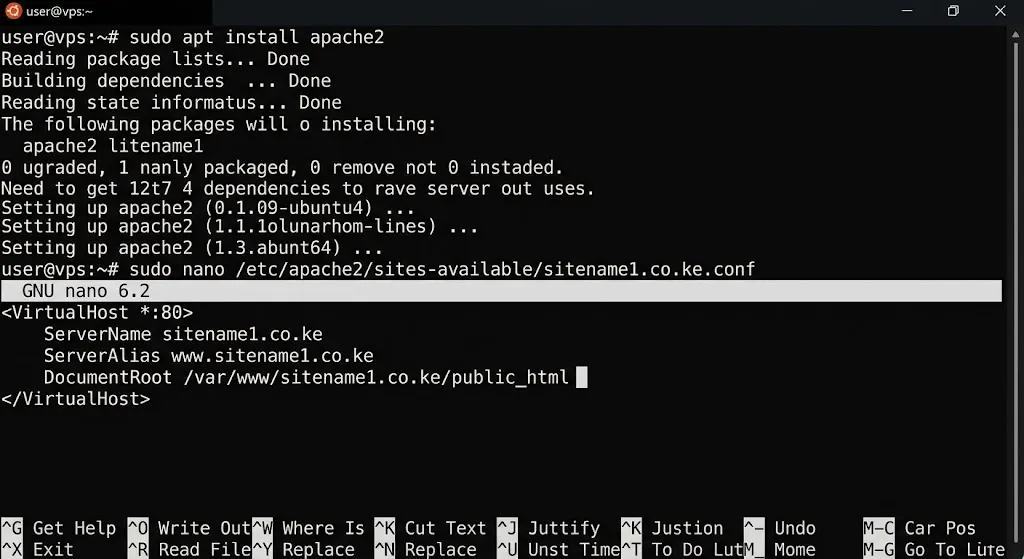
If your workflow depends on .htaccess files or you are working with legacy applications, Apache may be a better fit than Nginx.
Install Apache with:
sudo apt install apache2Create a virtual host file for your first domain:
sudo nano /etc/apache2/sites-available/sitename1.co.ke.confAdd:
<VirtualHost *:80>

    ServerName sitename1.co.ke

    ServerAlias www.sitename1.co.ke

    DocumentRoot /var/www/sitename1.co.ke/public_html

</VirtualHost>
Enable the site and reload Apache:
sudo a2ensite sitename1.co.ke.confsudo systemctl reload apache2Repeat for each additional domain, giving every site its own config file and a unique ServerName.
Step 4: Isolate PHP Processing Per Site
Running every site through one shared PHP process creates a real risk. If one site gets a traffic spike or hits a bug, it can drag down every other site.
The fix is giving each site its own PHP-FPM pool. Create a new pool configuration file:
sudo nano /etc/php/8.3/fpm/pool.d/sitename1.confAdd settings specific to that site, including its own socket:
[sitename1]

user = site1user

group = site1user

listen = /run/php/php8.3-fpm-sitename1.sock

pm = dynamic

pm.max_children = 10

pm.start_servers = 2

pm.min_spare_servers = 1

pm.max_spare_servers = 3
Then point that site’s Nginx or Apache config at the matching socket path. This keeps each site’s PHP processes separate from the rest.
A rough rule for setting pm.max_children: divide spare PHP RAM by the average memory each process uses.
WordPress usually needs 30 to 50MB per process. On a 4GB VPS with 3GB free for PHP, that gives roughly 60 to 100 total workers across every pool.
If a client’s site needs a different software stack, run it in a Docker container instead. This gives it a fully isolated environment.
Step 5: Secure Every Domain with SSL
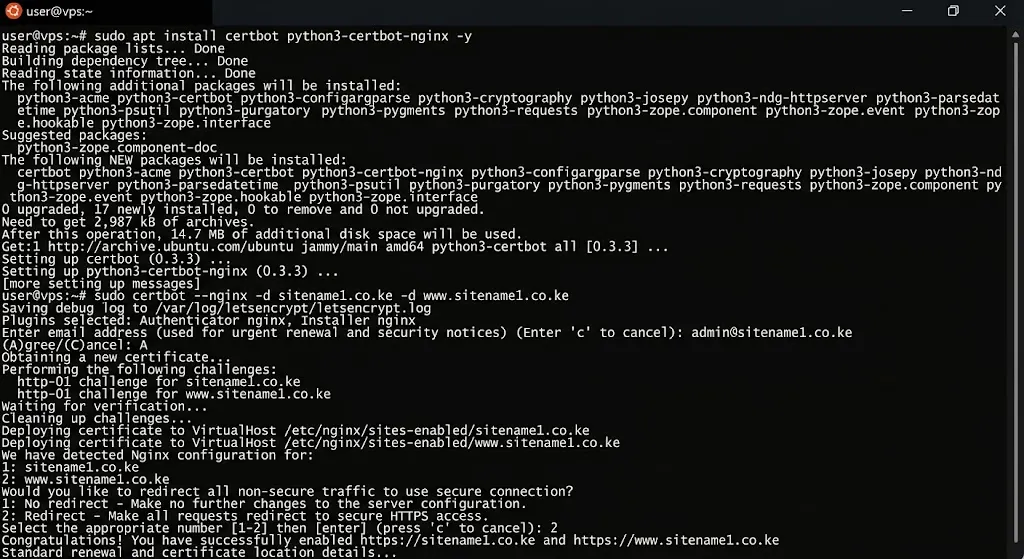
Every domain needs its own SSL certificate. Skipping this step leaves visitors with browser warnings and hurts your search rankings.
Install Certbot along with the plugin matching your web server:
sudo apt install certbot python3-certbot-nginx -yIssue a certificate for each domain, including the www version:
sudo certbot --nginx -d sitename1.co.ke -d www.sitename1.co.keRepeat for every domain on the server. Certbot handles renewals automatically once installed, though each renewal repeats the same validation check as the first issue. That detail becomes important later in the troubleshooting section.
Once every certificate is active, force HTTPS redirects so visitors never land on the unencrypted version of any site.
Step 6: Lock Down Security Across All Sites
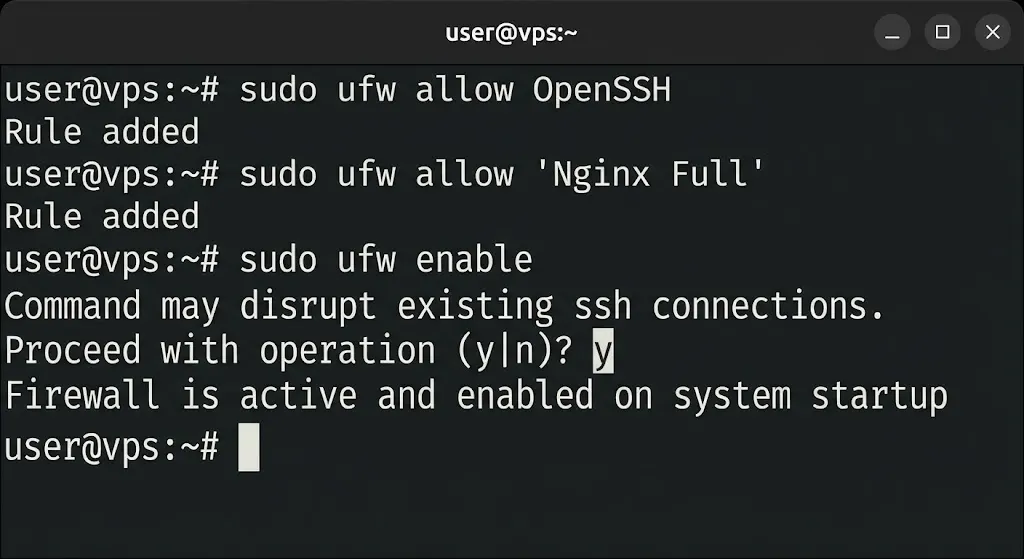
With several sites sharing one server, a security gap in one can put the others at risk. A few habits close most of that gap.
Set up a firewall and only open the ports you actually need:
sudo ufw allow OpenSSH

sudo ufw allow 'Nginx Full'

sudo ufw enable
Give each site its own database user, with no shared access between sites:
CREATE USER 'site1user'@'localhost' IDENTIFIED BY 'strong_password';GRANT ALL PRIVILEGES ON site1_db.* TO 'site1user'@'localhost';Inside each PHP-FPM pool, set open_basedir so a compromised site cannot read files belonging to another site. Add a line like this to the pool config:
php_admin_value[open_basedir] = /var/www/sitename1.co.ke:/tmpFinally, install fail2ban to block repeated failed login attempts against SSH or your web applications:
sudo apt install fail2banStep 7: Test Every Site Before Going Live
Before calling the setup finished, test each domain properly. Open a fresh incognito browser window so cached DNS or old cookies do not hide a mistake.
Visit both the root domain and the www version of each site. Confirm the correct content loads for each one. Check that HTTPS loads cleanly, with no certificate warning, on every domain.
Before any future reload, always run a syntax check first:
sudo nginx -tor, for Apache:
sudo apachectl configtestA single typo in one site’s config file can otherwise take down every site on the server when the service reloads.
Troubleshooting Common Multi-Site VPS Issues
Even a careful setup runs into problems occasionally. Here is how to recognize and fix the ones that come up most often.
1) The wrong website loads for a domain. This usually means two config files list the same server_name. It can also mean a leftover default server block is catching traffic meant for another site.
Check every config file for duplicate server_name entries. Confirm each domain appears only once across all of them.
2) One site returns a 502 Bad Gateway error. This almost always points to PHP-FPM. Either the pool crashed, restarted unexpectedly, or the web server config points at the wrong socket path.
Confirm the pool is running with sudo systemctl status php8.3-fpm. Then check that the socket path in your Nginx or Apache config matches the pool’s listen directive exactly.
3) One site slows down or crashes, while the others do not. This is a sign that PHP-FPM pools are not properly isolated. It can also mean pm.max_children is set too high for the available RAM.
Recalculate the process budget for each pool. Lower the numbers if the total exceeds what your VPS can support.
4) SSL renewal fails for one or more domains. Run a dry-run renewal first to see the exact cause in the log, rather than guessing:
sudo certbot renew --dry-runThe most frequent causes, in order, are a blocked port 80, a moved webroot path, and a domain whose DNS no longer points at this server. Fix the one cause the log shows, then renew again.
5) The browser still shows a certificate warning after renewal. This usually means the web server has not reloaded since the certificate changed. Reload Nginx or Apache any time a certificate is issued or renewed.
6) A new site’s configuration does not take effect. Confirm the file was actually symlinked into sites-enabled, not just saved in sites-available. Also, confirm the config passed its syntax test before the reload was attempted.
FAQs
Do I need a separate IP address for each website on a VPS?
No. Name-based server blocks and virtual hosts let one IP address serve unlimited domains. The web server reads the Host header on each request to pick the right site.
Is it better to use Nginx or Apache for hosting multiple sites?
Nginx tends to use less memory per site and handles static files faster. This helps once you run 10 or more sites. Apache remains a solid choice if you rely on .htaccess files or older applications.
Do I need cPanel to host multiple websites on a VPS?
No. Everything covered in this guide, including server blocks, PHP-FPM pools, and SSL, can be configured manually through SSH. A control panel like cPanel simply automates these same steps through a visual interface.
Can one website on my VPS slow down or crash the others?
Yes, if PHP processing is not isolated per site. Separate PHP-FPM pools, along with sensible resource limits, keep one site’s traffic spike from affecting the rest.
Get Started With VPS Web Hosting
A properly configured VPS handles multiple websites without the added cost of separate hosting plans.
The setup comes down to a few consistent pieces. Correct DNS, clean server blocks or virtual hosts, and isolated PHP pools. SSL on every domain, plus a firewall watching everything.
Manually configuring PHP-FPM pools and security isolation takes time and patience.
Truehost’s managed VPS plans in Kenya come with this kind of setup already handled.
That leaves you free to focus on the sites themselves, rather than the server underneath them.