 Domain SearchInstantly check and register your preferred domain name
 Web Hosting
 cPanel HostingHosting powered by cPanel (Most user friendly)
 WordPress HostingHost your WordPress website with fast, secure, and affordable WordPress hosting in Kenya.
 KE Domains
 Reseller HostingStart your own hosting business without tech hustles
 Windows HostingOptimized for Windows-based applications and sites.
 Free Domain
 Affiliate ProgramEarn commissions by referring customers to our platforms
 Free HostingTest our SSD Hosting for free, for life (1GB storage)
 Domain TransferMove your domain to us with zero downtime and full control
 All DomainsBrowse and register domain extensions from around the world
 .Com Domain
 WhoisLook up domain ownership, expiry dates, and registrar information
 VPS Hosting
 Managed VPSNon techy? Opt for fully managed VPS server
 Dedicated ServersEnjoy unmatched power and control with your own physical server.
 Website Builder
 Online Store BuilderLaunch a professional e-commerce store without writing code.
 Web Design ServiceGet a custom-designed website tailored to your brand and goals. From just KES 15,600
 BlogRead our guides on web hosting, online business, digital marketing, and more
 SupportOur support guides cover everything you need to know about our services
 ContactContact us via chat or email
Running a VPS sounds simple until you add up the small tasks that eat up your week. Checking uptime by hand.
Running a backup script and hoping it worked. Patching one server at a time while three others wait their turn.
None of that is hard work. It is just repetitive, and repetitive work is where mistakes creep in.
A missed alert here. A backup that quietly stopped running three weeks ago. Nobody notices until a client calls asking why the site is down.
That is where n8n comes in. It lets you build workflows that watch your servers, send alerts, run backups, and even fix small problems without you touching a terminal every time.
Before opening n8n, it helps to separate two things people often mix up. One is automating n8n’s own hosting. The other is using n8n to automate tasks on a separate VPS you manage.
This guide focuses on the second one. Here is what falls into that category:
- Monitoring uptime, resource usage, and service health
- Running and verifying backups
- Sending alerts and handling small incidents automatically
- Patching, log cleanup, and routine maintenance
- Provisioning new servers and onboarding clients
- Managing DNS records and SSL certificates
- Tracking cost and resource usage across a fleet of servers
- Rotating access keys and revoking credentials
Every workflow in this guide connects to your VPS in one of two ways: either through an SSH node running raw commands, or through an HTTP Request node calling your provider’s API.
A quick note before you start. Some tasks still need a human. Major version upgrades, database schema changes, and anything destructive should stay manual, or at a minimum require a manual approval step inside the workflow.
This guide walks through how to set that up, one task at a time.
What You Need Before You Start
An n8n instance. Self-host it or use n8n cloud, but self-hosting on a small, separate VPS avoids a problem most guides skip.
Separation from what you monitor. If n8n and your monitored server share the same box, and that box goes down, your monitoring goes down with it.
A way in. An SSH key for command-based automation, or an API token from your VPS provider for structured automation.
Safe credential storage. Store tokens and passwords in n8n’s built-in credential vault, never paste them directly into a node. If a workflow gets shared or exported, hardcoded credentials go with it.
1) Setting Up n8n for VPS Automation

Getting n8n running takes a short list of steps. Install it with Docker, put a reverse proxy in front of it, and add SSL so traffic stays encrypted. Full walkthroughs for this exist elsewhere, so this guide will not repeat every command.
One decision worth slowing down for is your database. SQLite works fine while testing, but production automation needs something sturdier. Switch to PostgreSQL once you plan to run this daily.
Also, decide where n8n lives before you build your first workflow. Put it on its own lightweight VPS, separate from anything it monitors or manages. That single choice prevents a lot of headaches later.
Before moving on, run through this short checklist:
- Set an encryption key for stored credentials
- Route logs outside the container so they survive a restart
- Configure an automatic restart policy through Docker or a process manager
2) Connecting n8n to Your VPS (SSH Node vs API Node)
n8n gives you two main ways to reach a server, and picking the right one saves time later.
The SSH node runs raw shell commands. Use it when your provider has no API, or when you need something specific, like checking disk usage with a single command. It works the same way regardless of who hosts your VPS.
The HTTP Request node calls your provider’s API instead. Use it when you want structured, predictable data back, like a JSON response listing backup status or server metrics, rather than parsing raw text output.
Here is a simple side-by-side. A monitoring workflow that checks CPU load might use SSH to run a system command directly.
A workflow that checks your last scheduled backup might call the provider’s API instead, since that data already lives there.
Whichever node you use, store the key or token in n8n’s credential system, and rotate it on a schedule rather than leaving it in place indefinitely.
3) Automate VPS Monitoring (Uptime, Resource Usage, Service Health)
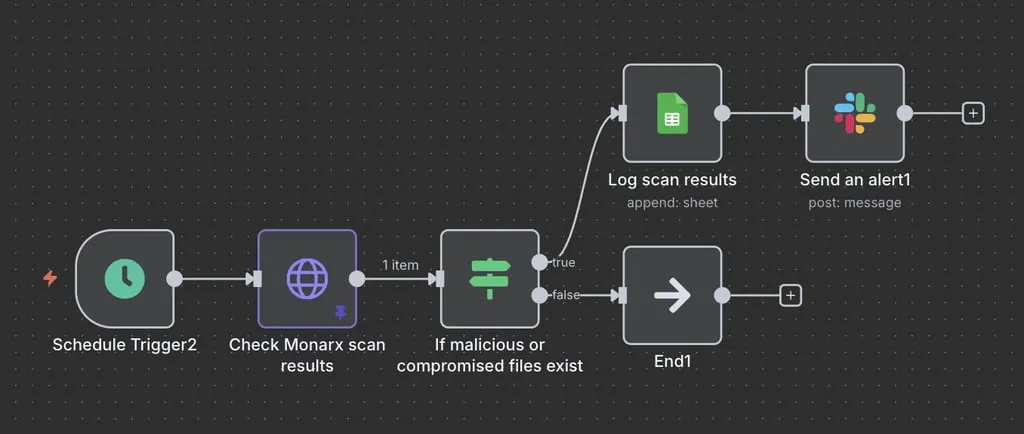
This is usually the first workflow people build, and for good reason. It catches problems before a client or user does.
The pattern looks like this. A schedule trigger runs every few minutes. It pings the server or runs an SSH command to check CPU, RAM, and disk usage.
A conditional node compares the result against a threshold. If something crosses that line, an alert fires.
Parsing the SSH output takes a bit of setup, since command output usually comes back as plain text rather than clean data. A short parsing step inside the workflow handles that.
Route your alerts by severity instead of sending everything the same way:
- Slack or Discord for routine, low-priority notices
- Email for daily summaries
- SMS or a phone call for anything that needs attention right away
One detail that gets skipped often: add cooldown logic. Without it, a flaky check can send five alerts in ten minutes, and people start ignoring all of them.
4) Automate VPS Backups and Verification
A backup workflow looks simple on paper. A schedule trigger fires, a backup command runs, or a provider’s backup API gets called, and the file moves to offsite storage like S3 or Backblaze.
The part most guides leave out is verification. A backup that never gets tested is not proof of anything. Add a step that restores the file somewhere safe and confirms it opens correctly.
This single step catches the failures that would otherwise stay hidden until the day you actually need that backup.
A few more things worth building in:
- Encrypt the backup file before it leaves the server, since it likely contains sensitive data
- Log the timestamp of the last successful backup somewhere visible, like a dashboard or spreadsheet
- Set an alert for when a backup fails or simply does not run on schedule
5) Automate Alerts and Incident Response
Monitoring tells you something broke. Incident response decides what happens next, and that part can run on its own, too.
Route alerts by how urgent they actually are. A CPU spike that resolves itself does not need to wake anyone up. A crashed service that stays down does.
Before paging a person, try a self-heal step first. If a monitoring workflow detects a stopped service, have it attempt a restart automatically through the SSH node. Many incidents resolve on their own this way, without anyone needing to log in.
While that happens, build an incident timeline automatically. Have the workflow log each step, the detection, the recovery attempt, and the result, into a shared doc or ticket.
If the first recovery attempt fails, escalate. Send an SMS or call to whoever is on call, and include what was already tried so they are not starting from zero.
6) Automate Security and Maintenance Tasks
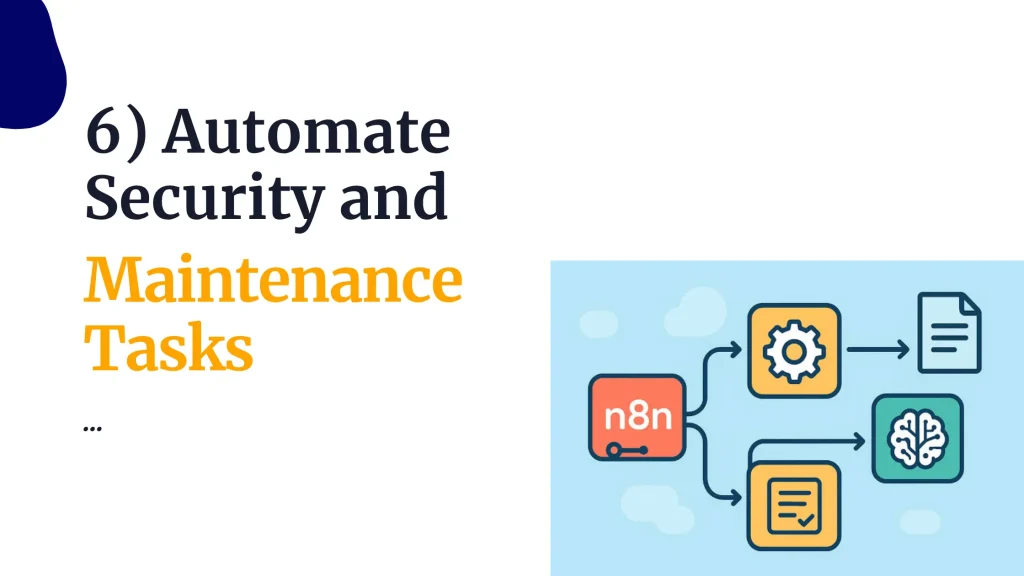
Security and maintenance work well as scheduled workflows, since most of it follows a predictable rhythm.
Set up a scheduled check for available updates and patches. Send a notification instead of applying them automatically on production servers, since an update that breaks something is worse than a delayed one.
Log rotation and disk cleanup fit the same pattern. A weekly workflow can clear old logs and free up space without anyone remembering to do it manually.
Watch for suspicious activity too. A workflow that scans login attempts or traffic spikes can flag anything unusual and send it straight to your alert channel.
Certificate and update tracking get their own detailed treatment in the DNS and SSL section below, since they carry enough weight to stand on their own.
7) Automate VPS Provisioning and Client Onboarding
If you manage servers for clients, provisioning is where manual work piles up fast.
Set a workflow to trigger from a form submission or a payment confirmation. From there, it can call your provider’s API to spin up a new server automatically, without anyone touching the dashboard.
Once the API confirms the server is live, send the client their login details and connection instructions right away. That single step removes a common source of support tickets.
Build in a failure check too, if the API returns an error during provisioning, route that straight to a person instead of letting it sit unnoticed.
A small but useful add-on: auto-tag new servers by client name or purpose the moment they get created. It keeps a growing list of servers organized without extra effort later.
8) Automate DNS and SSL Management
DNS and SSL problems tend to surface at the worst time, usually right when a certificate expires without warning.
Set a scheduled workflow to check certificate expiry across a list of domains, stored in something simple like a Google Sheet.
When a certificate falls inside a set window, like seven days, send an alert before it becomes a problem.
Some workflows go further and trigger the renewal automatically, then re-check the certificate to confirm it worked.
DNS updates deserve the same treatment. If a server’s IP changes, especially during failover, update the DNS record automatically instead of waiting for someone to notice traffic dropped.
During incident recovery, a provider node like Cloudflare can also toggle SSL settings, purge cache, or adjust a record as part of the same workflow that detected the problem.
9) Automate Fleet-Wide Cost and Resource Reporting
Managing one server is simple. Managing ten or twenty gets harder to track without some help.
Set a scheduled workflow to pull CPU, RAM, and disk usage across every server you manage, not just one at a time. This gives a full picture in one place instead of ten separate dashboards.
Use thresholds to flag two different problems. Servers running well under capacity are candidates for downsizing. Servers approaching a limit need attention before they cause downtime.
If your provider offers a billing API, pull that data on a schedule too. Catching a cost spike early beats discovering it on next month’s invoice.
Compile all of this into a report sent automatically on a schedule, so spending and usage stay visible without anyone pulling the numbers by hand.
10) Automate Access and Key Rotation
Access control gets overlooked more than any other task on this list, and that makes it worth automating early.
Set SSH keys to rotate on a schedule instead of leaving the same key in place for years. A workflow can generate a new key, update it across your servers, and confirm that the old one no longer works.
Tie access revocation to your HR or identity tool if you have one. When someone leaves the team, a workflow can pull VPS access automatically instead of waiting for someone to remember.
Log every credential change somewhere permanent, so there is a clear record of who had access and when.
As a safety net, add an alert for any key added outside the normal rotation workflow. That kind of change, if unexpected, is worth a second look right away.
Common n8n VPS Automation Mistakes to Avoid
A few mistakes show up again and again once people start building these workflows.
- Hosting n8n on the same VPS it monitors, so one failure takes down both
- Backing up data without ever testing whether the restore actually works
- Hardcoding credentials inside a node instead of using n8n’s credential store
- Skipping error handling, so one failed API call quietly breaks the entire workflow
Each of these is easy to avoid once you know to look for it. None of them show up until something goes wrong, which is exactly why they are worth fixing now.
FAQs
Can n8n manage a VPS directly?
Yes. Through the SSH node, it can run commands directly on your server. Through the HTTP Request node, it can call your provider’s management API. Both approaches work well depending on what your provider supports.
Do I need to code to automate VPS tasks with n8n?
No. n8n uses a visual, node-based interface, so most workflows come together without writing custom code. Some tasks may need a short SSH command or a small script, but that is far from full development work.
Is n8n secure enough to give it access to server credentials?
It can be, if set up correctly. Store credentials in n8n’s built-in vault, never in a node directly. Also, keep your n8n instance behind SSL, and limit who has access to the n8n dashboard itself.
What is the difference between n8n and a plain cron job or bash script?
A cron job runs a script blindly on a schedule with no built-in error handling or alerting. n8n adds conditional logic, retries, multi-channel alerts, and a visual view of what ran and what failed.
How much does it cost to run n8n for VPS automation, self-hosted vs cloud?
Self-hosting costs the price of a small VPS, often ten to twenty dollars a month, plus your setup time. n8n Cloud charges a monthly fee based on usage but skips the hosting and maintenance work entirely.
Can n8n restart a crashed service automatically?
Yes. A monitoring workflow can detect a stopped service through an SSH check and trigger a restart command right away. This resolves many incidents before anyone needs to log in manually.
Start With One Workflow
Do not try to automate everything in one sitting. Pick the task costing you the most time right now, usually uptime monitoring or backup verification, and build that workflow first.
Once it runs reliably for a week, add the next one. Backups, alerts, provisioning, and DNS checks all follow the same basic pattern, so each new workflow gets easier to build than the last.
If you want a head start, grab a starter workflow template and adjust it to your own server setup. That one small step saves hours compared to building from a blank canvas.