 Domain SearchInstantly check and register your preferred domain name
 Web Hosting
 cPanel HostingHosting powered by cPanel (Most user friendly)
 KE Domains
 Reseller HostingStart your own hosting business without tech hustles
 Windows HostingOptimized for Windows-based applications and sites.
 Free Domain
 Affiliate ProgramEarn commissions by referring customers to our platforms
 Free HostingTest our SSD Hosting for free, for life (1GB storage)
 Domain TransferMove your domain to us with zero downtime and full control
 All DomainsBrowse and register domain extensions from around the world
 .Com Domain
 WhoisLook up domain ownership, expiry dates, and registrar information
 VPS Hosting
 Managed VPSNon techy? Opt for fully managed VPS server
 Dedicated ServersEnjoy unmatched power and control with your own physical server.
 Website Builder
 Online Store BuilderLaunch a professional e-commerce store without writing code.
 Web Design ServiceGet a custom-designed website tailored to your brand and goals. From just KES 15,600
 BlogRead our guides on web hosting, online business, digital marketing, and more
 SupportOur support guides cover everything you need to know about our services
 ContactContact us via chat or email
Yes, One Dedicated Server Can Run Several Websites. You just set up a dedicated server for one site, and now a second project needs a home.
Maybe a client asked for a new site, or your own business grew past a single domain. Either way, you are staring at one server, wondering where to start.
The good news: a dedicated server was built for exactly this. You get the full resources of one machine, not a slice shared with strangers.
That capacity comfortably splits across many sites when you set things up the right way.
There are three main paths to get there. A control panel like cPanel and WHM gives you a graphical way to manage every site from one dashboard.
Manual virtual host setup on Apache or Nginx skips the panel and gives full control from the command line. Docker containers isolate each site in its own environment, which suits teams already running containerized apps.
This guide walks through all three. The control panel route gets the most detailed treatment, since most Truehost dedicated server users start there. The manual and container methods follow, with clear notes on who each one fits best.
Three Ways to Host Multiple Websites on One Server
Before touching any config file, it helps to know your options. Each method handles multiple domains on one server differently, and picking the right one saves headaches later.
1) Name-Based Virtual Hosting
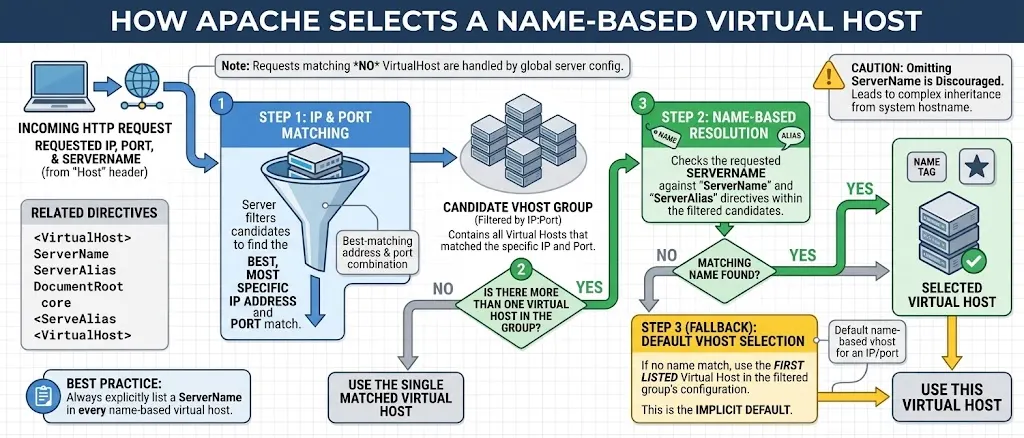
Name-based virtual hosting lets one IP address serve several domains at once.
The web server reads the host header sent by the visitor’s browser and routes the request to the right site.
This method needs no extra IP addresses, so it keeps costs down. For most Truehost dedicated server customers, this is the default choice.
2) IP-Based Virtual Hosting
IP-based hosting gives each domain its own dedicated IP address on the server.
Some older SSL setups need this, since they cannot read the host header before choosing a certificate.
A handful of compliance rules also call for separate IPs per site. The downside is cost, since extra IP addresses on a dedicated plan add up quickly.
3) Port-Based Virtual Hosting
Port-based hosting separates sites by TCP port number instead of domain name or IP. Visitors have to type a port number into the browser to reach the site.
That requirement makes it a rare choice for production hosting. Most guides only mention it for completeness.
| Method | Best For | Extra Cost | Setup Difficulty |
|---|---|---|---|
| Name-based | Most sites share one server | Low | Easy |
| IP-based | Sites needing dedicated SSL or compliance | Higher (extra IPs) | Moderate |
| Port-based | Rare, internal, or testing use | Low | Easy |
Before You Start: Prep Steps Most Guides Skip
Two checks save a lot of frustration before you create a single account or write one config line.
I) Confirm DNS Points to Your Server First
Check the domain’s A record before touching WHM or any config file. Run dig +short yourdomain.com from a terminal and compare the result to your server’s public IP.
If the two do not match, fix DNS first, since nothing else will work until they do. Tools like whatsmydns show how propagation looks across different regions.
This step counts double for Truehost’s audience. Readers span Kenya, Nigeria, Pakistan, South Africa, the UAE, and Tanzania, where resolver speeds vary.
II) Open the Right Firewall Ports
Open ports 80 and 443 on your server firewall before adding any site. Tools like CSF, iptables, or your cloud provider’s security group all handle this.
Port 80 needs to stay open even on sites that redirect everything to HTTPS. SSL validation depends on that port, so blocking it breaks certificate issuance later.
Method 1: Setting Up Multiple Websites with cPanel/WHM
cPanel and WHM give you a graphical way to manage every site from one login. Here is how to add a new site the right way.
I) Creating a Separate cPanel Account for Each Website
Log in to WHM and select Create a New Account. Set up a separate cPanel account for each website you add.
This gives every site its own username, isolated file structure, and separate resource limits.
Assign disk space and bandwidth limits that fit the site’s expected traffic. Keeping accounts separate also protects one client’s site if another gets compromised.
II) Pointing Domains to Your Dedicated Server
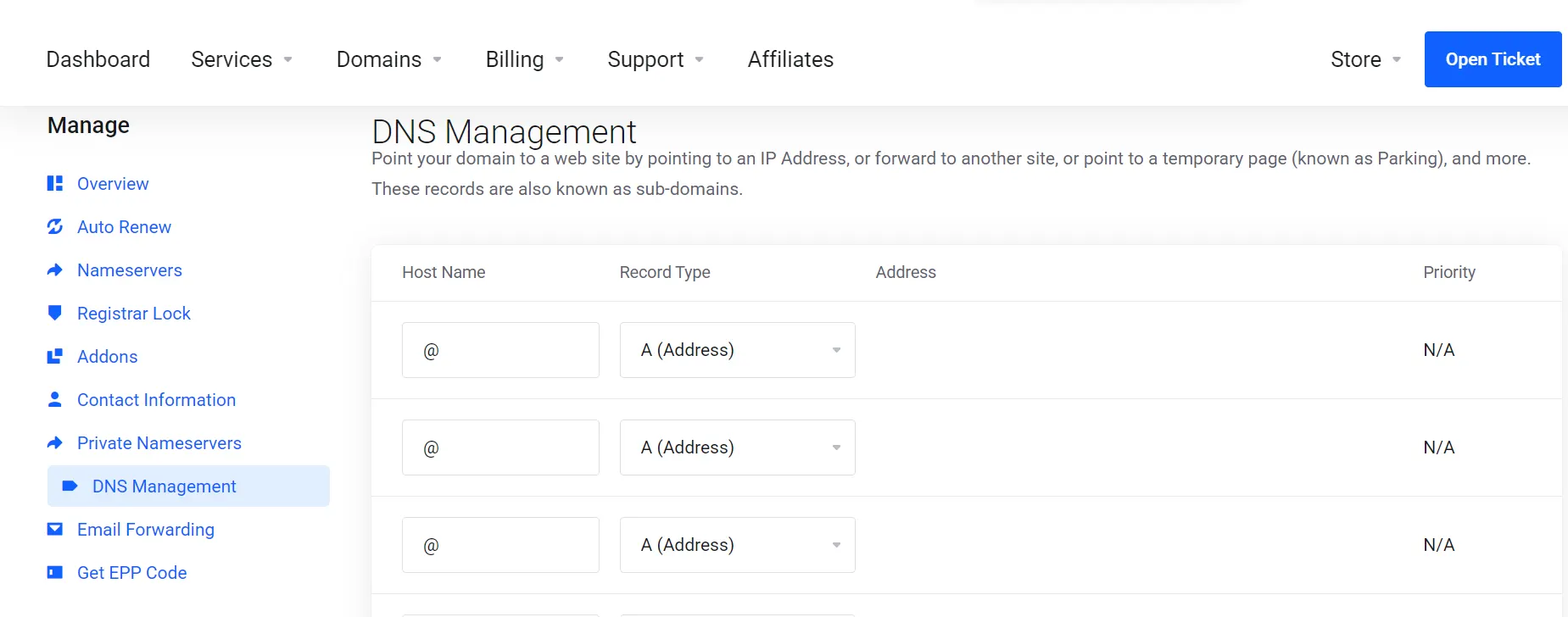
Log in to your domain registrar and create an A record for each domain. Point that record to your server’s public IP address.
If you want full DNS control inside WHM, delegate the domain’s nameservers to your server instead. Either path gets visitors to the right place once DNS finishes updating.
III) Issuing SSL Certificates for Each Domain
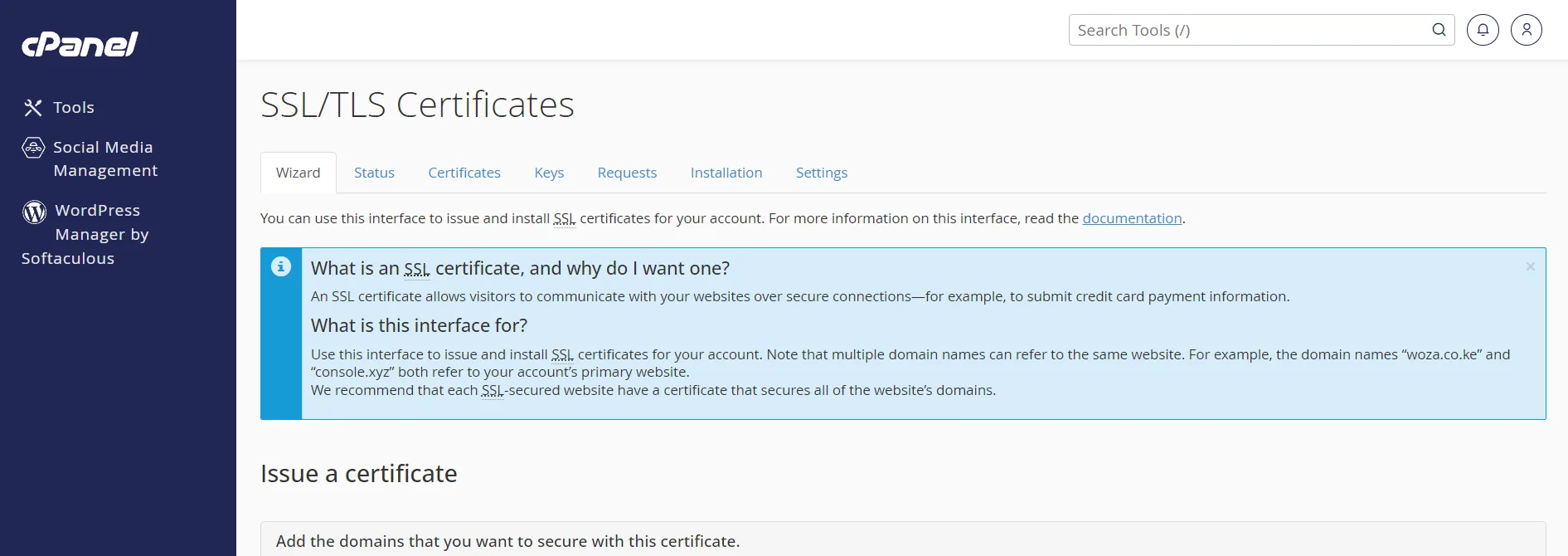
WHM’s AutoSSL feature issues free certificates for every domain on the server. Go to SSL/TLS Status in WHM and run AutoSSL for the new domain.
If the site sits behind Cloudflare or another proxy, pause the proxy during the first issuance.
Cloudflare’s proxy can block the HTTP validation request that AutoSSL depends on. Once the certificate is issued, you can turn the proxy back on.
IV) Setting Resource Limits to Stop One Site From Hogging the Server
WHM lets you build custom packages with set CPU, memory, and disk limits.
Apply the same package across similar sites for consistent behavior. Without limits, one busy site can slow down every other site on the server. A few minutes spent here saves hours of troubleshooting later.
V) Setting the Correct PHP Version Per Site
Different sites on the same server often need different PHP versions. Open MultiPHP Manager in WHM and assign a version to each domain.
This keeps an older WordPress install running next to a newer custom application. No single PHP version has to work for every site.
Method 2: Manual Virtual Host Setup Without a Control Panel (Apache/Nginx)
This path skips the graphical panel entirely. It suits developers who prefer the command line and want full control over server config.
I) Creating Document Root Directories for Each Site
Create a folder for each website’s files on your server. On Apache systems, this usually lives under /var/www/html/yourdomain.com.
On Nginx, the default folder sits at /usr/share/nginx/html, though many admins move it to /var/www/ instead.
Set ownership with a command like chown -R www-data:www-data on the new folder.
II) Writing the Virtual Host or Server Block Config
Apache uses a VirtualHost block inside a file under /etc/apache2/sites-available/.
Nginx uses a server block inside a file under /etc/nginx/sites-available/.
Each block needs the domain name, the document root, and the log file paths. Keep one file per domain, since this makes troubleshooting far easier later.
III) Enabling the Site and Reloading the Web Server
Writing the config file is not enough on its own. On Apache, run a2ensite followed by the file name to enable the new site.
Skipping this step is the top reason a new site fails to load. Before reloading, check the config with apachectl -S on Apache or nginx -t on Nginx.
This catches typos before they take every site on the server down. Once the check passes, reload the web server to apply the change.
Method 3: Using Docker to Isolate Multiple Websites on One Server
Docker takes a different approach entirely. Each website runs inside its own container, separate from every other site on the server.
Why Containers Beat Shared File Systems for Multi-Site Isolation
Each container packages its own code, dependencies, and runtime version. A change to one site’s environment cannot affect any other container.
This isolation makes Docker a strong fit for teams running many different applications on shared hardware.
Setting Up a Reverse Proxy (Nginx Proxy Manager or Traefik)
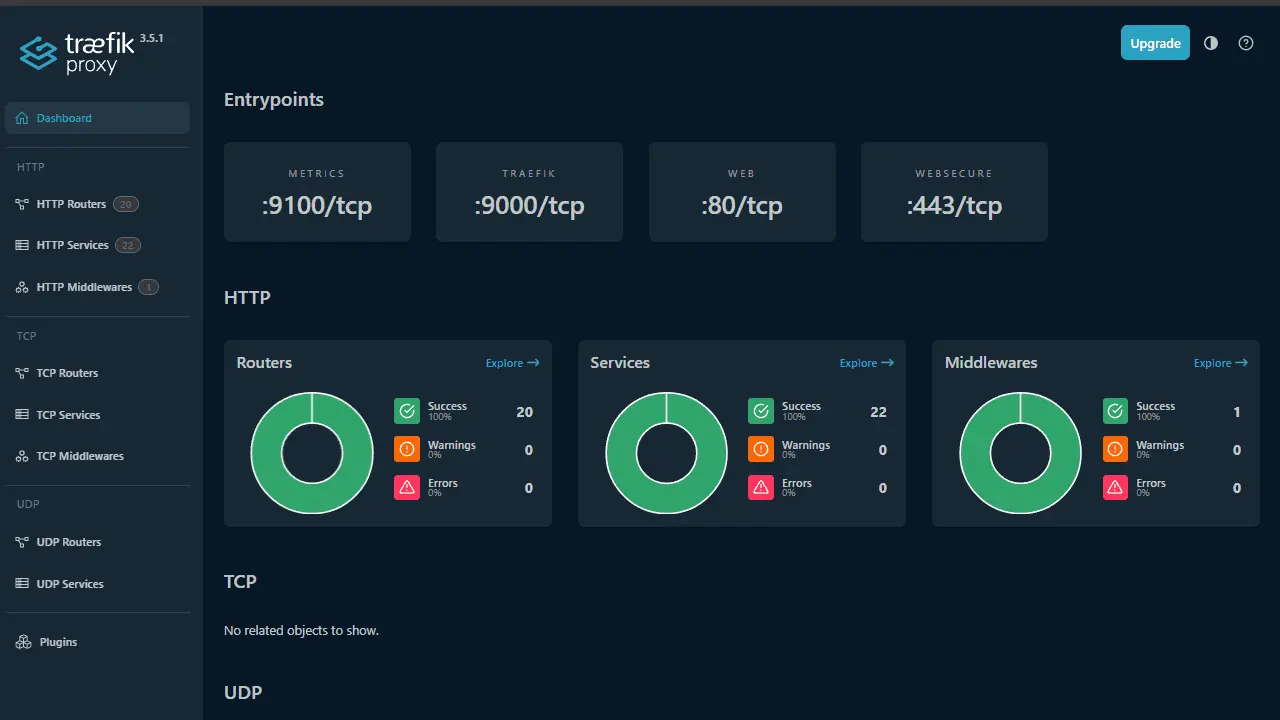
A reverse proxy like Nginx Proxy Manager or Traefik routes incoming traffic to the right container.
Visitors hit the server on one IP, and the proxy reads the requested domain. It then forwards the request to the matching container automatically.
This setup fits teams already comfortable running containerized apps day to day. Casual multi-site hosting usually does not need this extra layer.
How Many Websites Can Your Dedicated Server Actually Handle?
The honest answer depends on your server’s specs and the type of sites you run. CPU cores, RAM, and storage all set the real limit, not some fixed number. Static sites use very little in the way of resources.
WordPress sites need more RAM, especially with several active plugins. E-commerce sites with databases and heavy traffic need the most resources of the three.
As a rough guide, a mid-tier dedicated plan can comfortably run 15 to 20 moderate-traffic WordPress sites. That number drops if any single site sees heavy spikes or runs a large database.
Watch for warning signs that a server is overloaded. Slow load times across every site on the server point to a resource problem. High load averages in WHM or top point in the same direction.
Memory swapping happens when the server borrows disk space to act as RAM. That signals it is time to upgrade or trim the number of sites.
Common Mistakes When Running Multiple Sites on One Server
A few mistakes show up again and again on shared dedicated servers.
- Skipping resource limits lets one site consume shared RAM or CPU without warning.
- Reusing the same cPanel account for unrelated client sites opens a real security gap. Each client can see the other’s files this way.
- Forgetting to set the right PHP version per site breaks older applications that need an outdated version.
- Skipping individual backups per domain means one bad update can wipe out months of work with no way back.
Troubleshooting: Fixing the Most Common Multi-Site Setup Problems
Even a careful setup runs into problems sometimes. Here is how to fix the ones that come up most often.
1) A New Site Shows the Default Server Page or Someone Else’s Site
This almost always means the virtual host block was never enabled, or the ServerName does not match the requested domain.
Run apachectl -S on Apache or nginx -T on Nginx to list every active virtual host.
Check that the new domain appears in that list with the right document root. If it is missing, go back and confirm the site was actually enabled.
2) SSL Certificate Won’t Issue for a New Domain
Three causes explain most SSL failures on a new domain. DNS might not point to the server yet, so double-check the A record first.
The firewall might block port 80, which HTTP validation needs to complete.
A proxy like Cloudflare might also intercept the validation request before it reaches your server. On cPanel servers, check /var/log/cpanel/autossl.log for the exact rejection reason.
3) One Website Is Slowing Down All the Others
This almost always traces back to missing resource limits on the busy site’s account or container. Check server load averages and per-account resource use inside WHM.
If one account shows unusually high CPU or memory use, apply a package with tighter limits. This stops one site’s traffic spike from dragging down every other site.
4) A Domain Won’t Resolve to the Server At All
Run dig +short yourdomain.com and compare the result to your server’s actual public IP. A mismatch means the A record still needs updating at the registrar.
If you just changed nameservers, give it up to 48 hours to finish propagating. Patience here saves a lot of wasted troubleshooting on a domain that simply has not caught up yet.
FAQs
Can I host multiple websites without a control panel?
Yes, manual virtual host setup on Apache or Nginx works without any control panel. It takes more command-line comfort, but it gives full control over server config. Many developers prefer this route once they know the setup steps.
Is it better to use one cPanel account or separate accounts per site?
Separate accounts are the safer choice in almost every case. Each account gets its own file structure, login, and resource limits. One shared account works only when you personally own and trust every site on it.
Is hosting multiple sites on one dedicated server secure?
It can be, as long as sites stay isolated from each other. Separate cPanel accounts, separate containers, or careful file permissions all support this. The main risk comes from letting unrelated sites share the same account or credentials.
Can I use Docker to host multiple websites on a dedicated server?
Yes, Docker containers keep each site fully separate from the others on the same server. A reverse proxy routes traffic to the right container based on the requested domain. This setup fits teams already running containerized applications.
What happens if one website uses too many server resources?
Without limits in place, a busy site can slow down or crash every other site sharing the server. Setting CPU, memory, and disk caps per account or container prevents this. WHM packages and Docker resource limits both handle this well.
Get Your Dedicated Server Ready for Multiple Websites
Running several sites on one dedicated server comes down to two things. Pick the right method and set real limits from day one.
A control panel suits most readers. Manual virtual hosts suit developers who want full control. Docker suits teams already running containers.
Before adding a second or third site, check your current plan. Confirm it has the CPU, RAM, and storage to support the load.
Truehost’s dedicated server plans come in several specs built for exactly this kind of growth.
Compare the options and pick a plan sized for the number of sites you actually plan to run.