Domain SearchInstantly check and register your preferred domain name
 Web Hosting
 cPanel HostingHosting powered by cPanel (Most user friendly)
 WordPress HostingHost your WordPress website with fast, secure, and affordable WordPress hosting in Kenya.
 KE Domains
 Reseller HostingStart your own hosting business without tech hustles
 Windows HostingOptimized for Windows-based applications and sites.
 Free Domain
 Affiliate ProgramEarn commissions by referring customers to our platforms
 Free HostingTest our SSD Hosting for free, for life (1GB storage)
 Domain TransferMove your domain to us with zero downtime and full control
 All DomainsBrowse and register domain extensions from around the world
 .Com Domain
 WhoisLook up domain ownership, expiry dates, and registrar information
 VPS Hosting
 Managed VPSNon techy? Opt for fully managed VPS server
 Dedicated ServersEnjoy unmatched power and control with your own physical server.
 Website Builder
 Online Store BuilderLaunch a professional e-commerce store without writing code.
 Web Design ServiceGet a custom-designed website tailored to your brand and goals. From just KES 15,600
 BlogRead our guides on web hosting, online business, digital marketing, and more
 SupportOur support guides cover everything you need to know about our services
 ContactContact us via chat or email
Do you log in to cPanel and feel like you’re staring at a wall of buttons, but still want to know how to use it? Of course, you’re a beginner, and it’s okay to feel that way at first.
Get this from us, cPanel is not complicated. It is just unfamiliar. There are several ways to use cPanel. Once you know where to click and what to do, you’ll stop panicking and start running your site with real confidence.
So let’s fix that today.
First, cPanel is the control room for your website. It’s a dashboard your web host provides that lets you manage everything in one place: your files, emails, domains, security, and more. You don’t need to touch any code. Everything has a button.
Our guide today walks you through seven practical ways to use cPanel like a pro, even if you’re managing a website for the very first time.
Now, let’s get into the good stuff.
1) Install Apps Fast with Softaculous
One of the ways to use cPanel that beginners always wish they had known sooner is Softaculous. Let’s explain what that means.
Normally, if you wanted to install WordPress on your website, you would have to download the files, create a database, connect them, and configure everything manually. That process is long, confusing, and full of places where things can go wrong.
Softaculous removes all of that. It is a cPanel tool that automatically installs WordPress and other apps for you. And since WordPress powers 43.4% of all websites on the internet, chances are you will need it at some point.
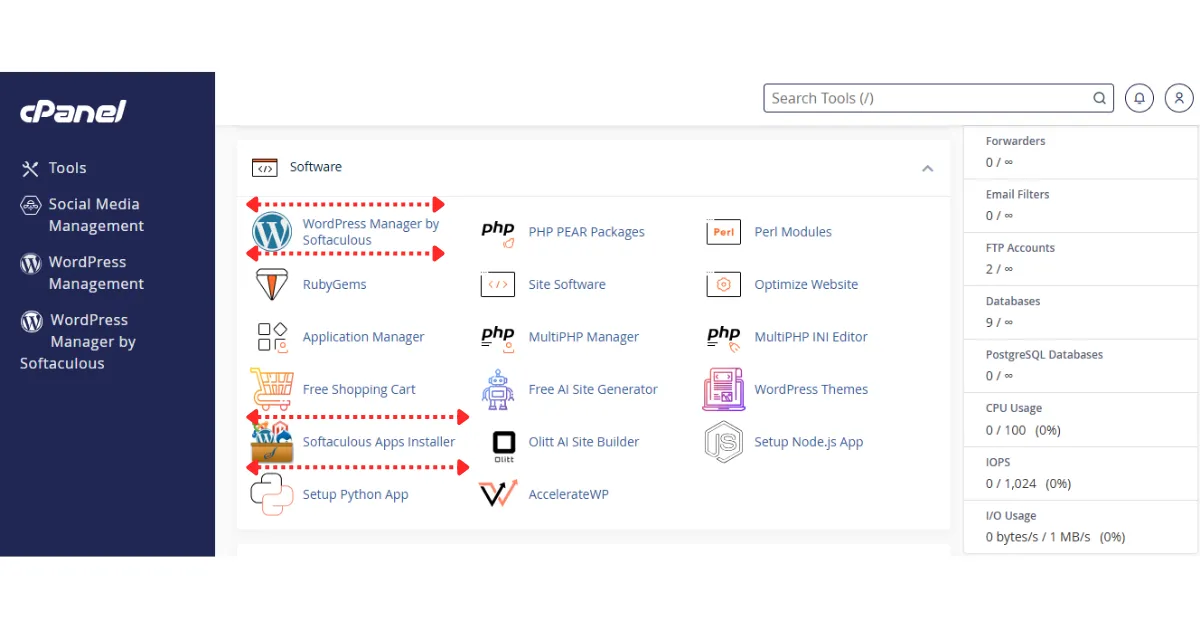
Here is how to use it.
Go to: cPanel → Softaculous → WordPress → Install.
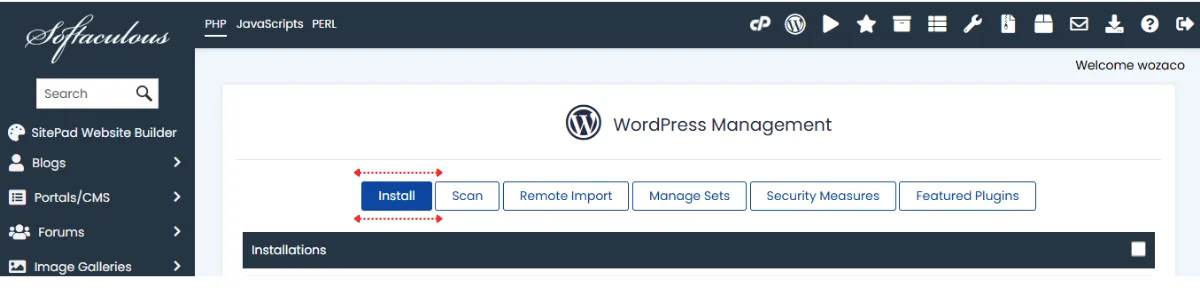
Fill in your site name, set your login details, select your domain, and click Install. Softaculous handles the database setup, the file setup, and all the configuration behind the scenes.
2) Use Central cPanel to Add and Manage Multiple Domains
One of the most powerful ways to use cPanel is to run multiple websites from a single hosting account. This saves you money and keeps everything in one place.
Go to Domains → Addon Domains inside cPanel.
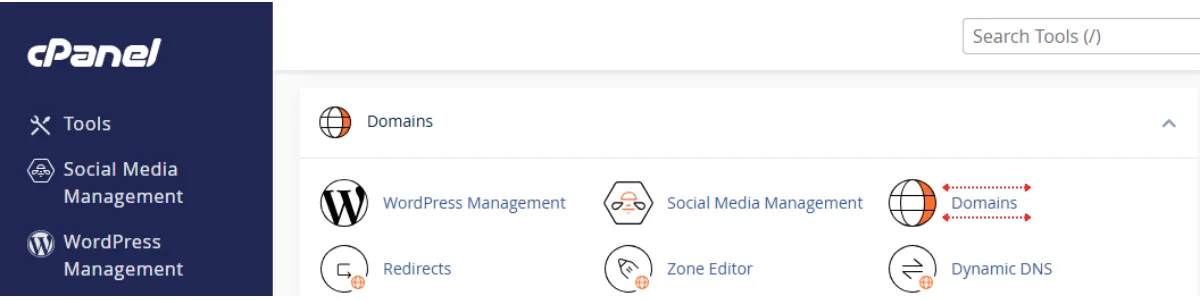
An addon domain is basically a second (or third, or fourth) website you attach to the same account. Each one works completely separately: different files, different pages, different content.
Here is what you do.
- Enter your new domain name. Set the document root, that is, the folder where that website’s files will live.
- Create FTP access if you need it, which lets you upload files to that specific site.
- Then click add domain and you are done.
From that point on, that domain behaves like an independent website. You can add as many as your hosting plan allows, which is a great way to grow without paying for a brand new hosting account every time you launch something new.
3) Track Real Traffic with AWStats
If you want to grow your website, you need to know what is happening on it. That is where AWStats comes in; it is one of cPanel’s most underused features.
Go to Metrics → AWStats inside your cPanel account.
What you will find there is real traffic data pulled straight from your server logs. That means it shows you how many people visited your site, where they came from, and which pages they spent time on.
Why does that matter? Because tools like Google Analytics can miss visitors who use ad blockers or who have JavaScript turned off. AWStats catches those visitors anyway because it reads the raw data from your server. So you get a fuller, more accurate picture of your actual audience.
4) Upload and Fix Files Using File Manager
When something goes wrong on your website, let’s say a broken page, a missing image, or an error message showing up, you might panic as a beginner and call a developer. But one of the quickest ways to address these problems is to fix them yourself using the File Manager.
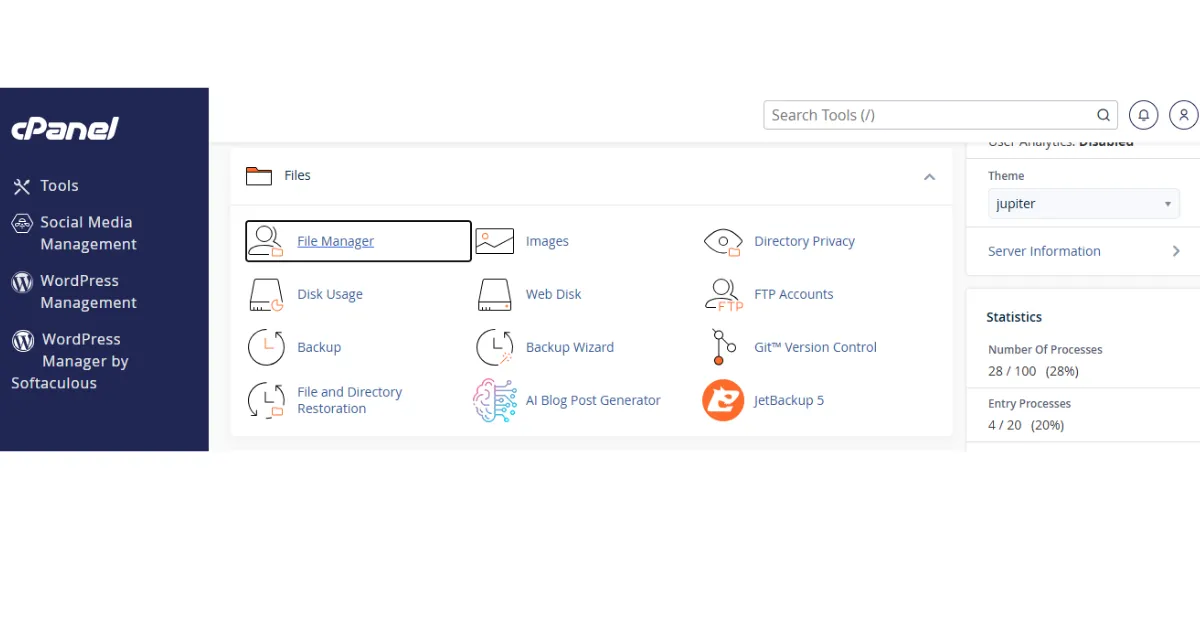
To find it, go to: cPanel → File Manager → public_html. The public_html folder is everything your visitors see when they visit your site.
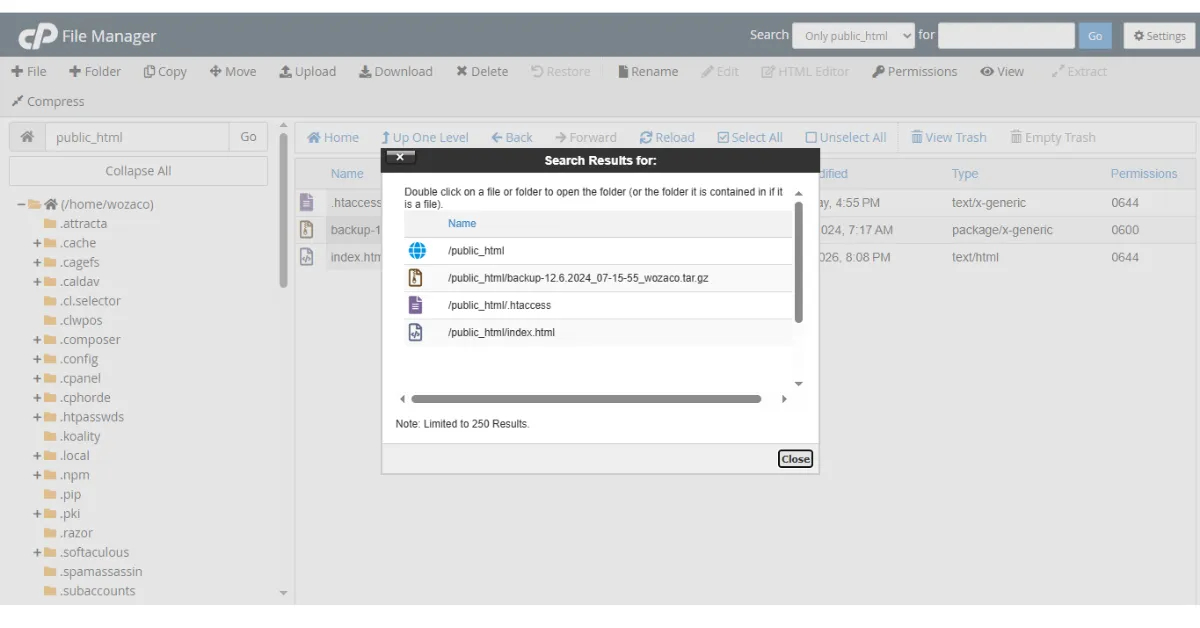
Inside, you can upload new pages, fix broken ones, and clean out files you no longer need.
Here’s what to do practically:
- Upload files: click the Upload button and add your HTML, images, or scripts
- Fix broken pages: right-click any file, hit Edit, and fix errors directly
- Clean up old files: delete test pages, unused themes, or old images
Always check that your folder has a file called index.php or index.html. That file is your homepage. If it’s missing, visitors will see a blank or broken page.
5) Monitor Website’s Performance
One of the most important ways to use cPanel is to monitor your server’s performance before things get out of hand. Your site can slow down without any warning. One day everything is fine, and the next your pages load slowly or not at all.
Go to Metrics → Resource Usage inside your cPanel dashboard.
Here are three key things to check.
First, CPU usage: this shows how hard your server is working to process requests.
Second, memory usage: this shows how much RAM your site is using.
Third, entry processes: this shows how many visitors your server can handle simultaneously.
If any of these numbers are consistently hitting their limits, your site is about to start slowing down or crashing.
The fix is simple: upgrade your hosting plan before it becomes a real problem.
6) Create and Manage Databases
One way to use cPanel is to know how to create and manage those databases yourself. Every website that does something, stores user accounts, saves blog posts, remembers orders, uses a database to do it.
Go to the MySQL Database Wizard inside cPanel. MySQL is just the name of the database system most websites run on.
The wizard walks you through three steps:
- Create a database
- Add a user for that database
- Assign full privileges to that user so they can read and write data.
After that, open phpMyAdmin, which is also inside cPanel. Think of phpMyAdmin as a visual window into your database. From there, you can view your data in table form, edit records directly, and fix errors without writing any complex code.
7) Manage PHP Versions
The last of the cPanel features most beginners overlook is PHP version management. PHP is the programming language that runs most websites, including WordPress. Different plugins and themes are built for specific PHP versions, and using the wrong one can cause errors.
Go to Select PHP Version inside your cPanel account. From there, you can see which version your site is currently running and switch to a different one with a dropdown menu.
Pages that load within 1 to 3 seconds have a bounce rate of around 7%, while pages that take 5 seconds jump to 38%. Newer PHP versions load faster and are more secure, which directly affects how long visitors stay on your site. If a plugin breaks after an update, switching to a different PHP version often fixes it instantly.
Check your PHP version regularly and keep it up to date.
Where to Get Reliable cPanel Hosting
To access all these features without limits, you need reliable hosting that provides full cPanel access from day one.
Truehost gives you full cPanel access, fast servers, easy setup, and support when you need it.
Manage Your Site With cPanel
There are many ways to use cPanel to manage your site, and it is not hard to use. You need to know where to go.
You can use cPanell to;
- Install apps fast
- Manage multiple sites
- Track real traffic
- Fix files quickly
- Monitor performance
- Control your databases
- Set the right PHP version.
When you get to know all these, you stop depending on other people. You stop guessing. You run your website like a pro.
Start with one section today. Maybe back up your site, or turn on SSL. Small actions add up fast.
But remember, you can only achieve all this with reliable cPanel hosting that makes it even easier. Truehost has you covered with full cPanel access, affordable plans, and the support to match. Get started today.