Domain SearchInstantly check and register your preferred domain name
 Web Hosting
 cPanel HostingHosting powered by cPanel (Most user friendly)
 WordPress HostingHost your WordPress website with fast, secure, and affordable WordPress hosting in Kenya.
 KE Domains
 Reseller HostingStart your own hosting business without tech hustles
 Windows HostingOptimized for Windows-based applications and sites.
 Free Domain
 Affiliate ProgramEarn commissions by referring customers to our platforms
 Free HostingTest our SSD Hosting for free, for life (1GB storage)
 Domain TransferMove your domain to us with zero downtime and full control
 All DomainsBrowse and register domain extensions from around the world
 .Com Domain
 WhoisLook up domain ownership, expiry dates, and registrar information
 VPS Hosting
 Managed VPSNon techy? Opt for fully managed VPS server
 Dedicated ServersEnjoy unmatched power and control with your own physical server.
 Website Builder
 Online Store BuilderLaunch a professional e-commerce store without writing code.
 Web Design ServiceGet a custom-designed website tailored to your brand and goals. From just KES 15,600
 BlogRead our guides on web hosting, online business, digital marketing, and more
 SupportOur support guides cover everything you need to know about our services
 ContactContact us via chat or email
Most AI tools can tell you what to do. OpenClaw can actually do it for you.
Need a summary of your unread emails? Want to update a spreadsheet or research a competitor? Instead of giving you a list of steps, OpenClaw gets to work. That’s what helped it become one of the fastest-growing open-source AI projects on GitHub.
At its core, OpenClaw is designed to act on instructions, not just respond to them. It runs through a simple Node.js Gateway that connects your preferred AI model, whether that’s OpenAI, Anthropic, Gemini, or Ollama, to messaging apps like WhatsApp, Telegram, Slack, and Discord. The setup is surprisingly straightforward, with a single process handling everything behind the scenes.
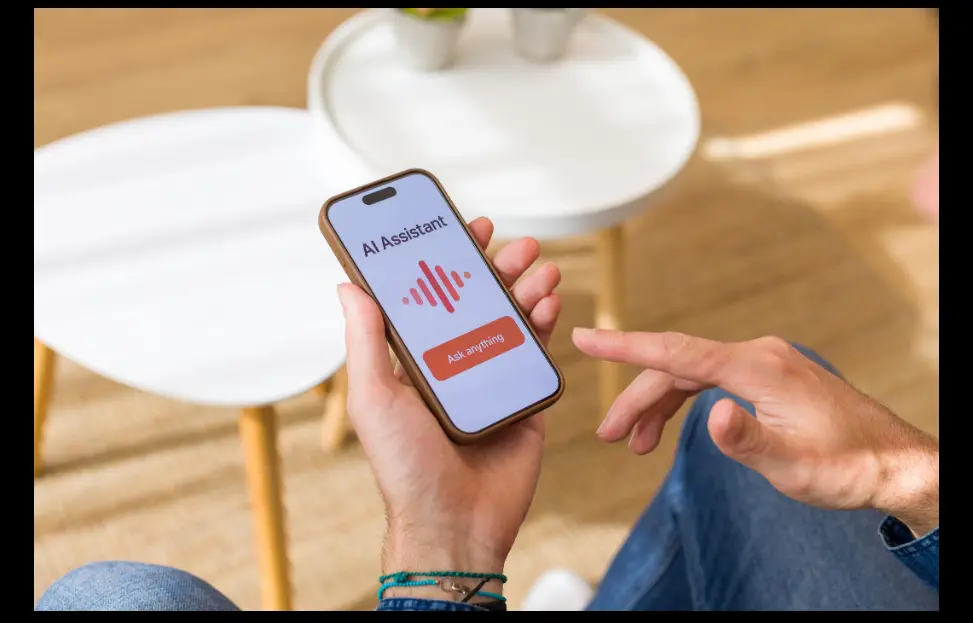
And that’s where WhatsApp comes in. Rather than logging into a dashboard or connecting to a server, you can simply send your AI agent a message from an app you already use every day. Your assistant is always within reach, whether you’re at your desk or on the go.
This guide covers how to connect OpenClaw to WhatsApp, complete the initial setup, and start using it to automate tasks directly from your chats.
Step 1: Install OpenClaw
The installation takes most people under 15 minutes. Run the official one-line install command from the OpenClaw documentation, then follow it with, openclaw onboard, an interactive wizard that walks you through your environment variables, gateway port, and AI model connection. You’ll need an API key from whichever provider you’re using (OpenAI, Anthropic, Gemini, and Ollama are all supported). When the wizard asks which channel to connect, select WhatsApp, and it handles the pairing as part of setup.
Before you start, confirm you’re running Node.js version 22 or higher and OpenClaw v2026.2 or above; older versions don’t support the current WhatsApp pairing method.
You can run OpenClaw on your local machine, but a VPS is the smarter choice if you want an agent that’s always available, responding to messages at 3 am, processing alerts while you sleep. Just avoid servers in mainland China, which can’t connect to WhatsApp or other overseas messaging platforms due to network restrictions. US, EU, or Singapore regions work reliably.
Once the wizard completes, start the Gateway, confirm it launches without errors, and save the token it generates. Send a quick test prompt. If you get a coherent reply, you’re ready for the next step.
Step 2: Connect OpenClaw to WhatsApp
OpenClaw connects to WhatsApp the same way WhatsApp Web does, through a QR-based device linking session. No third-party bridge, no paid API, no business account required. Everything runs through your own machine.
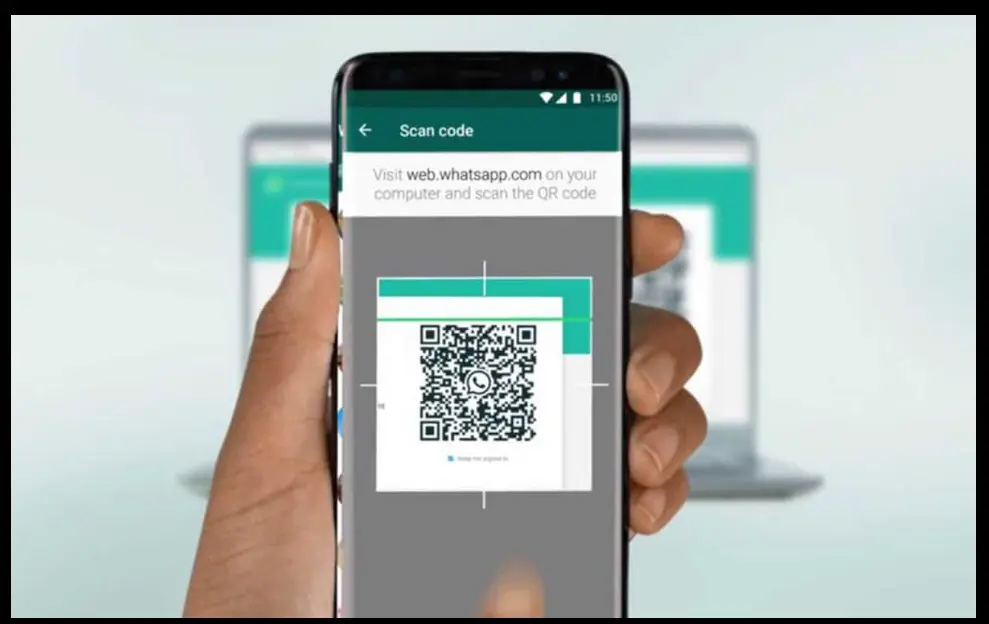
If you selected WhatsApp during onboarding, the channel is already enabled in your config file. If not, you can add it manually by editing openclaw.json to enable the WhatsApp channel; it’s a one-line change.
To pair, restart OpenClaw and a QR code will appear in your terminal. On your phone, go to WhatsApp → Settings → Linked Devices → Link a Device and scan it. The connection establishes in 5–15 seconds. Codes expire after about 60 seconds, so if yours times out, just press Enter to generate a fresh one.
Don’t skip the access permissions. Without them, anyone with your number, or anyone in a group chat your agent is monitoring, can send it commands. The two settings that count most are dmPolicy (set to “pairing” so new contacts require explicit approval) and allowFrom (a whitelist of phone numbers that can actually interact with the agent). Set both on day one.
After setup, save your Gateway token somewhere secure. You’ll need it for restarts and future maintenance.
One thing to keep in mind: WhatsApp sessions expire after roughly 30 days. OpenClaw will notify you when yours is approaching that limit; re-scanning the QR code refreshes it. A calendar reminder every 25 days keeps you ahead of any disruption.
Step 3: Test Your Agent
After pairing, send your connected WhatsApp number a message. The default trigger word is, claw, so a test message like claw hello should prompt an immediate response.
Once that works, try commands that verify different capabilities:
claw summarize today's emails; tests email integration (if configured)claw what's on my calendar tomorrow; tests calendar access (if configured)claw search for the latest news about [topic];Tests web search
Each of these exercises a different part of the stack. If the agent responds correctly to all three, your setup is healthy.
Step 4: Extend Your Agent with Skills
Out of the box, OpenClaw ships with over 100 built-in skills covering file management, shell commands, web browsing, and API interactions. The community registry ClawHub adds over 5,700 more, organized by category.
Skills are plain Markdown files that teach your agent how to handle specific tasks, anything from a simple API wrapper to a multi-step workflow combining several services. Installing one is as easy as finding it on Skills.sh, copying the install command, and sending it to your agent in WhatsApp. No restart needed; the skill is available in your next message.
One caution worth taking seriously: not all community skills are safe. Skills inherit your agent’s permissions; if your agent can write files or send emails, so can any skill you install.
Vet everything before adding it. The official skills in OpenClaw’s own namespace are safe by default; for community skills, check who built it, what permissions it requests, and whether it’s actively maintained.
According to security researchers, around 80% of community skills on ClawHub are either low-quality or request more access than they need.
Skill Categories Worth Exploring
For WhatsApp-connected workflows, the most immediately useful categories include:
i) Messaging & Communication: email management, calendar integration, notification routing
ii) Search & Web Research: real-time web search, content summarization, competitive intelligence
iii) File & Storage Management: file uploads, document retrieval, RAG-based document queries
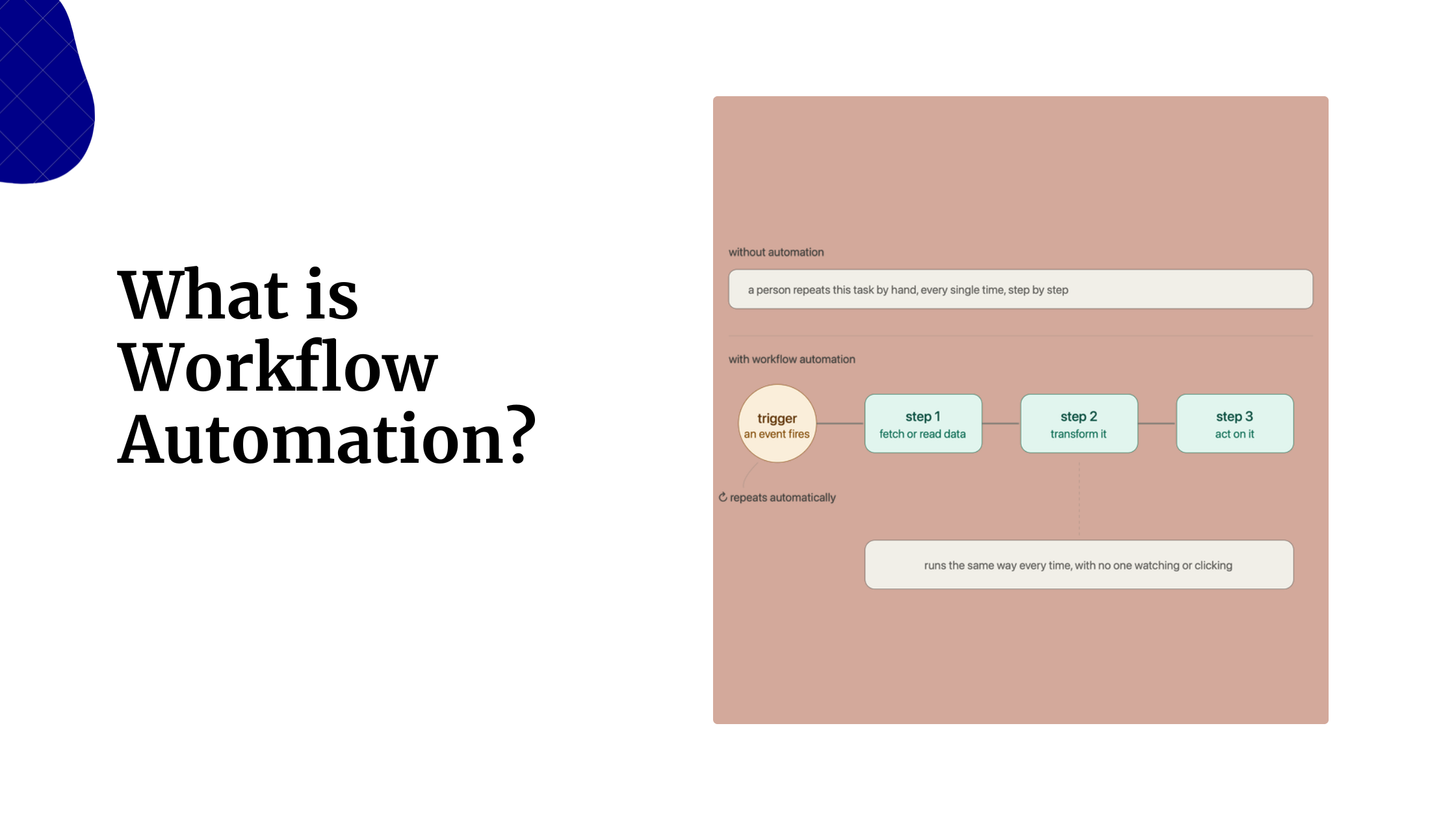
iv) Workflow Automation: spreadsheet updates, CRM entries, report generation, multi-step task chains
v) AI Agents & Memory Augmentation: persistent memory, context across conversations, self-improving agent patterns
vi) Productivity & Office Suite: task lists, reminders, project tracking
What You Can Actually Do With OpenClaw on WhatsApp
Once the integration is running, here are the workflows that make it genuinely useful in daily life and business operations:
a) Add an AI Member to Group Chats
Drop OpenClaw into a WhatsApp group, and anyone in it can interact with the agent directly. Team members can query shared data, add items to task lists, coordinate projects, and retrieve information, while OpenClaw maintains context across the entire conversation.
It’s like having a team assistant that’s always available, keeping everyone aligned without losing track of the discussion.
b) Get Live Research Without Leaving the Chat
Need the latest on a competitor, industry development, or breaking story? Ask OpenClaw in WhatsApp.
With a web search skill installed, it queries the internet in real time and returns relevant findings and summaries directly in the chat. No browser, no tab-switching, no copy-pasting.
c) Manage Email from WhatsApp
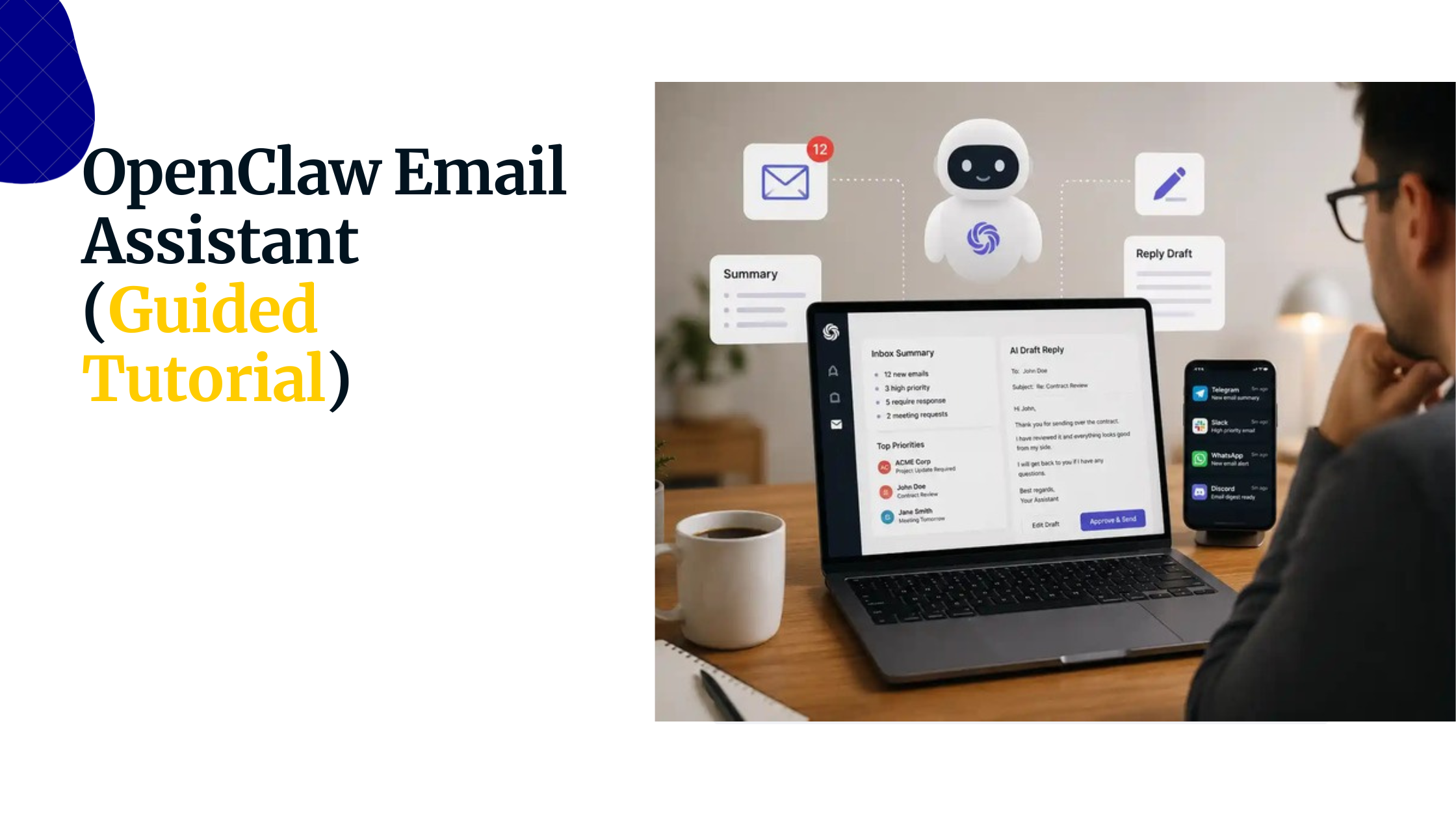
Ask OpenClaw to summarize your unread inbox, flag priority messages, draft replies, or send responses on your behalf, without opening your email client once.
With the right skill configured, this becomes one of the highest time-saving workflows available: research suggests this kind of email triage automation saves an average of four-and-a-half hours per week for regular users.
d) Automate Business Workflows
Trigger routine operational tasks directly from WhatsApp: update a spreadsheet row, create a CRM record, generate a report, log a customer request, notify a team member when a task completes. OpenClaw becomes the connective tissue between your messaging habit and your business tooling.
e) Control Your Agent Remotely
WhatsApp becomes a command center. Start tasks, check status, review completed work, adjust behavior; all through simple chat messages from anywhere with a mobile signal.
For teams managing infrastructure or running automated pipelines, this kind of remote access without a VPN or SSH session is practically useful.
f) Handle Customer Support at Scale
Businesses can run OpenClaw as a first-line support agent, answering common questions, collecting information, routing inquiries to the right person, and maintaining 24/7 availability through the messaging platform their customers already use.
No custom app, no new onboarding friction.
g) Create a Shared Knowledge Hub
Team members can ask OpenClaw about previous discussions, stored documents, project details, or company processes.
With a memory or RAG skill installed, the agent can surface relevant context from past conversations and files, turning WhatsApp group history from a search nightmare into a queryable knowledge base.
Troubleshooting Common Issues
1) QR Code Won’t Scan
Increase screen brightness, maximize the console window, and ensure nothing is obstructing your phone’s camera. If the code appears distorted, adjust the page zoom. Codes expire after approximately 60 seconds; press Enter to regenerate.
If the code scans but the connection fails immediately, confirm your phone has an active internet connection, ensure WhatsApp is fully updated, and restart the OpenClaw gateway before trying again.
2) Session Drops or Expires
Sessions last roughly 30 days. OpenClaw will notify you before expiry. Re-scan the QR code via the dashboard to refresh. A recurring 25-day calendar reminder handles this proactively.
3) Server Region Blocking
Mainland Chinese servers cannot connect to WhatsApp, Telegram, Discord, or Slack. If you’re experiencing connectivity blocks, migrate your OpenClaw instance to an overseas region.
Also verify that your VPS provider doesn’t block outbound WhatsApp traffic at the network level; this is separate from geographic restrictions and affects some hosting configurations.
4) Firewall and Port Configuration
In cloud environments, you typically need to open the OpenClaw port in two places: the provider’s security group (the cloud-level firewall) and the OS-level firewall (for example, ufw on Ubuntu).
Forgetting one of these is among the most common setup errors. Test connectivity with curl before assuming OpenClaw is the problem.
5) Gateway Won’t Start
Confirm Node.js 22 or higher is installed (node -v).
Check that all environment variables are correctly set; missing API keys are the most common cause of silent failures. Run the gateway in verbose or debug mode to surface hidden error messages.
6) Agent Not Responding to Messages
First confirm the gateway is still running. It can silently crash if the host machine runs out of memory. Then verify that your allowFrom settings aren’t blocking your own number.
Check your AI model provider’s status page for outages or rate limit errors. Also verify that webhook routing is correctly configured. When a WhatsApp message arrives, the webhook notifies OpenClaw, which processes it and triggers the appropriate workflow. A misconfigured webhook results in silence rather than an error.
7) WhatsApp Web Conflict
You cannot use WhatsApp Web in a browser simultaneously with OpenClaw. The two compete for the same Linked Device slot. Log out of WhatsApp Web before running OpenClaw.
Note that this restriction applies only to the browser version; you can continue using WhatsApp normally on your phone while OpenClaw is active.
8) Skills Not Installing or Executing
Confirm the server running OpenClaw has outbound internet access. Copy install commands from Skills.sh exactly; even small variations can break the pattern recognition.
If a skill installs but won’t execute, review its manifest for permission declarations and check that all required dependencies are present.
Your AI Assistant Lives in Your Pocket
The promise of AI agents has always been reduction of friction, an AI that works the way you do, in the tools you already use, without requiring you to change your habits to accommodate its interface.
OpenClaw and WhatsApp together deliver on that promise more practically than most AI tooling available today. The setup takes under an hour. The pairing is essentially the same as connecting WhatsApp Web. And once it’s running, the gap between having a thought and having it acted on collapses to the length of a text message.
That’s not a small thing.
Setting Up OpenClaw to WhatsApp FAQs
Does OpenClaw work with a regular WhatsApp account, or do I need WhatsApp Business?
A regular personal account works fine. WhatsApp Business is supported too, but there’s no requirement to use it; the setup process is identical for both.
Is my WhatsApp data private? Does OpenClaw send my messages to the cloud?
Your conversations stay on your own machine. OpenClaw processes messages locally, so nothing is routed through a third-party cloud service. The only external calls are to your chosen AI model provider (OpenAI, Anthropic, etc.) when generating responses.
How long does a WhatsApp session last before I need to re-authenticate?
About 30 days. OpenClaw will notify you before it expires; re-scanning the QR code refreshes the session. A calendar reminder every 25 days keeps things running without interruption.
Can I still use WhatsApp normally on my phone while OpenClaw is running?
Yes. OpenClaw only conflicts with WhatsApp Web in a browser; you’ll need to log out of that. Your phone continues working as normal.
What AI models can I use with OpenClaw?
OpenClaw is model-agnostic. It supports OpenAI, Anthropic (Claude), Google Gemini, Ollama for local models, and others. You connect whichever you have API access to during setup.
What can OpenClaw actually do through WhatsApp?
Quite a lot: summarize emails, manage your calendar, search the web, update spreadsheets, create CRM entries, answer questions in group chats, send automated alerts, and run multi-step workflows, all triggered by a simple text message.
Can OpenClaw handle files and documents over WhatsApp?
Yes. With the right skills installed, it can receive, process, and retrieve files. Voice notes, images, PDFs, and documents sent over WhatsApp are all supported, and transcription skills can even convert voice notes to text automatically.
Is OpenClaw free to use?
The software itself is free and open-source. Your ongoing cost is API usage from your chosen AI model provider, typically $5–$20 per month for light use, more for heavy automation workloads.
What server specs do I need to run OpenClaw reliably?
A modest VPS handles most use cases; 1–2 CPU cores and 1–2GB of RAM is enough to get started. If you’re running memory-heavy skills or multiple concurrent workflows, scale up accordingly. The gateway can silently crash on underpowered machines, so don’t cut it too thin.
Can multiple people or agents use the same OpenClaw instance?
Yes. You can configure group chat access so multiple team members interact with the same agent, and OpenClaw supports multiple channel accounts running in parallel. Permissions control who can trigger what.
What happens if OpenClaw gets too complex or I need 20+ automated workflows?
OpenClaw handles a solid range of automation, but at a certain scale, large teams, complex branching workflows, enterprise integrations, a dedicated workflow platform like n8n or similar may serve you better alongside it, or instead of it.
Is OpenClaw beginner-friendly?
More than you’d expect. The onboarding wizard handles most of the configuration, and the WhatsApp pairing process is no harder than connecting WhatsApp Web. That said, getting the most out of it- custom skills, permission tuning, VPS deployment- does reward some technical comfort.