Domain SearchInstantly check and register your preferred domain name
 Web Hosting
 cPanel HostingHosting powered by cPanel (Most user friendly)
 WordPress HostingHost your WordPress website with fast, secure, and affordable WordPress hosting in Kenya.
 KE Domains
 Reseller HostingStart your own hosting business without tech hustles
 Windows HostingOptimized for Windows-based applications and sites.
 Free Domain
 Affiliate ProgramEarn commissions by referring customers to our platforms
 Free HostingTest our SSD Hosting for free, for life (1GB storage)
 Domain TransferMove your domain to us with zero downtime and full control
 All DomainsBrowse and register domain extensions from around the world
 .Com Domain
 WhoisLook up domain ownership, expiry dates, and registrar information
 VPS Hosting
 Managed VPSNon techy? Opt for fully managed VPS server
 Dedicated ServersEnjoy unmatched power and control with your own physical server.
 Website Builder
 Online Store BuilderLaunch a professional e-commerce store without writing code.
 Web Design ServiceGet a custom-designed website tailored to your brand and goals. From just KES 15,600
 BlogRead our guides on web hosting, online business, digital marketing, and more
 SupportOur support guides cover everything you need to know about our services
 ContactContact us via chat or email
What if your online store had an AI assistant that answers product questions, checks stock, and helps customers complete orders 24/7 right from WhatsApp or Telegram?
That’s not a future promise. That’s what an OpenClaw shopping assistant does today.
OpenClaw isn’t a chatbot. Chatbots answer questions and stop there. OpenClaw acts.
It is an open-source AI agent framework. It can browse product pages, check inventory, guide customers to checkout, and handle order queries.
It does all of this autonomously.
The project launched in early 2026. Within weeks, it surpassed 100,000 GitHub stars. It now has more than 377,000 stars.
This makes it the fastest-growing open-source project in GitHub history.
Many developers describe it as ‘Claude with hands.’
A shopping assistant built on OpenClaw is specifically configured to:
- Browse your product catalogue on demand
- Answer stock and pricing queries in natural language
- Guide customers through the buying process step by step
- Trigger order workflows and confirmations
By the end of this guide, you’ll have a fully working OpenClaw shopping assistant deployed and connected to a messaging channel.
We cover two deployment paths: Amazon Lightsail (for developers comfortable with AWS) and Truehost Kenya (faster, cheaper, and built for Kenyan businesses).
Prerequisites
For the AWS Lightsail path:
- An active AWS account
- Basic familiarity with SSH and cloud consoles
- An Amazon Bedrock-enabled region (note: Anthropic models require completing a First-Time-Use form)
- A Telegram bot token or WhatsApp setup ready to go
For the Truehost path:
- A Truehost account sign up
- SSH client (Terminal, PuTTY, or browser SSH)
- Payment via M-Pesa or card
Step 1: Create an OpenClaw Instance on Amazon Lightsail
AWS launched the OpenClaw blueprint on Amazon Lightsail in March 2026.
It comes pre-configured with Amazon Bedrock as the default AI provider, which means you skip most of the manual server setup.
Here’s how to get your instance running:
- Log in to the Lightsail console
- Click Create instance
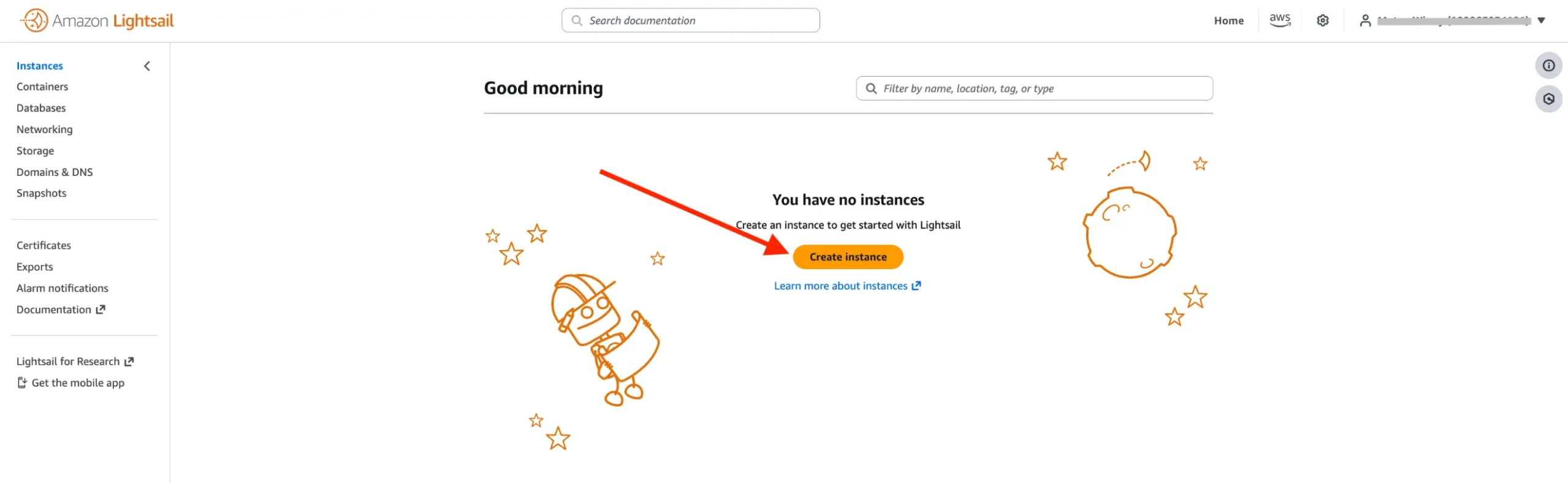
- Choose a region that is close to you. ( For Kenyan users it will automatically select Mumbai zone A)
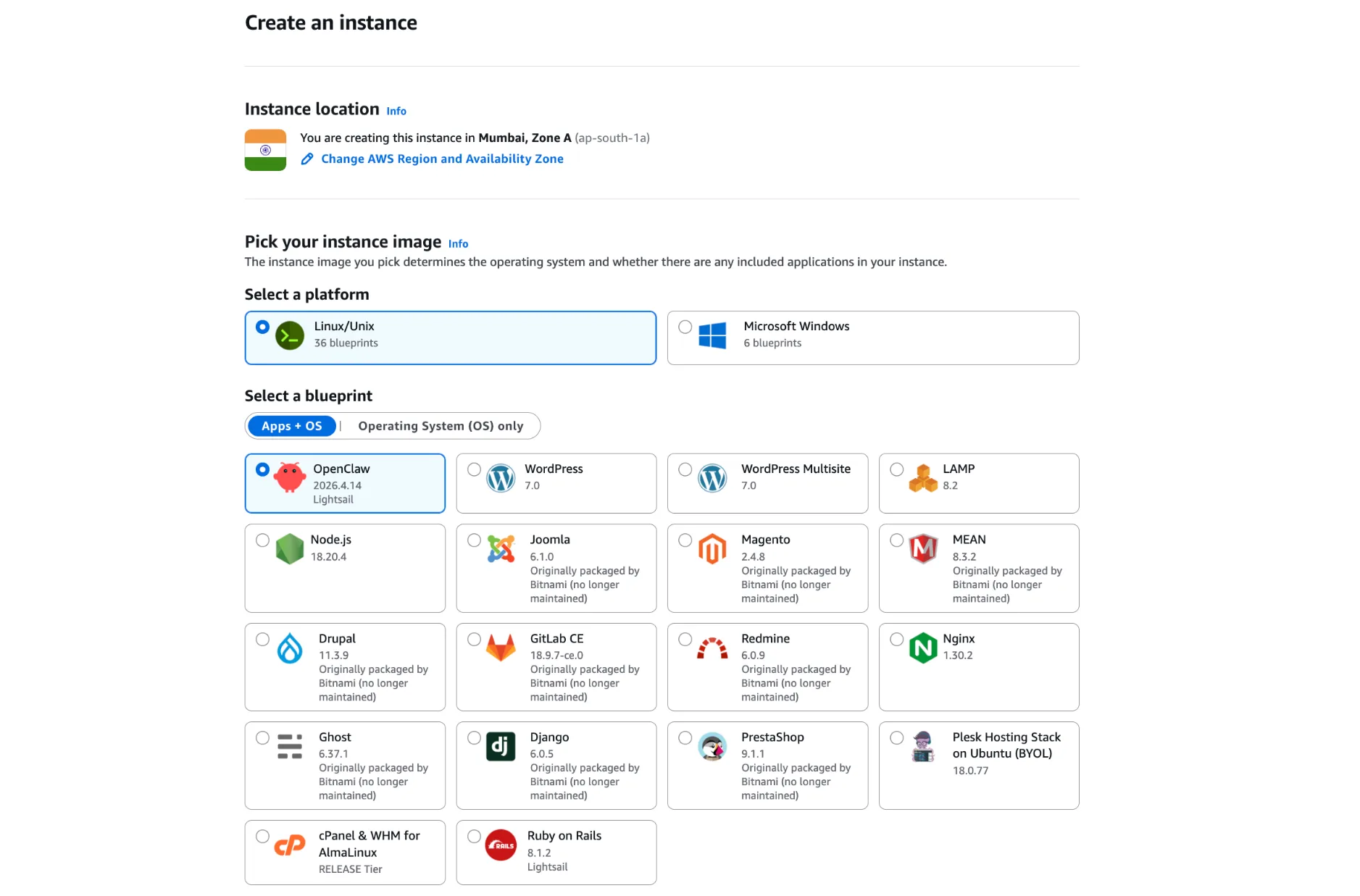
- Choose Linux/Unix as the platform
- Select the OpenClaw blueprint from the application list
- Choose your instance plan: 4 GB RAM is the minimum recommended for shopping assistant workloads.
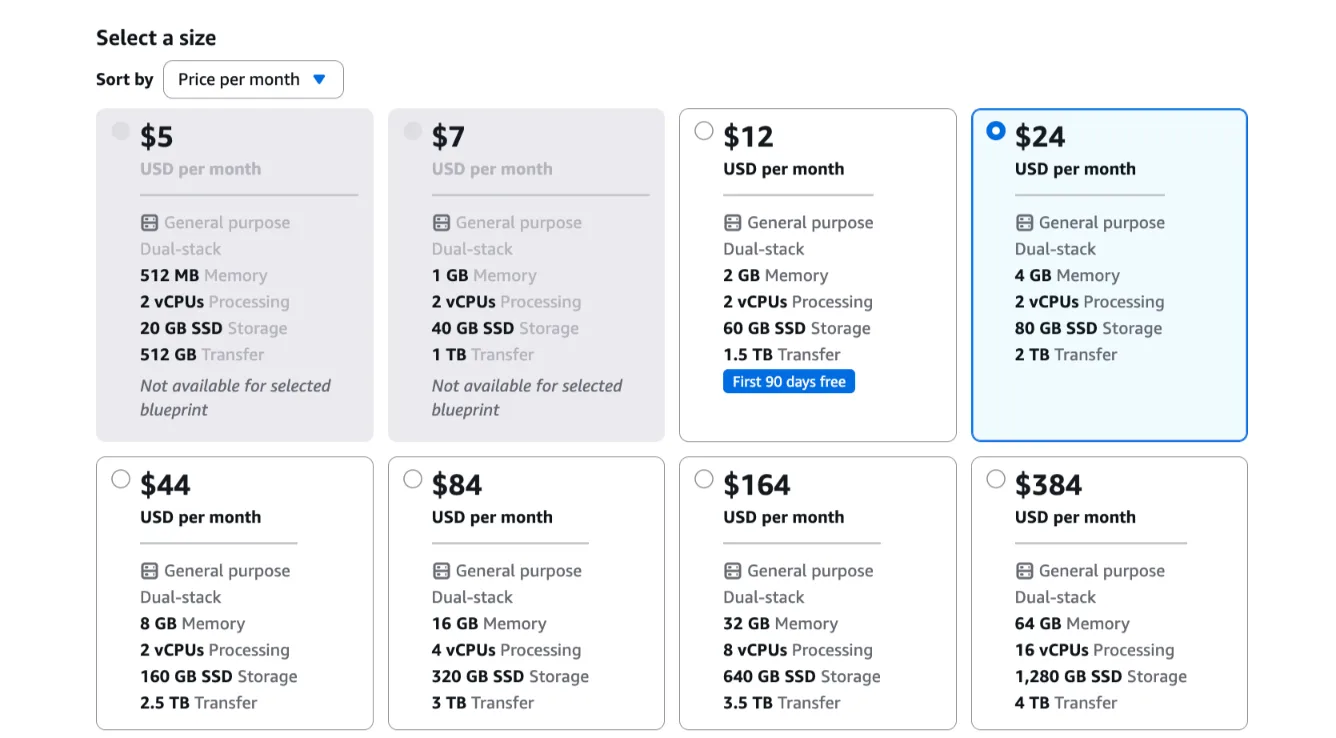
Why? A shopping assistant runs concurrent browser sessions to check product pages while simultaneously processing AI inference. Under 4 GB, you’ll hit memory limits fast.
- Give your instance a name and at the very bottom click Create
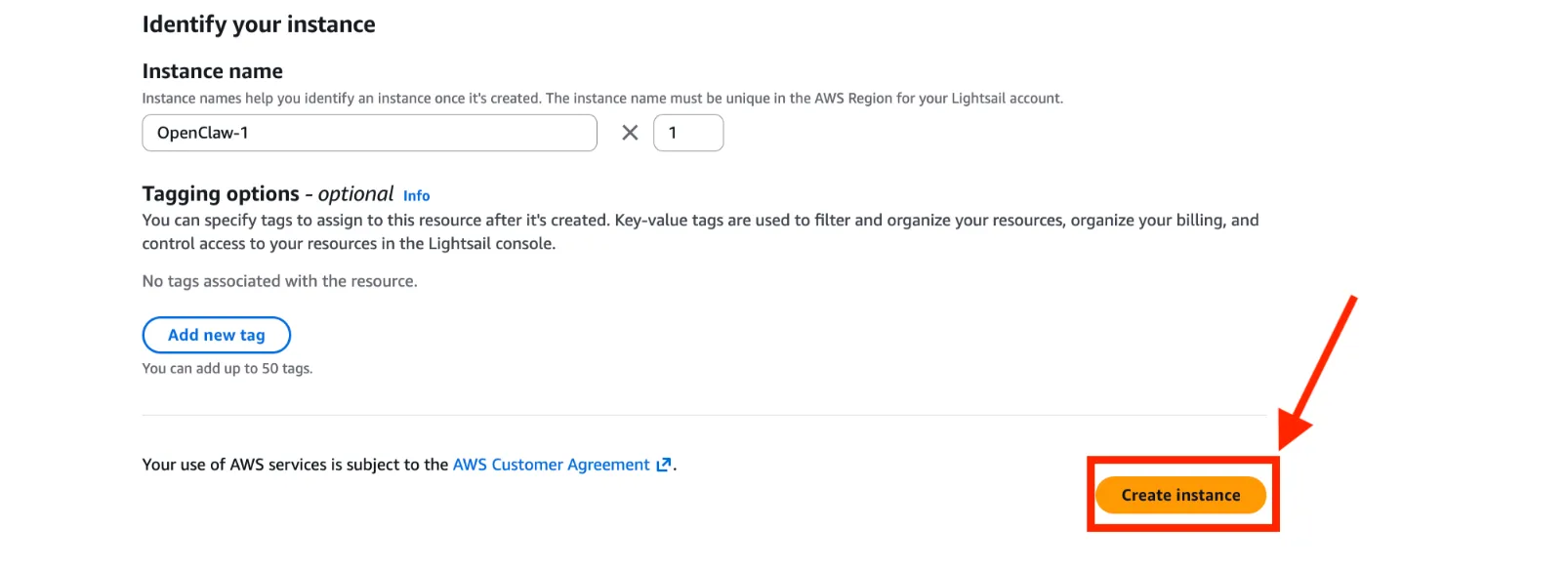
- Wait until the status shows Running, usually under 90 seconds
Attach a static IP to your instance immediately after launch. OpenClaw’s device pairing is IP-sensitive. If the IP changes later (for example, when you stop and restart the instance), all previously paired browsers disconnect and your SSL certificates break. Do this before you proceed to Step 2.
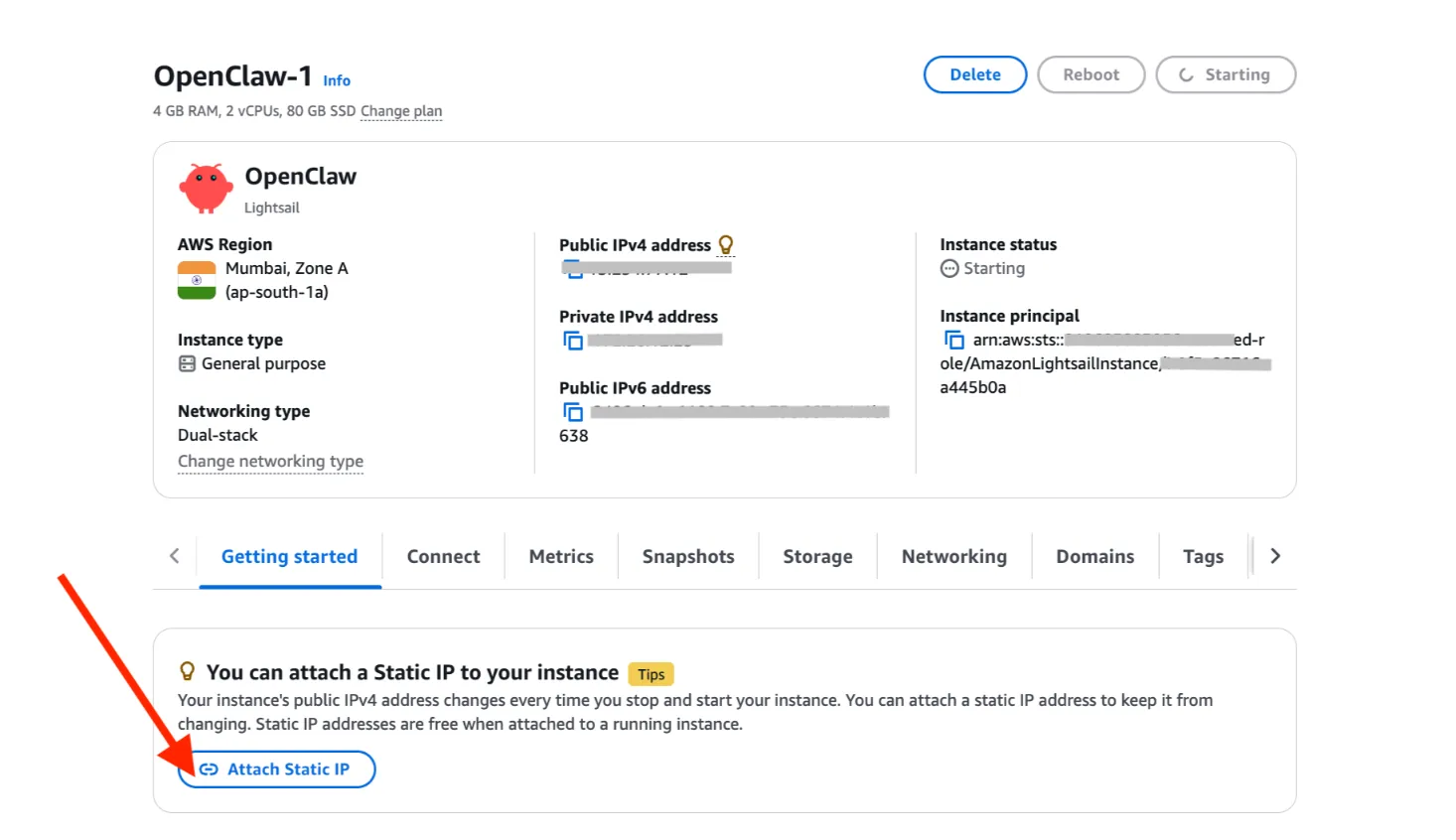
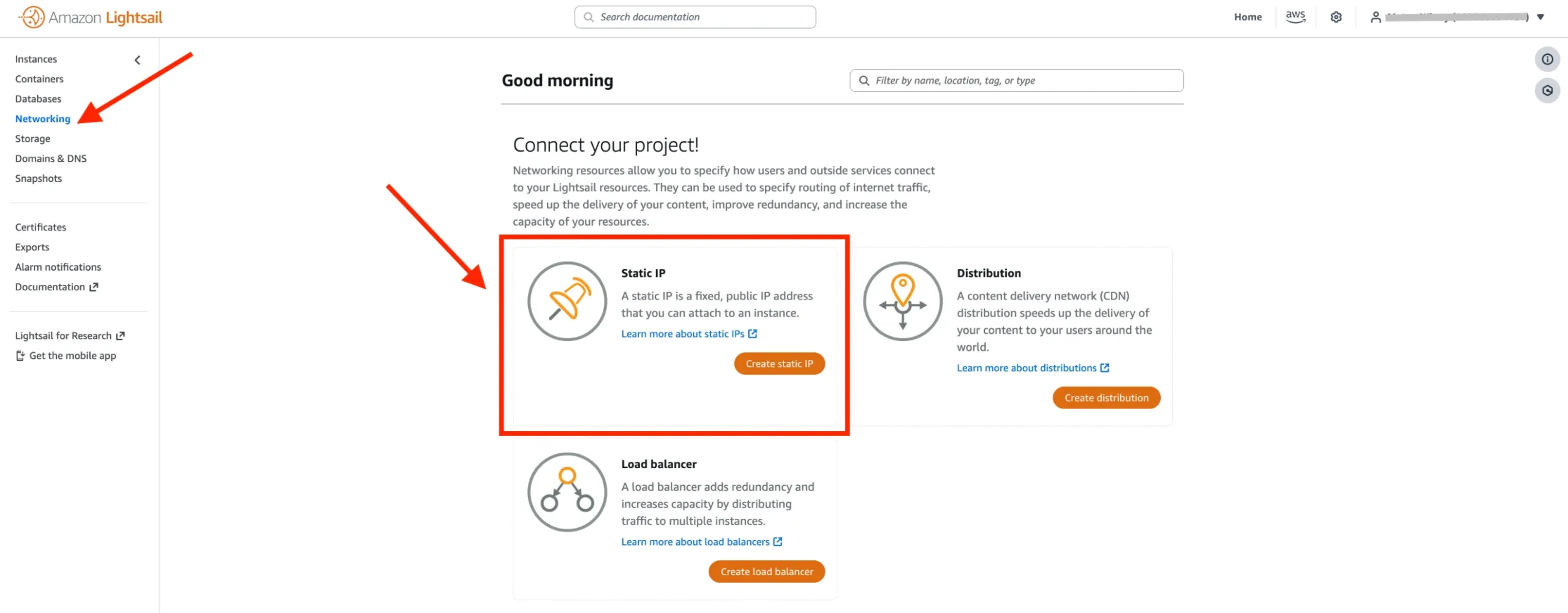
To attach a static IP: Click Attach Static IP (it will ask you to create and attach). Alternatively, open a new tab, go to Networking in the Lightsail console → Create static IP → attach it to your new instance.
Step 2: Pair Your Browser with OpenClaw
OpenClaw uses a token-based pairing system to establish a secure connection between your browser and the gateway. Think of it like authorizing a new device you verify once, and you’re in.
- Open the SSH terminal (Connect using SSH) from the Lightsail console (or connect via your own SSH client)
Once you’re in, the MOTD launches automatically and walks you through pairing. In version 3.0.1, it’s an interactive guided flow, not a static message you read and act on manually.
Here’s what happens and what you do at each stage:
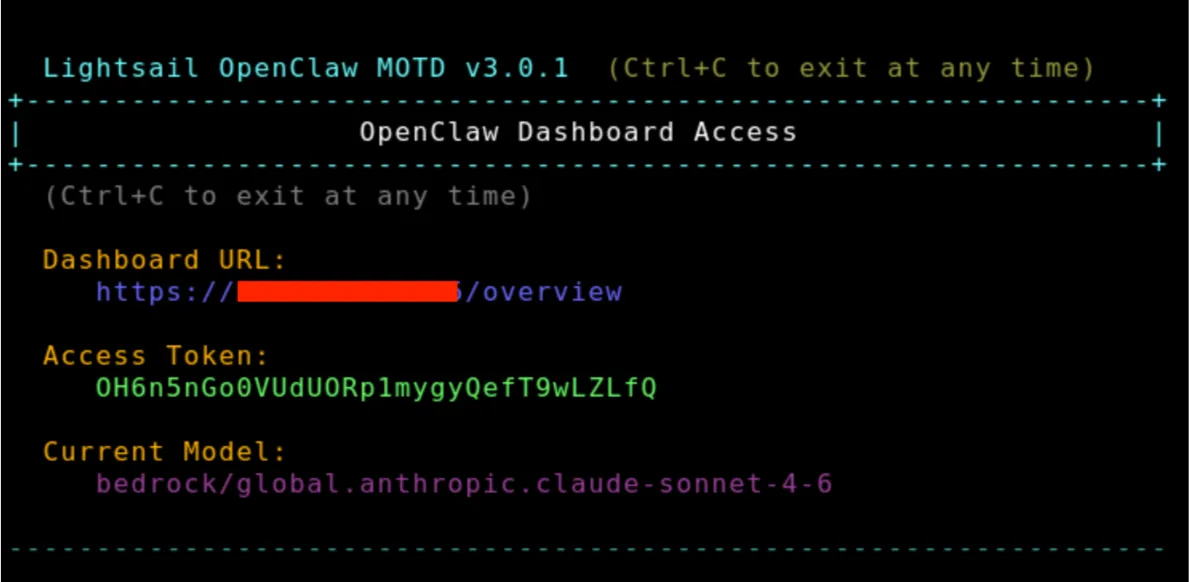
Dashboard Access block
The MOTD displays three things immediately:
- Your Dashboard URL: e.g.
https://13.206.25.115/overview - Your Access Token: a 32-character string
- Your current AI model: defaults to
bedrock/global.anthropic.claude-sonnet-4-6
Copy both the URL and token before doing anything else.
IP Configuration block
If your instance IP has changed since the last session, you’ll see:
⚠  Public IP has changed — updating gateway allowed origins.
   Previous: http://localhost:18789, https://13.234.77.12
   Adding:   https://13.206.25.115
✓ Gateway update applied — restarting in background
This is automatic; you don’t need to do anything. The gateway patches itself and restarts in the background. Wait for the ✓ confirmation before proceeding.
This is why you should attach a static IP immediately after launch. Every IP change forces a gateway restart and breaks previously paired browsers. Do it once and avoid this entirely.
OpenClaw CLI Approval block
On a fresh instance, you may see:
Warning: failed to handle openclaw cli approval: failed to list devices: exit status 1This is expected on first boot; no devices have been paired yet, so there’s nothing to list. It’s not an error that blocks you. Continue.
Browser Device Pairing block
The MOTD gives you the exact steps:
- Open the Dashboard URL in your browser:
https://[your-instance-ip]/overview - Paste your Access Token into the Gateway Token text box and press Connect
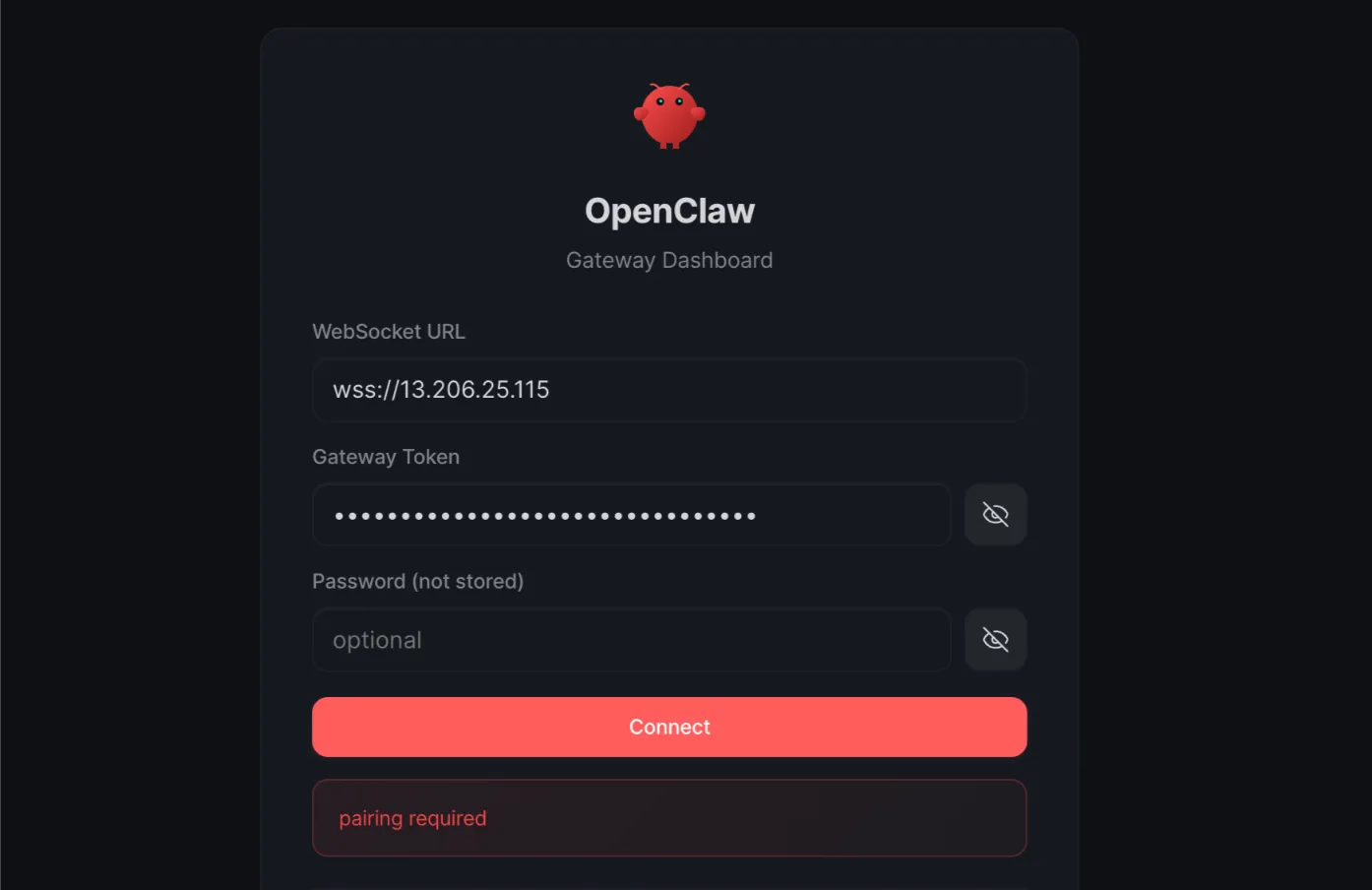
- When the dashboard shows a ‘device pairing required’ message, return to the terminal
- The MOTD prompts: Continue with browser device pairing? (y = pair now, n = skip)
- Type
yand press Enter - Type
yAgain, when prompted to continue with device pairing ( for MOTD 3.0.1 this happens automatically)
The terminal displays the Device Management screen showing your pending browser request with device ID, role, scopes, and IP address.
- Type
aand press Enter to approve the device pairing request
To check or approve other paired devices later, run:
bash
openclaw devices listOnce approved, your browser dashboard status updates to OK. Your browser is now securely connected to your OpenClaw instance.
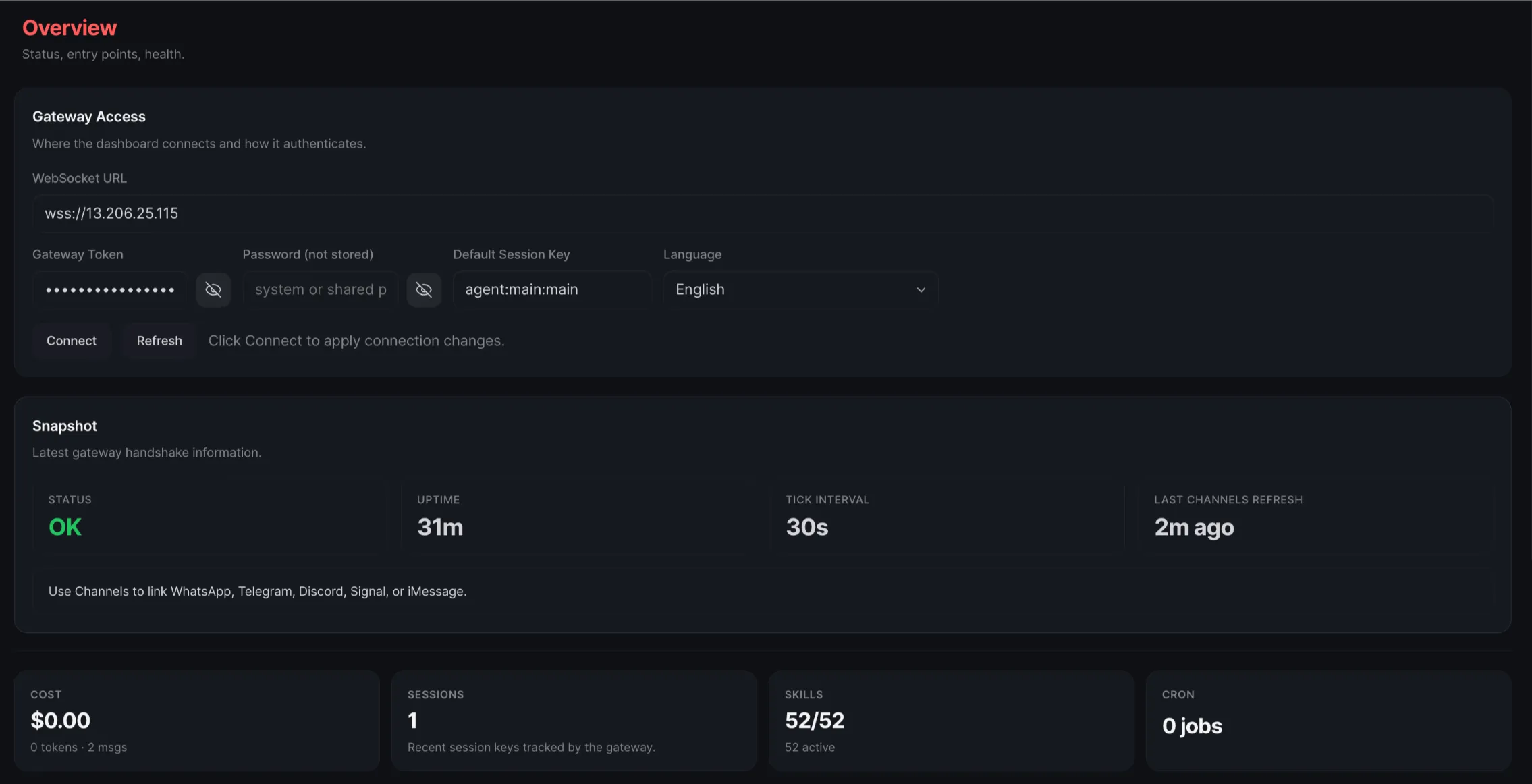
Tip: Pair from the device you’ll use to manage the shopping assistant dashboard day-to-day. You can add more devices later using
openclaw devices listand approving them via the same flow.
The main difference in 3.0.1 vs earlier versions: the MOTD is interactive. It waits for your input at the pairing prompt rather than just printing instructions.
Read also: How to Deploy OpenClaw on an Ubuntu VPS
Step 3: Enable AI Capabilities with Amazon Bedrock
Your Lightsail OpenClaw instance is pre-configured to use Amazon Bedrock as its AI provider.
What you need to do now is grant your instance the permissions to call the Bedrock API.
To enable Bedrock API access:
- On your OpenClaw instance management page, choose the Getting Started tab
- Under Enable Amazon Bedrock as your model provider, click Copy the script then click Launch CloudShell to open CloudShell
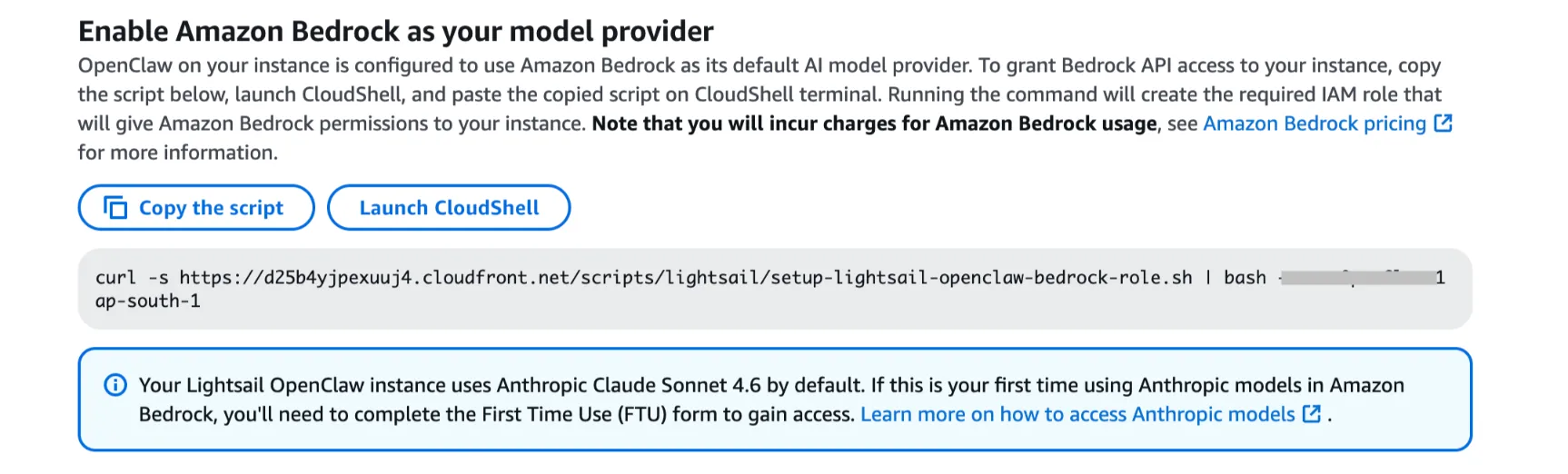
- Paste the copied command into the CloudShell terminal and press Enter
- Wait for the script to complete. When you see Done in the output, permissions have been applied successfully
What the setup script does:
- Creates an IAM role specifically for your OpenClaw instance
- Attaches a policy granting access to Amazon Bedrock APIs
- Attaches AWS Marketplace permissions (required for third-party models)
- Configures the instance profile to use this role
The IAM role will be named LightsailRoleFor-[your-instance-id]. You can review the full policy details in the IAM console after the script runs.
Once complete, go to Chat in your OpenClaw dashboard to start using your AI assistant.
First-time Anthropic model users: Your instance uses Claude Sonnet 4.6 by default. If you’ve never used Anthropic models on Amazon Bedrock before, you must complete the First Time Use (FTU) form before the assistant can generate any responses. Without it, every chat query returns silence no error, just no reply. Complete the form here: Amazon Bedrock model access.
Step 4: Connect a Messaging Channel and Configure Your Shopping Assistant
This step is the difference between an assistant that lives on a dashboard and one that reaches your customers.
Here’s why this is important for Kenya specifically: 44.8% of online orders in Kenya are now placed through mobile applications, more than triple the share of traditional websites at just 12%.
Your customers are already there. Your shopping assistant should be too.
Before connecting any channel, confirm your browser is paired with OpenClaw (Step 2). Channel setup will not work without an active pairing.
Telegram Setup
- Open Telegram and search for @BotFather
- Send
/newbotand follow the prompts to create a new bot. BotFather gives you a bot token and a deep link for your bot - Connect to your OpenClaw instance via SSH
- In the SSH terminal, run:
openclaw channels add- Select Telegram from the list of available channels
- When prompted, enter the bot token from BotFather
- In the OpenClaw dashboard, go to Channels and add your Telegram user ID to the allow list
- Send a test message to your bot in Telegram this triggers a pairing code
- You’ll receive a pairing approval message in Telegram. Back in the SSH terminal, run:
openclaw pairing approve telegram [pairing code]- Send another test message to confirm the integration is fully working
WhatsApp Setup
- Connect to your OpenClaw instance via SSH
- In the SSH terminal, run:
openclaw channels add- Select WhatsApp from the list of available channels
- A QR code appears in the terminal
- On your phone, open WhatsApp → Linked Devices → scan the QR code
- Complete the pairing on your phone
- Test by sending a message to the contact number you just paired
Configure Your Shopping Assistant Persona
With your messaging channel live, the final piece is giving OpenClaw its shopping assistant identity. In your OpenClaw dashboard, go to Settings → Instructions and add a system prompt.
Here’s an example you can adapt:
‘You are a helpful shopping assistant for [Your Store Name]. When a customer asks about a product, browse the product page at [
your-store-url.com] to check availability, price, and specifications. Guide customers clearly toward completing their purchase. If an item is out of stock, suggest alternatives. Always be friendly, concise, and accurate.’
Point the agent at your product URLs or inventory feed a WooCommerce sitemap, a product feed CSV, or a direct JSON endpoint all work. Test a live product query from the dashboard chat before going live.
Pro tip: Test with realistic customer questions, not just ‘hello.’ Try: ‘Do you have size 10 in the black sneaker?’ or ‘Is the 32-inch LED TV available for delivery to Mombasa?’ This verifies the full flow channel connection, AI response, and product lookup all in one shot.
Check our guide on How to Self-Host AI Agents with Openclaw VPS
Step 5: Back Up Your Instance (Snapshot)
You’ve now built something valuable a configured, connected, persona-driven shopping assistant. Before anything else, protect that work.
A snapshot is a point-in-time backup of your entire instance. If something breaks down the line, a misconfigured tool, a corrupted install, or a bad update, you restore from a clean snapshot, and you’re back up in minutes.
You can also use snapshots to spin up new instances from the same setup, useful if you want to clone your shopping assistant for a second store or a test environment.
To create a manual snapshot:
- In the Lightsail console, go to the Instances section and click your OpenClaw instance name
- Choose the Snapshots tab
- Under Manual snapshots, click Create snapshot
- Give your snapshot a descriptive name, something like
openclaw-shopping-assistant-june2026and click Create
Tip: Name your snapshots with a date and config state. When you’re choosing a restore point weeks later,
openclaw-initial-setup-june2026is far more useful thansnapshot-1.
Lightsail also offers automatic daily snapshots. Enable them. Set a 7-day rotation so you always have a full week of restore points without manual effort.
Get detailed information on Openclaw use cases
Why Consider Truehost Instead of AWS Lightsail
The Lightsail path works. But it comes with real friction for Kenyan businesses.
The AWS Lightsail challenges for Kenya:
- Region latency: AWS Lightsail is available in 15 regions, but none are in East Africa. The nearest options are Europe (Frankfurt, London) or Asia Pacific (Mumbai). For a real-time shopping assistant where a customer is waiting for a product availability answer on WhatsApp, that latency adds up.
- Payment barrier: AWS requires an international credit or debit card. For many Kenyan SMEs, that’s an immediate blocker.
- Setup complexity: IAM roles, CloudShell scripts, Bedrock FTU forms, and token rotation management add layers of friction that can derail a non-technical business owner.
- USD billing: AWS charges in US dollars. With fluctuating KES/USD exchange rates, your monthly hosting cost becomes unpredictable.
What Truehost OpenClaw hosting offers instead:
- Pre-configured OpenClaw environment no blueprint setup, no IAM scripts, no Bedrock FTU forms
- Deploys in under 45 seconds
- Full root SSH access, the same control, far less setup
- Managed OpenClaw plans from KES 1,990/month, pre-configured with SSL, the OpenClaw runtime, and plugin support
- Pay in KES via M-Pesa, no international card required
- NVMe SSD storage, dedicated vCPUs, and high-bandwidth connectivity
- Automated daily snapshots included
- 24/7 local support based in Nairobi, with an average first response under 4 minutes
For a Kenyan business serving customers in Nairobi, Mombasa, or Kisumu, a locally-hosted OpenClaw instance also means lower round-trip times on every single customer interaction.
Skip the AWS setup and deploy your OpenClaw shopping assistant in minutes
Troubleshooting Common Issues
Even a clean deployment can hit snags. Here’s what to do when it does.
- Browser not connecting after IP change: Your Lightsail instance got a new IP this breaks pairing. SSH into your instance and run openclaw token rotate, then re-pair your browser from the new dashboard URL.
- Chat returning no AI response: Almost always a Bedrock issue. Check two things: (1) confirm you completed the Anthropic FTU form in the Bedrock console; (2) verify the IAM role has the correct Bedrock permissions by re-running the CloudShell setup script.
- WhatsApp disconnecting: WhatsApp-linked device sessions expire or drop. Run openclaw channels update to rotate credentials and re-scan the QR code.
- Token expired: Run openclaw token rotate in your SSH terminal, then re-open the dashboard URL and pair again.
- Shopping tools not browsing products: Verify your sandbox permissions. Run openclaw config set tools.exec.security full and restart the gateway with openclaw gateway restart.
- SSL certificate errors: Two causes: (1) the certificate daemon hasn’t finished its first run wait 5 minutes and reload; (2) your IP changed before the cert was issued attach a static IP, then re-trigger cert issuance.
Get OpenClaw with Truehost
You’ve covered the full deployment: launching an instance, pairing your browser, enabling AI inference, configuring a shopping persona, connecting WhatsApp or Telegram, and protecting your setup with snapshots.
That’s an enterprise-grade AI shopping assistant self-hosted, privacy-respecting, and running on your infrastructure.
OpenClaw gives you the functionality of a high-end commercial chatbot platform without per-seat fees, usage caps, or handing your customer data to a third-party SaaS. Your store conversations stay on your server.
For Kenyan businesses, Truehost removes every layer of AWS complexity the IAM setup, the USD billing, the latency gap and delivers the same result faster, in KES, with local support when you need it.
Get your OpenClaw shopping assistant live today with Truehost.
OpenClaw Shopping Assistant FAQ
Can OpenClaw be used as a shopping assistant?
Yes. OpenClaw’s tool execution layer lets it browse product pages, check stock, answer pricing queries, and guide customers to checkout all autonomously. You configure it with a shopping-focused system prompt and point it at your store’s URLs or inventory feed.
What is the recommended Lightsail plan for OpenClaw?
The 4 GB RAM plan is the minimum for shopping assistant workloads. A shopping assistant runs concurrent browser sessions for product lookups alongside AI inference, which is memory-intensive. The 8 GB plan gives you more headroom if you’re handling high message volumes.
Does OpenClaw work with WhatsApp for e-commerce?
Yes. OpenClaw supports WhatsApp via its channels integration. You link a WhatsApp number using the Linked Devices QR flow, and from that point, any message to that number routes through your shopping assistant. Given that 65.7% of Kenyan online shoppers use M-Pesa for checkout and most of that commerce happens via mobile, WhatsApp is a natural fit.
How much does it cost to run OpenClaw on AWS vs Truehost Kenya?
On AWS Lightsail, the 4 GB plan runs approximately $24/month (around KES 3,100 at current rates), plus variable Amazon Bedrock token costs which can add up quickly on a busy shopping assistant. On Truehost, managed OpenClaw plans start from KES 1,990/month with no variable AI billing surprises, and you pay in KES via M-Pesa.
Do I need technical skills to deploy OpenClaw?
On AWS Lightsail, some comfort with SSH and cloud consoles is helpful, particularly for the IAM setup and Bedrock FTU steps. On Truehost, the environment is pre-configured. Most users are up and running in under an hour with no prior DevOps experience required.
Can I use OpenClaw without Amazon Bedrock?
Yes. OpenClaw is LLM-agnostic. You can connect it to OpenAI’s GPT models, Google Gemini, Mistral, or run a local model via Ollama. The Lightsail blueprint defaults to Bedrock for convenience, but you’re not locked in. On Truehost, you bring your own API key for whichever model you prefer.
What happens to my OpenClaw instance if the IP address changes?
All paired browsers disconnect immediately, and any SSL certificate tied to the old IP breaks. The fix: attach a static IP to your Lightsail instance right after launch (before pairing anything). On Truehost, your instance IP is stable by default, so this issue doesn’t typically arise.