Domain SearchInstantly check and register your preferred domain name
 Web Hosting
 cPanel HostingHosting powered by cPanel (Most user friendly)
 WordPress HostingHost your WordPress website with fast, secure, and affordable WordPress hosting in Kenya.
 KE Domains
 Reseller HostingStart your own hosting business without tech hustles
 Windows HostingOptimized for Windows-based applications and sites.
 Free Domain
 Affiliate ProgramEarn commissions by referring customers to our platforms
 Free HostingTest our SSD Hosting for free, for life (1GB storage)
 Domain TransferMove your domain to us with zero downtime and full control
 All DomainsBrowse and register domain extensions from around the world
 .Com Domain
 WhoisLook up domain ownership, expiry dates, and registrar information
 VPS Hosting
 Managed VPSNon techy? Opt for fully managed VPS server
 Dedicated ServersEnjoy unmatched power and control with your own physical server.
 Website Builder
 Online Store BuilderLaunch a professional e-commerce store without writing code.
 Web Design ServiceGet a custom-designed website tailored to your brand and goals. From just KES 15,600
 BlogRead our guides on web hosting, online business, digital marketing, and more
 SupportOur support guides cover everything you need to know about our services
 ContactContact us via chat or email
You’ve probably seen OpenClaw blowing up lately with over 346,000 GitHub stars, Andrej Karpathy tweeting about it, and tech blogs calling it the future of personal AI assistants.
OpenClaw isn’t just another chatbot. It’s an autonomous AI agent that actually gets work done: managing files, browsing the web, sending messages on your behalf, and automating workflows that used to eat up hours of your time.
The difference between OpenClaw and ChatGPT is like having a GPS versus having a driver who takes you there.
The catch? Most people run it on someone else’s cloud, which means their API keys, prompts, and conversation history sit on infrastructure they don’t control.
Self-hosting on a Debian VPS ensures that your data stays on your server, and nobody else has access.
Debian is a natural fit for this. It’s stable, widely compatible with Node.js tooling, and gives you full control over your environment.
In this guide, I’ll walk you through the complete setup of installing and configuring OpenCLaw on Debian.
I’ll also show you how Truehost’s Nairobi-based hosting makes the process faster and easier for Kenyan developers with domain names starting from KES 999 and latency under 10ms across East Africa.
Step 1: Prerequisites (Manual Debian Install)
Before you run a single command, confirm your environment meets these requirements.
Supported Debian Versions
- Debian 11 (Bullseye): supported
- Debian 12 (Bookworm): recommended for new installs
Minimum System Requirements
| Resource | Minimum | Recommended |
| CPU | 1 core | 2+ cores |
| RAM | 1 GB | 4–8 GB (production use) |
| Disk | 500 MB | 20 GB+ |
| OS | Debian 11+ | Debian 12 |
For production workloads, especially if you’re running browser automation, local models, or multi-agent setups, aim for 4 GB RAM or more. For testing and personal use, 1–2 GB is sufficient.
Other Requirements
sudoor root access to your server- A domain name pointed at your server’s IP (for SSL setup)
- A valid API key from at least one LLM provider
On the domain front: if you don’t have one yet, we at Truehost offer .co.ke and .com domains from KES 999. You can register and point it to your VPS in under five minutes.
Step 2: Updating Your Debian System
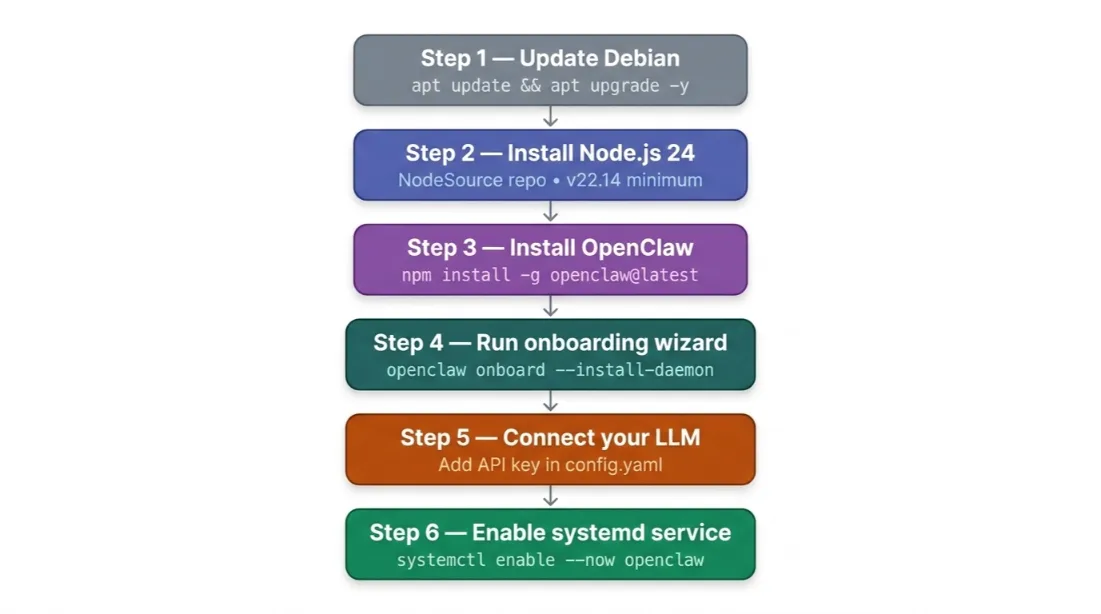
Never skip this step. Running an install on a stale system is one of the fastest ways to introduce version conflicts, missing dependencies, or security vulnerabilities.
Connect to your server via SSH, then run:
sudo apt update && sudo apt upgrade -yapt update refreshes your package index, it tells your system what versions are available. apt upgrade installs those updates. The -y flag skips the confirmation prompt.
Once done, it’s good practice to also run:
sudo apt autoremove -yThis cleans out packages that are no longer needed. On a fresh VPS, it keeps things tidy from the start.
Step 3: Installing Dependencies
OpenClaw is written in TypeScript and runs on a Node.js runtime. That’s the only major dependency, but it must be the right version.
Node.js Version Requirements
OpenClaw requires Node.js 22.14 or newer. Node 24 is the official recommended runtime for new installations.
Check if Node is already installed:
node --versionIf you get a version below 22.14, or if the command isn’t found, install Node.js from the NodeSource repository:
curl -fsSL https://deb.nodesource.com/setup_24.x | sudo -E bash -
sudo apt-get install -y nodejs
Verify both Node and npm installed correctly:
node --version
npm --version
You should see v24.x.x for Node and a recent npm version. If the versions look right, you’re ready to proceed.
Step 4: Installing OpenClaw
There are two ways to install OpenClaw on Debian: the one-line installer script or a manual npm-based install. The npm route gives you more transparency about what’s happening. We’ll cover both.
Option A: One-Line Installer Script
The official installer automates Node setup, installs the OpenClaw daemon, and launches the onboarding wizard:
curl -fsSL https://openclaw.ai/install.sh | bashImportant: Don’t run this as root. The installer creates a systemd user service, and running as root will cause it to fail. If you’re currently logged in as root, create a dedicated user first:
adduser openclaw
usermod -aG sudo openclaw
su - openclaw
Then re-run the installer as that user.
Option B: Manual npm Install
If you prefer not to pipe a shell script from the internet (a perfectly reasonable preference), install directly via npm:
npm install -g openclaw@latestThen launch the onboarding process manually:
openclaw onboard --install-daemonVerifying It’s Working
Once the installer finishes, check that the daemon is running:
sudo systemctl status openclawYou should see Active: active (running). The dashboard is accessible at:
http://localhost:18789Your workspace is stored at ~/.openclaw on Linux.
Step 5: Connecting Your LLM
OpenClaw itself isn’t the AI; it’s the gateway between your messaging channels and whichever language model you choose. This provider-agnostic design is one of its most powerful features.
Supported Providers
- OpenAI (GPT-4o, GPT-4.1)
- Anthropic (Claude Sonnet 4.6, Claude Opus)
- Google (Gemini 1.5 Pro, Gemini 2.0)
- Mistral
- Groq
- Local models via Ollama (Llama 3, Mistral, Phi-3, and more)
Adding Your API Key
During the onboarding wizard, you’ll be prompted to select a provider and paste your API key. You can also add or change providers later by editing your config file directly:
nano ~/.openclaw/config.yamlLook for the models section and add your key:
models:
  provider: anthropic
  api_key: sk-ant-xxxxxxxxxxxxxxxx
Switching LLMs Without Redeploying
This is one of OpenClaw’s nicest features. You can swap providers at any time from OpenAI to Anthropic, or from a cloud model to a local Ollama instance without restarting your entire setup.
Just update the provider and api_key fields in your config, then restart the service:
sudo systemctl restart openclawStep 6: Initial Configuration
After installation, you’ll find your primary config file at:
~/.openclaw/config.yamlKey Settings to Configure
Port: OpenClaw runs on port 18789 by default. If you need to change it:
gateway:
  port: 18789
Workspace directory: Logs, memory, and agent data all live in ~/.openclaw. Make sure your disk has sufficient space.
Permissions: If you run into permission errors on startup:
sudo chown -R $USER:$USER ~/.openclawConnecting Your Domain and SSL
Once your DNS is pointed to your server’s IP, you can use a reverse proxy like Nginx to route yourdomain.co.ke to port 18789.
Install Nginx:
sudo apt install nginx -yCreate a server block config:
sudo nano /etc/nginx/sites-available/openclawAdd:
server {
    listen 80;
    server_name yourdomain.co.ke;

    location / {
        proxy_pass http://127.0.0.1:18789;
        proxy_http_version 1.1;
        proxy_set_header Upgrade $http_upgrade;
        proxy_set_header Connection 'upgrade';
        proxy_set_header Host $host;
    }
}
Enable and reload:
sudo ln -s /etc/nginx/sites-available/openclaw /etc/nginx/sites-enabled/
sudo nginx -t && sudo systemctl reload nginx
For SSL, use Certbot:
sudo apt install certbot python3-certbot-nginx -y
sudo certbot --nginx -d yourdomain.co.ke
When you host with us at Truehost, free SSL is provisioned and auto-connected to your install; you don’t need to configure Certbot manually.
Get information on how to set up OpenClaw on a VPS
Step 7: Advanced Configuration (Optional)
Once the basics are running, these optional steps harden your setup and improve performance.
Plugin Registry Setup
OpenClaw supports external skills through its plugin registry. To install a plugin:
openclaw skills install <plugin-name>Browse available plugins at docs.openclaw.ai/tools.
Firewall and Security Hardening
Lock down your server to only allow the traffic you need:
sudo ufw default deny incoming
sudo ufw allow ssh
sudo ufw allow 80/tcp
sudo ufw allow 443/tcp
sudo ufw enable
Do not expose port 18789 to the public internet. Always access the dashboard through your domain (via Nginx proxy) or via SSH tunnel.
Critical: As of OpenClaw v2026.1.29, the auth: none option was permanently removed after widespread exposure incidents. Always configure a secure access token in your config.
Logging Configuration
Adjust log verbosity in config.yaml:
logging:
  level: info   # options: debug, info, warn, error
  file: ~/.openclaw/logs/openclaw.log
Performance Tuning
For production workloads, increase Node.js memory allocation by setting the NODE_OPTIONS environment variable in your service file:
Environment="NODE_OPTIONS=--max-old-space-size=2048"This prevents the runtime from running out of heap memory on sustained workloads.
Starting and Managing the OpenClaw Service
OpenClaw runs as a systemd service. These are the commands you’ll use most:
# Start the service
sudo systemctl start openclaw

# Stop the service
sudo systemctl stop openclaw

# Enable auto-start on boot
sudo systemctl enable openclaw

# Check current status
sudo systemctl status openclaw

# Restart (e.g. after config changes)
sudo systemctl restart openclaw
To confirm it’s enabled on boot:
sudo systemctl is-enabled openclawYou should see it enabled.
What are the Openclaw use cases
Troubleshooting
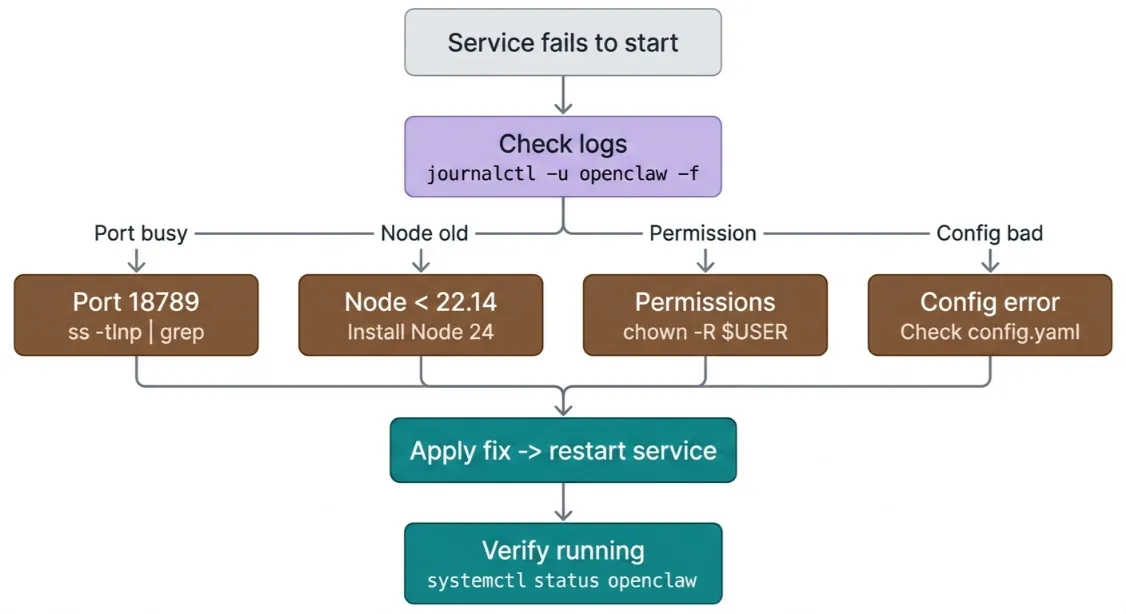
Port Already in Use
If OpenClaw fails to start because port 18789 is occupied, find and stop the conflicting process:
sudo ss -tlnp | grep 18789Stop the conflicting service, or change OpenClaw’s port in config.yaml and restart.
Node.js Version Issues
OpenClaw requires Node.js 22.14 or later. Check your version:
node --versionIf it’s below 22.14, install Node 24 from NodeSource:
curl -fsSL https://deb.nodesource.com/setup_24.x | sudo -E bash -
sudo apt-get install -y nodejs
Permission Errors
If the service fails with a permissions error:
sudo chown -R $USER:$USER ~/.openclawAlternatively, verify that your systemd service is configured to run under the correct user account, not root.
OpenClaw Service Won’t Start
Check the service status:
sudo systemctl status openclawThen follow the logs in real time:
journalctl -u openclaw -fThe log output will usually point directly to the issue missing config key, a bad API key format, or a port conflict.
Can’t Access the Dashboard Remotely
If the dashboard is bound to localhost only, create an SSH tunnel from your local machine:
ssh -N -L 18789:127.0.0.1:18789 user@your-server-ipThen open http://localhost:18789 in your browser.
Firewall Blocking Connections
If Nginx is set up but the dashboard still isn’t reachable, check that ports 80 and 443 are open:
sudo ufw allow 80/tcp
sudo ufw allow 443/tcp
sudo ufw reload
sudo ufw status
Configuration Changes Not Applied
After editing config.yaml, always restart the service for changes to take effect:
sudo systemctl restart openclaw
sudo systemctl status openclaw
Install and Configure OpenClaw on Debian FAQs
How do I check if OpenClaw is installed?
Run openclaw --version in your terminal. If the command returns a version number, it’s installed. If not, you’ll get a ‘command not found’ error.
How do I check if OpenClaw is running on Debian?
sudo systemctl status openclawLook for Active: active (running) in the output.
Where does OpenClaw store its config on Debian?
At ~/.openclaw/config.yaml by default. This is where you set your API keys, port, logging level, and workspace preferences.
What does the official install script actually do?
The curl ... | bash one-liner detects your OS, installs Node.js if needed, installs the OpenClaw CLI globally via npm, sets up a systemd user service, and launches the interactive onboarding wizard. It does not require root, and it does not modify system files outside of the node install.
How do I run the OpenClaw onboarding wizard?
If you missed it during install, re-run it at any time:
openclaw onboard --install-daemonThis lets you re-configure your LLM provider, messaging channels, and security settings.
How do I connect Lark to OpenClaw?
OpenClaw’s Lark integration is configured via the channels section of config.yaml. You’ll need a Lark app token with the appropriate message and contact permissions. Once you have it, add the token under channels: lark: in your config and restart the service. Full steps are in the official docs at docs.openclaw.ai/channels.
Why Truehost Is the Best Home for Your OpenClaw Agent
You can run OpenClaw on any VPS. But not all VPS providers are built equal, especially if you’re in Kenya or East Africa.
Here’s why developers and businesses in Kenya choose our Truehost OpenClaw hosting:
- 60-second deploy. Our environment ships with the Node.js runtime, common plugins, and SSL pre-configured. You skip the dependency setup and go straight to onboarding.
- Kenya-first infrastructure. Our Nairobi datacenter delivers sub-10ms latency to users in Kenya, Uganda, Tanzania, and the wider East African region. That matters when your AI agent is handling real-time messaging.
- Your data stays yours. Your LLM API keys, your agent’s prompts, and its full conversation logs live on your VPS not ours. Full ownership, full privacy.
- 24/7 human support. Our average first-response time is under 4 minutes. Not a bot. A real person who knows what a systemd service file is.
- 30-day money-back guarantee. If it’s not working for you, you get a full refund. No questions.
Generic VPS
Self-managed, any provider
Truehost OpenClaw
Managed, Nairobi datacenter
Running OpenClaw on Debian gives you complete control over one of the most powerful autonomous AI tools available in 2026.
Pair it with a Truehost VPS, and you have a production-grade agent that’s fast, private, and ready from day one.
Check our guide on how to self-host AI agents with Openclaw VPS