Domain SearchInstantly check and register your preferred domain name
 Web Hosting
 cPanel HostingHosting powered by cPanel (Most user friendly)
 WordPress HostingHost your WordPress website with fast, secure, and affordable WordPress hosting in Kenya.
 KE Domains
 Reseller HostingStart your own hosting business without tech hustles
 Windows HostingOptimized for Windows-based applications and sites.
 Free Domain
 Affiliate ProgramEarn commissions by referring customers to our platforms
 Free HostingTest our SSD Hosting for free, for life (1GB storage)
 Domain TransferMove your domain to us with zero downtime and full control
 All DomainsBrowse and register domain extensions from around the world
 .Com Domain
 WhoisLook up domain ownership, expiry dates, and registrar information
 VPS Hosting
 Managed VPSNon techy? Opt for fully managed VPS server
 Dedicated ServersEnjoy unmatched power and control with your own physical server.
 Website Builder
 Online Store BuilderLaunch a professional e-commerce store without writing code.
 Web Design ServiceGet a custom-designed website tailored to your brand and goals. From just KES 15,600
 BlogRead our guides on web hosting, online business, digital marketing, and more
 SupportOur support guides cover everything you need to know about our services
 ContactContact us via chat or email
Managing a VPS server on your own can feel like a lot of responsibility. One wrong command and your website goes down. A missed security patch, and someone could break in.
That is why VPS server management is critical. You are no longer on shared hosting, where someone else handles the backend.
With a VPS, you have full control, meaning you have full responsibility.
In VPS management, you simply want your server to run fast, stay secure, and never go offline unexpectedly.
You also want to spend as little time on maintenance as possible. Efficiency means automating the boring stuff so you have time for other tasks
You do not need to be a system administrator to pull this off. But you do need some basic skills.
You should be comfortable with the Linux command line. You need to understand file permissions and user accounts. You should know how to read a log file.
And you need to be patient enough to follow instructions carefully. If you have those, you can manage a VPS properly.
How to Manage a VPS Server
1) Initial Setup & Hardening
The moment you get your VPS credentials, do not just start installing things. The first hour after setup is the most important.
Log in as the root user and immediately change the default SSH port from 22 to something else. Create a new user account with sudo privileges. Never use root for daily tasks.
Then, disable root login over SSH entirely. Set up SSH key authentication and turn off password logins.
These steps alone stop most automated attacks before they even start.
2) Firewall & Access Control
Set up a firewall on day one. A basic firewall allows you to decide who can connect to which ports. Allow only the ports you actually use.
For a web server, that usually means port 80 for HTTP, port 443 for HTTPS, and your custom SSH port. Block everything else.
Also, use a simple tool like UFW to manage this. Then set up access control by limiting how many times someone can try to log in.
Tools like fail2ban watch for repeated failed attempts and block those IP addresses automatically.
3) Regular Updates & Patching
Every piece of software on your server has vulnerabilities. Hackers scan for unpatched systems constantly. So set up automatic operating system security updates.
For other software, schedule a weekly check. Log in, run the update command, restart services if needed, and do not skip this.
One of the most common reasons VPS servers get hacked is simply that the owner forgot to run updates for a few months.
4) Proactive Monitoring & Alerts
Do not wait for your website to go down before you notice a problem. Set up monitoring that checks your server every few minutes.
You want to know about high CPU usage, low disk space, or a crashed service before your visitors notice.
Free tools can send you alerts by email or messaging apps. Also set threshold alerts.
For example, get an alert when disk usage hits 80 percent, not when it is already full, and your site is failing to save data.
5) Automated Maintenance
Doing maintenance by hand gets boring fast. It is also easy to forget. Automate the repetitive tasks.
For instance, set up a cron job to automatically clean old log files. Automate the weekly update process if you are comfortable with that.
You can also automate log rotation to prevent your disk from filling up. The less you have to do manually, the less you can mess up.
6) Performance Optimization
A slow server is almost as bad as a down server. Check what is using your resources. Use tools to view CPU, memory, and disk I/O.
If one process is using all your CPU, figure out why and optimize your web server settings. You can also tune your database and enable caching wherever possible.
In addition, switch to PHP-FPM instead of older handlers. These small changes can double your server capacity without upgrading your plan.
7) Backup & Disaster Recovery
One thing you should keep in mind is that your server will break eventually. A hard drive will fail, you will run the wrong command, or someone might get in despite your precautions.
Backups are your only way out. Set up automatic backups that go to a different location, not the same server, and test your backups regularly.
A backup you have never restored is not really a backup. Keep at least a week of daily backups. For important data, keep monthly backups for a full year.
8) Security Hardening
To manage VPS effectively, you need to go deeper than basic security:
- Install and configure a malware scanner
- Set up intrusion detection that alerts you when system files change
- Disable any unnecessary network services
- Remove compilers and development tools from a production server
- Set proper file permissions on configuration files.
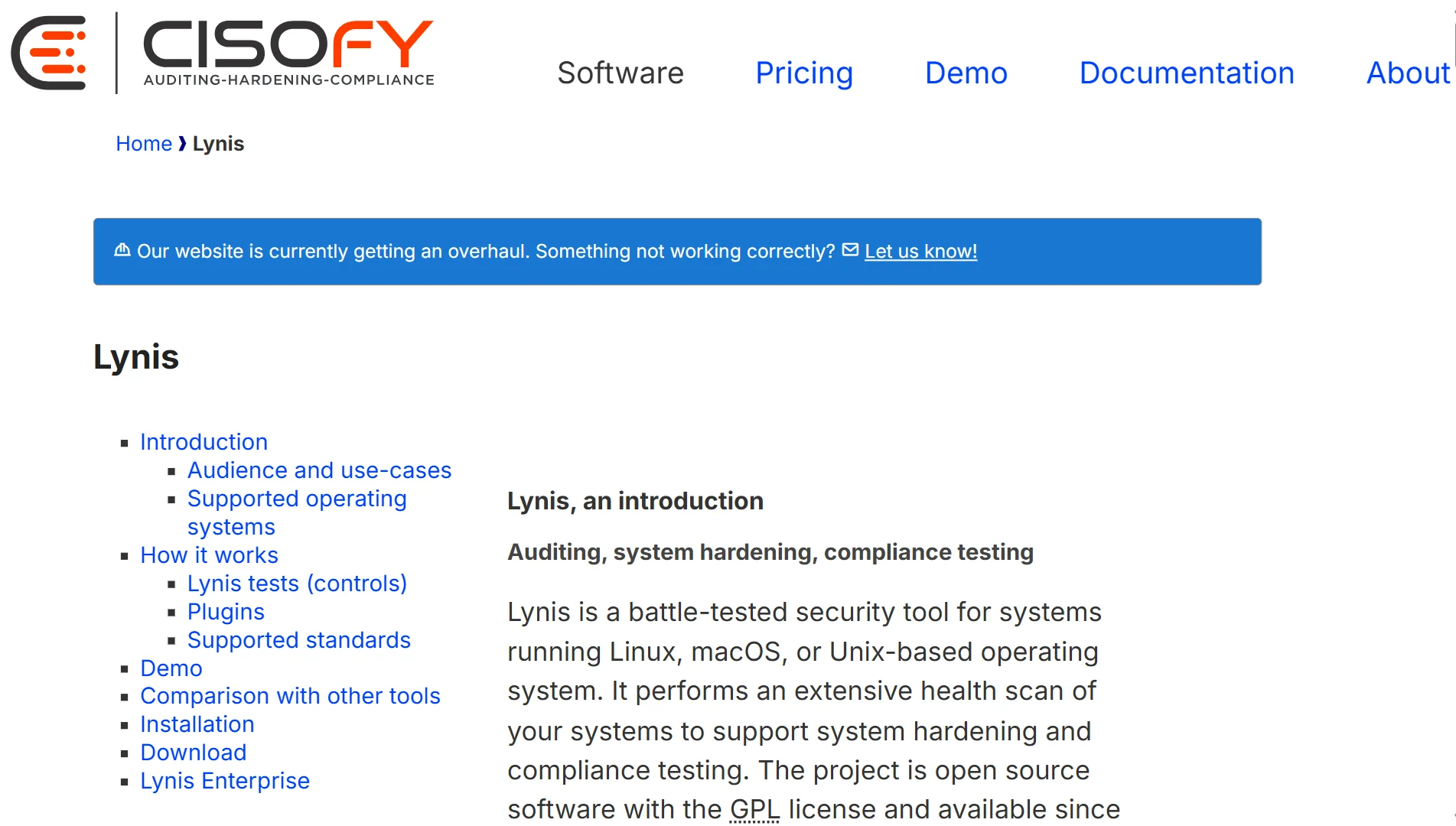
Use tools like Lynis to run a security audit and follow its recommendations. Security is not a one-time task but an ongoing process.
9) Control Panel
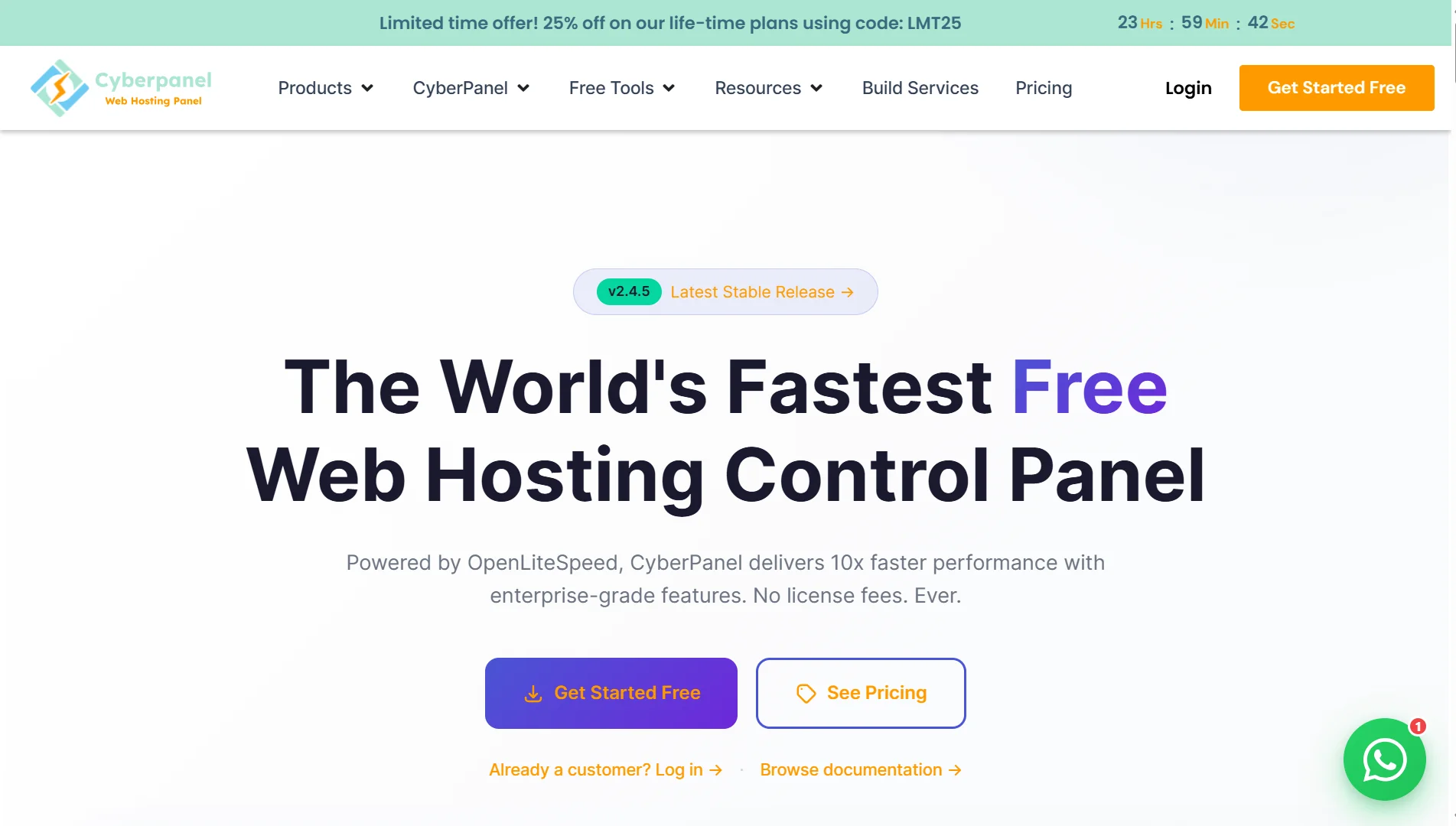
You can manage a VPS completely from the command line. But a control panel saves you time. This is especially true if you manage multiple websites.
Free panels like HestiaCP, CyberPanel, or Virtualmin give you a web interface. You can create user accounts, manage databases, and set up email from that interface.
Paid panels like cPanel are more polished. Choose one that fits your budget and your technical comfort level.
Just remember that the control panel itself needs updates and security checks, too.
10) Runbooks & Incident Response
Panicking makes the situation worse when something goes wrong. Write down a simple runbook and document your server setup. Write step-by-step instructions for common problems.
What do you do when the server is slow? What do you do when you cannot log in? What do you do when you suspect a hack?
Keep these instructions somewhere you can access, even if the server is down. When an incident happens, follow the runbook. Fix first, then investigate later.
VPS Management Tools You Must Have
You need tools to effectively manage your VPS server. Some of the essential tools you must have include:
| Tool | What It Does |
| UFW | Frontend for iptables that makes firewall rules simple to write |
| Fail2ban | Scans logs for repeated failures and bans attacking IP addresses |
| Glances | A real-time system monitoring tool that shows CPU, memory, disk, and network in one screen |
| Rsync | Fast file transfer and synchronization tool. Great for backups |
| Logwatch | Summarizes server logs and emails you a daily report |
| Netdata | Real-time performance monitoring with a beautiful web dashboard |
| ClamAV | Open source antivirus engine for scanning uploaded files |
| Lynis | A security auditing tool that checks your system and gives recommendations |
| Cron | Built-in task scheduler for automating maintenance scripts |
| htop | Better version of top. Shows running processes with an interactive interface |
How to Manage VPS Server FAQs
You can, but it will be frustrating. Most VPS servers run Linux. Basic tasks like editing configuration files, restarting services, and checking logs all require command-line skills.
If you do not want to learn Linux, get a managed VPS plan where the provider handles the server for you. Or stick with shared hosting.
Enable automatic security updates so those happen daily. For regular software updates, once per week is good. For critical software like your web server or database, check for updates every few days.
Disabling password authentication and using SSH keys instead. Passwords get guessed. Passwords get stolen. SSH keys are nearly impossible to break with current technology. Combine that with disabling root login and changing the default SSH port.
Use Netdata. It installs in minutes, runs on any VPS, and gives you a real-time dashboard through your browser. For uptime monitoring from outside your server, use a free service that pings your site every few minutes.
Watch for sustained high usage. If your CPU stays above eighty percent during normal traffic, you need more cores.
If memory usage is always near the limit and your system starts swapping, you need more RAM. If your disk input output is maxed out, you either need faster storage or more efficient code.
Yes, once you automate. Use the same setup scripts for every server, centralize your log collection, use a tool to manage updates across all servers at once, and set up the same monitoring alerts everywhere.
Get a Reliable VPS To Manage
All this management advice assumes you have a solid VPS to work with. A bad provider makes your job much harder.
At Truehost, we offer VPS hosting from our Nairobi data centers and from locations worldwide.
Our plans include KVM virtualization, blazing-fast SSD storage, and a free dedicated IP address with every VPS.
You can choose unmanaged plans if you want full control, or managed plans if you prefer we handle the updates and security for you.
Check our Kenya Cloud VPS plans starting at Ksh 1400 per month for one core, one gigabyte of RAM, and 25 gigabytes of SSD storage.
Or go with our global plans starting at Ksh 1775 per month for four cores and eight gigabytes of RAM.