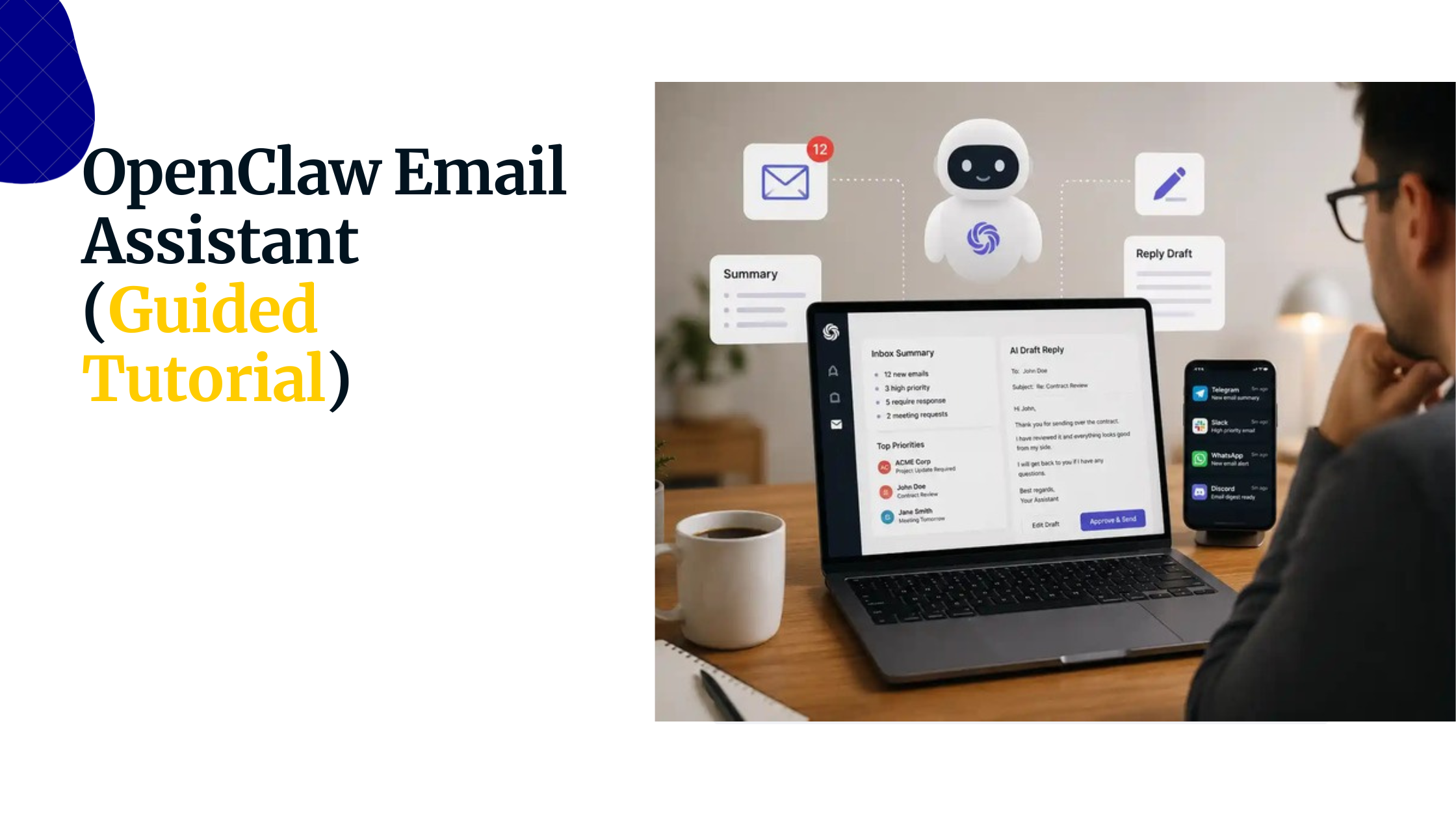
Domain SearchInstantly check and register your preferred domain name
 Web Hosting
 cPanel HostingHosting powered by cPanel (Most user friendly)
 WordPress HostingHost your WordPress website with fast, secure, and affordable WordPress hosting in Kenya.
 KE Domains
 Reseller HostingStart your own hosting business without tech hustles
 Windows HostingOptimized for Windows-based applications and sites.
 Free Domain
 Affiliate ProgramEarn commissions by referring customers to our platforms
 Free HostingTest our SSD Hosting for free, for life (1GB storage)
 Domain TransferMove your domain to us with zero downtime and full control
 All DomainsBrowse and register domain extensions from around the world
 .Com Domain
 WhoisLook up domain ownership, expiry dates, and registrar information
 VPS Hosting
 Managed VPSNon techy? Opt for fully managed VPS server
 Dedicated ServersEnjoy unmatched power and control with your own physical server.
 Website Builder
 Online Store BuilderLaunch a professional e-commerce store without writing code.
 Web Design ServiceGet a custom-designed website tailored to your brand and goals. From just KES 15,600
 BlogRead our guides on web hosting, online business, digital marketing, and more
 SupportOur support guides cover everything you need to know about our services
 ContactContact us via chat or email
Instead of asking who has an appointment today or what needs to be bought, your family could be waking up to an automatic morning update with everything in one place. Of course if you have a family assistant.
A family assistant is a secure, centralized AI agent that connects your household’s private data sources, such as calendars, email accounts, and messaging apps, to a single shared communication hub.
Instead of requiring family members to manually track appointments, deadlines, reminders, and daily tasks, it keeps everyone organized through automation.
This is very different from a personal AI tool designed for a single user.
A family assistant is built around collaboration. It supports multiple family members, coordinates shared responsibilities, and handles recurring household routines automatically, helping the entire household stay on the same page.
Creating one with OpenClaw gives you an open-source, locally-run AI that handles scheduling, emails, and home reminders through chat apps your family already uses, like WhatsApp or Telegram. Once it is running, here is what it does for your household:
- Coordinate schedules: integrates with a shared Google Calendar to track appointments and deadlines across every family member
- Manage communications: connects to Gmail to sort, summarize, and flag emails so nothing important gets buried
- Deliver automated daily briefings: sends a compiled morning summary to the family group chat, every day, at a time you set
- Build and maintain shared shopping lists: captures grocery mentions from family chat and keeps a live, organized list
- Send proactive reminders: alerts the family before school events, bill due dates, and appointments become problems
- Maintain data privacy: runs entirely on your own private server, so your family’s information never passes through a third-party cloud
The thing that separates OpenClaw from Google Assistant or Siri is that it does not wait to be asked. It monitors, extracts, and acts on a schedule automatically according to rules you define..
You can host this setup locally on your own machine, or automate deployment through a Virtual Private Server to ensure 24/7 uptime. In this guide, we will set one up using WhatsApp as the messaging app, Google as the calendar and email provider, and Truehost OpenClaw VPS as the hosting server.
What You Need Before You Begin
Before deploying anything, three things need to be in place:
- A second phone number or SIM for the assistant’s WhatsApp – a spare Safaricom or Airtel prepaid SIM works perfectly. You do not want your personal number linked to OpenClaw, because every message sent to you would become a command to the agent.
- A Gmail or Google Workspace account – for calendar and email integration, Google is the most simple and direct starting point. A shared family account works well.
- A server that runs 24/7 – OpenClaw needs to run continuously. A morning briefing that skips Tuesday because your laptop was closed is not a morning briefing. It is just a feature that sometimes works.
For that third requirement, you have two paths. You can self-host by installing Docker, configuring dependencies manually, and taking on ongoing maintenance whenever something needs attention.
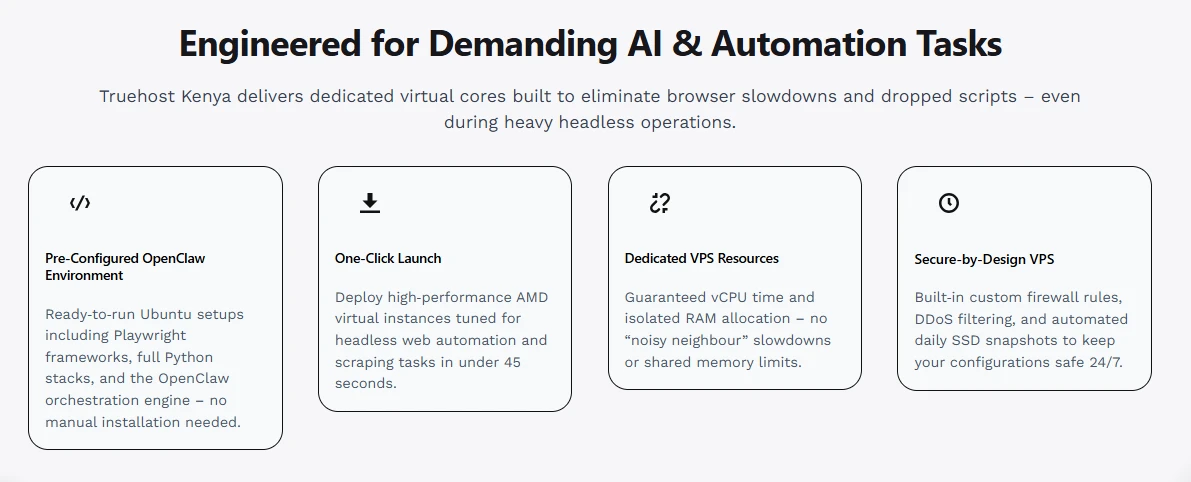
Or you can use Truehost OpenClaw Hosting, where the server, configuration, and uptime are managed for you, so you focus entirely on connecting your accounts and building your workflows.
Truehost OpenClaw Hosting plans start at Ksh 1,999/month with no setup fee and M-PESA payment supported. The environment comes pre-configured with the OpenClaw engine already loaded, which removes the infrastructure burden entirely.
Step-by-Step Process of Using OpenClaw to Create a Family Assistant
1) Setting Up OpenClaw
Step 1: Get your OpenClaw instance running.
If you are using Truehost, your VPS deploys in under 45 seconds after checkout. You will receive a welcome email containing your custom OpenClaw URL, something like https://openclaw-abc123.truehost.biz, along with your unique Gateway Token.
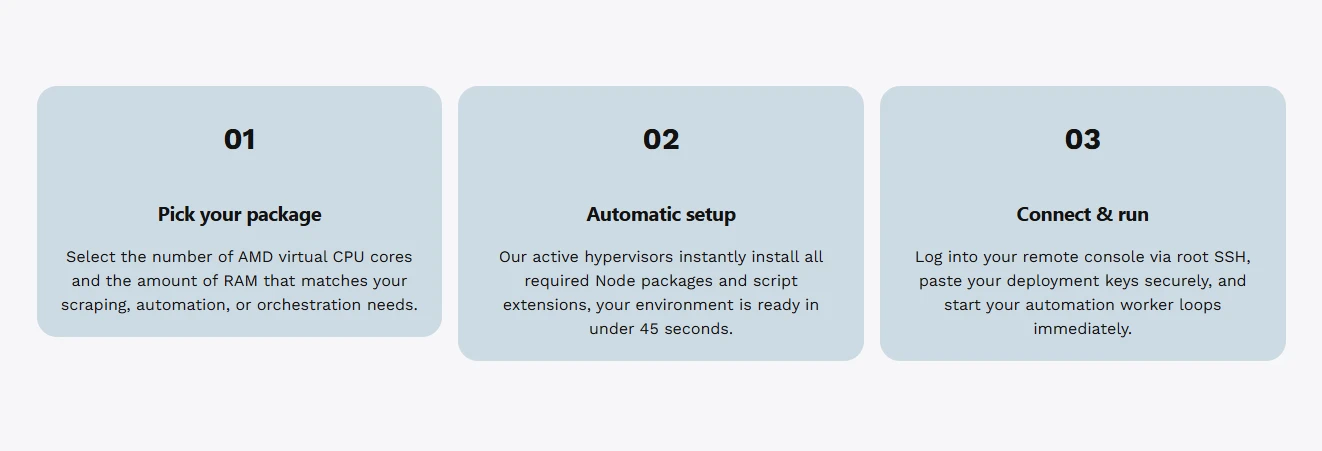
Everything is pre-loaded. No package installation, and no manual configuration.
If you prefer to self-host, you will need Docker installed and time to work through the configuration manually.
Step 2: Connect an AI provider.
Open your OpenClaw URL in a browser. On the connection prompt, change your URL prefix from https:// to wss://, paste your Gateway Token from the welcome email, leave the password field blank, and click Connect.
Then navigate to Settings, then on AI Provider, select your preferred model, either Anthropic Claude or OpenAI, then paste your API key, and save.
Step 3: Open the dashboard and confirm the gateway is live.
Once connected, the dashboard will show your gateway status as active. That confirmation means the assistant is online and ready to receive connections.
Do not move on to the next section until you see this, since it is the foundation everything else builds on.
2) Connecting Your Family’s Messaging Apps
Step 1: Navigate to the Connectors section in the dashboard.
This is where you link the communication apps your family uses day to day.
Step 2: Connect each app your family uses.
In our case, we’ll start with WhatsApp, but OpenClaw also supports Telegram, Discord, Slack, and iMessage. For WhatsApp, select it from the channels menu.
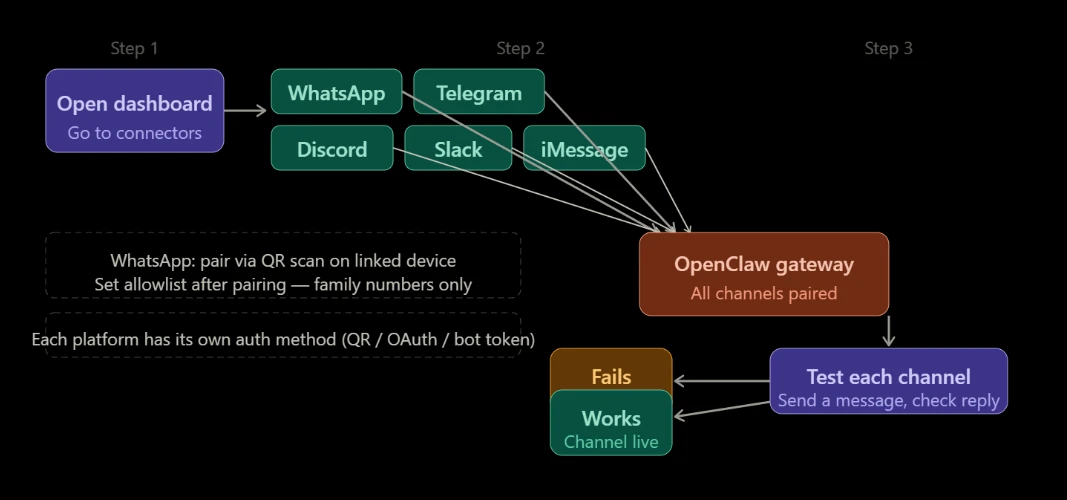
A QR code will appear on screen. On your assistant phone, the one with the second SIM, open WhatsApp, go to Settings, then Linked Devices, and click Link a Device, then scan the code.
Once linked, go into settings immediately and set your allowlist: add only your family members’ phone numbers under dmPolicy. This keeps the assistant from responding to anyone outside your household.
Repeat the connection process for each app your family uses regularly.
Step 3: Test each connection with a simple message.
Send a basic message to the assistant number “What is on my calendar today?” works well, and confirm you get a coherent response back. Do this for every channel you connect before moving on. A channel that has not been tested has not been confirmed.
A note on permissions: Each app has its own requirements. WhatsApp uses a linked device pairing via QR scan. Google uses OAuth, where you will be prompted to sign in and grant calendar and email permissions. Telegram uses a bot token.
The Truehost setup includes the headless browser frameworks that handle the more technical parts of this automatically, which is one of the places where managed hosting saves the most time.
3) Configuring the Assistant for Family Use
Step 1: Set a friendly system prompt that defines the assistant’s tone and boundaries.
This is where you tell the assistant who it is working for and how it should communicate. Be specific. Something like:
“You are a family assistant for the Kariuki family. Communicate clearly and warmly. Always summarize before giving detail. Flag anything time-sensitive prominently.”
A well-written system prompt shapes every single interaction the assistant has with your family.
Step 2: Create per-user or per-channel profiles.
Adults and children have different needs from the same assistant. Adults might receive full email summaries and detailed calendar breakdowns.
Children might only get school reminders and event alerts, so no financial information, nor sensitive email content.
Setting up separate profiles by user or by channel keeps the assistant relevant and appropriate for whoever is reading.
Step 3: Set content boundaries and safe mode for younger family members.
If children are active in the family group chat, configure content boundaries so the assistant does not surface inappropriate content from emails or external sources.
Most setups use a restricted profile for any channels where younger members are present. This is worth doing before the assistant goes fully live, not after.
Step 4: Configure reminders, recurring tasks, and family-specific commands.
This is where the assistant becomes genuinely useful on a daily basis.
Set up the recurring workflows your household depends on: the morning briefing, school email triage, shopping list monitoring, NHIF payment reminders, utility renewals.
These are the routines that turn OpenClaw from a cool setup into something your family actually relies on.
Using OpenClaw to Create a Family Assistant: FAQs
1. How does OpenClaw work as a family assistant?
OpenClaw is an open-source AI gateway that connects to WhatsApp, Gmail, Google Calendar, and other tools, then runs scheduled workflows like morning briefings, email summaries, and shopping list management, delivering results through the messaging apps your family already uses. Unlike voice assistants that respond to direct commands, it acts proactively on a schedule you define.
2. Do I need technical skills to set up OpenClaw?
Basic familiarity helps, but it is not a requirement if you use the Truehost path. The server and OpenClaw engine come pre-configured. You connect WhatsApp via QR scan, link Google via OAuth, and manage everything else through a dashboard. Most families complete the core setup in under an hour.
3. How are people using OpenClaw?
The most common use cases are daily schedule briefings, school email monitoring, shared grocery lists, and household maintenance reminders. Families also use it for calendar conflict detection, appointment preparation, and weekly meal planning. Teams and small businesses use it for workflow automation as well, but household coordination is where the day-one value is most immediate.
4. Is OpenClaw legit?
Yes. OpenClaw is an open-source project you can review, fork, and host yourself. Because it runs on your own server rather than a third-party cloud, your family’s data stays under your control. Truehost is a Kenyan hosting provider that packages the setup for local users with local billing and local support.
5. Can OpenClaw be used offline?
The assistant runs on your server, so the engine itself continues operating during internet interruptions. However, connections to Gmail, Google Calendar, and WhatsApp require internet access to sync. Fully offline operation is limited to whatever data is already stored locally.
Why Use Truehost OpenClaw Hosting
Self-hosting is technically possible. You set up a VPS, install Docker, configure API keys, manage updates, and handle whatever breaks, including the thing that goes wrong at 6 AM on a school morning. For engineers who enjoy that work, it is a reasonable path.
For most families, the trade-off is not worth it. The setup time, the maintenance overhead, and the troubleshooting cost add up quickly.
Truehost OpenClaw Hosting turns that around with a pre-configured server, pre-loaded OpenClaw engine, under 45 seconds of deployment from the moment you complete checkout.
You also get a local Kenyan support team, KES billing, and M-PESA payment infrastructure built for how Kenyan families actually pay and communicate.
- KVM1 – Ksh 1,999/month 1 vCPU, 2 GB RAM, 50 GB NVMe, 4 TB bandwidth. The right fit for a single family running three to five daily workflows.
- KVM2 – Ksh 2,699/month 2 vCPU, 4 GB RAM, 100 GB NVMe, 8 TB bandwidth. Better for heavier automation, multiple agents, or families who expect to grow the setup over time.
You can upgrade your plan directly from the Truehost dashboard at any time, so you get no downtime, and no migration work required.
OpenClaw turns daily household chaos into quiet, automated coordination. Start with one workflow, probably the daily briefing which takes about 30 minutes to configure and delivers value from the very first morning.
Eventually, yu can add school email triage, and then the shared shopping list.
Each workflow builds on the last, and within two weeks you have an assistant that knows your family’s schedule better than most people and never takes a sick day.