Domain SearchInstantly check and register your preferred domain name
 Web Hosting
 cPanel HostingHosting powered by cPanel (Most user friendly)
 WordPress HostingHost your WordPress website with fast, secure, and affordable WordPress hosting in Kenya.
 KE Domains
 Reseller HostingStart your own hosting business without tech hustles
 Windows HostingOptimized for Windows-based applications and sites.
 Free Domain
 Affiliate ProgramEarn commissions by referring customers to our platforms
 Free HostingTest our SSD Hosting for free, for life (1GB storage)
 Domain TransferMove your domain to us with zero downtime and full control
 All DomainsBrowse and register domain extensions from around the world
 .Com Domain
 WhoisLook up domain ownership, expiry dates, and registrar information
 VPS Hosting
 Managed VPSNon techy? Opt for fully managed VPS server
 Dedicated ServersEnjoy unmatched power and control with your own physical server.
 Website Builder
 Online Store BuilderLaunch a professional e-commerce store without writing code.
 Web Design ServiceGet a custom-designed website tailored to your brand and goals. From just KES 15,600
 BlogRead our guides on web hosting, online business, digital marketing, and more
 SupportOur support guides cover everything you need to know about our services
 ContactContact us via chat or email
A lot of people assume setting up a VPS is something only tech experts can do. The moment you hear words like “server,” “SSH,” or “Linux,” it starts sounding complicated before you’ve even begun. And honestly, searching online doesn’t help much.
Most tutorials throw a pile of technical terms at you, skip important steps, or explain things in a way that feels like they’re talking to experienced developers instead of normal people trying to launch a website.
So what happens? Most people get intimidated, close the browser tab, and go back to the same shared hosting plan they never really wanted in the first place.
But here’s the thing: setting up a Virtual Private Server actually takes about 10 minutes. It follows a predictable sequence of steps, and it doesn’t require any prior server experience. If you can open a terminal and follow instructions, you can do this.
So why bother? If you’ve been on shared hosting for a while, you’ve probably already felt the cracks. Your site shares resources with dozens, sometimes hundreds, of other sites on the same machine, so when a neighbor gets a traffic spike, you feel it too: slower load times, timeouts, the occasional mystery outage.
You can’t install the software you want, configure your environment, or run background processes. The advertised price is low, but somewhere in the fine print, storage, bandwidth, or email accounts are quietly throttled. And if someone else on your shared server gets hacked, your site is sitting right next door.
A VPS fixes all of that. You get a dedicated slice of a physical machine with guaranteed resources, your own CPU threads, RAM, storage, and a dedicated IP address. You have root access, which means you control the whole environment.
The tradeoff is that you’re responsible for managing it, including keeping it secure. But as you’ll see in this guide, that’s far less daunting than it sounds.
Step 1: Choose Your VPS Provider
What to Look for in a Provider
Not all VPS providers are created equal. Before you sign up anywhere, evaluate providers on these dimensions:
i) Cost vs. Features: Entry-level VPS plans start as low as $4–$6/month. Don’t pick the cheapest option without checking what you’re actually getting; some low-cost providers oversell their hardware, leading to sluggish performance even on a “dedicated” slice.
ii) Performance: Look for independent benchmarks. Sites like ServerBench and community threads on Reddit’s r/webhosting regularly compare disk I/O, CPU performance, and network throughput across providers. A slightly more expensive provider with better NVMe storage and a faster network will make a meaningful difference.
iii) Data Center Locations: Choose a data center geographically close to your primary audience. Latency adds up. If your users are in Nairobi, a server in Frankfurt will be noticeably faster than one in Los Angeles, and a server in Johannesburg or Amsterdam will be faster still.
iv) Support Quality: Even experienced administrators need help sometimes. Check whether the provider offers 24/7 live chat or just ticket-based support. Look at community reviews on Trustpilot or hosting forums. Poor support at 2 AM is a genuinely bad experience.
v) Control Panel Usability: Some providers offer polished control panels (Hetzner Cloud Console, DigitalOcean’s dashboard, Vultr’s interface) that make it easy to rebuild, resize, or snapshot a server. Others are bare-bones.
vi) Refund Policy: Reputable providers offer at least a 7-day money-back window, and some (like Hostinger) offer 30 days. This matters when you’re starting and may want to switch.
Top Beginner-Friendly Providers
i) Truehost VPS is a strong choice for African users in particular, with data centers that serve the continent well and pricing calibrated for local markets.

Their support is responsive, and their onboarding is straightforward for beginners.
ii) Hostinger VPS offers a polished beginner experience with a clean control panel, competitive pricing, a 30-day money-back guarantee, and solid documentation. Their entry-level plans are reliable for small to medium workloads.
Other providers worth considering include Hetzner (excellent European performance per dollar), DigitalOcean (best documentation in the industry), and Vultr (flexible global presence).
How to Choose Your Plan
For a first VPS, running a personal site, a small app, or experimenting, the minimum viable plan is:
- 1 vCPU: sufficient for low-to-moderate traffic
- 1 GB RAM: the minimum for running a web server with a database
- 25 GB SSD storage: plenty for most starter projects
Upgrade when you actually need to. Most providers let you resize a VPS with no data loss and minimal downtime. Start small.
Provisioning the Server
During setup, you’ll be asked to configure a few things:
Operating System: Choose Ubuntu LTS (currently 24.04). Ubuntu has the largest beginner community, the most tutorials, and excellent long-term support. When you hit an error and search for help, Ubuntu answers will dominate the results.
Server Location: Pick the region closest to your users, as discussed above.
Login Method: You’ll be offered a choice between password authentication and SSH key authentication.
Step 2: Connect to Your Server via SSH
SSH (Secure Shell) is the tool that lets you connect to and control your server remotely. It creates a secure connection between your computer and the VPS running in a data center somewhere else. Once connected, every command you type is executed on the server, not on your local machine.
On Mac or Linux, open Terminal and run ssh root@your-server-ip, swapping in the IP address from your provider’s dashboard. The first time you connect, it’ll ask if you trust the server; type yes. Then enter your password.
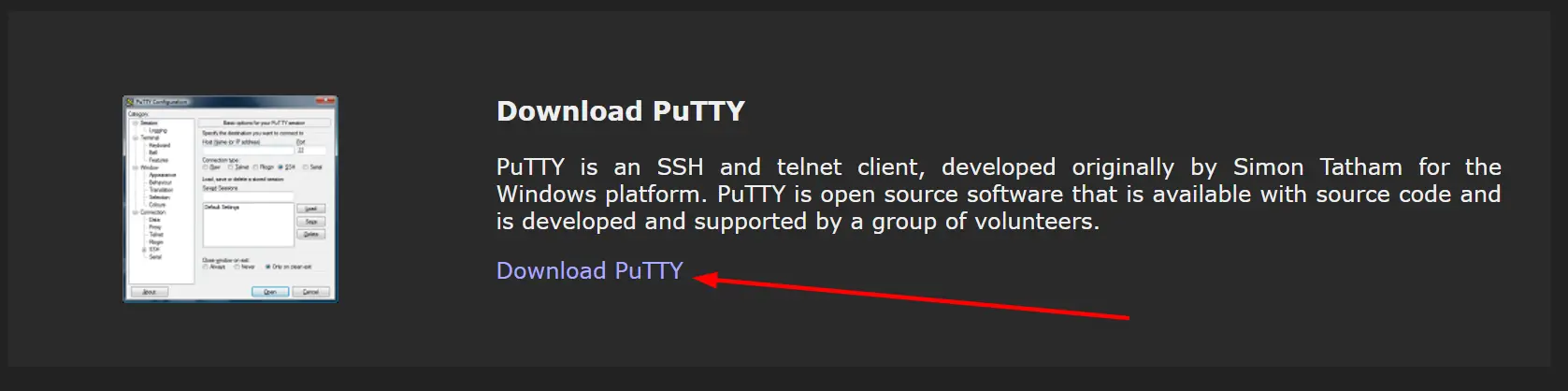
On Windows, the same command works in PowerShell or Windows Terminal. If you prefer something visual, download PuTTY, paste your server’s IP, leave the port at 22, and hit Open.
Once you’re in, you’ll see a prompt like root@your-server:~#. That’s your server’s shell. You’re in.
Step 3: Update Your Server
The OS image your provider used to build your server could be months old, which means it’s probably running software with known security holes that have since been patched. Before you do anything else, run:
apt update && apt upgrade -y
Let it finish. It takes 1–3 minutes, and it’s the single most important thing you can do right after logging in.
Step 4: Create a Non-Root User
Root is the all-powerful admin account; it can do anything, including delete things you didn’t mean to delete. One wrong command at the root prompt can break your entire server. So you create a normal user account for everyday use, and only reach for root-level power when you genuinely need it.
Create your user, give it admin privileges, then switch over to it:
adduser yourusername
usermod -aG sudo yourusername
Log out, log back in as your new user, and run sudo whoami. If it returns root, everything is working correctly.
Step 5: Set Up SSH Key Authentication
The moment your server goes online, bots start knocking. Within minutes, automated scripts attempt to log in using common passwords. Check your server’s auth logs a day after setup; you’ll likely see hundreds of attempts. This isn’t scaremongering; it’s just how the public internet works.
The fix is SSH keys. Instead of a password, you use a cryptographic key pair: a private key that never leaves your laptop, and a public key that lives on the server. There’s nothing to guess or steal off the wire.
On your local machine (not the server), run:
ssh-keygen -t ed25519 -C "[email protected]"
Accept the default file location and set a passphrase when prompted. Then copy your public key to the server:
ssh-copy-id yourusername@your-server-ip
Now open /etc/ssh/sshd_config on the server and set these three lines:
PermitRootLogin no
PasswordAuthentication no
PubkeyAuthentication yes
Restart SSH with sudo systemctl restart sshd. Before you close your current session, open a second terminal window and confirm you can still connect. If you can, you’re locked down properly.
Step 6: Configure a Firewall with UFW
A freshly provisioned server has a lot of ports open that you don’t need. UFW (Uncomplicated Firewall) lets you close all of them by default and selectively allow only what your server actually uses.
Set the defaults, allow the ports you need, then switch it on:
sudo ufw default deny incoming
sudo ufw allow 22/tcp && sudo ufw allow 80/tcp && sudo ufw allow 443/tcp
sudo ufw enable
Run sudo ufw status verbose to confirm your rules look right.
One optional but worthwhile move: change your SSH port from the default 22 to something else (anything between 1024 and 65535). It won’t stop a determined attacker, but it instantly eliminates the flood of bots that only ever target port 22.
Edit the Port line in /etc/ssh/sshd_config, update your UFW rule to allow the new port, delete the old one, and restart SSH.
Step 7: Install Fail2Ban
Even with SSH keys enabled, scanners will keep probing your server. Fail2Ban watches your logs and automatically bans any IP address that fails to log in too many times. It’s a one-command install:
sudo apt install fail2ban -y
Copy the default config to a local file so updates don’t overwrite your settings (sudo cp /etc/fail2ban/jail.conf /etc/fail2ban/jail.local), then find the [sshd] section and set enabled = true, maxretry = 3, and bantime = 1h. Start the service, and you’re done.
To test it, make five or six wrong login attempts from another device, then run sudo fail2ban-client status sshd. Your IP should be on the banned list.
Optional Next Steps
Your server is secure. Here’s what most people tackle next:
i) Web server: Apache (sudo apt install apache2 -y) is the well-documented classic. Nginx is leaner and better suited for high-traffic sites or acting as a reverse proxy.
ii) Database: MySQL works for most projects. PostgreSQL is the choice for anything needing complex queries or strict data integrity. Run mysql_secure_installation after installing MySQL to lock it down properly.
iii) Automatic security updates: Install unattended-upgrades and your server will patch itself without you lifting a finger. Highly recommended.
iv) Backups: Most providers offer automated backups for $1–2/month extra. Enable it. For custom solutions, rsync handles incremental file backups, and borgbackup adds encryption and deduplication.
v) Domain name: Log in to your registrar, create an A record pointing to your VPS IP address, and wait. Propagation usually takes a few minutes to a couple of hours.
vi) SSL certificate: HTTPS is non-negotiable. Let’s Encrypt gives you a free certificate via Certbot, auto-renews it every 90 days, and the whole thing takes under five minutes to set up.
You’ve Successfully Set Up Your First VPS
In about 10 minutes, you’ve gone from having no server at all to running a properly secured VPS setup.
You chose a VPS plan, connected to your server through SSH, updated the system, created a safer non-root user, secured logins with SSH keys, locked down unnecessary traffic with a firewall, and installed protection against brute-force attacks. That’s not just “basic setup”: those are the same core security steps many experienced server administrators follow when deploying a new machine.
And the best part is that this is only the beginning.
Your VPS can now become almost anything you want it to be. You can host websites, deploy applications, run a database, experiment with Docker containers, create a development environment, host game servers, or learn Linux hands-on without relying on restrictive shared hosting.
If you’re looking for an easy place to start, Truehost VPS Hosting offers beginner-friendly VPS plans with fast setup, scalable resources, and full control over your server environment. It’s a solid option if you want affordable VPS hosting without making the setup process feel overwhelming.
The hardest part is usually starting. Once you’ve set up your first VPS, the whole thing becomes far less intimidating and a lot more useful than most people expect.