Domain SearchInstantly check and register your preferred domain name
 Web Hosting
 cPanel HostingHosting powered by cPanel (Most user friendly)
 WordPress HostingHost your WordPress website with fast, secure, and affordable WordPress hosting in Kenya.
 KE Domains
 Reseller HostingStart your own hosting business without tech hustles
 Windows HostingOptimized for Windows-based applications and sites.
 Free Domain
 Affiliate ProgramEarn commissions by referring customers to our platforms
 Free HostingTest our SSD Hosting for free, for life (1GB storage)
 Domain TransferMove your domain to us with zero downtime and full control
 All DomainsBrowse and register domain extensions from around the world
 .Com Domain
 WhoisLook up domain ownership, expiry dates, and registrar information
 VPS Hosting
 Managed VPSNon techy? Opt for fully managed VPS server
 Dedicated ServersEnjoy unmatched power and control with your own physical server.
 Website Builder
 Online Store BuilderLaunch a professional e-commerce store without writing code.
 Web Design ServiceGet a custom-designed website tailored to your brand and goals. From just KES 15,600
 BlogRead our guides on web hosting, online business, digital marketing, and more
 SupportOur support guides cover everything you need to know about our services
 ContactContact us via chat or email
For business owners, a professional online presence is essential for building trust and credibility. One of the easiest ways to achieve this is by connecting your custom domain to your Shopify store. Instead of sending customers to the default mystore.myshopify.com, you can showcase a branded URL like example.co.ke, instantly boosting your brand identity and credibility.
This process, often called pointing your domain to Shopify, helps local businesses look more established, strengthen their branding, and earn customer confidence. Whether your domain is registered with Truehost or another provider, you can easily manage the DNS settings using cPanel’s Zone Editor.
In this guide, we’ll walk you step by step through pointing your domain to Shopify via Truehost’s cPanel, safely, efficiently, and without affecting your email or existing services.
Step-by-Step Guide to Point Your Domain to Shopify
Pointing your custom domain (such as example.co.ke) to Shopify involves updating DNS records so that visitors reach your Shopify store when they type your branded domain.
The process requires two main records: an A record for the root domain and a CNAME record for the www subdomain.
Follow these steps carefully for a smooth connection.
Step 1: Get the Required DNS Records from Shopify
Log in to your Shopify Admin dashboard.
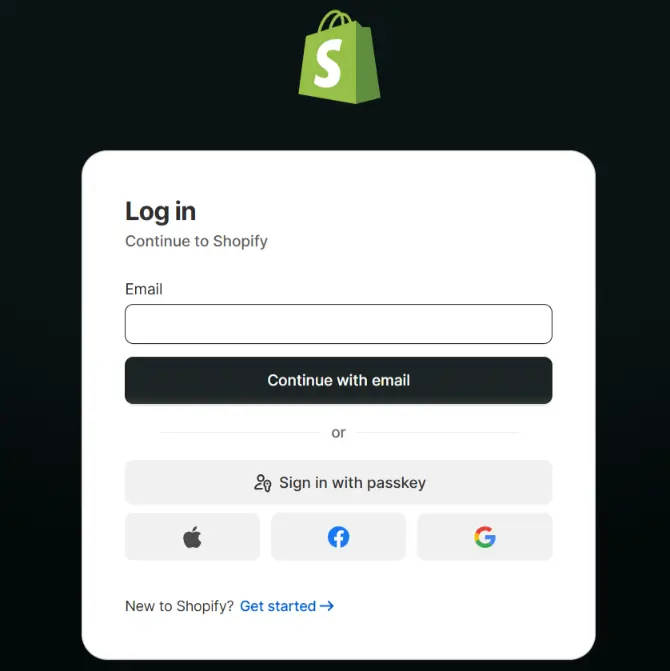
Go to Settings > Domains.
Click Connect existing domain.
Enter your full domain name (e.g., example.co.ke) and click Next.
Shopify will display the DNS records you need to configure:
- A record: Host/Name = @ → Points to 23.227.38.65 (Shopify’s standard IPv4 address)
- CNAME record: Host/Name = www → Points to shops.myshopify.com
Copy these values exactly. While Shopify may occasionally recommend a slightly different IP address based on your region, 23.227.38.65 is the most commonly used and reliable one.
You can add an optional AAAA (IPv6) record if your setup requires IPv6 support, but most users can safely skip it.
Step 2: Log in to Truehost cPanel and Access DNS Settings
Log in to your Truehost client area.
Access your cPanel account.
In the Domains section, locate and click Zone Editor (sometimes labeled as Advanced Zone Editor).
Find your domain name in the list and click Manage.
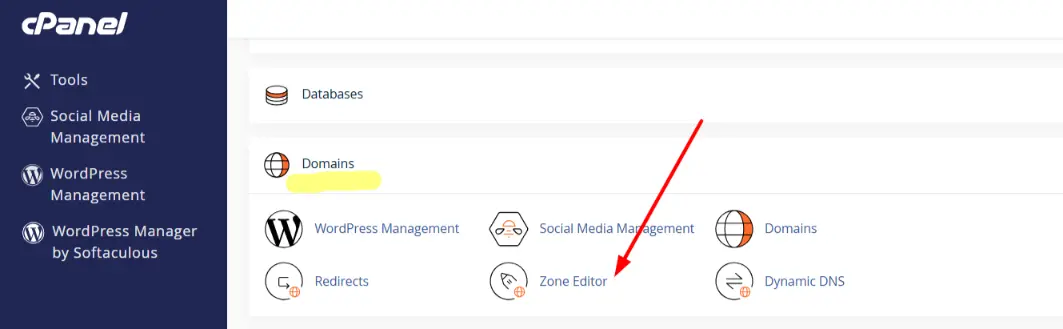
This opens the DNS Zone Editor, where you can view, add, edit, or delete records for your domain.
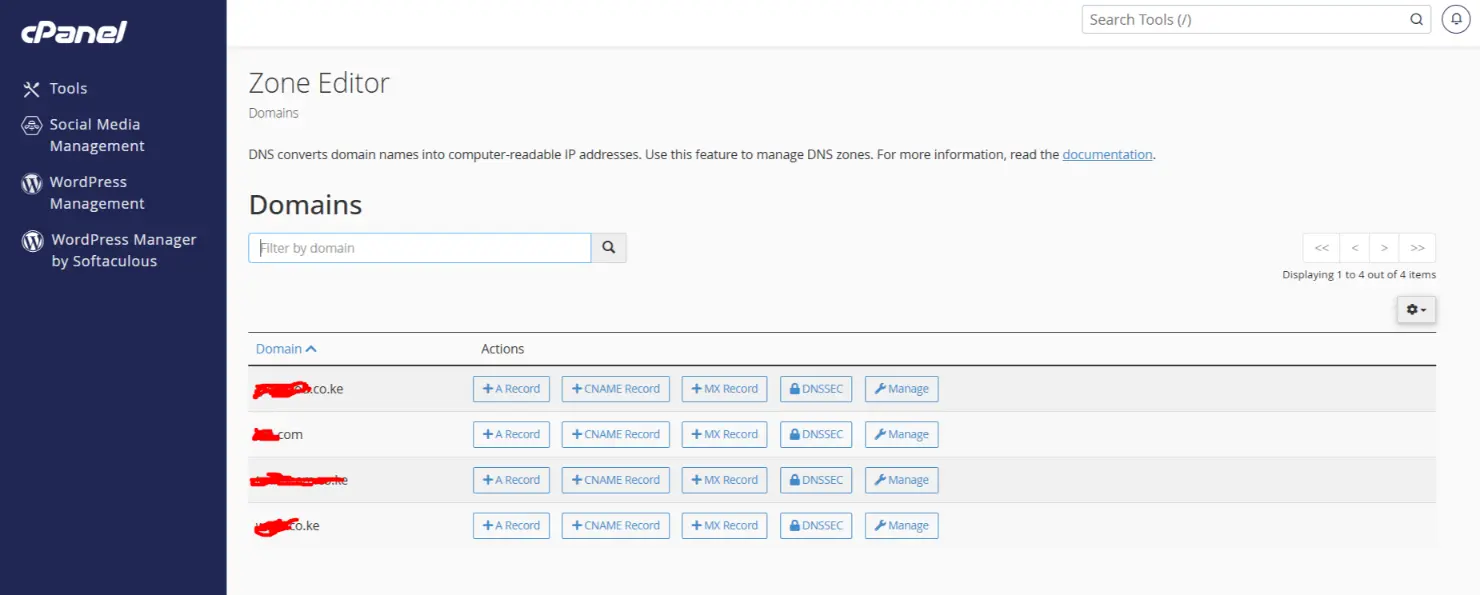
Step 3: Add or Update the DNS Records in cPanel
Now add the two essential records:
Add/Edit the A record (for the root domain):
- Set Type to A
- Name/Host → @ (this represents the root domain, e.g., example.co.ke)
- Points to / Record → 23.227.38.65
- Leave TTL at the default value (usually 14400 or 3600 seconds)
- Click Add Record or Save.
Add/Edit the CNAME record (for the www subdomain):
- Set Type to CNAME
- Name/Host → www
- Points to / Record → shops.myshopify.com (Add a trailing period at the end shops.myshopify.com. If cPanel shows an error or requires it)
- Leave TTL at default
- Click Save or Add Record.
These two records are sufficient for both the root domain and the www version to load your Shopify store correctly.
Step 4: Remove Conflicting Records
Conflicting DNS records are one of the most common causes of connection failures. Before or right after adding the new records:
- Delete any existing A records for the host @ (root domain) that point elsewhere (e.g., to your old host, a parking page, or another IP).
- Delete any existing CNAME records for www.
- Remove default redirect records, parking records, or hosting-related entries tied to the root domain (@).
Important: Ensure only one A record exists for @ and one CNAME record for www. Multiple records for the same host can prevent proper resolution.
Step 5: Wait for DNS Propagation
DNS changes do not take effect immediately. Propagation typically occurs within 5 minutes to 2 hours, but in some cases it can take up to 24–48 hours, depending on your ISP and TTL settings.
During this period:
- Your domain may still display your old website, a parking page, or an error.
- Avoid making repeated changes, as this can reset the propagation timer.
Monitor propagation progress using free tools like whatsmyDNS.net. Enter your domain and check the A record to see when it updates to Shopify’s IP.
Step 6: Verify the Connection in Shopify
Once propagation is complete:
Return to Shopify Settings > Domains.
Locate your domain in the list and click Verify connection.
If successful, Shopify will confirm the connection.
Set the domain as your primary domain if you want it to be the main URL for your store.
If the store loads correctly with your branded Kenyan domain, the setup is complete.
Test thoroughly by visiting your custom domain (e.g., https://example.co.ke) in an incognito browser window.
What about an SSL Certificate?
Good news, Shopify handles SSL automatically. Once your domain connects and verifies successfully, Shopify provisions a free SSL certificate. Your store will show the secure padlock (https://) with no extra setup required on your side.
Important Things to Keep in Mind
- DNS changes take time: Don’t panic if it doesn’t work immediately. Wait at least a few hours before troubleshooting.
- Your email remains unaffected: As long as you don’t change your MX records, email hosted through Truehost or cPanel will continue working normally.
- You’re not moving your website: This process only points the domain. Your actual store files, products, and checkout stay on Shopify’s reliable hosting.
- Local .co.ke domains work perfectly: Truehost makes it easy to manage Kenyan domain extensions with full DNS control.
Build a Professional Kenyan Online Store
Pointing your domain to Shopify is straightforward once you update the correct A record and CNAME record. After propagation, your store instantly looks more professional, trustworthy, and ready for Kenyan customers.
However, many smart business owners prefer keeping domain management separate from their store platform. Shopify excels at selling, but dedicated registrars like Truehost offer better support for local .co.ke domains, easier DNS control, reliable email hosting, and long-term flexibility.
Use Shopify to power your online store and Truehost (or similar local registrar) to manage your domain. This combination gives entrepreneurs the best of both worlds.
This setup will help your business stand out, increase customer confidence, and support long-term growth in Kenya’s booming e-commerce scene.
If you run into any issues during the process, Truehost’s support team is usually quick to help with cPanel-related questions.
If you’re ready to get started, register or transfer your .co.ke domain with Truehost today and point it to your Shopify store in minutes.