Domain SearchInstantly check and register your preferred domain name
 Web Hosting
 cPanel HostingHosting powered by cPanel (Most user friendly)
 WordPress HostingHost your WordPress website with fast, secure, and affordable WordPress hosting in Kenya.
 KE Domains
 Reseller HostingStart your own hosting business without tech hustles
 Windows HostingOptimized for Windows-based applications and sites.
 Free Domain
 Affiliate ProgramEarn commissions by referring customers to our platforms
 Free HostingTest our SSD Hosting for free, for life (1GB storage)
 Domain TransferMove your domain to us with zero downtime and full control
 All DomainsBrowse and register domain extensions from around the world
 .Com Domain
 WhoisLook up domain ownership, expiry dates, and registrar information
 VPS Hosting
 Managed VPSNon techy? Opt for fully managed VPS server
 Dedicated ServersEnjoy unmatched power and control with your own physical server.
 Website Builder
 Online Store BuilderLaunch a professional e-commerce store without writing code.
 Web Design ServiceGet a custom-designed website tailored to your brand and goals. From just KES 15,600
 BlogRead our guides on web hosting, online business, digital marketing, and more
 SupportOur support guides cover everything you need to know about our services
 ContactContact us via chat or email
Upgrading to a VPS (Virtual Private Server) gives you dedicated resources, better performance, full control, and room to scale without the ‘noisy neighbor’ issues common on shared plans.
This guide walks you through how to upgrade to a VPS from preparation to going live. You’ll learn what to do at each step, what to watch out for, and how to minimize downtime.
By the end, you’ll have a faster, more reliable site that can confidently handle growth.
How to Prepare Before Upgrading
Preparation makes the difference between a smooth upgrade and a stressful one.
Audit your current hosting setup
Check your CMS (like WordPress), database size, total file storage, and current traffic volume. Use tools in your cPanel or hosting dashboard to see monthly visitors, CPU/memory usage, and peak times. For example, if your site hits 5,000–10,000 monthly visitors and starts slowing down, it’s a strong signal for VPS.
Back up everything
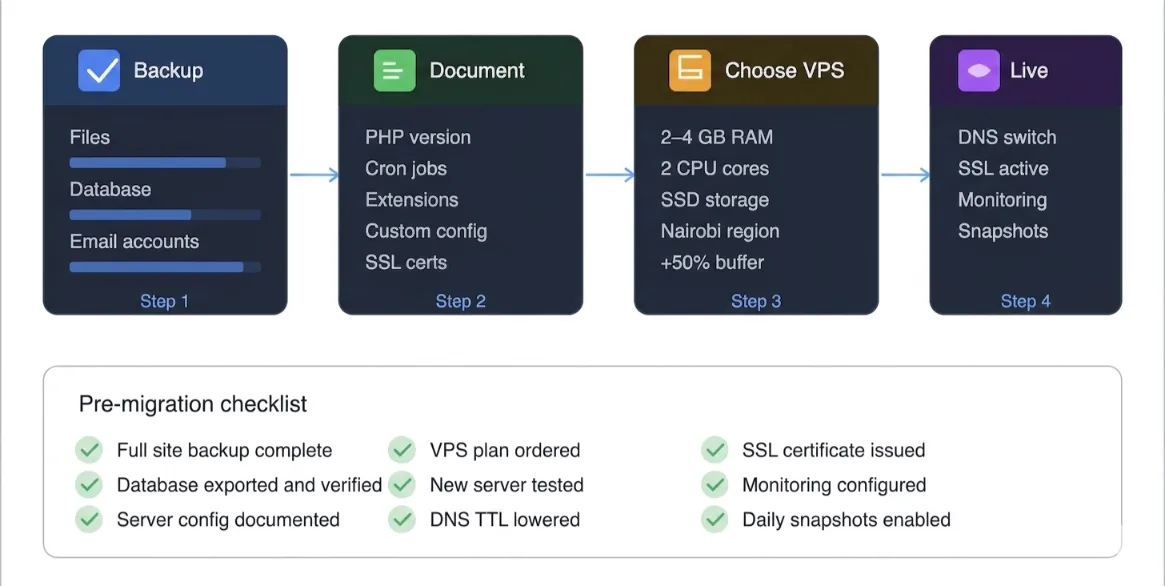
Create full backups of your files and database. On most shared hosts, use the built-in backup tool or phpMyAdmin to export your database. Download everything to your computer and store an extra copy in the cloud. This is your safety net, never skip it.
Document your current config
Note your PHP version, active extensions, cron jobs, email accounts, and any custom settings. Take screenshots of important panels. This helps you recreate the environment accurately on the new VPS.
Choose your VPS plan based on current + projected needs
Look at your traffic trends. Add 50–100% buffer for growth. A basic site with moderate traffic might start with 2–4 GB RAM and 2 CPU cores. Heavier apps or AI workloads need more.
Decide on managed vs unmanaged
If you’re comfortable with SSH and server commands, go unmanaged for lower cost. If you prefer someone else handles updates, security, and server health, choose managed. Your technical comfort level decides this.
Get more detailed information on how a VPS works?
Step 1: Order Your VPS Plan
Matching the provider to your audience location is very crucial a lot for speed. For East Africa users, a Kenya data center delivers the lowest latency.
We at Truehost offer strong local options. Our unmanaged Kenya VPS starts from KES 1,400/mo in the Nairobi data center.
Managed options in Europe or the US start from KES 1,120/mo. These plans give you excellent value with SSD storage and generous bandwidth.
Size your specs thoughtfully: review current usage and project 6–12 months ahead. It’s easier (and cheaper) to choose slightly more resources now than to upgrade again soon.
Step 2: Set Up Your Server
Once your VPS is provisioned, it’s time to configure it.
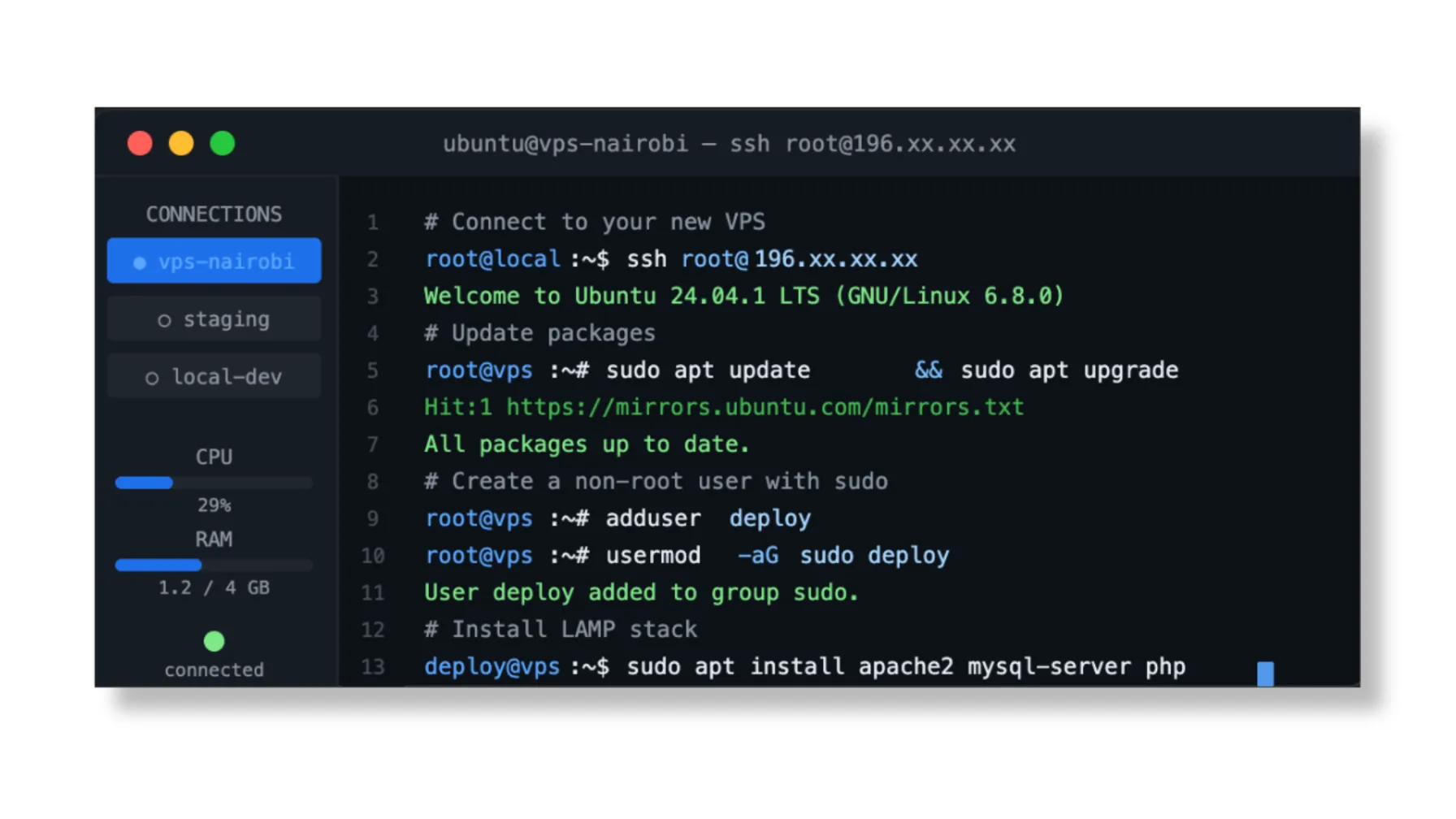
Log in via SSH. Choose a stable OS like Ubuntu 24.04 LTS, run system updates (sudo apt update && sudo apt upgrade), and create a non-root user with sudo privileges for daily work. This is more secure than always using root.
If you choose a Truehost managed plan or one-click option, much of this is pre-configured.
You get runtime environments, SSL setup, and a clean dashboard ready to go skipping manual server hardening entirely.
Step 3: Install Your Stack
Install the right software stack for your application.
For traditional websites, set up LAMP (Linux, Apache, MySQL, PHP) or LEMP (with Nginx).
For modern apps, you might need Node.js or Python environments.
For AI and automation workloads, Truehost’s Openclaw VPS comes especially handy.
It arrives with runtime and plugin registry pre-wired; you simply connect your LLM key (OpenAI, Anthropic, or local models) and start building right away.
Step 4: Migrate Your Files
Transfer your website files carefully.
Use SFTP (with FileZilla) or rsync for larger sites. WordPress users can also use migration plugins like All-in-One WP Migration or Duplicator.
After transfer, verify the directory structure matches your old setup and fix file permissions (usually 644 for files and 755 for directories).
Test a few pages to ensure everything loads.
Step 5: Migrate Your Database
Export your database from the old host using phpMyAdmin or the mysqldump command.
Import it into the new VPS database. Then update your configuration file for WordPress, edit wp-config.php with the new database name, username, password, and host (usually localhost).
Test the database connection thoroughly before changing any DNS. Run a few queries and load dynamic pages to confirm everything works.
Step 6: Update DNS Settings
This step controls when traffic switches to your new server.
A few hours before switching, lower your domain’s TTL to 300 seconds (5 minutes), so changes propagate faster. Then update the A record to point to your new VPS IP address.
If you’re starting fresh with Truehost, we auto-connect your domain and provide free SSL at checkout, making this part much simpler.
Step 7: Test Before Going Live
Never flip DNS without testing first.
Edit your local hosts file to point your domain to the new VPS IP temporarily. This lets you preview the full site as if it were live.
Thoroughly test forms, checkout processes, logins, email sending, third-party integrations, and speed. Fix any broken links or permission issues now.
Only when everything passes should you proceed to go live.
Learn how to monitor VPS performance
Step 8: Go Live and Monitor
When ready, update your DNS A record and wait for propagation. Use whatsmydns.net to check progress globally.
Flush caches on your old host and new server. Set up monitoring with free tools like UptimeRobot.
Truehost managed plans include daily snapshots, giving you a clean restore point if anything unexpected happens in the first 24 hours.
Common Mistakes to Avoid When Upgrading
Even experienced users make these errors. Here’s what to watch:
- Skipping full backups before migration (data loss risk).
- Forgetting to test everything on the new server before changing DNS.
- Choosing underpowered specs and needing another upgrade too soon.
- Ignoring security hardening (firewall, automatic updates, fail2ban, strong passwords).
- No monitoring or backup strategy after going live.
Avoiding these keeps your migration smooth and stress-free.
See our guide on the steps to get started with VPS as a beginner
Why Truehost for Scaling Your Hosting?
We at Truehost built our infrastructure with Kenyan businesses and East African users in mind.
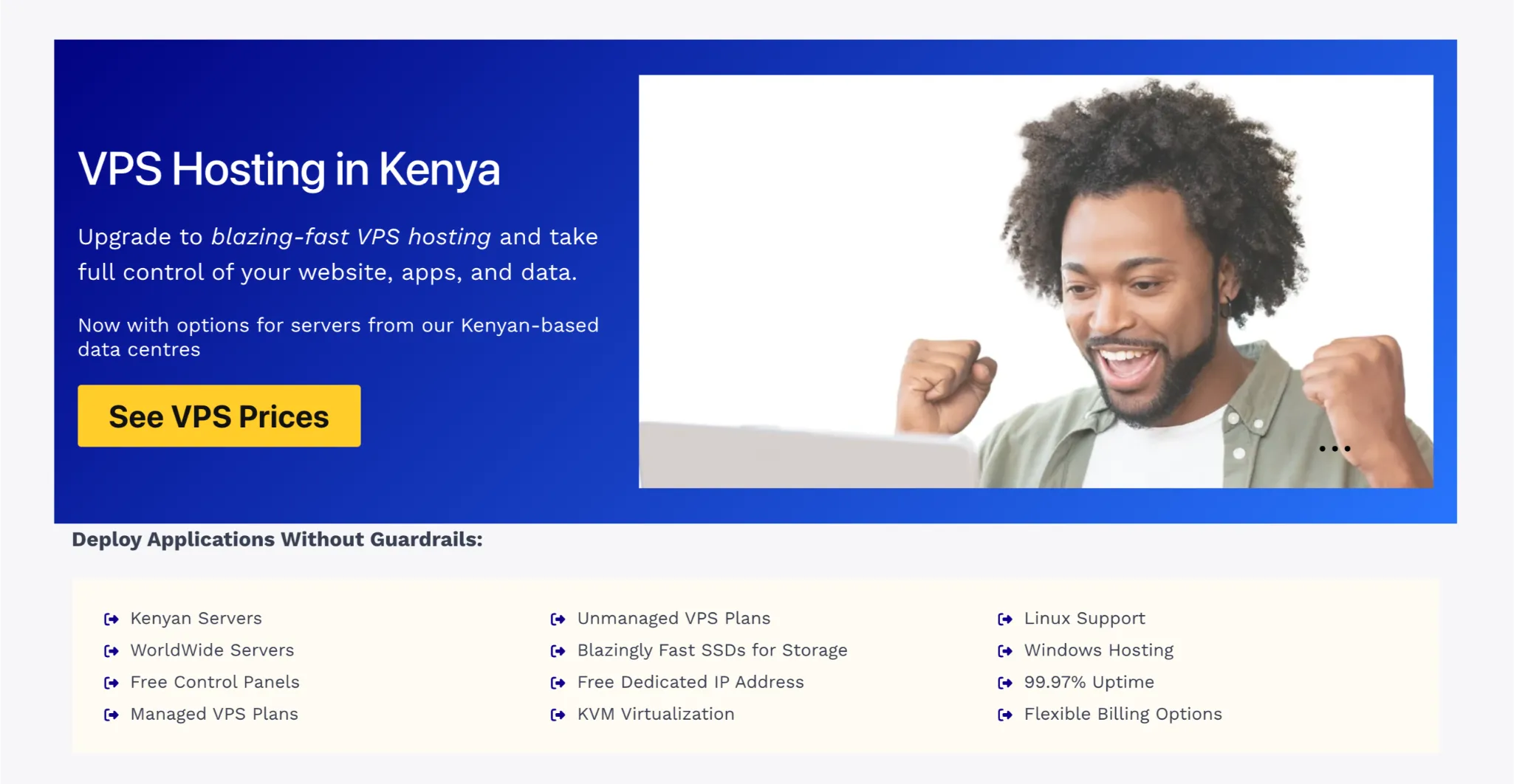
- Kenya-first infrastructure: Nairobi data center delivers sub-10ms latency for local users, plus reliable Europe and US managed options.
- Affordable entry: Managed plans from KES 1,120/mo, Kenya unmanaged VPS from KES 1,400/mo.
- Fast deployment: 60-second one-click setups with pre-configured SSL, runtime, and dashboard.
- Specialized options: LLM-agnostic Openclaw VPS for AI and automation workloads, bring your own keys.
- Excellent support: 24/7 human team with average first response under 4 minutes.
- Peace of mind: 30-day satisfaction guarantee.
These features make scaling straightforward and reliable.
Head over to our hosting plans and choose the right VPS for your needs. Our team is ready to help you migrate smoothly.