Domain SearchInstantly check and register your preferred domain name
 Web Hosting
 cPanel HostingHosting powered by cPanel (Most user friendly)
 WordPress HostingHost your WordPress website with fast, secure, and affordable WordPress hosting in Kenya.
 KE Domains
 Reseller HostingStart your own hosting business without tech hustles
 Windows HostingOptimized for Windows-based applications and sites.
 Free Domain
 Affiliate ProgramEarn commissions by referring customers to our platforms
 Free HostingTest our SSD Hosting for free, for life (1GB storage)
 Domain TransferMove your domain to us with zero downtime and full control
 All DomainsBrowse and register domain extensions from around the world
 .Com Domain
 WhoisLook up domain ownership, expiry dates, and registrar information
 VPS Hosting
 Managed VPSNon techy? Opt for fully managed VPS server
 Dedicated ServersEnjoy unmatched power and control with your own physical server.
 Website Builder
 Online Store BuilderLaunch a professional e-commerce store without writing code.
 Web Design ServiceGet a custom-designed website tailored to your brand and goals. From just KES 15,600
 BlogRead our guides on web hosting, online business, digital marketing, and more
 SupportOur support guides cover everything you need to know about our services
 ContactContact us via chat or email
You create a great PDF, you’re excited to share it, then the link loads slowly or pushes people off your site.
It’s frustrating, and it makes your hard work feel wasted. Many Kenyan creators and business owners face the same problem every day.
You want people to open your PDF quickly, not wait through delays or deal with broken downloads.
The fix is simple. Host your PDF the right way. Your files load fast, stay secure, boost your Google ranking, and make visitors trust your site more.
This guide walks you through everything step by step in clear, simple language.
You will learn:
- Why hosting PDFs on your website matters
- Easy methods to host your files
- How to upload a PDF the right way
- How to embed PDFs inside a page
- Smart ways to share your files
- How to keep everything safe
By the end, your PDFs will load smoothly and support your brand. And if you want fast local speeds, Truehost offers hosting from Ksh 188 per month with servers in Nairobi.
Importance Of PDF Hosting
When someone lands on your website, they want value right now. Maybe they’re looking for:
- Your product catalog
- A recipe booklet
- A business guide
- A school worksheet
If your PDF takes forever to load, they bounce, and you lose a reader, a lead, or even a sale.
Kenya now has over 50 million internet users, and expectations are high.
Research shows that 53% of mobile site visitors leave a slow site in under 3 seconds.
Heavy PDFs or weak external links drag your site down.
Hosting your PDF directly on your website fixes this.
- The file lives on the same server as your site
- The PDF opens instantly when clicked
- No redirects
- No random cloud pages
- No ads just clean, fast access
It also boosts your SEO. Google can index text inside many PDFs, and a well-named, properly hosted file can bring more organic traffic, especially when you include strategic keywords like “Kenya startup guide PDF.”
Local hosting makes a difference too. If your files sit on a Nairobi server, Kenyan users load them much faster.
Fast, clean PDF hosting builds trust. It makes your site feel professional, keeps visitors around longer, and encourages them to explore more pages.
And if you need enough space for all your PDFs, Truehost’s Starter plan gives you 30GB SSD storage plus free SSL.
Ways to Host PDFs on Your Website
Here are the three main methods, explained in simple, real-world style:
1) Direct Upload
You upload the PDF to your site’s media library. It’s like putting a product on your own shelf. You have full control.
2) Embedding
You show the PDF right inside a page. Visitors can scroll without opening a new tab. Great for tutorials, guides, or catalogs.
3) Cloud Storage
You store your PDF on places like Google Drive or Dropbox. Then you share a link.
This works for teams but may be slower for Kenyan users because the servers are often outside the country.
Here’s a clean comparison:
| Method | Best Use | Notes |
| Direct Upload | Blogs and small sites | Good for speed and SEO |
| Embed | Guides and catalogs | Keeps users on the page |
| Cloud Storage | Team sharing | Depends on outside servers |
Choose the one that fits your site. If you want easier control and fast local loading, direct upload is the best starting point.
Step-by-Step On How to Host a PDF on Your Website
Here is the simplest method. It works on most sites including WordPress.
1) Prepare the PDF
Keep it small so it loads fast. Use free tools like SmallPDF to reduce size. Aim for below 5MB.
Rename it clearly. A name like “kenya-business-guide.pdf” helps Google understand what it is.
Add your title and keywords inside the file properties. This helps SEO too.
2) Log in to Your Website
If you use WordPress, go to yourdomain.com/wp-admin.
If you use Truehost, you can open cPanel right from your client area.
3) Open Your Media Library
Click “Media” on the left side.
This is where your images and documents live.
4) Upload the File
Click “Add New.”
Drag your PDF into the box or choose it from your computer.
5) Copy the File Link
Once uploaded, click on the PDF.
You will see a link called “File URL.”
Copy that link.
6) Add the Link to Your Page
Go to the page or post where you want to share the PDF.
Highlight text like “Download Guide” and paste the link.
Save and test it.
That’s it. Your PDF is now hosted. It loads fast and is easy to share.
If something goes wrong:
- Compress the file more
- Clear your site cache
- Check if the file is set to public
If you need more storage for many PDFs, Truehost’s Pro plan gives 50GB SSD and free migration.
How to Embed a PDF on a Web Page
Links are okay. Embeds are better when you want people to stay on the page.
Quick Embed with HTML
Paste this code into your page:
<iframe src=”your-pdf-url.pdf” width=”100%” height=”600″ style=”border:0;”></iframe>
You can change the height to fit your design.
Embed Using Tools Like pdfFiller
- Upload your PDF
- Edit if needed
- Copy the embed code
- Paste it on your site
It works well for forms, contracts, and branded documents.
For a Flipbook Feel
Tools like FlippingBook turn your PDF into a modern, book-style viewer.
You can add links, videos, and your logo.
This is great for product catalogs or school manuals.
How to Share PDFs Online
Once your PDF is hosted, sharing it everywhere becomes super straightforward.

Here are effective ways to get it in front of your audience:
1) Add Buttons on Your Website
Create clear, styled buttons like “Download PDF” or “View Guide” on key pages.
Place them:
- On your homepage
- Inside blog posts
- On service/product pages
- In your website’s menu or footer
Buttons stand out visually, so they get more clicks than plain text links.
2) Use a Direct Download Link
A simple hyperlink still works perfectly. For example:
Download the full catalog (PDF)
Use it in:
- Blog posts
- Landing pages
- Online forms (confirmation pages)
- Chat widgets
Direct links also let search engines crawl the PDF easily.
3) Share QR Codes for Offline or Event Use
Perfect for events, posters, or product packaging.
Use a free generator like QRCode Monkey:
- Paste your hosted PDF link
- Customize the color/design (optional)
- Download the QR code
- Print it on brochures, banners, receipts, or business cards
Anyone scanning the QR instantly lands on your PDF.
4) Post It on Social Media
Share your PDF on platforms like:
- Facebook
- Twitter/X
- LinkedIn
- Instagram (via bio link or Stories swipe-up, if available)
You can pair the link with a short caption explaining what’s inside the PDF to boost engagement.
5) Send Through WhatsApp
Great for Kenya’s mobile-heavy audience.
- Share the direct link in WhatsApp Groups
- Use WhatsApp Broadcast Lists for clients
- Add the link to your WhatsApp Business profile
This makes it super easy for people to forward your PDF link to others.
6) Include It in Email Newsletters
Add the link inside:
- Monthly newsletters
- Welcome email sequences
- Lead magnets
- Customer onboarding emails
Emails help you reach your most engaged audience and track clicks.
7) Track Your PDF Clicks
To understand how people interact with your PDF:
- Use your website analytics (like Google Analytics 4) to monitor link clicks
- Add UTM tracking to your PDF link to see which platform brings the most downloads
Example:
?utm_source=facebook&utm_medium=social&utm_campaign=pdf_launch
This helps you measure performance and refine your sharing strategy.
Security and Best Practices
You want your PDFs safe and trusted. Here is what to do:
- Use SSL on your site
- Compress files for faster loading
- Use strong passwords for sensitive PDFs
- Update metadata yearly
- Keep backups
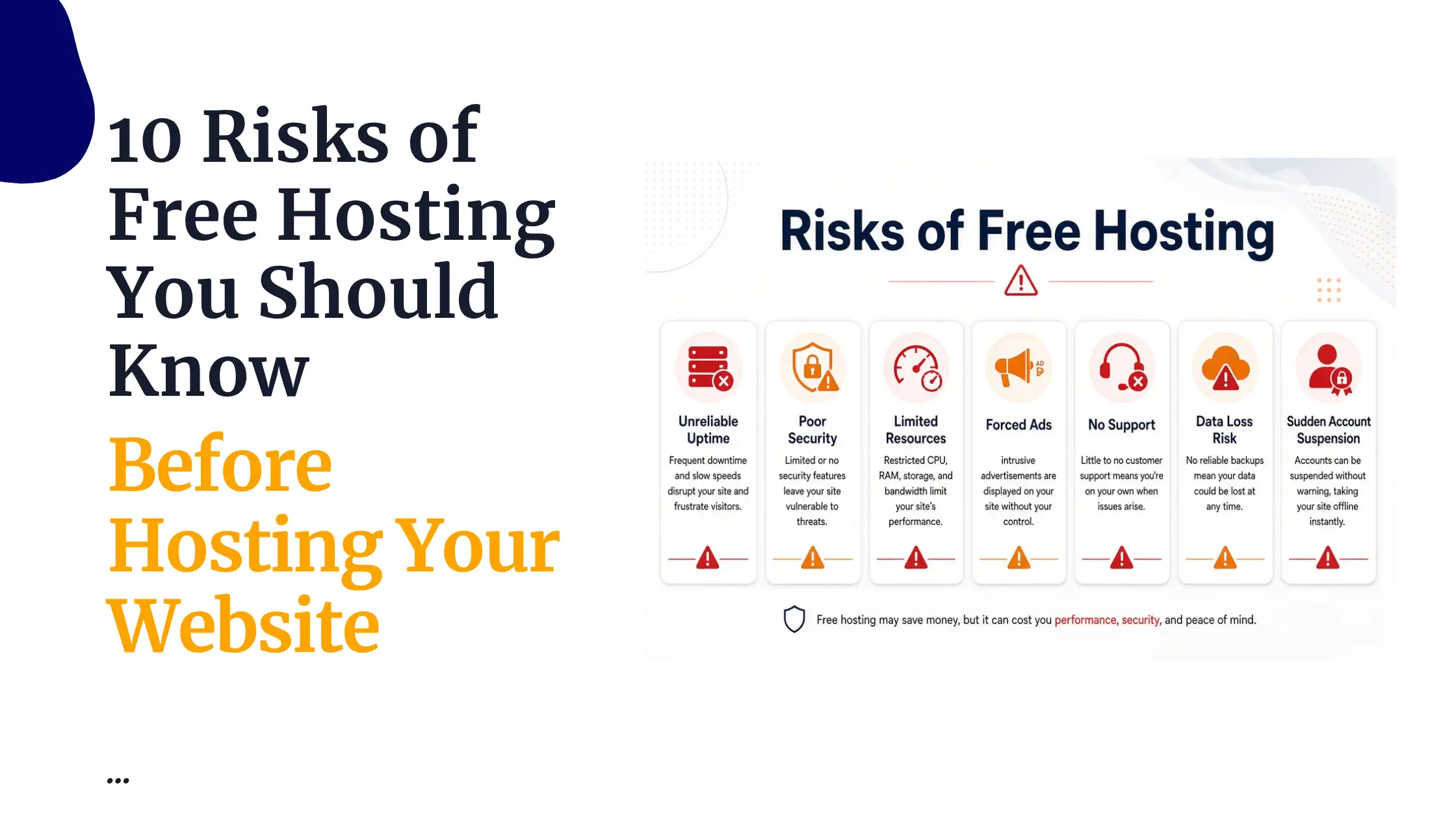
- Avoid free hosting that shows ads or redirects
Truehost includes SSL for free and daily backups, which helps keep your files safe.
FAQs
1) How can I let someone view a PDF without downloading it?
Embed it on the page using an iframe or embedding tool.
2) Should I embed or link a PDF?
Embed for reading. Link for quick downloads.
3) Does hosting PDFs help SEO?
Yes. Google reads PDFs, so use clear names and keywords.
4) How do I secure a PDF online?
Use SSL, strong passwords, and trusted hosting.
5) Can I host PDFs for free?
Yes, if your hosting package includes storage.
6) What’s the best PDF hosting for Kenya?
Local servers are faster. Truehost uses Nairobi servers.
7) Do PDFs slow down a site?
Only if they are too large or stored on slow servers.
Conclusion
You now have everything you need to host and share PDFs the right way. Clean, fast, safe, and SEO-friendly.
It doesn’t matter if you run a blog, shop, school, or company, good PDF hosting will make your site more helpful and more professional.
If you want hosting that keeps your PDFs fast for Kenyan visitors, check out Truehost. It is affordable, secure, and very simple to use.
Your PDFs are ready for the spotlight. Let’s get them online.