Domain SearchInstantly check and register your preferred domain name
 Web Hosting
 cPanel HostingHosting powered by cPanel (Most user friendly)
 WordPress HostingHost your WordPress website with fast, secure, and affordable WordPress hosting in Kenya.
 KE Domains
 Reseller HostingStart your own hosting business without tech hustles
 Windows HostingOptimized for Windows-based applications and sites.
 Free Domain
 Affiliate ProgramEarn commissions by referring customers to our platforms
 Free HostingTest our SSD Hosting for free, for life (1GB storage)
 Domain TransferMove your domain to us with zero downtime and full control
 All DomainsBrowse and register domain extensions from around the world
 .Com Domain
 WhoisLook up domain ownership, expiry dates, and registrar information
 VPS Hosting
 Managed VPSNon techy? Opt for fully managed VPS server
 Dedicated ServersEnjoy unmatched power and control with your own physical server.
 Website Builder
 Online Store BuilderLaunch a professional e-commerce store without writing code.
 Web Design ServiceGet a custom-designed website tailored to your brand and goals. From just KES 15,600
 BlogRead our guides on web hosting, online business, digital marketing, and more
 SupportOur support guides cover everything you need to know about our services
 ContactContact us via chat or email
So you have a website. Or maybe you just bought a domain name like yourbiashara.co.ke. Now you need an email address that matches it.
You want something like [email protected] instead of [email protected].
It looks more professional. Customers trust it more and show you are serious about what you do.
But if you have never done this before, you might be wondering where to start. How do you create that email? What do you need? Is it complicated?
Well, it is not complicated at all. If you have hosting with Truehost Kenya, you get access to cPanel. And in cPanel, creating an email takes about two minutes.
In this guide, I will show you how to create email accounts using cPanel. I will walk you through every step.
I will also share common mistakes to avoid so you do not encounter issues later.
What You Need Before Creating an Email Account on cPanel
Before we get into cPanel, let’s make sure you have a few things ready.
An Active Web Hosting Account
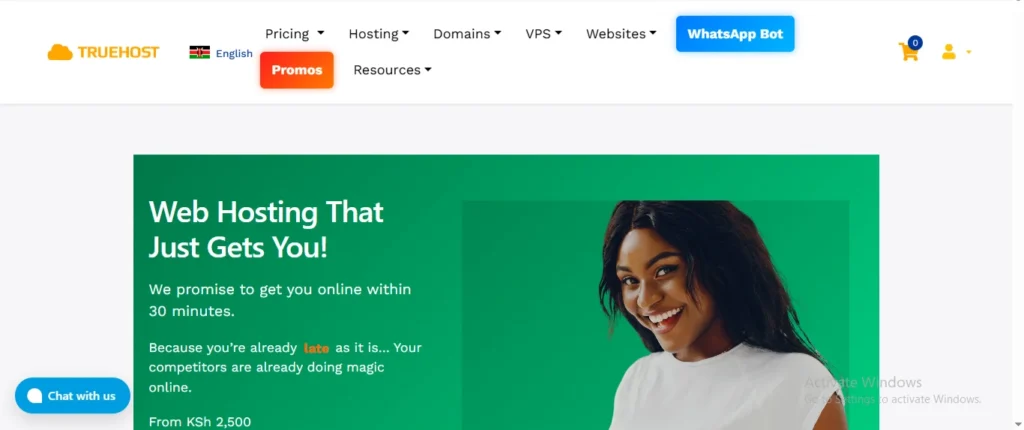
You need a place for your email to live. If you bought a domain name but don’t have hosting, the email has nowhere to go.
At Truehost Kenya, we offer several plans, including the WebHosting Starter for KSh 188/mo. All our plans come with cPanel and unlimited email accounts.
Your cPanel Login Details
When you sign up for hosting with us, we send you a welcome email. That email contains your cPanel login link (e.g., https://yourdomain.co.ke:2083), your username, and your password.
Please find that email. You’ll need it.
Your Domain Name
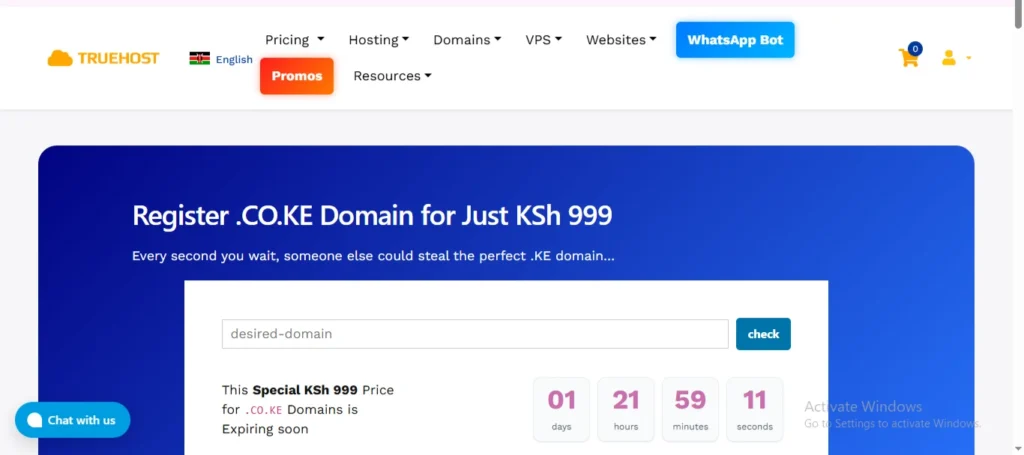
This is the name you want in your email address, like mybiashara.co.ke. If you registered it through us, it should already be connected to your hosting account.
Step-by-Step: Creating Your Email Account
Let’s now create an email account in cPanel.
Step 1: Log In to Your cPanel
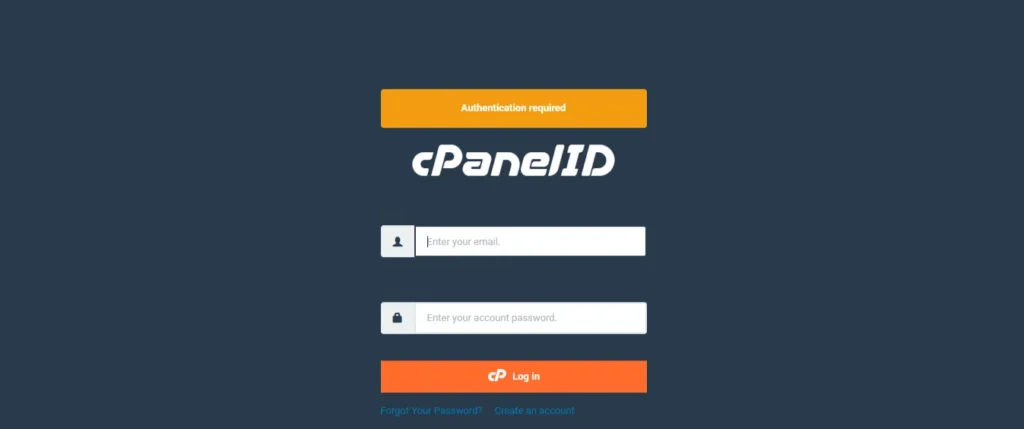
Open your web browser. It can be Chrome or Firefox, whatever you normally use.
In the address bar at the top, type the special web address for your cPanel. This is usually:
https://yourdomain.co.ke:2083
You will see a login page. Enter the Username and Password from the welcome email I mentioned. Then click the Log in button.
Step 2: Find the Email Accounts Section
Once you are logged in, you will see a page full of icons. This is your cPanel dashboard.
It can look a bit busy at first, but don’t worry. We are only looking for one thing.
Scroll down slightly until you see a section labeled Email. Within that section, there will be an icon labeled Email Accounts. Click on it.
Step 3: Click the Create Button
You are now on the main Email Accounts page. This is where you manage all your email addresses.
Look for a button labeled + Create or simply Create. It’s usually at the top of the page or in the middle. Click it. A new form will open for you to complete.
Step 4: Fill in the Account Details
This is the main part. Let’s fill out this form together.
Choose Your Domain: A Domain drop-down menu will appear. If you only have one domain, it will already be selected.
If you have multiple domains on your account, such as one for your business and one for your personal blog, make sure you select the correct one from this list.
Enter the Username: This is the first part of your email address. In the Username field, enter the name you want.
Let’s say you want to set up an email address for general inquiries. You would type info.
For a sales email, you might type sales.
For your personal use, you might enter your name, such as John. If you enter information here, your full email address will be set to [email protected].
Set a Strong Password: This is very important. You don’t want someone hacking into your business email.
You can type your own password into the Password box. Make it strong. Use a mix of capital letters, small letters, numbers, and symbols. Something like J0hnD0e!2026 is much better than password123.
As you type, cPanel displays a strength meter. Try to get it to Strong.
Alternatively, you can click the Generate button. cPanel will create a very long, random, and super secure password for you.
If you do this, you must copy the password and save it securely immediately. Click the small eye icon next to the password field to reveal the password, then copy it.
Set the Mailbox Quota (Optional): You will see a section called Mailbox Quota or Storage Space. This controls how much space this email account can use.
You can leave it as Unlimited. This means the email can use as much space as your overall hosting plan allows. This is usually fine.
If you want to limit it, maybe for a temporary staff member, you can select the second option and type in an amount, like 200 MB.
Click the Create Button: Once you have filled in the domain, username, and password, look at the bottom of the form. There will be a big Create button. Click it.
Wait just a few seconds. You will then see a message saying the account has been created successfully. That’s it! You now have a professional email.
Mistakes to Avoid When Creating an Email Account on cPanel
Some of the pitfalls to watch out for when creating an email on cPane include:
a) Using a Weak Password
People use simple passwords like password123, admin2026, or their phone number, making them vulnerable to scammers.
Your business email is a target. If someone compromises it, they can access your customer conversations, read your invoices, or even send fraudulent emails to your clients asking for money.
Use a strong mix of letters, numbers, and symbols. Click the Generate button in cPanel to create a random password. Save it somewhere safe immediately.
b) Forgetting Your Password Immediately
This happens all the time. Someone creates an email account, closes the window, and a week later cannot log in. Now they need to reset everything and might lose important emails.
To avoid this, write the password in a notebook. Save it in a secure notes app on your phone. Use a password manager. Just do not rely on your memory.
c) Choosing an Unprofessional Username
Your email address represents you. If you use something like [email protected], people will not take you seriously.
Stick to standard names like info@, sales@, support@, or your own name like john@. Keep it short and easy to spell.
d) Not Setting Up a Default Email Account
What happens when someone emails a wrong address at your domain? Like supportt@ instead of support@.
If you have no default account, that email disappears. You lose a potential customer.
So, in cPanel, find Default Address or Catch-All. Set it to forward all misdirected emails to your main address. This way, you never miss a message.
e) Ignoring Storage Limits
If you set your email quota too low, you will stop receiving new messages. If you set it to Unlimited but never clean your inbox, it will fill up with old emails and attachments, slowing everything down.
Set a reasonable quota, such as 1 GB or 2 GB. Delete any old messages you no longer need. Download important attachments and remove them from the server.
f) Setting Up Your Phone Incorrectly
Many people type the server information wrong and give up. Then they rely solely on webmail, which is less convenient.
Use these exact settings:
- Incoming Server (IMAP): mail.yourdomain.co.ke
- Outgoing Server (SMTP): mail.yourdomain.co.ke
- Username: Your full email address
- Ports: IMAP 993 with SSL, SMTP 465 with SSL
g) Forgetting to Check Spam Folders
Important customer emails may end up in Spam. If you never check that folder, you will never see them. The customer thinks you are ignoring them and goes elsewhere.
Remember to check your Spam folder regularly. Mark legitimate emails as “Not Spam” to train the system.
h) Creating Too Many Unnecessary Accounts
Having unlimited email accounts does not mean you need twenty of them. You will forget passwords and waste time logging in and out.
Keep it simple. Start with just a few, like info@ and your personal name. Use email forwarding for other addresses.
Final Take
Creating a professional email like [email protected] takes just a few minutes. But it makes a huge difference in how customers see you. It shows you are serious about your business.
Now you know exactly how to do it. You have the steps. You know the mistakes to avoid. The only thing left is to take action.
If you do not have hosting yet, we can help. At Truehost Kenya, our plans start from just KSh 188/mo.
You get cPanel, unlimited email accounts, free SSL certificates, and 24/7 support from people who reliably answer the phone.
.CO.KE domains are only KSh 999 for new registrations.