Domain SearchInstantly check and register your preferred domain name
 Web Hosting
 cPanel HostingHosting powered by cPanel (Most user friendly)
 WordPress HostingHost your WordPress website with fast, secure, and affordable WordPress hosting in Kenya.
 KE Domains
 Reseller HostingStart your own hosting business without tech hustles
 Windows HostingOptimized for Windows-based applications and sites.
 Free Domain
 Affiliate ProgramEarn commissions by referring customers to our platforms
 Free HostingTest our SSD Hosting for free, for life (1GB storage)
 Domain TransferMove your domain to us with zero downtime and full control
 All DomainsBrowse and register domain extensions from around the world
 .Com Domain
 WhoisLook up domain ownership, expiry dates, and registrar information
 VPS Hosting
 Managed VPSNon techy? Opt for fully managed VPS server
 Dedicated ServersEnjoy unmatched power and control with your own physical server.
 Website Builder
 Online Store BuilderLaunch a professional e-commerce store without writing code.
 Web Design ServiceGet a custom-designed website tailored to your brand and goals. From just KES 15,600
 BlogRead our guides on web hosting, online business, digital marketing, and more
 SupportOur support guides cover everything you need to know about our services
 ContactContact us via chat or email
Pip packages are additional tools and libraries that extend Python’s capabilities, ranging from web frameworks (Django, FastAPI) to data science tools (pandas, NumPy) to automation libraries.
Over time, packages become outdated, which can introduce security vulnerabilities, bugs, or missing features. Keeping them updated improves security, stability, and performance.
This is a test
Unlike many package managers, pip does not have a single built-in command to update all packages safely.
This guide shows you how to update all pip packages on Windows, Linux, and macOS.
What You’ll Learn:
How to check which packages are outdated
Multiple reliable methods to update packages
Best practices to avoid breaking your projects
How to troubleshoot common issues
What You Need Before Updating
Before you run any update commands, prepare your environment properly. This step saves hours of headaches later.
a) Verify Python and pip Versions
Open your terminal or command prompt and run:
python --version
pip --version
Or on some systems:
python3 --version
pip3 --version
You should see Python 3.8 or newer (ideally 3.10+ in 2026) and a recent pip version.
b) Upgrade pip and Core Tools First
Always start here:
python -m pip install --upgrade pip setuptools wheelThis ensures the update tools themselves work smoothly.
Get information on when to use VPS hosting
c) Always Use a Virtual Environment (Strongly Recommended)
Never update packages in your system Python. Create and activate a virtual environment instead:
On Linux/macOS:
python -m venv myproject_env
source myproject_env/bin/activate
On Windows:
python -m venv myproject_env
myproject_env\Scripts\activate
This isolates your project and prevents conflicts with other applications.
d) Backup Your Current Environment
pip freeze > requirements.txtThis creates a snapshot. If something breaks, you can restore with pip install -r requirements.txt.
e) Understand Pinned vs Unpinned Packages
Pinned (
== in requirements.txt): Update these intentionally, usually for security patches.Unpinned (
>= or no version): Safer for general upgrades.
Never update packages in production without testing first. A 10-minute test run can save days of debugging. For a deeper look at how production issues can spiral fast, Brooke Harris shares a real-world story on DEV: Why Debugging in Production Isn’t Always a Bad Thing.
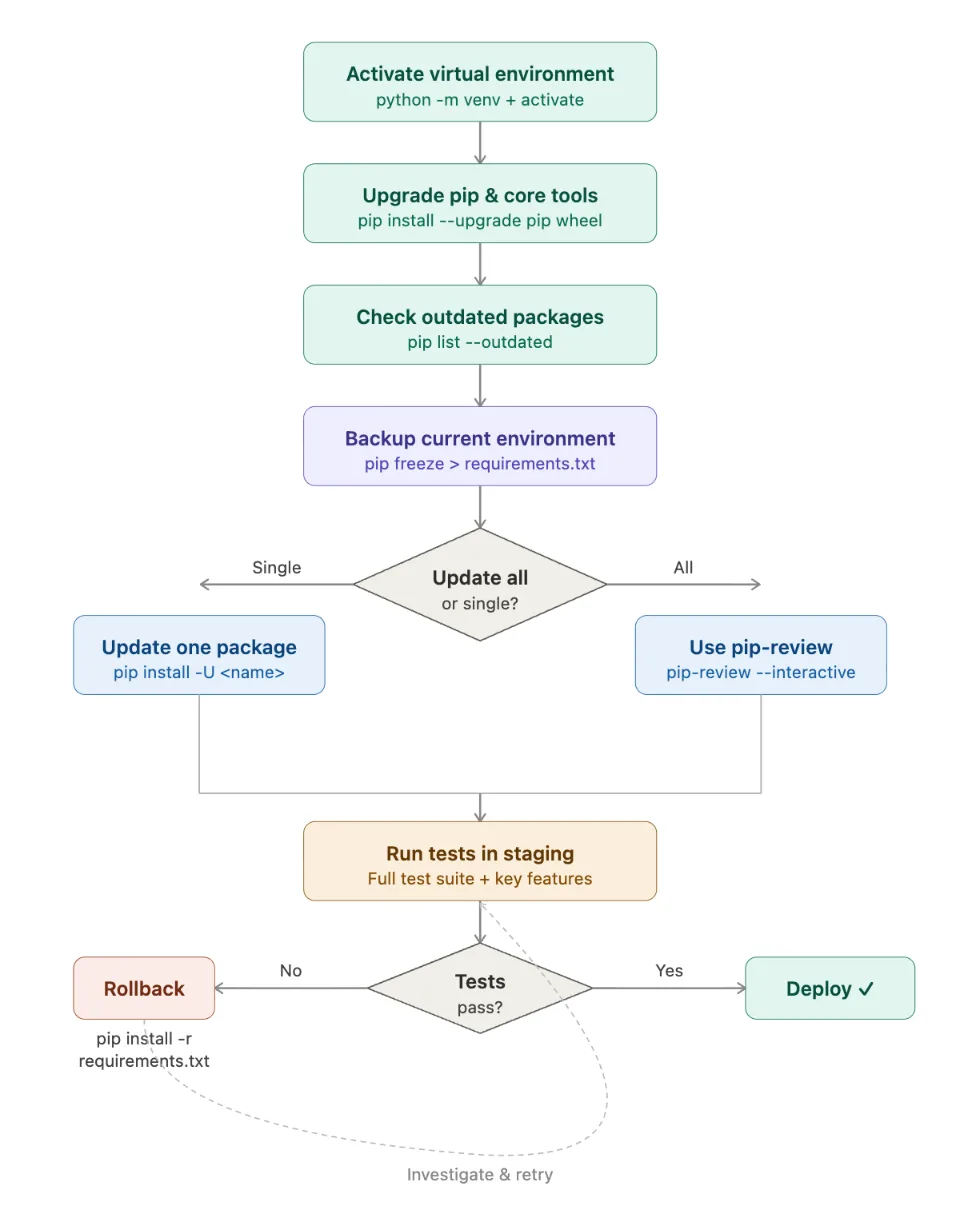
1) Check Which Packages Are Outdated
The first smart step before updating anything is knowing exactly what needs attention. Blindly upgrading everything is risky.
Run this command in your activated virtual environment:
python -m pip list --outdatedThis gives you a clean table showing:
Package: Name of the library
Version: What you currently have installed
Latest: The newest available version
Type: Usually ‘wheel’
Here’s an example of what you might see:
| Package | Version | Latest | Type |
| requests | 2.28.1 | 2.32.3 | wheel |
| pandas | 2.0.3 | 2.2.3 | wheel |
| django | 4.2.0 | 5.1.0 | wheel |
This command is reliable and works the same across Windows, Linux, and macOS.
You can make it cleaner with:
python -m pip list --outdated --not-requiredThis filters out dependency packages and shows only the top-level ones you directly installed. Very useful when your project grows.
Pro Tips for Checking
Always run this inside your project’s virtual environment.
For more detailed output, try:
python -m pip list --outdated --format=columnsSave the list for later:
python -m pip list --outdated > outdated.txt
Once you know what’s outdated, you can decide whether to update one package, a few, or all of them.
2) Update a Single Package
Updating one package at a time is often the safest approach, especially for important or production projects. This method gives you full control and makes it easier to spot problems early.
Here’s the basic command (run it inside your activated virtual environment):
python -m pip install --upgrade package_nameOr use the shorter version:
python -m pip install -U package_nameExample: To update pandas:
python -m pip install --upgrade pandasPip will download and install the latest compatible version, and also upgrade any dependencies if needed.
Why single updates win for most cases
You can test the project immediately after each change.
Easier to roll back if something breaks.
Reduces the risk of multiple packages conflicting.
Always check the package’s release notes or changelog before upgrading critical libraries like Django, FastAPI, or cryptography.
3) Update All Packages
You now know which packages are outdated. The next decision is how to upgrade them all without breaking your project.
Pip doesn’t have a single built-in safe command for this, so here are four reliable options. Choose based on your comfort level and project size.
Option A: Using pip-review (Easiest for most people)
This tool makes the process interactive and safer.
python -m pip install pip-reviewThen check for updates:
pip-reviewFor interactive upgrades (recommended):
pip-review --interactiveTo upgrade everything automatically:
pip-review --autoOption B: One-liner for Linux / macOS
python -m pip list --outdated --format=json | python -c "
import json, sys
packages = [pkg['name'] for pkg in json.load(sys.stdin)]
print('\n'.join(packages))
" | xargs -n1 python -m pip install -U
Option C: One-liner for Windows (PowerShell)
python -m pip list --outdated | %{$_.split(' ')[0]} | %{python -m pip install --upgrade $_}Option D: Using requirements.txt (Most controlled method)
python -m pip freeze > requirements.txt
python -m pip install --upgrade -r requirements.txtNote: This works best when your requirements.txt uses >= instead of strict == pinning.
Emerging Alternative: uv (Fast and gaining traction in 2025–2026)
Many developers are switching to uv, a Rust-based tool that’s much faster than pip.
uv pip install -U -r requirements.txtOr for projects using uv fully:
uv sync --upgradeSee web hosting for tech companies
How to Update pip Packages Safely
Updating packages can improve your project, but doing it carelessly often leads to broken dependencies, security issues, or hours of debugging. The key is a careful, repeatable process.
Here are the most important safety rules Kenyan developers should follow in 2026:
Always work inside a virtual environment. This keeps your system Python clean and prevents one project from affecting another.
Back up your current environment before bulk updates
pip freeze > requirements_backup.txtTest your code thoroughly after upgrading. Run your full test suite, check key features, and test in a staging environment before going live.
Use version pinning in production In
requirements.txt, prefer exact versions (==) for stability. Use>=mainly in development.Prefer incremental updates over mass upgrades. Update a few packages at a time, especially in larger projects like Django or FastAPI apps.
Consider automation tools for teams using GitHub or GitLab; tools like Dependabot or Renovate can create pull requests for updates automatically, with proper testing.
Test in a clone of your production environment first. One broken dependency in a live system costs more time than careful updating ever will.
Comparison of Update Approaches
| Method | Safety Level | Speed | Best For | Risk of Breaking Changes |
| Single Package | Highest | Slow | Production projects | Very Low |
| pip-review (Interactive) | High | Medium | Most developers | Low |
| requirements.txt | Medium-High | Medium | Controlled environments | Medium |
| One-liner scripts | Medium | Fast | Quick personal projects | Higher |
| uv tool | High (with care) | Very Fast | Modern workflows | Low-Medium |
Kenyan businesses running Python services on shared hosting or VPS benefit most from the safer methods. Frequent small updates keep systems secure without sudden downtime.

Truehost customers especially appreciate this approach when hosting Python apps. Our stable VPS and Dedicated Servers give you consistent environments to test updates safely before deploying.
Troubleshooting Common Errors When Updating pip Packages
Even with careful planning, issues can still appear during updates. Here’s how to handle the most frequent problems Kenyan Python developers face in 2026.
a) Dependency conflicts
You’ll see errors like ‘ResolutionImpossible’ or warnings that pip’s dependency resolver found conflicts.
Solutions:
Run this to diagnose:
python -m pip checkFor a clearer view of the dependency tree, install and use:
python -m pip install pipdeptree
pipdeptree
Fix by installing from your backed-up
requirements.txt:
python -m pip install -r requirements.txtLoosen version constraints in
requirements.txttemporarily or update conflicting packages together.
b) Permission errors
These happen when you try installing without proper rights.
Fixes:
On Windows: Run your terminal as Administrator.
On Linux/macOS: Use
sudo(not recommended in virtual environments) or add the--userflag:
python -m pip install --upgrade --user package_namec) Network or SSL errors
Common with unstable internet connections in parts of Kenya.
python -m pip install --upgrade --trusted-host pypi.org --trusted-host files.pythonhosted.org package_nameAlso try upgrading certifi first or checking your system time and proxy settings.
d) Rollback a bad update
If an update breaks your project, restore quickly:
python -m pip install -r requirements_backup.txt --force-reinstallThis reinstalls everything exactly as it was before the update.
Check out our guide on Python Web Hosting providers
How to Update All pip Packages FAQ
How to upgrade packages via pip?
Use this command for a single package:
python -m pip install --upgrade package_nameFor multiple packages, generate an updated requirements.txt and install from it, or use tools like pip-review.
Is it possible to upgrade all Python packages at one time with pip?
Yes, but pip has no single built-in safe command. You must use workarounds like the one-liners, pip-review, or upgrading via requirements.txt. Always do this inside a virtual environment.
What are common pip update errors?
- Dependency conflicts: Packages require incompatible versions.
- Permission errors: Fixed by running as Administrator (Windows) or using
--user. - Network/SSL issues: Common with unstable connections; use trusted hosts flags.
- ResolutionImpossible: Use
pip checkorpipdeptreeto diagnose.
How do I clear all pip cache?
Run this command:
python -m pip cache purgeThis removes all cached files and forces fresh downloads on the next install. Useful when you suspect corrupted cache files.
Can updating pip packages break my project?
Yes. Major version updates can introduce breaking changes, especially in frameworks like Django or data libraries like pandas. This is why incremental updates and thorough testing matter. Always keep a backup requirements.txt.
How do I check which pip packages are outdated?
Run:
python -m pip list --outdatedThis remains the standard command in 2026.
Is there a single command to update all pip packages at once?
No official one-click command exists for safety reasons. The closest options are the pip-review --auto or the requirements.txt upgrade method. For speed, many developers now use uv:
uv pip install -U -r requirements.txtGet Started with Reliable Python Hosting
Get started with Truehost VPS Hosting’s affordable plans, full root access, and local support tailored for Kenyan developers.
By combining smart dependency management with stable hosting, you position your business to build faster, ship more reliably, and compete effectively in East Africa’s growing digital economy.