Domain SearchInstantly check and register your preferred domain name
 Web Hosting
 cPanel HostingHosting powered by cPanel (Most user friendly)
 WordPress HostingHost your WordPress website with fast, secure, and affordable WordPress hosting in Kenya.
 KE Domains
 Reseller HostingStart your own hosting business without tech hustles
 Windows HostingOptimized for Windows-based applications and sites.
 Free Domain
 Affiliate ProgramEarn commissions by referring customers to our platforms
 Free HostingTest our SSD Hosting for free, for life (1GB storage)
 Domain TransferMove your domain to us with zero downtime and full control
 All DomainsBrowse and register domain extensions from around the world
 .Com Domain
 WhoisLook up domain ownership, expiry dates, and registrar information
 VPS Hosting
 Managed VPSNon techy? Opt for fully managed VPS server
 Dedicated ServersEnjoy unmatched power and control with your own physical server.
 Website Builder
 Online Store BuilderLaunch a professional e-commerce store without writing code.
 Web Design ServiceGet a custom-designed website tailored to your brand and goals. From just KES 15,600
 BlogRead our guides on web hosting, online business, digital marketing, and more
 SupportOur support guides cover everything you need to know about our services
 ContactContact us via chat or email
OpenClaw is gaining a lot of attention in 2026, and for good reason. It lets you take your preferred AI model, connect it to the tools you already use- Telegram, WhatsApp, Discord, Notion, calendars, smart home devices, and more, and run everything on hardware you control. That means no vendor lock-in, more privacy, and no ongoing subscription just to use your own API keys.
What makes OpenClaw stand out is how practical it is. Instead of opening a separate AI app every time you need help, you can have an assistant that already lives inside the platforms where work and conversations happen. It becomes part of your workflow rather than another tool you have to manage.
Arch Linux pairs especially well with OpenClaw. Its rolling-release model keeps software up to date, so you can access newer versions of dependencies like Node.js without waiting for major operating system releases.
It’s lightweight, highly customizable, and well documented, making it a great choice for users who want full control over their environment and a clear understanding of what’s running on their system.
Prerequisites & System Requirements
Before anything else, make sure you have these covered:
- Hardware: 2 GB RAM or more; any x86_64 machine works fine
- OS: Arch Linux x86_64 on the latest rolling release
- Node.js: Version 22.16 or newer (we’ll handle this in Step 2)
- API key: From Claude, GPT-4, DeepSeek, or a local model via Ollama
- Messaging account: Telegram, WhatsApp, Discord, or any other supported platform
One thing worth knowing up front: OpenClaw itself doesn’t cost anything to run. What you’ll actually spend money on is LLM API usage. Light users, occasional queries, a few automations, tend to land somewhere in the $5–20/month range.
Heavy or highly automated setups can push past $100/month. Worth factoring into your choice of model and configuration before you start wiring things up.
Step 1: Install the Toolchain
Sync before you install, always
This is Arch. Packages update constantly. If you install new software against a partially outdated package database, you’re asking for the kind of dependency mismatch that takes an hour to diagnose and thirty seconds to fix if you’d just synced first. Don’t skip it.
The one-liner that handles everything
Open your terminal and run the pacman sync and install command; it pulls in base-devel, git, cmake, python, nodejs, npm, and curl in a single pass. No PPAs, no external repos, no version juggling. Arch sorts the entire toolchain at once.
A note on Node.js
Node.js 22 is already in Arch’s official repositories, so the command above is all you need. You don’t have to set up nvm just to get past the install. If you’ve ever tried this on Ubuntu LTS and sat watching the package manager hand you Node 18 when you needed 22, you’ll appreciate this.
Option B: The AUR route with yay
If you manage most of your software through the AUR and would rather skip npm globals entirely, you can install openclaw-bin directly using yay. This is a first-class option, not a workaround. Both routes get you to the same place; pick whichever fits how you manage your system.
Step 2: Verify Node.js
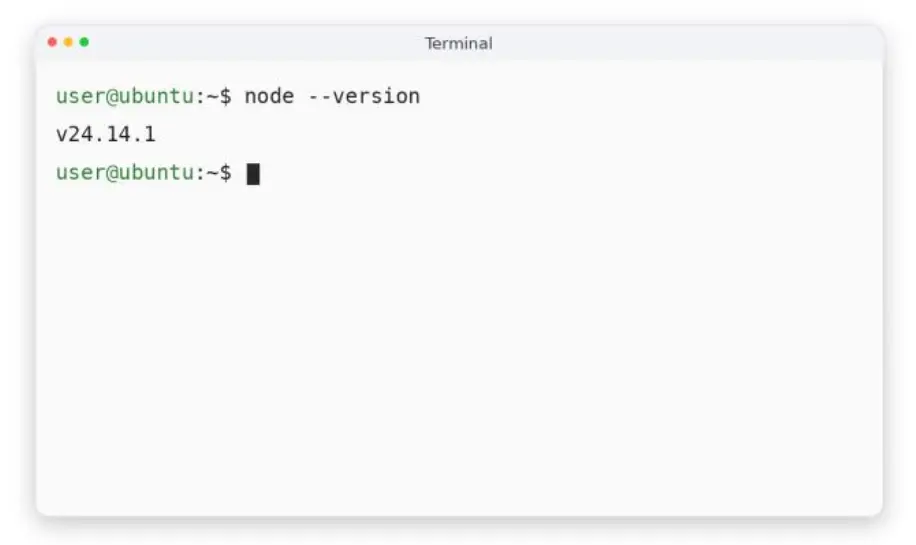
Before moving on, run a quick sanity check: ask your terminal for the current Node and npm version numbers. You need Node 22.16 or newer. If you get version numbers back from both and they look right, you’re good to continue.
If Node is older than 22.16, a pacman upgrade targeted at the nodejs package will sort it out. Arch generally keeps this current, which is one of the reasons it’s a cleaner environment for Node-dependent tooling than older Debian-style systems.
Running multiple Node projects? Consider nvm
If OpenClaw isn’t the only Node-dependent project on this machine, nvm (Node Version Manager) is worth the five-minute setup. It lets you pin different versions to different projects without any of them stepping on each other, and it sidesteps the permission issues that tend to come up with global npm packages.
Once nvm is installed, you can pull Node 22 into an isolated environment and point OpenClaw at that instead of your system Node.
Step 3: Install OpenClaw
The install itself is one command
Run the OpenClaw installer script from your terminal; you can find it at openclaw.ai/install.sh. Pipe it through bash, and it takes care of everything: detecting your system, pulling the right packages, and wiring the binary into place. There’s nothing to configure by hand.
If the shell can’t find openclaw afterward
This is a fairly common hiccup on Arch. The install completes without issues, but the shell doesn’t know where to look for the global npm binary. The fix is to add the npm global bin path to your PATH variable and reload your shell config.
Once that’s done, run openclaw –help in your terminal to confirm the command is reachable. If you see the help output, you’re set.
Step 4: Create a Dedicated Service User
For a personal setup where OpenClaw is mostly reading and responding, your regular account is fine. But if you’re planning to give it browser access, terminal access, or the ability to run long automations, it’s worth putting it behind its own user. It’s a simple containment measure: if something in the agent misbehaves, it can only touch what that user can touch.
The setup takes four steps: create a new system user called openclaw, give it a password, create a working directory under its home folder and set ownership, then switch into that account before running onboarding. All of this is standard useradd and chown work, nothing unusual for Arch.
Step 5: Run Onboarding
This is the step that actually completes the install
Once you’re in the right user context, run openclaw onboard from your terminal. Don’t treat this as optional post-install housekeeping. The onboarding wizard is where you select your LLM provider, paste your API key, and configure how the agent runs. Until this finishes successfully, OpenClaw isn’t ready to do anything useful.
Which model should you use?
OpenClaw works with Claude, GPT-4, DeepSeek, or a local model via Ollama. If you already have an API key somewhere, use that. If you want to run everything locally and keep costs at zero, Ollama is the cleanest option; it runs entirely on your hardware with no external API calls.
What does OpenClaw actually do once it’s running?
At launch, it ships with 50+ integrations: messaging platforms, AI models, productivity tools, music services, smart home devices, and automation tools. You don’t need to connect all of them on day one. Start with the one channel you actually want to use. Everything else can be added later in minutes.
Step 6: Keep It Running with systemd
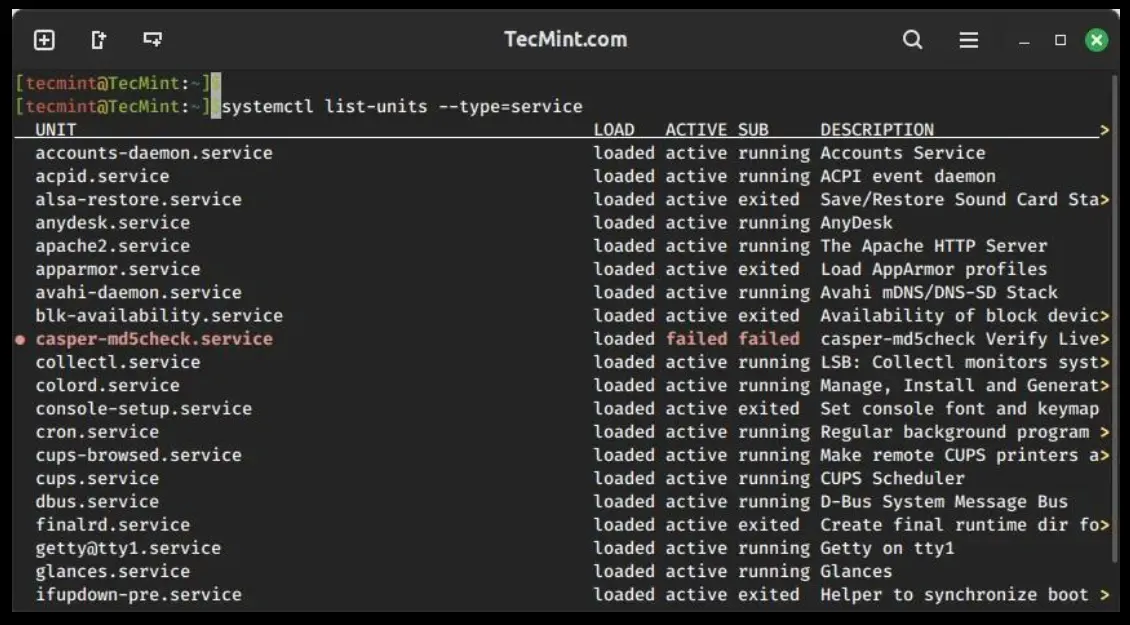
The right way to keep OpenClaw alive on Arch is a systemd user service. It’s native to the system, lightweight, starts on boot, and doesn’t require any third-party process manager sitting on top of it.
Create the service file
Start by creating the systemd user directory if it doesn’t already exist: ~/.config/systemd/user/. Then create a service file called openclaw.service inside it. The file follows standard systemd unit syntax: set the description, tell it to start after the network is up, point ExecStart at the openclaw binary with the start argument, and set it to restart automatically with a 10-second backoff. The WantedBy target should be default.target.
Enable and start it
Reload the systemd daemon for your user session, then enable and start the service in one go. From that point on, it will start automatically on every boot.
The one step most guides skip: keeping it alive after logout
By default, systemd user services only run while you’re logged in. The moment your session ends, the agent goes quiet. The fix is loginctl enable-linger run against your username; this tells systemd to keep your user services running even with no active session. Run it once, and you’re done.
Step 7: Verify the Gateway & Connect Channels
Check that everything is healthy before wiring anything up
Run openclaw gateway status first; it should confirm the gateway is up and listening. Then run openclaw doctor, which will catch any missing config or broken dependencies before they cause problems downstream. If both come back clean, you’re ready.
What you’ll need to connect your first channel
You’ll need your LLM API key, an AI search engine API key, and an account on at least one messaging platform. If you haven’t set these up yet, the onboarding flow can walk you through registering for them on the spot.
Where to start
Telegram is the fastest channel to get working. WhatsApp and Discord take a few more steps. iMessage and Notion are both available but involve a bit more configuration.
Get one channel working end-to-end before adding more. Once the first one is live, adding additional channels takes a few minutes each.
Running OpenClaw on Arch Linux
Arch Linux and OpenClaw fit together well for the same reason: both reward people who want to understand and control what’s actually running on their machine. Arch keeps the underlying system lean and current. OpenClaw keeps your AI agent yours, your hardware, your API key, your data.
Most people get through this entire setup in under twenty minutes starting from a clean Arch install. What you end up with is an agent that starts on boot, recovers from failures on its own, and is ready to connect to whatever you need it to connect to.
Start with one channel. Get it working. Then go from there.
Ready to get started? Head to OpenClaw to pick up your API key and kick off onboarding.
OpenClaw on Arch Linux: FAQs
Does OpenClaw work on Arch Linux?
Yes, and it works well. Arch’s rolling release keeps Node.js and the rest of the toolchain current, which removes most of the friction you’d run into on an older LTS distribution. Everything OpenClaw needs is available directly from the official repos or the AUR.
Do I need nodejs-lts on Arch Linux for OpenClaw?
No. OpenClaw needs Node.js 22.16 or newer, and Arch ships the current Node.js 22 release natively through pacman. The LTS variant isn’t required unless you have a specific project that needs it.
Should I run OpenClaw as my main Arch user?
For a personal setup with no elevated access, your main account is fine. If you’re giving OpenClaw browser or terminal access, or running long-lived background automations, a dedicated service user is the cleaner and safer choice. Step 4 covers the setup.
Can I keep OpenClaw running after logout on Arch Linux?
Yes. Set up a systemd user service as described in Step 6, then run the loginctl enable-linger command once for your user. After that, the service stays active even with no session open.
What’s the easiest alternative to self-hosting OpenClaw on Arch Linux?
The hosted version at openclaw.ai. You still connect your own LLM API key and messaging accounts; the agent behavior is the same, but the runtime and infrastructure are managed for you. Worth considering if you want the OpenClaw experience without the server maintenance.