Domain SearchInstantly check and register your preferred domain name
 Web Hosting
 cPanel HostingHosting powered by cPanel (Most user friendly)
 WordPress HostingHost your WordPress website with fast, secure, and affordable WordPress hosting in Kenya.
 KE Domains
 Reseller HostingStart your own hosting business without tech hustles
 Windows HostingOptimized for Windows-based applications and sites.
 Free Domain
 Affiliate ProgramEarn commissions by referring customers to our platforms
 Free HostingTest our SSD Hosting for free, for life (1GB storage)
 Domain TransferMove your domain to us with zero downtime and full control
 All DomainsBrowse and register domain extensions from around the world
 .Com Domain
 WhoisLook up domain ownership, expiry dates, and registrar information
 VPS Hosting
 Managed VPSNon techy? Opt for fully managed VPS server
 Dedicated ServersEnjoy unmatched power and control with your own physical server.
 Website Builder
 Online Store BuilderLaunch a professional e-commerce store without writing code.
 Web Design ServiceGet a custom-designed website tailored to your brand and goals. From just KES 15,600
 BlogRead our guides on web hosting, online business, digital marketing, and more
 SupportOur support guides cover everything you need to know about our services
 ContactContact us via chat or email
Securing your domain name is one of the most important steps you can take to protect your online presence. Unauthorized transfers, also known as domain hijacking, can happen in seconds if your domain is left unprotected.
The fastest and simplest way to prevent this is to use the Registrar Lock (also called the domain lock or transfer lock) directly in your hosting control panel.
Registrar Lock is a built-in security setting that stops anyone, including hackers or even yourself by accident, from transferring your domain to another registrar without your explicit permission.
Importantly, it does not affect your website, email, or DNS settings in any way. Your site keeps running smoothly, and everything else stays the same.
In this complete guide, we’ll show you exactly how to lock and unlock your domain name step by step in your hosting control panel.
Even beginners can secure their domain in under two minutes, and experienced webmasters will find it just as quick.
Steps to Lock or Unlock a Domain Name
Locking or unlocking a domain name is one of the quickest and most effective ways to protect your online identity. It takes just a few minutes and helps prevent unauthorized transfers (domain hijacking), accidental changes, or loss of control over your valuable digital asset.
Most domain registrars and hosting providers make this process straightforward through their client area or control panel. While the exact labels and buttons may vary slightly by provider, the core steps remain the same. Below is a beginner-friendly guide that works for most platforms, including Truehost and others.
1) Log in to Your Domain Registrar or Hosting Account
Start by opening your web browser and visiting the website of the registrar or hosting company where you registered or manage your domain (for example, truehost.co.ke for Truehost users).
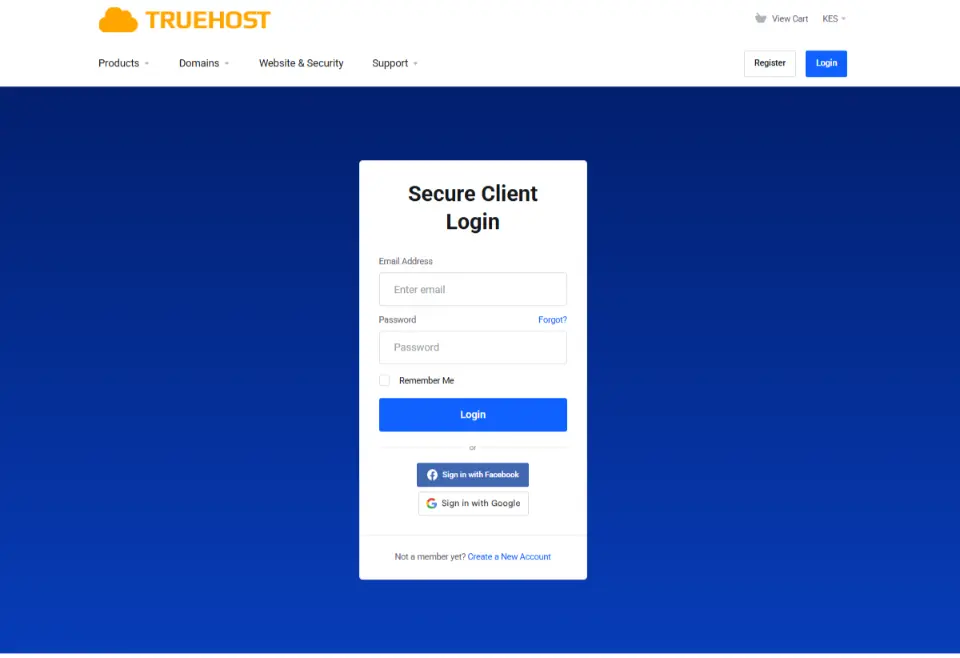
- Click on Client Area, Login, or Account Login.
- Enter your email address (or username) and password.
- Complete any two-factor authentication (2FA) if enabled; this adds an extra layer of security to your account.
Always use a strong, unique password and enable 2FA on your registrar account to prevent unauthorized access even before you reach the lock settings.
2) Go to the Domain Management Area
Once logged in, locate the section that manages your domains. Common menu labels include:
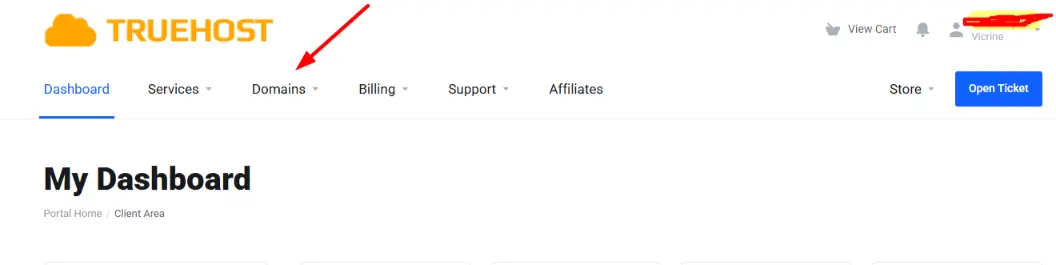
- My Domains
- Domains
- Domain Management
- Domain Settings
- Services → Domains
Click on this section to view a list of all domains registered under your account.
If you have many domains, use the search bar to quickly find the specific domain you want to lock or unlock.
3) Select Your Domain and Find the Lock Setting
In the domain list, locate the domain you want to manage. Next to it, you’ll usually see:
- A dropdown arrow
- A gear/wrench/settings icon
- Or a “Manage” button
Click on it and select Manage Domain, Domain Overview, or similar.
Now, look for the Registrar Lock section. It may appear in:
- The left sidebar menu
- The main dashboard under a “Security” or “Protection” tab
- Or as a direct link, such as “Change the registrar lock status for your domain.”
The setting is commonly labeled as:
- Registrar Lock
- Domain Lock
- Transfer Lock
- ClientTransferProhibited (technical term)
It often appears as a toggle switch, checkbox, Enable/Disable button, or a clear status indicator showing “Locked” or “Unlocked.”
4) Lock or Unlock the Domain
- To Lock the Domain (Recommended): If the status shows “Disabled” or “Unlocked,” click the button or toggle to Enable, Lock, or Turn On. Confirm the action if prompted.
- To Unlock the Domain: If the status shows “Enabled” or “Locked,” click the button or toggle to Disable, Unlock, or Turn Off. Confirm the action.
You will usually see an immediate success message confirming the change.
Registrar Lock primarily prevents the domain from being transferred to another registrar. In some control panels, it may also restrict certain contact or ownership changes for added protection.
5) Handle Additional Locks (If Available) and Verify
Some registrars offer multiple layers of protection. If you see other related options such as:
- EPP Code Lock
- Additional Transfer Protection
- Registry Lock (premium feature on some providers)
Repeat the process for each one you want to enable or disable.
After making changes:
- Refresh the page.
- Check the status again to confirm it now shows Locked (or Unlocked as intended).
- Take a screenshot for your records.
Security Best Practice:
Keep your domain locked by default at all times. Only unlock it when you need to:
- Transfer the domain to a different registrar
- Generate an EPP/Auth code for a pending transfer
Once the transfer is complete or no longer needed, lock it again immediately. Leaving a domain unlocked for extended periods significantly increases the risk of hijacking.
Why You Should Lock Your Domain Name
Leaving your domain unlocked is like leaving your front door wide open. Here’s why locking it should be your default setting:
- Prevents domain hijacking and unauthorized transfers. The #1 reason domains are stolen.
- Stops accidental changes or deletions by you, team members, or compromised accounts.
- Gives you peace of mind, especially critical for business websites, e-commerce stores, or high-value domains.
- Required for compliance with ICANN rules in most cases (and recommended by every major registrar).
For Kenyan businesses and .ke domain owners, this extra layer of security is non-negotiable.
When to Lock vs. When to Unlock a Domain
Lock it (recommended default setting):
- Immediately after registration or renewal
- Any time you are not actively making changes
- As your everyday security practice
Unlock it only when:
- You want to transfer the domain to another registrar
- You need to update rare registrar-level settings (very uncommon)
Never leave your domain unlocked for long periods. Once your transfer or update is complete, lock it again right away.
Lock Your Domain Today in Just Minutes
Locking and unlocking your domain name in your hosting control panel is quick, free, and one of the smartest things you can do to protect your online asset. With Truehost’s intuitive Client Area, you can manage this essential security feature anytime, anywhere, no technical skills required.
Keep your domain locked by default and unlock it only when you genuinely need to transfer it. Ready to secure your domain right now?
Register a Domain with Truehost today and enjoy reliable protection, fast support, and Kenyan-friendly pricing from day one.
Lock and Unlock a Domain Name FAQs
How do I know if my domain is locked in my hosting control panel?
Log in to your hosting account and go to the Domain Management or My Domains section. Select your domain and look for Registrar Lock, Domain Lock, or Transfer Lock. The status will clearly show whether it is Locked (Enabled) or Unlocked (Disabled). Most modern control panels display this information prominently on the domain overview.
Can I transfer a locked domain to another registrar?
No. A locked domain cannot be transferred. You must first unlock it in your hosting control panel before you can request an authorization (EPP/Auth) code or start the transfer process. Always unlock the domain only when you are fully ready to transfer.
Does locking my domain affect my website, email, or DNS settings?
No. Domain locking only prevents changes at the registrar level, such as transferring the domain or modifying ownership details. Your website will continue to load normally, your emails will keep working, and all DNS records will remain completely unaffected.
How long does it take for the domain lock or unlock to take effect?
In most cases, the change is instant. Once you confirm the action, the new lock status updates immediately. It may occasionally take 5–15 minutes to fully reflect across the global domain system, simply refresh the page to check.
Is domain locking free?
Yes. Locking and unlocking your domain is a standard feature provided at no extra cost by almost all registrars and hosting providers, including Truehost.
What should I do if I don’t see the Registrar Lock option in my control panel?
The option may be missing if the domain is brand new (first 60 days), it’s a special country-code domain (.ke, .ng, etc.), or your hosting plan has limited features. Try checking the Domain Overview → Management or Security tab. If it’s still not visible, contact your hosting provider’s support team for quick assistance.
Can I lock or unlock multiple domains at the same time?
Most hosting control panels require you to manage domains one by one. You will need to select each domain individually. For users with many domains, opening multiple browser tabs can make the process faster and more efficient.