 Domain SearchInstantly check and register your preferred domain name
 Web Hosting
 cPanel HostingHosting powered by cPanel (Most user friendly)
 WordPress HostingHost your WordPress website with fast, secure, and affordable WordPress hosting in Kenya.
 KE Domains
 Reseller HostingStart your own hosting business without tech hustles
 Windows HostingOptimized for Windows-based applications and sites.
 Free Domain
 Affiliate ProgramEarn commissions by referring customers to our platforms
 Free HostingTest our SSD Hosting for free, for life (1GB storage)
 Domain TransferMove your domain to us with zero downtime and full control
 All DomainsBrowse and register domain extensions from around the world
 .Com Domain
 WhoisLook up domain ownership, expiry dates, and registrar information
 VPS Hosting
 Managed VPSNon techy? Opt for fully managed VPS server
 Dedicated ServersEnjoy unmatched power and control with your own physical server.
 Website Builder
 Online Store BuilderLaunch a professional e-commerce store without writing code.
 Web Design ServiceGet a custom-designed website tailored to your brand and goals. From just KES 15,600
 BlogRead our guides on web hosting, online business, digital marketing, and more
 SupportOur support guides cover everything you need to know about our services
 ContactContact us via chat or email
Most people use OpenClaw as a text-based AI assistant. You ask a question, it replies, and that’s usually where the interaction ends. What many people don’t realize is that OpenClaw also has powerful voice capabilities. With the right setup, it can understand spoken commands, respond naturally with speech, and even handle phone calls on your behalf.
Voice AI is becoming increasingly valuable for both businesses and individuals. Gartner estimates that conversational AI will help contact centers save around $80 billion in labor costs in 2026, largely because AI voice agents can handle calls for about $0.40 per call, compared to $7–$12 for a human representative. As voice technology becomes more affordable and capable, it’s no longer just an extra feature; it’s a practical way to automate customer support, personal assistance, and everyday workflows.
You’ll learn how to turn OpenClaw into a fully functional voice AI assistant by choosing the right voice setup, configuring speech recognition, enabling natural-sounding voice responses, and preparing everything for a reliable production deployment.
Step 1: Pick the Right Voice Mode: Don’t Default to the First One
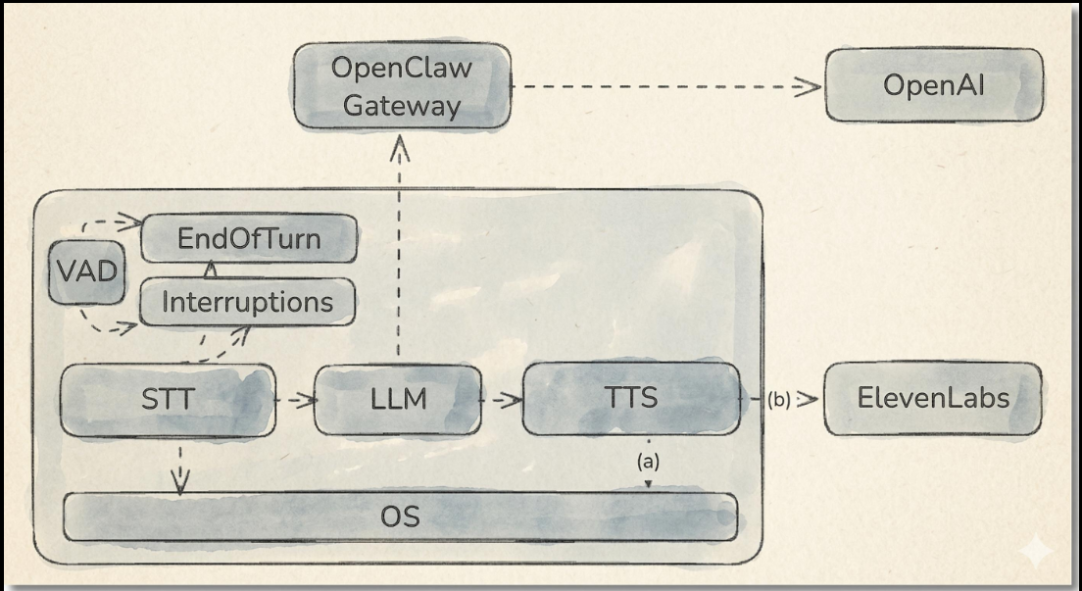
OpenClaw doesn’t do voice one way; it does it four ways, and each is built for a different job. Choosing wrong here means rebuilding later, so it’s worth five minutes of thought before any configuration.
| Approach | Best For | Key Components |
|---|---|---|
| STT + TTS (Chat Mode) | Voice messages in WhatsApp, Telegram, Slack, or audio file attachments | Speech-to-text (e.g., Whisper) for transcription and text-to-speech engines such as Edge TTS or ElevenLabs for voice responses |
| Voice Call Plugin | Inbound and outbound phone calls through SIP providers like Twilio, Telnyx, or Plivo | SIP + RTP telephony stack, full-duplex audio streaming, real-time transcription, and AI-powered call handling |
| Push-to-Talk (Clawkie Talkie) | Long-form voice notes, hands-free dictation, and mobile productivity | Web-based push-to-talk interface connected directly to an existing OpenClaw session |
| Real-time Voice (Stimm Voice) | Natural, low-latency voice conversations with AI agents | LiveKit for audio transport, streaming STT/TTS pipeline, LLM processing, and OpenClaw acting as the reasoning and orchestration layer |
If you’re supporting customers over the phone, you want the Voice Call Plugin. If you just want richer WhatsApp interactions, Chat Mode is plenty. Pick based on the interaction you’re actually building, not the one that sounds coolest.
Step 2: Give OpenClaw Ears (Speech-to-Text)
Before OpenClaw can respond to anything spoken, it needs to understand it. The fastest path to working STT is Groq’s hosted Whisper:
- Grab a free Groq API key at groq.com; the free tier gives you 1M tokens a month, which is plenty for testing.
- In
~/.openclaw/openclaw.json, add STT config undertools.media.audiousingwhisper-large-v3. - Drop your API key into
models.providers.groq.
OpenClaw accepts most common audio formats out of the box, MP3, WAV, M4A, OGG, WEBM, and more, so you rarely have to think about conversion. If Groq isn’t your thing, Deepgram, ElevenLabs Scribe v2, OpenAI, xAI, and Mistral all plug in as alternatives for streaming transcription.
Step 3: Give It a Voice (Text-to-Speech)
OpenClaw supports 14 TTS providers, but you don’t need to survey all of them to get started. Microsoft Edge TTS requires zero API key and sounds perfectly natural in English:
json
{
“messages“: {
“tts“: {
"auto": "always",
“provider“: “microsoft“
}
}
}
For Chinese output, specify a voice explicitly: zh-CN-XiaoxiaoNeural (晓晓, female), zh-CN-YunxiNeural (云希, male), or zh-CN-XiaoyiNeural (晓伊, female) are the common picks. Once the basics work, you can tune rate, pitch, and output format to taste.
When free-tier quality stops being enough, three paid providers stand out: ElevenLabs for voice cloning and deterministic output via a seed value, OpenAI for persona-driven instructions, and Volcengine (Doubao), which is tuned specifically for Chinese and supports emotion control.
Step 4: Wire Up the Actual Channel
This is where the mode you picked in Step 1 becomes real infrastructure.
- Voice messages in existing channels need nothing extra; once STT and TTS are configured, OpenClaw automatically handles voice notes sent through Telegram, WhatsApp, and similar channels.
- Phone calls over SIP require installing the SIP plugin (
openclaw plugins install openclaw-sip-voice) plus system dependencies on Ubuntu/Debian:python3-dev, portaudio19-dev, andffmpeg. - Twilio, Telnyx, or Plivo calls need the voice-call plugin configured with provider credentials, a “from” number, and a publicly reachable webhook URL, then a readiness check via
openclaw voicecall setup.

Step 5: Actually Call Yourself
Configuration without a test is just hope. Place a real outbound call:
bash
openclaw voicecall call –to “+15555550123” –message “Hello from OpenClaw“
Or run the smoke test, which is a dry run unless you force it:
bash
openclaw voicecall smoke –to “+15555550123” –yes
Calls run in one of two modes: notify, which plays a message and hangs up, or conversation, which stays open for real back-and-forth. Test both if your use case needs them; they behave differently enough that assuming one covers the other is a mistake.
Step 6: Let It Call You First
The most useful voice assistants aren’t purely reactive. OpenClaw can initiate calls on its own, triggered by outbound notifications from cron jobs or HTTP requests, or by scheduled heartbeats for proactive check-ins. It also supports DTMF tones during live calls, so it can navigate phone menus or enter PINs on your behalf.
Once a call is active, a small set of commands controls it: continue speaks and waits for the caller’s reply, speak talks without waiting, dtmf sends tones, end hangs up, and status reports what’s currently happening. Together, they’re enough to build genuinely interactive phone flows, not just glorified voicemail drops.
Step 7: Make It Production-Grade
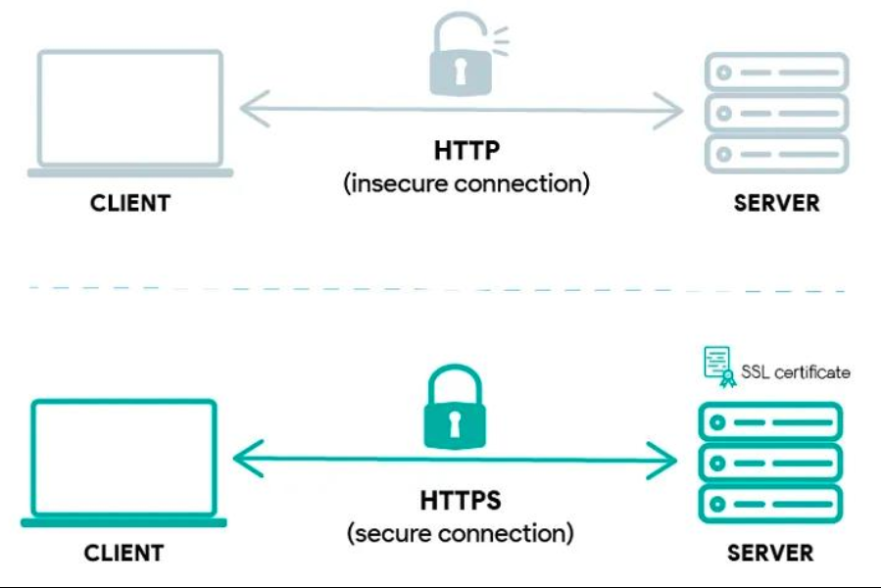
A voice assistant that only works on your laptop isn’t done. A few things aren’t optional before you point real traffic at it:
- HTTPS is mandatory. Meta and Twilio simply won’t accept insecure webhook URLs; there’s no fallback here.
- Use a stable public URL. A real domain or Tailscale funnel in production; ngrok is fine for development, but its URLs shift and will quietly break things if you rely on them long-term.
- Lock down the gateway. Set allow-from lists to control who can call in, and keep signature verification enabled; Twilio and Telnyx enforce it, and disabling it in production is a real security gap, not a shortcut.
- Decide your session scope.
Per-phonekeeps conversation memory across repeat calls (the default), whileper-callStarts fresh every time, better suited to IVR, reception, or booking flows where context shouldn’t carry over. - Watch it run.
OpenClaw voice call tailstreams live call logs, andOpenClaw voice call latencyReports turn-latency metrics so you catch slowdowns before users do.
Troubleshooting Common Voice Issues
| Issue | Possible Cause | Solution |
| Microphone not detected | Missing permissions or incorrect input device | Allow microphone access and verify the correct device is selected. |
| Slow responses | Network latency, large AI models, or cloud delays | Switch to a faster model or optimize your workflow. |
| Poor speech recognition | Background noise or poor microphone quality | Use a headset microphone and reduce surrounding noise. |
| No audio output | Incorrect TTS configuration | Verify your TTS provider settings and test the service independently. |
| Wake word doesn’t trigger | Sensitivity is too low | Increase sensitivity or recalibrate the wake-word model if supported. |
Most voice-related problems can be traced back to microphone permissions, incorrect API credentials, or networking issues. Testing each component individually, STT, TTS, and the voice channel, usually makes troubleshooting much easier.
Build Your Own Private Voice Assistant
Adding voice capabilities to OpenClaw transforms it from a text-based AI assistant into a more natural, interactive automation platform. By combining speech-to-text, text-to-speech, and voice integrations, you can create assistants that understand spoken requests, respond conversationally, answer phone calls, and automate voice-driven workflows for both personal and business use.
The best part is that you don’t have to implement every feature at once. You can start with a simple voice-enabled chatbot and gradually add more advanced capabilities, such as telephony, real-time conversations, or multilingual voice support, as your needs evolve. OpenClaw’s flexible architecture makes it easy to scale without redesigning your entire workflow.
Of course, voice automation is only as reliable as the infrastructure behind it. If your OpenClaw instance isn’t always available, your voice assistant won’t be either. Running it on a managed hosting platform gives you the uptime, performance, security, and maintenance needed for 24/7 voice interactions, so you can focus on building better automations instead of managing servers.
If you’re ready to deploy a dependable OpenClaw voice assistant, Truehost OpenClaw Hosting provides a managed environment with secure deployment, automatic updates, and the resources needed to keep your AI running smoothly. Get started today and build voice-powered automations with confidence.