Domain SearchInstantly check and register your preferred domain name
 Web Hosting
 cPanel HostingHosting powered by cPanel (Most user friendly)
 WordPress HostingHost your WordPress website with fast, secure, and affordable WordPress hosting in Kenya.
 KE Domains
 Reseller HostingStart your own hosting business without tech hustles
 Windows HostingOptimized for Windows-based applications and sites.
 Free Domain
 Affiliate ProgramEarn commissions by referring customers to our platforms
 Free HostingTest our SSD Hosting for free, for life (1GB storage)
 Domain TransferMove your domain to us with zero downtime and full control
 All DomainsBrowse and register domain extensions from around the world
 .Com Domain
 WhoisLook up domain ownership, expiry dates, and registrar information
 VPS Hosting
 Managed VPSNon techy? Opt for fully managed VPS server
 Dedicated ServersEnjoy unmatched power and control with your own physical server.
 Website Builder
 Online Store BuilderLaunch a professional e-commerce store without writing code.
 Web Design ServiceGet a custom-designed website tailored to your brand and goals. From just KES 15,600
 BlogRead our guides on web hosting, online business, digital marketing, and more
 SupportOur support guides cover everything you need to know about our services
 ContactContact us via chat or email
You bought a domain name, got yourself some hosting, and maybe even put up a simple website. Good for you.
But then you bought another domain. And another. Now you have a handful of them, and things are starting to feel messy.
Logging in and out of different accounts. Forgetting where each domain is parked. Wondering how to point one to a different page without breaking everything else.
If this is you, don’t stress, you already have a tool that can fix all this. It is called cPanel and is included with your hosting account.
Sometimes, people ignore it because they consider it too technical. That is not true.
cPanel domain management is easy once someone shows you where to click.
You can add new domains, park unused ones, create subdomains, and manage technical settings from a single central location without calling support every time.
In this article, you’ll learn how to manage your domains using cPanel. These tips will save you time and keep everything organised.
What is cPanel?
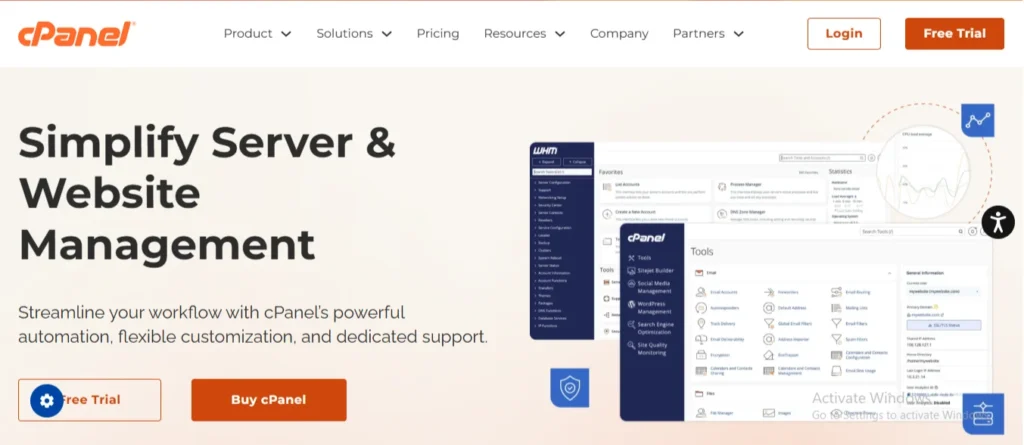
cPanel is where you manage all aspects of your website. When you sign up for a web hosting service, Truehost or any other hosting company gives you a username and password to log in to your own private cPanel account.
From here, you can:
- Create email addresses
- Install WordPress with one click
- Check your site’s statistics
- Most importantly for us, manage your domains
What Does cPanel Do?
cPanel is the control panel that comes with your hosting account. It lets you manage every aspect of your website. This is what it does:
- File Management: Upload, delete, and organize your website files through a simple interface.
- Email Setup: Create professional email addresses using your domain name and manage them in one place.
- Database Tools: Set up and manage the databases your website needs to function.
- Security Controls: Install SSL/TLS certificates, password-protect folders, and block unauthorized access.
- One-Click Installs: Get WordPress or other software to your site in a single click.
- Backups: Save copies of your website in case of an outage.
- Statistics: See how many people visit your site and where they come from.
cPanel Domain Section
Today, we’ll be talking about the domain part of the cPanel.
Once you log in to cPanel, look for a section usually labelled Domains. This is where you manage the domain. Click on it.
You will see a screen listing all the domains associated with your hosting account. This might be one or several. This screen tells you four important things:
- The domain name
- The document root (where the files for that site live)
- If it has an HTTPS redirect forced on
- Options to manage that specific domain
This is what you can do in the cPanel domain section:
1) Adding a New Domain (Addon Domains)
Let’s say you already have a site for your salon in Mombasa, salonmombasa.co.ke.
Now you are starting a new side hustle selling avocado oil, and you bought kenyanavocado.co.ke.
You do not want to pay for a whole new hosting account. You just want to add it to your existing one.
This is called an Addon Domain.
Here is how you do it:
In the Domains section, click the blue Create a New Domain button.
In the box, type your new domain name: kenyanavocado.co.ke.
cPanel will automatically fill in the Document Root for you. This is the folder where the files for this new site will live.
Usually, it looks like public_html/kenyanavocado.co.ke. You can leave this as it is.
Check the box labeled “Create an FTP account associated with this domain” if you want a separate login just for managing this site’s files. (Optional).
Click Submit.
That’s it. You have just added a new website to your account. Now you can install WordPress on it, create email accounts, and start building.
2) Parking a Domain
So, you bought kenyanavocado.co.ke, but you also bought kenyanavocado.com and kenyanavocado.org just to stop someone else from grabbing them.
And you want people who type those other addresses to land on your main .co.ke site.
You do not want to build a whole new site for them. You just want them to park on your main site. This is a Parked Domain or an Alias.
The simple way:
- In cPanel, look for a section called Aliases; it may also appear as part of the main Domains screen.
- Click Create a New Alias.
- Type in the domain you want to park, for example, kenyanavocado.com.
- Click Add.
Now, whenever someone types kenyanavocado.com into their browser, they will see the exact same content as kenyanavocado.co.ke. It is a redirect without the complex setup.
3) Creating Subdomains
A subdomain is like a separate section of your main website. You see it all the time. For example: blog.google or shop.huskpower.com.
In Kenya, you might want shop.salonmombasa.co.ke for your online booking, separate from your main info site.
How to set it up:
- In the Domains section, find Subdomains.
- Enter the name you want. In the Subdomain box, enter shop.
- Next to it, select your main domain from the list, like salonmombasa.co.ke. It will show you the preview: shop.salonmombasa.co.ke.
- It will again suggest a document root. You can change this to store the files in a specific folder.
- Click Create.
You now have a subdomain. You can install a different WordPress site here, or a booking app, completely separate from your main site.
How to make Your Site Safe: Force HTTPS Redirect
You may have noticed a toggle in your Domains list labeled “Force HTTPS Redirect.” This is a security essential.
HTTPS is the secure version of your site. If you do not block it, someone might access the insecure (HTTP) version of your site. This can deter visitors, especially if they are about to pay for your products via M-Pesa.
You should turn this toggle ON for every single domain you own.

But there is a catch. You can only turn this on if your domain has a valid SSL certificate installed. This is where Truehost makes it easy.
All our hosting plans include free automated SSL Certificates. You do not need to buy one. You do not need to beg a technician to install it. It just happens automatically.
So, go to your Domains list. Find the toggle. Switch it to On. You have just made your site safer and more professional.
Managing DNS Records with the Zone Editor
Sometimes, you need to do more advanced things.
Maybe you want to prove to Google that you own your site, or connect your domain to a Shopify store or a third-party email service like Google Workspace.
For this, you need the Zone Editor. You can also find this in the Domains section.
The Zone Editor is where the technical details live. It shows you records like:
- A Records: These point your domain to a specific server IP address.
- CNAME Records: These point subdomains to another address.
- MX Records: These determine where your email is delivered.
- TXT Records: These are often used for verification and security.
If a service tells you to add a TXT record or change your A record, you do it right here. Simple Steps to Add a Record:
- Open Zone Editor.
- Find the domain you want to manage.
- Click Manage
- Click Add Record
- Choose the type (e.g., TXT), enter the name and value (the data the service provides), and set the TTL (Time To Live), usually 14400, or leave it at the default.
- Click Save
What cPanel Cannot Do For You
cPanel is your primary tool for managing your website, but it cannot do everything for you.
Most importantly, you cannot purchase a new domain or renew an existing one in cPanel.
cPanel is for managing the website and email once the domain is already registered and pointed to your server.
If your domain is expiring soon, you need to log in to your account with your registrar, the company you paid for the domain name.
This is another reason why many Kenyans prefer to keep their domains and hosting in one place.
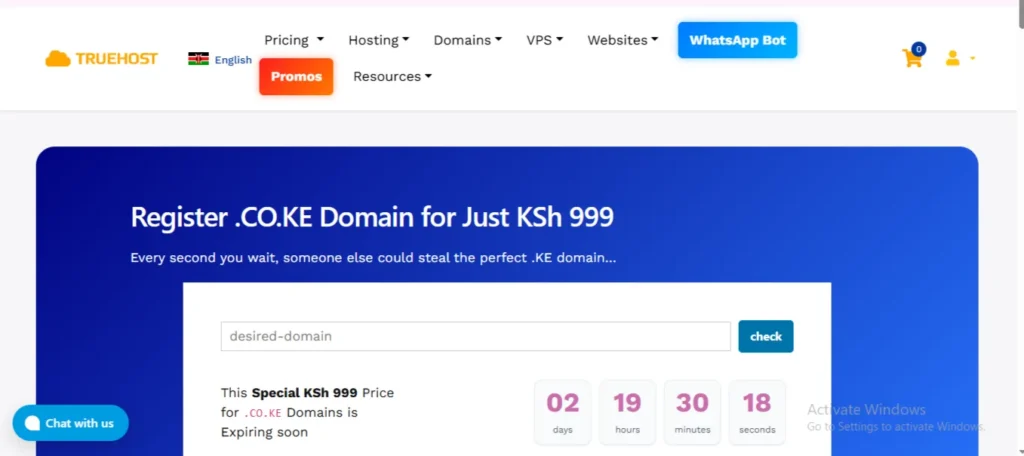
For example, when you buy a .co.ke domain from Truehost for 299.00 KES for the first year and host it with us, everything is under one roof.
You get one bill, one login for your billing, and cPanel for your site management. You do not have to jump between websites just to pay a renewal fee.
cPanel Domain Management Mistakes to Avoid
- Do not forget to enable the HTTPS toggle. Your visitors will thank you, and browsers will stop screaming at them.
- Never add a domain in cPanel before updating your nameservers. Nothing will show up, and you will sit there wondering why.
- Be careful when deleting domains. You might wipe out email accounts your clients still use.
- Pay attention to where your files are going when you add a new domain. Write down the folder name; you will need it later.
- Set up those email addresses. Using Gmail for your business makes you look short-term.
- Do not let your domains expire. Mark the renewal dates or enable auto-pay. Your website disappearing is bad for business.
- Do not modify DNS settings if you do not understand them. One wrong click and your site goes dark.
- Make sure SSL is installed for every new domain. No padlock means visitors leave.
- Watch how many sites you pile onto one hosting plan. Too many and everything slows down.
- Always test your changes. Type the address into a browser and verify it works before moving on.
Wrapping It Up
Managing your domains with cPanel is simple once you know your way around. Add new sites, park extra domains, set up subdomains, and secure everything with HTTPS.
No tech degree required. The intuitive dashboard lets you create professional business emails, manage DNS zones, and deploy WordPress with a single click.
You can also monitor your website’s disk usage and monthly traffic in real time, ensuring you always stay ahead of your growing audience.
Whether you are launching a personal blog or scaling a busy e-commerce storefront, everything you need is organized right at your fingertips.
If you want hosting that makes all this even easier, try Truehost. We include cPanel with every plan, offer free SSL certificates, and keep our prices affordable. Our ultra-reliable servers guarantee maximum uptime, while our automated backups keep your valuable data safe.
.co.ke registration costs 299.00 KES for the first year, with renewal at Kshs 1,500.00 per year. Choose a hosting plan to connect your website, with support whenever you need it.