Domain SearchInstantly check and register your preferred domain name
 Web Hosting
 cPanel HostingHosting powered by cPanel (Most user friendly)
 WordPress HostingHost your WordPress website with fast, secure, and affordable WordPress hosting in Kenya.
 KE Domains
 Reseller HostingStart your own hosting business without tech hustles
 Windows HostingOptimized for Windows-based applications and sites.
 Free Domain
 Affiliate ProgramEarn commissions by referring customers to our platforms
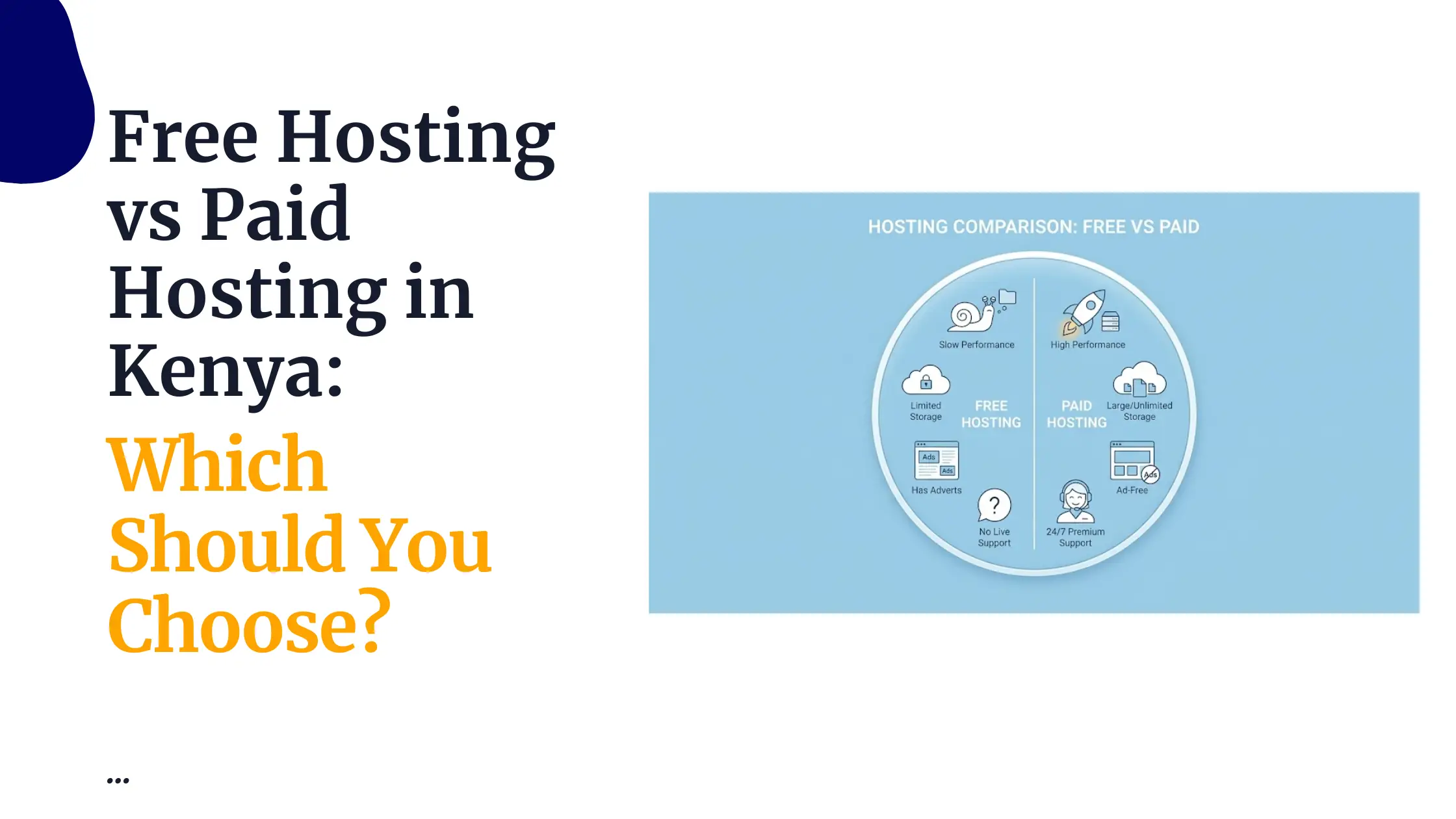
 Free HostingTest our SSD Hosting for free, for life (1GB storage)
 Domain TransferMove your domain to us with zero downtime and full control
 All DomainsBrowse and register domain extensions from around the world
 .Com Domain
 WhoisLook up domain ownership, expiry dates, and registrar information
 VPS Hosting
 Managed VPSNon techy? Opt for fully managed VPS server
 Dedicated ServersEnjoy unmatched power and control with your own physical server.
 Website Builder
 Online Store BuilderLaunch a professional e-commerce store without writing code.
 Web Design ServiceGet a custom-designed website tailored to your brand and goals. From just KES 15,600
 BlogRead our guides on web hosting, online business, digital marketing, and more
 SupportOur support guides cover everything you need to know about our services
 ContactContact us via chat or email
Cache memory is a kind of memory that your browser uses to store a history of the web pages that you visit. It helps the browser to load those pages faster the next time you visit them.
How to clear cache memory.
Mozilla:
- Click on the history menu.
- Click on clear recent history.
- Specify the time range to clear.
- Then click on Clear Now button
- Wait for the process to finish.
Chrome:
- Click on
- Point on history from the drop down menu.
- From the left flay out menu, click on history.
- Click on clear browsing data.
- Specify the time range then click on clear browsing data button.
- Wait for the process to finish.
Internet Explorer:
- Click on Tools menu.
- Click on Delete Browsing History option.
- Check the history check box and click on Delete Button.
- Wait for the process to finish and you are done.
Oprera:
- Click on Menu button
- Click on history
- Click on clear browsing data button.
- Specify the time frame.
- Click on clear browsing data button and wait for the process to complete