Domain SearchInstantly check and register your preferred domain name
 Web Hosting
 cPanel HostingHosting powered by cPanel (Most user friendly)
 WordPress HostingHost your WordPress website with fast, secure, and affordable WordPress hosting in Kenya.
 KE Domains
 Reseller HostingStart your own hosting business without tech hustles
 Windows HostingOptimized for Windows-based applications and sites.
 Free Domain
 Affiliate ProgramEarn commissions by referring customers to our platforms
 Free HostingTest our SSD Hosting for free, for life (1GB storage)
 Domain TransferMove your domain to us with zero downtime and full control
 All DomainsBrowse and register domain extensions from around the world
 .Com Domain
 WhoisLook up domain ownership, expiry dates, and registrar information
 VPS Hosting
 Managed VPSNon techy? Opt for fully managed VPS server
 Dedicated ServersEnjoy unmatched power and control with your own physical server.
 Website Builder
 Online Store BuilderLaunch a professional e-commerce store without writing code.
 Web Design ServiceGet a custom-designed website tailored to your brand and goals. From just KES 15,600
 BlogRead our guides on web hosting, online business, digital marketing, and more
 SupportOur support guides cover everything you need to know about our services
 ContactContact us via chat or email
You’ve paid for your VPS, the confirmation email has arrived, and your hosting dashboard says everything is active. Excited to get started, you log in expecting to find Ubuntu, Debian, or maybe even Windows Server ready to go. But instead, you’re greeted by… nothing.
It’s more common than hosting providers let on. Most people assume a VPS comes ready to use out of the box, and honestly, that assumption makes sense; it’s how hosting has always been marketed. But a growing number of providers either sell OS-free plans by design or let you defer OS installation entirely. If you’ve landed in that situation and you’re not sure what’s supposed to happen next, you’re in the right place.
Here is what “No OS” Really Means, a Virtual Private Server is, at its core, a slice of a physical machine. Virtualization software on the host server carves the hardware into isolated compartments, each with its own dedicated CPU threads, RAM, and storage.
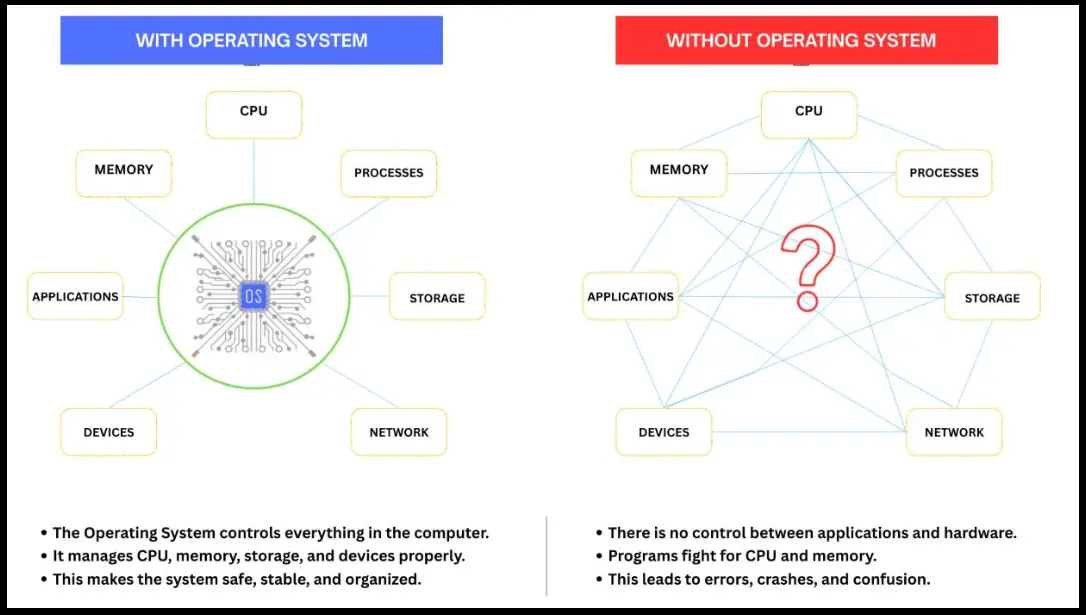
That compartment is your VPS. But hardware alone does nothing; it’s the operating system that sits between raw compute and everything you actually want to run.
It manages memory, handles input and output, schedules processes, enforces permissions, and creates the environment where all other software lives.
Without an operating system, you have the hardware but not the functionality. It’s similar to buying a laptop with no operating system installed: the processor is there, the RAM is there, and the storage is ready, but when you press the power button, nothing loads. The machine has all the necessary components, yet it can’t do anything useful until software is installed to bring it to life.
The operating systems you’ll most commonly see on VPS servers are Ubuntu, Debian, AlmaLinux, Rocky Linux, CentOS Stream, and Windows Server. Each serves different use cases and user types, but on an OS-free VPS, none of them are present yet.
Getting one installed is the first thing you need to do, and the rest of this guide walks you through exactly that.
Can You Use a VPS Without an OS?
Short answer: no.
A VPS without an operating system is essentially a box of compute sitting in the dark. It can receive a power signal. It can be addressed on a network at a low level. But it cannot do anything useful until an OS brings it to life.
Without an OS installed, here is what you genuinely cannot do:
- Log in through SSH: SSH depends on an SSH daemon (like OpenSSH) running on a fully booted operating system. No OS means no SSH daemon. You have no way in.
- Install software: Package managers like apt, dnf, or pacman are OS-level tools. They don’t exist without an OS underneath them.
- Host a website: Web servers like Nginx and Apache are applications that run on top of an OS. No foundation, no web server.
- Run WordPress: WordPress requires PHP, a web server, and a database. All three require an OS.
- Set up email: Mail servers such as Postfix, Dovecot, and mail transfer agents all require an OS environment.
- Configure databases: MySQL, PostgreSQL, MariaDB all need an operating system to install and run.
- Use control panels: cPanel, CyberPanel, Webmin, Plesk- every one of these installs onto an OS. They are not themselves operating systems.
The operating system is not optional infrastructure. It is the foundation on which everything else is built. Without it, you have raw compute power with absolutely nothing to execute.
Install your OS first. Everything else comes after.
What You Should Do After Buying a VPS Without an OS
This is more straightforward than it might initially seem. Nearly every VPS provider that sells OS-free plans also gives you the tools to install an OS yourself, typically through a web-based control panel. Here is exactly what to do, step by step.
Step 1: Log In to Your Provider’s Control Panel
Every VPS provider includes some type of management dashboard. Depending on the company, it may be called the Client Area, Cloud Dashboard, VPS Manager, or something similar. Log in using the account credentials you created when signing up.
Once you’re inside, open the section that lists your VPS services and select the VPS you want to configure. You should see its current status, which may show as offline, uninitialized, or indicate that no operating system has been installed yet.
Step 2: Choose Your Operating System
Look for an option labeled something like “Reinstall OS,” “Install Operating System,” “Deploy,” or “Mount ISO.” Providers typically offer a dropdown or selection panel listing available operating systems.
If you are not sure what to pick, choose Ubuntu 24.04 LTS (or the most current LTS release available). This is the right choice for most people. More on why below.
If you need Windows, be aware that Windows Server licenses are almost always an additional cost, and not all providers offer it on every plan tier.
Step 3: Deploy / Install the OS
Once you have selected your OS, initiate the installation. The provider’s virtualization platform will mount the OS image, run the installation process, and configure the base system for you. This typically takes between one and five minutes, though it can take longer depending on the provider’s infrastructure and the OS selected.
Do not interrupt this process. Closing the browser tab or navigating away is usually fine; the installation continues server-side, but check your provider’s documentation to be sure.
Step 4: Retrieve Your Login Credentials
After installation completes, the control panel will either display your root password, send it to your registered email address, or prompt you to set one. Some providers use SSH key authentication rather than passwords, in which case you may be prompted to associate a public key during the OS selection step.
Write down or securely store these credentials immediately. If you lose your root password before setting up an alternative access method, account recovery can be cumbersome.
Step 5: Connect via SSH
From your local machine, open a terminal (on macOS or Linux, that is the built-in Terminal app; on Windows, use PowerShell, Command Prompt, or Windows Terminal) and connect:
ssh root@YOUR_SERVER_IP
Replace YOUR_SERVER_IP with the IP address shown in your provider’s control panel. If you set up key-based authentication, SSH will use your key automatically. If you are using a password, you will be prompted to enter it.
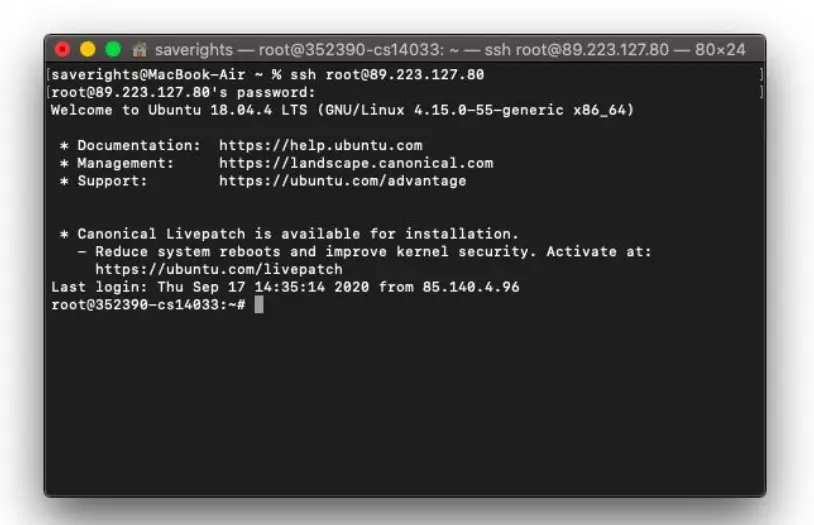
When you successfully see a command prompt on your server, the OS is installed and working.
Step 6: Secure Your Server Immediately
Before you install anything else, lock down the basics. A freshly installed VPS is exposed to the internet and will begin receiving automated login attempts within minutes of going online; this is not a hypothetical, it is a measurable fact.
At minimum:
- Update all packages: apt update && apt upgrade -y (on Debian/Ubuntu)
- Create a non-root user with sudo privileges; running everything as root is dangerous
- Disable root SSH login; edit /etc/ssh/sshd_config, set PermitRootLogin no
- Configure a firewall; ufw (Uncomplicated Firewall) on Ubuntu is the easiest starting point: ufw allow OpenSSH && ufw enable
- Consider fail2ban; it automatically bans IPs with repeated failed login attempts.
Skipping this step is a genuine risk, not a minor caution. Servers left unsecured are actively targeted within minutes.
Step 7: Install What You Actually Need
Now your server is ready. From here, the path depends entirely on your use case:
- Web hosting: Install Nginx or Apache, then PHP if needed, then your application.
- WordPress: Consider a control panel like CyberPanel or install the LAMP/LEMP stack manually.
- Node.js applications: Install Node.js via nvm or the NodeSource repository.
- Control panel: Install cPanel, Webmin, or CyberPanel according to their official documentation.
- Database server: Install MySQL, PostgreSQL, or MariaDB.
Each of these has official installation documentation. Follow it. Do not follow random forum posts from 2017.
Why Some VPS Providers Offer “No OS” Plans
This isn’t an oversight or a missing feature; it’s a deliberate choice, and there are real reasons behind it.
a) Advanced users want full control.
System administrators and DevOps engineers often have very specific requirements: a particular kernel version, a custom partition layout, or a hardened minimal installation that no provider template will ever match.
A pre-installed OS with someone else’s default configuration can actually get in the way. A blank machine gives them full control from the start.
b) Some users bring their own OS.
Many providers pair OS-free plans with custom ISO support, letting you boot from any image you supply, a specialized distro like Alpine or NixOS, an older version your software depends on, or even a proprietary internal OS.
This is standard practice in enterprise environments.
c) Some users want to run their own hypervisor.
If you’re installing Proxmox VE, VMware ESXi, or KVM to run your own virtual machines on top, you need a clean machine to start. A pre-installed OS would just be in the way.
d) Regulated industries have strict requirements.
Finance, healthcare, and government organizations often can’t use a provider’s default OS template; they need to document every step of the installation process and meet specific hardening benchmarks like CIS or STIG.
An OS-free plan lets their own security team handle it from scratch.
e) It’s ideal for automation testing.
Tools like Ansible, Terraform, and Chef are often built to provision servers from zero. A blank VPS is the perfect clean-slate target for testing those pipelines end to end.
f) Licensing is complicated.
Windows Server licensing in particular involves a maze of agreements- SPLA, OEM, BYOL- that providers have to use carefully. Offering OS-free plans sidesteps that entirely for customers who already hold their own licenses.
g) And at scale, it saves money.
Enterprise OS licensing adds up fast. For customers running hundreds of instances, skipping the bundled OS and managing licensing themselves can meaningfully reduce costs.
Best OS for Beginners
If you are new to VPS hosting, the choice is straightforward: Ubuntu LTS.
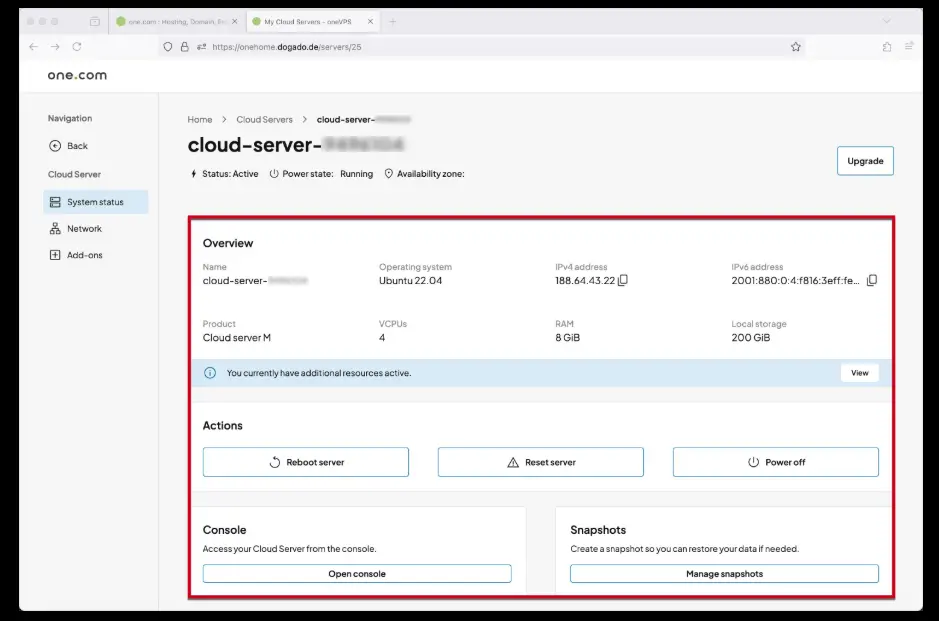
Specifically, the Long-Term Support version, Ubuntu 22.04 LTS (Jammy Jellyfish) and Ubuntu 24.04 LTS (Noble Numbat) as of writing. LTS releases receive security and maintenance updates for five years, which means you are not forced to upgrade the OS on a running production server every nine months.
Here is why Ubuntu LTS consistently wins for beginners and experienced admins alike:
i) Documentation depth: Ubuntu has more server-focused tutorials, Stack Overflow answers, and official documentation than any other Linux distribution. Whatever problem you encounter, someone has already documented the solution.
ii) Software repository breadth: Ubuntu’s apt repositories are enormous. The package you need is almost certainly there, packaged correctly, and tested.
iii) Familiarity of commands: Debian-based commands (apt, ufw, systemctl) are covered in the vast majority of web hosting tutorials. Following documentation written for Ubuntu on a different OS family can introduce subtle differences that trip up beginners.
iv) Community size: The Ubuntu community forums, AskUbuntu, and the #ubuntu IRC channels represent some of the largest pools of freely available Linux support in existence.
v) Control panel compatibility: cPanel, Plesk, CyberPanel, Webmin, and most other server control panels all officially support Ubuntu LTS. Some only officially support certain distributions; Ubuntu LTS is almost universally on those lists.
When to consider alternatives:
- Debian: If you want an even leaner, more stable base and are comfortable with a smaller (though still substantial) support community.
- AlmaLinux or Rocky Linux: If your application or team is built around the Red Hat ecosystem, or if you are migrating from CentOS.
- Windows Server: Only if your application stack explicitly requires Windows, ASP.NET applications with specific Windows dependencies, Active Directory integration, MSSQL, and similar enterprise scenarios.
Final Recommendation
If you’re new to VPS hosting, keep things simple: choose a VPS that comes with an operating system or install one as part of the setup process. Ubuntu LTS is usually the safest choice for beginners because it’s widely supported, well-documented, and easy to work with.
Many hosting providers let you select an operating system during checkout, while others ask you to install one from the control panel after purchase. Either way, make that your first step. Once the OS is in place, you can move on to setting up your web server, database, SSL certificates, control panel, or whatever applications you plan to run.
An OS-free VPS isn’t a mistake or a defective product. It’s designed for experienced users who want complete control over their server environment from the very beginning. For developers and system administrators, that flexibility can be a major advantage.
For everyone else, the path is straightforward: install an operating system first, then start building from there.
A blank VPS gives you complete freedom, but that freedom only becomes useful once you have a foundation to build on.
VPS Without OS FAQs
Can a VPS work without an OS?
No. Without an OS, the server can’t execute instructions, accept SSH connections, or run any software. It’s inert until you install something.
Is it cheaper to buy a VPS without an OS?
Rarely by much. Linux distros like Ubuntu and Debian are free, so there’s no licensing cost to skip. The real savings only apply if you’re avoiding a bundled Windows Server license.
Can beginners install an OS themselves?
Yes. On most providers, it’s just a dropdown and a button click; the provider handles the rest. Manually installing from a custom ISO is a different story, but that’s not the typical beginner path.
What happens if the OS installation fails?
You can retry it from the control panel as many times as needed. If it keeps failing, the cause is usually a bad OS template, a host hardware issue, or a conflict with a custom ISO. Contact support if retries don’t resolve it.
Can I switch operating systems later?
Yes, but it wipes the disk completely. Back up everything before you do it.
Do all providers allow custom ISO uploads?
No. It’s common among developer-focused cloud providers but not universal. If it counts to you, confirm it before buying; look for “custom ISO” or “BYOS” in the provider’s feature list.