Domain SearchInstantly check and register your preferred domain name
 Web Hosting
 cPanel HostingHosting powered by cPanel (Most user friendly)
 WordPress HostingHost your WordPress website with fast, secure, and affordable WordPress hosting in Kenya.
 KE Domains
 Reseller HostingStart your own hosting business without tech hustles
 Windows HostingOptimized for Windows-based applications and sites.
 Free Domain
 Affiliate ProgramEarn commissions by referring customers to our platforms
 Free HostingTest our SSD Hosting for free, for life (1GB storage)
 Domain TransferMove your domain to us with zero downtime and full control
 All DomainsBrowse and register domain extensions from around the world
 .Com Domain
 WhoisLook up domain ownership, expiry dates, and registrar information
 VPS Hosting
 Managed VPSNon techy? Opt for fully managed VPS server
 Dedicated ServersEnjoy unmatched power and control with your own physical server.
 Website Builder
 Online Store BuilderLaunch a professional e-commerce store without writing code.
 Web Design ServiceGet a custom-designed website tailored to your brand and goals. From just KES 15,600
 BlogRead our guides on web hosting, online business, digital marketing, and more
 SupportOur support guides cover everything you need to know about our services
 ContactContact us via chat or email
Web hosting Docker setups give you a smarter, cleaner way to host your web applications.
What do I mean by this?
If you’ve ever wished your website could run faster, deploy smoother, or stop breaking every time you change one tiny thing, Docker is your wish come true.
Instead of fighting with messy setups, Docker packages your whole website, from files, settings, environment, and everything, into a neat little container that runs exactly the same anywhere.
No “it works on my machine” drama.
Whatever you’re deploying, a simple blog, a SaaS project, or your next Kenyan side hustle, Docker makes you look like a pro without the stress.
Now, with this guide, I’ll be showing you exactly how to harness Docker for smooth web hosting and deployment.
Here’s what you can master from it:
- Quick Docker basics and why it beats traditional hosting.
- Setting up your environment, even on spotty connections.
- Building and containerizing apps with real code examples.
- Deploying to production via Truehost, which is faster than global giants.
Ready to build something that launches clean, runs fast, and scales like a champ? Let’s deploy.
What is Docker in Web Hosting
You’ve probably heard people at iHub meetups or Upwork clients throwing around the word Docker like it’s some secret tech sauce.
But what is it, really?
We can say Docker is a tool to pack your entire web app, from your code, settings, libraries, and everything, into a neat little “container.”

It’s like putting your app in a standard shipping box.
No matter where you take that box, from your laptop in Westlands to a Truehost server in Nairobi, it runs exactly the same.
No more “But it worked on my machine!” and now its MIA.
When it comes to web hosting Docker setups, instead of using heavy virtual machines that hog resources and slow everything down, Docker gives you something leaner, faster, and much more predictable.
Apps run in isolation, overhead drops massively, and performance improves even on Kenya’s sometimes inconsistent internet speeds.
And this isn’t just hype.
The container world is booming, globally and across Africa.
With web hosting revenues climbing and developers leaning into containerization, Docker has become the go-to choice for anyone who wants speed, reliability, and flexibility.
Make this Make Sense in Kenya
Think about how Jumia handles millions of daily visitors.
They use Docker with Kubernetes to keep everything smooth, even during wild Black Friday spikes.
That same technology, scaled down, is what keeps your site fast and responsive, especially when hosted locally on Truehost’s under-50ms Kenyan servers.
Here are the big wins you get with Docker for web hosting:
- Portability: Move your app anywhere, no reconfig headaches.
- Efficiency: Containers are lightweight, saving server resources (super helpful if you’re on a tight budget or working from rural areas).
- Security: Each container is isolated, giving your data an extra layer of protection under Kenya’s Data Protection Act.
- Scalability: Traffic spike? Spin up more containers instantly, perfect for election news sites, flash sales, or viral moments.
No surprise: in Docker’s latest reports, over 80% of developers now build with containers, and Kenyan hosting providers like Truehost fully support it, so you don’t need a DevOps degree to get started.
Bottom line: Docker takes web hosting from a constant chore to a powerful advantage.
Ready to see it in action? Let’s set you up.
1) Setting Up Your Environment for Web Hosting Docker
Before you jump into containers, let’s get your setup ready, just like you would be warming up the engine before a road trip from Nairobi to Nakuru.
Docker isn’t hard, and you don’t need to be a coding guru.
You just need the right tools in place.

a. What You Need Before You Start
Here’s your simple checklist:
- A mid-range laptop (4GB RAM or more works just fine)
- Ubuntu (ideal for devs), or Windows/Mac with Docker Desktop
- A stable internet connection
- Basic comfort using the terminal, nothing fancy
If Safaricom decides to throttle downloads, a VPN like ExpressVPN can save you a headache.
b. Installing Docker
If you’re on Ubuntu, you’re in luck, coz Docker plays extremely well with it.
1. Update your system:
sudo apt update && sudo apt upgrade -y
2. Install Docker using the official script:
curl -fsSL https://get.docker.com -o get-docker.sh
sudo sh get-docker.sh
3. Start Docker and add yourself as a user:
sudo systemctl start docker
sudo usermod -aG docker $USER
Log out and back in so the new permissions kick in.
4. Confirm it works:
docker –version
You should see something like “Docker version 27.x” (around late 2025).
5. Run your first container:
docker run hello-world
If Docker greets you with a welcome message, you’re officially in.
On Windows or Mac? Just download Docker Desktop, it comes bundled with everything you need.
c. A Quick Local Test (Your First Mini Website)
Let’s simulate what web hosting providers like Truehost do behind the scenes:
Run Nginx, a lightweight web server:
docker run -d -p 80:80 nginx
Now open localhost:80 in your browser, you’ll see a live page running in a container.
That’s Docker magic: clean, fast, without messing up your system.
d. Kenya-Specific Tips
Local internet sometimes crawls—downloads dropping to 1Mbps aren’t unusual.
You can speed things up by using mirrored repositories from iHub.
Permissions errors? Fix them quickly with:
sudo chown -R $USER /var/run/docker.sock
e. Truehost Tip
If you’re planning to deploy later, Truehost makes Docker hosting even easier.
Our VPS plans start at KES 560/month, and our Nairobi data centers mean super-low latency for Kenyan visitors.
Again, our control panel even lets you test Docker configs before pushing your project live.
With this setup done, you’re ready to containerize your first real web app.
Let’s keep going, things only get more fun from here.
2) Containerizing Your Web Application
Alright, this is the part where you’re about to wrap your entire app into a portable container that runs the same everywhere.
To keep things simple, let’s containerize a tiny Node.js e-commerce backend, something like the starter shops you see on Jumia affiliate sites.
And don’t worry, you can copy-paste everything.

a. Set Up a Simple App
Create a new project folder:
mkdir my-kenya-shop && cd my-kenya-shop
Install Express:
npm init -y && npm i express
Add a super basic app.js:
const express = require(‘express’);
const app = express();
app.get(‘/’, (req, res) => res.send(‘Welcome to your Dockerized Kenyan shop!’));
app.listen(3000, () => console.log(‘Server on port 3000’));
You now have a tiny web app ready to containerize.
b. Build Your Dockerfile
Create a file named Dockerfile (no extension) and add:
# Use official Node image as base
FROM node:20-alpine
# Set working dir
WORKDIR /app
# Copy package files
COPY package*.json ./
# Install deps
RUN npm ci –only=production
# Copy source
COPY . .
# Expose port
EXPOSE 3000
# Run app
CMD [“node”, “app.js”]
Alpine Linux keeps your image tiny, great for fast uploads and low-cost deployments.
c. Build & Run Your Container
Build your image:
docker build -t kenya-shop .
Run it:
docker run -p 3000:3000 kenya-shop
Now visit localhost:3000.
If you see your welcome message,congrats, you just Dockerized your first app!
d. Not a Node.js Fan? No Problem
This works for other stacks too:
PHP (for WordPress / Laravel sites)
FROM php:8.2-apache
COPY . /var/www/html/
Python/Django
FROM python:3.12-slim
RUN pip install -r requirements.txt
If your site runs on it, you can containerize it.
e. Best Practices for Web Hosting Docker
To make your container clean, fast, and production-ready:
- Use multi-stage builds to keep images ultra-slim
- Add a .dockerignore file to avoid copying junk like node_modules
Set environment variables (e.g., Kenya locale):
ENV LANG=en_KE.UTF-8
- Put commands that rarely change at the top for faster builds
- Check logs with docker logs <id> if something breaks
You’ve now got your app running in a container, next up is deploying it like a pro.
3) Deploying Docker Containers to a Host
So, you’ve containerized your app, awesome! Now comes the fun part: making it live for the world.
The good news? With web hosting Docker, you don’t have to wrestle with manual SSH commands or messy server configs.

Let me show you how.
a. Start Simple with Docker Compose
If your app has more than one piece, say a Node.js server plus a Postgres database, Docker Compose is your friend.
Create a docker-compose.yml in your project:
version: ‘3’
services:
web:
build: .
ports:
– “80:3000”
db:
image: postgres:15
environment:
POSTGRES_PASSWORD: example
Run it locally first:
docker-compose up -d
Now, your app and database are talking to each other, ready for testing.
b. Push Your Container to a Registry
Before going live, upload your container to a registry. With Truehost, it’s private and fast:
docker tag kenya-shop truehost-registry/kenya-shop:latest
docker push truehost-registry/kenya-shop:latest
c. Deploy on Truehost
- Sign up at Truehost. Our starter plan (KES 500/month) already supports Docker.
- In the dashboard, create a new app and link your Git repo or upload your Docker image.
- Configure your environment: ports, database credentials, and auto-deploy hooks.
- Click launch, Truehost’s Kubernetes cluster handles scaling automatically across Nairobi servers.
Point your domain via Truehost’s DNS, it even supports .ke domains for local SEO.
With this, your containerized app is live, fast, and ready for local traffic across Kenya.
Next up, we’ll look at securing and monitoring your Docker-powered site so it runs smoothly.
4) Scaling and Managing Web Hosting Docker in Production
Your site is live, congrats!
Now comes the exciting part: growing it without breaking it.
One of the biggest perks of using web hosting Docker setup is that scaling is about spinning up more containers whenever you need them.
a. How to Scale Your Docker App
Horizontal scaling:
This is the “add more workers” approach. With Docker Swarm, a simple command like:
docker service scale web=5
gets you five running versions of your app, which is perfect for traffic spikes.
Auto-scaling:
If you’re using Truehost, we watch your CPU usage for you.
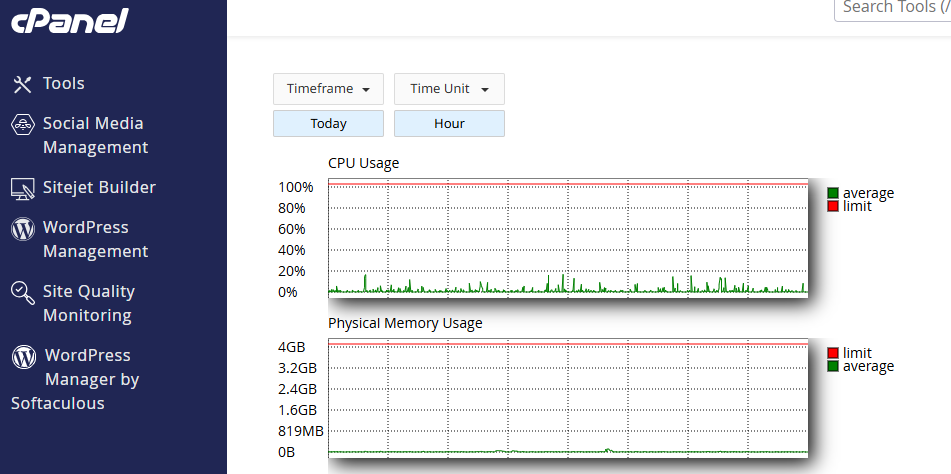
Hit, say, 70% load, and new containers pop up automatically. No midnight panic attacks required.
Vertical scaling:
If one container needs extra muscle (maybe you’re crunching reports or running payments), just bump its allocated RAM or CPU. Easy.
b. Managing Updates Like a Pro
Updating your app shouldn’t mean taking your site offline. With Docker, you can do rolling deployments:
- Pull the new image
- Redeploy
- Containers update one by one
Your users never notice a thing.
For monitoring, tools like docker stats work for quick checks, while Prometheus, which is integrated in Truehost’s dashboard, gives you deep insights.
For security, scan your images using Trivy during CI/CD so vulnerabilities don’t sneak into production.
c. Backups and Costs
Use volume mounts to store data outside your containers:
docker run -v /host/data:/container/data
That way, even if a container restarts, your info stays safe.
Most sites on Truehost spend under KES 1,000/month, thanks to our pay-as-you-grow setup.
Pro Tip: Run weekly image scans. It’s quick, painless, and can save you from ugly surprises down the road. No wonder the Docker monitoring market is booming—staying secure is now part of staying competitive.
5) Troubleshooting Common Web Hosting Docker Issues
Everyone hits bumps with Docker at some point. Even the gurus.
The good news is most fixes are quick once you know where to look.
a. Port Conflicts
If something refuses to start, another container is probably hogging the same port.
Run:
docker ps
Spot the culprit, stop it with:
docker stop <container-id>
Or simply remap your port:
-p 8080:80
Easy win.
b. Slow Image Downloads
Kenyan networks can drag at times.
Try pre-pulling images on Truehost or switch to faster African mirrors. Your builds will feel instantly lighter.
c. Volume Problems (files not saving?)
If your data disappears after a container restarts, your volume likely isn’t mounted correctly.
Double-check:
-v $(pwd):/app
Persistent storage = peace of mind.
d. Out-of-Memory Errors
If your app keeps crashing, it might simply be running out of RAM.
Limit usage:
–memory=512m
Or, if your project is growing, upgrade your Truehost plan.
e. When You’re Really Stuck
Most Docker issues come down to tiny spelling mistakes in a Dockerfile or Compose file.
Give it another read before panicking.
And remember, Truehost’s live chat usually solves these things in minutes, which is much faster than combing through Stack Overflow at 1 a.m.
Conclusion
You’ve now got the full roadmap, from the basics of Docker to containerizing your app, deploying it on Truehost, scaling it like a pro, and fixing the common hiccups along the way.
Web hosting Docker is a smarter, faster, more reliable way to run your site, especially here in Kenya where speed and uptime directly affect your sales and growth.
So why wait until your current host crashes again?
Switch to Truehost today and enjoy seamless web hosting with Docker, built locally, priced fairly, and optimized for Kenyan traffic.
Your next big project deserves a stable home.
FAQs
What’s web hosting Docker in simple terms?
It’s like packing your site into neat, portable containers—Lego blocks for code—so it runs anywhere without drama. Truehost makes this super easy.
How much does Truehost charge for Docker hosting?
Starter plans begin at KES 500/month, scaling up as your traffic grows.
Can I migrate my existing app into Docker?
Yes! Truehost’s migration tool handles it for you for free.
Docker vs traditional hosting: Is it worth it?
Absolutely. Zero-downtime deploys, easier scaling, and faster loads make it a no-brainer.
Good for Kenyan e-commerce?
Definitely. Just look at Jumia, fast, containerized setups boost conversions.
Do I need Kubernetes?
Not necessarily, but Truehost includes it if you ever want auto-orchestration.
Is there a free trial?
Yep try Docker hosting for 14 days on select plans.