Domain SearchInstantly check and register your preferred domain name
 Web Hosting
 cPanel HostingHosting powered by cPanel (Most user friendly)
 WordPress HostingHost your WordPress website with fast, secure, and affordable WordPress hosting in Kenya.
 KE Domains
 Reseller HostingStart your own hosting business without tech hustles
 Windows HostingOptimized for Windows-based applications and sites.
 Free Domain
 Affiliate ProgramEarn commissions by referring customers to our platforms
 Free HostingTest our SSD Hosting for free, for life (1GB storage)
 Domain TransferMove your domain to us with zero downtime and full control
 All DomainsBrowse and register domain extensions from around the world
 .Com Domain
 WhoisLook up domain ownership, expiry dates, and registrar information
 VPS Hosting
 Managed VPSNon techy? Opt for fully managed VPS server
 Dedicated ServersEnjoy unmatched power and control with your own physical server.
 Website Builder
 Online Store BuilderLaunch a professional e-commerce store without writing code.
 Web Design ServiceGet a custom-designed website tailored to your brand and goals. From just KES 15,600
 BlogRead our guides on web hosting, online business, digital marketing, and more
 SupportOur support guides cover everything you need to know about our services
 ContactContact us via chat or email
Ubuntu web hosting might sound like something only hardcore techies mess with, but trust me, you can master it too.
If you’ve ever wondered what really happens behind the scenes when a website goes live, Ubuntu is like that reliable friend who keeps everything running smoothly.
It gives you full control of premium hosting platforms.
So grab your laptop, roll up your sleeves, and let’s walk through how to host your website on Ubuntu step-by-step.
Here’s what we’ll cover:
- Why Ubuntu web hosting beats the alternatives for your business.
- Picking the right Truehost plan and setting up your server.
- Step-by-step install and launch.
- Security tweaks and performance hacks for Kenyan traffic.
Let’s turn your site from a folder on your desktop into a revenue machine.
Why You Need Ubuntu Web Hosting as a Kenyan Entrepreneur
So why Ubuntu? Because if you’re running a business in Kenya, you need hosting that’s fast, affordable, and doesn’t give you random headaches.
Ubuntu is free, stable, and powers a huge chunk of the world’s servers, without those heavy Windows licensing fees that drain your budget.
With Ubuntu web hosting, you can start small on a Truehost VPS from about KSh 699/month, scale easily as your traffic grows, and enjoy faster load times even on patchy 4G.
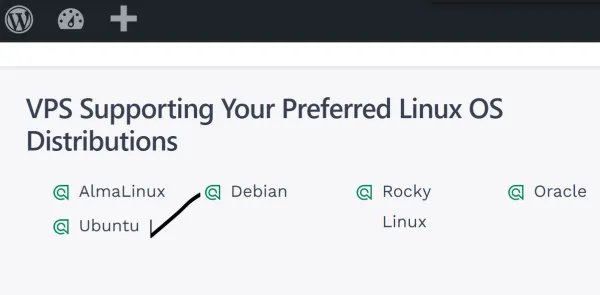
It’s lightweight, secure, and gets quick updates, which is super important when African sites face more cyber threats than most.
Pair that with local servers in Nairobi (hello, sub-50ms speed) and M-Pesa payments, and you get reliable hosting without the drama.
In short: Ubuntu gives you the performance and freedom you need to grow online, minus the costs and complications.
Perfect for Kenya’s fast-rising digital entrepreneurs.
Now before we get to learn how to host a website on ubuntu server, let’s get the plan first.
Choose Your Truehost Plan: The Foundation for Ubuntu Web Hosting
Before you start tinkering with servers, you need the right home for your website, and that starts with picking the right Truehost plan.
Truehost has become the go-to host for Kenyans (seriously, more than half the local market uses our hosting), and our VPS plans are perfect if you want to run Ubuntu without stress.
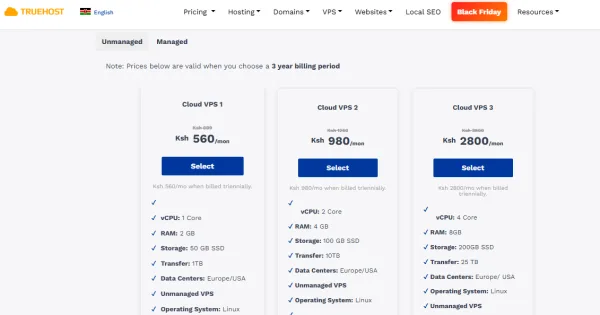
Our basic Cloud VPS 1 goes for about KSh 560/month, giving you 2GB RAM and 50GB SSD.
That’s more than enough for a WordPress blog, a simple online shop, or your first business site.
And when you grow, upgrading to the Cloud VPS 2 plan (around KSh 980/month, 4GB RAM) is as simple as clicking a button.
So why Truehost?
Because we make life easy:
- Local support on WhatsApp (in English or Swahili)
- Free migrations
- Full compliance with Kenya’s Data Protection Act
- No weird hidden fees
- And yes, we fully support Ubuntu 22.04 LTS, the stable version you want in 2025
Getting started is straightforward:
- Head to the Truehost VPS page.
- Choose your plan.
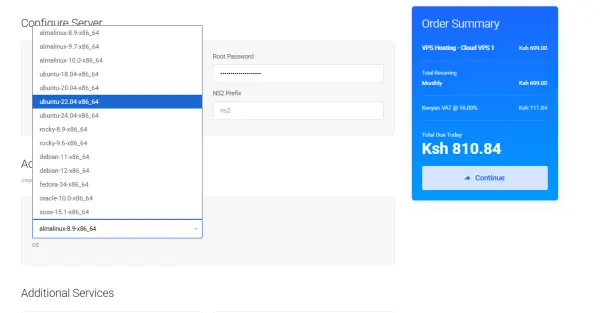
- Select Ubuntu during setup (it’s literally one click).
- Pay via M-Pesa and your server is live within minutes.
Pro tip: If you’re just testing the waters, try our 7-day money-back guarantee.
Tons of Kenyan sites, from freelancers to agro-business directories, run on this setup.
It’s hosting built for our networks, our traffic, and our wallets.
Step-by-Step Guide to Host Your Website on an Ubuntu Server
Alright, now for the fun part, actually getting your website live on Ubuntu.
Don’t worry, it’s simpler than it sounds.
We’ll use Apache, the world’s most popular web server, and assume you already have a Truehost VPS running Ubuntu 22.04.
Once your server is ready, log in using SSH (via PuTTY on Windows or Terminal on Mac/Linux) with your IP address, root username, and password from Truehost.
1) Update Your System (Start With a Clean Slate)
Think of this as cleaning your kitchen before cooking. A quick update helps you avoid weird bugs later.
sudo apt update && sudo apt upgrade -yThis pulls the latest security fixes and updates. It usually takes just a few minutes.
2) Install Apache Web Server
Apache is reliable, beginner-friendly, and works beautifully with Ubuntu.
sudo apt install apache2 -y
sudo systemctl start apache2
sudo systemctl enable apache2
Now pop your server’s IP into your browser, you should see the default Apache page.
If it doesn’t load, allow it through the firewall:
sudo ufw allow 'Apache Full'
sudo ufw enable
3) Secure Your Site with SSL (Your Visitors Expect It)
A website without HTTPS looks shady, especially for Kenyan shoppers. Let’s Encrypt gives you free SSL certificates.
sudo apt install certbot python3-certbot-apache -y
sudo certbot --apache
Follow the prompts, enter your domain (after pointing it to your server in Truehost DNS), and you’re good. SSL renews automatically every 90 days.
4) Upload Your Website Files
Ready to put your actual website online?
Use SFTP (like FileZilla) or SCP to upload your files to:
/var/www/htmlReplace the default file:
sudo nano /var/www/html/index.htmlPaste your code → save → exit.
If your site needs a database (like WordPress):
sudo apt install mysql-server -ysudo mysql_secure_installationCreate your database and user, then import your content. You can also install phpMyAdmin if you prefer a visual interface.
5) Set Up Virtual Hosts (For Multiple Websites)
When hosting more than one site on the same server, virtual hosts make it easy.
Create a config file:
sudo nano /etc/apache2/sites-available/yoursite.confAdd:
<VirtualHost *:80>
ServerName yourdomain.co.ke
DocumentRoot /var/www/yoursite
<Directory /var/www/yoursite>
AllowOverride All
</Directory>
</VirtualHost>
Enable it:
sudo a2ensite yoursite.conf
sudo systemctl reload apache2
If your site uses PHP, install it:
sudo apt install php libapache2-mod-php -y6) Go Live and Keep an Eye on Things
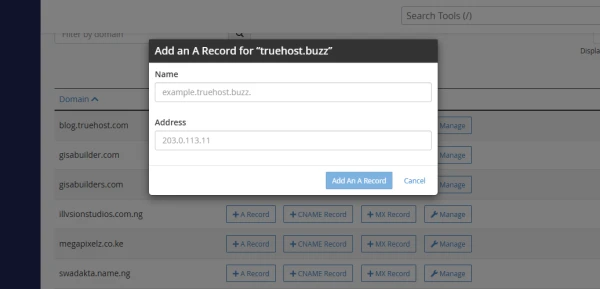
Now point your domain’s A record to your server IP in Truehost’s DNS panel.
Monitor your server with:
htop
Install it first:
sudo apt install htopFor backups, you can even automate them with a simple rsync script to Google Drive or another cloud.
And if anything goes sideways? Truehost’s 24/7 chat support usually sorts things out fast.
That’s it, you’re live!
With Ubuntu, your jewelry shop, blog, agency site, or online store can now serve customers from Rongai to the rest of the world in under an hour.
Locking Down Security in Your Ubuntu Web Hosting
Let’s be honest, security isn’t something you can “deal with later.”
Kenyan websites get hammered especially hard during holiday seasons (phishing spikes are no joke), so it’s worth locking things down from day one.
The good news is, Ubuntu makes this surprisingly easy.
Start with Fail2Ban.
This little tool quietly watches your server and blocks anyone trying to brute-force their way in.
sudo apt install fail2ban -yIt works out of the box, but you can tweak /etc/fail2ban/jail.local to give SSH extra protection.
Next up: your firewall (UFW).
Keep it simple, and only allow what you actually use: SSH (22), HTTP (80), HTTPS (443).
sudo ufw default deny incoming
sudo ufw default allow outgoing
Then switch to key-based SSH login.
Passwords are easy to guess; keys are not.
- Generate keys on your computer: ssh-keygen
- Send the key to your server: ssh-copy-id root@yourIP
- Disable password login inside /etc/ssh/sshd_config
Now only your device can get in.
For your website files, run regular virus scans.
ClamAV is free, trusted, and easy to set up:
sudo apt install clamav -y
sudo freshclam
sudo clamscan -r /var/www
Automate it weekly with a cron job and you’re covered.
And if you’re using Truehost, you get even more layers like DDoS protection and malware scans on premium plans.
That means your site stays online while some competitors get knocked offline during big traffic days.
Boosting Performance for Kenyan Audiences
Here’s the uncomfortable truth: slow sites lose sales.
And because 60% of Kenyan visitors browse on mobile, speed is your lifeline.
Ubuntu gives you an edge by using resources efficiently, but you can make it even faster:
Enable caching in Apache with mod_expires.
Just open your Apache config and add:
<IfModule mod_expires.c>
ExpiresActive On
ExpiresByType text/css "access plus 1 year"
</IfModule>
Restart Apache and enjoy faster repeat visits.
Tune MySQL for better performance.
In /etc/mysql/mysql.conf.d/mysqld.cnf, set:
innodb_buffer_pool_size = 256M(Or higher if your server has more RAM.)
Go local.
Hosting on Truehost’s Nairobi servers instantly cuts latency by around 40% compared to US servers, your site will feel much snappier to Kenyan users.
Shrink your images.
Most sites are slowed down by giant pictures. Install a quick optimizer:
sudo apt install jpegoptim -y
Add Cloudflare for free.
You’ll get a global CDN, faster delivery, and bonus security, without paying a cent.
Finally, monitor everything. Use tools like New Relic (their free tier works fine) or Truehost’s dashboard to keep an eye on performance.
Tweak, test, repeat.
If you can keep your site loading in under 3 seconds, you’re basically winning, for SEO, for sales, and for user happiness.
Launch Your Site on Ubuntu Today
You now have a live, secured, and optimised website running on Ubuntu. That’s not a small thing.
Here’s a quick summary of what you’ve covered:
- System updated and Apache installed
- SSL certificate live and auto-renewing
- Website files uploaded and database configured
- Virtual hosts set up for clean domain management
- Fail2Ban, UFW firewall, and key-based SSH login protecting your server
- Caching, MySQL tuning, and image optimisation keeping things fast
From here, the work is mostly maintenance, keep your packages updated, monitor resource usage with htop, and automate your backups if you haven’t already.
If you’re on Truehost’s managed VPS plan, a lot of that monitoring and security patching is handled for you, which frees you up to focus on the actual business.
When your traffic grows and the Cloud VPS 1 starts feeling tight, upgrading to Cloud VPS 2 takes one click from your Truehost dashboard, no migration, no downtime, no starting over.
Ready to get your Ubuntu VPS live?
Pay via M-Pesa. Server active within minutes. 7-day money-back guarantee if it’s not the right fit.