Domain SearchInstantly check and register your preferred domain name
 Web Hosting
 cPanel HostingHosting powered by cPanel (Most user friendly)
 WordPress HostingHost your WordPress website with fast, secure, and affordable WordPress hosting in Kenya.
 KE Domains
 Reseller HostingStart your own hosting business without tech hustles
 Windows HostingOptimized for Windows-based applications and sites.
 Free Domain
 Affiliate ProgramEarn commissions by referring customers to our platforms
 Free HostingTest our SSD Hosting for free, for life (1GB storage)
 Domain TransferMove your domain to us with zero downtime and full control
 All DomainsBrowse and register domain extensions from around the world
 .Com Domain
 WhoisLook up domain ownership, expiry dates, and registrar information
 VPS Hosting
 Managed VPSNon techy? Opt for fully managed VPS server
 Dedicated ServersEnjoy unmatched power and control with your own physical server.
 Website Builder
 Online Store BuilderLaunch a professional e-commerce store without writing code.
 Web Design ServiceGet a custom-designed website tailored to your brand and goals. From just KES 15,600
 BlogRead our guides on web hosting, online business, digital marketing, and more
 SupportOur support guides cover everything you need to know about our services
 ContactContact us via chat or email
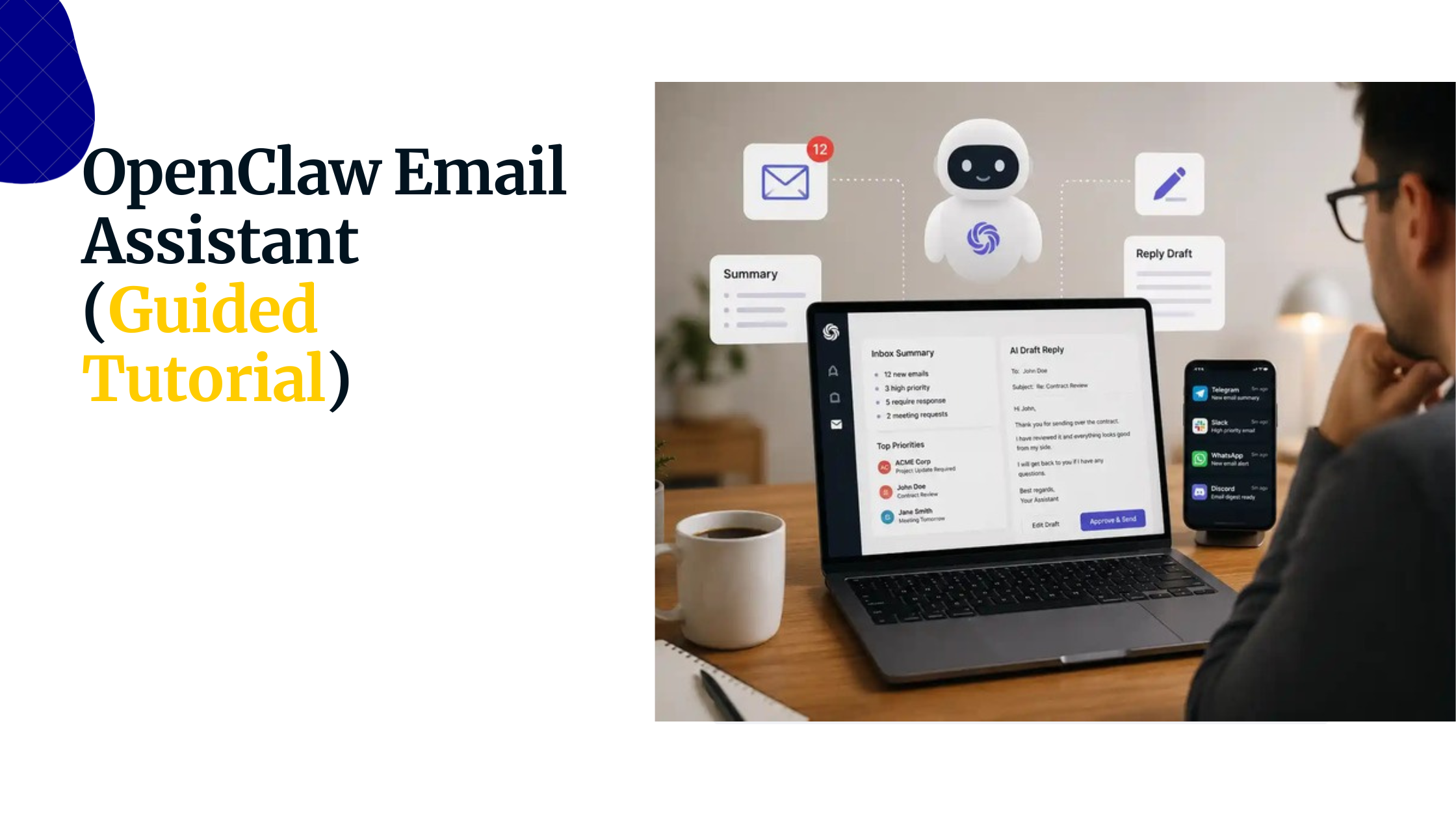
The way people use AI has changed fast. Not long ago, an AI assistant was simply a chatbot you opened when you needed an answer. Today, AI agents can do much more.
They can read messages, browse the web, run commands, manage files, and work through the communication tools people already use every day, including WhatsApp, Telegram, Discord, and Slack. OpenClaw has quickly become one of the most talked-about platforms powering this new wave of AI automation.
Originally launched as Clawdbot in late 2025 before being rebranded as OpenClaw, the project gained remarkable traction in the open-source community, attracting hundreds of thousands of GitHub stars within months.
Its appeal comes from a simple idea: instead of relying on a hosted service, you run the agent on your own machine, connect it to your preferred AI model, and interact with it through familiar messaging apps.
Once configured, OpenClaw can handle tasks in the background through a component known as the Gateway, allowing you to send instructions as easily as sending a chat message.
For Windows users, however, there is one important consideration. OpenClaw is designed to run in a Linux environment. While it is technically possible to run parts of it directly from PowerShell, the experience can quickly become frustrating due to differences in file paths, shell behaviour, and service management.
That is why both the OpenClaw community and official documentation recommend running OpenClaw inside WSL2 (Windows Subsystem for Linux).
WSL2 gives Windows users a full Linux environment without needing a separate machine or a traditional virtual machine setup. It runs a real Linux kernel and offers excellent compatibility with Linux applications while integrating smoothly with Windows tools such as VS Code and File Explorer.
For OpenClaw, this means access to systemd, proper Node.js support, reliable networking, and a much more stable environment overall.
In this guide, you’ll learn how to install WSL2, set up Ubuntu, install the correct version of Node.js, deploy OpenClaw, configure it to run automatically in the background, and optimize performance for everyday use.
You’ll also find solutions to the most common installation and runtime issues, helping you get your OpenClaw environment running smoothly from day one.
Prerequisites & System Checklist
Before you open a terminal, spend a few minutes confirming your machine is ready. Skipping this is the most common reason first-time users hit a wall.
Operating system. Windows 10 Build 19041 (May 2020 Update) or later, or any version of Windows 11.
Check by pressing Win + R, typing winver, and pressing Enter. Builds before 19041 require manual kernel installation and are not worth the trouble.
RAM. 4 GB is the technical minimum, but you will feel it. 8 GB is the comfortable baseline for everyday use. If you plan to run a local model through Ollama alongside OpenClaw, 16 GB is the practical floor.
Storage. WSL2, Ubuntu, Node.js, and OpenClaw’s dependencies together consume roughly 3–4 GB. Reserve at least 4 GB before you begin, and 10 GB if you expect to expand your setup later.
Virtualization. WSL2 requires hardware virtualization to be enabled in BIOS; look for Intel VT-x, AMD-V, or SVM Mode.
Most modern machines have it on by default, but it is the one setting that consistently trips up first-time users. If you skip it, WSL2 will appear to install successfully, but Ubuntu will fail to launch.
Internet connection. OpenClaw pulls several large AI-related dependencies during install. A stable connection counts more at this step than any other.
An API key. Obtain one from Anthropic, OpenAI, Google, or MiniMax before starting. The onboarding wizard will ask for it and cannot complete without one.
Windows Terminal (optional but recommended). Install it from the Microsoft Store for a tabbed interface, proper Unicode rendering, and easy switching between PowerShell and Ubuntu.
The default Windows console handles Linux output poorly.
Step 1: Installing WSL2 and Setting Up Ubuntu
Open PowerShell as Administrator, right-click the Start menu and select Terminal (Admin) or Windows PowerShell (Admin), then run:
wsl –install
That single command handles everything: it enables the necessary Windows features, installs the WSL2 Linux kernel, and downloads Ubuntu. When it finishes, restart your PC. The kernel components genuinely do not load until after a reboot, so do not skip it.
After restarting, Ubuntu will launch on its own and ask you to create a username and password. A couple of things worth knowing here: your UNIX username has nothing to do with your Windows login, so pick whatever you like.
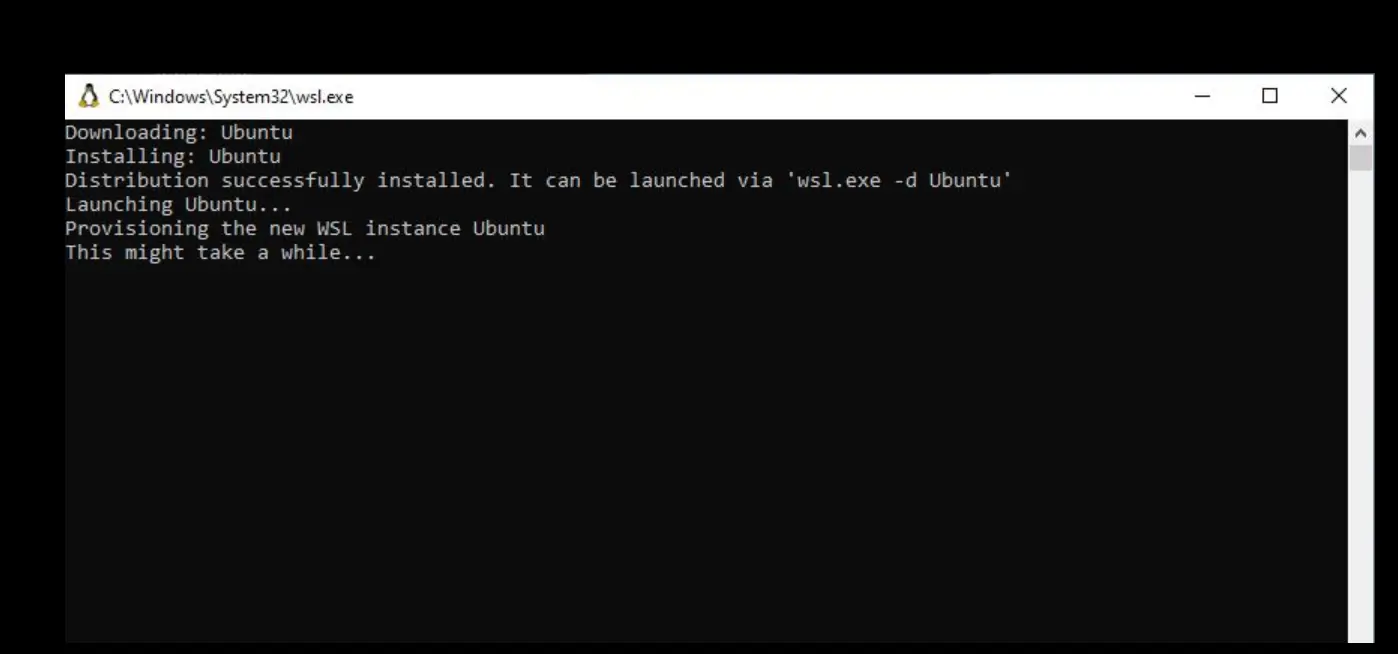
Choose a password you will actually remember; Ubuntu asks for it every time you use sudo, and recovering it means reinstalling the whole distribution.
Also, when you get to the OpenClaw installation later, do not run it as root. An AI agent with shell access running as root is an unnecessary risk; your regular user account is the right choice.
Once setup is done, confirm you are on WSL2 and not WSL1 by running wsl --list --verbose in PowerShell. You should see VERSION 2 next to Ubuntu. If it says 1, run wsl --set-default-version 2 and wsl --set-version Ubuntu 2, then reopen Ubuntu.
The distinction counts: WSL1 translates Linux system calls rather than running a real kernel, and several of OpenClaw’s dependencies will not behave correctly under it.
Step 2: Installing Node.js Inside WSL
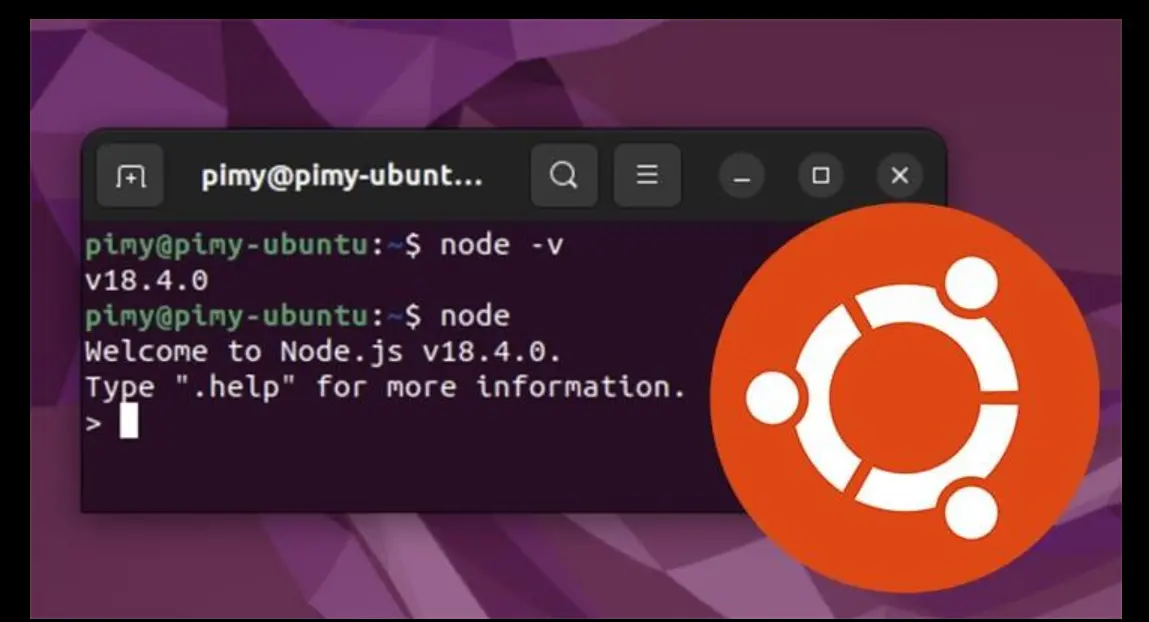
This step is where a lot of installations quietly go wrong. Ubuntu’s built-in package repositories ship an outdated version of Node.js, sometimes as old as v12, and installing it without specifying a version will leave you with a runtime OpenClaw simply cannot use. You need at least v22.19; v24 is recommended.
The cleanest approach is NVM (Node Version Manager), which lets you install the right version and switch between versions easily if you ever need to. Install it with:
curl -o- https://raw.githubusercontent.com/nvm-sh/nvm/v0.40.1/install.sh
Close and reopen your terminal to activate NVM, then run nvm install 24 followed by nvm alias default 24. After that, node -v should confirm you are on v24.
If you previously installed Node.js on Windows, its path can bleed into WSL and cause confusing behaviour. Run which node and make sure the output starts with /home/, not /mnt/c/. NVM handles this correctly by default.
Step 3: Installing OpenClaw
With the right Node.js version confirmed, installing OpenClaw is straightforward. Run either the official install script:
curl -fsSL https://openclaw.ai/install.sh
Or install it as a global npm package:
npm install -g openclaw@latest
Both work. The install script is slightly more guided; the npm method will feel familiar if you have worked with Node.js before. When the installer shows a security advisory, read it; it explains what the agent can do and what permissions it needs. Select QuickStart for safe, recommended defaults.
On choosing an AI provider: OpenClaw will ask which model to use during onboarding. Claude (Anthropic) is the strongest all-round choice for agent tasks; Gemini Flash is a good option if you want a free tier to experiment with first.

One practical note: resist the temptation to start with the most powerful model available. Claude Sonnet and Gemini Flash handle the vast majority of everyday tasks well, at a fraction of the cost of top-tier models. You can always upgrade later.
Run openclaw onboard to start the two-minute setup wizard, then openclaw gateway status once it finishes. If the Gateway is running, open http://localhost:18789 in your browser; that is your local dashboard for monitoring the agent and reviewing activity.
Step 4: Making OpenClaw Run Automatically in the Background
Right now, OpenClaw runs only while your Ubuntu terminal is open. Close the window and the agent goes offline. For anything beyond casual testing, you want it running as a proper background service.
The way to do this on WSL is through systemd, Linux’s standard service manager. First, enable it by opening /etc/wsl.conf with sudo nano /etc/wsl.conf and adding:
systemd=true
Save the file, run wsl --shutdown in PowerShell, then reopen Ubuntu. From this point, WSL boots with systemd active.
Next, create a service file at /etc/systemd/system/openclaw.service. The file tells systemd what to run, as which user, and what to do if it crashes. The key lines are the User field (set this to your actual username), the ExecStart path (run which openclaw to confirm the correct path on your machine), and Restart=on-failure, which ensures the Gateway comes back up automatically if something goes wrong.
Once the file is saved, run sudo systemctl enable openclaw && sudo systemctl start openclaw. Check sudo systemctl status openclaw; you should see active (running). OpenClaw will now start automatically every time WSL boots, with no terminal required.
If you are on Windows 10 without systemd support, Task Scheduler is a workable alternative. Create a small batch file that launches WSL and starts the Gateway, then set it as a startup task with “Run whether user is logged on or not” enabled. It is less elegant, but it gets the job done.
Performance Optimization Tips for WSL
A default WSL2 installation works, but four small changes make a noticeable difference in day-to-day responsiveness.
i) Manage RAM usage. WSL2 can quietly consume up to 80% of your system RAM if left unchecked. Create a .wslconfig file in your Windows user folder (C:\Users\YourName\) and set a memory cap; half your total RAM is a good rule of thumb, so memory=8GB on a 16 GB machine, with processors=2 and swap=2GB alongside it.
Run wsl --shutdown in PowerShell to apply, then reopen Ubuntu.
ii) Keep files in the Linux filesystem. This is the highest-impact change you can make. Every file operation that crosses into /mnt/c/ goes through a slow translation layer.
Keep project files under ~/projects/ inside Ubuntu. If you have already started work under /mnt/c/, copy it over and continue from there.
iii) Speed up package downloads. Ubuntu’s default mirror is US-based. Switching to a regional mirror in /etc/apt/sources.list cuts download times considerably; for East Africa, ke.archive.ubuntu.com is a solid choice.
Also add a pip cache line to your ~/.bashrc so Python packages you have already downloaded do not get re-fetched on reinstall.
iv) Use VS Code with the WSL extension. Install the WSL extension, then always launch VS Code from inside your Ubuntu terminal using code. in your project folder.
The bottom-left corner will show WSL: Ubuntu in green when connected correctly. Opening projects by dragging from Windows File Explorer routes through the slow /mnt/c/ bridge; avoid it.
Troubleshooting Common Errors
Run openclaw doctor before anything else. It checks every major component and usually identifies the problem in seconds.
i) openclaw: command not found: npm installed OpenClaw, but your shell cannot find the binary. Add npm’s global binary directory to your PATH in ~/.bashrc. Run npm config get prefix to find the exact path.
ii) EACCES: permission denied: a previous install was run with, sudo, leaving root-owned files in npm’s global directory. Point npm to a user-owned directory, reload your shell, and retry without sudo. Never use sudo npm install -g.
iii) ECONNREFUSED: the Gateway is not running. Start it with openclaw gateway start and retry. If it immediately stops, check journalctl -u openclaw -n 50 for the cause.
iv) RPC probe fails despite service appearing active: launch the Gateway manually from your terminal to expose any startup errors systemd is hiding, fix them, then restart via systemd.
v) npm install appears frozen: OpenClaw pulls several hundred megabytes of dependencies and can look stuck for minutes. Wait at least ten minutes. If genuinely stalled, rerun with --verbose to see live progress.
vi) Dashboard shows “Unauthorized”: do not use directly to localhost:18789. Run openclaw dashboard instead to get a tokenized URL with credentials embedded.
vi) Other devices cannot reach the Gateway: Windows Firewall is blocking port 18789. Add an inbound rule in PowerShell as Administrator to allow TCP traffic on that port.
Your OpenClaw WSL Setup Is Ready
At this point you have a fully functional OpenClaw installation: Node.js at the correct version, the Gateway running as a persistent systemd service, the dashboard accessible locally and optionally over your LAN, and a tuned WSL2 environment with appropriate RAM limits, files in the right filesystem, and VS Code connected correctly.
The remaining step is to explore what OpenClaw can actually do. Connect a Telegram bot and send it a task. Install a skill from ClawdHub. Point it at a folder and ask it to summarise the contents.
The infrastructure you have just set up will quietly handle everything that happens in the background while you focus on what you want the agent to accomplish.
Set Up and Run OpenClaw on WSL Smoothly: FAQs
WSL1 or WSL2, does it count?
Yes. Some of OpenClaw’s dependencies break under WSL1, and systemd is not available in it at all. Use WSL2.
Minimum hardware?
4 GB RAM will technically run it, but 8 GB is where it becomes comfortable.
Which AI provider to start with?
Claude Sonnet for the best all-round results. Gemini Flash if you want a free tier first. Only upgrade to top-tier models if mid-tier falls short; the cost difference adds up for a persistent agent.
Can I access the dashboard from my phone?
Yes, add the firewall rule for port 18789 and use your machine’s local IP from any device on the same network.
OpenClaw stops when I close the terminal.
You have not yet set up the systemd service in Step 4. Once enabled, the Gateway runs independently of any terminal.
Can OpenClaw control Windows apps?
Not through WSL directly. The separate Windows Hub app bridges that gap and gives the agent access to Windows-native capabilities.
Is it safe?
Run it as a non-root user, keep API keys out of shared files, and use consent rules for high-impact actions. WSL2 adds a layer of isolation on top of that.
Cloud vs. WSL?
Cloud is always on regardless of your machine’s state. WSL is free beyond API costs but only runs while your computer is on.
For personal use, WSL is fine; for a shared or always-on setup, Cloud makes more sense.