Domain SearchInstantly check and register your preferred domain name
 Web Hosting
 cPanel HostingHosting powered by cPanel (Most user friendly)
 WordPress HostingHost your WordPress website with fast, secure, and affordable WordPress hosting in Kenya.
 KE Domains
 Reseller HostingStart your own hosting business without tech hustles
 Windows HostingOptimized for Windows-based applications and sites.
 Free Domain
 Affiliate ProgramEarn commissions by referring customers to our platforms
 Free HostingTest our SSD Hosting for free, for life (1GB storage)
 Domain TransferMove your domain to us with zero downtime and full control
 All DomainsBrowse and register domain extensions from around the world
 .Com Domain
 WhoisLook up domain ownership, expiry dates, and registrar information
 VPS Hosting
 Managed VPSNon techy? Opt for fully managed VPS server
 Dedicated ServersEnjoy unmatched power and control with your own physical server.
 Website Builder
 Online Store BuilderLaunch a professional e-commerce store without writing code.
 Web Design ServiceGet a custom-designed website tailored to your brand and goals. From just KES 15,600
 BlogRead our guides on web hosting, online business, digital marketing, and more
 SupportOur support guides cover everything you need to know about our services
 ContactContact us via chat or email
A .deb file is simply a package format for Ubuntu and other Debian-based Linux systems.
It is like an installer file, similar to an .exe file on Windows.
When a software vendor wants to give you their application directly, they usually package it as a .deb file.
So why would you need to install one?
The default Ubuntu software store does not have every application. Some programs are missing entirely.
Other times, the version in the store is old, and you want the latest release straight from the developer. Installing a .deb file solves both problems.
You get the exact application you need right away, without waiting for Ubuntu to add it.
5 Quick Steps to Install a deb File in Ubuntu (Apt)
1) Download the .deb File
First, get the .deb file from the software developer’s website. Save it somewhere you can easily find.
Make sure you pick the correct version for your system, usually one labelled for Ubuntu or Debian.
2) Go to the Folder Where the .deb File Is Saved
Open the Terminal. Use the cd command to navigate to the folder containing the file. For example, if it’s in your Downloads folder, type:
cd ~/DownloadsYou can check if the file is there by typing ls and looking for the filename ending in .deb.
3) Install the .deb File Using apt
The apt command automatically handles most dependencies. Run this command:
sudo apt install ./filename.debReplace filename.deb with the actual name of your file. The ./ tells apt to look in the current folder.
Using apt instead of a lower-level tool is preferred because it automatically fetches and installs any required libraries from Ubuntu’s repositories.
4) Fix Missing Dependencies
If you still see errors about missing dependencies after the install, run:
sudo apt install -fThe -f stands for “fix broken”. This command tells apt to look for any unmet dependency requirements and install any missing packages.
5) Open and Confirm the App Works
Once the installation finishes, close the Terminal. Go to your applications menu and search for the program you just installed.
Click on it to launch. Confirm it opens without errors. If it runs fine, you are done.
Alternative Method: Install A .deb File Using dpkg
When To Use dpkg
dpkg is the low-level package manager that sits underneath apt.
You would use this directly when you are offline or when apt refuses to install a local file for some reason.
It gives you more control, but it does not automatically download missing dependencies.
dpkg Install Command
To install a .deb file with dpkg, navigate to the folder containing the file and run:
sudo dpkg -i filename.debThe -i flag stands for install.
How To Fix dpkg Dependency Errors
If dpkg gives you a dependency error, do not panic. The package is installed but broken. Fix it by running:
sudo apt install -fThis command will pull in all the missing dependencies that dpkg could not get. After that, your application should work normally.
Alternative Method: Install A .deb File By Double-Clicking (GUI)
If you prefer not to use the Terminal, locate the .deb file in your file manager and double-click it.
Ubuntu will automatically open the file with the “Software Install” application.
Then click the “Install” button, enter your password, and the installation proceeds.
This method works best for beginners or for simple applications with few complex dependencies.
If you are installing a single small tool, such as Discord, Zoom, or Google Chrome, double-clicking is perfectly fine.
Just be aware that the Software Install window can sometimes get stuck or close without explanation.
This usually happens when a dependency issue prevents the GUI from resolving.
Another problem is when the “Install” button stays greyed out.
In both cases, your best fix is to switch to the Terminal method using apt, which gives you error messages you can actually read and act upon.
How To Uninstall A .deb Package
Find The Package Name:
Before you can remove software, you need its exact package name. To find it, run:
dpkg -l | grep -i partofnameReplace partofname with a keyword from the application. For example, if you installed Google Chrome, use grep -i chrome. The command lists all installed packages and filters for your keyword.
Remove The Package With apt:
Once you have the exact package name, uninstall it with:
sudo apt remove packagenameReplace packagename with the name you found. This command removes the application but keeps its configuration files.
If you want to remove everything, including configuration files, use sudo apt purge packagename.
Remove Unused Dependencies:
After removing an application, libraries may remain that are no longer needed. Clean them up with:
sudo apt autoremoveThis command removes any packages that were automatically installed as dependencies but are no longer required by anything on your system.
Common Errors When Installing .deb Files
- Unsupported Architecture Error: You downloaded a package for a different processor type. Solution: Download the
amd64version for modern computers or thearm64version for Raspberry Pi-style devices.
- Dependency Problems: Missing libraries or packages. Solution: Run
sudo apt install -f. If that does not work, runsudo aptupdate first, then try the install command again.
- Permission Denied Error: You forgot to use sudo before your install command. Solution: Put
sudoat the start of the command and enter your password.
- File Not Found Error: The Terminal is looking in the wrong folder or the filename is spelled incorrectly. Solution: Use
lsto list files and check the spelling. Remember, Linux filenames are case-sensitive.
- Package Conflicts: A different version or conflicting package is already installed. Solution: Remove the conflicting package first with
sudo apt remove conflicting-package, then install the new .deb file.
Safety Tips Before Installing .deb Files
- Avoid unknown download sites. Only download from official vendor websites or trusted repositories like GitHub releases of well-known projects.
- Prefer official vendor websites. Get Discord from
discord.com, Google Chrome fromgoogle.com/chrome, and Visual Studio Code from code.visualstudio.com. - Keep your system updated. Run
sudo apt update && sudo apt upgrade -ybefore installing any new .deb package.
Quick Command Summary
| Action | Command |
| Install .deb with apt (recommended) | sudo apt install ./filename.deb |
| Install .deb with dpkg | sudo dpkg -i filename.deb |
| Fix dependency errors | sudo apt install -f |
| Remove a package | sudo apt remove packagename |
| Remove unused dependencies | sudo apt autoremove |
| Find installed package name | dpkg -l | grep -i keyword |
How to Install a Deb file in Ubuntu FAQs
They are as safe as the source from which you get them. A .deb file from the official developer is safe. The same file from a random forum post could be dangerous. Always verify the source.
Yes. Use the sudo apt remove command followed by the package name. You can also use sudo dpkg -r packagename if you prefer.
The methods in this article work exactly the same on Ubuntu 24.04 and newer. Use sudo apt install ./filename.deb for the best result.
It is an archive that contains the actual program files, installation instructions, and a list of dependencies.
When you install it, the package manager extracts the files to the correct system locations and registers the software, so Ubuntu knows it exists.
Ready to install a .deb file in Ubuntu on Truehost VPS?
You have the commands. You have the safety tips. Now you need a reliable environment to run your software.
If you are hosting applications on a remote server, you want installation processes that work the first time.
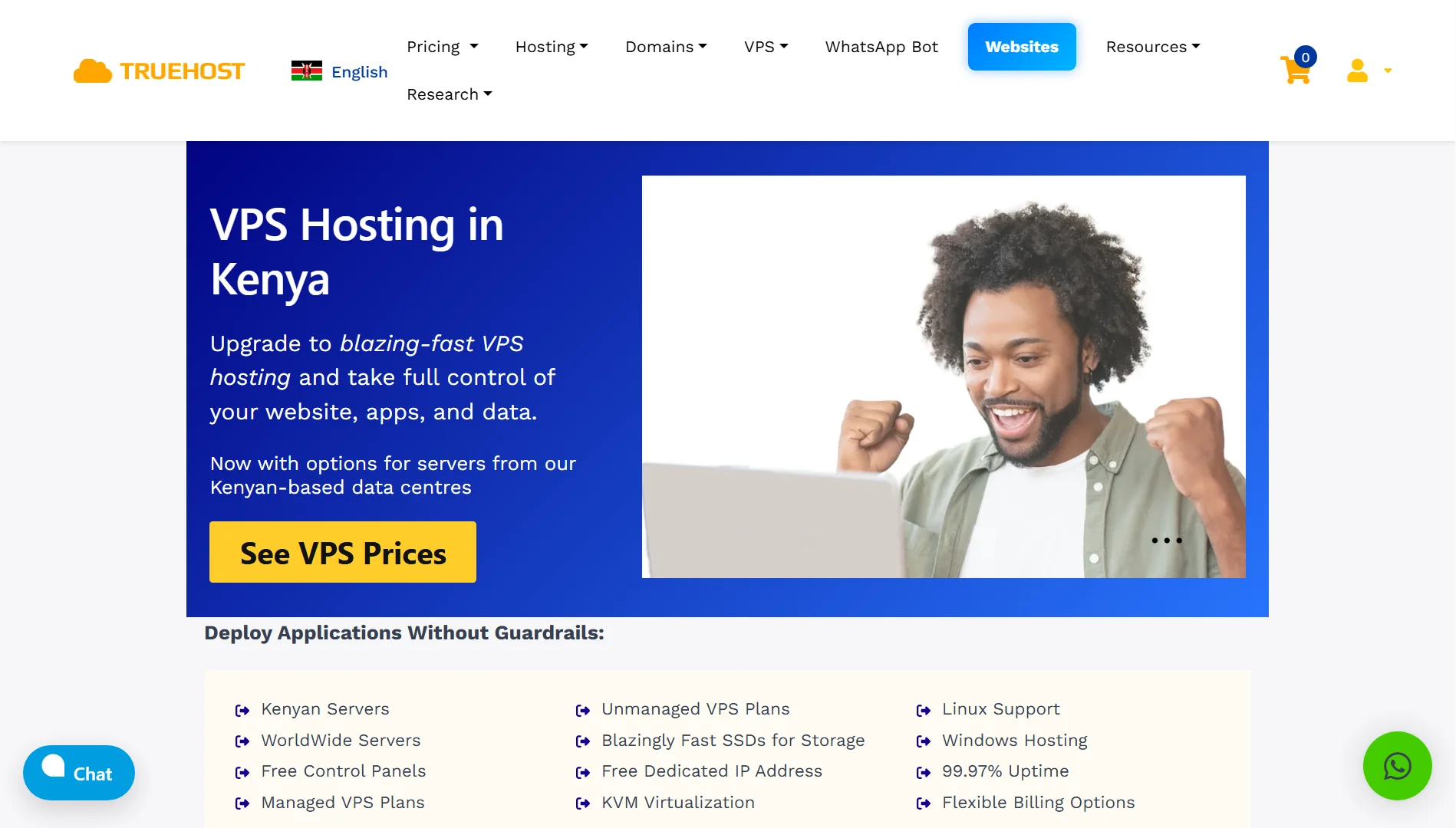
That means having a clean, up-to-date Ubuntu system with full control. Our VPS hosting plans give you exactly that.
We offer blazing-fast SSD storage, full root access, and you can choose between our local Nairobi data centres or worldwide locations.
We have you covered with KVM virtualization and a free dedicated IP address.
So, get a VPS that lets you run exactly the software you need. Check out our VPS prices and see how affordable a Kenya-based server can be.