Domain SearchInstantly check and register your preferred domain name
 Web Hosting
 cPanel HostingHosting powered by cPanel (Most user friendly)
 WordPress HostingHost your WordPress website with fast, secure, and affordable WordPress hosting in Kenya.
 KE Domains
 Reseller HostingStart your own hosting business without tech hustles
 Windows HostingOptimized for Windows-based applications and sites.
 Free Domain
 Affiliate ProgramEarn commissions by referring customers to our platforms
 Free HostingTest our SSD Hosting for free, for life (1GB storage)
 Domain TransferMove your domain to us with zero downtime and full control
 All DomainsBrowse and register domain extensions from around the world
 .Com Domain
 WhoisLook up domain ownership, expiry dates, and registrar information
 VPS Hosting
 Managed VPSNon techy? Opt for fully managed VPS server
 Dedicated ServersEnjoy unmatched power and control with your own physical server.
 Website Builder
 Online Store BuilderLaunch a professional e-commerce store without writing code.
 Web Design ServiceGet a custom-designed website tailored to your brand and goals. From just KES 15,600
 BlogRead our guides on web hosting, online business, digital marketing, and more
 SupportOur support guides cover everything you need to know about our services
 ContactContact us via chat or email
Getting your HTML website live is faster and very easy. If you have your files ready and a hosting account set up, you can have your site online in under ten minutes.
If you are confused by that statement on file and hosting, let me break it down. This is what you need before starting the process:
- A working HTML project on your computer with index.html as your main file
- All necessary folders, including your css, js, images, and assets folders, should be part of the project
- A domain name and cPanel hosting if you don’t have these yet, you can get both from us at Truehost.
We offer affordable cPanel hosting plans and domain registration. Check out our page.
Here’s what you’ll learn:
- How to prepare and host html website in cPanel
- How to upload and extract files in cPanel’s File Manager
- How to move files so your site loads at yourdomain.com (not a subfolder)
- Common mistakes to avoid and how to test your site after going live
Let’s get into it.
Step-by-Step Guide to Host Your HTML Website in cPanel
Step 1: Prepare Your Files
Before you touch cPanel, make sure your project folder is properly organised on your computer.
Your folder should look something like this:
my-website/
├── index.html
├── css/
│   └── style.css
├── js/
│   └── main.js
└── images/
    └── logo.png
Now, zip the entire folder not just index.html.
Why zip? Uploading a zip file and extracting it in cPanel is much faster and more reliable than uploading files one by one. If you have 30 files in your project and upload them individually, one failed upload can break your site silently.
On Windows, right-click the folder → Send to → Compressed (zipped) folder. On Mac, right-click → Compress.
You should end up with something like my-website.zip. That’s the file you’ll upload.
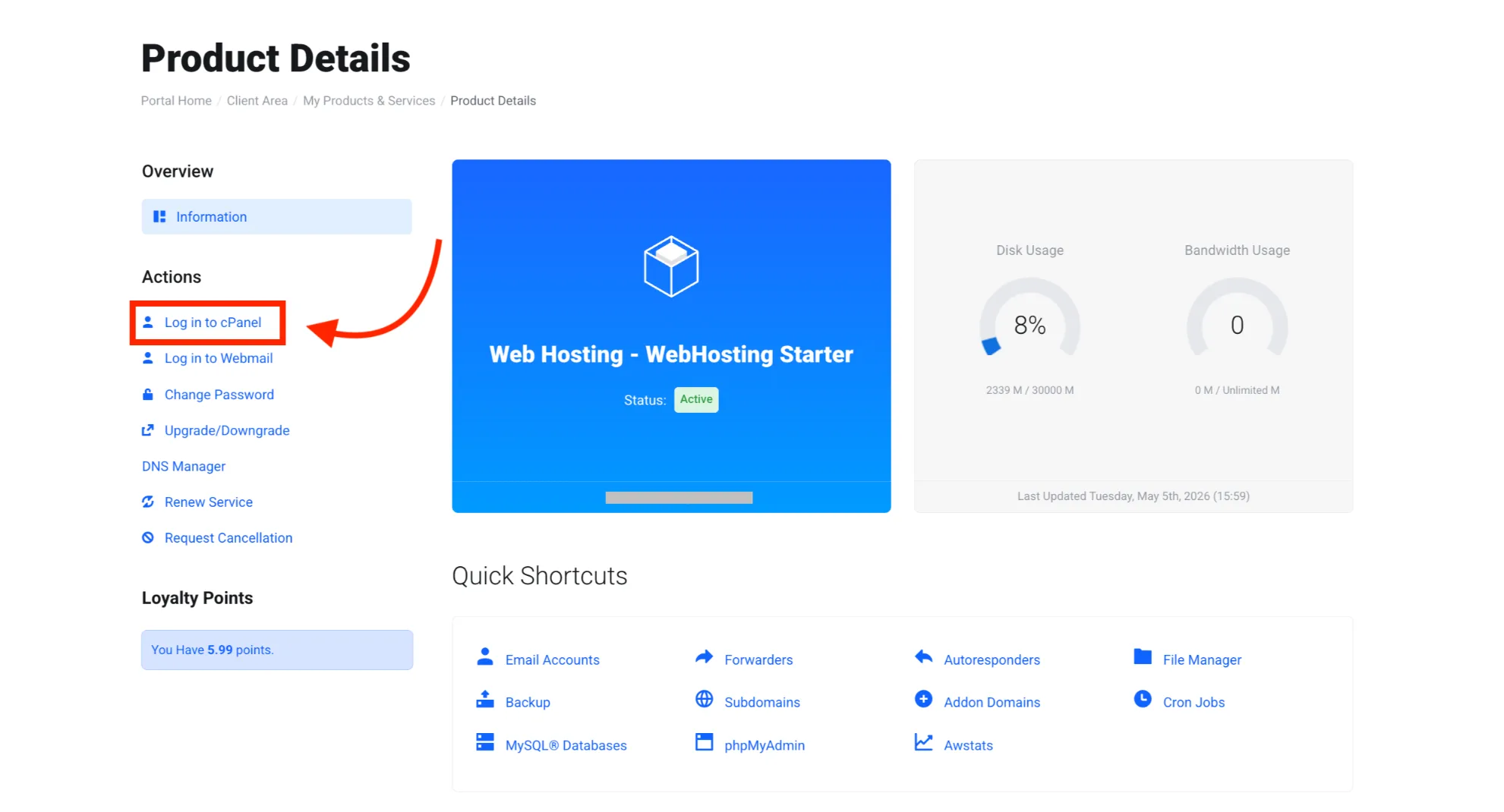
Step 2: Log In to cPanel
Go to your hosting account’s cPanel. This is usually accessible at:
yourdomain.com/cpanel
Or log in through your Truehost client area and find cPanel from there.
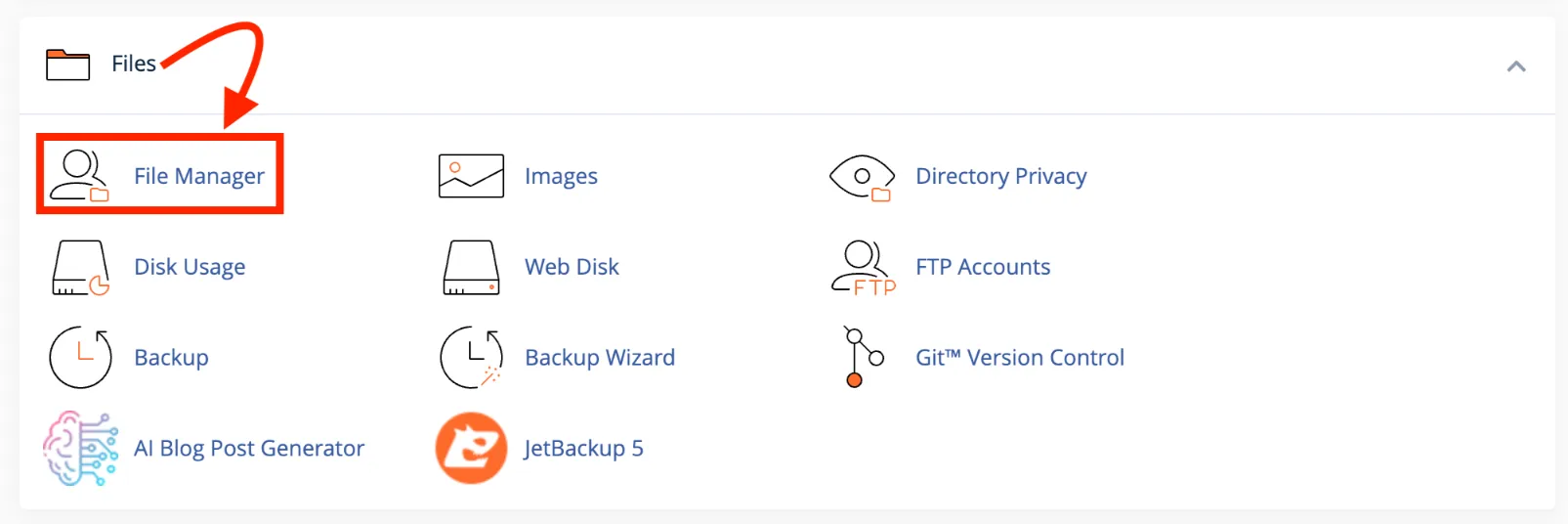
Once you’re inside the cPanel dashboard, scroll down to the Files section and click on File Manager.
Step 3: Go to the public_html Folder
Inside File Manager, look at the left sidebar. You’ll see a directory tree. Click on public_html.
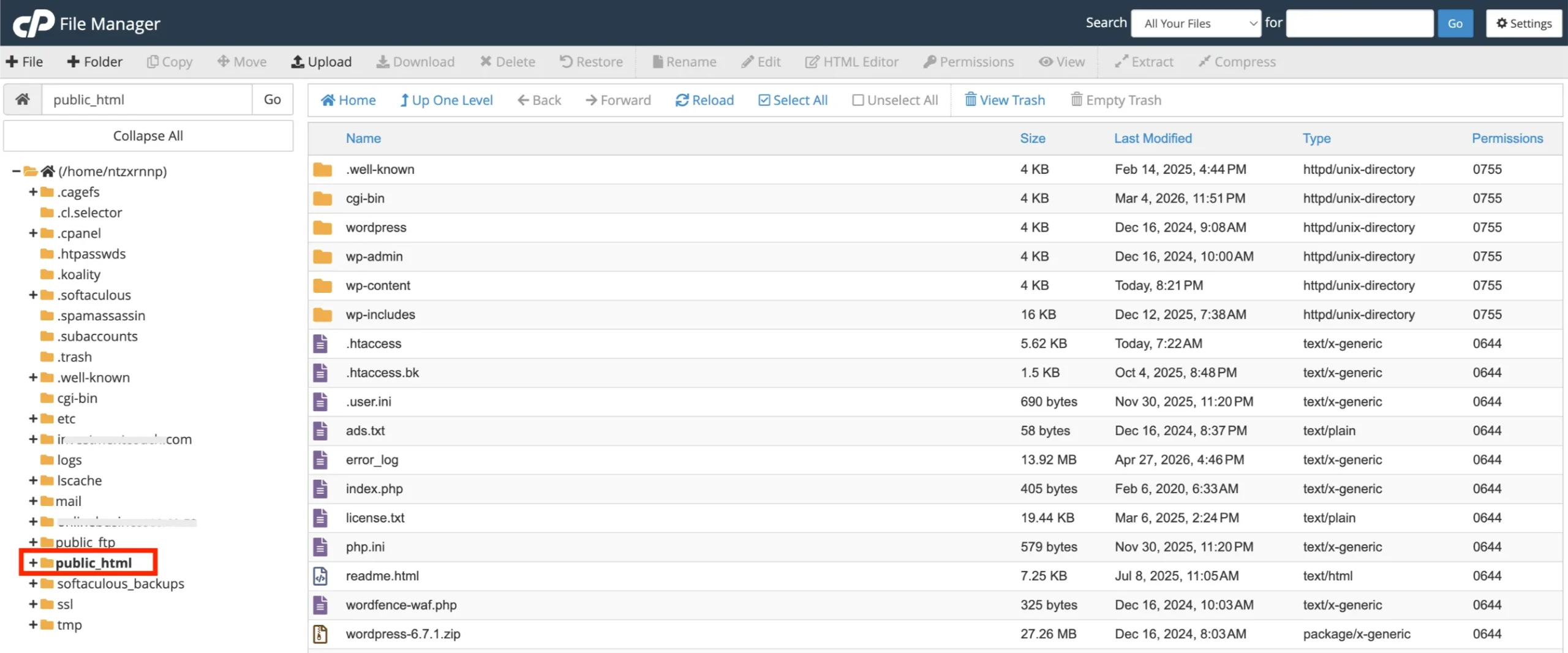
This is the most important folder in your entire hosting account. It’s the web root.
This means that anything placed here becomes accessible to the public when someone visits your domain.
Files outside public_html are private and won’t be served to visitors. So everything your site needs must live inside this folder.
Step 4: Upload the Zip File
While you’re inside public_html, click the Upload button in the top toolbar.

A new browser tab will open with a simple upload interface. Either:
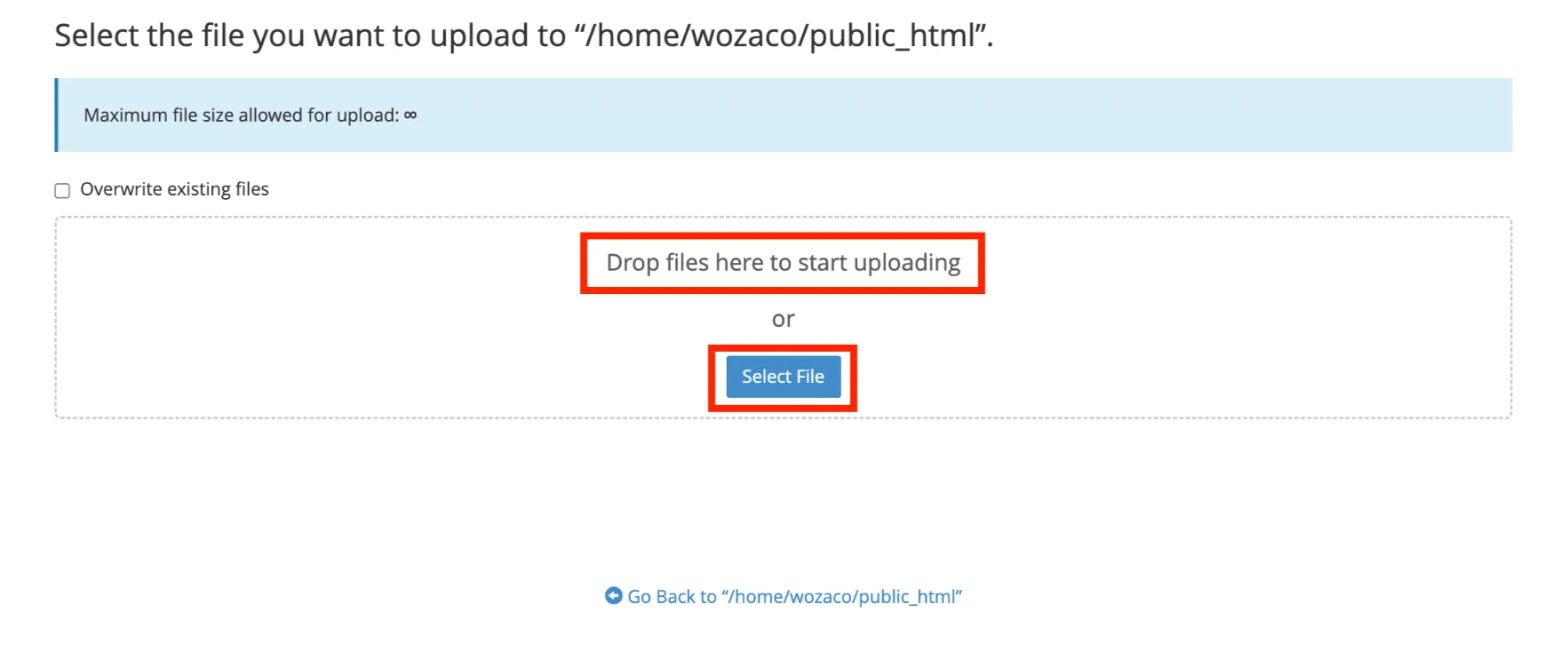
- Drag and drop your zip file into the upload area, or
- Click Select File and browse to your zip on your computer
Wait until the upload reaches 100% before doing anything else.
A partial upload will cause problems during extraction broken files, missing styles, images that won’t load.
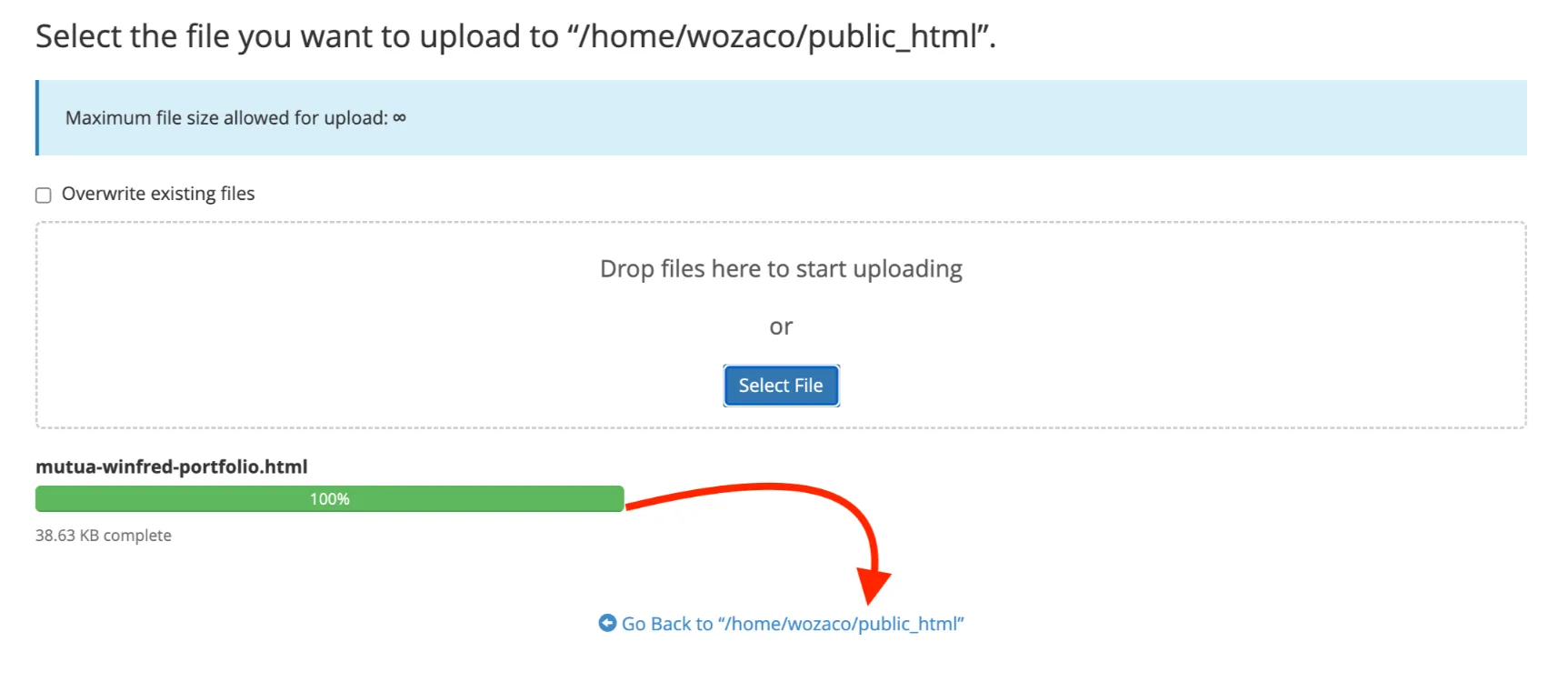
Once you see a green success bar or 100% progress, click Go Back to /home/yourusername/public_html to return to the File Manager.
Step 5: Extract the Zip File
Back in public_html, you should now see your uploaded zip file listed.
Right-click on it and select Extract.
A dialog box will pop up asking where to extract the files. Make sure the destination path shows /public_html/, then click Extract File(s).
cPanel will unzip all your project files right there in public_html.
Step 6: Move Files to the Root
Here’s where many beginners make a critical mistake, so pay close attention.
After extraction, cPanel typically creates a new subfolder with the same name as your zip file. So instead of your files sitting directly in public_html, they end up inside public_html/my-website/.
That’s a problem. If you leave it like that, your website will only load at yourdomain.com/my-website/ not yourdomain.com.
Here’s how to fix it:
- Open the newly created folder (e.g., my-website) inside public_html
- Select all files and folders inside it and use the checkbox at the top to select all
- Right-click and choose Move
- In the destination field, change the path to just /public_html/, and delete any folder name after the slash
- Click Move Files
Your index.html, css, js, and all other files should now sit directly inside public_html, not inside a subfolder.
Related: How to Host a Static Website on GitHub Pages
Step 7: Clean Up
Now do a quick tidy-up:
- Delete the original zip file: right-click it and select Delete
- Delete the now-empty folder: if the extraction folder (my-website/) is still there but empty, delete it too
This keeps your public_html clean and avoids confusion later when you’re making updates.
Your public_html should now look something like this:
public_html/
├── index.html
├── css/
├── js/
└── images/
Clean. Organised. Ready to serve.
Step 8: Test Your Website
Open a new browser tab and type in your domain name. Hit Enter.
Your website should load directly.
If it doesn’t appear right away, don’t panic. Try these quick checks:
- Clear your browser cache: older cached data can prevent the new site from showing
- Try incognito/private mode: this bypasses the cache entirely
- Wait 1–2 minutes: DNS can sometimes take a moment to reflect changes, especially if your domain is newly connected
If your CSS or images aren’t loading, double-check that your CSS and JS folders were moved correctly and sit directly inside public_html at the same level as index.html.
Don’t know how to create a html website? Check our guide.
Common Mistakes to Avoid
Even experienced developers slip up on these. Keep them in mind:
- Don’t delete your CSS and JS folders. Your index.html is just the skeleton. Without the CSS, your site will look like a plain, unstyled wall of text. Without JS, interactive features will stop working entirely.
- Don’t upload files one by one. Always zip the entire project and upload as one file. It’s faster, safer, and ensures nothing gets missed.
- Don’t leave index.html inside a subfolder. The goal is simple: index.html must live directly inside public_html. If it’s sitting inside another folder, your domain will throw a ‘403 Forbidden’ or ‘Index of /’ error instead of loading your site.
- Don’t forget to wait for 100% upload completion. Moving away before the upload finishes is one of the most common causes of broken file extraction.
Read also: Moving a wordpress website from a subdirectory to the root (/public_html) directory
Get Started with Truehost cPanel Hosting
Get your domain name and cPanel hosting plan with us.
We offer fast, reliable cPanel hosting with local payment support including M-PESA, Airtel Money, and bank transfer. You can get your domain and hosting set up in minutes.
HTML Website in cPanel FAQs
How to edit HTML in cPanel?
You don’t need to re-upload your entire project for small changes. Inside cPanel’s File Manager, go to public_html and find the file you want to edit. Right-click it and choose HTML Edit to open the visual WYSIWYG editor, or select Edit to work directly with the raw code. Make your changes and click Save the update goes live immediately.
For bigger changes, it’s safer to edit on your local computer first, then re-upload and overwrite the existing file.
How to secure a website on cPanel?
cPanel gives you several built-in security tools. The most important first step is installing a free SSL certificate go to SSL/TLS or Let’s Encrypt SSL in your cPanel dashboard and activate HTTPS for your domain. This encrypts traffic between your site and your visitors.
Beyond SSL, you can use cPanel’s IP Blocker to block suspicious IP addresses, set password protection on specific folders, and configure file permissions to restrict access. For static HTML sites, keeping permissions at 644 for files and 755 for folders is the standard safe setting.
Is cPanel hosting good for beginners?
Yes, genuinely. cPanel is widely considered one of the most beginner-friendly control panels available. Everything is laid out in a visual dashboard with clear icons, organised into sections like Files, Domains, Email, and Databases. You don’t need to know any command-line skills to manage your website.
Tasks like uploading files, creating email addresses, managing backups, and checking bandwidth usage are all just a few clicks away. That said, the dashboard does have a lot of options, which can feel overwhelming at first. The key is to focus only on what you need, which for an HTML website is mostly just the File Manager.
What are the disadvantages of cPanel?
cPanel is powerful, but it’s not without trade-offs. A few honest things to know:
- It can feel overwhelming for complete beginners due to the number of features on the dashboard
- Resource usage: cPanel is relatively heavy compared to lighter alternatives; this matters more on VPS and dedicated servers than on shared hosting
- Licensing costs: cPanel’s licensing fees have increased in recent years, which is why some budget hosts have switched to alternatives; though as a hosting user (not a server owner), this doesn’t directly affect you
- Limited customisation: advanced developers who want deep server-level control may find cPanel restrictive
For the vast majority of people hosting a personal or business website, these are minor concerns. cPanel’s ease of use far outweighs the downsides.
Where to host a simple HTML page?
For a simple HTML page or small static site, cPanel shared hosting is one of the most practical and affordable options especially if you want full control over your files, a custom domain, and the flexibility to grow the site later.
We at Truehost offer entry-level cPanel hosting plans that are well-suited for simple HTML projects. You get a File Manager, free SSL, and M-PESA payment support perfect for Kenyan-based projects.
Other options include platforms like Netlify or GitHub Pages for purely static sites, but these don’t include a File Manager UI or cPanel, and have a steeper setup curve if you’re not a developer.
Where to put HTML code for website?
Your HTML files go inside the public_html folder in cPanel. Specifically:
- Your homepage (index.html) must be directly inside public_html not inside any subfolder
- Additional pages (e.g., about.html, contact.html) also go inside public_html or in clearly named subfolders if your site structure requires it
- Supporting files like CSS, JS, and images should be in their own organised subfolders inside public_html
The rule of thumb: if it needs to be accessible via a URL, it belongs in public_html.