Domain SearchInstantly check and register your preferred domain name
 Web Hosting
 cPanel HostingHosting powered by cPanel (Most user friendly)
 WordPress HostingHost your WordPress website with fast, secure, and affordable WordPress hosting in Kenya.
 KE Domains
 Reseller HostingStart your own hosting business without tech hustles
 Windows HostingOptimized for Windows-based applications and sites.
 Free Domain
 Affiliate ProgramEarn commissions by referring customers to our platforms
 Free HostingTest our SSD Hosting for free, for life (1GB storage)
 Domain TransferMove your domain to us with zero downtime and full control
 All DomainsBrowse and register domain extensions from around the world
 .Com Domain
 WhoisLook up domain ownership, expiry dates, and registrar information
 VPS Hosting
 Managed VPSNon techy? Opt for fully managed VPS server
 Dedicated ServersEnjoy unmatched power and control with your own physical server.
 Website Builder
 Online Store BuilderLaunch a professional e-commerce store without writing code.
 Web Design ServiceGet a custom-designed website tailored to your brand and goals. From just KES 15,600
 BlogRead our guides on web hosting, online business, digital marketing, and more
 SupportOur support guides cover everything you need to know about our services
 ContactContact us via chat or email
Have you ever typed a website address and ended up somewhere completely different without noticing the switch?
That’s domain forwarding doing its job quietly in the background.
Domain forwarding is the process of automatically sending visitors from one domain to another.
The moment someone types your old URL, they instantly land on your new one.
People use domain forwarding for many reasons. They may rebrand to a new domain name.
They might merge two websites into one. It can help fix duplicate content issues between www and non-www versions.
It’s also useful for pointing multiple domain extensions like .com, .co.ke, and .net to one main site.
In every case, the goal is the same: make sure no visitor and no backlink ever hits a dead end.
We at Truehost give you full cPanel access to manage all of this from one place. Here’s exactly how to do it right.
Types of Domain Forwarding
a) 301 Redirect
This is the permanent redirect.
When a search engine encounters a 301 redirect, it transfers around 90–99% of link equity from the old page to the new one.
That means your SEO value, the authority, backlinks, and ranking power your old domain built follow you to the new destination.
You can use a 301 when:
- You’re permanently changing your domain
- You’re merging two sites
- You’re fixing www vs. non-www duplication
- You’re redirecting parked or brand-protection domains to your main site
b) 302 Redirect
This is the temporary redirect.
It directs users and search engines to the desired page for a limited amount of time until it is removed, so the search engine should not update the URL.
Use a 302 when:
- You’re doing A/B testing
- You’re running a short-term promotional campaign
- Your site is under maintenance and temporarily pointing elsewhere
Avoid using a 302 for permanent changes. Using a temporary redirect for a permanent move means the original page continues to be indexed, and the new page doesn’t gain the SEO benefits.
c) Wildcard Forwarding / DNS Redirect to Another Domain
A wildcard redirect handles all URLs under a domain with a single rule, including subdomains and deep paths.
If you set up a wildcard redirect for example.com/recipes/ to demonstration.com/food/ and someone visits example.com/recipes/apple-pie.php, they get redirected to demonstration.com/food/apple-pie.php.
This is ideal when:
- You’re migrating an entire site and want to preserve page-level paths
- You want all subdomain variations to point to one place
- You need a catch-all rule during a domain transition
You might also check out our guide on transferring a domain to Truehost.
Step-by-step guide on Domain Forwarding with cPanel
Here’s exactly how to set up domain forwarding from inside your cPanel account.
1) Log In to Your cPanel Account
Go to yourdomain.com/cpanel and enter your username and password. If you’re hosting with us at Truehost, you can access cPanel directly from your client dashboard.
2) Go to Domains and Select Redirects
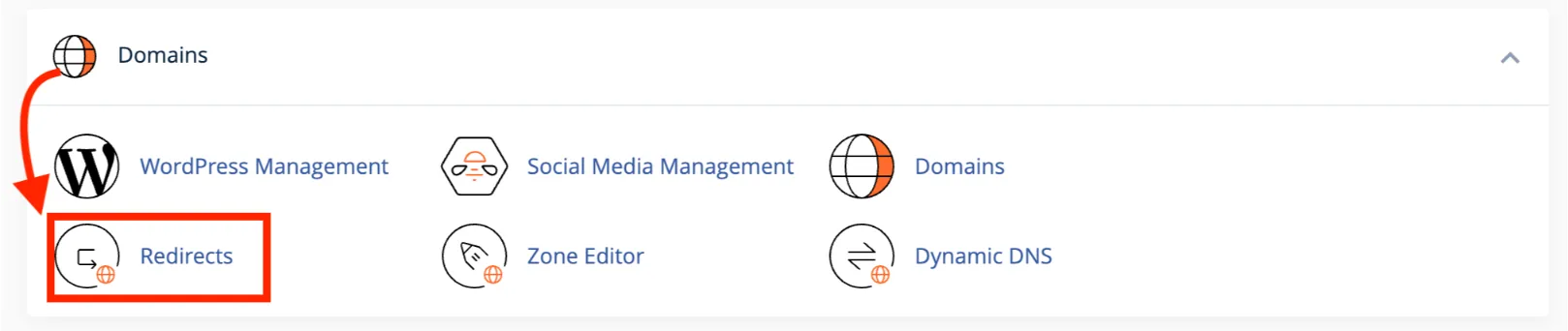
Once you’re inside cPanel, scroll down to the Domains section. Click on Redirects. This is where all your domain forwarding rules live.
3) Choose the Type of Redirect
At the top of the Redirects page, you’ll see a Type dropdown. Select either:
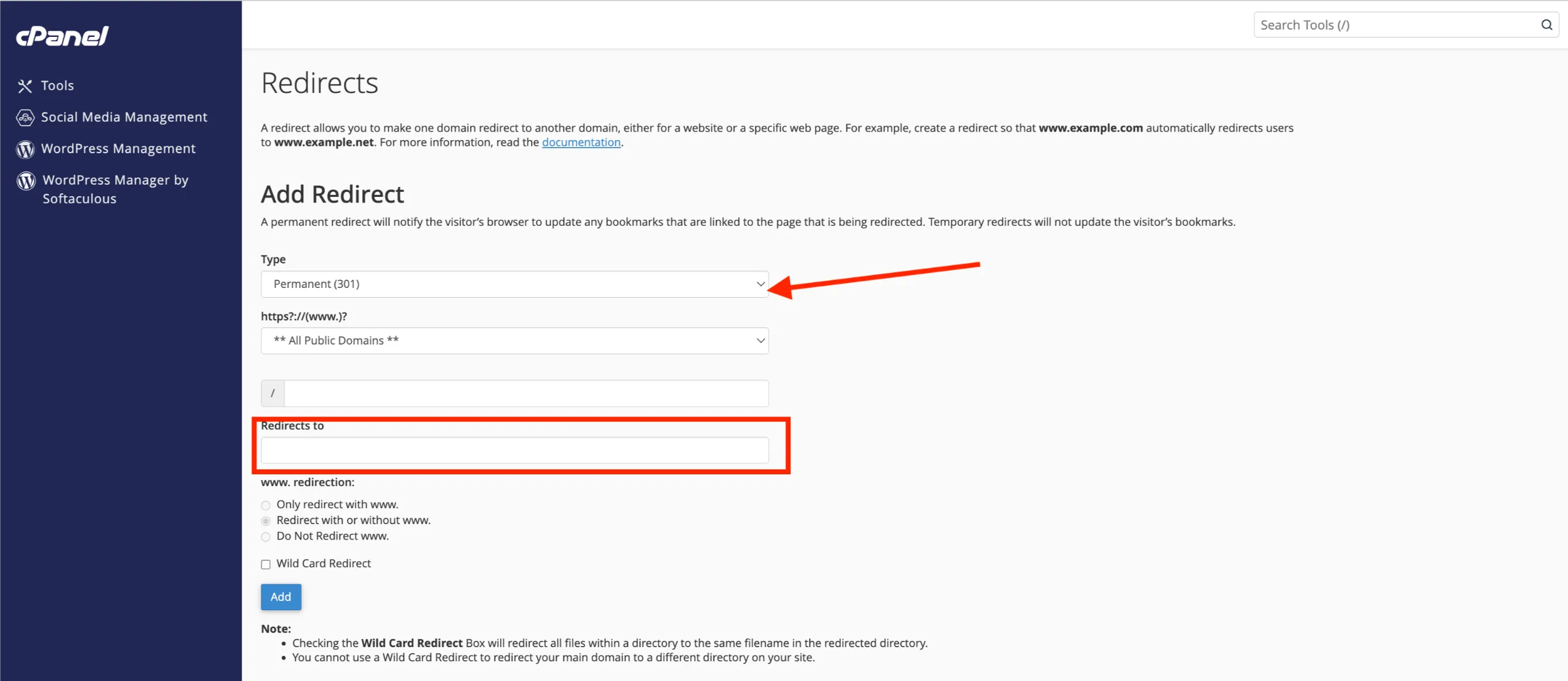
- Permanent (301): for any long-term or permanent forwarding
- Temporary (302): for short-term moves or testing
When in doubt, go with 301. It’s the right choice for the vast majority of use cases.
4) Select the Domain to Redirect
Use the dropdown menu under the redirect type to choose which domain you want to forward.
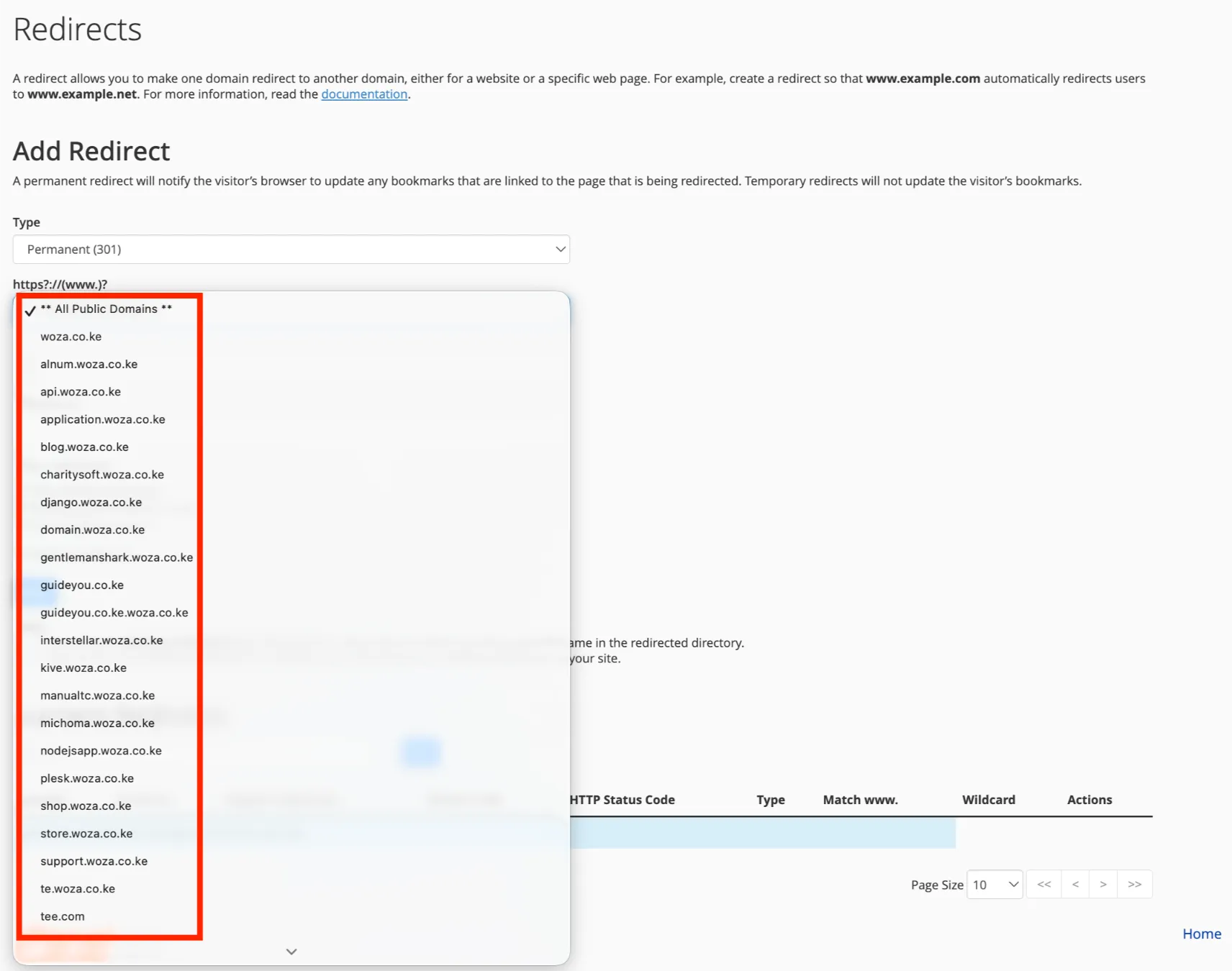
You can also select All Public Domains to redirect all domains your cPanel account controls.
5) Redirecting a Specific Page or Folder
See the text field with a / after the domain? That’s where you enter a specific path if you only want to redirect part of the site.
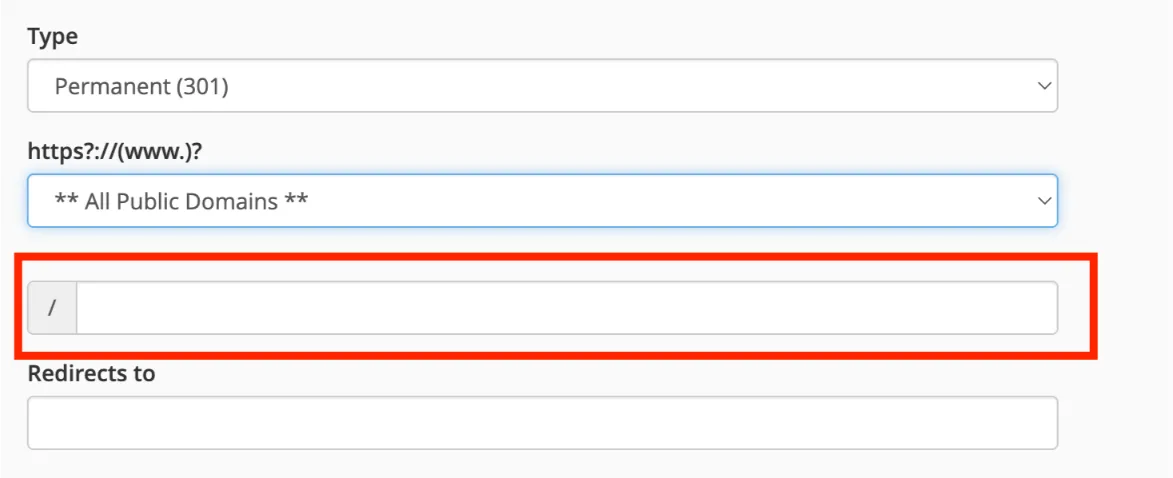
For example, to redirect yourdomain.com/blog, just type blog in that field. Leave it blank if you want to redirect the entire domain.
6) Enter the Full URL Under ‘Redirect To’
In the Redirects to field, type the full destination URL including the protocol.
Ensure you add https:// for example use: https://newdomain.co.ke not newdomain.co.ke (This can cause issues)
7) Choose the Redirection Option You Want
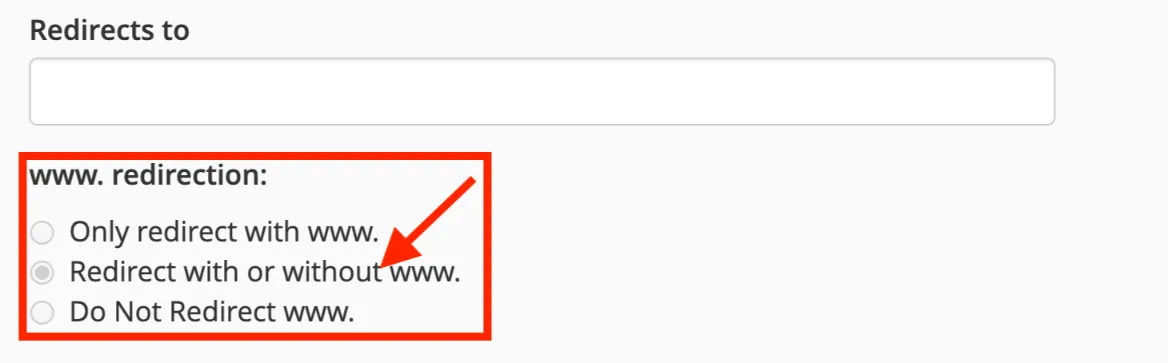
You’ll see three options for handling the www version of your domain:
- Only redirect with www.: The redirect only fires when someone uses the www prefix
- Redirect with or without www.: covers both versions (recommended)
- Do not redirect www.: leaves the www version alone
Unless you have a specific reason not to, select Redirect with or without www. This ensures nobody slips through a broken version of your URL.
You’ll also see an optional Wild Card Redirect checkbox. Tick this if you want all pages and subpaths of the old domain to mirror-redirect to the new one.
8) Click Add to Complete
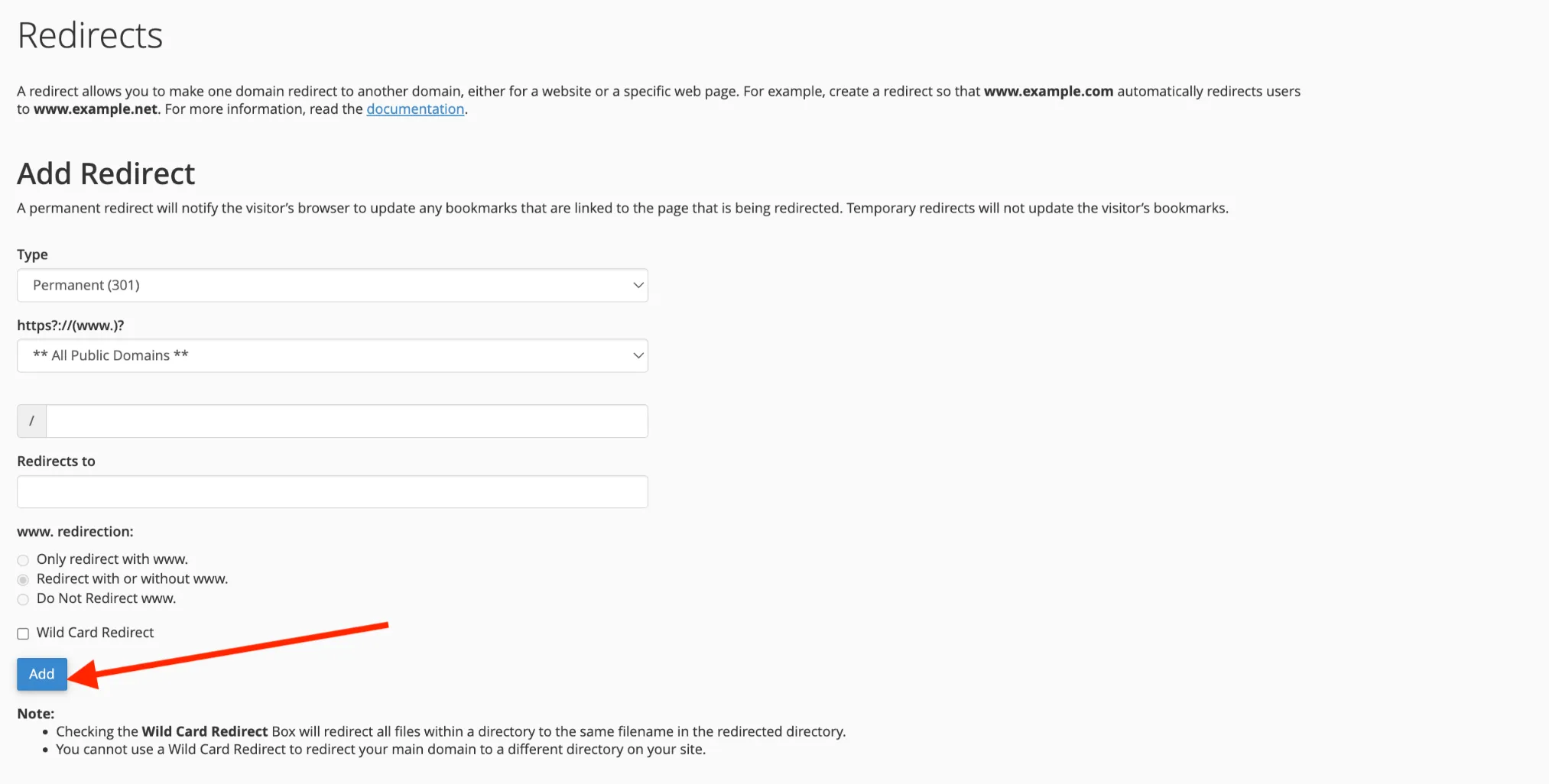
Hit the Add button. cPanel will process the redirect and it will appear in the Current Redirects list at the bottom of the page.
9) Test and Verify the Redirect
Don’t assume it’s working; test it.
- Open an incognito/private browser window (to avoid cached results)
- Type your old domain into the address bar
- Confirm it lands on the correct destination
You can also use a free tool like httpstatus.io or redirect checker to confirm the HTTP status code (301 or 302) is returning correctly.
Note: DNS changes can take up to a few hours to propagate. If it doesn’t work immediately, wait and test again.
Learn other ways to redirect a domain name.
Mistakes to Avoid While Setting Up Domain Forwarding
Getting the redirect live is only half the job. Here are the mistakes that trip people up and how to avoid them.
a) Setting Up the Wrong Redirect Type
Using a 302 when you mean a 301 is the most common (and costly) error. A 301 redirect signals a permanent move, allowing Google to pass ranking authority.
Meanwhile, a 302 redirect, indicating a temporary move, might not transfer link equity as effectively, potentially impacting search visibility. If your move is permanent, use 301 every time.
b) Overlooking Email Forwarding
Redirecting your domain doesn’t automatically redirect your email.
If you have active email accounts on the old domain, set up separate email forwarders in cPanel to avoid losing inbound messages during the transition.
c) Ignoring WWW Subdomain Forwarding
Forgetting to cover the www version of your domain is surprisingly common. Your main domain might redirect perfectly, but www.yourdomain.com still returns an error. Always select Redirect with or without www. unless you’re deliberately handling them separately.
d) Not Using an SSL Certificate
A missing SSL certificate can trigger browser warnings, and security issues affect user trust and behavior. HTTPS should always be active. Make sure your destination domain has a valid SSL certificate before pointing traffic to it.
e) Not Testing After Setup
Test from a fresh browser, an incognito window, and a mobile device. Browser caches can trick you into thinking a redirect is working when it isn’t.
f) Using Forwarding When Migration Is Needed
Domain forwarding is not the same as a full site migration. Blunt domain forwarding collapses hundreds or thousands of URLs into one destination, stripping away ranking signals and often causing traffic loss.
If you’re moving a large, content-heavy site, you need a proper migration with page-level 301 redirects, not a single blanket forward to your homepage.
Check out our guide on how to change a domain name without losing rankings.
Domain Forwarding FAQs
What Is the Difference Between Redirect and Forward Domain?
The terms are often used interchangeably, but there’s a technical distinction. Domain forwarding is the broader action of pointing one domain at another. A redirect is the specific HTTP mechanism (301 or 302) that makes it happen. In practice, when you forward a domain, you’re implementing a redirect.
Domain Forwarding vs. URL Forwarding
Domain forwarding sends the entire domain to a new destination. URL forwarding is more granular; it redirects specific pages or paths. You might forward yourdomain.com/old-page to yourdomain.com/new-page without touching the rest of the site. cPanel’s Redirects tool handles both.
Can I Forward Multiple Domains to the Same Website?
Yes. You can point as many domains as you want to a single destination. This is common for brand protection buying .com, .co.ke, .net, and .org versions of your name and forwarding them all to your main site. Forwarding multiple domains to one website does not hurt SEO, as long as you use 301 forwarding and the extra domains are simply parked variations, typos, alternate TLDs, shorthand campaign domains, and similar alternatives.
Is Domain Forwarding Free?
Setting up the redirect in cPanel is free. It’s a built-in feature. However, you do need to own or have control of the domain you’re forwarding from. If you need to register that domain first, we at Truehost offer affordable domain registration with instant setup, including .co.ke, .com, .org, and more.
How Do I Turn Off Domain Forwarding?
Go back to cPanel → Domains → Redirects. Scroll to Current Redirects at the bottom of the page and click Delete next to the redirect you want to remove. It takes effect shortly after clearing your browser cache to test.
Can I Redirect a Domain Without Hosting?
Yes, but with limitations. Many domain registrars offer basic DNS-level forwarding that doesn’t require active hosting. However, for full control, including specific path redirects, wildcard rules, and SSL management, having cPanel hosting makes things much easier. At Truehost, our hosting plans include cPanel access with all redirect tools built in.
What Is Domain Forwarding with Masking?
Masking (also called cloaking) keeps the original domain name visible in the browser bar even after redirecting. Visitors end up on your new site but still see the old URL.
Sounds useful. But avoid it. Masked forwarding loads content inside an iframe, which means search engines cannot crawl the content. Mobile sites often break or render incorrectly, analytics and conversion tracking fail, and users lose trust because the visible URL doesn’t match the content. Standard 301 forwarding is almost always the better choice.
Does Domain Forwarding Affect SEO?
Yes, and the direction depends entirely on how you set it up. Done correctly with a 301 redirect, it preserves your link equity and SEO value. Proper domain forwarding with 301 redirects preserves domain authority by transferring existing link equity, helping maintain or even boost rankings during transitions or rebranding.
Done poorly with a 302, masking, or redirecting every page to a generic homepage, it can cause real damage. The key rules: always use 301 for permanent changes, always redirect to relevant equivalent pages, and never use masking.
When Not to Use Domain Forwarding
Domain forwarding isn’t the right tool in every situation. Avoid it when:
- You’re dealing with complex subdomain architecture: get a developer involved
- You’re running a large site migration: use page-level 1:1 redirects instead
- Your old domain has toxic backlinks: forwarding it can pass that negative history to your main site
- You want separate, independently ranking websites: forwarding collapses them into one