Domain SearchInstantly check and register your preferred domain name
 Web Hosting
 cPanel HostingHosting powered by cPanel (Most user friendly)
 WordPress HostingHost your WordPress website with fast, secure, and affordable WordPress hosting in Kenya.
 KE Domains
 Reseller HostingStart your own hosting business without tech hustles
 Windows HostingOptimized for Windows-based applications and sites.
 Free Domain
 Affiliate ProgramEarn commissions by referring customers to our platforms
 Free HostingTest our SSD Hosting for free, for life (1GB storage)
 Domain TransferMove your domain to us with zero downtime and full control
 All DomainsBrowse and register domain extensions from around the world
 .Com Domain
 WhoisLook up domain ownership, expiry dates, and registrar information
 VPS Hosting
 Managed VPSNon techy? Opt for fully managed VPS server
 Dedicated ServersEnjoy unmatched power and control with your own physical server.
 Website Builder
 Online Store BuilderLaunch a professional e-commerce store without writing code.
 Web Design ServiceGet a custom-designed website tailored to your brand and goals. From just KES 15,600
 BlogRead our guides on web hosting, online business, digital marketing, and more
 SupportOur support guides cover everything you need to know about our services
 ContactContact us via chat or email
If you own a website, hosting issues will find you at some point and will cause your site to go down.
- Pages load like they are stuck in mud.
- An error message shows up where your homepage should be.
When you see these, it can feel like everything is falling apart, but most of the time, it is not.
The good news is that most hosting issues have clear causes. Once you know where to look, fixing them is a lot less scary than it seems.
Our guide today walks you through the ten most common problems, what causes them, and exactly what to do to get things back on track.
Before we get into it, here is why you must know how to fix common hosting issues. Downtime can cost small businesses $427 per minute on average. That is money walking out the door every sixty seconds your site is offline. Whether you run a shop, a blog, or a business page, hosting issues cost you more than just frustration. Let’s fix them today.
1) Website Not Loading
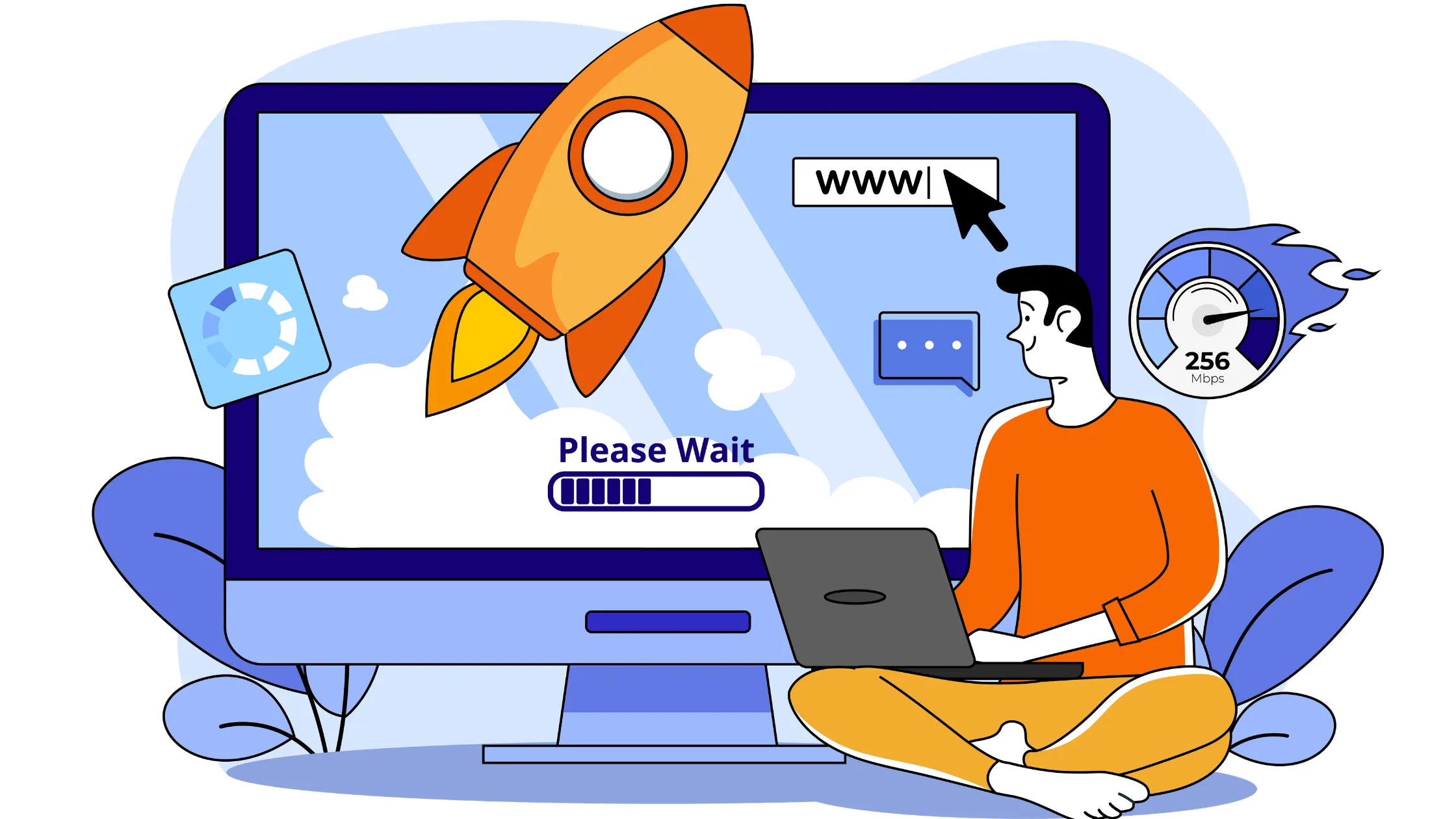
This is the first hosting issue you can panic about as a new website. The website not loading occurs when you type your domain into the browser, and nothing comes up. The page just sits there, spinning or blank.
What is usually happening is that your browser cannot reach your server. Think of it like calling someone’s phone. If the line is dead, the call never connects. The three most common reasons this happens are
- A domain that has expired or is pointed to the wrong place
- A DNS error (DNS is basically the address book that tells browsers where your site lives)
- Your server is temporarily offline.
Start by checking that your domain is still active and that your nameservers, the settings that connect your domain to your hosting, are pointed correctly. Then confirm your hosting plan has not expired.
If all looks fine, restart your server from your hosting dashboard. You can also open your site from a different device or a different internet connection to check whether the problem is local to your device or a real server issue.
If your server is completely offline, contact your hosting provider directly and ask them to look into it.
2) Slow Website Speed
A slow website is one of the most damaging hosting issues you can have, and sometimes you do not even know it is happening. 82% of consumers say slow page speeds impact their purchasing decisions. That means most of your visitors are already forming an opinion about your site before they have even read a word.
The usual causes of slow website speed are;
- Oversized images
- Too many plugins running at the same time
- A hosting plan with limited resources
- No caching set up.
Caching means saving a ready-to-go version of your pages so the server does not have to rebuild them from scratch every single time someone visits.
To fix this,
- Start by compressing your images before uploading them. Tools like TinyPNG do this for free.
- Go through your plugins and deactivate any you are not actively using. Every plugin adds weight.
- Install a basic caching plugin like W3 Total Cache or LiteSpeed Cache if your host supports it.
- If you have been on the same shared hosting plan for a while and your traffic has grown, the plan itself might simply not have enough power anymore. Upgrading to a plan with more CPU and RAM is sometimes the only real fix.
3) Error Connecting to Database
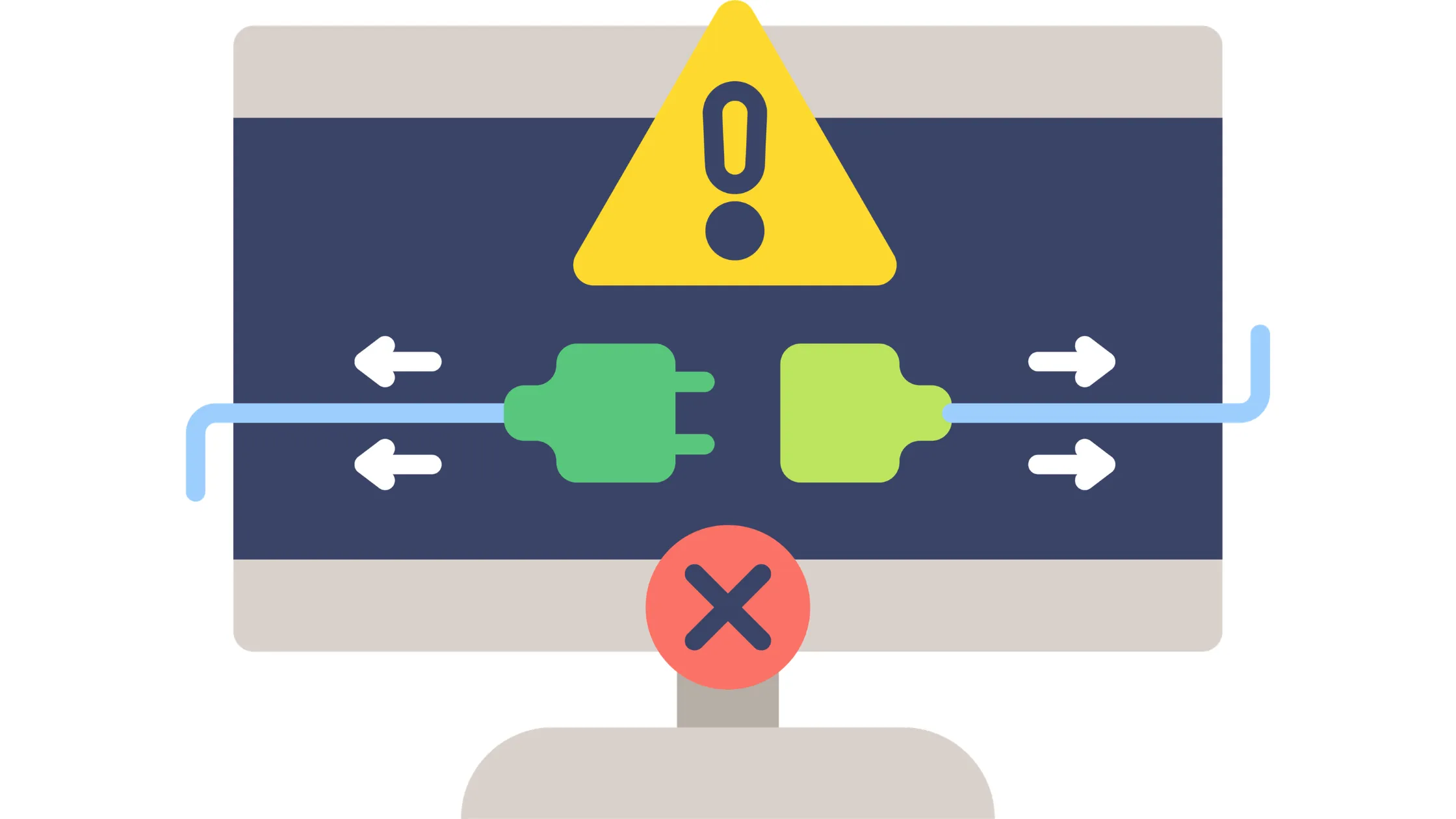
If you use WordPress or any other CMS (Content Management System), basically software that helps you build and manage your site, you might one day see a white screen with the message “Error establishing a database connection.”
This is one of the more alarming hosting issues, but it is usually fixable in a few minutes.
Your website stores everything: posts, pages, settings, and user data in a database. When the site cannot connect to that database, it cannot display anything.
The most common cause is wrong login details in your configuration file. For WordPress, that file is called wp-config.php. Open it and check that the database name, username, password, and host are all exactly correct. Even one wrong character will break the connection.
If you recently changed your database password, that is almost certainly the problem. You can also log into your hosting control panel and check whether your database service is actually running. Sometimes it needs a restart.
4) 500 Internal Server Error
This one is frustrating because it does not tell you what went wrong. A 500 error just means something broke on the server, but it does not say what. It is one of the most common hosting issues for WordPress sites.
The most frequent causes are;
- A broken .htaccess file
- A plugin that has gone wrong
- File permissions set to the wrong values. File permissions are settings that control who is allowed to read, write, or run each file on your server.
To troubleshoot, start by renaming your .htaccess file to something like .htaccess_old and reloading your site. If it loads, that was the problem.
Go to your WordPress settings and re-save your permalinks to generate a fresh .htaccess. If that does not fix it, deactivate your plugins one by one until the error disappears. The last one you deactivated is the culprit.
Also, check that your folder permissions are set to 755 and your file permissions to 644. Your hosting panel usually lets you do this without touching any code.
5) 403 Forbidden Error
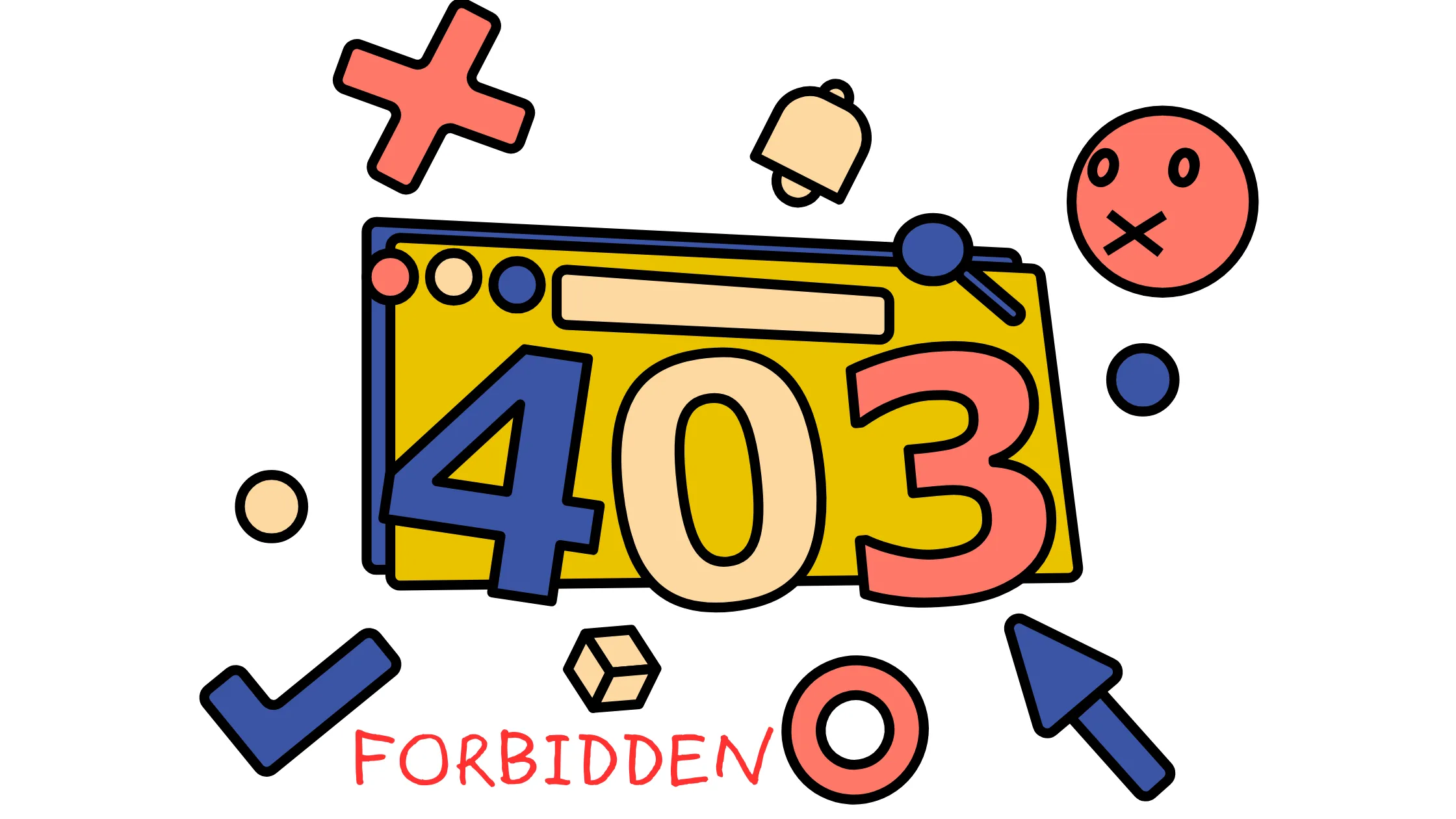
A 403 error means your server is actively blocking access to a page or your entire site. It is not down, it is just refusing to let anyone in.
This happens because of incorrect file permissions, a security rule that is blocking your IP, or something in your .htaccess file that has been accidentally set to deny access.
To fix this common hosting issue, start by;
- Checking your file and folder permissions using the same values from the section above, 755 for folders and 644 for files.
- Look through your .htaccess file for any lines that include the word “deny.”
- If you have a security plugin installed, check whether it has accidentally flagged your own IP address and blocked it.
6) Emails Not Sending
This hosting issue often gets overlooked because it does not break your site visually. But if your contact form stops sending emails, you are missing messages from potential customers without even knowing it.
The most common cause is that your hosting server’s default mail system is either restricted or treated as spam by email providers.
The fix is to stop using the server’s default mail function and switch to SMTP instead. SMTP stands for Simple Mail Transfer Protocol. In simple terms, it is a proper, authenticated way to send email that providers actually trust.
Install an SMTP plugin, connect it to a sending service like Gmail, Brevo, or Mailgun, and enter your credentials.
Also, make sure your domain has SPF and DKIM records set up. These are small pieces of DNS code that prove your emails are legitimate and help them land in inboxes instead of spam folders.
7) High Resource Usage
Every hosting plan comes with a limit on how much CPU power and memory your site can use. When your site goes over those limits, it slows down, crashes, or gets temporarily suspended by your host.
Log in to your hosting control panel and look for a section showing CPU usage, RAM, and entry processes. If any of those are consistently near their limits, you have found your problem.
The fix starts with optimising your site.
- Clean up heavy scripts.
- Remove plugins you no longer need
- Ensure you have caching enabled.
If you have done all that and the numbers are still high, your site has simply outgrown its current plan, and it is time to upgrade.
8) SSL Certificate Errors
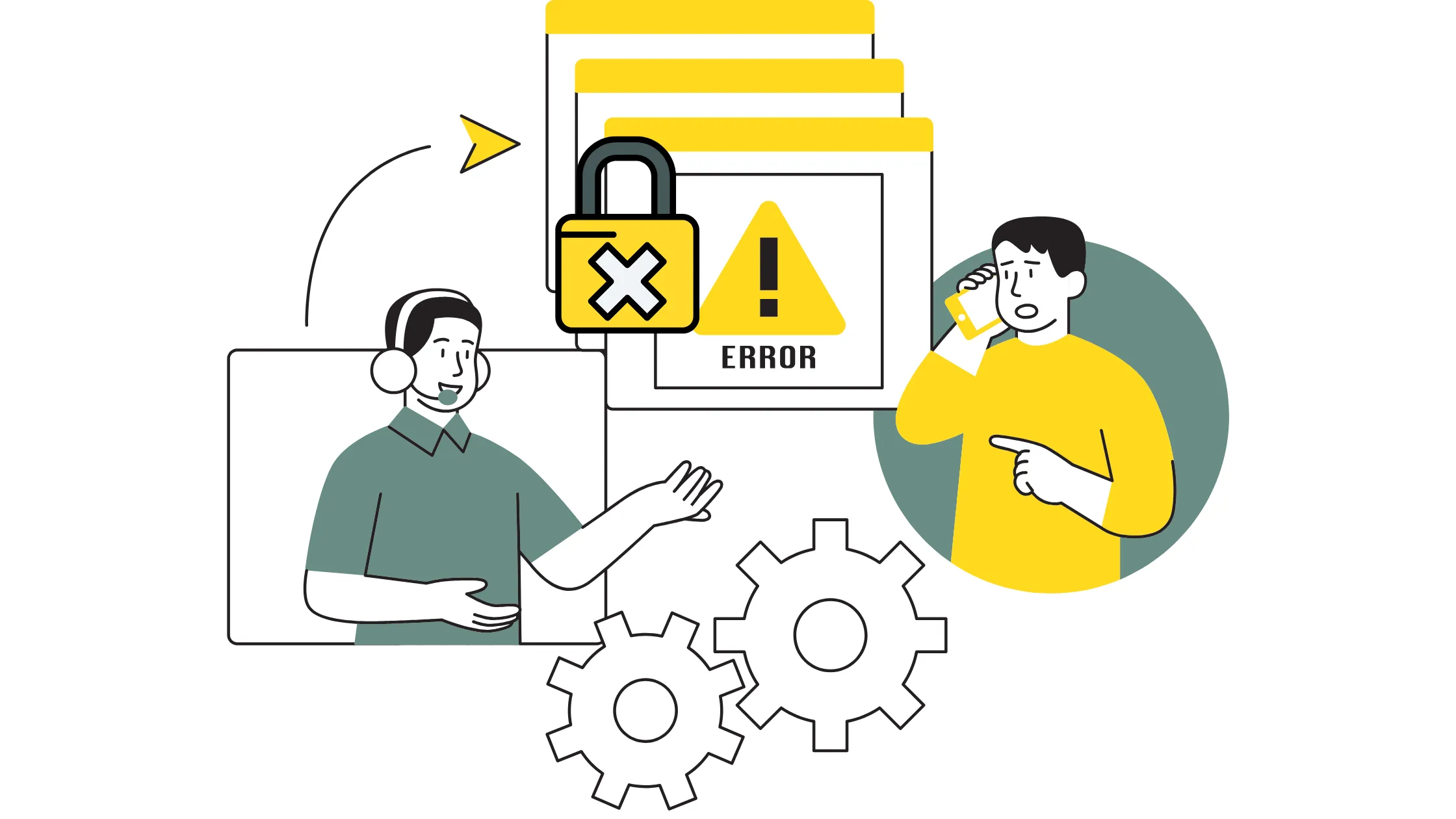
SSL is what puts the padlock icon next to your website address and changes your URL from http:// to https://. Without it, visitors see a “Not Secure” warning, which immediately makes people distrust your site and click away.
These hosting issues come up when your SSL certificate has expired, was never properly installed, or when your site has mixed content, meaning some parts of the page are still loading over http:// while others load over https://.
Check your SSL status from your hosting dashboard and confirm the expiry date. If it has expired, most hosts let you renew or reinstall it with one click. After installing or renewing, force HTTPS in your settings and update any internal links that still point to http://.
Google reports that 53% of mobile users abandon sites that feel slow or untrustworthy. A missing padlock triggers exactly that reaction.
9) DNS Issues
DNS is the system that connects your domain name to your actual server. When DNS is misconfigured, your site becomes unreachable even if the server itself is perfectly fine.
Common causes include;
- Nameservers that are pointed to the wrong host
- An A record (the DNS setting that points your domain to a specific server IP address) that has not been updated
- Simply waiting for DNS changes to take effect.
DNS updates are not instant. They can take anywhere from a few minutes to 48 hours to fully propagate across the internet.
Check your domain panel and confirm the nameservers match what your hosting provider told you to use. Then, verify your A record points to your correct server IP. If you have recently moved hosts and your site is still not loading, you are most likely just waiting on propagation.
Use a tool like whatsmydns.net to check how far the update has spread.
10) File Upload Errors
If you try to upload an image or a document to your site and get an error, the cause is almost always a size or configuration limit set on your server. PHP, the programming language most websites run on, has settings that control the maximum file size you can upload, how much memory is available, and how long a script can run before it times out.
Log in to your hosting control panel and look for a PHP configuration section. Increase the upload_max_filesize and post_max_size values to something like 64M or 128M.
You may also need to increase the memory_limit and max_execution_time. After saving the changes, try uploading again. If you do not see these settings in your panel, your host’s support team can make the change for you.
Keep Your Site Alive
Hosting issues happen to everyone, beginner or experienced. The difference is knowing what to check first. Start with the symptom, trace it back to the cause, apply the fix, and test your site again.
Most hosting issues on this list take less than fifteen minutes to resolve once you know what you are dealing with.
The best way to avoid most of these issues long-term is to start with hosting built to handle them. Truehost gives you stable servers, free SSL, daily backups, cPanel access, and real support when something goes wrong, so you spend less time fixing problems and more time growing your sites.