Domain SearchInstantly check and register your preferred domain name
 Web Hosting
 cPanel HostingHosting powered by cPanel (Most user friendly)
 WordPress HostingHost your WordPress website with fast, secure, and affordable WordPress hosting in Kenya.
 KE Domains
 Reseller HostingStart your own hosting business without tech hustles
 Windows HostingOptimized for Windows-based applications and sites.
 Free Domain
 Affiliate ProgramEarn commissions by referring customers to our platforms
 Free HostingTest our SSD Hosting for free, for life (1GB storage)
 Domain TransferMove your domain to us with zero downtime and full control
 All DomainsBrowse and register domain extensions from around the world
 .Com Domain
 WhoisLook up domain ownership, expiry dates, and registrar information
 VPS Hosting
 Managed VPSNon techy? Opt for fully managed VPS server
 Dedicated ServersEnjoy unmatched power and control with your own physical server.
 Website Builder
 Online Store BuilderLaunch a professional e-commerce store without writing code.
 Web Design ServiceGet a custom-designed website tailored to your brand and goals. From just KES 15,600
 BlogRead our guides on web hosting, online business, digital marketing, and more
 SupportOur support guides cover everything you need to know about our services
 ContactContact us via chat or email
If you’re hosting your website with cPanel and have created a new email, you’ll definitely find yourself wondering how to access webmail to get to your inbox or configure settings.
For one, keeping up with emails is easier when you can access your inbox quickly from any device.
Well, webmail gives you a simple way to check messages, reply to clients, and stay connected without installing extra software or setting up complicated apps.
All you need is a browser and an internet connection, which makes it convenient for both desktop and mobile use. From there, you simply access your email through your cPanel.
And it makes it easier to stay connected from anywhere.
If your hosting account comes with cPanel access, like the hosting plans we offer at TrueHost, you already have everything you need to manage your website and business email from one place.
In this guide, I’ll show you how to access webmail through cPanel step by step, how to log in faster using direct webmail links, what you can do inside the webmail dashboard, and a few helpful tips to keep your email access smooth and secure.
So, let’s begin and help you check your emails already.
How to Access Webmail
Step 1: Log Into Your cPanel Account
To access your webmail, start by logging into your cPanel account. Open your browser and type your domain followed by /cpanel. For example:
yourdomain.com/cpanel
You’ll be taken to the cPanel login page, where you’ll need to enter your cPanel username and password.
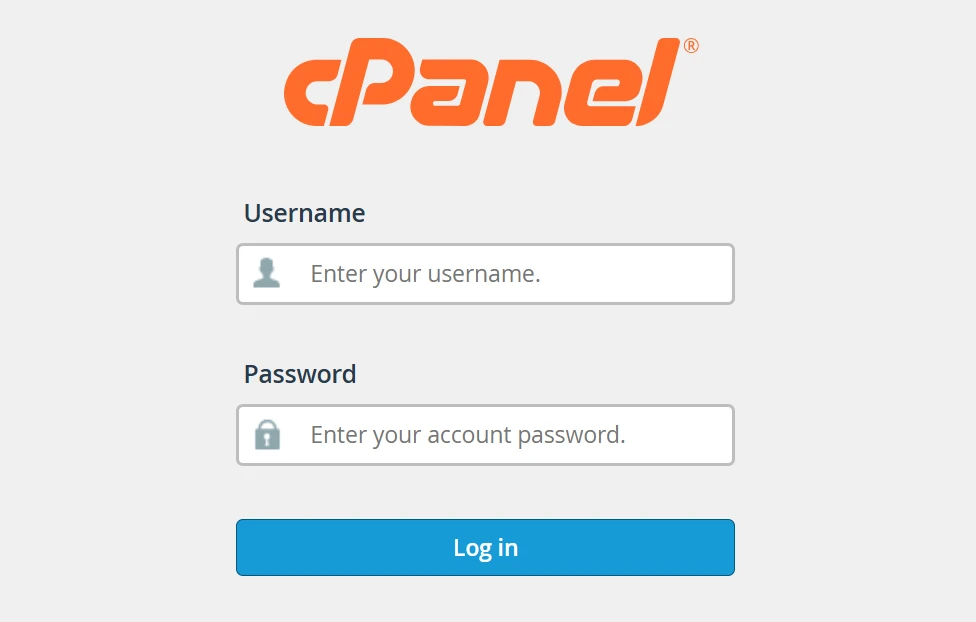
These login details are different from your email address and email password, so make sure you’re using the cPanel credentials you’ll receive after purchasing your hosting account.
If you can’t remember your cPanel login credentials, check the welcome email sent by your hosting provider after you signed up for hosting.
At Truehost, we typically include your cPanel URL, username, and other account details in that message.
Once you log in, you’ll see the cPanel dashboard.
This is the main control area for your hosting account, where you can manage your website files, domains, databases, and email accounts.
Depending on your hosting setup, the layout may look slightly different, but the email section is usually easy to find.
Step 2: Navigate to the Email Accounts Section
After logging into cPanel, the next step is to find the Email Accounts section. There are two easy ways to get there.
The fastest option is to use the search bar at the top of the cPanel dashboard. Type “Email Accounts” and click the result that appears.
You can also scroll down manually until you reach the Email section, then click Email Accounts.
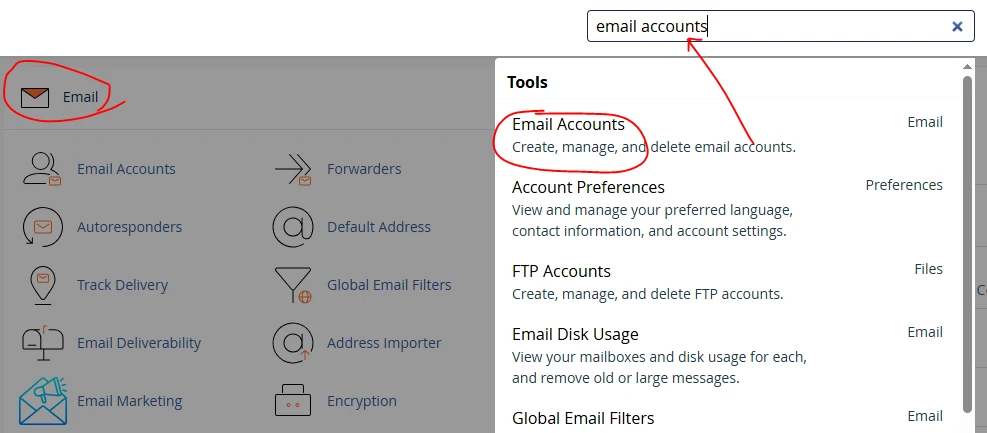
Once the page opens, you’ll see a list of all the email addresses connected to your domain.
This is where you can manage your business email accounts, reset passwords, adjust storage limits, and access webmail.
If you don’t see any email addresses listed yet, it means you haven’t created an email account for your domain. You’ll need to create one first before you can log into webmail.
Most cPanel hosting plans from providers like us at Truehost allow you to create professional email addresses linked to your domain directly from this section.
Step 3: Find Your Email and Click “Check Email”
Inside the Email Accounts page, scroll through the list until you find the email address you want to access. You can also use the search bar to find the address.
Next to that email account, you’ll see a button labeled “Check Email.” Click it to continue.
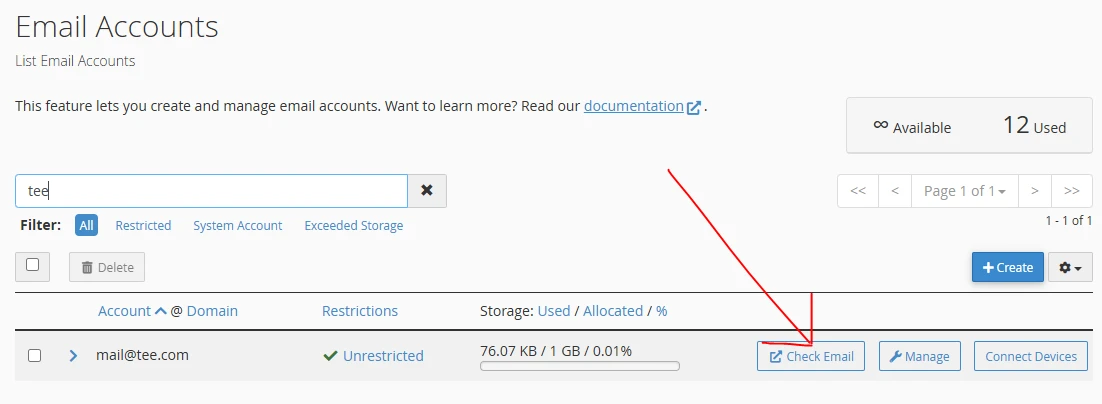
cPanel will then open the webmail interface for that email account.
If you manage more than one email account under the same domain, you’ll need to repeat these steps for each address you want to open.
Step 4: Start Using Your Webmail
Webmail Interface
Once the webmail interface opens, you’ll see sections where you can open your inbox using Roundcube and set up and automatically configure the email on your device.
There will be another section showing general info like your email address and the Email User Analytics ID.
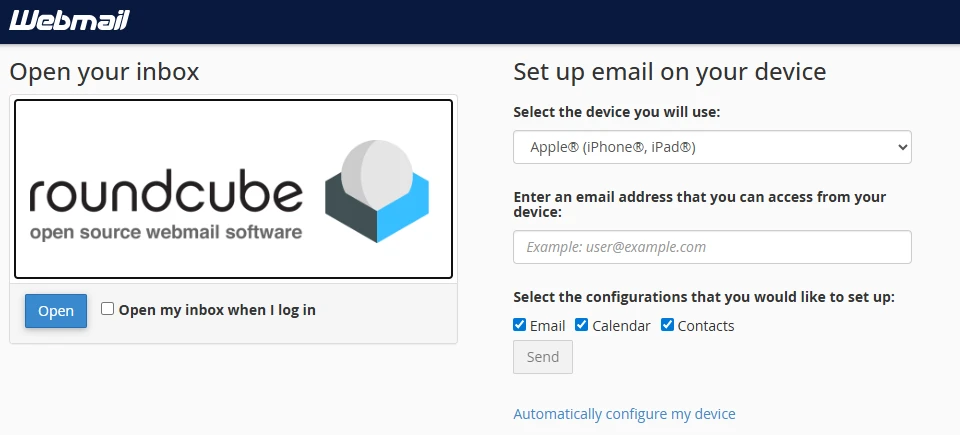
From this interface, you’ll also be able to:
- Manage the inbox with autoresponders, email filters and forwarders
- Manage and configure calendars and contacts (sync events, reminders, import/export address books)
- Edit your email settings (password & security, contact information, account preferences)
- Fight spam (spam filters and boxtrapper)
- Access other webmail features like mail client, disk usage, and track delivery.
Next, click “Open” to access your inbox. You can check the “Open my inbox when I log in” box to always be taken to the inbox directly.
Roundcube Interface
From there, you’ll be taken directly into Roundcube, which is now the standard webmail client used in cPanel. Older options like Horde are no longer available.
The Roundcube layout is simple and easy to navigate. Your inbox appears on the left side, while your messages open in the main viewing area.
You’ll also see folders like Inbox, Sent, Drafts, Spam, and Trash to help you keep your emails organized.
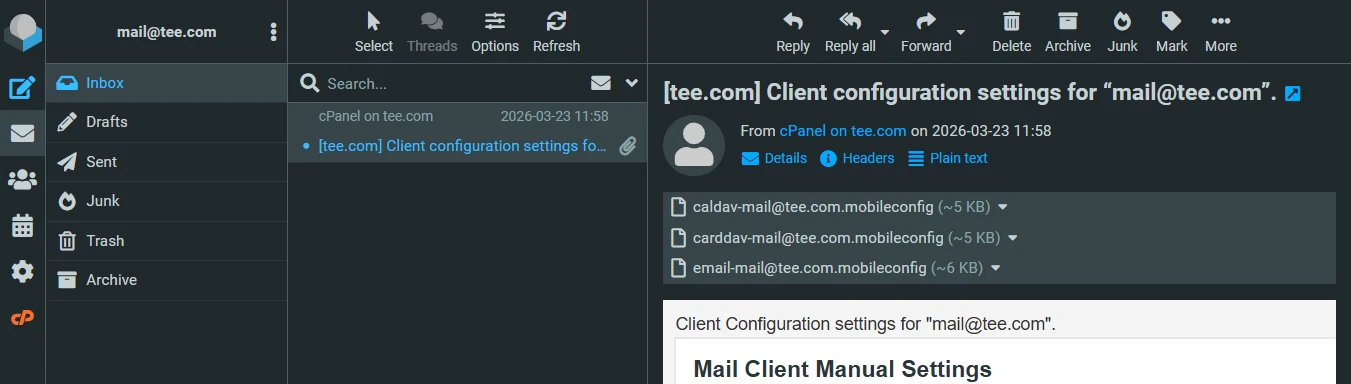
From the inbox, you’ll be able to read incoming messages, reply to emails, organize conversations into folders, and manage your daily communication.
To send a new email, click the Compose button. Enter the recipient’s email address, add your subject line, write your message, and click Send when you’re ready.
The process feels similar to using Gmail or other popular email platforms, so it’s easy to get comfortable with it quickly.
You can also personalize your account through the settings area. This is where you can update your display name, create an email signature, change interface preferences, and adjust other mailbox settings.
When you’re done, remember to log out properly, especially if you accessed your email from a public or shared device. Logging out helps protect your account from unauthorized access and keep your business communication secure.
Bonus: Two Quicker Ways to Access Webmail Next Time
Once you’ve used cPanel a few times, you may want a faster way to open your inbox without going through the full dashboard every time.
These shortcuts can save time when you need quick access to your email.
1) Access Webmail Through Your Browser
Open your browser and type:
https://yourdomain.com/webmail
Replace “yourdomain.com” with your actual domain name.
This will take you straight to the webmail login page. Enter your full email address and the password connected to that email account, then click Login.
After signing in, you’ll be taken directly into the same webmail interface used inside cPanel, usually Roundcube.
2) Access Webmail Using Port 2096
If the /webmail link is not loading properly, you can use a direct secure connection through port 2096.
Type this into your browser:
https://yourdomain.com:2096
Again, replace “yourdomain.com” with your actual domain, then log in.
Tips for Smooth Webmail Access and Best Practices
A few simple habits can make webmail easier and safer to use:
- Save your webmail login page as a bookmark for quicker access.
- Use strong passwords for both your cPanel account and email accounts.
- Log out after checking your email on shared or public devices.
- Clear old emails and spam regularly to avoid filling up your mailbox storage.
- Use a secure HTTPS connection whenever you log in.
- Keep a backup email address linked to your hosting account for password recovery alerts.
FAQs on How to Access Webmail
Can I customize the cPanel webmail interface?
Yes. If you’re using Roundcube, you can adjust things like your display name, email signature, folders, and general inbox settings to suit how you work.
Does cPanel Webmail have an app?
There is no dedicated app available. Webmail runs through your browser, so you can access it from any device without installing anything. You can also connect your email to apps like Gmail or Microsoft Outlook if you prefer app-based access.
Is cPanel webmail free?
Yes. Webmail access is usually included in your hosting package, especially if you’re using cPanel hosting from providers like us at Truehost.
How do you change the webmail client in cPanel?
Most setups default to Roundcube. If other clients are available, you can select one from the webmail login page before opening your inbox.
What are the alternatives to cPanel webmail?
You can connect your email to tools like Gmail, Microsoft Outlook, or desktop apps like Mozilla Thunderbird for a different experience with more advanced features.
Get Started With Truehost cPanel Hosting
If you want an easy way to access and manage your business email, getting hosting powered by cPanel is a good place to start.
With our cPanel powered hosting, you can create professional email addresses linked to your domain and access your webmail from anywhere through a single dashboard.
Once your hosting account is active, you can set up your email on the devices you use every day, including your phone, laptop, or tablet. You can also continue using webmail through your browser or connect your email to apps like Gmail or Microsoft Outlook for even faster access.
Everything is managed from one place, including your website files, domains, databases, and email accounts. This makes it easier to stay organized without switching between multiple platforms.
Starting with the right hosting setup gives you room to grow while keeping your email accessible and professional from day one.