Domain SearchInstantly check and register your preferred domain name
 Web Hosting
 cPanel HostingHosting powered by cPanel (Most user friendly)
 WordPress HostingHost your WordPress website with fast, secure, and affordable WordPress hosting in Kenya.
 KE Domains
 Reseller HostingStart your own hosting business without tech hustles
 Windows HostingOptimized for Windows-based applications and sites.
 Free Domain
 Affiliate ProgramEarn commissions by referring customers to our platforms
 Free HostingTest our SSD Hosting for free, for life (1GB storage)
 Domain TransferMove your domain to us with zero downtime and full control
 All DomainsBrowse and register domain extensions from around the world
 .Com Domain
 WhoisLook up domain ownership, expiry dates, and registrar information
 VPS Hosting
 Managed VPSNon techy? Opt for fully managed VPS server
 Dedicated ServersEnjoy unmatched power and control with your own physical server.
 Website Builder
 Online Store BuilderLaunch a professional e-commerce store without writing code.
 Web Design ServiceGet a custom-designed website tailored to your brand and goals. From just KES 15,600
 BlogRead our guides on web hosting, online business, digital marketing, and more
 SupportOur support guides cover everything you need to know about our services
 ContactContact us via chat or email
cPanel licensing fees keep climbing, and every renewal cycle you’re paying more for a control panel that doesn’t make your site any faster or your workflow any easier.
CyberPanel is the smarter alternative.
It’s a modern, open-source hosting control panel powered by OpenLiteSpeed, built from the ground up for speed, security, and simplicity.
You get free SSL with one click, built-in LiteSpeed caching that makes WordPress load faster, simple one-click app installs, and a server setup that can handle traffic spikes without slowing down.
Best of all, the migration process is far simpler than you’d expect.
I will walk you through how to migrate a website to CyberPanel, from setting up your server all the way to going live:
- Setting up your CyberPanel server the right way
- Backing up your cPanel data safely
- Using the built-in migration tool to transfer everything automatically
- Updating DNS and going live
- Optimizing your new server for peak performance
Let’s get your website running faster and your hosting bill lower.
Step 1: Prepare Your CyberPanel Server
Before you can migrate anything, you need a clean server to migrate to. This step is about getting that server ready.
1) Choose a VPS or Dedicated Server
CyberPanel runs best on a fresh Ubuntu 20.04, 22.04, or 24.04 server.
The minimum specs are about 1-2GB RAM and 10GB disk space, but I recommend at least 2-4GB RAM and SSD storage for smooth sailing, especially if you have multiple sites or traffic.
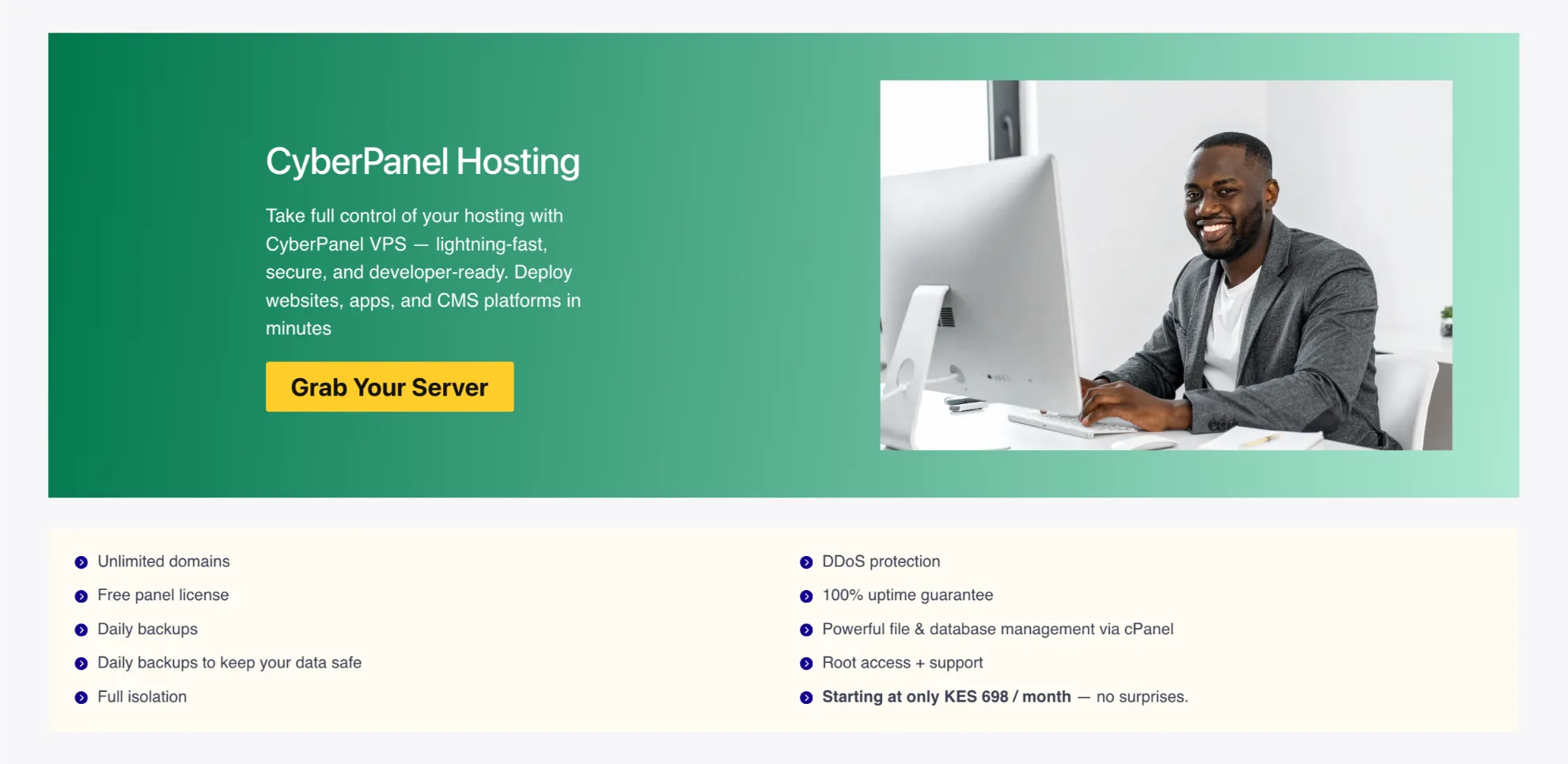
At Truehost, our CyberPanel Cloud VPS plans start with:
- 1 vCPU
- 2GB RAM
- 50GB SSD storage
- 1TB transfer
Pricing: Ksh 560/month when billed triennially, or Ksh 699/month annually. You get full root access and a clean environment optimized for CyberPanel.
2) Install CyberPanel
Once your VPS is up and you’re logged in as root via SSH, run this command:
sh <(curl https://cyberpanel.net/install.sh || wget -O - https://cyberpanel.net/install.sh)It takes 5–15 minutes. The installer will ask a few questions to go with the latest version and recommended options. When it finishes, log in to your dashboard at https://your-server-ip:8090.
3) Secure Your Server
Don’t skip this. Before you move any data, lock down your server.
- Enable a firewall: CyberPanel supports ConfigServer Security & Firewall (CSF). Enable it from the dashboard under Security > CSF
- Set up SSH keys: disable password-based SSH login and use key-based authentication instead; it’s far more secure
- Change the default CyberPanel admin password immediately if you haven’t already
- Enable ModSecurity for web application firewall protection against common attacks
These steps help protect you from common attacks. Truehost’s plans already come in a clean environment, so you can focus more on your migration.
Next, let’s make sure you don’t lose anything.
Step 2: Backup Your cPanel Data
Before you touch anything on your old server, take a full backup.
This is your plan B. If anything goes wrong during migration, you can always restore from here.
Here’s how to create a complete backup from cPanel:
- Log in to your cPanel account
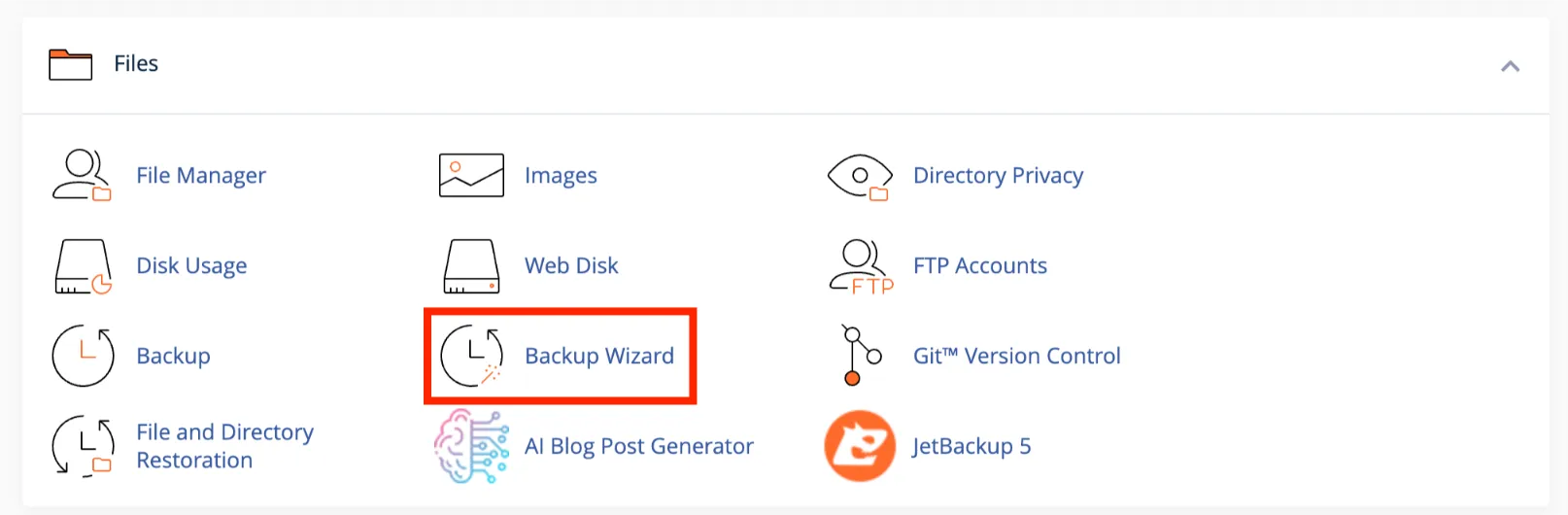
- Scroll to Backup Wizard > Full Backup
- Under destination, choose Home Directory
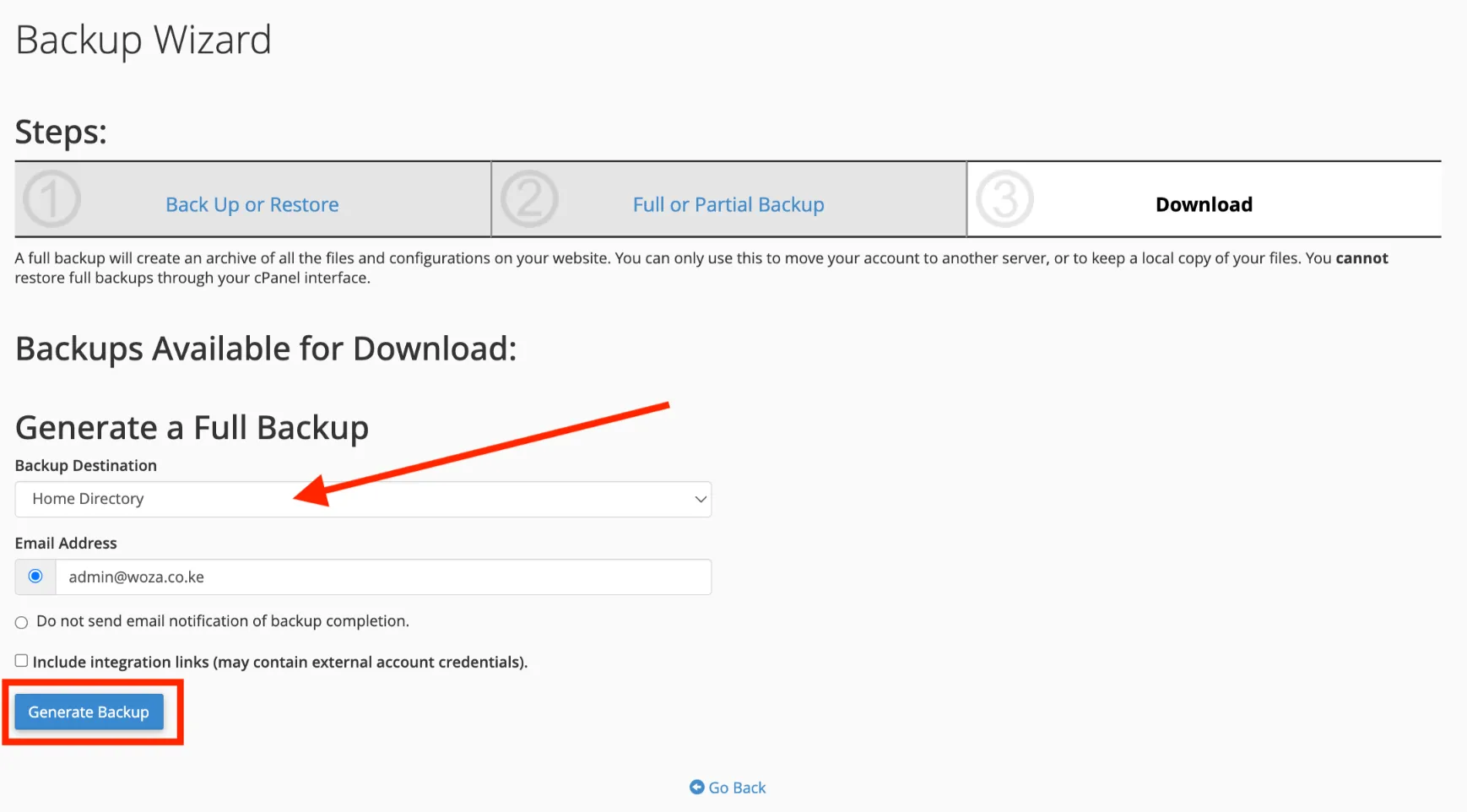
- Click Generate Backup and wait for it to complete
- Download the backup file to your local computer or an external storage location
Your backup will include everything: website files, databases, email accounts, and DNS settings.
Don’t proceed to the next step until you have this file safely downloaded.
If your site is large, consider using your hosting provider’s remote backup option or transferring directly to your new server via SFTP downloading to a local machine with a slow connection can take a while.
Step 3: Install the cPanel Migration Plugin on CyberPanel
CyberPanel has a built-in tool that can communicate directly with your old cPanel server and pull your websites across automatically.
Here’s how to set it up:
- Log in to your CyberPanel dashboard
- Go to Tools > Transfer Website
- Select cPanel to CyberPanel Migration
- Enter your cPanel server credentials:
- cPanel server IP address
- cPanel username
- cPanel password
- Choose the domains you want to migrate
- CyberPanel will then connect to your cPanel server and prepare for the migration
This tool saves you from doing anything manually. CyberPanel handles the communication between the two servers directly.
Read also: Best Control Panel for VPS Hosting: Choosing the Right One
Step 4: Start the Migration
With your credentials validated, it’s time to kick off the actual migration.
- After CyberPanel confirms the connection, select the domains or accounts you want to transfer
- Choose what to include:
- Website files
- Databases
- Email accounts
- Click Migrate
CyberPanel will automatically copy everything: files, databases, and email accounts from the old server to the new one. You don’t need to sit and watch it happen, but you can.
How long does it take? That depends on your website size. A small site might finish in a few minutes. A larger one with heavy databases or media libraries could take 20–30 minutes or more.
You can monitor every step in the progress log in real time. If anything fails, the log will tell you where things went wrong so you can address it.
Step 5: Update DNS Settings
After migration, your website files are sitting on the new CyberPanel server, but visitors are still being directed to the old one.
That’s because your DNS records still point to your old server’s IP address.
You need to update them.
- Log in to your domain registrar; if you registered your domain with us, log in to your Truehost Client Area
- Scroll to DNS Management for your domain
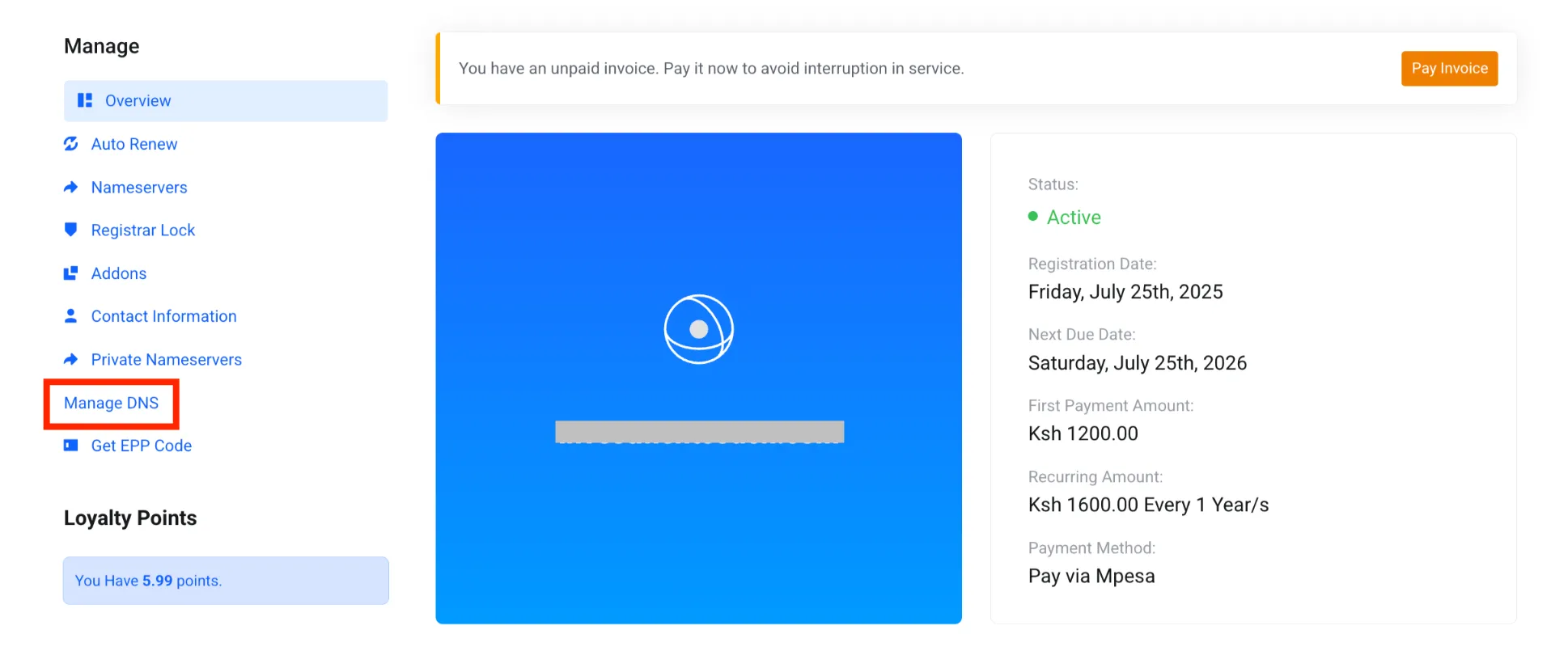
- Update the A record to point to your new CyberPanel server’s IP address
- If you’re hosting email on the same domain, update your MX records as well
DNS changes don’t take effect instantly. Propagation typically takes anywhere from a few minutes to 48 hours, depending on your TTL settings and your DNS provider.
During this time, some visitors may still be routed to your old server, which is why you should keep the old server running until everything has fully propagated and you’ve confirmed the new setup is stable.
Once DNS has propagated, your website and email will run entirely from the new CyberPanel server.
Step 6: Test Everything Thoroughly
Migration isn’t done until you’ve confirmed everything is working. Don’t assume it is; verify it.
Run through this checklist on your new CyberPanel environment:
- All web pages load correctly: check your homepage, key inner pages, and any dynamic sections
- Forms, scripts, and third-party integrations are functioning
- Databases are responding (log in to your CMS and try editing or creating a post)
- Email accounts are sending and receiving messages
- The SSL certificate is active, and HTTPS is loading properly
If something isn’t working as expected, don’t panic. Start by checking the logs in CyberPanel under the relevant website or service.
Most issues are small, such as a misconfigured database connection string, a missing file permission, or an email DNS record that hasn’t propagated yet.
And if you hit a wall, your full cPanel backup is right there waiting. You can always restore and try again.
Step 7: Optimize Your CyberPanel Server
You’ve migrated successfully. Now let’s make sure your new server is running at its best.
CyberPanel comes with powerful built-in performance and security tools, but you have to turn them on.
a) Enable LiteSpeed Cache
If you’re running WordPress, enable LSCache immediately. It’s one of the most effective caching solutions available for WordPress, and it works at the server level, meaning it’s faster than most plugin-based caches.
Go to your website’s management dashboard in CyberPanel and enable LSCache from there. Then install the LiteSpeed Cache plugin in WordPress to complete the setup.
b) Set Up Automated Daily Backups
CyberPanel supports scheduled backups. Configure daily backups and store them remotely on Amazon S3 or another cloud storage provider.
This protects you if anything ever goes wrong down the line.
c) Enable SSL Certificates
Use the one-click Let’s Encrypt feature in CyberPanel to issue free SSL certificates for all your domains.
Set them to auto-renew so you never accidentally serve your site over HTTP.
d) Monitor Server Health
CyberPanel includes built-in server metrics, CPU usage, RAM, disk I/O, and more.
Check them regularly, especially in the first few weeks after migration. This helps you catch any resource spikes early before they become real problems.
By doing these things, you ensure your new hosting environment is faster, safer, and ready to grow with your business.
Check our article on the comparison between CyberPanel and Virtualmin.
How to Achieve a Smooth Migration
Even if you’re well-equipped, things can still go wrong or get tricky during the process.
Here are a few practical habits that make the difference between a smooth transition and a frustrating one:
- Test on a staging environment first: if you can spin up a test site on the new server and confirm everything works before switching DNS, do it. It removes the pressure of doing it live
- Keep your old cPanel server running for at least 3–5 days after migration. Don’t cancel it until you’ve confirmed the new setup is completely stable
- Document your email settings and custom configurations before you start things like custom PHP settings, cron jobs, and email forwarders are easy to miss
- Use CyberPanel’s migration logs if a domain fails to transfer. The logs often point directly to the issue, whether it’s a permissions problem, a database error, or a connectivity issue with the old server
- Migrate during low-traffic hours: early morning or late night. This minimizes the impact on active users in case of any downtime
The biggest mistake people make when migrating is rushing. A calm, staged migration backup first, test second, and go live third almost always goes smoothly. The ones that fail are the ones done in a hurry.
Get Started with Our CyberPanel Hosting Plans
Migrating to CyberPanel is one of the most impactful upgrades you can make for your website’s speed, security, and long-term hosting costs.
You get a modern control panel, OpenLiteSpeed performance, free SSL, and powerful tools all without the cPanel licensing headache.
Here’s a quick recap of what you just learned:
- Prepare a VPS with at least 2GB RAM and install CyberPanel
- Take a full backup of your cPanel data before touching anything
- Use CyberPanel’s built-in Transfer Website tool to pull your data over
- Start the migration and monitor the progress log
- Update your DNS records to point to the new server
- Test everything before shutting down the old server
- Optimize with LSCache, SSL, and automated backups
Ready to make the switch?
At Truehost, our CyberPanel Hosting plans are affordable ( start at Ksh 560/month (billed triennially), or Ksh 699/month (billed annually).
Our Starter plan comes with 2GB RAM, 50GB SSD storage, and full CyberPanel support.
It’s everything you need to migrate confidently and run a fast, secure website in Kenya.