Domain SearchInstantly check and register your preferred domain name
 Web Hosting
 cPanel HostingHosting powered by cPanel (Most user friendly)
 WordPress HostingHost your WordPress website with fast, secure, and affordable WordPress hosting in Kenya.
 KE Domains
 Reseller HostingStart your own hosting business without tech hustles
 Windows HostingOptimized for Windows-based applications and sites.
 Free Domain
 Affiliate ProgramEarn commissions by referring customers to our platforms
 Free HostingTest our SSD Hosting for free, for life (1GB storage)
 Domain TransferMove your domain to us with zero downtime and full control
 All DomainsBrowse and register domain extensions from around the world
 .Com Domain
 WhoisLook up domain ownership, expiry dates, and registrar information
 VPS Hosting
 Managed VPSNon techy? Opt for fully managed VPS server
 Dedicated ServersEnjoy unmatched power and control with your own physical server.
 Website Builder
 Online Store BuilderLaunch a professional e-commerce store without writing code.
 Web Design ServiceGet a custom-designed website tailored to your brand and goals. From just KES 15,600
 BlogRead our guides on web hosting, online business, digital marketing, and more
 SupportOur support guides cover everything you need to know about our services
 ContactContact us via chat or email
A CNAME record, short for Canonical Name, acts as a simple alias.
It points one subdomain, like www.yourdomain.co.ke or blog.yourdomain.co.ke, to another domain name instead of a raw IP address.
For example, you might point blog.yourdomain.co.ke straight to your hosting provider’s main domain.
When the internet looks it up, it follows the alias and loads the right content without you managing separate IP addresses every time servers change.
In this guide, you’ll learn the three fastest ways on how to check CNAME records. Most finish in under 60 seconds using completely free online tools.
CNAME records only work on subdomains. You generally cannot set one on the root domain (like yourdomain.co.ke without www) because of core DNS rules.
Let’s walk through the easiest methods so you can verify your setup quickly and confidently.
Method 1: Use a Free Online CNAME Lookup Tool
This is the easiest option for how to check CNAME. No software, no login, and it works on any device: phone, tablet, or laptop.
You simply open a website and get instant results.
Here are the recommended tools, ordered by simplicity:
DNSChecker.org(my top pick for beginners)- MXToolbox (queries authoritative servers directly)
- EasyDMARC CNAME Lookup
NSLookup.io
Step-by-step for DNSChecker.org (the easiest one)
1. Open your browser and go to DNSChecker.org.
2. In the input box, enter a full subdomain (hostname). (for example, www.yourdomain.co.ke or shop.yourdomain.co.ke)
3. Select a DNS server from the dropdown:
- Start with Google or Cloudflare (very reliable).
- For the most up-to-date info, try Authoritative DNS (this queries the domain owner’s own name servers directly).
4. Click the Lookup DNS button.
5. Look at the results:
You should see a CNAME line showing what the subdomain points to (the canonical name).
Below that, it usually resolves to the final IP address(es) as well.
Quick Steps for the Other Tools
- MXToolbox: Enter the subdomain (e.g.
www.yourdomain.co.ke), then click the lookup button. It pulls directly from authoritative servers great for verifying recent changes. - EasyDMARC: Enter the subdomain, optionally choose a DNS server, and click Lookup CNAME.
- NSLookup.io: Just type the subdomain into the box and press Enter. Results appear immediately at the top.
What to learn more about DNS management? Check out our guide.
Method 2: Check Using Command Line (Quick for Desktop Users)
This method runs directly on your computer. It’s quick, doesn’t require a website, and gives you full control.
On Windows (using nslookup)
1. Press Windows key + R, type cmd, and press Enter to open Command Prompt.
2. Type the following command and press Enter:
nslookup -q=cname blog.example.co.ke3. Look for a line that says “canonical name = …” This confirms the subdomain has a CNAME record.
What success looks like:
Server:  dns.google
Address:  8.8.8.8

Non-authoritative answer:
blog.example.co.ke     canonical name = hostingprovider.com.
On Mac or Linux (using dig)
1. Open Terminal.
2. Type one of these commands and press Enter:
Clean short version (recommended for quick check):
dig blog.example.co.ke CNAME +shortFull detailed version:
dig blog.example.co.ke CNAMELook in the ANSWER SECTION for the CNAME line.
What success looks like (short version):
hostingprovider.com.What success looks like (full version):
;; ANSWER SECTION:
blog.example.co.ke.     3600    IN      CNAME   hostingprovider.com.
Pro Tips
1. Always use the full subdomain (e.g. blog.example.co.ke).
2. If you get “No records”, “ANSWER: 0”, or only an SOA record:
The subdomain probably doesn’t have a CNAME set yet (or it’s using an A record instead).
Try forcing a public DNS server to avoid local caching:
dig blog.example.co.ke CNAME @8.8.8.8Or
dig blog.example.co.ke CNAME @1.1.1.1Success = You clearly see the subdomain is an alias for or CNAME pointing to another hostname (usually your hosting provider’s target).
No records = The CNAME is not configured yet, hasn’t propagated, or the subdomain uses a direct A record.
Check out our guide on How to Check Domain Registration Status
Method 3: Check Directly in Your DNS Provider Dashboard
This method shows you exactly what you configured in your Truehost account. It’s the quickest way to view your own settings.
Remember: The dashboard shows your configured records, but it does not confirm what the rest of the internet sees yet. Always double-check with Method 1 (online tools) or Method 2 (command line) after making changes.
Two Ways to Check CNAME Records in Truehost
Option 1: Through Truehost Client Area (Recommended for most users)
1. Log in to your Truehost Client Area .
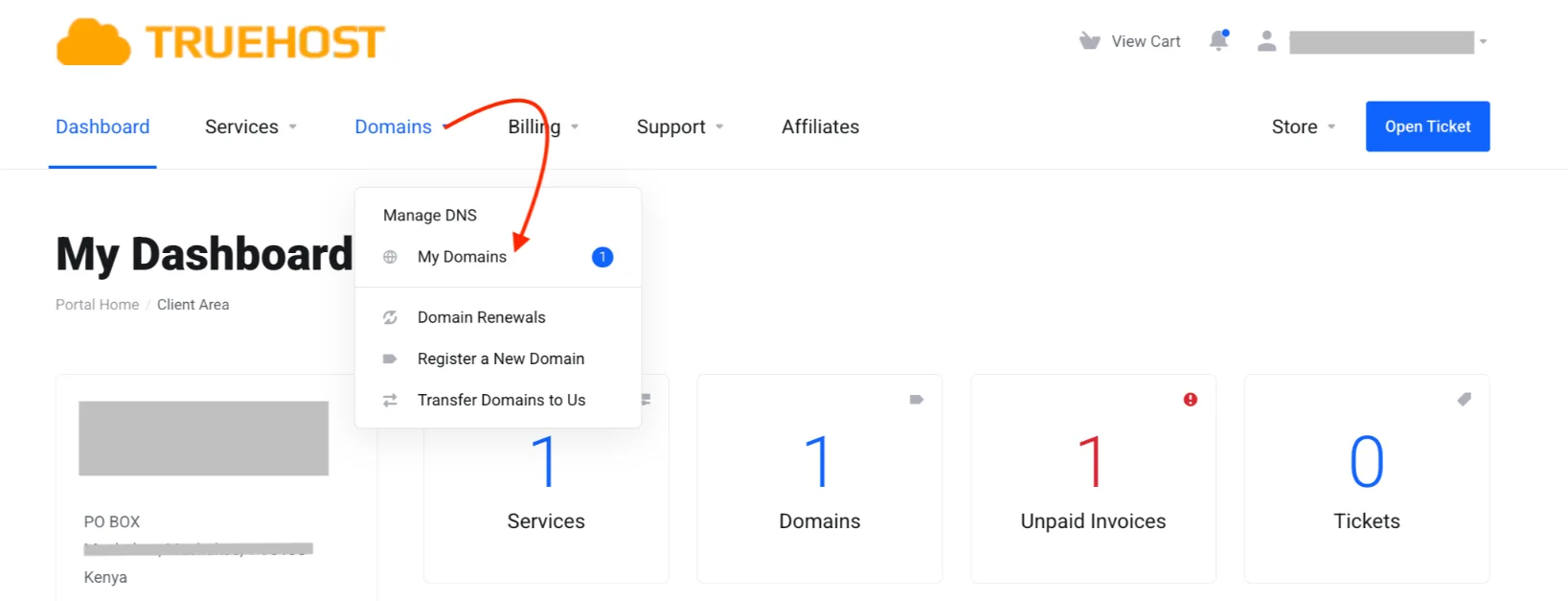
2. Click on Domains → My Domains.
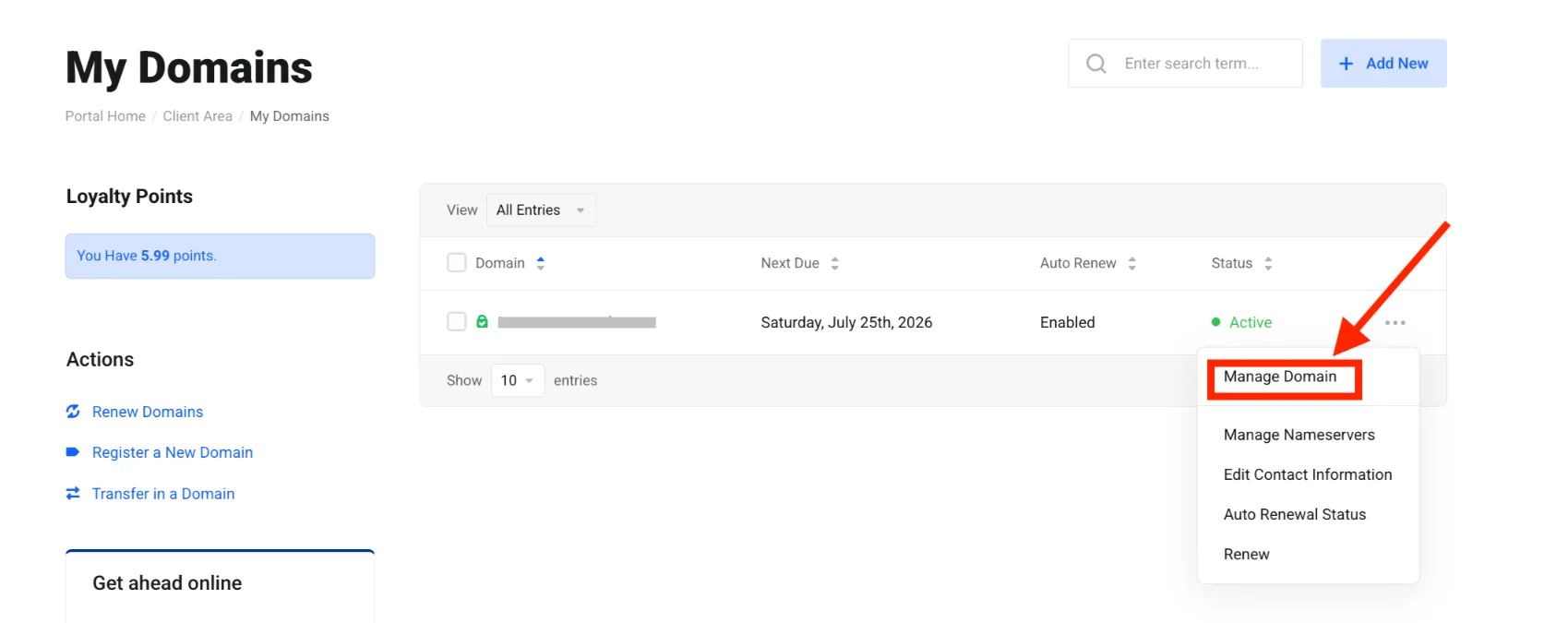
3. Find your domain (e.g., main.com.ke) and click Manage Domain next to it.
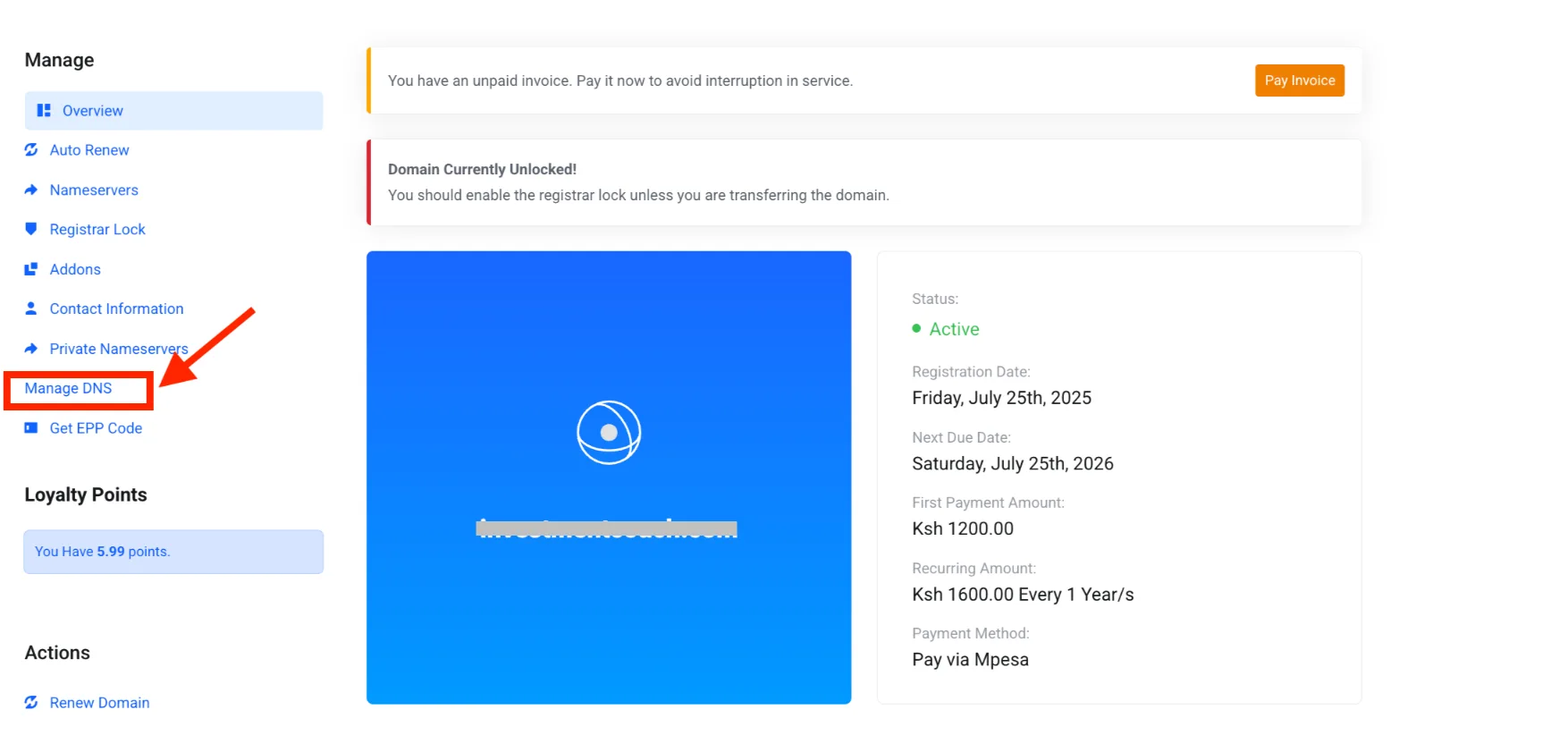
4. Select Manage DNS.
5. You will see a table/list of all DNS records.
6. Search for CNAME on the search bar and click enter.
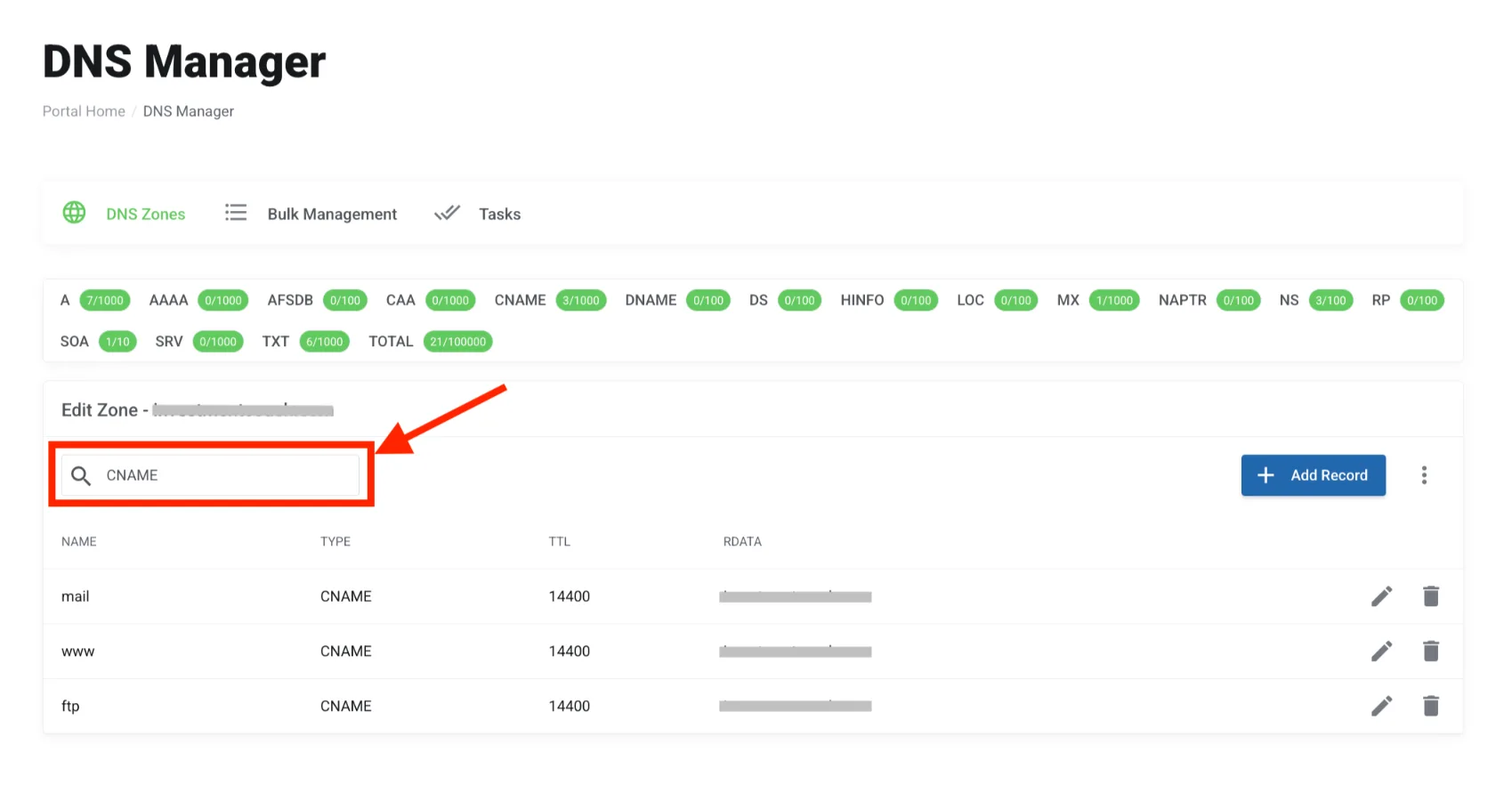
7. You will find all with the type set to CNAME
8. Check these columns:
- Host / Name: This is the subdomain part (e.g., blog, shop, or www).
- Address / Target / Value: This shows where the subdomain is pointing to (the canonical name/destination).
Option 2: Through cPanel Zone Editor (if you have hosting with Truehost)
1. Log in to your cPanel account (usually yourdomain.com/cpanel or from the Truehost client area).
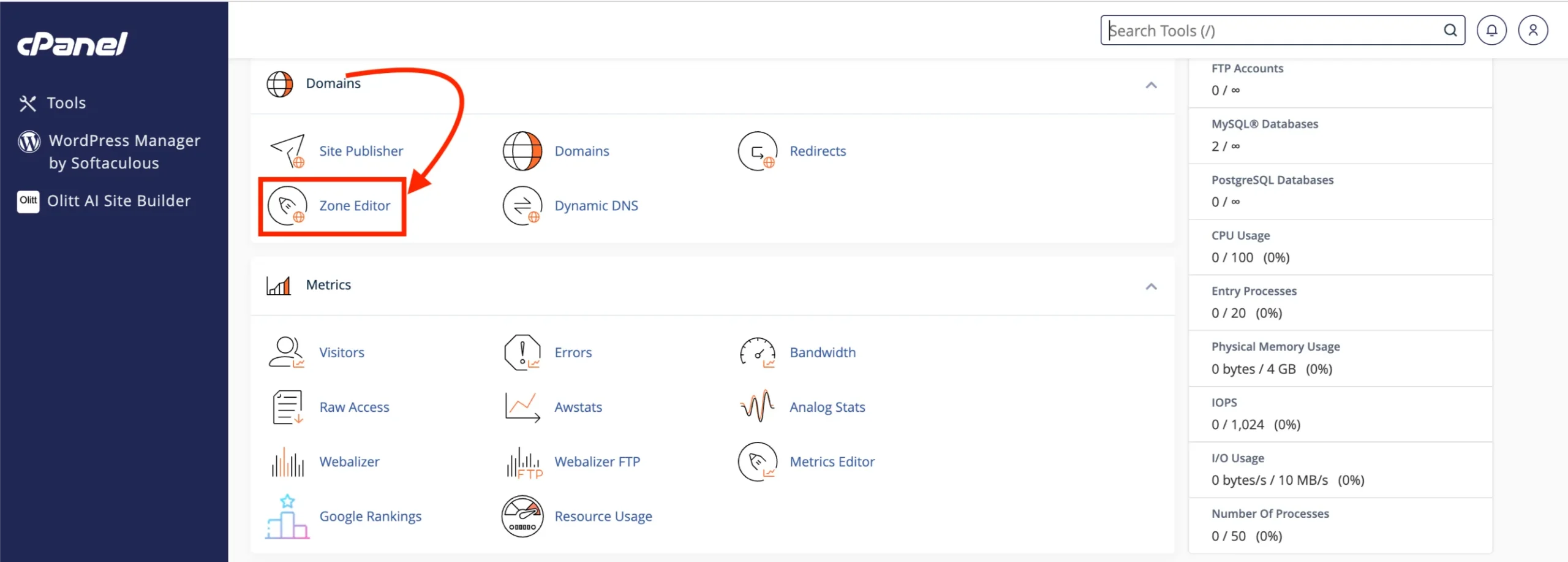
2. In the Domains section, click Zone Editor.
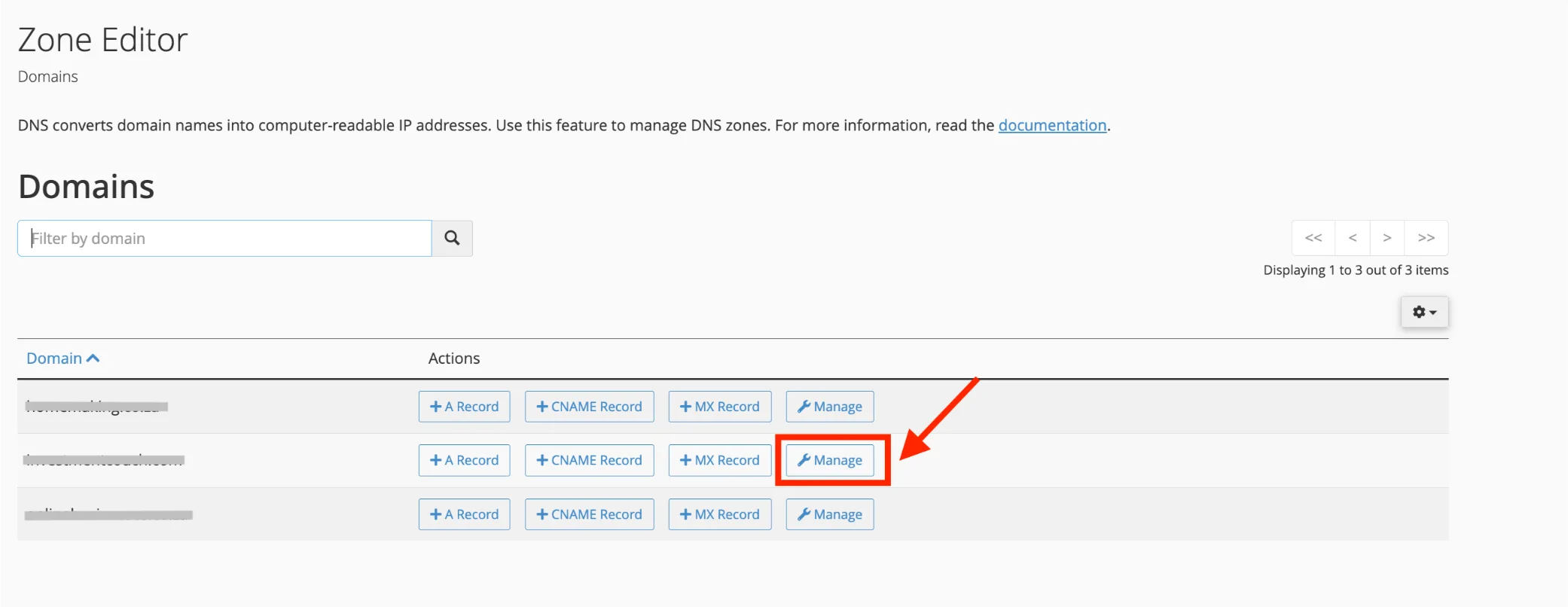
3. Find your domain and click Manage.
4. You will see the full list of DNS records.
5. Scroll or filter for Type: CNAME.
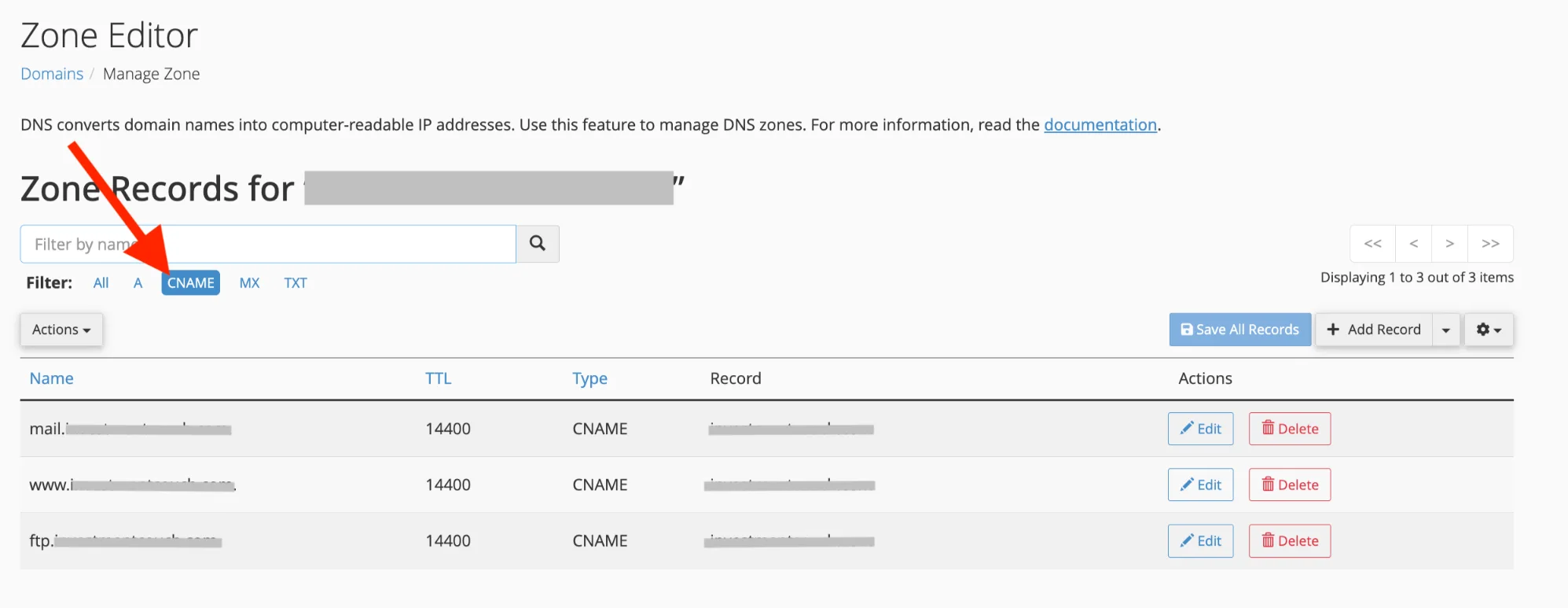
6. Check the Name column (subdomain) and the Record / Target column.
Important Notes for Truehost Users
a) Changes you make here usually take a few minutes to a few hours to propagate worldwide.
b) If you don’t see the CNAME record you expect, make sure you are looking at the correct domain and that the nameservers are pointed to Truehost.
c) Truehost makes it simple for Kenyan users both the Client Area DNS Management and cPanel Zone Editor are straightforward.
Key Things to Verify
- The target matches exactly what you set in your Truehost DNS dashboard (e.g., your hosting provider’s hostname, another domain, or a service like a website builder).
- TTL value (e.g., 3600). This is how long (in seconds) the record is cached. Lower numbers (like 300 or 600) mean changes propagate faster.
- The record type is clearly CNAME (not A or AAAA).
- There are no conflicting records for the same subdomain (especially no A record on the exact same host/name). This is a common mistake and can cause problems.
Final Verdit
The fastest way on how to check cname is usually an online tool like DNSChecker.org or MXToolbox.
Command line works great for quick desktop checks, and your DNS dashboard confirms exactly what you configured.
You now know exactly how to verify any CNAME in under a minute.
Need help actually setting up a CNAME record? Check our detailed guide on adding DNS records with Truehost.
CNAME FAQ
Can you ping a CNAME record?
Yes, but ping follows the alias to the final IP address. It doesn’t ping the CNAME itself; it resolves to the canonical target first.
Is pinging Google illegal?
No. Pinging public servers like Google’s 8.8.8.8 is completely legal and a common way to test connectivity.
What does pinging 1.1.1.1 do?
It tests your connection to Cloudflare’s fast public DNS server and measures response time.
Why is 1.1.1.1 banned?
It’s not banned in most places; some networks or countries block it for security or filtering reasons, but it remains a top public DNS choice globally.
Is 8.8.8.8 the fastest DNS?
It’s one of the fastest and most reliable, but Cloudflare’s 1.1.1.1 often edges it out for speed in many regions.
Can you point a CNAME to an IP address?
No. CNAME records must always point to another domain name, never a raw IP address.