Domain SearchInstantly check and register your preferred domain name
 Web Hosting
 cPanel HostingHosting powered by cPanel (Most user friendly)
 WordPress HostingHost your WordPress website with fast, secure, and affordable WordPress hosting in Kenya.
 KE Domains
 Reseller HostingStart your own hosting business without tech hustles
 Windows HostingOptimized for Windows-based applications and sites.
 Free Domain
 Affiliate ProgramEarn commissions by referring customers to our platforms
 Free HostingTest our SSD Hosting for free, for life (1GB storage)
 Domain TransferMove your domain to us with zero downtime and full control
 All DomainsBrowse and register domain extensions from around the world
 .Com Domain
 WhoisLook up domain ownership, expiry dates, and registrar information
 VPS Hosting
 Managed VPSNon techy? Opt for fully managed VPS server
 Dedicated ServersEnjoy unmatched power and control with your own physical server.
 Website Builder
 Online Store BuilderLaunch a professional e-commerce store without writing code.
 Web Design ServiceGet a custom-designed website tailored to your brand and goals. From just KES 15,600
 BlogRead our guides on web hosting, online business, digital marketing, and more
 SupportOur support guides cover everything you need to know about our services
 ContactContact us via chat or email
An FTP port is a communication endpoint that allows the File Transfer Protocol (FTP) to move files between two computers over a network.
It’s like a specific door on your computer that FTP uses to send or receive data. Without the correct port, your file transfer simply won’t happen.
Some FTP port use cases include web developers uploading site files and IT teams relying on it for backups. Even smart devices like security cameras use FTP to send footage.
Knowing which FTP ports to use helps you troubleshoot connection failures, secure your data, and transfer files without frustration.
If you’ve ever tried to connect to an FTP server and got a timeout error, the port was likely the problem.
How Does FTP Port Work?
FTP uses a simple client-server setup. You have a client on your computer, such as FileZilla or Cyberduck, and the server is the remote machine that holds the files.
So, your client sends commands, and the server responds.
What makes FTP different from most protocols is that it uses two separate channels instead of one.
The control channel handles commands.
When you type your username, password, or request a folder listing, that travels over the control channel.
This channel stays open the whole time you are connected.
The data channel handles the actual files. When you upload a photo or download a document, the data moves through this channel.
It opens only when a transfer starts and closes when it finishes.
Separating them lets you browse folders while a large file transfers in the background, without anything interfering.
What happens step by step when you connect to an FTP server:
- Your FTP client opens a connection to the server on Port 21 (the control channel).
- The server sends a welcome message.
- Your client sends your username and password through the control channel.
- The server authenticates you.
- You browse folders. All those list directory commands go through Port 21.
- When you download a file, your client tells the server which port to use for the data channel.
- The server opens a second connection (the data channel) on the specified port.
- The file transfers.
- The data channel closes. The control channel stays open for further commands.
The main difference between active and passive mode is who opens the data channel. Check out this table to see how they compare:
| Feature | Active Mode | Passive Mode |
| Who opens data channel | The server opens a connection to the client | Client opens a connection to the server |
| Server port used | Port 20 | Random high port (e.g., 50000–51000) |
| Client port used | Random high port | Random high port |
| Works through firewall? | Rarely. Firewalls block incoming server connections. | Usually. Client initiates both connections. |
| Common use | Internal networks you control | Internet connections and cloud hosting |
Types of FTP Ports
a) Standard FTP Ports
These ports transmit everything, including your username and password, in plain text. Anyone on the same network can see your credentials. They include:
- Port 21: The control channel for plain, unencrypted FTP. Almost every FTP server listens here for commands.
- Port 20: The data channel port in active mode. Not always used in passive mode.
b) Secure FTP Ports
- Port 22: Used by SFTP (SSH File Transfer Protocol). This is not the same as standard FTP. SFTP runs over SSH, encrypts everything, and uses a single port for both commands and data.
- Port 990: Used by FTPS (FTP over SSL/TLS) for implicit encryption. The client expects a secure connection from the first handshake.
- Port 989: The data channel for implicit FTPS.
For any sensitive data, use Port 22 (SFTP) or Port 990 (FTPS). Avoid plain FTP on Port 21 for financial records, medical files, or login credentials.
FTP Port Usecases
1) Website Management
You need to get your website files from your computer to your hosting provider. FTP on Port 21 is the standard way to do that.
For example, you build a website at home using HTML and CSS. You open FileZilla, enter your hosting server’s address, and connect to Port 21.
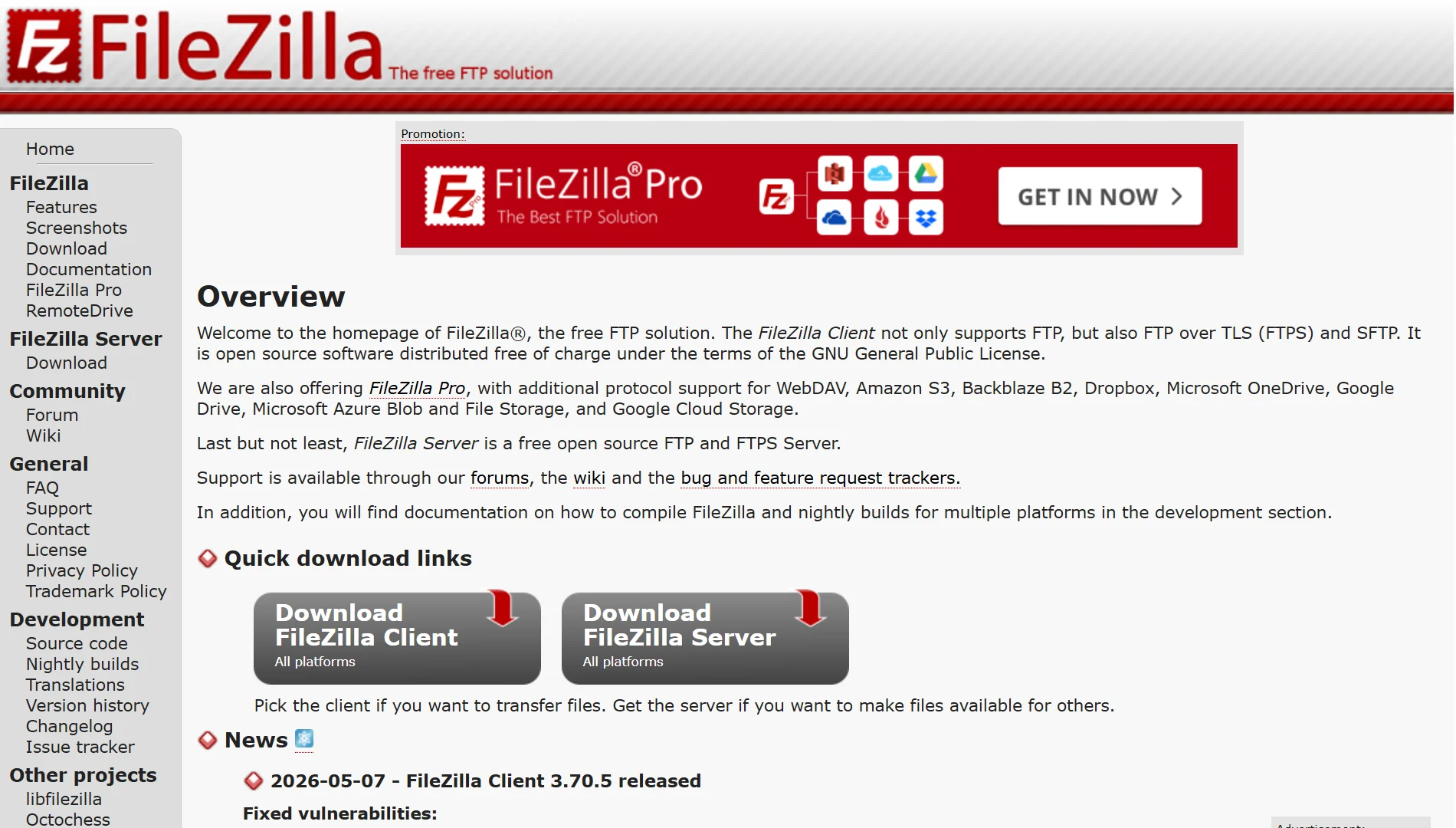
From there, you drag your local files into the server’s public_html folder. Port 21 handles all your commands, like creating folders or deleting old pages.
Then the data channel sends the actual files.
2) Secure Internal Backup
Sometimes you need to automatically back up sensitive data, and you want every file encrypted. That is where SFTP on Port 22 comes in.
For instance, a company with critical financial databases. Every night at 2 AM, a backup script runs. It connects to a backup server using Port 22, not Port 21.
The script uses SSH keys instead of a password. It transfers the database backup to a secure folder.
By morning, the backup is safe on a different machine, and nobody on the network could have snooped on the transfer.
3) Large Data Distribution
When you need to share massive files with many people who do not have accounts, anonymous FTP on Port 21 is the way to go.
So, set up an anonymous FTP server, and anyone can connect using “anonymous” as the username and their email as the password.
The server restricts them to a specific download folder, then Port 21 handles the directory listings so people can browse what is available.
The data channel moves the huge files.
4) ERP and System Integration
Businesses use FTP on Port 21 to automatically exchange files between their systems and partners.
One system generates a file, connects to another system’s FTP server using a dedicated service account, and uploads the file.
The receiving system picks it up. No employee has to click anything. This is ideal for transaction reports, purchase orders, and invoices.
5) Firmware Updates for IoT Devices
Smart devices like routers and cameras update themselves using FTP on Port 21. The device connects to the manufacturer’s FTP server using a generic account.
It checks for a new firmware file and downloads the patch over the data channel. Then it installs the update and restarts by itself.
6) Firewall Troubleshooting
When you try to connect to an FTP server and your client times out, a firewall is usually blocking the data channel.
In active mode, the server tries to open a connection back to your client on a random high port. Your firewall sees that incoming connection and blocks it.
The fix is to switch your FTP client to passive mode. Then your client opens both connections, and the firewall allows it.
If that does not work, you can configure your firewall to allow outgoing connections on Port 21 and incoming connections on a specific passive port range, such as 50000-51000.
How to Use FTP Port
- Get the connection details. You need the server address, username, and password. For anonymous FTP, only the server address is essential. Standard FTP uses Port 21. SFTP uses Port 22. FTPS uses Port 990.
- Open an FTP client. Try FileZilla, WinSCP, Cyberduck, or the command line. On Windows, type
ftp://serveraddressinto File Explorer. On Mac, Finder works too. For the command line, type ftp in Terminal or Command Prompt. - Enter the port number. In most clients, type it after the server address, like
ftp.yoursite.com:21. No space after the colon. On the command line, type open serveraddress port. - Choose the right mode. Use Passive mode for internet connections or through a firewall. Use Active mode only on internal networks with no firewall. If transfers hang, switch modes.
- Connect and transfer files. Click Connect. After logging in, drag files from left to right to upload, or right to left to download. For automated transfers, use a script with the ftp or SFTP command.
What Is ftp Port FAQs
It tells the server which service the client wants to use. Port 21 means the client wants to send FTP commands. Port 20 means the client is ready to receive file data.
SFTP is better for anything sensitive. It encrypts your login and files, and uses a single port (22). Only use plain FTP on Port 21 for public, non-sensitive file distribution.
TCP. FTP needs every packet to arrive in order. UDP does not guarantee delivery, so FTP never uses it.
Because it was designed in 1971. One port (21) handles commands. Another port (20 or a random high port) handles the actual file data. This two-port design is why FTP has trouble with firewalls.
Final Take on FTP Port
You do not need to memorize every port number. Just keep a few in your back pocket.
Port 21 is for plain FTP commands. Port 20 is for active mode data transfers. Port 22 is for secure SFTP, which is what you should use for anything important.
If an FTP connection ever fails, make sure you are using the correct port first. Second, try switching from active mode to passive mode.
Third, check that your firewall allows outgoing connections on Port 21 and incoming connections on your client’s random high ports.
And remember: for any work involving sensitive information, avoid Port 21. Use Port 22 with SFTP instead.
FTP is an old protocol, and its two-port design can be a headache. But once you understand how those ports work, you will save yourself hours of connection troubleshooting.