Domain SearchInstantly check and register your preferred domain name
 Web Hosting
 cPanel HostingHosting powered by cPanel (Most user friendly)
 WordPress HostingHost your WordPress website with fast, secure, and affordable WordPress hosting in Kenya.
 KE Domains
 Reseller HostingStart your own hosting business without tech hustles
 Windows HostingOptimized for Windows-based applications and sites.
 Free Domain
 Affiliate ProgramEarn commissions by referring customers to our platforms
 Free HostingTest our SSD Hosting for free, for life (1GB storage)
 Domain TransferMove your domain to us with zero downtime and full control
 All DomainsBrowse and register domain extensions from around the world
 .Com Domain
 WhoisLook up domain ownership, expiry dates, and registrar information
 VPS Hosting
 Managed VPSNon techy? Opt for fully managed VPS server
 Dedicated ServersEnjoy unmatched power and control with your own physical server.
 Website Builder
 Online Store BuilderLaunch a professional e-commerce store without writing code.
 Web Design ServiceGet a custom-designed website tailored to your brand and goals. From just KES 15,600
 BlogRead our guides on web hosting, online business, digital marketing, and more
 SupportOur support guides cover everything you need to know about our services
 ContactContact us via chat or email
Most websites you visit every day are database-driven.
An online store showing your recent orders, a travel site displaying flight availability, a forum with your profile picture, or a news site remembering your preferences.
These sites pull content from a database instead of using static HTML files.
The difference between hosting a database-driven website and a non-database one is simple. With a non-database site, you just upload your files, and you are done.
With a database-driven site, you must create a database on the server and tell your website files how to find it.
Without these steps, your site will show blank pages or connection errors.
This is why finding good hosting is critical. Cheap hosts often limit database sizes, cap the number of queries per hour, or use slow servers.
Your visitors will see errors, and you will lose business.
So, I’ll show you how to host a database-driven website in simple steps and even give you the best hosting option.
Host a Database-driven Website in 8 Steps
Step 1: Pick a One-Stop Hosting Company and Buy a Hosting Plan
You need a company that provides everything: server space, database tools, and your domain name.
For a database-driven website, look for a plan that includes cPanel and MySQL or MariaDB databases.
Truehost offers this exactly at the most affordable prices. Our plans start from as low as Ksh 188 per month.

You get cPanel access, free automated SSL certificates, and support for Python and NodeJS if you need it.
Step 2: Log in to Your Control Panel
Once you buy a plan, the hosting company will send you a welcome email. In that email, you will find your cPanel login URL.
It usually looks something like http://www.yourdomain.com/cpanel or a server address.
Open that link. Type in your username and password exactly as provided. Hit login. You are now in your control panel. This is the command center for your website.
Step 3: Create Your Database
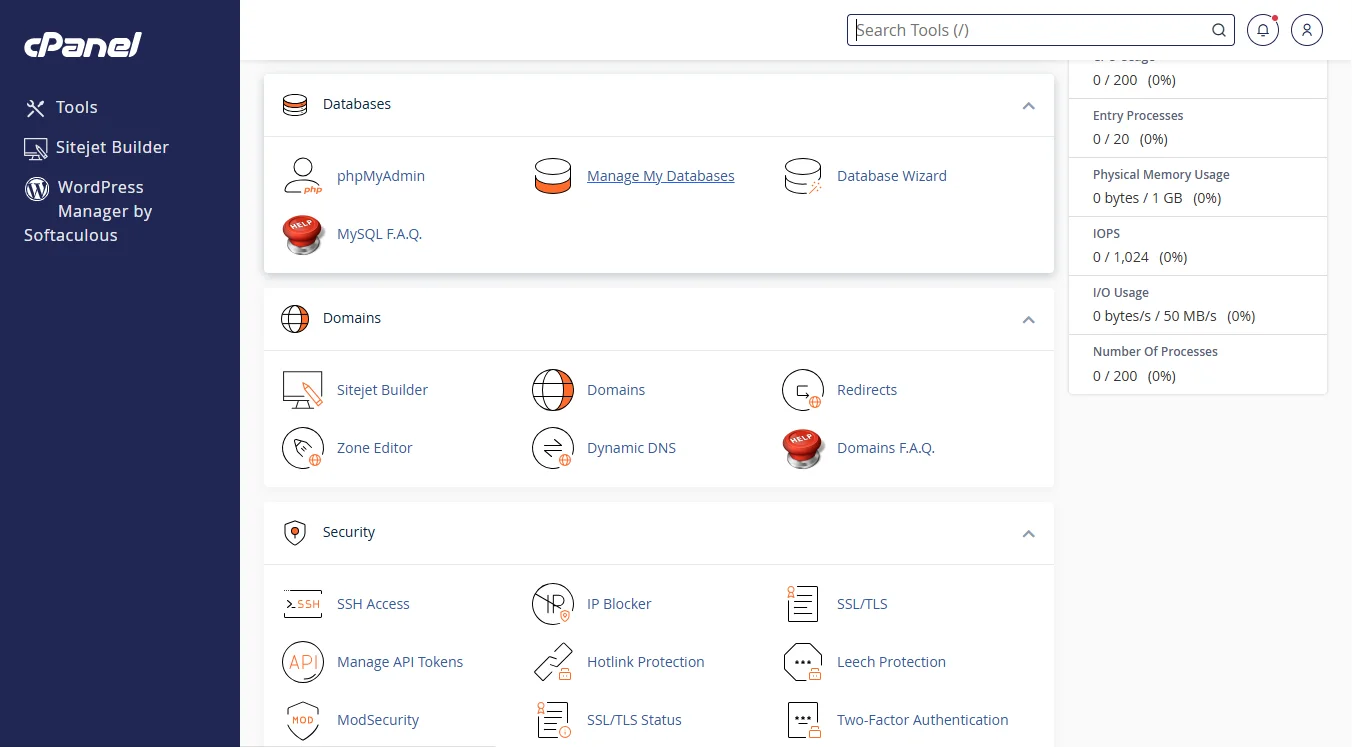
Now, inside cPanel, look for the “Manage my Databases” icon and click it.
First, find the Create Database section. Give your database a name.
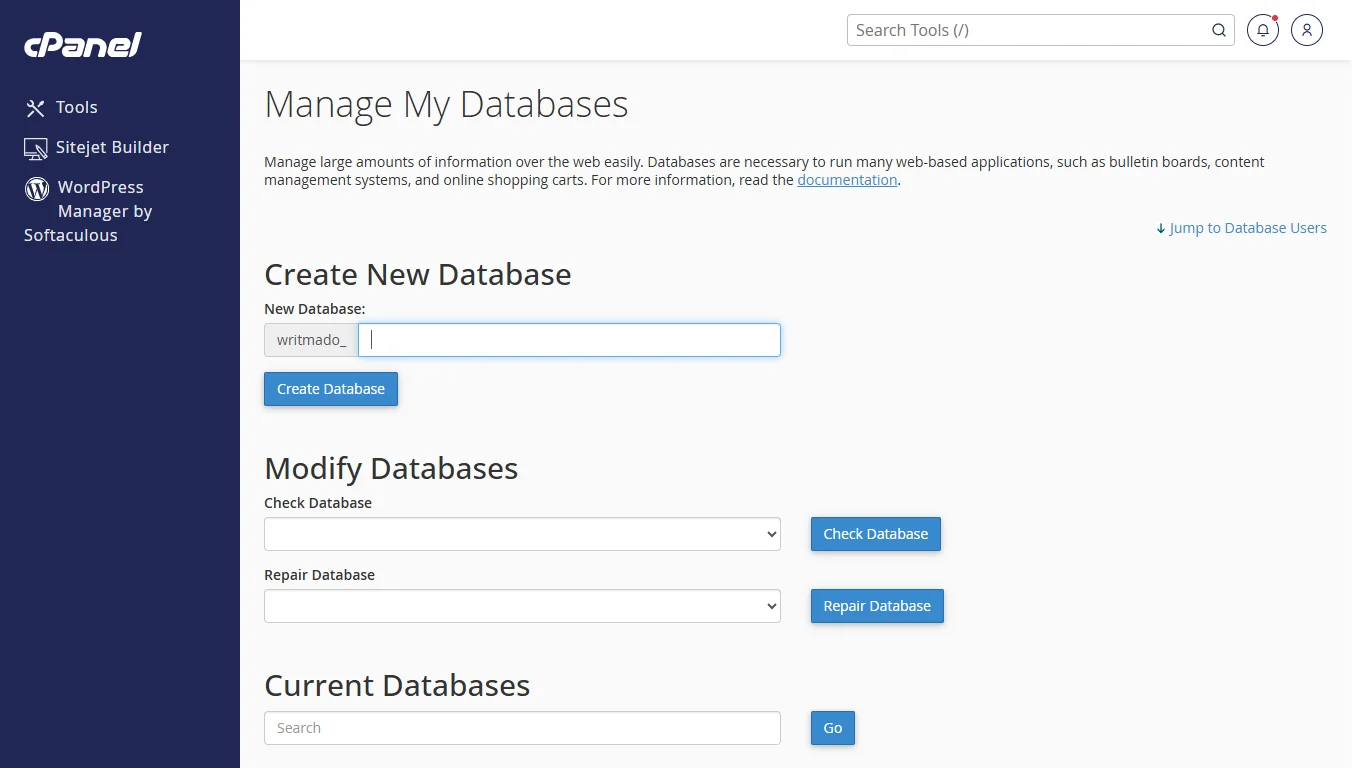
After you click Create Database, your full database name will be something like yourusername_databasename. The system adds your username as a prefix.
Next, you need a database user. Scroll down to Add New User.
Pick a username (no more than 7 characters) and create a strong password. Save these details in a plain text file on your computer: the full database name, the full username, and the password.
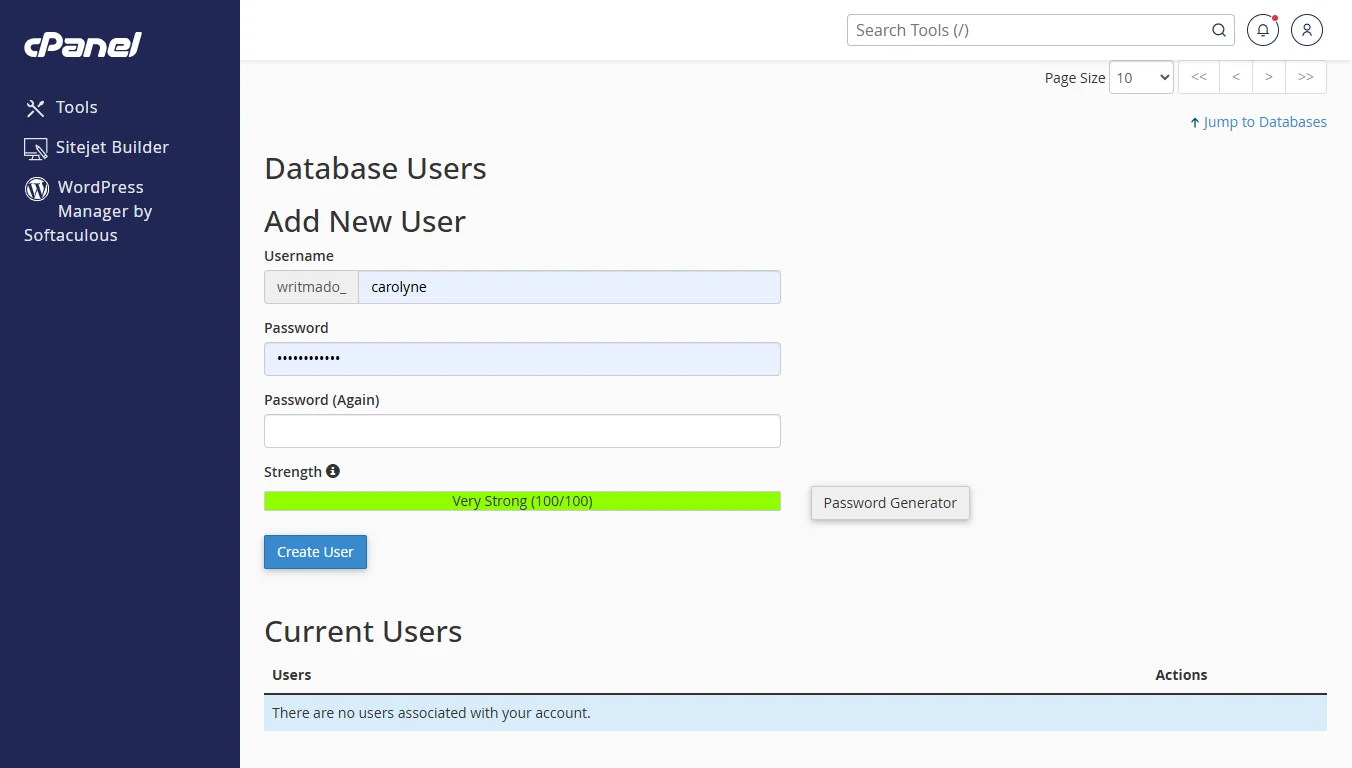
You will need them soon.
Finally, you must connect the user to the database. Under Add User to Database, select your new user and your new database. Click add.
When prompted for privileges, select All privileges, then finish.
Step 4: Upload Your Website Files
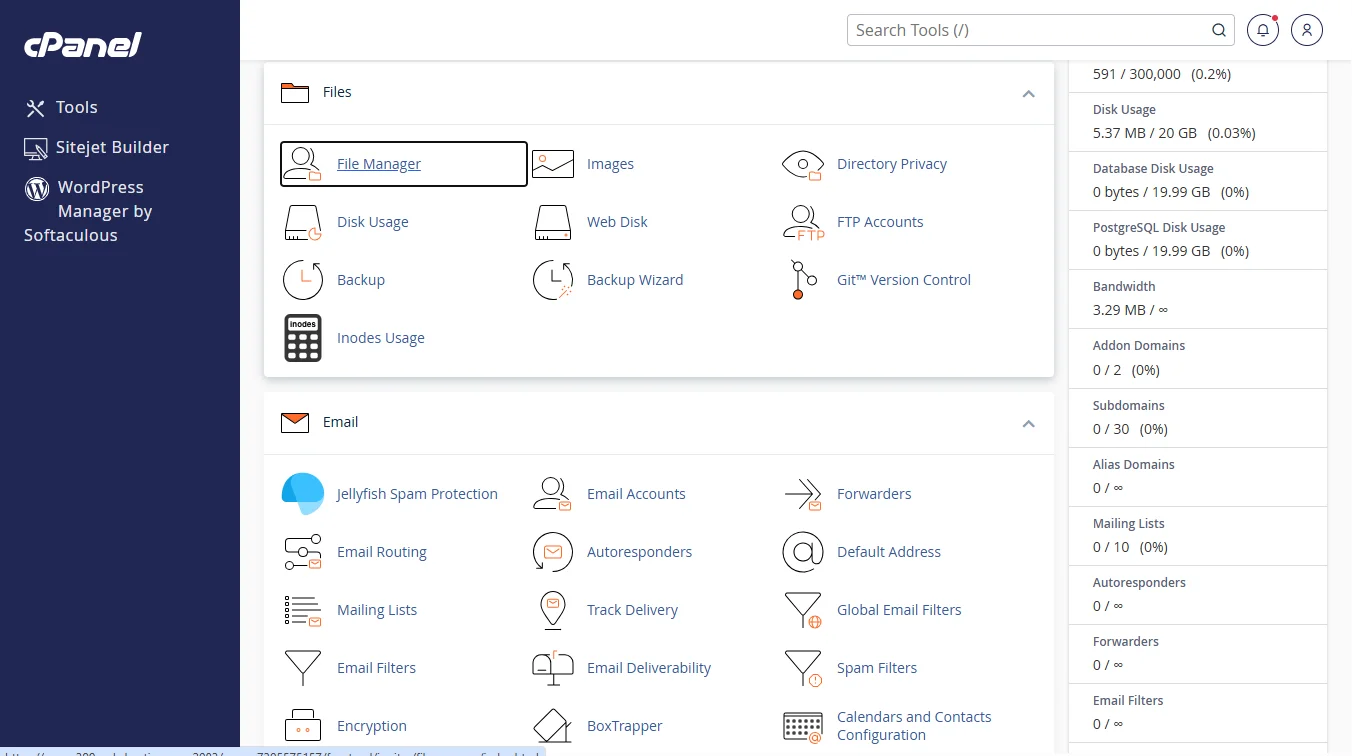
Your website’s code needs to live on the server. Go back to the main cPanel page. Find File Manager and click it.
Open the public_html folder. This is the root folder for your main website. Now upload all your website files (PHP, HTML, CSS, and other scripts) from your computer to this folder.
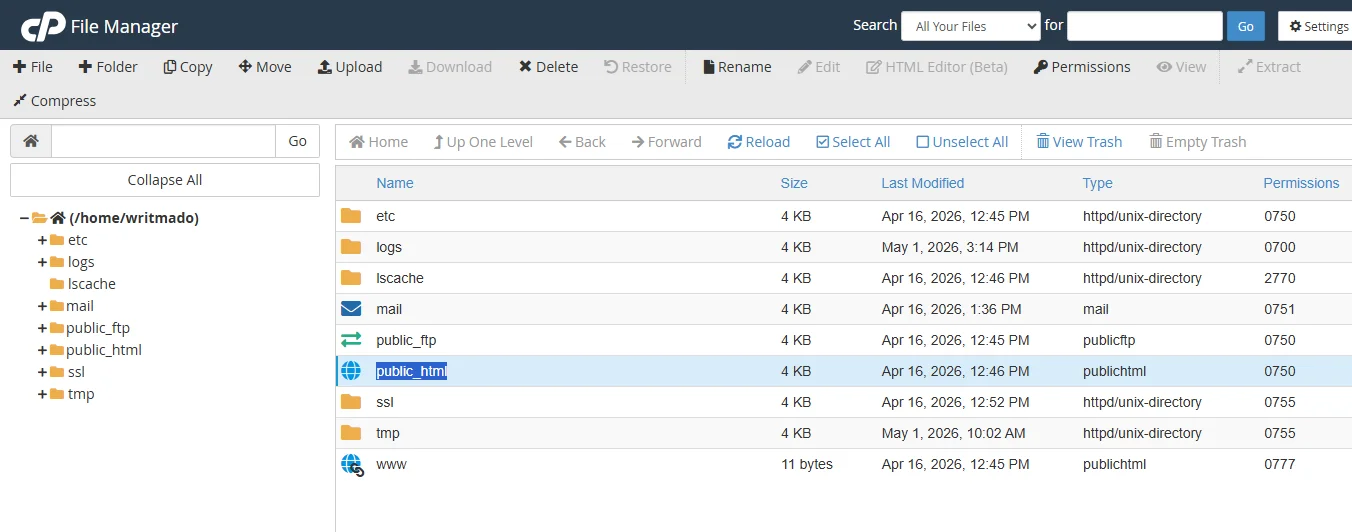
You can also refer to your hosting provider’s specific guide for uploading the files.
Step 5: Tell Your Website How to Find the Database
Your website files are on the server, but they are still looking for a database on your local computer. You have to update the configuration file.
Look for a file named config.php, wp-config.php (for WordPress), or settings.php. Open that file in the File Manager’s text editor.
Inside, find the database connection settings. Change them to the new information from Step 3. You will replace the old database name, username, and password with your new ones.
Step 6: Import Your Data (If You Have Existing Data)
If you are moving an existing site, you already have data in a database. You need to import that data into your new empty database.
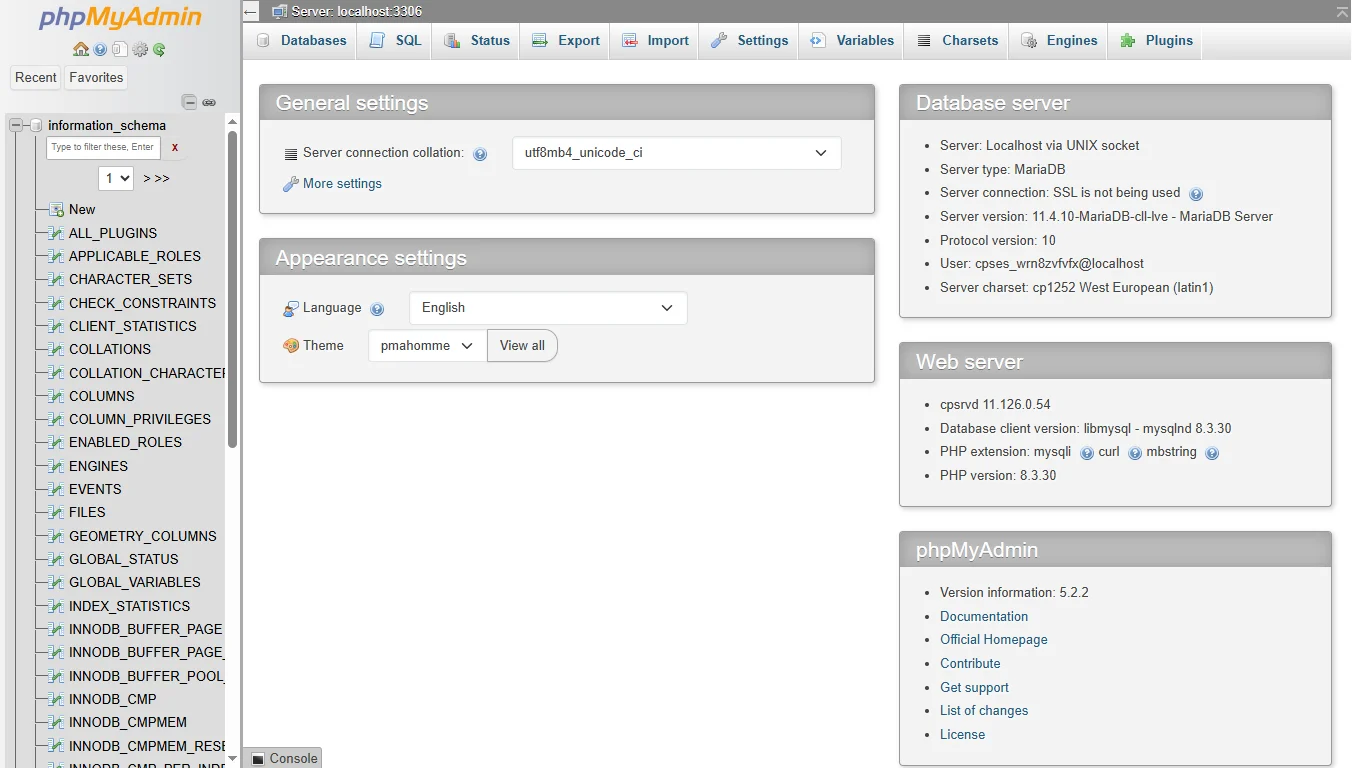
From cPanel:
- Click the phpMyAdmin icon. It opens a new tab.
- On the left side, click on the database you just created.
- Then click the Import tab at the top.
- Click Choose File and select the .sql or .zip file you exported from your old site.
- Click Go at the bottom. phpMyAdmin will load your data into the tables.
Step 7: Connect Your Domain
Right now, your site might only be accessible via a temporary server address. Point your actual domain name to your hosting.
Go to your domain registrar, like Truehost. Log in and find the DNS or Nameserver settings.
Replace the existing nameservers with the ones your hosting company gave you. This change can take a few hours to fully apply.
If you want to register a new domain for this purpose, Truehost offers many TLDs at affordable prices.
Step 8: Test Your Website
Open a new private or incognito browser window. Type in your domain name. Go through your site page by page. Fill out a form.
Log in to an account if you have one. Check that all data loads correctly.
If something looks wrong, double-check your database connection settings in Step 5 and your file upload in Step 4.
What Could Go Wrong and How to Fix
| Issue | Fix |
| Error establishing a database connection | Check the database name, username, and password in your config file. Confirm your database user has all privileges from Step 3. |
| White screen on some pages | Go to phpMyAdmin, drop all tables, and run the import again from your .sql file. |
| Login page does not work | Open your config file and phpMyAdmin. Check that table prefixes match (e.g., wp_users vs my_users). |
| 500 internal server error | In File Manager, set folders to 755 and files to 644. |
Hosting a Database-driven Website FAQs
What is a database-driven website?
It is a website that pulls content from a database rather than having each page be a separate, static HTML file.
When a visitor lands on the page, the server builds that page on the spot using data from the database.
Can I host a database for free?
Yes, some providers offer free tiers. Truehost even has a free hosting package for testing.
But free options come with major limits on storage, speed, and the number of database queries you can run per hour. It is fine for a personal test site, but not for a live business.
What is the cheapest way to host a database?
Shared web hosting is the cheapest. Truehost’s WebHosting Starter plan at Ksh 188 per month gives you everything you need. You get databases, cPanel, and SSL for less than the price of a weekly coffee.
Can I host my own database?
You could set up a server at your office or home. But you would need to manage power, cooling, security updates, backups, and a static IP address.
It is easier to let a professional hosting company handle it, as it is far cheaper and less stressful.
Can WordPress host a database?
WordPress itself is not a database. WordPress is software that needs a database to run. It works with MySQL or MariaDB databases.
So you still need a hosting account that provides those databases. Truehost’s plans all include one-click WordPress installation plus the required database setup.
Ready to Host a Database-driven Website?
Truehost makes hosting a database-driven website simple.
Every one of our plans includes cPanel access, which gives you the MySQL database tools you need to create your database, add users, and set privileges.
We also provide phpMyAdmin for importing your existing data, and free automated SSL certificates to secure the connection between your website and its database.
Our WebHosting Starter plan from Ksh 188 per month hosts 10 websites and includes 30 GB of SSD storage, daily backups, unlimited bandwidth, unlimited email accounts, a one-click installer, and free website migrations.
But if you need more, the Pro plan gives you 30 websites and 50 GB storage for Ksh 394 per month.
The Unlimited plan at Ksh 1632 per month offers unlimited websites, unmetered SSD storage, and a free .co.ke domain on the annual plan.
For your data-driven website, we offer 24/7 customer support to help if your database connection fails.
We provide loyalty credits to lower your next spend. We also offer a free hosting package if you just want to test your database setup first.