Domain SearchInstantly check and register your preferred domain name
 Web Hosting
 cPanel HostingHosting powered by cPanel (Most user friendly)
 WordPress HostingHost your WordPress website with fast, secure, and affordable WordPress hosting in Kenya.
 KE Domains
 Reseller HostingStart your own hosting business without tech hustles
 Windows HostingOptimized for Windows-based applications and sites.
 Free Domain
 Affiliate ProgramEarn commissions by referring customers to our platforms
 Free HostingTest our SSD Hosting for free, for life (1GB storage)
 Domain TransferMove your domain to us with zero downtime and full control
 All DomainsBrowse and register domain extensions from around the world
 .Com Domain
 WhoisLook up domain ownership, expiry dates, and registrar information
 VPS Hosting
 Managed VPSNon techy? Opt for fully managed VPS server
 Dedicated ServersEnjoy unmatched power and control with your own physical server.
 Website Builder
 Online Store BuilderLaunch a professional e-commerce store without writing code.
 Web Design ServiceGet a custom-designed website tailored to your brand and goals. From just KES 15,600
 BlogRead our guides on web hosting, online business, digital marketing, and more
 SupportOur support guides cover everything you need to know about our services
 ContactContact us via chat or email
Trying to manage your website, but do not know how to access cPanel?
cPanel is where you manage important parts of your hosting account. Think of it like this. If your website is a house, cPanel is the main control panel on the wall where you can switch the lights on, adjust the temperature, lock the doors, and do everything else. Everything runs through it.
You can upload files, create email addresses, install WordPress, manage your domains, and handle everything else about your website from one single place. So yeah, knowing how to log in to cPanel is one of the very first things you need to figure out as a website owner.
The good news is that logging in to cPanel is very easy once you know the correct steps.
In this guide, you will learn the three methods on how to log in to cPanel, fix common login problems, and access your dashboard safely.
Before You Log In: What You Need
Before you learn how to log in to cPanel, there are four things you need to have ready. Without these, you won’t be able to log in to cPanel at all, so make sure you’ve got them.
a) Your Domain or Server IP Address
First, you need your domain or server IP address.
This is the web address you’ll type into your browser to reach the cPanel login page. It’s either your website address or a string of numbers that point directly to your server. It’s usually something like yourdomain.com or a string of numbers called an IP address.
b) Your cPanel Username
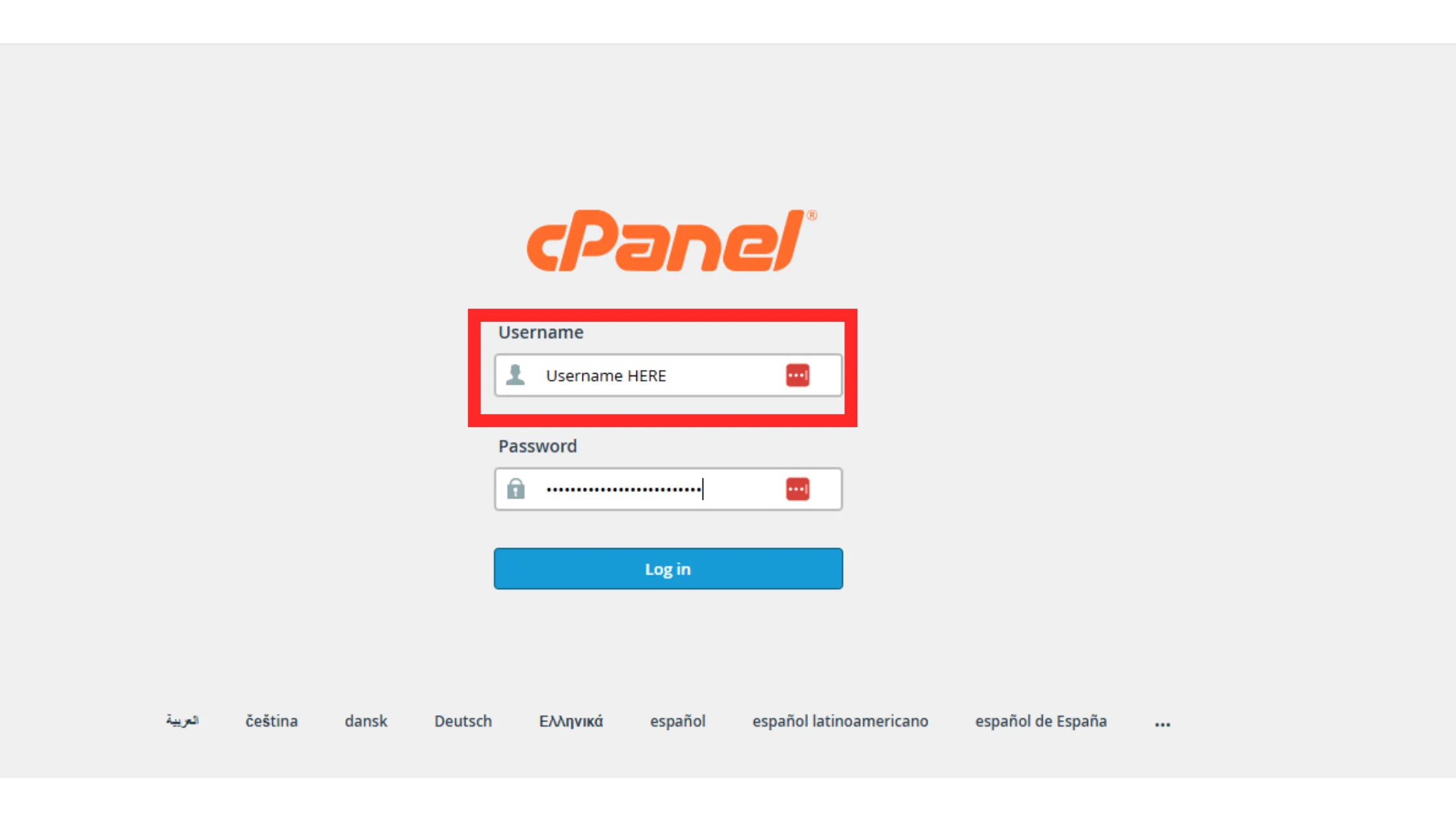
Second, you need your cPanel username.
And here’s something really important to know right away. This username is not the same as your email address or the login you use on your hosting provider’s website. It’s a completely separate username that your hosting company created just for cPanel.
c) Your cPanel Password
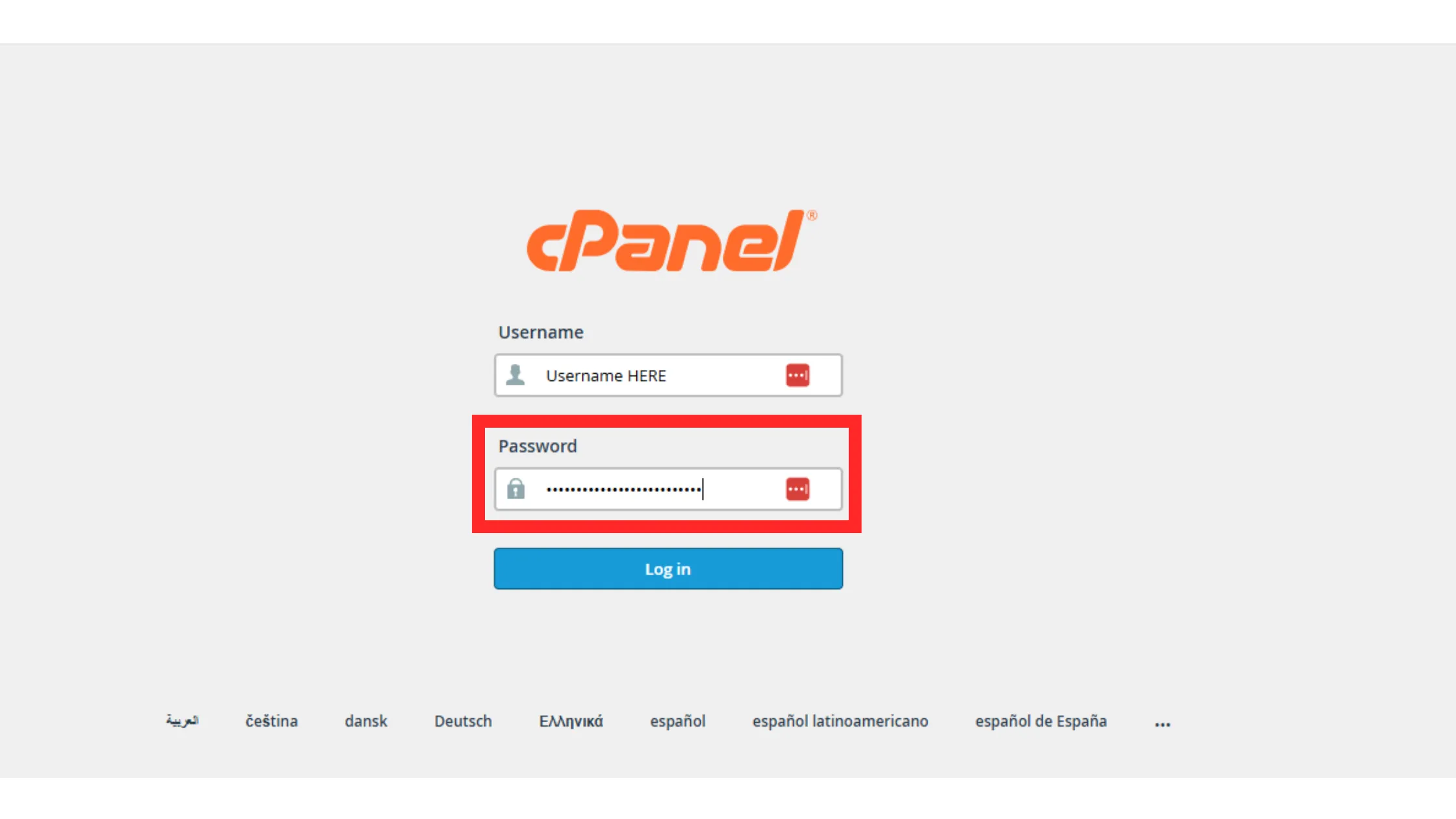
Third, you need your cPanel password.
This was either set by you when you first signed up, or it was sent to you in a welcome email from your hosting provider.
d) A Web Browser
Fourth, you need a working web browser. Chrome, Firefox, Edge, Safari, any of them will work just fine.
Once you have all four of those things sitting in front of you, you’re good to go. Now, let’s look at the three ways you can log in to cPanel.
Method 1: Log In Using the Standard cPanel URL
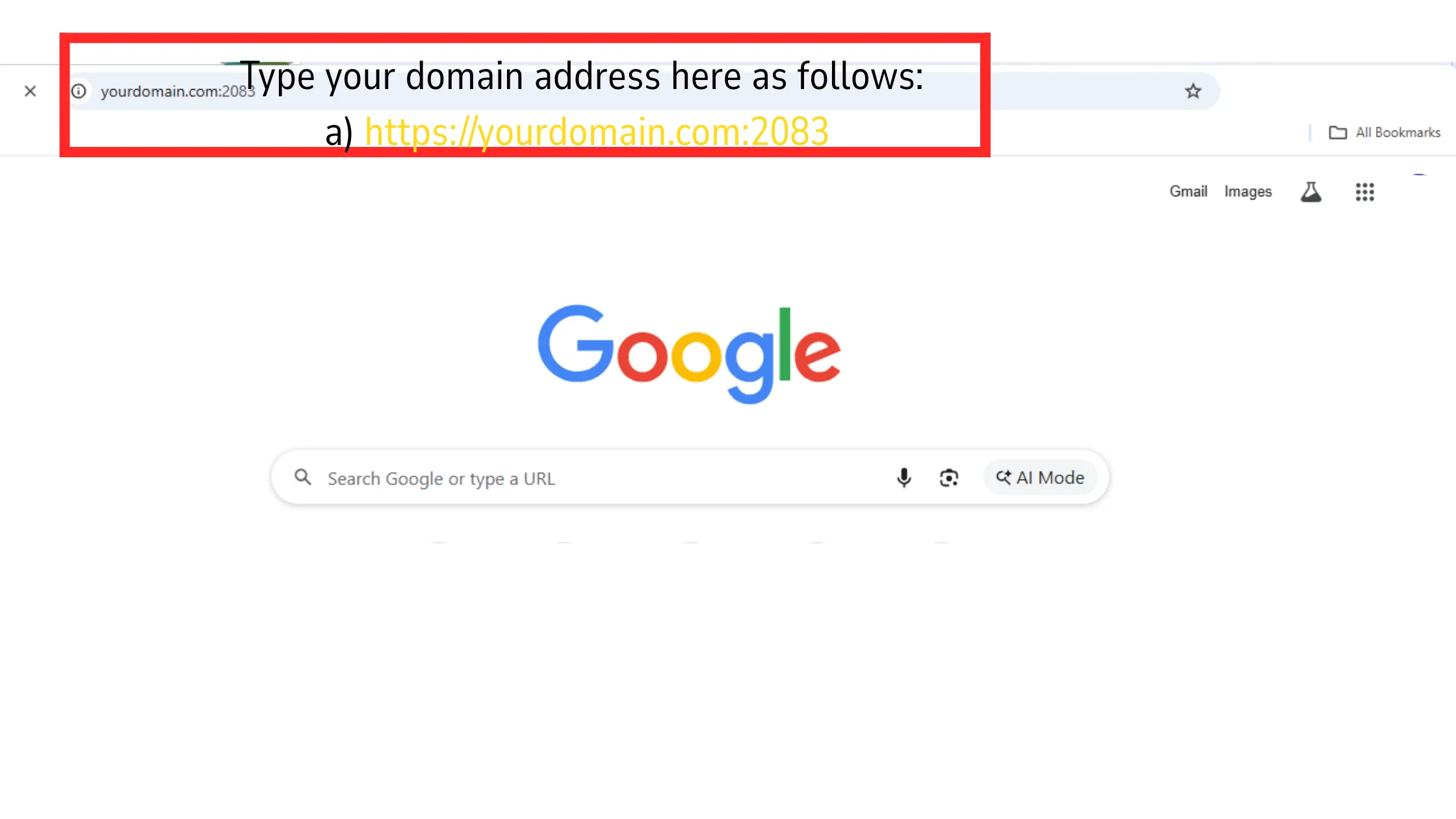
This is the most common way to log in to cPanel, and it’s the one most people use every single day.
Here’s what you do.
Open your browser. Click on the address bar at the very top of the screen. Then type this in:
a) https://yourdomain.com:2083
Replace the words, “yourdomain.com” with your actual website address. So if your website is called bakerycorner.com, you would type https://bakerycorner.com:2083.
Now, you might be wondering what the “:2083” part means. That’s called a port number. Think of it like a specific door into your hosting account. The number 2083 is the secure door that leads straight to cPanel. Your browser needs that number to know exactly where to go.
Some hosting companies also let you reach the login page by typing:
b) https://yourdomain.com/cpanel
Either way, once the login page loads up on your screen, just type in your username and password. Then click the Log In button. If your details are correct, you’ll go straight into your cPanel dashboard.
That’s it. You’re in.
Or use this second method.
Method 2: Log In Through Your Hosting Account Dashboard
Here’s another way to log in to cPanel, and honestly, a lot of beginners prefer this one because it’s even easier.
Start by going to your hosting provider’s website. This could be Truehost, Bluehost, Namecheap, HostGator, or wherever you bought your hosting plan from.
Log in to your account there first.
Once you’re logged in, look around for a section called “Hosting” or “Services.” Find your specific hosting plan listed there. Then look for a button that says something like “Launch cPanel,” “Login to cPanel,” or “One-Click Login.”
Click that button, and just like that, you’re inside cPanel without typing your username or password a second time.
The hosting dashboard does that part for you automatically. This method is really great if you’re someone who keeps forgetting their cPanel login details because you only need to remember your hosting account login instead.
Method 3: Log In Using Your Server’s IP Address
Sometimes your domain name just isn’t working yet. Maybe you just registered it today, and it’s still setting up. This process of the internet learning your new domain’s location is called DNS propagation, and it can take anywhere from a few hours to a couple of days.
During that time, you can still log in to cPanel by using your server’s IP address instead of your domain name.
An IP address looks something like this:
https://123.456.78.90:2083
You just swap out those numbers with your real server IP address. You can find your server IP address in the welcome email your hosting provider sent you when you signed up. It’s also usually visible somewhere inside your hosting account dashboard.
Once you type that into your browser, the same cPanel login page will show up. Enter your username and password, click Log In, and you’re inside. Simple as that.
This method just skips the domain name completely and connects you straight to the server.
What to Do When You Can’t Log In
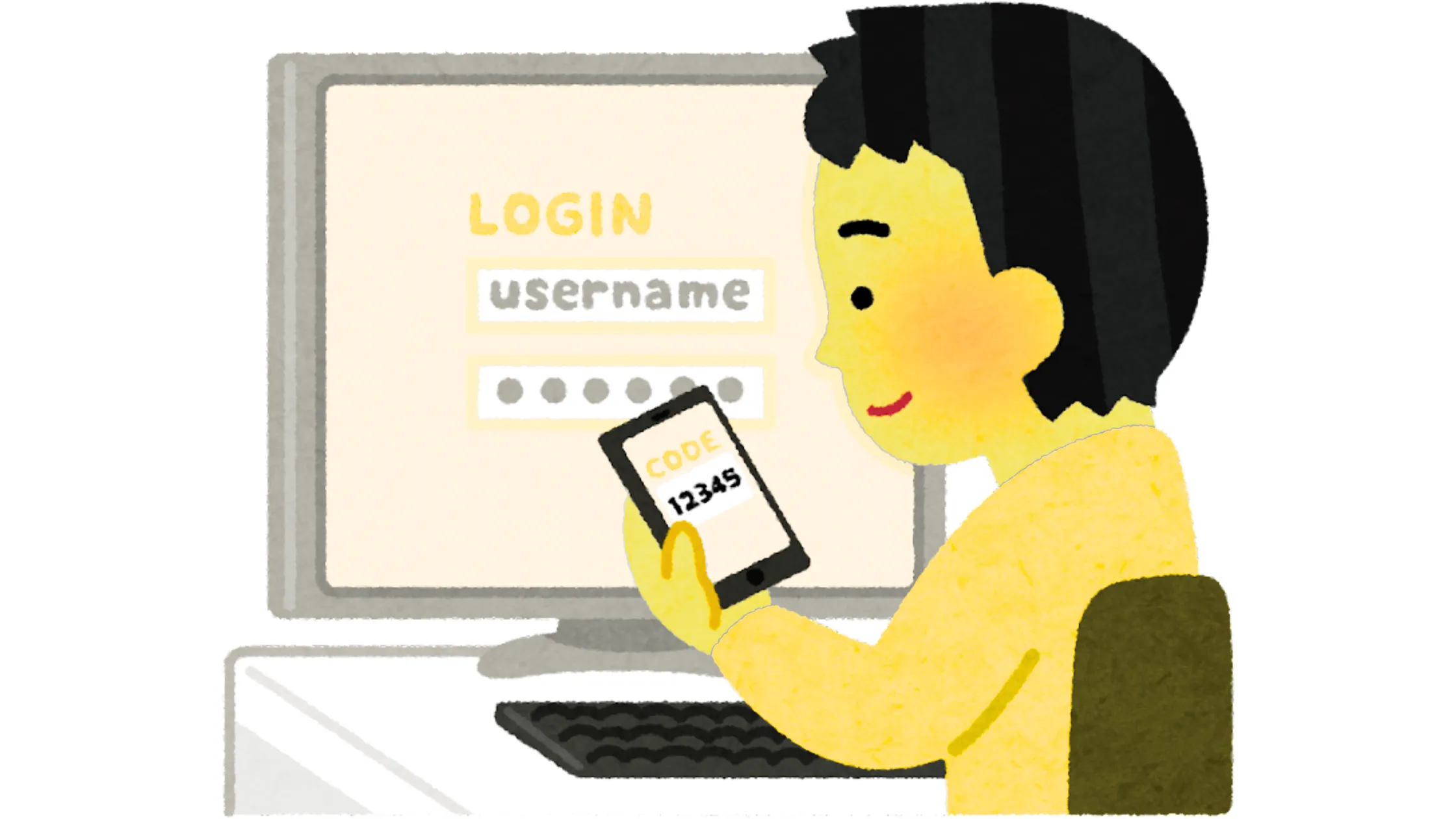
So you’re trying to log in to cPanel, but something keeps going wrong. Here’s the good news. Almost every login problem has a really simple fix.
Let’s go through the most common ones.
1) You forgot your password
This happens to everyone. Just look for the “Forgot Password” link on the cPanel login page and follow the steps. You can also reset your password by going into your hosting account dashboard.
If none of that works, your hosting provider’s support team can reset it for you.
2) You’re using the wrong username
A lot of people make this mistake. When you try using the email or username from your hosting account, but that’s not the same as the cPanel username.
Go back to your hosting welcome email and look specifically for your cPanel username. It’s usually different from everything else.
3) The page just won’t load
If the login page never shows up and your browser just keeps spinning or gives you an error, the problem is probably that port 2083 is being blocked. This happens a lot on office networks and school Wi-Fi systems.
The simplest fix is to switch to a different network, like your home Wi-Fi or your phone’s mobile data. If the page loads fine on a different network, then the original network was blocking the port. You can also ask your hosting provider if there’s another port you can use instead.
4) Your account has been suspended
If your hosting account got suspended because of a missed payment or some other issue, cPanel will be completely blocked until you sort it out. You’ll need to contact your hosting provider, fix whatever the issue is, and then your access will be restored.
5) Too many failed login attempts
If you’ve entered the wrong password too many times in a row, the system locks you out for a little while as a security measure.
All you have to do is wait around 15 minutes and then try again. If you’re still locked out after that, contact your hosting provider and ask them to unblock your IP address.
Access your cPanel
See, logging in to cPanel is not nearly as complicated as it might have looked at first. Once you know what you need and where to go, the whole thing takes less than a minute.
To quickly sum it up, you find your cPanel login URL, you type in your username and password, and you click Log In. That’s the whole process. And if something does go wrong, you now know exactly what to check and how to fix it.
From inside cPanel, you can do so much. You can manage your website files, set up email addresses, work with databases, install WordPress, handle your domains, and a lot more. It’s your website’s command center, and now you know how to get in.
Looking for reliable cPanel hosting? Truehost offers affordable web hosting, fast servers, free SSL certificates, and beginner-friendly hosting plans that work well for websites of all sizes.
Log in to cPanel FAQs
The default cPanel login URL is https://yourdomain.com:2083. Some hosts also use https://yourdomain.com/cpanel. If your domain isn’t working yet, use your server’s IP address with port 2083.
If your cPanel login is not working, most of the time it comes down to a wrong username, wrong password, or a browser cache issue. Try clearing your cache or switching browsers. If it still doesn’t work, contact your hosting provider.
Yes, you can access cPanel without a domain name. Use your server’s IP address followed by:2083 in your browser. The login page will load the same way.
Yes, cPanel login is completely different from WordPress login. cPanel controls your entire hosting account. WordPress login only controls your website content. They have separate login pages and separate credentials.
To find your cPanel username and password, check the welcome email your hosting provider sent you after signing up. You can also find these details inside your hosting client area under your account or plan details.