 Domain SearchInstantly check and register your preferred domain name
 Web Hosting
 cPanel HostingHosting powered by cPanel (Most user friendly)
 WordPress HostingHost your WordPress website with fast, secure, and affordable WordPress hosting in Kenya.
 KE Domains
 Reseller HostingStart your own hosting business without tech hustles
 Windows HostingOptimized for Windows-based applications and sites.
 Free Domain
 Affiliate ProgramEarn commissions by referring customers to our platforms
 Free HostingTest our SSD Hosting for free, for life (1GB storage)
 Domain TransferMove your domain to us with zero downtime and full control
 All DomainsBrowse and register domain extensions from around the world
 .Com Domain
 WhoisLook up domain ownership, expiry dates, and registrar information
 VPS Hosting
 Managed VPSNon techy? Opt for fully managed VPS server
 Dedicated ServersEnjoy unmatched power and control with your own physical server.
 Website Builder
 Online Store BuilderLaunch a professional e-commerce store without writing code.
 Web Design ServiceGet a custom-designed website tailored to your brand and goals. From just KES 15,600
 BlogRead our guides on web hosting, online business, digital marketing, and more
 SupportOur support guides cover everything you need to know about our services
 ContactContact us via chat or email
If you’re setting up a website, you’ve probably seen the term DNS tossed around.
Maybe during domain registration, web hosting, or when trying to make email work.
And honestly, it can feel like a confusing piece of technical jargon that everyone expects you to understand.
But what is DNS exactly? How does it work? And why should you care?
In this guide, you’ll learn what DNS means, how it works, and see real DNS examples that simplify all the tech jargon.
By the end, you’ll be confident handling your own DNS records without calling for help.
What is DNS?
DNS stands for Domain Name System.
It is the technology that connects domain names (like example.com) to the actual servers that store your website or email data. Without it, you would have to memorize long strings of numbers just to visit a website.
Here’s a simple way to understand it:
DNS is like your phone’s contact list. Instead of remembering numbers (IP addresses), you just click on names (domain names).
So when someone types marketing.ke, DNS tells their browser where that website lives, usually by pointing to an IP address like 41.89.12.130.
Why DNS is important for your website
DNS is basically the foundation of your online presence. Without it, nothing works. Here’s what DNS makes possible:
- Makes your website accessible: Visitors can reach your site using your domain name instead of a complex IP address.
- Enables professional email: Set up emails like
[email protected]that look credible and build trust. - Connects to third‑party services: Easily link your domain to platforms like Shopify, Google Workspace, Mailchimp, or any other tool you use.
- Supports security features: Enables SSL certificates, so your site shows “HTTPS” and visitors feel safe.
- Allows subdomains: Create
blog.yourdomain.com,shop.yourdomain.com, or any other section without needing a separate domain. - Gives you full control: Point your domain to any hosting provider, switch services, or manage email routing on your own terms.
Without DNS, your domain name is just a label, it doesn’t know where to go or what to show. With it, you have the power to build, scale, and manage everything under your own brand.
How DNS works step-by-step
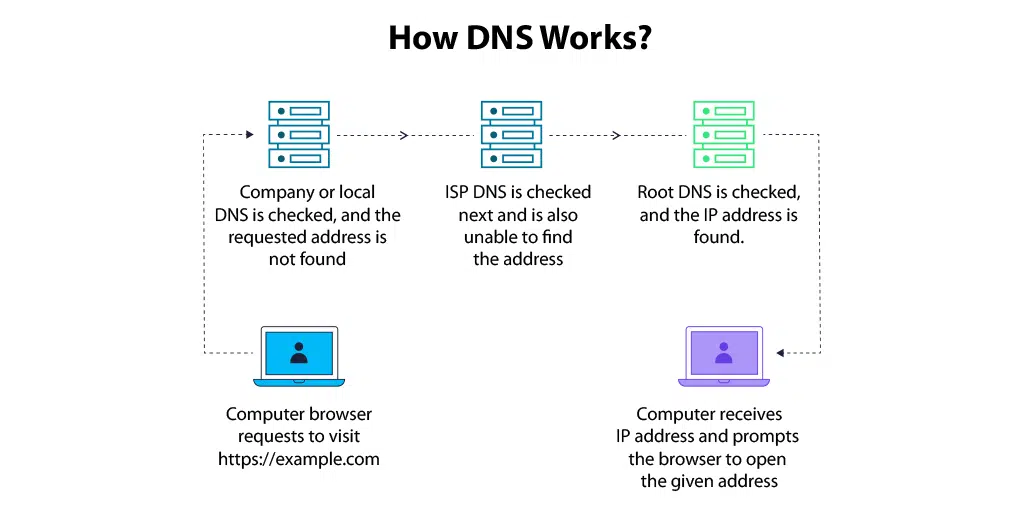
When you type a domain name into your browser, a lot happens behind the scenes, all in milliseconds. Here’s a simple breakdown of what the DNS system does to connect you to the right website.
a) You enter a domain name
You type something like calculator.co.ke into your browser’s address bar and hit Enter.
b) The browser asks for help
Your browser doesn’t know where that website lives, so it sends a request to a DNS resolver (usually provided by your internet provider or a service like Google DNS).
c) The DNS system finds the matching IP address
The resolver checks several DNS servers, finds the record that maps your domain to its IP address (like 102.67.152.80), and sends that information back to your browser.
d) Your browser connects to the server
With the IP address in hand, your browser goes directly to the server where the website is hosted and requests the page.
e) The website loads
The server sends back the website files, and your browser displays the page you see.
All of this happens in milliseconds. The entire process, from typing the domain to receiving the IP, is called a DNS lookup.
DNS examples you’ll actually use
Let’s break down common DNS records you’ll manage for your domain.
| Record type | What it does | Example |
|---|---|---|
| A | Points your domain to a server IP | A → calculator.co.ke → 102.67.152.80 |
| CNAME | Points a subdomain to another domain | blog.moneyspace.ke → moneyspace.ke |
| MX | Directs your domain’s email to a server | MX → mailhost.google.com |
| TXT | Adds text info like email verification or SPF | TXT → v=spf1 include:_spf.google.com |
| NS | Defines which DNS servers control your domain | NS → ns1.cloudoon.com |
Applications of DNS
1) Connecting your domain to hosting
Let’s say you’ve bought your domain from Truehost Kenya, but you’re hosting your site on Hostinger. You’ll need to update the A record to point to Hostinger’s server IP.
A → yourdomain.co.ke → 45.90.120.87
Now, when someone visits your domain, DNS tells the browser to fetch the site from Hostinger.
2) Setting up business email with Google Workspace
You want to use Gmail with your domain, like [email protected].
You’ll add:
- MX records from Google
- A TXT record to verify domain ownership
- Optional SPF, DKIM, and DMARC for better email deliverability
MX → ASPMX.L.GOOGLE.COM (priority 1)
TXT → v=spf1 include:_spf.google.com ~all
Without correct DNS setup, your emails might never arrive, or get flagged as spam.
3) Using subdomains for services
Say you are building tools under a subdomain like:
tools.moneyspace.ke
You could point this subdomain to another server or platform using a CNAME:
CNAME → tools.moneyspace.ke → moneytools.hosting.net
This keeps things organized while separating services like blogs, stores, or apps.
Where to manage DNS records
You usually update DNS through your:
- Domain registrar (like Truehost, GoDaddy, or Namecheap)
- Hosting provider (like HostPinnacle, Bluehost, etc.)
- DNS-only providers (like Cloudflare)
Every provider has a control panel where you can edit your domain’s DNS zone. Just find the “Manage DNS” section, and you’ll see a list of existing records.
How long do DNS changes take?
This is called DNS propagation, and it usually takes:
- 5 minutes to 1 hour for most changes
- Up to 48 hours globally, depending on ISP caches
So if your site or email doesn’t update right away, don’t panic. Give it time.
Use Truehost Kenya for easy DNS control
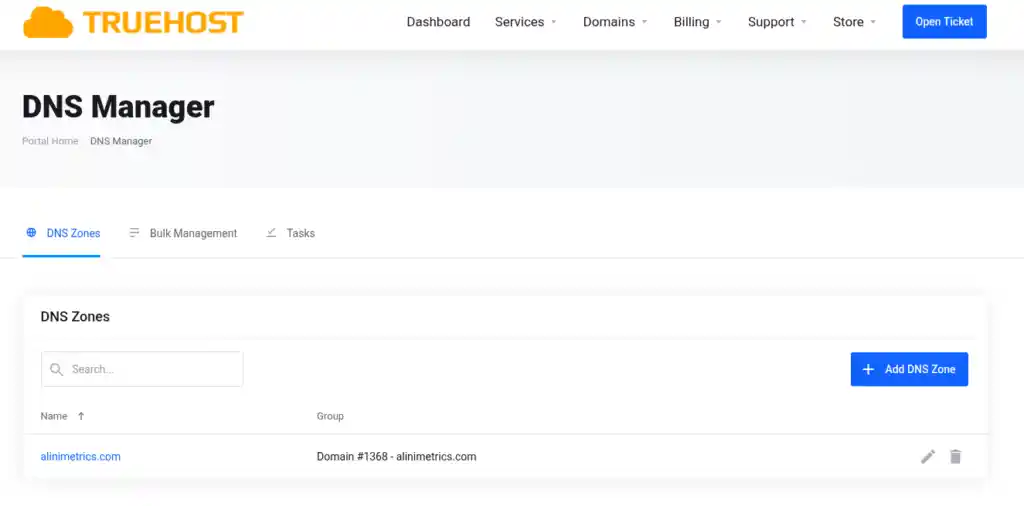
If you want a domain registrar that gives you full DNS control, check out Truehost Kenya.
You’ll get:
- Free DNS management
- A clean dashboard to add, edit, or delete DNS records
- Easy guides for email setup, subdomains, and hosting
- Live chat support if you ever get stuck
Final thoughts on DNS
DNS may look complex, but once you get the basics, it becomes one of your most powerful tools. It controls how your domain connects to your website, emails, and services.
Start small. Update one record. Test it. Once you get used to it, managing your online presence becomes a lot easier.
Want help with DNS for your domain? Drop the domain name and what you’re trying to connect. I’ll walk you through the exact steps.